
Spyware response guide · fact-checked July 14, 2026
How to Detect, Remove and Prevent Spyware
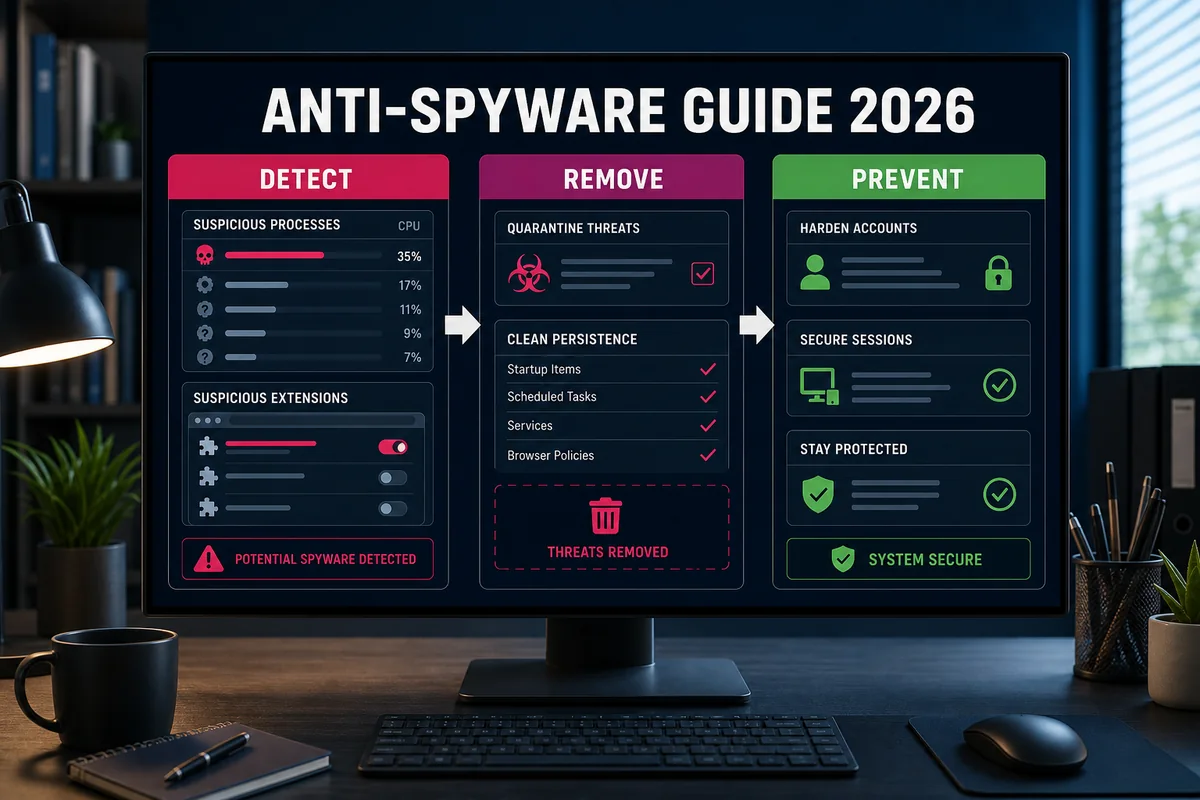
A hot phone, a slow PC or a strange login is a clue—not proof of spyware. Use this guide to check the signal, remove a real infection safely and close the accounts an intruder may still control.
If money, work data or personal safety may be at risk: stop using the suspected device for passwords and private messages. Use a different trusted device to contact your bank, employer or a domestic-violence advocate. If an abusive person may be monitoring you, don't abruptly delete an app until you have considered what they might notice.
What “spyware” means in 2026
Spyware is software that collects information or observes activity without informed permission. The label covers several different problems: a keylogger capturing passwords, an infostealer taking browser cookies, a browser hijacker redirecting searches, a malicious extension reading pages, a remote-access tool used without consent, or a mobile monitoring app reporting location, messages and calls.
Stalkerware is the personal-surveillance form of this problem. It's commonly installed by someone who can physically handle an unlocked phone or knows its passcode. The technical cleanup may be simple; the human risk may not be. The FTC’s stalkerware guidance says to consider safety planning before removal because a person who loses access may escalate their behavior.
Modern antivirus and anti-malware products generally overlap. “Anti-spyware” is now more useful as a capability than as a separate product category. A good primary security tool should detect broad malware families, potentially unwanted programs and suspicious behavior; a compatible on-demand scanner can provide a second opinion. Our commercial shortlist lives on the separate best anti-spyware software page. This guide is about response, not rankings.
Device compromise
Malicious code, extension, profile or monitoring app runs on the device.
Account compromise
An attacker reads cloud data through a stolen password, session or recovery method.
Shared access
Location, photos, calendars or family services are still shared with a person you no longer trust.
Physical tracker
An AirTag or other Bluetooth tracker is a different threat and needs the platform’s tracker alerts.
Spyware signs are clues, not a diagnosis
Unexpected battery drain, heat, data use, freezes or crashes can come from a normal software update, a degraded battery, weak cellular coverage or a badly written legitimate app. Pop-ups may be a website notification rather than installed malware. One symptom isn't enough to identify spyware.
| Signal | Why it deserves attention | What else can cause it |
|---|---|---|
| Unknown app, browser extension, device administrator or configuration profile | Persistence or broad permissions may have been granted | Employer management, accessibility software or forgotten legitimate tools |
| Security protection disabled or scan exclusions added | Malware sometimes weakens detection | Another antivirus, an administrator policy or troubleshooting change |
| Camera/microphone indicator or permission use at an unexpected time | An app may be accessing a sensitive sensor | Call, voice assistant, browser tab or conferencing app still active |
| Logins, forwarding rules, recovery methods or linked devices you don't recognize | The account may be compromised even if the device is clean | Old device, travel IP, VPN or a service integration you authorized |
| Search redirects, injected ads or a changed homepage | Common browser-hijacker/PUP pattern | Allowed site notifications or an unwanted but non-malicious extension |
| Another person knows private details they shouldn't know | Could indicate device, account, sharing or physical access | A shared account, cloud album, family plan, mutual contact or prior access |
The strongest evidence is a combination: an unknown high-privilege app plus disabled Play Protect, an unfamiliar MDM profile plus unexplained account access, or a scanner detection that names a file and threat family. Record the app name, publisher, path, permissions, detection name and time before making irreversible changes—if collecting that evidence is safe.
What to do first when compromise is plausible
- Move sensitive communication to a safer device. Don't change every password on a device that may be recording keystrokes or sessions.
- Decide whether this is a personal-safety case. If a partner, ex-partner or family member may be monitoring you, use a trusted phone or computer to seek support and build a safety plan first.
- Preserve useful evidence. Photograph or record detections, unknown apps/profiles, account sessions and sharing settings. Don't handle suspected criminal evidence more than necessary.
- Contain active theft. If you see live fraudulent transactions or business-data access, contact the bank or employer immediately. Disconnect a computer from networks if active exfiltration is likely, but understand that going offline can alert a monitor.
- Update before scanning where practical. Install current OS and security definitions from official update mechanisms. Don't download a “cleaner” from a pop-up.
- Scan and remove using the platform sequence below. Record what was quarantined. Avoid manually deleting random system files or registry entries.
- Recover accounts from the clean device. Revoke sessions, fix recovery details, change unique passwords and enable phishing-resistant MFA where available.
- Monitor and escalate. Persistent detections, privileged business compromise, targeted commercial spyware or renewed access after cleanup warrants professional incident response or a clean reset/reinstall.
The safe removal sequence
Don't begin by installing three always-on antivirus products. Real-time engines can conflict, generate noise and make troubleshooting harder. Start with the platform’s built-in protection or one reputable primary security suite, then use one compatible on-demand second opinion if the result is unclear.
1. Verify
Review installed apps, extensions, profiles, permissions, startup items and security status. Run a current full scan.
2. Remove
Quarantine confirmed detections and uninstall unknown high-privilege apps through normal settings.
3. Recheck
Restart, update, scan again and confirm the unwanted item or setting didn't return.
4. Recover
Revoke cloud sessions and sharing. Rotate passwords from a clean device after the keylogger risk is gone.
If the same threat returns, protection can't stay enabled, administrator controls are unexplained, or the scanner can't finish, stop improvising. Back up irreplaceable documents without copying programs, then use an official recovery path or a qualified technician. For a business device, follow the organization’s incident-response process instead of wiping evidence yourself.
How to remove spyware from Windows 11 or 10
- Open Windows Security → Virus & threat protection → Protection updates and check for updates.
- Under Scan options, run a Full scan. Review each detection name and affected path before allowing or restoring anything.
- If malware returns or appears to hide while Windows runs, save your work and use Microsoft Defender Offline scan. Microsoft explains that it restarts into a trusted environment so persistent threats have less opportunity to conceal themselves; follow the current Defender malware-removal procedure.
- Remove unknown browser extensions, reset unauthorized search/homepage changes and review Settings → Apps → Installed apps. Don't uninstall a program solely because its name is unfamiliar—verify the publisher and installation context.
- Check that real-time protection, cloud-delivered protection and tamper protection are active. Investigate exclusions you didn't create.
- Restart and scan again. If detections or redirects return, use a reputable on-demand second opinion or back up documents and perform an official clean Windows reinstall.
The Windows Malicious Software Removal Tool isn't a full anti-spyware solution. Microsoft says it removes specific prevalent threats and separately recommends Defender Offline or Microsoft Safety Scanner for broader detection. Likewise, old instructions built around ComboFix, HijackThis or random registry deletion are inappropriate for a general consumer guide: a mistaken change can make Windows unbootable while leaving account compromise untouched.
How to check and clean a Mac
macOS already includes Gatekeeper, Notarization and XProtect. Apple’s current macOS malware-protection documentation says XProtect receives signatures independently from normal system updates and can block or remediate known malware. That doesn't make every Mac immune or prove that an unexpected prompt is harmless.
- Install macOS updates and restart. Don't bypass a Gatekeeper warning merely because a website tells you to.
- Review System Settings → General → Login Items & Extensions. Remove only items you can identify as unwanted.
- Review browser extensions, notification permissions and search settings. Many “Mac virus” pop-ups are browser notifications or scareware pages, not system detections.
- Check Privacy & Security permissions for Accessibility, Screen & System Audio Recording, Full Disk Access, Camera, Microphone and Location. An unknown app with several of these deserves investigation.
- On a managed or previously managed Mac, review device-management profiles in System Settings. Don't remove an employer/school profile from their device without authorization.
- Run one reputable Mac security scanner if symptoms or permissions remain suspicious. If persistence returns after removal, preserve evidence and consider a clean erase/reinstall or professional help.
How to detect and remove spyware on Android
Menu names vary by phone maker, but the investigation targets are consistent: installed apps, Accessibility services, device-admin apps, notification access, VPNs, “install unknown apps,” battery/data use and Google-account sessions. A hidden launcher icon doesn't hide an app from the full Settings app list.
- Open the Play Store, tap the profile icon, choose Google Play Protect and run a scan. Keep “Scan apps with Play Protect” enabled. Google says Play Protect checks installed apps periodically and can warn, disable or remove potentially harmful apps.
- Review all installed apps—not only the home screen. Sort by recently installed or last used if the phone supports it. Verify unfamiliar package names before removal.
- Review special access: Accessibility, Device admin apps, Notification access, Usage access, Display over other apps, VPN and install-unknown-apps permission. Stalkerware may rely on one or more of these.
- If an unwanted app can't be uninstalled, first revoke its Device admin or Accessibility privilege, then uninstall it. Capture evidence before this step when safety or a police report may matter.
- Update Android and apps, restart and scan again. Review Google Account → Security → Your devices, recent security activity, third-party connections and recovery options from a clean device.
- If monitoring persists, use the manufacturer’s official factory-reset process. Reinstall apps manually from trusted sources instead of restoring every old APK or device setting.
Deleting stalkerware stops future collection only if removal succeeds. It can't retrieve copies already uploaded to someone else’s dashboard. That's why account/session recovery, safety planning and a new device PIN unknown to the other person are part of the cleanup.
What anti-spyware can and can't do on iPhone
An ordinary iPhone security app doesn't receive desktop-style access to scan every other app or all of iOS. Many products sold as “iPhone antivirus” mainly provide malicious-site blocking, breach alerts, VPN or identity features. For most people, the useful checks are iOS updates, Apple Account access, sharing, permissions, profiles and signs of jailbreak or highly targeted compromise.
- Install the latest iOS update available for the device. Remove apps you don't recognize after recording their details.
- Open Settings → Privacy & Security → Safety Check on iOS 16 or later. Apple’s Safety Check guide explains how Manage Sharing & Access reviews people/apps individually and Emergency Reset quickly stops sharing. Consider personal-safety consequences before using either.
- Tap your name in Settings and inspect devices signed in to the Apple Account. Remove devices you don't own, correct trusted phone numbers/recovery contacts and change the account password from a safe device.
- Review Location Services, Camera, Microphone, Photos, Contacts, Bluetooth and Local Network permissions. Check Settings → General → VPN & Device Management for an unknown VPN or management profile.
- Investigate an unexpected jailbreak, repeated Apple threat notifications or credible evidence of targeted commercial spyware with Apple Support or a specialist. Lockdown Mode is an extreme optional protection for the small number of people targeted by sophisticated attacks, not a routine malware scanner.
- When evidence persists, preserve what you need and erase the iPhone through Apple’s official process. Set it up as new where feasible; restoring all settings can reintroduce unwanted configuration even when the operating system itself is clean.
Device cleanup is only half the response
Infostealers target browser sessions, saved passwords and authentication tokens. Stalkerware may expose messages before it's removed. A clean scan therefore doesn't prove that cloud accounts are safe.
- From a clean device, start with primary email, Apple/Google/Microsoft account, password manager, banking and work accounts.
- Sign out other sessions and remove unknown devices, app passwords, API access and third-party connections.
- Replace reused passwords with unique passwords; don't merely add one character.
- Correct recovery email addresses, phone numbers, forwarding rules and mailbox delegates.
- Enable MFA. Prefer a security key or passkey where the service supports it; protect the mobile carrier account with a PIN.
- Review payment activity, credit alerts, cloud-sharing links and family/location sharing.
- Monitor for renewed access. A second incident may mean an unrecovered account or person with physical access, not necessarily surviving malware.
How to choose a legitimate anti-spyware scanner
- Vendor identity and official download domain are clear
- Current OS versions are explicitly supported
- Independent malware test evidence is recent and scoped
- Detections name the file/app and action taken
- Pricing, renewal and cancellation terms are visible
- Uninstall and support documentation exists
- A browser pop-up claims it scanned the whole device
- A countdown demands immediate payment or a phone call
- “Hundreds of infections” are cookies or harmless registry entries
- The installer asks to disable existing protection without explanation
- No verifiable company, policy or official support route exists
- Cracked tools, unofficial APKs or remote-control support are required
For current product comparisons, read our anti-spyware shortlist, best antivirus guide and Android security guide. A product can be a useful second-opinion scanner without being the best choice for always-on protection.
Prevent spyware and stalkerware from returning
- Keep the operating system, browser and apps on automatic updates.
- Use a device PIN/passcode the other person doesn't know; disable lock-screen notification previews if privacy requires it.
- Install software only from the vendor’s official site or the platform store, and keep Play Protect enabled on Android.
- Review extensions, high-risk permissions, login items, device administrators and management profiles quarterly.
- Use unique passwords in a password manager and enable MFA; review active sessions after a relationship, job or device ownership changes.
- Don't grant Accessibility, Full Disk Access, Screen Recording or Device Admin just to make an unsolicited “cleaner” work.
- Keep offline or versioned backups of important files. Test that recovery works before an incident.
- For family or employee monitoring, use transparent tools, informed consent and the least access needed—never a hidden consumer surveillance app.
Anti-spyware FAQ
How can I tell if spyware is definitely installed?
Symptoms alone can't prove it. Strong evidence includes a scanner detection, an unknown high-privilege app or profile, disabled protection plus a suspicious process, or verified account/session access you didn't authorize. Record the exact name, path, permissions and time.
Does antivirus remove spyware?
Most current antivirus and anti-malware products detect many spyware, infostealer, keylogger, stalkerware and potentially unwanted program families. Coverage differs, so keep one primary protection tool updated and use a compatible on-demand second opinion when needed.
Should I change passwords before or after removing spyware?
Use a separate trusted device to secure urgent accounts immediately. If you must use the suspected device, remove the infection first; otherwise a keylogger or stolen browser session may capture the new credentials. Revoke active sessions as well as changing passwords.
Will a factory reset remove spyware?
A properly completed official factory reset or clean OS reinstall removes most consumer spyware, but it doesn't undo stolen data or remove an attacker from cloud accounts. Avoid restoring unknown apps, profiles or full old settings, and recover accounts separately.
Can an iPhone antivirus app scan the whole phone?
No ordinary iPhone app receives the same whole-system and cross-app access as desktop antivirus. Useful iPhone checks focus on iOS updates, Safety Check, Apple Account devices, app permissions, VPN/MDM profiles and professional help for credible targeted-spyware evidence.
What should I do if I suspect stalkerware from a partner?
Use a safer device to contact a trusted person or domestic-violence advocate and make a safety plan before removal. Deleting the app, changing sharing or going offline may alert the person monitoring it. Preserve evidence only when doing so is safe.
Is a second-opinion scanner better than two antivirus programs?
Usually. Two simultaneous real-time antivirus engines can conflict. Keep one primary real-time product and, if compatible, use a reputable on-demand scanner for a second opinion rather than stacking always-on engines.
When should I get professional help?
Escalate when protection won't stay enabled, detections return after reboot, business or financial data is involved, you receive a credible targeted-attack warning, evidence may be needed legally, or personal safety makes normal removal risky.