
How to Remove Malware From a Mac Safely in 2026
Mac malware is removable, but the right response is wider than dragging one app to Trash. You need to stop account theft, remove persistence, undo browser changes, scan with current tools and decide whether the Mac is trustworthy enough to keep using.
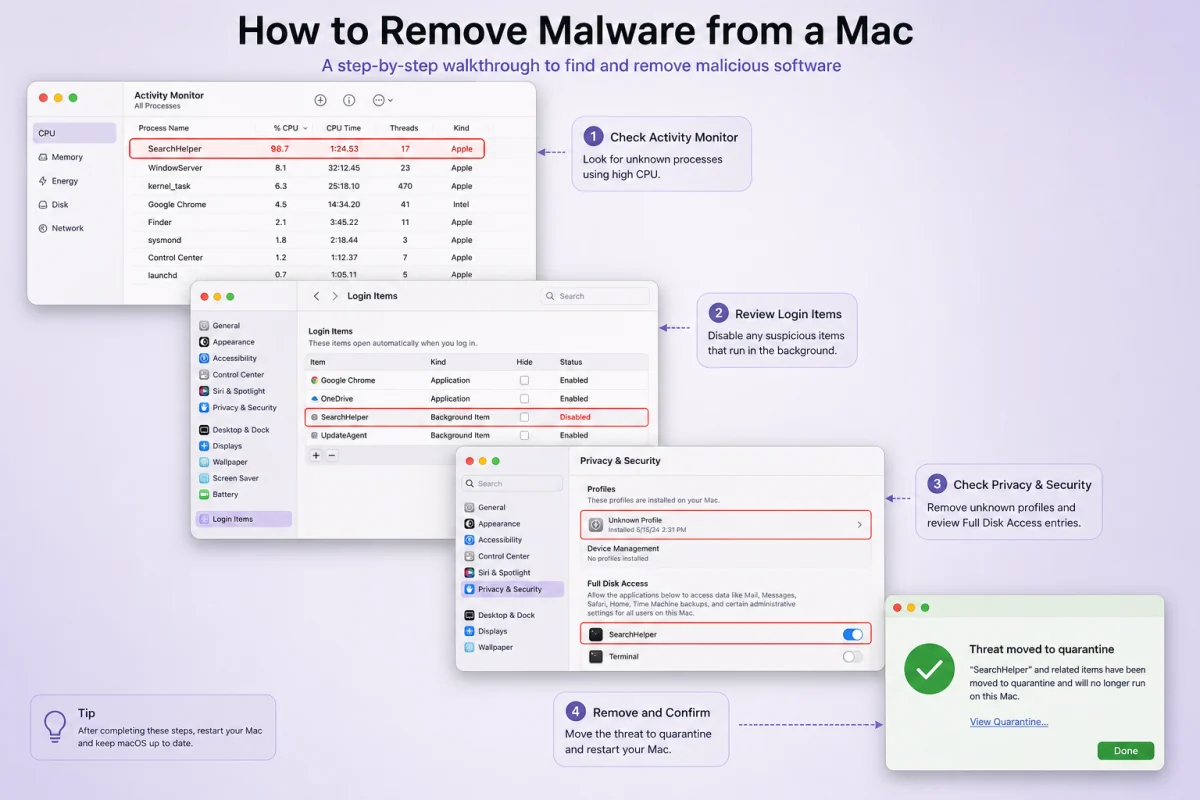
Quick answer: disconnect the Mac if theft is active, secure important accounts from a different clean device, update macOS, remove suspicious apps and persistence, reset affected browsers, then run a reputable current scan. Erase and reinstall macOS when privileged malware ran or trust can't be restored.
First decide whether this is an annoying app or an account incident
Pop-ups and changed search settings often point to adware or a rogue extension. A fake installer, cracked app, pasted Terminal command, unknown configuration profile, password prompt or login alert can signal deeper access. If banking, email, password-manager, crypto or work credentials may have been exposed, stop signing in on the suspect Mac.
- Disconnect networking. Turn off Wi-Fi and unplug Ethernet if the threat is still communicating or remote control is suspected.
- Use a clean device for accounts. Secure primary email, revoke sessions and change critical credentials in that order.
- Preserve evidence for work devices. Contact the administrator before deleting files or erasing the Mac.
- Back up documents carefully. Copy personal data, not unknown apps, installers, scripts or entire system settings.
Apple's platform security guide explains how Gatekeeper, notarization, XProtect and background remediation work together. Those layers reduce risk; they don't prove that every item a user explicitly approved is safe.
Remove the app, then check how it returns
- Update macOS first. System updates also deliver security and XProtect improvements.
- Open Activity Monitor. Quit an obviously related malicious process only when you can identify it; random force-quitting can destroy work or hide evidence.
- Delete the unwanted app properly. Use its legitimate uninstaller when it installed system extensions; otherwise remove it from Applications.
- Review Login Items & Extensions. In System Settings → General, remove unfamiliar login items and background permissions.
- Check Profiles or Device Management. A personal Mac shouldn't have an unknown management profile controlling certificates, proxy settings or software.
- Review privacy permissions. Revoke unfamiliar Full Disk Access, Accessibility, Screen Recording, Input Monitoring and Automation entries.
- Restart in Safe Mode if removal is blocked. Follow Apple's Apple silicon or Intel Safe Mode steps.

Undo browser persistence and stolen access
Remove extensions you didn't deliberately install, including ones with broad “read and change all data” access. Check the default search engine, startup pages, notification permissions, proxy settings and installed web apps. Sync can restore a bad extension, so review the synced account and other devices.
- Safari: Settings → Extensions, Websites and Privacy
- Chrome or Chromium: Extensions, Site settings, Search engine and Reset settings
- Firefox: Add-ons and themes, Permissions, Home and Refresh Firefox if needed
- Every browser: revoke unfamiliar sessions and remove unknown connected applications
If browser passwords or cookies may have been stolen, a reset isn't enough. From a clean device, sign out all sessions, change the primary email and password-manager credentials, then rotate important passwords. Our infostealer recovery order covers cookies, MFA and developer secrets.

Scan with current definitions, then verify the state
Run one reputable, macOS-compatible scanner after the system update. Give Full Disk Access only when the vendor documents why it's needed, and remove the scanner cleanly if you don't keep it. A second on-demand scan can be useful; two continuous engines aren't.
| Check | Clean result | If it fails |
|---|---|---|
| Security update | macOS and background security data current | Resolve update errors before normal use |
| Login and background items | Only recognized software | Remove the parent app or use its uninstaller |
| Privacy permissions | No unknown high-impact access | Revoke, investigate and restart |
| Browser | No forced extension, proxy or notifications | Reset profile or create a clean one |
| Accounts | Sessions, recovery methods and rules recognized | Continue containment from a clean device |
| Scanner | No active detections after reboot | Escalate to erase/reinstall or professional response |
Don't use an absence of scan detections as the only proof. Check whether the original symptom returns after a reboot and whether account logs show continued access.
Back up the right data without preserving the infection
If there's no known-good backup, copy irreplaceable documents, photos and project files to a newly prepared external drive. Avoid copying applications, package installers, browser profiles, configuration folders, shell scripts or unknown archives merely for convenience. Disconnect the drive after the copy and scan it before restoring to a clean system.
Time Machine is valuable for recovery, but a complete restore from a snapshot made after compromise can recreate malicious login items or browser state. Prefer a snapshot from before the suspected event, then update macOS and reinstall applications from known publishers. Keep the later backup only as a quarantined source for missing documents.
Mac malware that targets developer workstations
Developers should rotate more than website passwords. Review GitHub or GitLab sessions, personal access tokens, SSH keys, package-registry tokens, cloud credentials, signing certificates and `.env` secrets. A malicious project can execute through a package install script even when the visible application folder looks clean.
When erasing the Mac is the safer choice
Erase and reinstall when malware ran with administrator privileges, unknown profiles or system extensions remain, remote control occurred, a stealer exposed broad secrets, or repeated cleanup doesn't produce a stable state. Use macOS Recovery and Apple's current erase instructions. Restore documents from a known-good backup; reinstall applications from their publishers instead of restoring the compromised system wholesale.
After reinstalling, update fully before restoring files. Rotate credentials and sessions even if the disk was erased—data already exfiltrated isn't recovered by a clean OS.

Frequently asked questions
Can Macs get malware?
Yes. macOS includes strong built-in controls, but malicious apps, extensions, scripts, adware and credential stealers still target Mac users.
Does Apple have built-in antivirus?
Yes. XProtect, Gatekeeper, notarization and background remediation are built into macOS. They complement safe installation choices and account security.
Will deleting a suspicious app remove all malware?
Not always. Check login items, profiles, extensions, high-impact permissions, browsers and accounts for persistence or stolen access.
Should I use Safe Mode to remove Mac malware?
Safe Mode can stop some third-party components loading and make removal possible. It's a troubleshooting step, not proof that the Mac is clean.
Do I need to erase my Mac?
Erase when privileged or persistent compromise makes trust uncertain, or cleanup repeatedly fails. Work devices may require evidence preservation first.
Should I change passwords after Mac malware?
Yes if credential or session theft was possible. Use a clean device, revoke sessions first and secure primary email before lower-value accounts.
Bottom line
A clean Mac is a system, browser and account outcome—not a single scan result. Remove persistence, close stolen sessions and reinstall when the evidence doesn't support trust.