
How to Remove Malware From Windows 11 in 2026
Start with containment, not random cleanup tools. Windows 11 already includes a useful escalation path: update Defender, scan normally, use Microsoft Defender Offline, check persistence and accounts, then reset or reinstall if you can't rebuild trust.
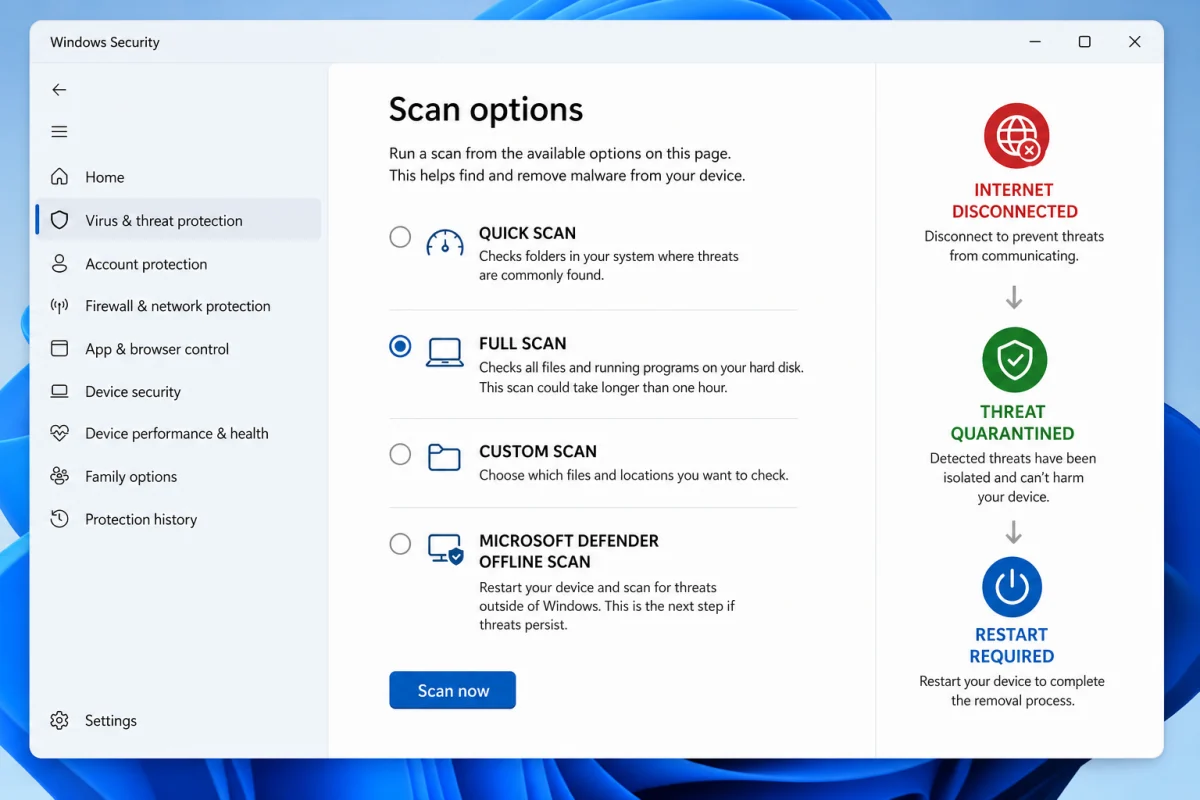
Quick answer: take the PC offline if compromise is active, use another device to secure high-value accounts, update Windows Security, run full and offline scans, remove persistence and browser changes, then verify after reboot. Reinstall Windows from trusted media when administrator-level or credential-stealing malware makes the result uncertain.
Contain the problem before trying to clean it
- Disconnect Wi-Fi and Ethernet. Do this immediately for remote-control, ransomware, data theft or rapidly multiplying alerts.
- Stop sensitive logins. Don't type a fresh banking or email password into the suspect PC.
- Disconnect backup drives. Protect clean, recoverable copies from ransomware and destructive changes.
- Call the administrator on a work PC. Incident evidence, legal duties and central response come before home cleanup.
If Windows is stable and the symptom is only a blocked download, review the alert before taking the machine offline. A detection can show that protection worked. Look at the threat name, path, action and time in Protection history instead of assuming infection.
Use the Windows 11 scan ladder
- Update Windows. Install current system and security-intelligence updates when it's safe to reconnect.
- Check the active provider. In Windows Security → Virus & threat protection, confirm which antivirus is responsible.
- Run a full scan. A quick scan is useful for common persistence; a full scan covers more files and takes longer.
- Review Protection history. Confirm what was quarantined and don't restore an item merely because an app stopped working.
- Run Microsoft Defender Offline. The PC restarts and scans outside the normal Windows environment, which helps against malware that hides while Windows is running.
- Add one second opinion. Use a reputable on-demand scanner after the primary engine finishes; don't enable a second live engine.
Microsoft publishes the exact Defender Offline workflow. Save work first: the scan requires a restart and normally takes about 15 minutes, though device and file count vary. Microsoft's Malicious Software Removal Tool documentation makes an important distinction: MSRT removes only specific prevalent active malware and doesn't replace a current antivirus or comprehensive scanner.

Check what starts, controls the browser and weakens protection
- Settings → Apps → Installed apps: remove recently installed, unrecognized software
- Task Manager → Startup apps: disable unknown entries and identify their publisher
- Windows Security: remove unauthorized exclusions and turn Tamper Protection back on
- Browser extensions, notification permissions, search engine, proxy and startup pages
- Settings → Accounts → Other users: remove unknown administrator accounts
- Task Scheduler and Services: investigate entries tied to the incident; don't delete random Windows components
- Router DNS and browser sync if redirects affect several devices
Safe Mode can help uninstall software that relaunches during normal startup. It isn't a cleaner and doesn't remove a malicious scheduled task by itself. After changes, restart normally, update and scan again.
For a focused browser incident, follow our malicious extension removal guide. For symptoms that may have a non-malware cause, use the warning-sign diagnostic table.

Malware removal doesn't undo stolen passwords or sessions
If you ran an unknown installer, crack, “verification” command or attachment, assume credentials could be exposed. From a different clean device, secure the primary email, sign out all sessions, remove unknown recovery methods and connected apps, then change unique passwords. Reset MFA and rotate API keys, SSH keys or wallet material when relevant. This order matches the FTC's consumer malware response guidance: stop sensitive logins, update and scan, then secure accounts with changed passwords and two-factor authentication.
Check email forwarding rules, payment accounts, social ad accounts and cloud consoles for activity after the suspected infection time. A clean scan answers “is known malware present now?” It doesn't answer “what left the computer earlier?”
If files are encrypted, stop treating it like ordinary cleanup
Disconnect the affected PC from Wi-Fi, Ethernet, shared folders and external backup drives. Don't repeatedly reboot or run bulk “repair” tools before you understand the state; some ransomware families continue work at startup, while hasty deletion can remove logs or ransom-note details needed to identify the incident.
- Photograph the ransom note and a few changed filenames without opening unknown executables.
- Check whether other devices or cloud-synced folders are affected.
- Preserve the original disks when business, legal or high-value data is involved.
- Use a clean device to notify the organization, insurer or relevant response provider.
- Identify known decryptor availability through reputable law-enforcement or security-project routes; don't upload sensitive files to random “decrypt” sites.
- Restore from an offline or versioned backup only after the environment is clean and the entry path is closed.
Paying doesn't guarantee a working decryptor or deletion of stolen data. Modern extortion may combine encryption with data theft, so account, notification and legal decisions continue even after files are restored.
False positive or real detection?
Don't restore a detected file solely because a game mod, crack or admin utility no longer launches. Check its download source, digital signature, path and detection name. Submit a suspected false positive to the vendor. A narrow, file-specific exception after verification is safer than excluding Downloads, a whole development tree or the antivirus quarantine.

When Reset this PC isn't enough
| Situation | Reasonable action |
|---|---|
| Adware or PUP identified and removed, no privileged access | Clean, verify and monitor |
| Persistent but bounded problem, system files intact | Reset this PC with cloud download may be appropriate |
| Infostealer, remote-control tool or unknown administrator access | Clean installation from trusted media is safer |
| Ransomware or boot/system tampering | Professional response or clean reinstall; restore only verified data |
| Business or regulated device | Follow incident-response and evidence rules |
Back up documents, photos and records—not executables or the whole compromised system image. On another clean PC, create current Windows installation media from Microsoft, erase the target partitions when appropriate, install, update fully, then reinstall applications from their publishers. Restore data only after scanning it.
Frequently asked questions
Can Windows Security remove malware?
Yes. Microsoft Defender can quarantine common malware and includes full, custom and offline scans. Severe compromise may still require reinstalling Windows.
How do I run Microsoft Defender Offline?
Open Windows Security → Virus & threat protection → Scan options → Microsoft Defender Antivirus (offline scan), save work and start the scan.
Should I use Safe Mode to remove malware?
Safe Mode can prevent some third-party components from loading, which helps troubleshooting. Follow with updated normal and offline scans.
Does resetting Windows remove all malware?
A reset can remove many infections, but a clean installation from trusted media gives stronger assurance after privileged, persistent or boot-level compromise.
Should I change passwords after malware?
Yes when credential theft was possible. Use a clean device, revoke sessions and secure primary email before changing lower-value accounts.
Can I keep files after reinstalling Windows?
Preserve documents and media cautiously, scan them before restore, and avoid carrying over unknown installers, scripts, macros or the compromised system image.
Bottom line
Use a staged response: contain, update, scan, inspect persistence, secure accounts and verify. When the evidence doesn't support trust, a clean reinstall is the efficient security decision, not a failure.