
How to Find and Remove Malicious Chrome Extensions
Removing a suspicious extension takes one click. Closing the incident can take longer because an add-on may have read pages, copied sessions, changed search settings or received access through browser policy. This guide separates browser cleanup from account containment.
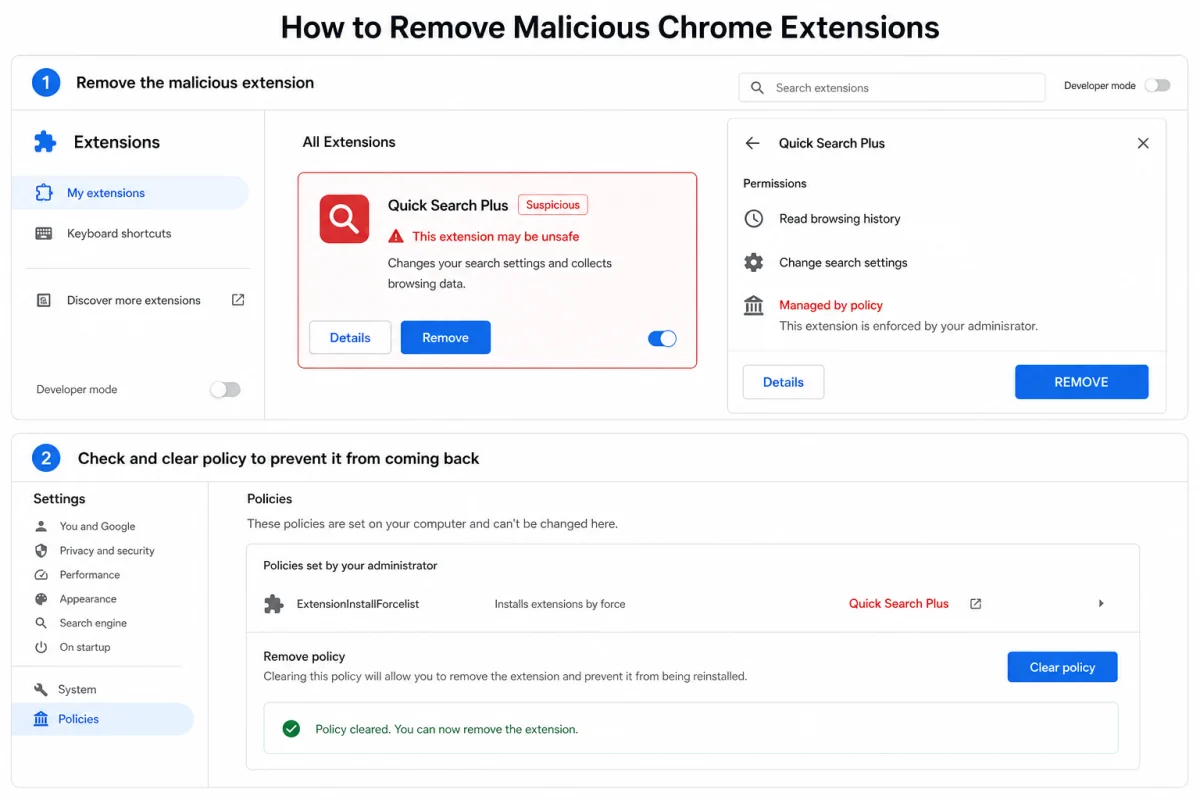
Quick answer: open chrome://extensions, disable the suspect first, record its name and ID, then select Remove. If it returns, says “managed by your organization” on a personal computer or had access to all sites, treat this as more than a browser preference: review policy, scan the operating system, revoke Google sessions and connected-app access, and change exposed passwords from a clean device.
First decide whether this is nuisance, compromise or policy
Common warning signs include search or homepage changes you didn't make, redirects, new ads, unfamiliar extensions, repeated permission prompts, a disabled Remove button, unknown “installed by enterprise policy” labels or login alerts from accounts used in the browser. Google's unwanted software guidance lists persistent pop-ups, hijacked browsing and extensions that keep returning among the signs.
On a work or school computer, policy may be legitimate. Contact the administrator before removing managed software. On a personal computer that has never been managed, an unknown forced-install policy is a persistence warning.
Remove a suspicious Chrome extension
- Open the extension manager. Type
chrome://extensionsin the address bar. This avoids following a potentially altered menu or search result. - Disable the extension. Turn its toggle off first so it stops acting while you document the entry.
- Open Details. Record the extension ID and review “site access.” A simple tool requesting access to all sites deserves particular scrutiny.
- Select Remove and confirm. Google's official install and manage extensions guide documents the same path.
- Restart Chrome and check again. Return to
chrome://extensions. If the item returns, move to the policy and operating-system steps below.
Don't reinstall immediately from the store. First confirm the publisher and why the add-on appeared. A copied icon and near-identical name aren't proof of the same product.

If the extension comes back or can't be removed
- Open
chrome://policy. On a personal unmanaged device, look for forced-extension or unfamiliar browser policies. Record policy names and values. - Check the browser's management status. An unexpected “managed by your organization” message can be caused by security software, unwanted software or system policy; the label alone doesn't identify which.
- Review installed applications. Remove an unfamiliar program installed at the same time, using the operating system's normal app-uninstall interface.
- Run updated malware scans. A program on the computer may be restoring the extension or policy.
- Recheck after reboot. Confirm that both the extension and unwanted policy are gone before using accounts normally.

Assume broad browser access may have exposed account data
An extension with permission to read and change data on all sites may have seen page contents, form data or active sessions, depending on its code and browser controls. Removing it stops future access; it doesn't invalidate information already copied.
- Move to a known-clean device. Don't type replacement passwords into the suspected browser.
- Secure the Google account. Review devices and recent security activity, sign out unknown or all sessions as appropriate, and remove unfamiliar connected apps.
- Secure primary email and password manager. They can reset many other accounts. Review recovery methods, app passwords and forwarding rules.
- Rotate accounts used while the extension was active. Prioritise banking, work, social advertising, shopping and crypto.
- Reset MFA and trusted devices if access is suspicious. Add a passkey or hardware security key where supported.
- Terminate app-specific sessions. Messaging, developer, cloud and crypto services may keep their own active-session lists.
If the extension stole a browser cookie, changing the password may not invalidate every session immediately. Use each service's explicit sign-out or session-revocation control.

Reset Chrome without assuming it deletes everything
Chrome's official reset instructions use Settings → Reset settings → Restore settings to their original defaults. Google says this resets areas including the default search engine, startup pages, pinned tabs, content settings, cookies/site data, extensions and themes while preserving bookmarks and saved passwords.
A reset is useful after removal, but it isn't an incident-response substitute. It doesn't revoke external sessions, rotate passwords, remove every operating-system program or prove that synced data was never exposed. After resetting, re-enable only extensions you recognise and still need.
When to create a new browser profile
If settings remain corrupted after the extension, policy and underlying software are gone, a fresh Chrome profile can provide a clean browser configuration. Export only necessary bookmarks through Chrome's supported interface. Don't blindly copy the old profile directory, because that can bring unwanted settings and extension state with it.
Scan beyond the browser
Windows
Update Microsoft Defender or the installed primary antivirus, run a full scan and use Defender Offline or the product's boot-time scan when persistence is suspected. Follow with one reputable second-opinion scanner.
macOS
Update macOS, review Login Items and installed applications, and use a reputable Mac scanner if the extension arrived with an app or profile. Don't install a “cleaner” from the same alert or redirect.
For evidence of credential theft, use the infostealer recovery order. For tools that reduce malicious pages and risky browser content, compare our browser security stack.
Prevent the next malicious extension
- Install from the official developer route and verify the publisher, not just the extension name.
- Keep the extension list short enough to recognise every item.
- Prefer “on click” or specific-site access when the tool doesn't need all-sites access.
- Pause when an update asks for broader permissions or the publisher changes.
- Remove tools you haven't used in a month rather than leaving dormant privilege.
- Keep Safe Browsing or the browser's equivalent reputation protection enabled.
- Use unique passwords and passkeys so one browser incident doesn't become every-account compromise.
Frequently asked questions
How do I remove an extension from Chrome?
Open chrome://extensions, find the item, select Remove and confirm. If it returns or can't be removed, check management policy and scan the operating system.
What permissions make a Chrome extension suspicious?
Permissions must match the job. Access to all sites, browsing data, downloads, clipboard or account sessions is high impact when requested by a simple tool that doesn't need it.
Why does the extension keep coming back?
Chrome sync, browser policy or software installed on the operating system may restore it. Record the extension ID, inspect chrome://policy and run malware scans.
Does removing an extension delete data it already stole?
No. Removal ends future browser access but can't recall copied passwords, cookies, page data or tokens. Revoke sessions and rotate exposed credentials.
Will resetting Chrome remove my bookmarks?
Google says the standard reset preserves bookmarks and saved passwords while resetting many settings, extensions, cookies and site data. Back up important data and review the current official instructions.
What does “managed by your organization” mean?
Chrome has detected browser policies. That can be legitimate on work or school devices. On an unmanaged personal computer, identify the policy and the software or administrator that set it.
Should I change passwords after a malicious extension?
If it had broad page or session access, yes. Use a clean device, revoke sessions first, then change critical passwords and review MFA, recovery methods and connected apps.
Removal is the first step, not the last
Disable, document and remove the extension; then find what installed or enforced it. If it could read sensitive pages, secure the identity outside Chrome. The incident is closed only when the extension can't return, the computer is trusted and exposed sessions and credentials have been revoked.