Spybot guides: choose, set up, fix or leave safely
Nine focused pages cover the jobs people actually have: review, pricing, setup, Immunization, coexistence, troubleshooting, cancellation, removal and replacement—without passing a Spybot 2.7 instruction off as a current universal fix.

Quick route: open the page that owns the job
Identify the edition, version and enabled layer first. Use the review and pricing pages before paying; installation after choosing Free, Home or Professional; Immunization for preventive browser and Windows entries; coexistence before combining Spybot with Defender or another suite; troubleshooting for one observed fault; and the cancellation, uninstall and alternatives pages as three different exit steps. Don't convert an old menu path into a current fix merely because it still ranks in search.
Start with the question, not the Spybot name
“Spybot” can mean a manual Free scan, paid antivirus and Live Protection, Immunization, a rootkit or startup tool, a years-old Spybot 2.x screenshot, or a subscription order. Those objects don't share one safe instruction. A person asking how to stop Spybot may want to end billing, stop one scan, disable an overlapping real-time driver, remove the program, free a license node or replace the security role. Treating all six as uninstall can leave a charge active or a PC unprotected.
Use the map below before changing the machine. Shopping ends with a saved edition, device quantity and order term. Setup ends after updates, a completed scan and a healthy provider state survive restart. Immunization ends with the supported targets checked and the coverage count understood. Coexistence ends with one intended real-time owner. Repair ends when the original task works again with protection still active. Leaving ends only after billing, local software and the replacement provider have each been verified.

| Your job | Open first | Completion proof |
|---|---|---|
| Buy or keep | Review and pricing | Edition, nodes, seller, term and evidence limit saved |
| Install | Setup guide | Updated, scanned and healthy after restart |
| Immunize | Immunization guide | Supported targets and remaining count checked |
| Run with antivirus | Coexistence guide | One registered real-time owner |
| Fix slow or broken behavior | Troubleshooting | Cause isolated; same task passes |
| Leave | Cancel, uninstall, alternatives | Billing and provider handoff verified |
Use official Safer-Networking pages, then check the version boundary
This hub is independent. Use it to choose a route and understand what a step changes; use Safer-Networking's official domain for product downloads, licenses, order help and support. The current Spybot Free product page describes private-use scanning and maintenance scope, while the paid-edition cards add antivirus and Live Protection. Downloading from a mirror, “driver” site or support advertisement introduces an unnecessary installer and identity risk.
The complication isn't that all old material is useless. It's that the live Spybot 2.x FAQ is a mixed archive: some pages describe useful component roles, while others name Spybot 2.7, 2.8, Windows XP or Vista, retired browser behavior, or a legacy status. Search snippets often omit that boundary. The University of Wisconsin guide that still surfaces for broad Spybot searches was updated as a web page in 2026 but originated in 2007; a new footer date doesn't modernize the software path inside it.
Before following a result, compare its named Spybot version, Windows generation, screenshot and component with the signed build on your PC. Use the vendor's current support route when the installed controls don't match. Never grant remote access, share a license key or run an executable because a page title says “official.” The domain, certificate, publisher and the order record must agree.
| What you have | Treat it as | Don't assume |
|---|---|---|
| Spybot Free | Manual scanner and maintenance toolkit | Paid antivirus or Live Protection is active |
| Home or Professional | Paid edition that can own real-time antivirus | It can overlap safely with another full suite |
| Immunization | Preventive entries in supported stores | It scanned or cleaned the PC |
| Spybot 2.7/2.8 screenshot | Version-bound evidence | The menu exists in every current build |
| Legacy-labeled FAQ | Historical clue to verify | It's a first-line Windows 11 fix |
| Order or license email | Billing and entitlement evidence | Uninstall changes renewal |
Choose or renew only after separating Free, Home and Professional
Start with our Spybot Search & Destroy review when the question is whether the product still fits. Spybot remains distinctive for manual anti-spyware and PUP work, Immunization and specialist utilities. That's a narrower value proposition than “best primary antivirus.” Current independent consumer cohorts don't give us a like-for-like 2026 Spybot result, so the review keeps that missing denominator visible instead of converting brand history into a lab score.
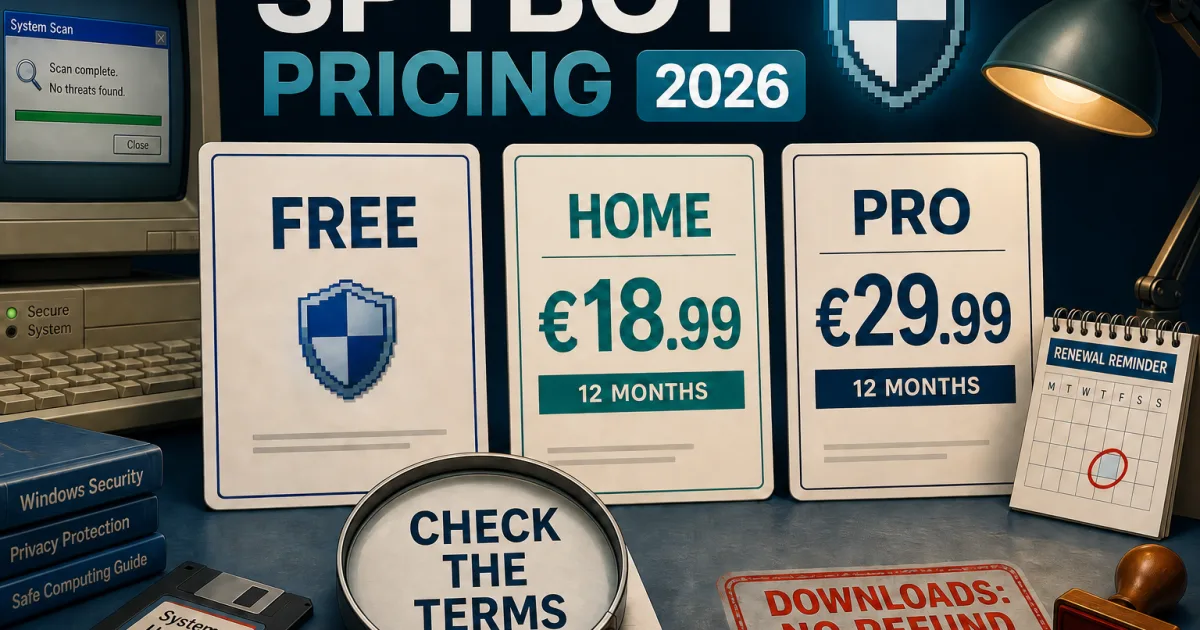
Use the Spybot pricing and renewal guide for the order decision. On August 9, 2026 the official consumer comparison listed Free as donation-supported, Home at €18.99 for 12 months and Professional at €29.99 for 12 months. Paid licenses use purchased nodes, so the headline price isn't permission to assume unlimited household devices. Home adds antivirus, Live Protection, automatic signature updates and scheduling; Professional adds Anti-Beacon Plus and advanced registry, shredding, scripting and command-line tools.
The public wording says the vendor will remind buyers before renewal, but it doesn't by itself prove whether a particular order will charge automatically. The sales terms and private-user EULA also create a refund conflict: downloadable orders are described as non-refundable while the EULA contains a seven-day cancellation clause. Save the cart, node quantity, currency, tax, renewal language and immediate-download consent. If cancellation rights matter, obtain written clarification before paying rather than relying on a generic “subscription” label.
| Decision | Best route | Proof before payment |
|---|---|---|
| Need occasional second-opinion work | Try Free | Manual scope and one-owner setup understood |
| Want Spybot as resident antivirus | Evaluate Home | Node count, Live Protection and lab-evidence gap accepted |
| Need Anti-Beacon or advanced tools | Compare Professional | Each added tool has a defined job |
| Renew an existing license | Check License Overview and order email | Seller, date, amount and charging method saved |
| Refund rights are decisive | Get written pre-sale answer | Vendor response resolves the conflicting wording |
Install the exact edition and prove the protection state after restart
Use the Spybot installation and setup guide for the official installer, edition choice, elevation, updates, first scan and post-restart check. Record the filename, signed publisher, download domain, Windows version and whether the machine already has a third-party resident suite. Avoid bundled download portals and don't import exclusions from an old PC merely because the product name matches.
Free and paid setup diverge at the real-time boundary. A Free installation can stay supplemental when the intended job is manual scanning or Immunization. A paid installation with Live Protection can register and inspect program launches, so it needs an explicit provider decision. Open Windows Security → Virus & threat protection → Manage providers after installation and again after restart. Don't manually disable Defender services; let Windows and the supported product installers handle provider registration.
Update before trusting a scan result. Run a bounded first scan, review detections instead of deleting on sight, preserve quarantine reversibility and verify that the expected layer stays active. “The window opened” isn't completion. An installation is complete when the account or license matches, updates succeed, one scan finishes, the intended provider is visible and ordinary applications still start normally after restart.
| Stage | Evidence | Pass condition |
|---|---|---|
| Identify | Edition, version, Windows build, existing provider | The planned guide matches the installed object |
| Download | Official domain, filename, signed publisher | No mirror or support-ad installer |
| Update | Definition and program status | Current update completes without an unresolved error |
| Scan | Type, duration, result and quarantine action | A bounded scan completes and the result is reviewed |
| Restart | Windows provider and ordinary app launch | One intended owner remains healthy |
Use Immunization as a preventive layer, not as proof of a clean PC
The Spybot Immunization guide explains the feature on its own terms. Immunization writes preventive entries into supported browser and Windows stores so known unwanted destinations or behaviors can be rejected before a visit. It doesn't inspect every downloaded file, remove an existing infection, watch a process in real time or replace Microsoft Defender. That distinction is the difference between a useful specialist layer and false confidence.
Close affected browsers, run the supported control with the required elevation, check the target list, apply coverage and record the before/after state. A remaining count can mean a browser was open, a target is unsupported, permissions blocked a store or the definitions changed—not necessarily that the PC is infected. Retest the same target after closing applications and updating. If the count persists, identify the exact store rather than repeatedly pressing Immunize.
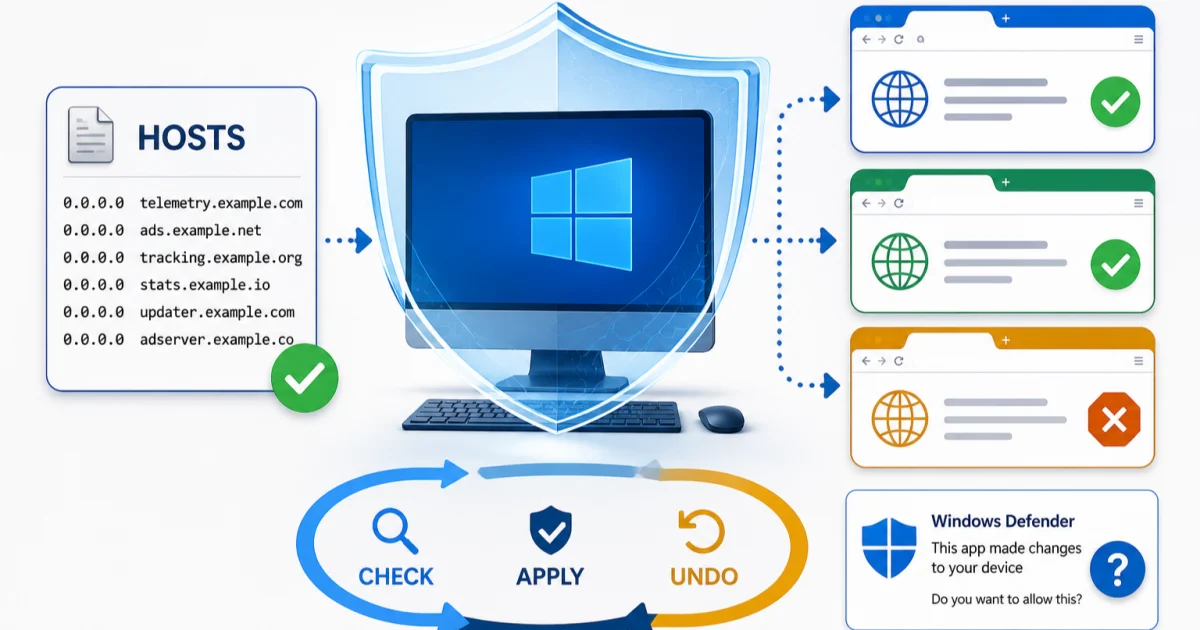
Undo is also a planned operation. Remove Immunization through Spybot when testing a site or application conflict; don't hand-delete hosts entries, browser policies or registry zones without knowing which product owns them. If a modern browser ignores an old mechanism, that's a compatibility boundary, not permission to weaken another security control. Keep the coverage that has an observable benefit and retire the layer when its maintenance cost exceeds the job it solves.
Keep one real-time antivirus owner and make every supplement explicit
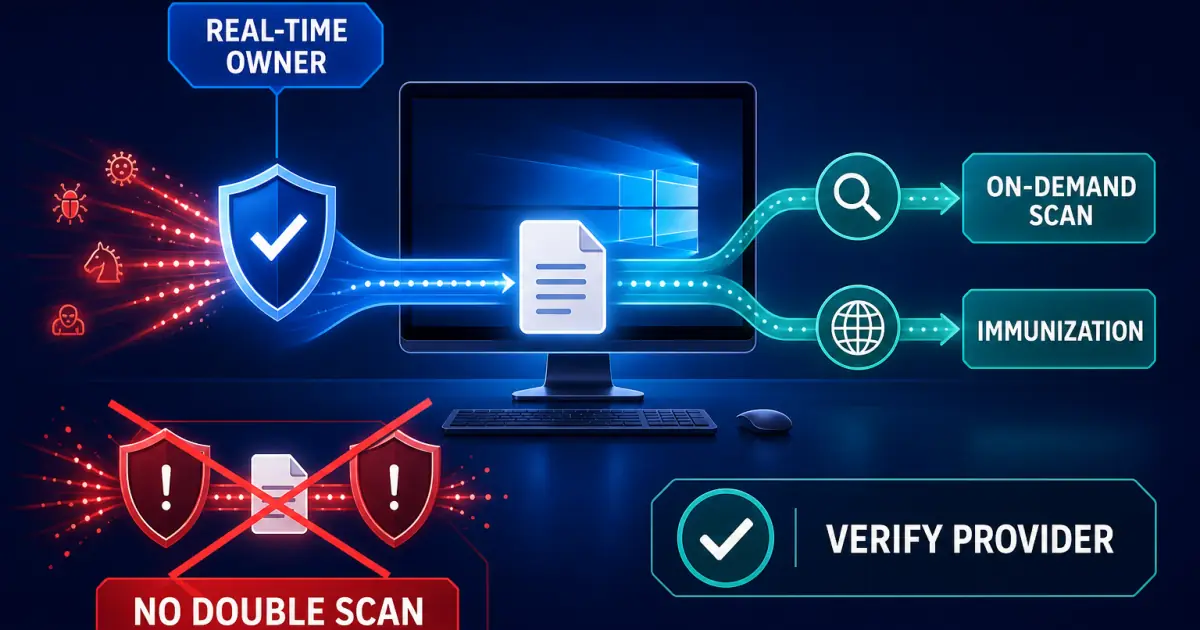
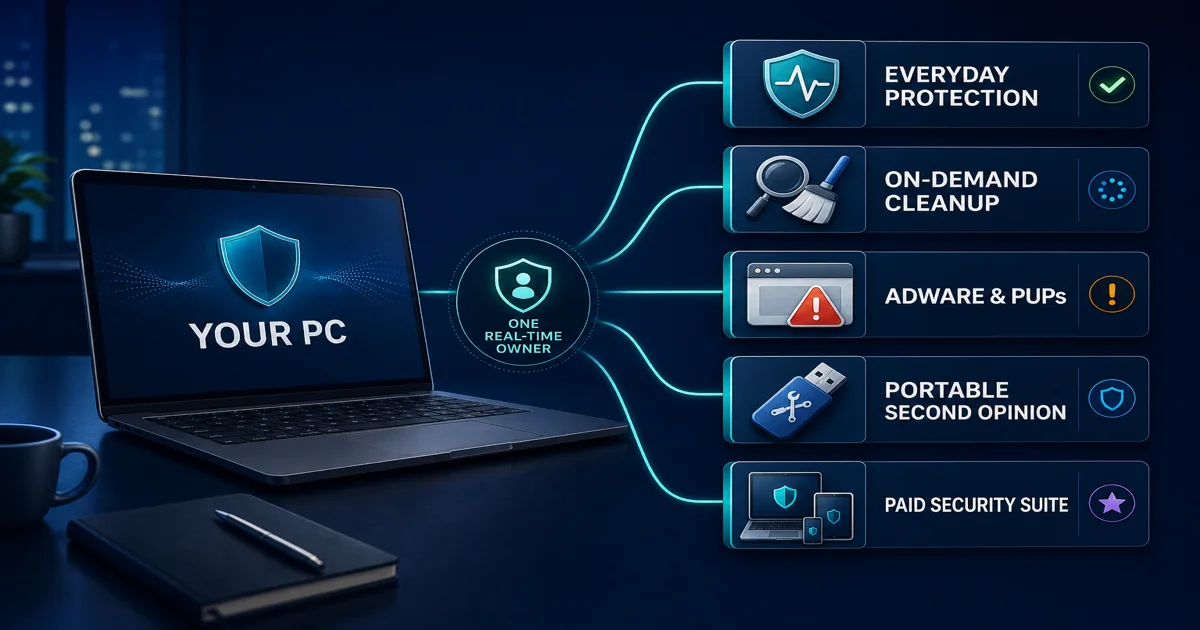
Our Spybot coexistence guide separates a manual second-opinion tool from a second resident engine. Spybot Free scans and Immunization can often sit beside Defender or another suite because they don't need to own every file open. Paid Spybot Live Protection is different: it scans programs before launch and can overlap with the resident suite's file, behavior or web controls.
Two green tray icons don't prove healthy coexistence. Overlap can surface as delayed program starts, update failures, repeated quarantine, high disk use, or ambiguous provider state. Microsoft and security vendors generally discourage two simultaneous real-time antivirus products. Choose the primary product deliberately, deactivate the overlapping Spybot layer through its supported settings or remove the conflicting suite, restart, then time the same safe application and verify Windows Security.
Exclusions aren't the first move. A broad folder exclusion may hide the symptom while weakening both products. If one exact file is repeatedly scanned, verify its source, signature, hash and role first; scope any exception to the responsible engine and smallest object. If the primary suite's installer requires Spybot removal, follow that current vendor requirement instead of forcing coexistence.
| Combination | Default | Verification |
|---|---|---|
| Defender + Spybot Free manual scan | Reasonable supplemental role | Defender remains active; scans are scheduled separately |
| Defender + Immunization | Layered role if supported | Browser and Windows targets behave normally |
| Full suite + Spybot Free | Check the suite's compatibility policy | No installer block or overlapping scheduled scan |
| Full suite + Live Protection | Avoid two resident owners | One product owns real-time protection after restart |
| Temporary cleanup tool | Use for a bounded task | No resident component remains unexpectedly |
Troubleshoot the process, task and layer you can actually observe
Use the Spybot troubleshooting guide when a scan is slow or stuck, program launches became delayed, the Scan button is grey, updates fail, a service is stopped, Error -2005 or 577 appears, Explorer crashes on right-click, SDCleaner returns at startup, or a detection needs review. These symptoms don't share one reset.
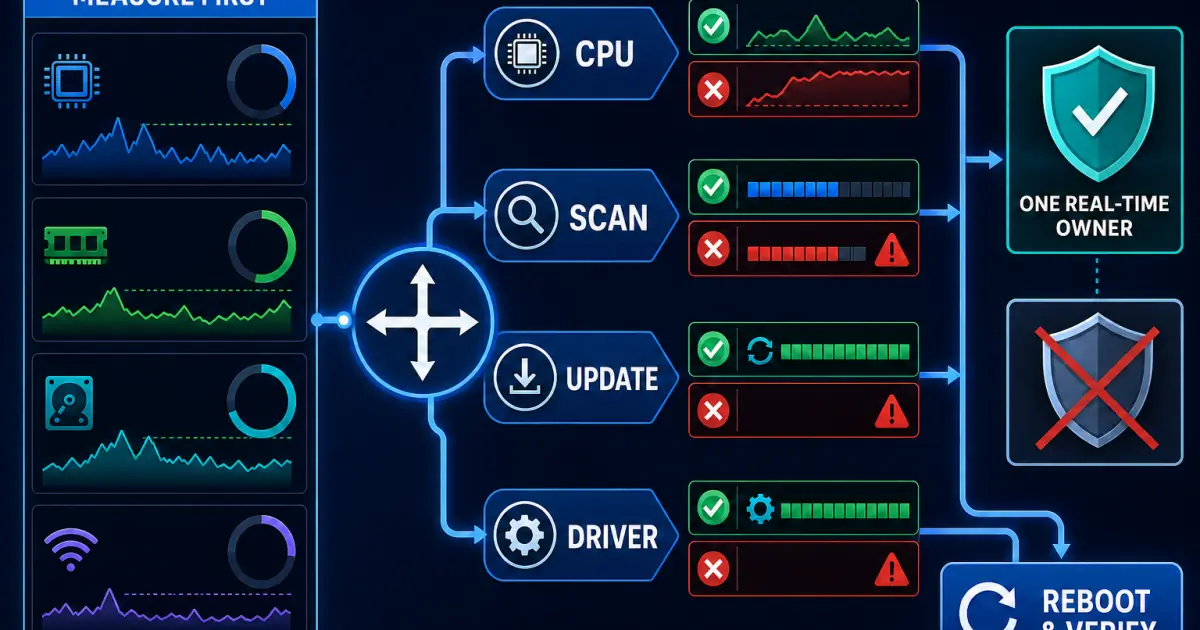
Open Task Manager and record the signed Safer-Networking process path, CPU, disk, memory and elapsed time. In Spybot record the edition, version, active task, scan stage, current file, definition status and exact error. High CPU during an intentional scan can be expected; continued load after completion is different. Slow application launches after paid installation point toward Live Protection. A grey Scan button may indicate incomplete definitions. Update hash errors, service state and driver-signature errors follow their own branches.
Change one supported control, restart when the product asks, then reproduce the same safe task. Don't start by deleting drivers, disabling signature enforcement, cleaning the registry or shutting off every security product. The live FAQ shows Security Center, Scanner and Updating as different services in a Spybot 2.7-era interface; use that to understand roles, not as proof that every current installation exposes the same menu. Preserve logs before repair or reinstall.
Escalate when a signed current build can't update, a service fails again after one supported restart, a driver error remains, quarantine can't restore a verified false positive, or the original task still fails after one isolated test. Send the exact version, Windows build, time, error, process path, task stage and redacted screenshot through the official support route.
Cancel, uninstall and replace Spybot as three separate states
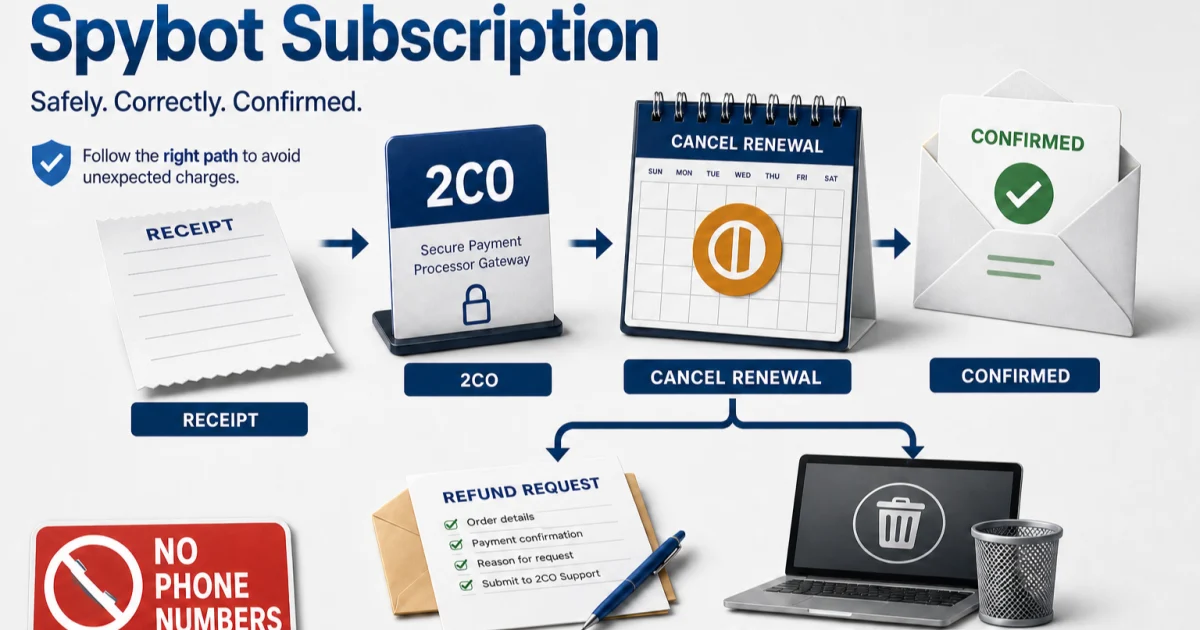
Use the cancellation and refund guide before changing the local installation. Identify the seller from the receipt or card descriptor, save the order number and renewal language, ask for written status and preserve confirmation. The public sales terms say downloadable orders aren't refundable, while the private-user EULA includes different cancellation wording; don't promise a refund that the vendor hasn't granted.
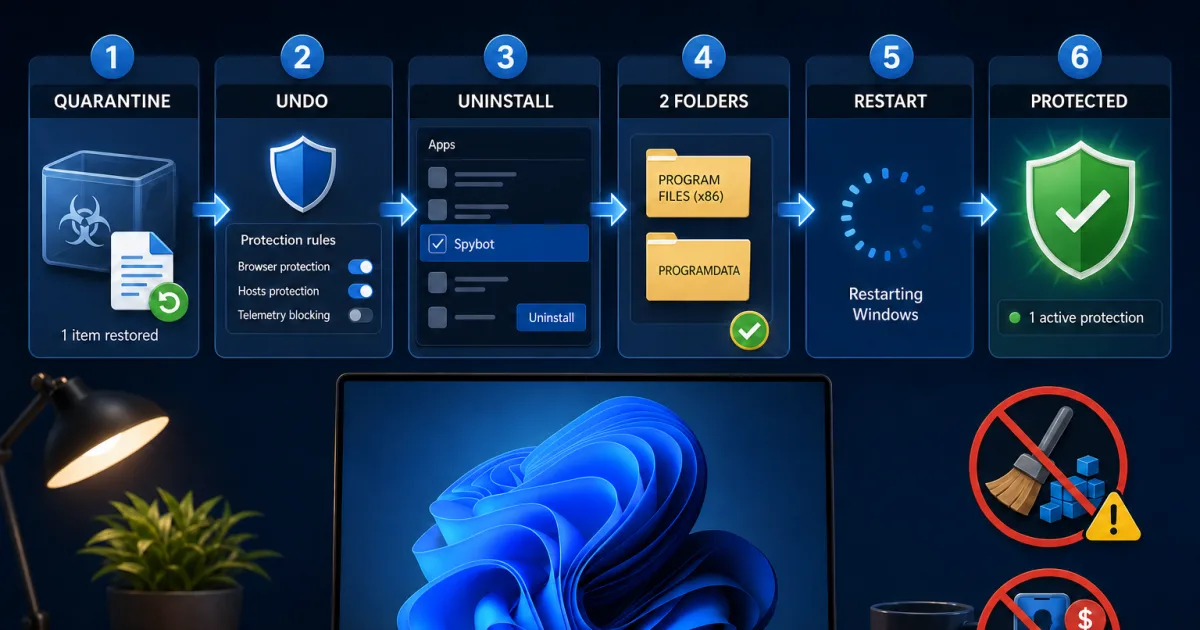
Then use the complete uninstall guide. Stop or finish active work, restore any needed quarantine item first, use the supported Windows removal path, restart and verify services, scheduled tasks, drivers and Windows Security provider state. Leftover user data isn't automatically an active security engine. Delete only an identified remnant after the supported uninstall and backup, not a folder guessed from its name.
Finally open the Spybot alternatives guide if the security job remains. Defender is the everyday default for many supported Windows PCs; Malwarebytes Free is a broader on-demand second opinion; AdwCleaner focuses on PUPs, adware and browser hijackers; Bitdefender, ESET and Norton serve different paid needs; ESET Online Scanner and Emsisoft Emergency Kit cover different portable roles. No option exactly clones Immunization, so decide whether to preserve that job or replace it with modern browser, DNS and resident-protection controls.
| State | Action | Proof |
|---|---|---|
| Future billing | Cancel with the actual seller | Written status, amount and date saved |
| Refund request | Submit evidence under the applicable terms | Case ID and vendor decision saved |
| License or node | Record or release it through the supported account route | Device entitlement state confirmed |
| Local software | Use supported uninstall and restart | No active Spybot service or driver owns protection |
| Replacement | Install by the missing job | One intended real-time provider is active |
All nine Spybot guides by job
This directory contains one page for every completed cluster intent. Broad searches land here; each spoke owns the detailed task and returns to the hub when the question changes. That keeps pricing out of troubleshooting, legacy service fixes out of installation and uninstall separate from billing.
| Job | Guide | Use it when |
|---|---|---|
| Choose | Spybot review | You need the current verdict, role and evidence boundary. |
| Buy or renew | Plans, pricing and renewal | Edition, nodes, annual term or refund wording decides. |
| Set up | Install and set up Spybot | You need an official download, updates, scan and provider proof. |
| Prevent | Immunization guide | You need coverage, remaining-count or undo guidance. |
| Coexist | Spybot with another antivirus | Free scanning, Live Protection or provider ownership is unclear. |
| Repair | Not working, high CPU or stuck scan | A scan, update, service, driver or performance path fails. |
| Stop billing | Cancel and request a refund | Renewal, seller identity or charge evidence is the issue. |
| Remove | Uninstall completely | You need supported removal and provider handoff. |
| Replace | Best Spybot alternatives | Everyday protection, cleanup, PUP removal or suite fit is missing. |
Old Spybot advice can explain a component without qualifying as a current fix
Spybot has been used long enough that a large share of search inventory is historical. Old university handouts, forum answers, archived download pages and vendor articles can rank above current task-specific material. Some accurately explain what Immunization, a scanner service or a hosts entry was meant to do. That historical value doesn't prove the control exists, the path is safe or the recommendation fits Windows 11.
Use four checks: publication and last substantive update; named Spybot version; named Windows or browser generation; and whether the page is currently labeled legacy. Then compare the control with the signed build in front of you. Never downgrade to an old version, disable driver-signature enforcement, delete a service or edit the registry solely to reproduce a screenshot. If the current interface differs, return to the official support route with the exact version.
We also keep current lab absence separate from historical scores. A strong result for an older Spybot release can't be presented as a 2026 result. Likewise, not appearing in a current AV-TEST or AV-Comparatives consumer cohort isn't evidence that the product detects nothing. It means the comparison lacks a shared, current denominator. That is why this hub uses vendor sources for product scope, labs for currently tested alternatives and controlled local proof for the workflow.
Escalate with a small evidence packet and use community reports carefully
Official support can act faster when the case states the exact edition and version, Windows build, license state, active provider, component, time, repeatable trigger, exact error and the one supported change already tested. For a scan include type, stage and current path. For load include the signed process, CPU and disk. For Immunization include the target store and remaining count. For billing include seller, order ID, charge date and a redacted confirmation.
Don't publish a license key, password-reset link, full email, payment card, private log or sensitive detected file in Reddit or a forum. Community discussions are useful for discovering questions—whether Spybot is still useful, why a scan stalls, whether it can run beside Defender, or what replaces Immunization. They don't establish defect prevalence, make an unknown file safe or turn a 2014 fix into a current one. We don't invent named quotes or infer product quality from vote counts.
A task is complete only when its original outcome survives restart and the security state remains healthy. A disappeared warning isn't enough if protection is off. A clean uninstall screen isn't enough if billing continues. A cancelled order isn't enough if no real-time provider remains. Keep that final proof in the support packet; it's also the signal that tells you when to stop changing the machine.
Spybot help FAQ
Where should I start with Spybot?
Start with the main review if you're deciding whether to use or keep Spybot. Use the pricing guide before checkout or renewal, installation after choosing an edition, Immunization for browser and Windows-blocklist coverage, coexistence before running another antivirus, and troubleshooting for a specific fault. Cancellation, uninstall and replacement are three separate exit states.
Is this the official Spybot support website?
No. Antivirus-Review.com is an independent editorial publication. We explain product boundaries and safe routes, but downloads, licenses, orders and support requests should begin on safer-networking.org or the seller named on the receipt. We don't publish unofficial support phone numbers.
How do I know which Spybot instructions apply to me?
Record the exact edition, version, Windows version and enabled components before following a step. The live vendor FAQ still mixes current support pages with Spybot 2.7, 2.8 and explicitly legacy articles. A genuine old screenshot isn't proof that the same menu, service or driver exists in your installed build.
Is Spybot Free a complete antivirus?
No. Spybot Free is a donation-supported private-use scanner and maintenance toolkit with manual anti-spyware and PUP scans, Immunization, startup tools and rootkit tools. The current edition comparison reserves antivirus, Live Protection, automatic signature updates and scheduling for paid editions.
What does Spybot Immunization do?
Immunization writes preventive entries into supported browser and Windows security stores so known unwanted destinations or behaviors are blocked before a visit. It's a layered blocklist, not a malware scan, real-time file monitor, browser cleanup or substitute for a current resident antivirus.
Can I run Spybot with Microsoft Defender or another antivirus?
A manual Spybot Free scan or Immunization layer can be supplemental, but two active real-time antivirus engines are a poor default. If paid Spybot Live Protection is enabled, verify the registered provider in Windows Security and keep one intended real-time owner. Don't solve overlap by disabling every security layer.
Why is Spybot slow, using high CPU or stuck on a scan?
First identify the signed process, active task, scan stage, current path, elapsed time, disk use, edition and version. Busy scanning can be expected; slow application launches point toward Live Protection; a grey Scan button can indicate incomplete definitions; update, service and driver errors need different branches. Change one supported control and reproduce the same task.
Does uninstalling Spybot cancel a paid subscription?
No. Billing, license devices and local software are separate states. Stop renewal or obtain written order status from the actual seller first, preserve the confirmation, then use the supported uninstaller and verify the intended real-time provider after restart.
What should replace Spybot?
Replace the job, not the name. Microsoft Defender is the everyday Windows default for many people; Malwarebytes Free or AdwCleaner can cover different on-demand cleanup jobs; Bitdefender, ESET or Norton fit different paid-suite needs. No current mainstream product exactly clones Spybot Immunization, so decide whether that layer is still required.
Do independent labs test current Spybot editions?
Spybot isn't represented in the same current consumer cohorts we use for direct 2026 comparisons. That absence is an evidence limitation, not a zero score and not proof of failure. Use current vendor facts for scope, current lab results for tested alternatives and your own controlled workflow for fit.
One edition, one task and one proof is the safe way through Spybot
Spybot still has useful specialist jobs, especially manual anti-spyware and PUP work, Immunization and advanced utilities. It also has an unusually deep historical footprint, which makes version discipline essential. Identify Free, Home or Professional; separate manual scanning from Live Protection; and treat every old page as version-bound evidence until the installed build confirms it.
If one bounded repair fails, compare replacements by the missing job. If you leave, confirm billing, remove the correct software and finish with one active provider. If you stay, keep the product and definitions current, preserve reversible quarantine and return to this hub only when the question genuinely changes. The shortest route isn't the page with the most steps; it's the page that owns the exact state you need to change.