We review products independently, but we may earn commissions if you make a purchase using affiliate links on our website. Also note that we are not antivirus software; we only provide information about some products.

Independent Microsoft Defender resource hub · Updated July 29, 2026

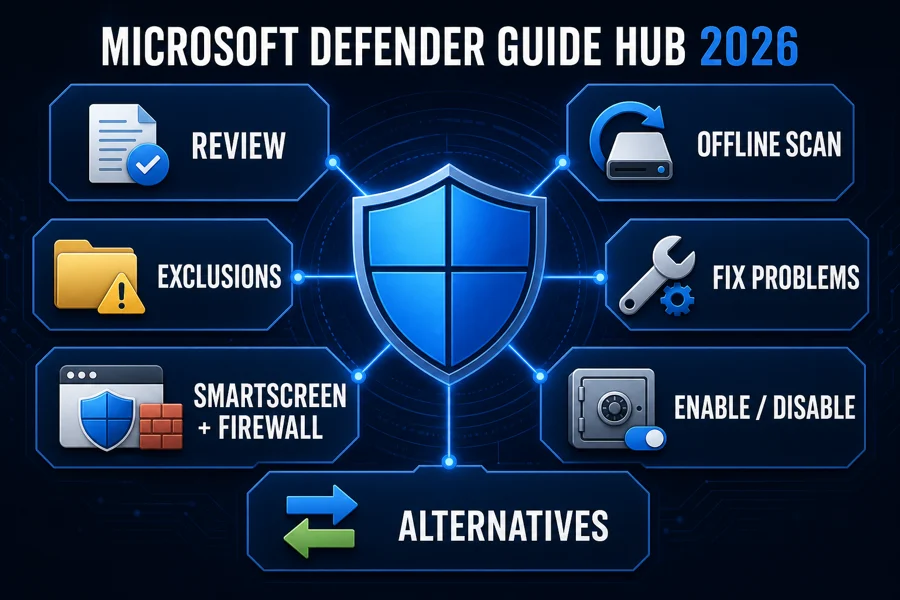
Microsoft Defender Guides: Check, Scan, Fix or Switch Safely

This hub turns Windows Security into a set of understandable jobs. Start with the exact question—whether Defender is enough, which scan to run, what to exclude, which layer blocked something, why protection is failing, or whether a replacement solves a real need.

8 focused resourcesWindows 11 and 10 contextNo Registry hacks

Start here: deciding whether built-in protection is enough? Use the review and sufficiency guide. Suspect malware that survives a normal scan? Prepare an Offline scan. A trusted app is blocked or slow? Diagnose the exact event before adding an exclusion. A setting is missing, updates fail or Antimalware Service Executable stays busy? Use troubleshooting. Only compare alternatives after you can name what Defender does not provide.

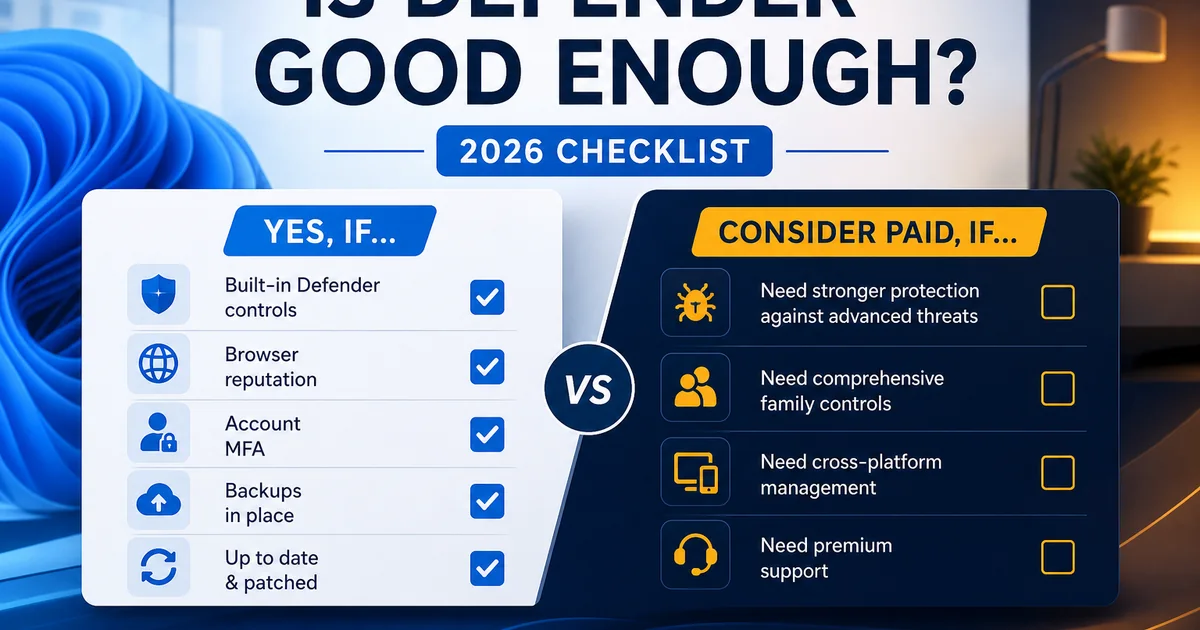
Decide whether Microsoft Defender is enough for your actual Windows PC

Defender Antivirus is no longer a placeholder that every user must immediately replace. In the AV-TEST May–June 2026 Windows 11 cycle, it earned 17.5/18: full protection and usability scores, with half a point lost in performance. In the AV-Comparatives February–May 2026 test, it protected against 99.0% of 400 cases, left four compromised and produced zero false alarms.

Those figures are a serious baseline, not a universal verdict. AV-Comparatives also measured a 12.9 performance impact score in April 2026, where lower was better; that is a useful same-cycle comparison, not a promise about one PC. Protection also depends on whether Windows receives security updates, the browser blocks deceptive sites, important files have recoverable backups, and the person using the PC recognizes account and payment scams. A third-party suite can add mixed-device management, parental controls, VPN, identity services, paid support or different tuning controls. It cannot make an unsupported operating system or an unrecoverable account safe by itself.

The review is the right starting point when you want the complete product assessment. The sufficiency guide is narrower: it asks whether your own system, habits and recovery plan make the built-in protection reasonable. The alternatives page starts from the same baseline and refuses to treat “paid” as a synonym for “better.”

Scan and investigate without jumping straight to a reset

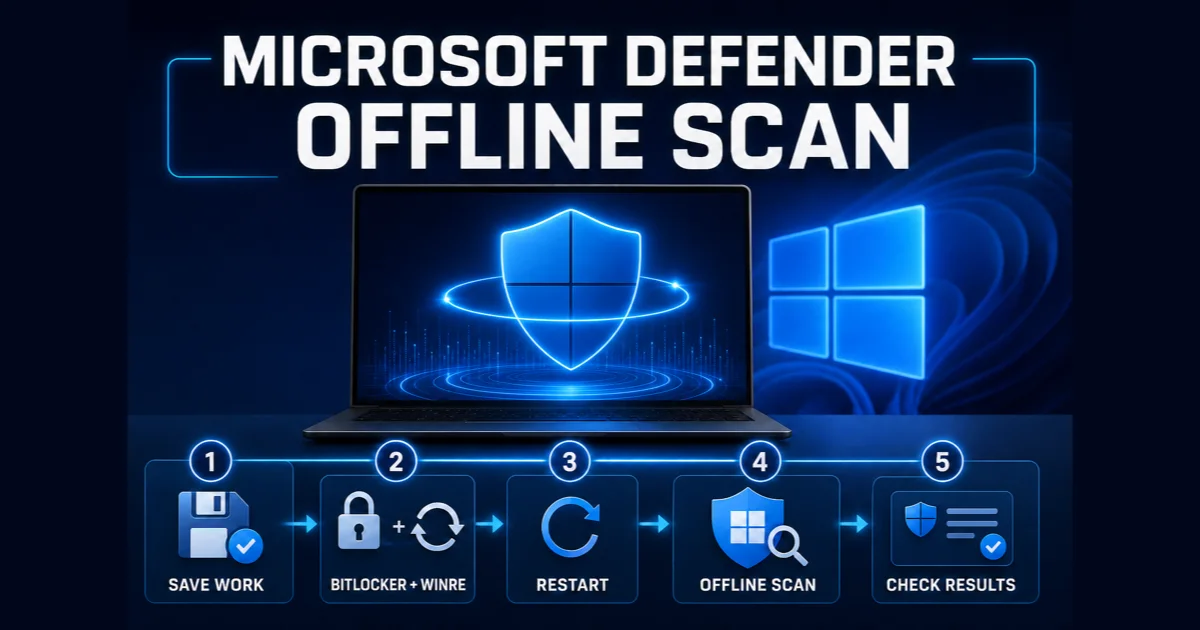
The Virus & threat protection page offers several scan types because they answer different questions. Quick scan checks common active locations. Full scan broadens coverage across local files and running programs. Custom scan targets a selected location. Microsoft Defender Offline restarts into the Windows Recovery Environment so the scanner can inspect outside the normal running Windows session.

Offline scan is useful when malware may be hiding, persisting or interfering with the normal engine. It is not automatically “stronger” for every suspicious file. Our guide starts with BitLocker recovery access, power, saved work and a note of the symptoms, because an unexplained recovery-key screen is a bad place to discover that the account details are unavailable. It then verifies the result through Protection history and separates a clean scan from proof that every account, browser session and backup is safe.

For one downloaded file, start with its source, signature, hash and the exact detection name. For a compromised online account, reset credentials from a known-clean device and review sessions; a local scan does not revoke stolen tokens. For ransomware, disconnect affected storage and preserve recoverable copies before repeatedly scanning. The scan should serve the incident, not become the entire incident response.

Configure the right protection layer instead of turning off the whole stack

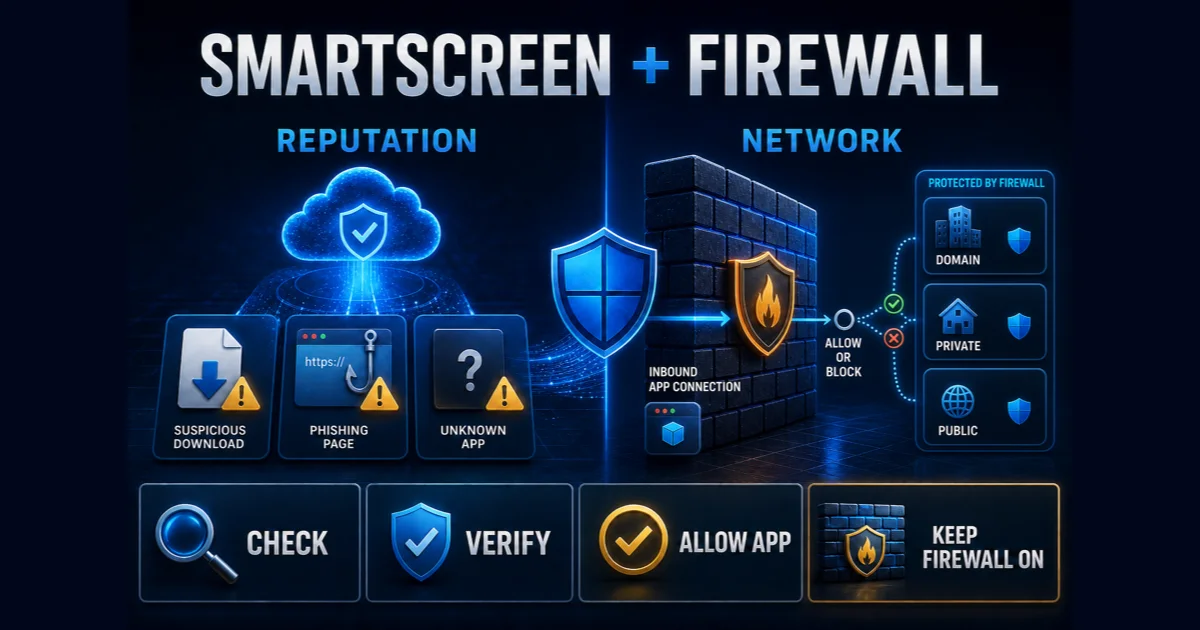
Windows Security is the dashboard, not one giant switch. Defender Antivirus scans files and processes. SmartScreen evaluates reputation for sites, downloads and apps. Windows Firewall controls network traffic. Controlled Folder Access restricts untrusted changes to protected folders. Smart App Control is another Windows 11 trust layer. A warning’s wording and location usually identify which component acted.

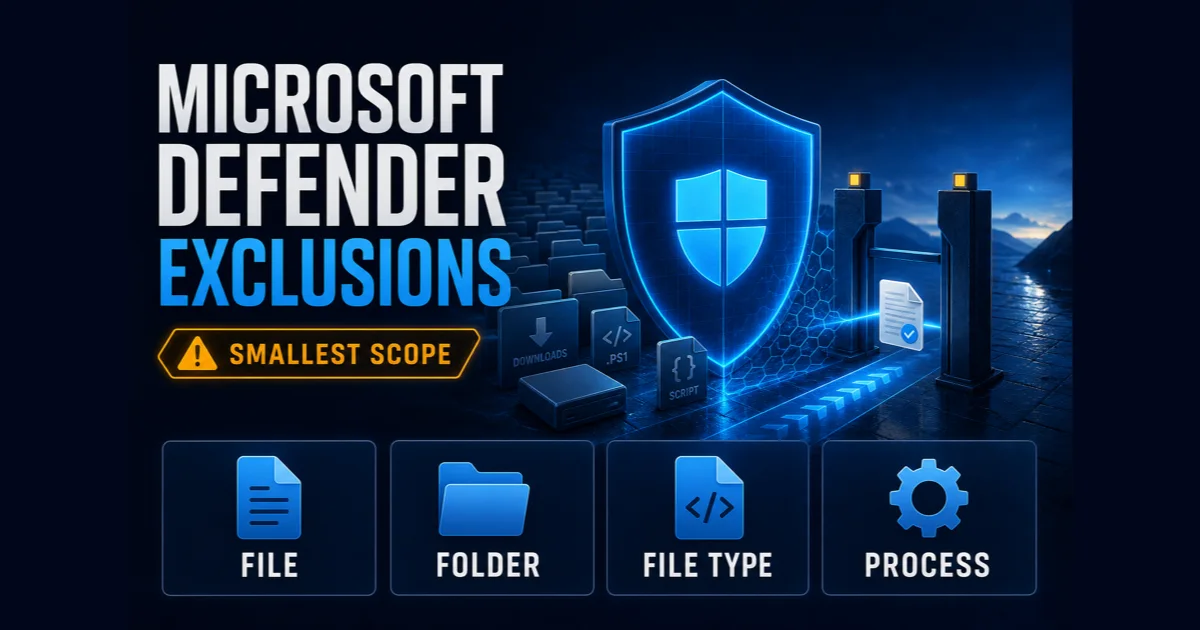
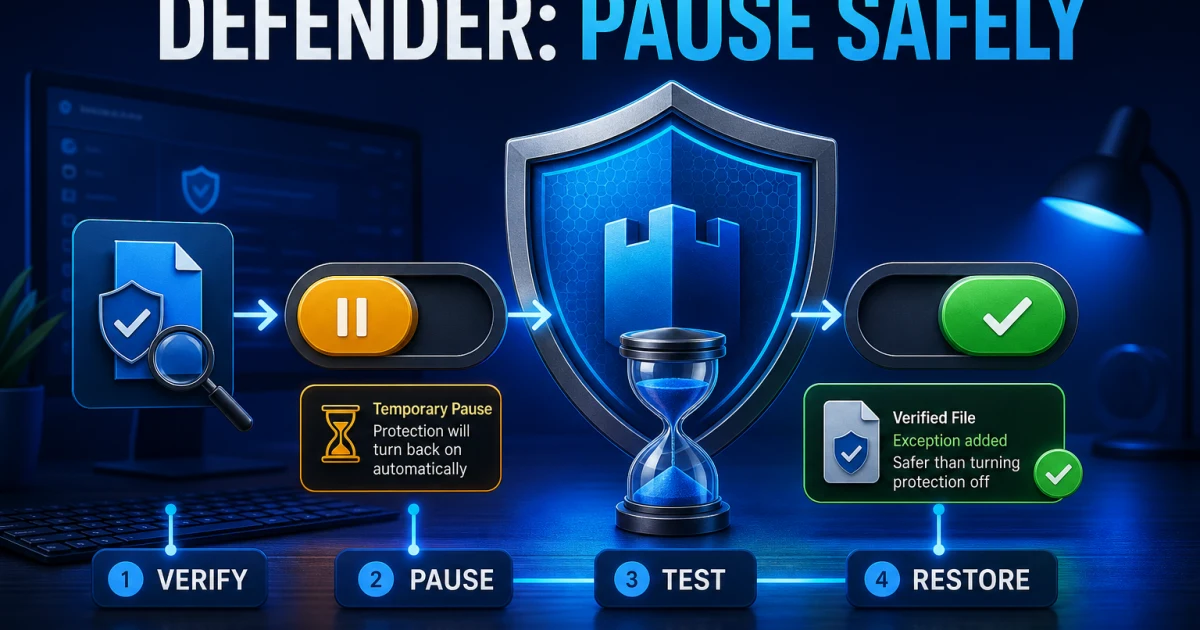
Microsoft’s exclusion instructions warn that excluded items are no longer checked by real-time protection. That is why the exclusion guide begins with reproduction and scope. A signed compiler in one known folder is a different risk from excluding an entire drive, every executable with one extension or a process name that any directory can launch.

A browser warning belongs in the SmartScreen evidence path; a refused inbound connection belongs in the Firewall and network protection path. Turning off Defender Antivirus may not change either symptom. The focused guide shows how to verify publisher, URL, network profile and allowed-app scope before overriding anything.

For a short compatibility test, the Windows Security real-time toggle is temporary by design. For a lasting replacement, Microsoft’s provider compatibility guidance explains the supported model: a compatible antivirus registers and Defender leaves active mode. Do not disable services, take ownership of protected files or paste legacy `DisableAntiSpyware` recipes into a consumer PC.

Repair Defender when updates, scans, settings or performance fail

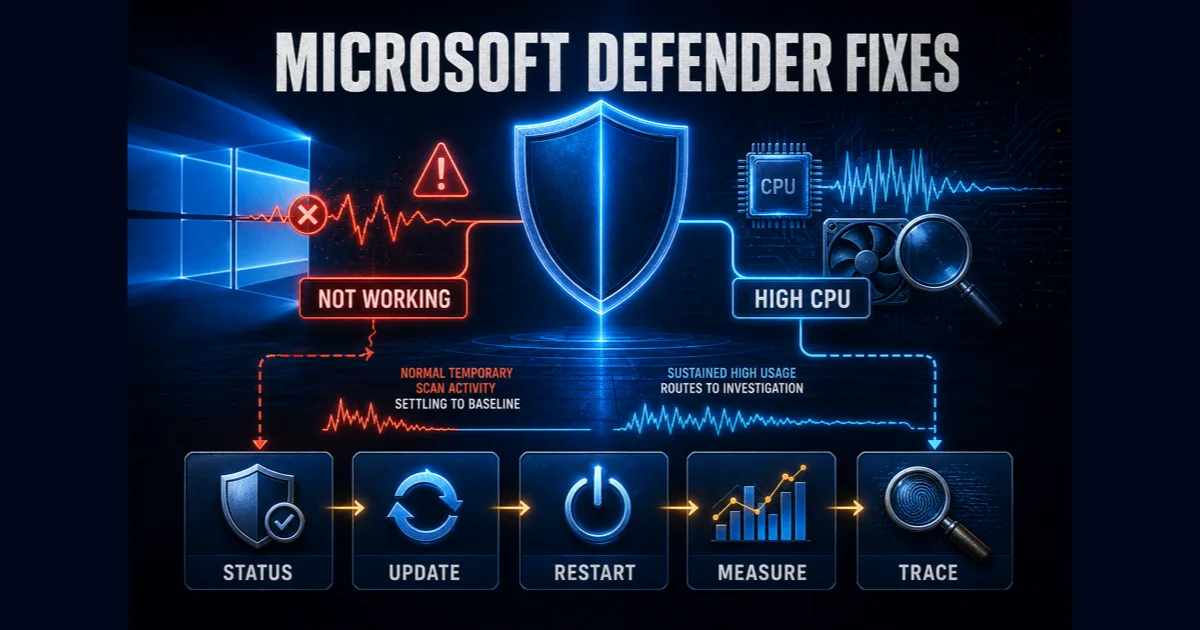
“Defender not working” can mean at least five different states: another antivirus correctly owns the provider category, security intelligence will not update, a scan is stuck, Windows Security cannot display settings, or `MsMpEng.exe` remains busy after the triggering task should have ended. Treating those as one problem leads to broad exclusions and service edits that hide evidence.

The troubleshooting guide starts with Windows Security → Settings → Manage providers. If a healthy compatible product is active, Defender Antivirus may be behaving correctly in passive or inactive mode. If Defender owns protection, record the Windows build, security-intelligence version, last update result, scan type, active path and resource duration. A temporary spike during an update or full scan is not the same diagnosis as sustained idle load after a restart.

Repair follows a reversible ladder: update Windows and protection intelligence, restart once, reproduce the exact symptom, review Protection history and Event Viewer where relevant, repair Windows components, then use a supported platform reset or reinstall only when evidence points there. If a work or school policy manages the device, the missing control is an ownership boundary. Collect the facts and contact the administrator instead of trying to defeat Tamper Protection locally.

Keep the symptom intact long enough to identify it. A screenshot of the exact message, provider state, time and affected path is more useful than a folder already deleted, three cleaners installed and every security service manually changed.

Replace Defender only after the alternative passes a real-needs test

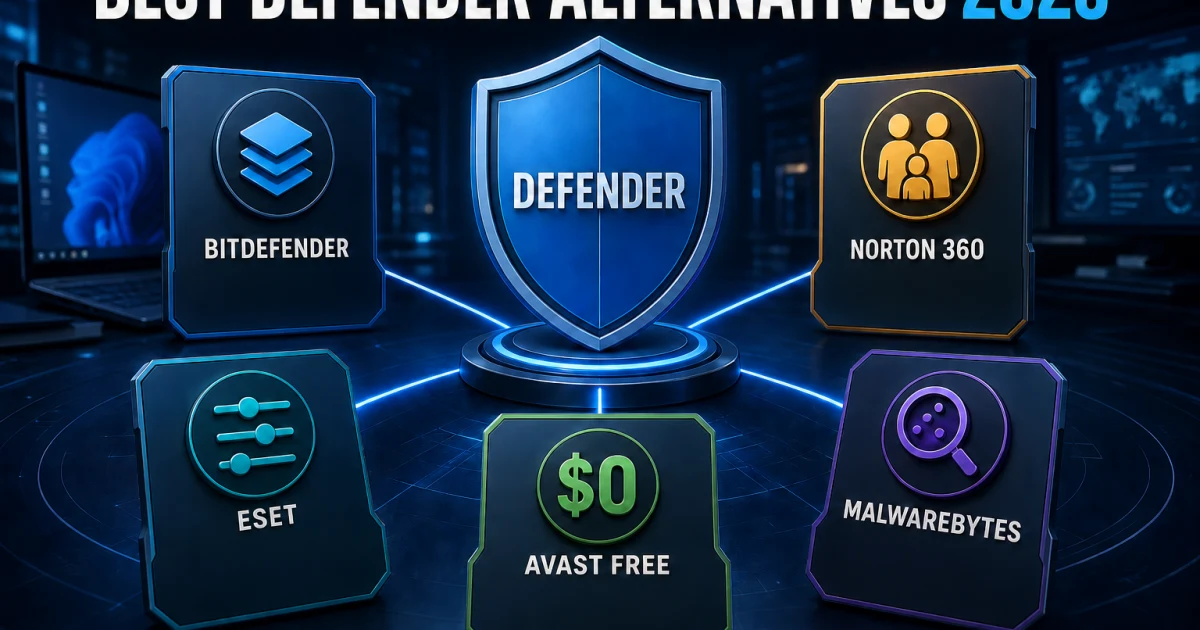
The alternatives guide compares Bitdefender, Norton, ESET, Avast Free and Malwarebytes against the current Defender baseline. Bitdefender is the balanced cross-platform paid choice, Norton earns its place when a family will use the security bundle, ESET emphasizes control and low measured impact, Avast Free is a credible no-cost third-party engine, and Malwarebytes needs a clear Free-versus-paid distinction.

Malwarebytes Free is an on-demand cleaner, so Defender should remain active beside it. A paid real-time product can register as the primary provider. Running two primary engines is different from using periodic or second-opinion scanning; duplicated file hooks and remediation can add load and make it unclear which product quarantined an item. Use our two-antivirus guide before combining tools.

Download from the vendor’s official site, remove a stale former provider when necessary, install and update the chosen product, then verify it under Manage providers. Do not manually force Defender off first. Record the first-year and renewal price, protected device count, account recovery path and automatic-renewal state. If the new product is removed or expires, Windows can reactivate Defender so the PC does not remain unprotected.

Use the Windows version and provider map before trusting the green shield

QuestionWhere to verifyWhat a healthy answer looks like
Which antivirus is active?Windows Security → Settings → Manage providersOne healthy primary real-time provider
Is Defender current?Virus & threat protection → Protection updatesRecent security intelligence and no update error
Did a scan or detection finish?Protection history and Event Viewer when neededAction, time and affected item are understandable
Did SmartScreen block the item?Browser or App & browser control warningPublisher, URL and reputation decision are identified
Did Firewall block traffic?Firewall & network protectionCorrect network profile and narrowly allowed app or rule
Is Windows still supported?Settings → System → About and Windows UpdateSupported build or documented ESU coverage

A green Windows Security icon is a useful summary, not a substitute for provider and update state. Check it after installing or removing an antivirus, after a subscription expires and after a repair. We checked the US product position on July 29, 2026: the built-in Microsoft Defender Antivirus still cost $0 as a separate product, but Microsoft uses “Defender” for other consumer and enterprise services too. Read the exact product name before assuming a subscription page describes the Windows engine.

For Windows 10, the operating-system boundary now changes the answer. Microsoft’s Windows 10 support notice says consumer support ended October 14, 2025. Antivirus updates do not replace missing operating-system patches. Extended Security Updates can provide a defined bridge for eligible devices, but unsupported hardware should have a migration or replacement plan rather than an ever-growing pile of security utilities.

For Windows 11, keep Windows Update, the browser and important applications current, protect the Microsoft account with strong recovery options, and maintain an offline or versioned backup. Those surrounding controls often reduce more practical risk than moving between two capable antivirus engines whose current lab results are close.

Microsoft Defender guide hub FAQ

Where should I start with Microsoft Defender?

Start with the review if you want the current protection and performance evidence. Use the “good enough” guide for a personal threat-model decision, Offline scan for a suspected persistent infection, exclusions for a verified compatibility problem, troubleshooting for failures or high resource use, and alternatives only when Defender leaves a real need unmet.

Is this an official Microsoft support website?

No. Antivirus-Review.com is an independent editorial publication. We explain current evidence and supported procedures, but account recovery, Windows downloads, security updates and organization-managed policy changes should use Microsoft’s verified Support, Learn and account domains.

Is Microsoft Defender Antivirus the same as Windows Security?

No. Windows Security is the dashboard. Microsoft Defender Antivirus is one provider inside it. Windows Firewall, SmartScreen, Smart App Control and Controlled Folder Access are separate layers, so an antivirus toggle does not automatically disable or explain every Windows security warning.

Is Microsoft Defender free?

Microsoft Defender Antivirus costs $0 as a separate product because it is built into supported Windows. Microsoft also sells subscription services under the Defender name, so check whether a page refers to built-in Defender Antivirus, the Windows Security app, Defender for individuals or an organization product.

Which Microsoft Defender scan should I run?

Use a quick scan for common active locations, a full scan when wider local coverage is justified, a custom scan for a known folder or drive, and Microsoft Defender Offline when you suspect malware that may interfere while Windows is running. Prepare BitLocker recovery access before an Offline scan.

Should I add a Defender exclusion when an app is slow or blocked?

Not as the first move. Confirm the exact file, process, folder or detection, update both products and reproduce the issue. If a verified application genuinely conflicts, use the narrowest scope for the shortest period and scan what was excluded before removing the exception.

Should I turn off Defender before installing another antivirus?

Usually no. Install a compatible product from its official site and let it register with Windows Security. Defender Antivirus should leave active mode automatically. Confirm the new provider is healthy instead of disabling services, changing permissions or copying an old permanent-disable Registry recipe.

What changes for Windows 10 in 2026?

Windows 10 consumer support ended October 14, 2025. Antivirus signatures do not replace operating-system security fixes. If a PC is not covered by a supported Extended Security Updates route, moving to supported hardware and Windows should be part of the protection decision.

One Defender question, one focused next step

This cluster is designed to keep a warning from becoming an uncontrolled security teardown. Decide whether the baseline is enough, choose the scan that matches the incident, identify the responsible protection layer, and change the narrowest setting that answers the problem. A blocked site does not justify disabling Firewall and antivirus together; a slow full scan does not prove idle protection is broken.

We update the hub when Windows behavior, laboratory evidence, supported procedures or product availability changes. Downloads, account recovery, device management and organization policy still belong on verified Microsoft domains. Our job is to explain what the evidence means and route the reader to the safest next action in plain language.