
Microsoft Defender Exclusions: Make the Smallest Hole That Solves the Problem
An exclusion can cure a real compiler, backup or application conflict. It can also give malware a permanent safe room. This guide shows what each exclusion type actually covers, how to verify the effective rule, and what to do when entries appear without your approval.

Quick answer: don't add an exclusion because an app vendor or forum says “exclude the antivirus.” Reproduce the fault, verify the publisher, and choose one full-path file or tightly controlled folder if possible. In Windows Security, go to Virus & threat protection → Manage settings → Add or remove exclusions. Add one entry, test the same workload, verify the result, then record why it exists and when it will be removed. If an unexplained broad exclusion returns after restart, treat that as policy or a possible security incident—not a settings annoyance.
Need a different Windows protection task? The complete Microsoft Defender guide hub routes evaluation, scans, exclusions, protection layers, troubleshooting, safe provider changes and alternatives without mixing their steps.
First prove that an exclusion is the right fix
Microsoft's current exclusions overview is unusually direct: every exclusion is a protection gap. The feature exists for a specific compatibility or performance problem, not as preventive tuning. Before changing anything, record the application, exact file or path, Defender detection or resource symptom, time and a repeatable action.
A false positive and a performance conflict are different jobs. For a false positive, update security intelligence, verify the digital signature and submit the file through Microsoft Security Intelligence file submission. An exclusion may be a temporary bridge while a vendor fixes the detection, but it doesn't prove the file safe. For high CPU caused by many generated files, a narrow build-output folder may be more appropriate than excluding the compiler process across the machine.
Evidence supports an exclusion
A signed development tool repeatedly causes Defender to rescan one disposable local build-output directory, and the same benchmark improves only when that specific directory is omitted.
Evidence doesn't support one
A cracked installer says to exclude Downloads, turn off real-time protection and run as administrator. Those instructions remove the controls most likely to stop a malicious payload.
If Defender itself is unhealthy, scans show zero items or settings vanish, use the diagnostic branch rather than adding a rule. The new Microsoft Defender Offline scan guide covers persistent-malware checks outside normal Windows; our Defender review explains the product's current protection and performance baseline.
The four exclusion types create very different blind spots
| Type | What Defender skips | Risk radius | Safer design |
|---|---|---|---|
| File | One file at one fully qualified path | Smallest, if the file can't be replaced | Verify signer and restrict write access |
| Folder | Files and subfolders under the path, subject to documented reparse-point behavior | Grows with everything written there | Use a dedicated disposable output folder |
| File type | Every matching extension, anywhere on the device | Usually broad and easy to abuse | Prefer a path such as C:\Work\Output\*.test |
| Process | Files opened by the named process during real-time monitoring | Potentially very broad | Use the full executable path, not tool.exe |
The process row is the most frequently misunderstood. Microsoft says a process exclusion skips files the process opens; it doesn't exempt the executable itself. A bare image name such as tool.exe can match that name from another directory or removable media. A full path such as C:\Program Files\Vendor\Tool\tool.exe narrows which process instance receives the behavior.
Current Microsoft Learn guidance says path and extension exclusions affect scheduled, on-demand and real-time scanning. Process exclusions are the exception: they affect real-time monitoring, not scheduled or on-demand scans. Defender for Endpoint can still produce some EDR or behavioral signals even when an antivirus exclusion exists, so “excluded” doesn't mean invisible to every Microsoft security layer.
Never exclude places that strangers or downloads can write to
The highest-risk entries are broad, writable and attractive to attackers. Don't exclude the whole C:\ drive, C:\Windows, System32, a complete user profile, Downloads, Desktop, Temp, browser cache, email storage, a synced cloud root or a removable drive. Don't exclude PowerShell, cmd.exe, wscript.exe, browsers or every .exe, .dll, .js or .ps1 file.
A game drive isn't automatically trusted. Launchers patch executables, mods run code, archives arrive from other users and community tools update themselves. If one anti-cheat or signed executable has a proven conflict, isolate that component. Excluding the whole library converts future downloads into unscanned arrivals.
Microsoft maintains a separate list of exclusion mistakes because “works after I disabled scanning” is a weak diagnosis. The test proves only that Defender interacted with the workload. It doesn't prove that the broadest possible bypass is safe or necessary.
How to add a Microsoft Defender exclusion safely
- Prove the compatibility or performance problem. Reproduce the issue with timestamps and identify the exact trusted file, path or process involved before reducing protection.
- Choose the smallest exclusion type. Prefer one signed file or a tightly controlled output folder. Avoid a whole drive, user profile, Downloads folder, broad extension or bare process name.
- Open the exclusions page. Open Windows Security, select Virus & threat protection, choose Manage settings, scroll to Exclusions, and select Add or remove exclusions.
- Add one narrow entry. Select Add an exclusion, choose File, Folder, File type or Process, and enter the fully qualified target. Add only one change so its effect is measurable.
- Verify the effective scope. List the configured entries and, for a file or folder, use Microsoft's MpCmdRun CheckExclusion command to confirm whether the target is effectively excluded.
- Repeat the original test. Run the same trusted workload under the same conditions. If the exclusion doesn't materially solve it, remove the entry rather than widening it.
- Record an owner and review date. Document why the exclusion exists, who approved it and when it should be removed or retested after an application or Defender update.
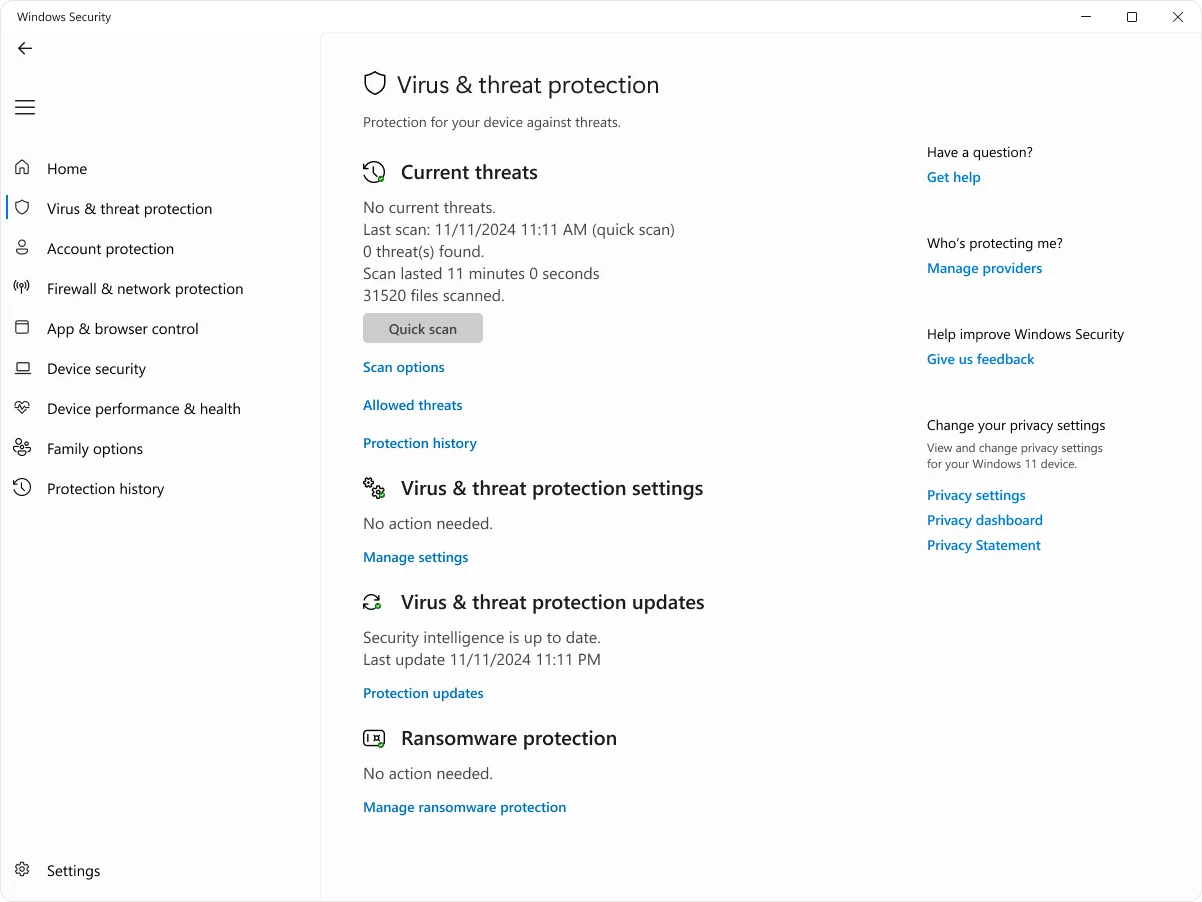
On a work or school PC, stop if the page says settings are managed. The local UI is meant for a single device; Microsoft recommends Intune or Configuration Manager for fleets. Fighting a centrally deployed policy can create drift without changing the effective configuration.
Turn “exclude the app” into a narrow, reviewable rule
Compiler or package build
Prefer the disposable output directory that receives generated objects, after confirming inputs still get scanned. Avoid excluding the compiler process, source tree and package cache together.
Database or virtual machine
Follow the vendor's current documented paths and permissions. Excluding a whole VM library or database volume can hide files copied into it; use role-specific guidance and compensate with backups and access controls.
Backup application
A process exclusion can skip every file the backup engine opens in real time. That radius may include the data you most need inspected. Test a dedicated staging path first and keep the backup destination immutable where possible.
False positive on one signed file
Submit the sample, pin the full path, document the hash/version and remove the rule when Microsoft or the vendor resolves it. Don't exempt the entire installer or Downloads directory.
Mapped network-drive letters are another trap. Microsoft tells administrators not to exclude mapped drives and to specify the actual network path. A drive letter can map differently by user or session, while Defender's service context may not see the mapping you expect. If network scanning is the bottleneck, diagnose the share, endpoint and workload rather than adding M:\ and assuming it worked.
Wildcards and environment variables don't behave like a universal glob in every context. Microsoft notes that system—not necessarily user—environment values are resolved because the Defender service runs as LocalSystem. If a rule depends on a user profile variable, verify the effective path instead of trusting what the string looks like.
Use PowerShell to inventory first, then add or remove one value
Open PowerShell as administrator. Microsoft's current configuration guide provides this inventory pattern:
$p = Get-MpPreference
'ExclusionExtension','ExclusionPath','ExclusionProcess' |
  ForEach-Object {
    $t = $_
    $p.$t | ForEach-Object {
      [pscustomobject]@{Type=$t; Value=$_}
    }
  } | Format-Table -AutoSize
Add and remove one path without disturbing the rest:
Add-MpPreference -ExclusionPath "C:\Work\TrustedApp\BuildOutput"
Remove-MpPreference -ExclusionPath "C:\Work\TrustedApp\BuildOutput"
For a process, use -ExclusionProcess; for an extension, use -ExclusionExtension. Avoid casual use of Set-MpPreference: Microsoft says it overwrites the existing exclusions of the specified type with the values supplied. That can silently delete rules another application or administrator still needs.
Export the inventory before a change and again after it. On managed devices, local values can be merged with or overwritten by Group Policy, Intune or Configuration Manager. Hidden-exclusion policies can also prevent local administrators from seeing every entry through Get-MpPreference, so an empty list isn't always proof of no managed rules.
Verify the effective path with MpCmdRun, not a guess
Microsoft Defender platform versions include MpCmdRun.exe -CheckExclusion. Microsoft's documented setup first changes to the newest platform directory, then checks the path. In an elevated Command Prompt:
MpCmdRun.exe -CheckExclusion -Path "C:\Work\TrustedApp\BuildOutput"Exit code 0 means the target is excluded; exit code 1 means it isn't. The command answers effective coverage, not which rule matched. A child file can report excluded because a parent folder is on the list, so compare the result with the inventory and look upward in the path.
Microsoft also documents the harmless EICAR test string for validating file, folder and extension behavior. Use only the official EICAR or Microsoft instructions, in a disposable test location with no private data. It doesn't validate process exclusions because those depend on which process opens a file. Never replace EICAR with live malware “for a real test.”
When an exclusion is missing, greyed out or seems ineffective
| Symptom | Likely branch | Next check |
|---|---|---|
| Add/remove controls are hidden or grey | Third-party AV, policy, account rights | Security providers and management status |
| Rule exists but file is still detected | Wrong type/path, ASR/EDR layer, stale assumption | CheckExclusion, exact detection source |
| Mapped drive rule appears ignored | Service can't resolve user drive mapping | Use the actual network path |
| Process rule doesn't protect the executable | Expected process-exclusion semantics | Verify whether opened files or the binary is the target |
| Entry disappears or returns at restart | Managed policy or tamper protection | Intune/GPO/Configuration Manager ownership |
| Right-click scan reports zero files | Parent folder or drive may be excluded | Inventory all rules and test effective scope |
An antivirus exclusion doesn't suppress every Defender for Endpoint capability. Attack surface reduction, network protection, Controlled Folder Access and EDR can have separate evaluation paths. Read the event and rule name before widening the antivirus exclusion. “Defender still blocked it” may mean the requested change never targeted the control that acted.
If Windows Security lacks Manage settings, confirm which antivirus is registered. Defender can be passive behind a third-party product. If the device is managed, ask the owner for the effective policy and business reason. If it's personal and unmanaged, update Windows, check Tamper Protection and inspect account privileges before registry edits or reset scripts.
Exclusions you didn't create are an incident until explained
A vendor installer or organization can create legitimate exclusions, and Microsoft maintains built-in exclusions that don't appear in the normal list. But broad custom entries such as System32, entire drives, scripting hosts or removable media aren't normal simply because they're present. Record them before removal: type, exact value, time noticed, device management status and any recent installer or support session.
A May 2026 r/techsupport case linked one-second, zero-file scans to exclusions the user didn't remember adding; normal scanning returned after removal. Another WindowsHelp report described broad entries reappearing after restart following a known infection. These reports don't establish a universal malware pattern, but they show why unexplained scope changes deserve evidence and escalation.
- Disconnect from networks if compromise is plausible and preserve the inventory.
- Check whether the device is joined to work/school management and whether a known security or business application owns the rule.
- Remove unexplained broad entries through supported controls, update Defender and run Quick, Full and Offline scans as the incident warrants.
- If rules return, collect policy and Defender operational evidence rather than repeatedly deleting them.
- Secure exposed accounts from a separate clean device if the incident involved credentials or remote access.
Don't clear Protection History or run a random registry-cleanup script first. Those actions destroy context while leaving the mechanism that restores the exclusion untouched.
Removing an exclusion should restore protection and close the record
In Windows Security, open the same Add or remove exclusions page, expand the exact entry and select Remove. With PowerShell, use Remove-MpPreference with the matching parameter and exact value. Re-list the configuration, run CheckExclusion for a path, then repeat the relevant clean test.
Review every custom entry after an application upgrade, Defender platform change or resolved false positive. A simple record should contain the business or technical reason, owner, exact scope, compensating controls, date added and expiry. If nobody can explain an entry, it shouldn't remain indefinitely.
Exclusions are one small part of the decision to rely on built-in protection. See our human-first Defender assessment and Windows 11 antivirus guide if frequent exceptions are turning into a product-fit problem. A reliable security setup is one you can operate without permanent unknown blind spots.
Microsoft Defender exclusions FAQ
What is a Microsoft Defender exclusion?
It's a rule telling Microsoft Defender Antivirus to skip a file, location, extension or files opened by a process when the rule applies. Microsoft calls every exclusion a protection gap, so it should have a specific reason, narrow scope and review date.
What is the safest type of exclusion?
A single verified file at a full path is usually narrower than a folder, extension or process exclusion. The right choice depends on the trigger, but the principle is constant: exclude the smallest stable target that solves a reproduced problem.
Does a process exclusion exclude the program itself?
No. Microsoft's current documentation says a process exclusion skips files opened by that process. To stop Defender scanning the executable file itself, a separate file/path exclusion would be required. Using the full executable path is safer than a bare image name.
Do Defender exclusions apply to full and scheduled scans?
Current Microsoft Learn documentation says custom path and extension exclusions apply to scheduled, on-demand and real-time scanning. Process exclusions are the exception: they apply to real-time protection and monitoring, not scheduled or on-demand scans.
How do I check whether a path is excluded?
Use the visible Windows Security list or Get-MpPreference to inventory configured rules. For effective file/folder coverage, Microsoft's MpCmdRun.exe -CheckExclusion -Path command returns exit code 0 when excluded and 1 when not excluded.
Why does an exclusion return after I remove it?
A managed Group Policy, Intune or Configuration Manager profile can reapply it. On a personal unmanaged PC, an unexplained broad entry that returns also warrants a security investigation. Don't keep deleting it without identifying the source.
Is Allow on device the same as adding an exclusion?
No. Allow on device is a decision about a detected item in Protection History. An exclusion is a standing scope rule that can prevent scanning when it applies. Neither should be used until the file and publisher have been verified.
Should I exclude my Downloads folder or game drive?
No. Downloads is attacker-controlled by design, and a whole game drive can contain launchers, mods, scripts and newly downloaded executables. Isolate the exact signed executable or generated cache only after a controlled test proves the need.
Bottom line: every exception needs a boundary and an exit
A defensible exclusion starts with a reproduced problem, protects one tightly defined target, passes an effective-scope check and carries a removal date. If the result doesn't improve the original test, remove it. If the entry came from policy, identify the owner. If nobody can explain it, investigate.
The wrong question is “How do I make Defender stop looking here?” The useful question is “What is the smallest temporary gap that fixes this known interaction without creating a safer place for the next threat?”