
Microsoft Defender Offline Scan: Run It, Read the Result, Fix Failures
Offline scan is useful when ordinary Windows may give persistent malware room to hide. The restart is the point, not a malfunction. Here is the safe route from preparation to Protection History—and the checks that matter when the PC simply boots back as normal.
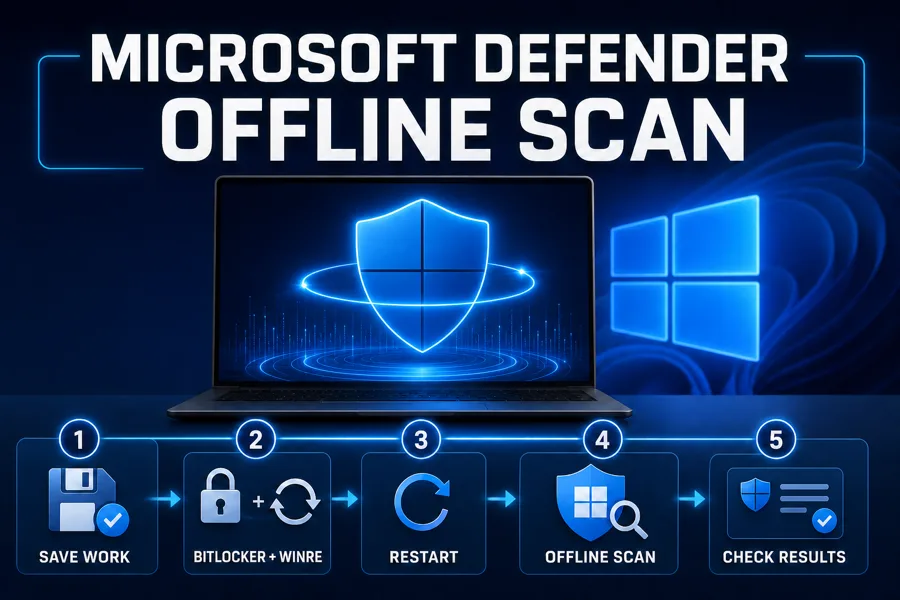
Quick answer: save your work, make sure you can recover BitLocker, and confirm Windows Recovery Environment is enabled. Then open Windows Security → Virus & threat protection → Scan options → Microsoft Defender Antivirus (offline scan) → Scan now. The PC restarts, runs a short scan in WinRE and returns to Windows. Read the result in Protection history. If it only restarts normally, check reagentc /info, Defender's primary-antivirus state and administrator rights before trying random repairs.
Need a different Windows protection task? The complete Microsoft Defender guide hub routes evaluation, scans, exclusions, protection layers, troubleshooting, safe provider changes and alternatives without mixing their steps.
Use Offline scan for persistence, not every suspicious pop-up
Microsoft Defender Offline is an escalation scan built into Windows 10 and Windows 11. It restarts the machine and launches Defender in Windows Recovery Environment (WinRE), outside the usual operating system. Malware that depends on normal Windows processes, services or startup entries has less room to remain active while the scan examines common hiding places.
That makes it sensible after Defender recommends it, when a detection returns after remediation, or when you have a grounded reason to suspect persistent malware. It's also an option when you deliberately want to scan without an Internet connection. It isn't the first response to every browser redirect, high CPU reading or alarming email. Preserve evidence, run an ordinary Quick or Full scan when appropriate, and use Offline scan for the question it can answer.
One wording detail prevents a common misunderstanding: Microsoft's current Virus & threat protection guide says the offline tool performs a quick scan in WinRE. The benefit is the cleaner environment, not a guarantee that every byte on every attached drive is inspected. For a broader view of the built-in product's strengths and limits, read our current Microsoft Defender review and the practical answer to whether Defender is enough.
Offline scan vs Quick, Full and Custom scan
| Scan | Where it runs | Best use | Restart? |
|---|---|---|---|
| Quick | Normal Windows | Likely malware locations and routine checks | No |
| Full | Normal Windows | Every file and running program visible to Defender | No |
| Custom | Normal Windows | A specific file, folder or drive | No |
| Offline | Windows Recovery Environment | Persistent threats that may hide or resist while Windows runs | Yes, twice |
A Full scan and an Offline scan are therefore not interchangeable rankings of “weak” and “strong.” Full is broad while Windows is live; Offline changes the execution environment and focuses on places where persistent malware commonly operates. The right choice follows the symptom. If the concern is a specific download, a Custom scan is faster and preserves context. If the same threat returns after action, the offline environment becomes more valuable.
Don't keep chaining scanners until one produces a scary name. Multiple engines can label potentially unwanted tools differently, and a second real-time suite can place Microsoft Defender in passive mode. If you're deciding whether to add a paid product, compare the actual trade-offs in Defender vs Bitdefender or Defender vs Norton; don't install both just to make this scan start.
Before the restart: five checks that prevent avoidable failure
- Save work and stop transfers. The workflow signs you out and restarts quickly. Save documents, pause large uploads and close apps that hold important unsaved state.
- Update Windows Security. In Virus & threat protection, open Protection updates and check for updates. The offline workflow uses current security intelligence; start with a known-current engine and definitions.
- Confirm Defender is primary. Microsoft's current Offline scan requirements say Defender must be the primary antivirus rather than passive behind another real-time suite. An installed third-party antivirus can legitimately change that state.
- Locate the BitLocker recovery key, then suspend protection as Microsoft directs. Don't turn drive encryption off or decrypt the disk. Microsoft warns that an encrypted system drive may ask for the recovery key during the WinRE restart and explicitly recommends suspending BitLocker protection before the job.
- Confirm WinRE is enabled. Open Windows Terminal or Command Prompt as administrator and run
reagentc /info. The lineWindows RE status: Enabledis the prerequisite. If it says Disabled, use Microsoft's documentedreagentc /enablefix, then recheck before scanning.
The Learn documentation currently lists x64 Windows 11 and x64/x86 Windows 10 as supported, and excludes ARM Windows 10/11 from this specific Offline scan path. That matters on newer ARM laptops: don't force an x64 troubleshooting sequence onto an unsupported architecture. Managed work devices may also enforce policy that belongs to the administrator, not the end user.
How to run Microsoft Defender Offline scan in Windows 11 or 10
- Save your work and close running apps. The computer will sign you out and restart. Save documents, stop long transfers, and close applications before you queue the scan.
- Check BitLocker and Windows Recovery Environment. Locate the BitLocker recovery key and follow Microsoft's guidance to suspend BitLocker protection on the system drive. In an elevated terminal, run
reagentc /infoand confirm Windows RE status is Enabled. - Open Microsoft Defender Offline. Open Windows Security, select Virus & threat protection, open Scan options, select Microsoft Defender Antivirus (offline scan), and choose Scan now.
- Approve the restart. Accept the save-work notice and the administrator prompt. Windows signs out, restarts into its recovery environment, and launches the offline job.
- Let the offline scan finish. Don't force the PC off merely because the recovery interface looks different. Microsoft estimates about 15 minutes, after which the computer restarts into Windows.
- Read Protection History. Open Windows Security and select Protection history. Expand the relevant card, verify the action and record the detection name and affected path before changing it.
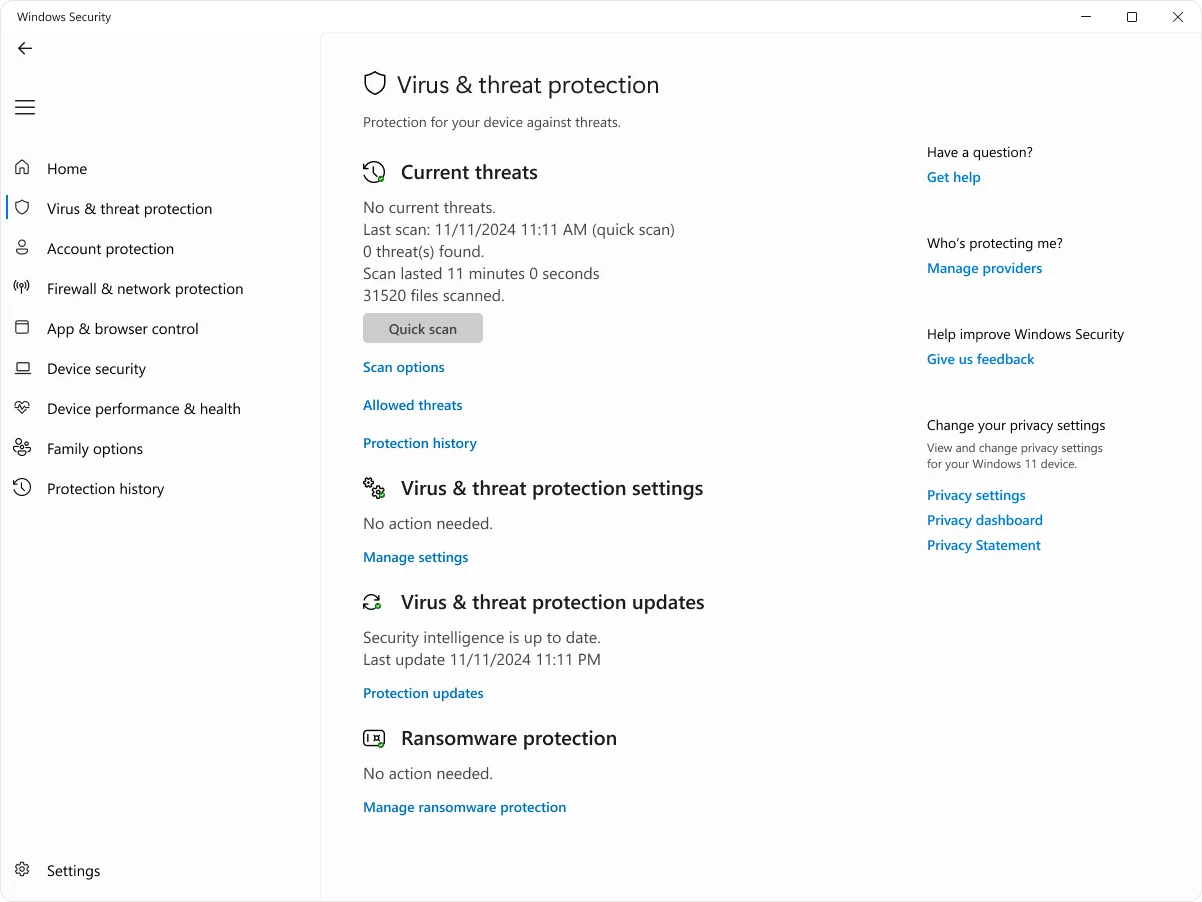
Windows 10 can label the same area slightly differently depending on build, but don't follow an old guide into a separate downloadable Offline Defender creator for a current Windows 10/11 PC. The one-click integrated workflow has existed since Windows 10 version 1607. Old bootable-media instructions apply to older operating systems, not a normal current Windows 11 repair.
PowerShell can start the job, but it can't repair its prerequisites
Administrators can open Windows Terminal or PowerShell as administrator and run:
Start-MpWDOScanThe official Start-MpWDOScan reference says the cmdlet starts Defender Offline on the local computer. It's useful when the Windows Security button is unavailable or when you want an unambiguous supported trigger. It still causes a restart, so the same save-work and BitLocker preparation applies.
More importantly, it isn't a magic bypass. If Defender is passive behind another antivirus, the account lacks local-admin rights or WinRE is disabled, repeating the cmdlet doesn't correct those conditions. Test the prerequisite, not the number of times you can press Enter. Avoid copy-pasting longer “Defender repair” scripts from comments; this task needs one documented command.
The recovery screen should look different from ordinary Windows
After approval, Windows signs out, shuts down and starts its recovery environment. Microsoft explicitly says the Offline interface looks different from a normal Defender scan. A simplified screen, different resolution or brief command window isn't proof that malware replaced the scanner. The trust signal is the route you used and the records left behind, not whether the recovery UI matches a screenshot pixel for pixel.
Microsoft estimates the job at about 15 minutes. Treat that as a planning number, not a countdown. The PC should restart into normal Windows when it completes. Don't interrupt a moving scan because it runs a few minutes longer; forced shutdown during recovery creates a new problem and doesn't preserve useful evidence.
A recent May 2026 r/antivirus discussion shows how easily the unfamiliar recovery presentation is mistaken for a fake. Community reassurance can be useful, but comments aren't a chain of custody. Verify the documented launch, then check Event Viewer and Protection History after Windows returns.
Protection History tells you what happened—not the absence of a pop-up
Open Windows Security and select Protection history. Expand the newest relevant card and read the detection, severity, affected item and action. Microsoft's current Protection History guide says events remain there for two weeks and that administrator privileges can be required to inspect threat details. Record the details while they're available.
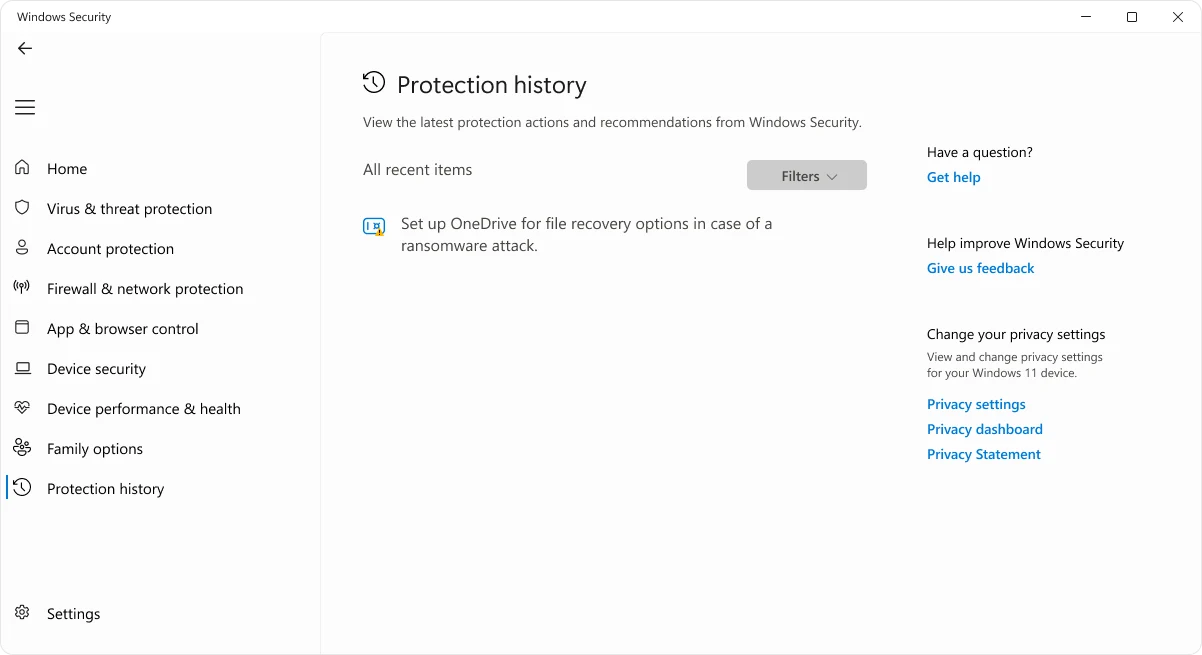
If no obvious card appears, confirm whether the job was queued. Open Event Viewer and go to Applications and Services Logs → Microsoft → Windows → Windows Defender → Operational. Microsoft identifies Event ID 2030 as the record that Defender downloaded and configured the Offline scan for the next restart. That event proves the request was prepared; it doesn't by itself prove the recovery scan finished.
When a threat was quarantined, don't immediately choose Allow because a game, key generator or “system optimizer” stopped working. Check the exact path, signature, origin and digital signer. When the file matters, preserve its hash and ask a trusted security professional or Microsoft Support before restoring it. Protection History is a decision log, not a button-clearing exercise.
Microsoft Defender Offline scan not working: route by symptom
| Symptom | Check first | Safe next action |
|---|---|---|
| Nothing happens or PC boots normally | Primary AV, admin rights, reagentc /info | Enable WinRE if disabled, restart and retry once |
| BitLocker recovery prompt | Did you deliberately start recovery? | Use your verified recovery key; otherwise stop and investigate |
| “Turn on virus protection” notice before restart | Windows Security provider state | Confirm Defender is primary and updated; inspect the final records |
| Different UI or brief command window | Documented launch route | Let the job finish; verify Event 2030 and Protection History |
| Repeated freeze or blue screen | Whether Windows can enter WinRE normally | Retry once; if repeated, collect the stop code and contact support |
| Detection returns after action | Exact name, path and scheduled source | Disconnect, preserve evidence and escalate remediation |
Nothing happens, or Windows performs an ordinary restart
This is the clearest WinRE branch. Microsoft's documentation says disabled Windows Recovery Environment can make Offline scan fail without an error. Run reagentc /info as administrator. If the status is Disabled, run reagentc /enable, verify Enabled, restart once and queue the scan again. If Windows can't enable or enter WinRE, repair that recovery configuration rather than repeatedly invoking Defender.
Also confirm that Microsoft Defender is the registered primary antivirus and the initiating account is a local administrator. A current third-party antivirus can intentionally put Defender into passive mode. Uninstalling paid protection solely to run one scan may be a poor trade; use that vendor's supported rescue path or make a deliberate product choice instead.
“Turn on virus protection” appears just before the restart
Multiple June 2026 users reported this timing in an r/antivirus thread. That's a real community signal, but it doesn't prove malware and it doesn't establish one universal Windows defect. Check Security providers in Windows Security, confirm Defender becomes healthy after boot, and use the event/history evidence. Don't replace the computer because of one transitional notification.
The scan looks stuck, shows a black screen or flashes a command window
Give a moving recovery job reasonable time beyond Microsoft's estimate. If it repeatedly freezes at the same point, photograph the state and record elapsed time. If a blue-screen stop error recurs, Microsoft advises contacting Support. Don't delete the Offline Scanner folder, change boot records or download a random “fixed” image; those actions obscure the original failure and can damage recovery.
No result appears after Windows starts
Protection History may simply have no detection card. Check Event ID 2030 to see whether the job was prepared and review the newest Defender operational events around the restart. Remember that Event 2030 is queue evidence, not completion evidence. If every prerequisite is satisfied but the machine consistently skips WinRE, collect the timestamps, Windows build, Defender platform/security-intelligence versions and Event Viewer export for Microsoft Support.
A clean Offline scan narrows the problem; it doesn't erase the incident
A clean result means this Defender run didn't report malware in the areas and environment it examined. It doesn't prove that a suspicious command was never executed, that an attacker never copied a browser cookie, or that an email, Microsoft, banking or social account is still under your sole control. Endpoint scanning and account recovery answer different questions.
If the incident involved a fake CAPTCHA command, remote-access tool, credential prompt or unknown administrator, disconnect the PC from networks, preserve what was entered and change important passwords from a separate known-clean device. Revoke active sessions, review multifactor-authentication methods and contact the affected provider. A reinstall can restore a trustworthy operating-system baseline, but it can't pull back credentials already transmitted.
If the only symptom was a one-off pop-up and Quick, Full and Offline scans remain clean, look for browser notification permissions, installed extensions and the originating site instead of treating “no detection” as a scanner failure. If the same named threat returns, record its exact path and trigger. A scheduled task, synced file, browser cache or restored backup can recreate an item after Defender removes it.
For ordinary Windows 11 users who keep the platform updated and understand these limits, Defender can be a sensible baseline; our Windows 11 antivirus guide explains when paid extras or stronger management justify switching. The goal after a suspected compromise is a defensible chain of evidence and remediation, not the largest possible stack of overlapping scanners.
Microsoft Defender Offline scan FAQ
What does Microsoft Defender Offline scan do?
It restarts the computer and scans from Windows Recovery Environment instead of ordinary Windows. Persistent malware has less opportunity to run, hide or defend itself there. Microsoft describes the current job as a quick scan in that separate environment, so its advantage is where it runs rather than a promise to inspect every file.
How long does a Microsoft Defender Offline scan take?
Microsoft's current documentation says about 15 minutes. Startup speed, storage, updates and hardware can change the real time. A moderately longer run isn't proof of infection, but a repeated freeze or blue screen deserves troubleshooting.
Where are Microsoft Defender Offline scan results?
After Windows starts, open Windows Security and select Protection history. Microsoft says the list retains events for two weeks. Administrator privileges may be required to expand threat details.
Why does Offline scan restart normally without scanning?
The first checks are whether Microsoft Defender is the primary antivirus, the account has local-administrator rights and Windows Recovery Environment is enabled. Run reagentc /info in an elevated terminal; Microsoft's documentation says disabled WinRE can make the scan do nothing without showing an error.
Can I run Microsoft Defender Offline from PowerShell?
Yes. Open PowerShell or Windows Terminal as administrator and run Start-MpWDOScan. It queues the same offline workflow and restart; it doesn't bypass disabled WinRE, BitLocker preparation or Defender being in passive mode.
Does a clean Offline scan prove my PC is safe?
No scanner can prove a negative. A clean result is useful evidence, but it doesn't show whether a password, browser session or online account was already stolen. Investigate the original symptom and secure exposed accounts separately.
Should I enter my BitLocker recovery key?
Only at the genuine pre-boot recovery screen and only if you deliberately started the scan or another trusted recovery action. Find the key before restarting and follow Microsoft's recommendation to suspend BitLocker protection for the system drive. Never send the key to a stranger or type it into a website.
Is the strange-looking recovery screen a fake scan?
Not by itself. Microsoft warns that the offline interface looks different because it runs outside normal Windows. Verify that you started the job through Windows Security or the documented PowerShell cmdlet, then confirm the queued event and result rather than judging the interface style alone.
Bottom line: verify the restart, then verify the record
A reliable Offline scan has three parts: prepare the machine, run the documented recovery workflow, and inspect what Windows recorded. BitLocker and WinRE checks aren't optional trivia; they explain the two most confusing outcomes—a recovery-key prompt and a normal restart with no scan.
If the scan completes cleanly, return to the evidence that made you suspicious. If a detection returns, or the incident exposed credentials or remote access, escalate beyond repeated scanning. The useful outcome isn't merely a green screen; it's knowing what was tested, what was found and what remains unresolved.