
Microsoft Defender SmartScreen and Firewall: Know Which Layer Blocked You
“Windows blocked it” can mean reputation, app control, antivirus, exploit mitigation or a network rule. These controls solve different problems. This guide shows how to identify the layer, verify a file, and grant only the network access a trusted app actually needs.

Quick answer: SmartScreen checks reputation for apps, files, websites and downloads. Smart App Control is a separate Windows 11 trust gate. Windows Firewall controls network traffic by profile and rules. If a verified app is blocked, identify the exact control before changing anything. For inbound network access, keep Firewall on, prefer an app rule over an open port, select only the required profile, retest the exact feature, and remove the rule when it's no longer needed.
Need a different Windows protection task? The complete Microsoft Defender guide hub routes evaluation, scans, exclusions, protection layers, troubleshooting, safe provider changes and alternatives without mixing their steps.
First name the security layer that acted
| Layer | Question it asks | Typical surface | What an exception changes |
|---|---|---|---|
| Defender Antivirus | Does content or behavior look malicious? | Virus & threat protection | Scanning/remediation scope |
| SmartScreen | Is this site, publisher, app or download reputable? | App & browser control / Edge | One warning or reputation policy |
| Smart App Control | Is this Windows 11 app trusted enough to run? | Smart App Control settings | Control mode, not an antivirus exclusion |
| Windows Firewall | May this traffic cross this profile and direction? | Firewall & network protection | Program/port/protocol/profile access |
An antivirus exclusion doesn't fix a firewall rule. Opening a port doesn't establish that an unknown installer is safe. Turning off SmartScreen doesn't repair an exploit-protection event. A June 2026 WindowsHelp report shows the cost of this confusion: the user changed antivirus, browser and SmartScreen settings even though Event Viewer named a blocked Win32k system call. Community evidence is directional, but the lesson is solid—use the exact event and control name.
For antivirus health or CPU symptoms, use our Defender troubleshooting guide. For scan-scope rules, use the separate Defender exclusions guide.
SmartScreen is a family of reputation checks, not one switch
Microsoft's current App & browser control documentation splits reputation-based protection into several surfaces. Check apps and files evaluates apps and files downloaded from the web. SmartScreen for Microsoft Edge evaluates sites and downloads. Potentially unwanted app blocking targets software that may inject ads, mine cryptocurrency or install extras. SmartScreen for Microsoft Store apps checks web content used by Store apps.
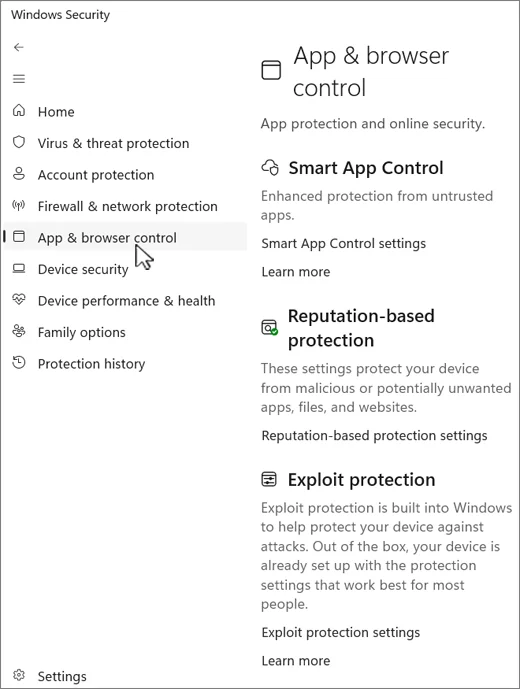
According to Microsoft's current Edge SmartScreen explanation, the browser checks visited pages against reported phishing and malicious-site intelligence, warns on suspicious pages, and evaluates downloads against known unsafe files and the reputation of popular downloads. An unfamiliar file may therefore receive a warning without a malware signature. That ambiguity is why verification matters; it isn't a reason to switch the layer off for every future download.
Windows 11 phishing protection has additional scope. Microsoft says it can warn when the password used to sign into Windows is typed into malicious content, reused, or stored in apps such as Notepad, depending on enabled options. The current limitation is important: Microsoft documents protection for the typed password used to sign into Windows 11, not every credential in a password manager.
When Windows protected your PC, verify before Run anyway
- Identify the control that blocked the app. Read the exact message and source: SmartScreen reputation, Smart App Control, antivirus, exploit mitigation, Controlled Folder Access, or Windows Firewall. Don't change a different layer.
- Verify the file and publisher. Confirm the download came from the vendor's official site, inspect the digital signature and version, and compare a published hash where one is available.
- Check the active network profile. Open Firewall & network protection and identify the active Domain, Private, or Public profile before approving any network exception.
- Prefer an app rule to an open port. Use Allow an app through firewall for a trusted listener instead of opening a fixed port to every application. Select only the profiles the app truly needs.
- Retest the exact function. Repeat the blocked launch, inbound connection, local discovery, or service action. Don't assume general internet access proves an inbound firewall rule works.
- Remove ineffective or temporary access. If the exception doesn't solve the reproduced problem, remove it. Remove lab, installer, and one-time support rules after the task ends.
- Report false reputation decisions. Use Microsoft's SmartScreen or file-submission route for a verified safe app or site so the underlying reputation decision can be reviewed.
A valid signature proves who signed the file and that signed content hasn't changed; it doesn't prove the software is desirable. A matching vendor hash adds integrity evidence. The official source, release notes, publisher identity and why the application needs elevated or inbound access complete the decision.
If the file has already triggered Defender Antivirus, don't add a reputation bypass and an exclusion together. Read Protection History, update security intelligence and submit a verified false positive through Microsoft Security Intelligence. For persistent detections, follow the Offline scan guide.
Smart App Control isn't SmartScreen
Smart App Control is a Windows 11-only layer for malicious or untrusted apps. It works alongside Microsoft or third-party antivirus. Microsoft's current documentation says it can be used only on eligible new Windows 11 installs; receiving it through an update doesn't make an existing installation eligible to turn it on without a reset or reinstall.
Its three documented modes are Evaluation, On and Off. Evaluation observes whether the device is a good candidate without blocking. Microsoft also says you can't return to Evaluation after it ends or after manually switching the control, unless Windows is reset or reinstalled. That's a materially different decision from toggling an individual SmartScreen reputation check.
A March 2026 WindowsHelp thread explicitly confused the two controls and attracted registry-kill advice. Treat community workarounds as unverified. Update Windows, confirm the page and mode, verify the blocked publisher, and use vendor/Microsoft support before changing Code Integrity policy in the registry.
Firewall profiles describe network trust, not three separate firewalls
Windows Firewall maintains Domain, Private and Public profiles. Domain is normally active when an organization-managed device authenticates to its domain. Private is for a network you choose to trust, such as a controlled home LAN where discovery may be needed. Public is for cafés, hotels, airports and other untrusted networks. The active profile determines which scoped rules apply.
Keep the firewall enabled on all profiles. Public shouldn't be made Private merely to make device discovery or a server work. Fix the app rule on the correct profile. A laptop moves between networks; an unnecessarily broad Public allowance travels with it.
The common first-run prompt concerns an application listening for inbound traffic. An app can still browse the web through ordinary outbound connections while local discovery, hosting, remote control or peer-to-peer features fail. Record the direction and feature before opening anything.
Allow a trusted app through Firewall without turning Firewall off
Microsoft's current allowed-app instructions are: Windows Security → Firewall & network protection → Allow an app through firewall → Change settings. Select an existing app or Allow another app and browse to its full executable path. Enable only the profile needed.
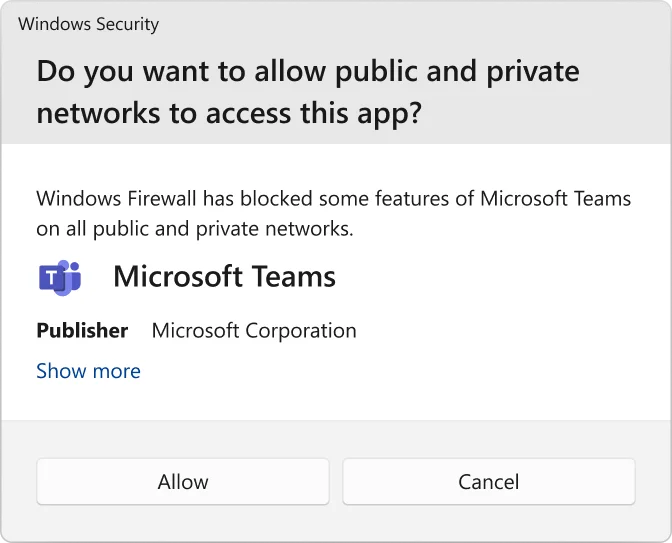
Microsoft says allowing an app is generally safer than opening a port because the hole is available when the app needs it, while an open port remains open until closed. Neither is risk-free. Prefer the full application path, avoid wildcard assumptions, and remove the rule when the server, game session, development test or support task is finished.
Opening a port belongs in Advanced settings → Inbound Rules only when the protocol design genuinely requires a stable port and an app-scoped rule is insufficient. Document protocol, local port, program/service, profiles, remote addresses and owner. “Port 8080 for testing” isn't a durable policy.
Read the rule as a sentence before you save it
A useful firewall rule answers six questions: which executable or service, inbound or outbound, TCP or UDP, which local or remote port, which network profiles, and which remote addresses. If you can't say the rule aloud without using “anything” or “everywhere,” the scope is probably wider than the reproduced problem. A media server needed only inside a home LAN, for example, shouldn't inherit Public-profile access just because selecting every checkbox makes the warning disappear.
Program identity is also more exact than the friendly name in a prompt. Microsoft's firewall rule guidance says application rules use a complete executable path and don't support wildcards. That matters when an updater launches a second binary, an app is installed in a versioned folder, or two executables share a similar product name. Confirm the process that actually listens on the port instead of granting access to a launcher that never receives the traffic.
On a managed PC, local and centrally deployed rules can coexist—or policy can prevent local rules from being merged. A checkbox that looks correct but has no effect may therefore be a policy problem, not a reason to disable the firewall. Capture the active profile, executable path, rule name and exact failure, then ask the administrator which rule source wins. That evidence is far more useful than a screenshot of the main Firewall page saying the service is on.
Retest from the same network and with the same remote device or client that exposed the problem. Localhost, another machine on the Private LAN and a client arriving from outside the router exercise different paths. Windows Firewall can't create a router port-forward, repair name resolution or make a service start listening. Check the app's listener and the network path before stacking more allow rules.
If you clicked Cancel, the firewall prompt may not return
Microsoft Learn documents a subtle behavior competitors often miss: if an administrator clicks No or cancels the first inbound prompt, Windows typically creates block rules for TCP and UDP. If the user isn't a local administrator, block rules can be created regardless of the selection. Once rules exist, relaunching the app doesn't necessarily recreate the prompt.
Open Allow an app through firewall or Windows Defender Firewall with Advanced Security and locate rules for the exact executable. Confirm direction, action, profiles and full program path. Remove obsolete block rules or create the narrow supported allow rule, then retest the listening feature. Don't reset the entire firewall because one prompt vanished.
Route SmartScreen and Firewall problems by evidence
| Symptom | Likely layer | Next action |
|---|---|---|
| Windows protected your PC | App/file reputation | Verify source, signature, hash and publisher |
| Dangerous site/download warning in Edge | Edge SmartScreen | Leave site; report a verified false decision |
| Untrusted app blocked on Windows 11 | Smart App Control | Confirm SAC mode and vendor signing |
| App works online but can't host/discover | Inbound Firewall rule | Check executable, profile, protocol and block rules |
| Setting greyed or rule returns | Managed policy | Identify work/school administrator and policy source |
| System-call or protected-folder event | Exploit protection/CFA/other | Read exact event; don't change SmartScreen/Firewall |
If Firewall itself is off or the service won't start, switch to the health path in the Defender fixes guide. If the device is managed and local rule merge is disabled, Microsoft says centralized deployment is required; local checkboxes may not become effective.
Audit allowances like temporary credentials
Review inbound rules and the allowed-app list after uninstalling software, moving a test service, changing network design or finishing remote support. Remove duplicate, disabled-but-forgotten and unknown-publisher entries after documenting them. Check whether a broad port rule can become a full-path program rule and whether Public is truly necessary.
Don't use a full firewall reset as routine cleanup. Export or document custom rules first because VPNs, virtualization, development tools and managed services may depend on them. A reset can restore connectivity by erasing the evidence and every legitimate exception at once; that isn't diagnosis.
For the wider built-in protection decision, see our current Microsoft Defender review and Defender sufficiency guide. SmartScreen and Firewall are meaningful layers, but they don't add identity monitoring, a VPN, password management or centralized family/device management by themselves.
SmartScreen and Windows Firewall FAQ
Is Microsoft Defender SmartScreen the same as antivirus?
No. SmartScreen is a reputation layer for apps, files, sites and downloads. Microsoft Defender Antivirus scans for malicious content and behavior. They can act on the same file for different reasons.
Is Smart App Control the same as SmartScreen?
No. Smart App Control is a separate Windows 11 control that blocks malicious or untrusted apps and works alongside antivirus. Microsoft's current documentation says it's unavailable on Windows 10 and can be enabled only on eligible new Windows 11 installs.
Should I click Run anyway when Windows protected my PC?
Only after independently verifying the official source, digital signature, exact filename/version and publisher. Low reputation can affect a new legitimate file, but the warning isn't evidence that the file is safe.
Should Windows Firewall be on for public networks?
Yes. Public networks are the least trusted profile. Keep the firewall enabled and approve the narrowest app/profile access required instead of disabling the profile.
Is allowing an app safer than opening a port?
Usually yes. Microsoft says allowing an app creates access only when that app needs it, while an open port remains open until it's closed. Both create risk and should be removed when no longer needed.
Why did clicking Cancel make the firewall prompt stop appearing?
Microsoft documents that cancelling or denying the first inbound prompt can create block rules, typically for TCP and UDP. Delete the relevant rules or change the allowed-app entry; relaunching alone may not show the prompt again.
Why is a SmartScreen or firewall setting greyed out?
A work or school administrator may manage it through policy, or another security product may own part of the surface. Check the management/provider state instead of forcing registry changes.
Does the firewall block an app's normal web browsing?
The common first-run prompt concerns inbound listening, not every outbound web request. Diagnose the direction, profile, executable path, protocol and port before creating a rule.
Bottom line: grant trust and network access separately
SmartScreen asks whether a file, site or publisher has trustworthy reputation. Firewall asks whether specific traffic may cross a profile. Verify the app before overriding reputation; then grant only the network direction and profile its real function requires.
Keep both layers on. A precise exception you can explain and remove is operational security. A global toggle used to silence an unidentified block is only lost evidence.