
Microsoft Defender Not Working or High CPU? Diagnose the State First
A red Windows Security card and a busy Antimalware Service Executable aren't the same failure. This guide separates protection health from normal scan work, then moves from status evidence to safe repair—without deleting Defender or hiding its own files.
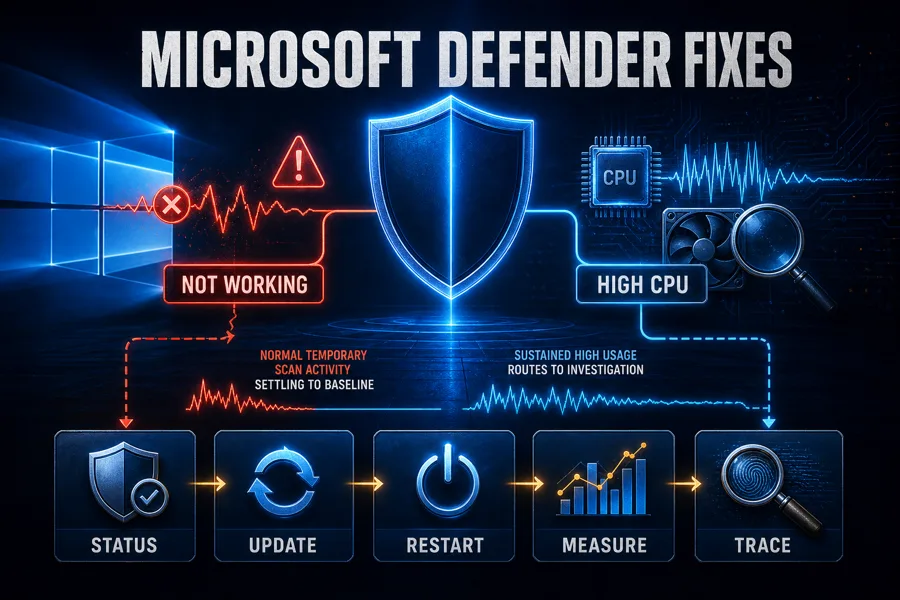
Quick answer: first check whether Microsoft Defender is actually off or merely busy. Open Windows Security → Virus & threat protection and Security providers, then run Get-MpComputerStatus as administrator. If protection is unhealthy, update Windows and Defender, restart, remove a retired competing antivirus, then repair the Windows Security app if the interface is the remaining problem. If MsMpEng.exe is busy, measure it during the task and after 10–15 idle minutes. Persistent load gets a Defender Performance Analyzer trace—not a self-exclusion or service kill.
Need a different Windows protection task? The complete Microsoft Defender guide hub routes evaluation, scans, exclusions, protection layers, troubleshooting, safe provider changes and alternatives without mixing their steps.
Choose the route from the symptom, not the scariest number
| What you see | Likely state | First evidence |
|---|---|---|
| Green cards; CPU rises during visible scan/update | Working under load | Task, elapsed time, path and return to idle |
| Green cards; CPU/disk stays active at idle | Repeated trigger or performance fault | Three-state baseline and performance trace |
| Red X, service-off card or stale definitions | Protection health failure | Provider plus Get-MpComputerStatus |
| Blank or crashing Windows Security, status cmdlet healthy | Interface/package fault | Repair/Reset app path |
| Quick scan always sticks at the same item | File/container, engine or storage interaction | Exact path, time and Defender events |
| Defender passive with another AV installed | Expected provider handoff | Security providers and third-party status |
Task Manager shows a moment, not a diagnosis. Defender scans files created by builds, game patches, archives, backup jobs and cloud sync. High CPU while those events are active can be normal. A working engine that returns to baseline doesn't need repair; a red card with low CPU doesn't become healthy because the process exists.
Don't follow instructions that delete MsMpEng.exe, change ownership of Defender folders, disable Tamper Protection permanently or exclude Defender from itself. Recent 2026 support threads still recommend those shortcuts. They trade an observable performance problem for an invisible protection gap.
Verify that MsMpEng.exe is Defender, then read the actual state
Antimalware Service Executable is the Task Manager label for Microsoft Defender's engine, normally MsMpEng.exe under a versioned Microsoft Defender Platform directory. Use Task Manager → Details or Open file location and inspect the Microsoft digital signature. A look-alike in Temp, Downloads or a user profile deserves investigation.
In elevated PowerShell, run:
Get-MpComputerStatus |
  Select-Object AMRunningMode, AMServiceEnabled,
    AntivirusEnabled, RealTimeProtectionEnabled,
    AntivirusSignatureAge, AntivirusSignatureLastUpdated,
    AMProductVersion, AMEngineVersion
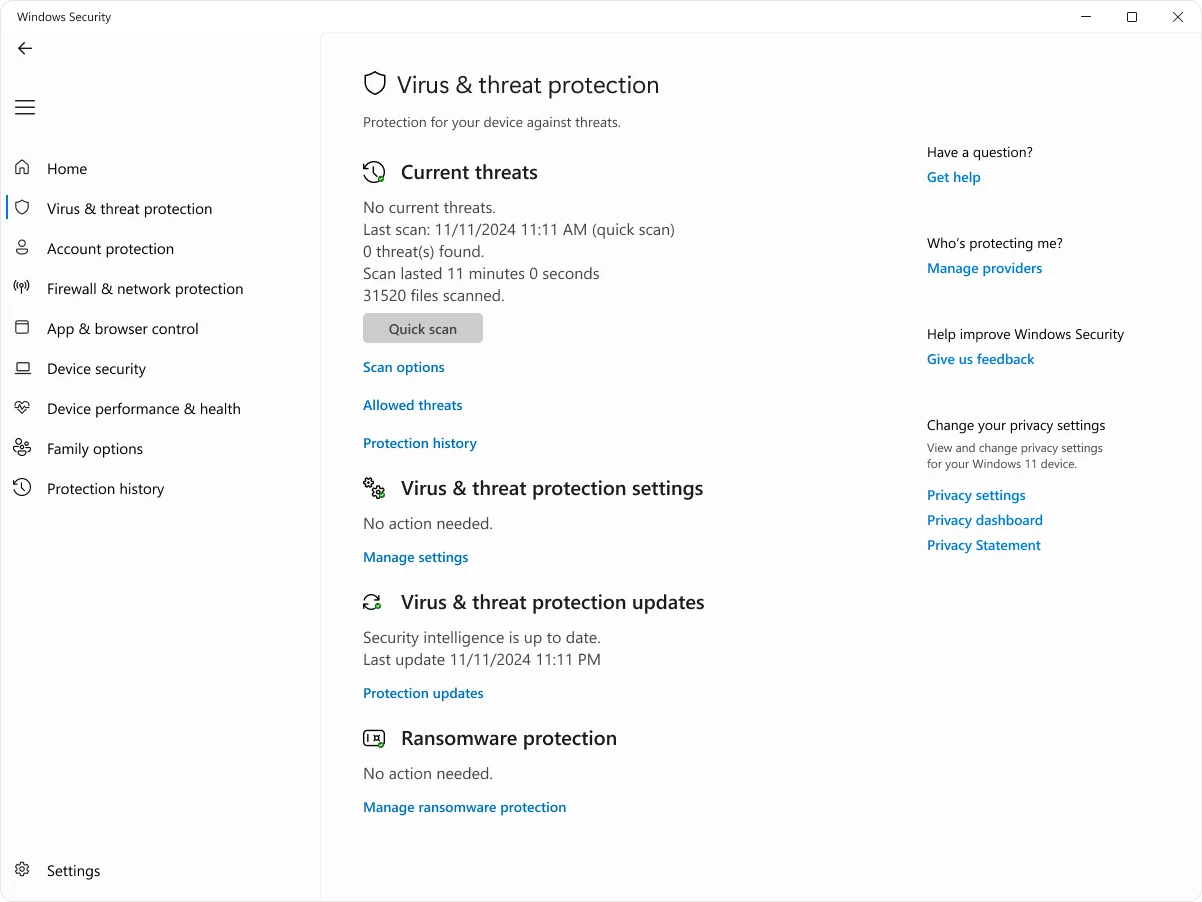
The official Get-MpComputerStatus reference defines this as the antimalware status command. Read the fields together. Normal mode, running service, enabled antivirus/real-time protection and current signatures support a healthy engine even if the app card is stale. Passive mode can be expected when another primary antivirus is registered.
Fix Defender protection health in the safest order
- Classify the symptom. Decide whether protection is unhealthy, a scan is stuck, or Defender is working but consuming resources. Record the exact card, process and active task.
- Check the registered provider and Defender status. Confirm which antivirus Windows Security lists as active, then use
Get-MpComputerStatusto inspect running mode, service, real-time protection and signature age. - Update Windows and Defender. Install current Windows updates, check Protection updates in Windows Security, restart once and capture the new status before changing advanced settings.
- Remove a competing real-time suite cleanly. If another antivirus should no longer be primary, uninstall it with the vendor-supported method, restart and verify that Defender returns to Normal mode.
- Measure active, post-task and idle states. Record
MsMpEng.exeCPU, memory and disk during the scan or update, immediately afterward, and after 10 to 15 minutes of genuine idle time. - Trace a repeatable performance trigger. Use
New-MpPerformanceRecordingwhile reproducing the trusted workload and analyze it withGet-MpPerformanceReportinstead of guessing at exclusions. - Repair the interface or operating system only where indicated. Use Windows app Repair then Reset for a broken Windows Security interface; use DISM and SFC only when Windows component corruption is plausible.
- Escalate with evidence. If protection remains off, the service crashes, scans stick at the same item, or idle load persists, preserve versions, events, traces and reproduction steps for Microsoft or device support.
Microsoft's consumer antivirus FAQ recommends not running two real-time antivirus or antispyware products together. Turning the old suite's window off isn't the same as removing its drivers and provider registration. Use its supported uninstaller, restart, then recheck the state.
If Defender detects but can't remove a persistent item, switch from repair to incident response: read Protection History and use the Microsoft Defender Offline scan workflow. A failing interface isn't evidence that every security layer is compromised, but repeated protection-state changes without an explained provider deserve escalation.
Repair a blank or crashing Windows Security interface after checking the engine
If Get-MpComputerStatus is healthy but Windows Security is blank, freezes or displays stale cards, treat the app shell separately. Microsoft's general Windows app repair sequence is Settings → Apps → Installed apps → the app's Advanced options → Repair, then Reset if Repair is unavailable or fails. Options vary by Windows build.
Restart after the repair and compare both the app and PowerShell status. Don't remove Windows Security with Remove-AppxPackage or re-register every AppX package as a first move. Those broad commands change much more than the broken surface and can obscure the original state.
Use DISM and System File Checker only when Windows component corruption is plausible—failed servicing, corrupted files, repeated package errors—not as ritual treatment for any red icon. Follow Microsoft's DISM then SFC sequence and preserve its output.
For high CPU, measure the return to idle
Open Task Manager and record MsMpEng.exe CPU, memory and disk in three states: during the visible scan/update or workload; immediately after it completes; and after 10–15 minutes with games, builds, sync and transfers stopped. Also record total system CPU and the file-producing application. “Nothing is open” doesn't make OneDrive, Steam, backups or Windows Update idle.
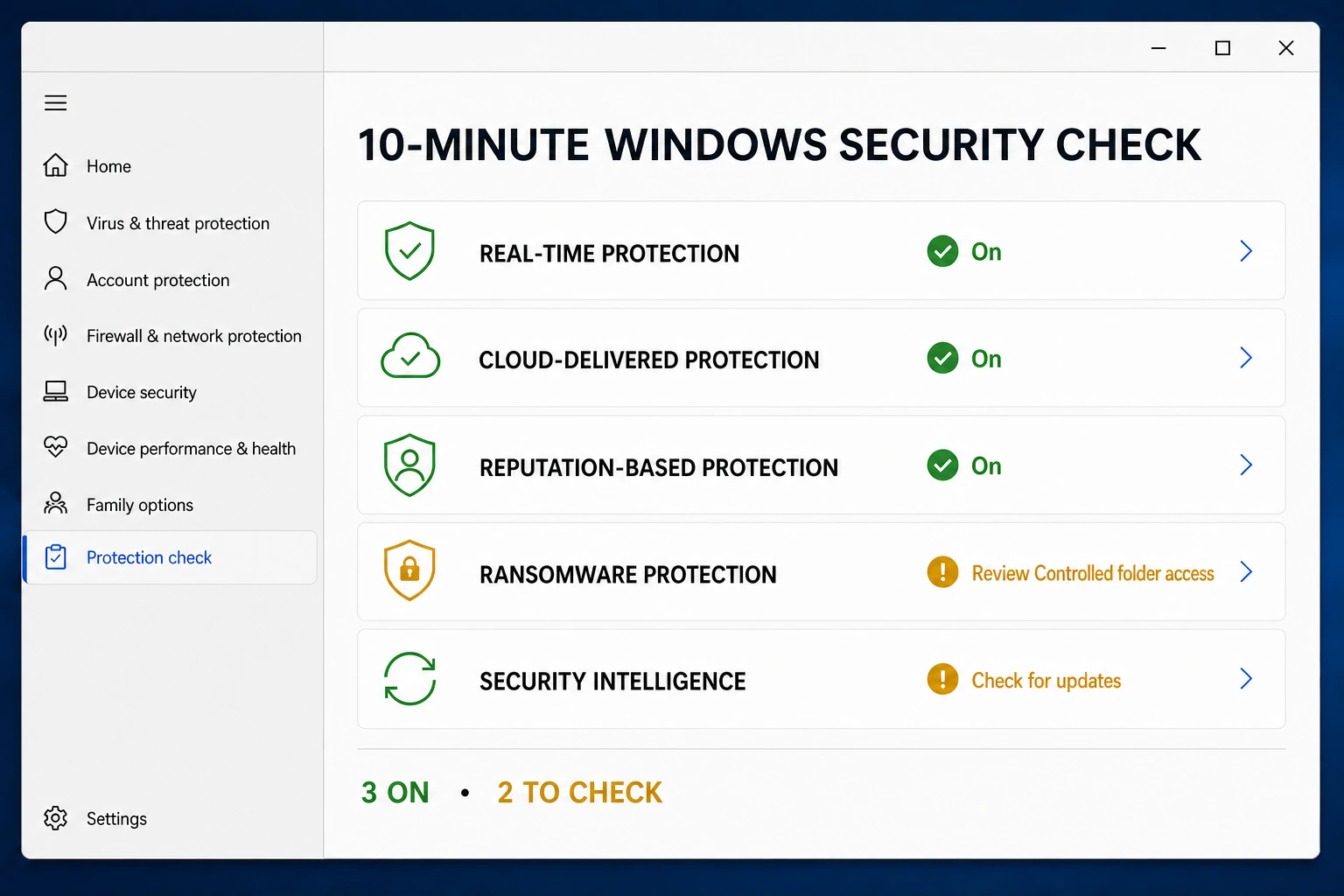
A fan spike during a Full scan is expected work. Concern rises when CPU or disk remains active after a reproducible idle window, memory keeps growing, the same application triggers stutter every time, or the engine crashes. A March 2026 r/antivirus report documents gaming stutter plus broad exclusions of MsMpEng and Defender folders that failed to solve it. That's a useful warning, not a measured prevalence rate.
CPU, memory and disk point to different workloads
High CPU usually means the engine is actively analyzing content. High disk with modest CPU can mean it's walking many small files, archives, a slower HDD or a network-backed path. A stable memory working set isn't automatically a leak; continuous growth across equal idle intervals, paging and failure to release after the workload ends are the stronger signals. Record all three resources because “Defender is heavy” hides the distinction.
Game launchers and package managers are common timing clues because they unpack, verify and rewrite many files at once. Compilers can create thousands of short-lived objects; backup tools and sync clients then reopen the same tree. Pause one trusted producer for a controlled interval and repeat the baseline. If Defender settles only when that producer stops, you have a reproducible interaction for the performance trace—not permission to exclude the entire game drive, repository or backup.
Check free disk space, storage health, thermal throttling and total system load too. Task Manager can attribute CPU to MsMpEng while the user-visible slowdown also depends on an HDD at 100% active time, a nearly full system volume or another process creating the queue. A security fix that ignores the producer may reduce one number without restoring responsiveness.
For laptops, compare plugged-in and battery states only if the same power mode and workload can be reproduced. Don't interpret a faster scan with louder fans as a regression by itself: higher available power can let Defender finish sooner. The outcome to optimize is usable foreground performance plus a completed scan, not the lowest instantaneous percentage.
Use Defender Performance Analyzer to identify the expensive path
Microsoft ships a purpose-built trace for Windows 10 and later on Defender platform 4.18.2108.X or newer. Open PowerShell as administrator, start the recording, reproduce the trusted workload, then stop the prompt and analyze it:
New-MpPerformanceRecording -RecordTo .\Defender-scans.etl
Get-MpPerformanceReport -Path .\Defender-scans.etl -TopScans 20
Get-MpPerformanceReport -Path .\Defender-scans.etl -TopFiles 20
Get-MpPerformanceReport -Path .\Defender-scans.etl -TopProcesses 20
The official Performance Analyzer reference says the report identifies file paths, extensions and processes with the highest scan impact. Microsoft also says the tool isn't intended to recommend exclusions. A hot path is a lead: verify why it's busy, whether it's trusted and whether scheduling, application behavior or a narrow output path is the fix.
If evidence supports a temporary rule, follow the Microsoft Defender exclusions guide. Never exclude MsMpEng.exe, Defender Platform, an entire drive or Downloads to reduce CPU. Remove any test exclusion that doesn't materially change the same measured workload.
CPU throttling is scheduling guidance, not a universal cap
Microsoft's full-scan best practices say most users don't need scheduled Full scans. Real-time protection plus Quick scanning is the normal model; a Full scan can consume substantial resources because it reads broadly.
ScanAvgCPULoadFactor defaults to 50, but Microsoft describes it as average guidance rather than a hard ceiling. Current scan configuration documentation says manual scans ignore it. Scheduled-scan behavior also depends on idle and throttling policy. Therefore Set-MpPreference -ScanAvgCPULoadFactor 20 isn't a fix for random real-time spikes, and a Task Manager peak above 20% doesn't prove the setting failed.
Move large scans to inactive hours, avoid overlapping backup/indexing jobs, and measure completion time as well as responsiveness. Lower average CPU stretches the scan; it doesn't remove the work. On a personal PC, changing multiple enterprise-style policy knobs is less useful than finding the actual expensive path.
Stuck scans and service crashes need the exact item and event
If a scan freezes at the same count or path, record it. Large archives, disk errors, inaccessible network locations and specific file interactions create different branches. Update, restart, repeat once and check storage health. Don't delete the file before preserving its path and source if compromise is plausible.
A May 2026 WindowsHelp case reported MsMpEng.exe terminating around one media drive with Event ID 5008. One report can't prove a product-wide defect, but it demonstrates useful evidence: exact build, fault event, drive and repeatable scan point.
Microsoft's service-startup guide identifies WinDefend as Automatic/Running in a healthy primary-antivirus state. Don't force protected service permissions or registry startup values from a generic video. If WinDefend repeatedly stops after updates and provider checks, collect operational events and escalate.
Give support a reproducible case
- Windows edition, version, OS build and pending restart status.
AMRunningMode, service/protection booleans, Defender platform/engine and signature versions.- Registered antivirus provider and any recently removed security suite.
- Task Manager samples during active, post-task and 10–15 minute idle states.
- Performance Analyzer report or exact stuck file/path.
- Relevant Defender Operational and Reliability Monitor events, including Event ID 5008 if present.
- One-change-at-a-time history and whether the symptom returned.
Redact usernames, private paths, account details and unrelated document names. If support requests diagnostics, use the official collection route tied to the case. Never grant remote access to an unsolicited caller claiming to be Microsoft.
Microsoft Defender troubleshooting FAQ
Is Antimalware Service Executable a virus?
Normally it's the Microsoft Defender Antivirus engine, MsMpEng.exe. Verify the signed process and expected Microsoft Defender Platform path. A similarly named file in Downloads, Temp or a user folder isn't automatically legitimate.
Why is Antimalware Service Executable using high CPU?
A scan, security-intelligence update or large file workload can cause a temporary spike. The useful test is whether usage returns after the task ends and 10 to 15 minutes of genuine idle. Sustained or repeatable load needs a trace.
Can I end or delete MsMpEng.exe?
No. It's a protected security process. Ending, deleting, changing ownership or excluding Defender from itself can break protection without fixing the workload that triggered it.
Does ScanAvgCPULoadFactor cap all Defender CPU use?
No. Microsoft describes it as average guidance rather than a hard ceiling. Current documentation says manual scans ignore it; it mainly applies to scheduled scans and interacts with other idle/throttling settings.
Why is Windows Security blank or showing a red X?
The interface, registered provider, Defender service, definitions and actual protection state can disagree. Check Security providers and Get-MpComputerStatus first, then update/restart and repair or reset the app if only the interface remains broken.
Why does Defender turn off when I install another antivirus?
Windows normally registers one primary real-time antivirus. Defender can enter passive or disabled mode when a compatible third-party suite is active and return when that suite is removed or expires.
Should I exclude MsMpEng.exe to reduce CPU?
No. A process exclusion changes scanning of files opened by that process and broad self-exclusions create protection gaps. Trace the high-impact files or workload, then use the narrowest justified path only if evidence supports it.
When should I contact Microsoft Support?
Escalate when Defender can't stay enabled, WinDefend repeatedly stops, Event ID 5008 or the same scan hang returns, definitions remain stale, or measured idle load survives updates, conflict removal and repair.
Bottom line: health is a state; performance is a pattern
Use provider and status evidence for broken protection. Use a three-state baseline and Performance Analyzer for resource use. Those routes meet only after updates, conflicts and the exact workload are understood.
A transient scan spike is work. A red card, stopped service, repeated crash or sustained idle load is a case. Preserve the distinction and you can fix Defender without disabling the protection you're trying to restore.
If the problem becomes a product-choice question, compare the current evidence in our Microsoft Defender review, the everyday-risk analysis in Is Windows Defender Good Enough?, and the wider Windows 11 antivirus guide.