
How to Enable or Disable Microsoft Defender Without Breaking Windows Security
There are legitimate reasons to pause real-time scanning for a controlled test. There are far fewer good reasons to dismantle the antivirus, its services and Tamper Protection. Here is the short safe path, the restore checklist, and the reason many “permanent disable” guides no longer work.

Quick answer: Open Windows Security → Virus & threat protection → Manage settings, then switch Real-time protection off for a short, verified test. Switch it back on as soon as the test ends. Microsoft says the control is temporary and will turn itself back on after a short while. If you're replacing Defender, install a compatible antivirus and let Windows Security change providers; don't use a “Defender remover,” service hack or legacy Registry recipe.
Need a different Windows protection task? The complete Microsoft Defender guide hub routes evaluation, scans, exclusions, protection layers, troubleshooting, safe provider changes and alternatives without mixing their steps.
First decide what “turn off Defender” means
Windows Security is the dashboard. Microsoft Defender Antivirus is one protection provider shown inside it. Windows Firewall controls network traffic; SmartScreen evaluates reputation; Controlled Folder Access protects selected folders; Smart App Control is another Windows 11 trust layer. Turning off the antivirus Real-time protection toggle doesn't turn all of those controls off, and it shouldn't.
The common home-PC action is a temporary pause of real-time antivirus monitoring. Microsoft’s current Virus & threat protection documentation says files and programs are normally scanned as they're accessed or executed. During the pause, files opened or downloaded aren't checked in real time. Scheduled scans continue, but that isn't equivalent protection at the moment a new file runs.
A provider change is different. If a compatible third-party antivirus registers with Windows Security, Defender Antivirus stops being the primary real-time provider. A managed-device policy is different again: the organization, not a local how-to, owns the effective state. Naming the job prevents a small compatibility test from becoming a machine-wide security downgrade.
Choose the narrowest change that answers the problem
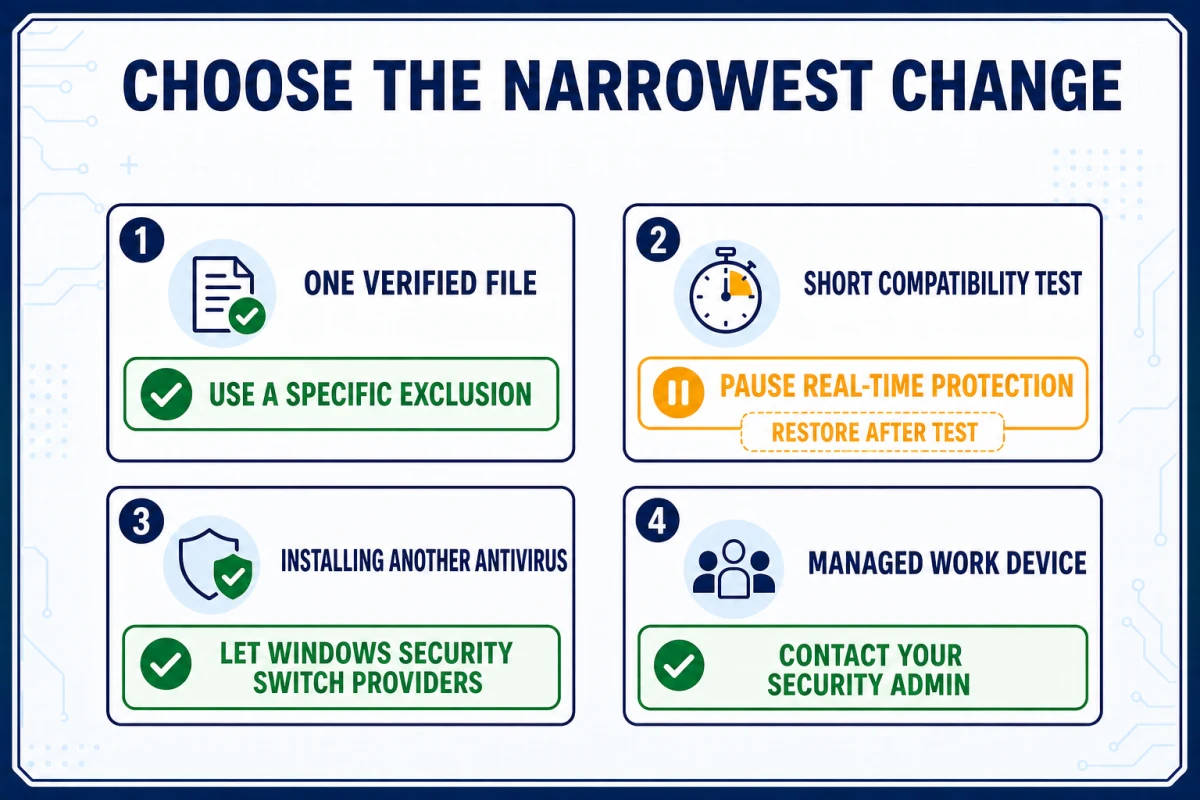
| Your actual job | Narrow change | Avoid |
|---|---|---|
| Test one verified file or build | A specific file, folder or process exclusion | Switching off every protection layer |
| Reproduce a short compatibility issue | Time-boxed Real-time protection pause | Browsing or downloading during the gap |
| Replace Defender with another antivirus | Install a compatible registered provider | Running two primary real-time engines |
| Change a managed company device | Use the security team’s policy/troubleshooting route | Local Registry and service hacks |
If a trusted development tree is repeatedly scanned, a precise exclusion may be safer than repeated global pauses. Read the scope warnings in our Microsoft Defender exclusions guide before adding one. If the symptom is high CPU, a broken update or a missing Windows Security page, diagnose it through the Defender repair guide instead of assuming the antivirus must be removed.
Temporarily disable Real-time protection for a controlled test
- Verify the file and define the test. Confirm the file came from its official source, inspect its publisher or signature, and write down the one action you need to test. Don't pause protection for an unknown download.
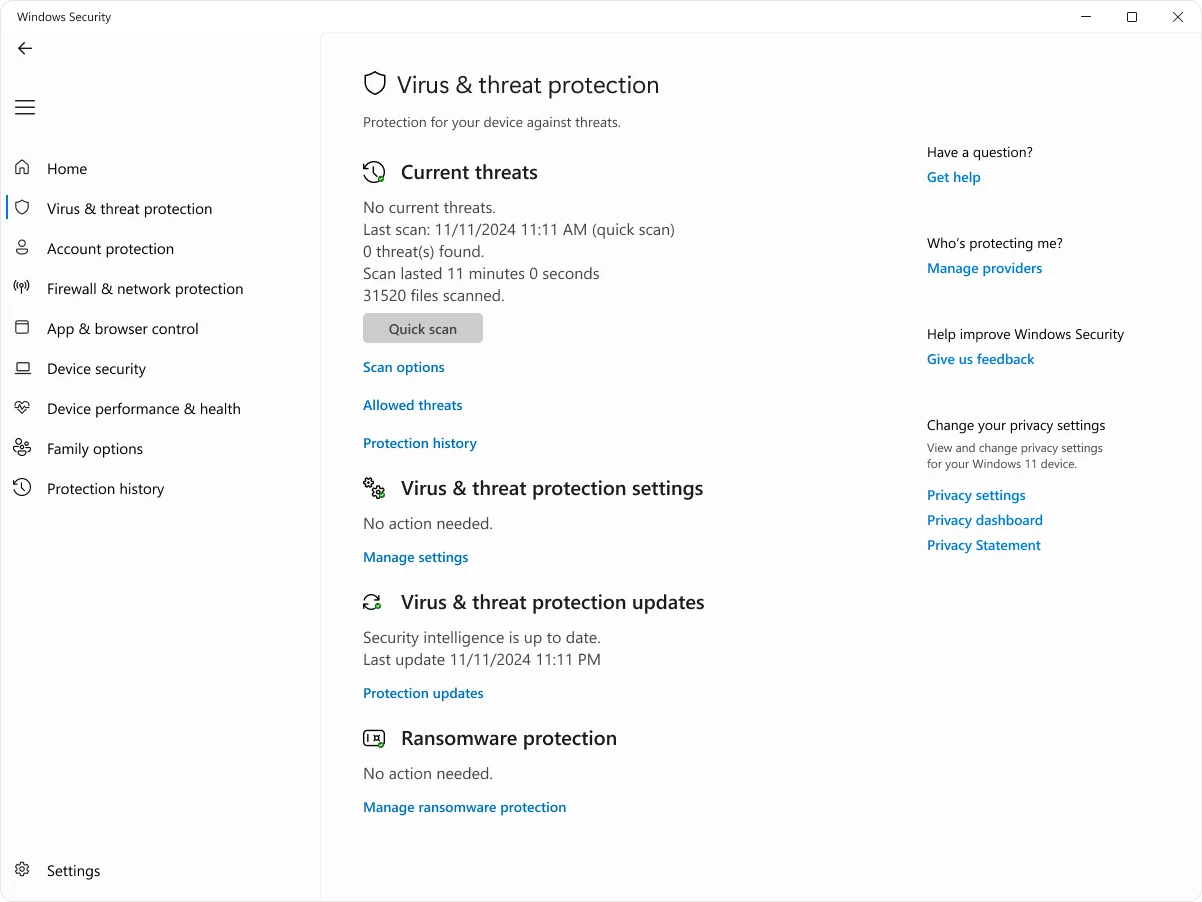
- Open Virus & threat protection. Open the Windows Security app and select Virus & threat protection. Confirm that Microsoft Defender Antivirus is the active provider before looking for its settings.
- Open Manage settings. Under Virus & threat protection settings, select Manage settings. If controls are missing or managed, stop and identify the active antivirus or administrator.
- Pause Real-time protection. Switch Real-time protection off only for the short test window. Approve the Windows security prompt if it appears, and leave Firewall and SmartScreen unchanged.
- Run only the planned test. Disconnect from unneeded network access, avoid browsing and downloads, and reproduce only the verified installation, build, benchmark, or compatibility action.
- Restore Real-time protection. Return to the same page and switch Real-time protection on immediately after the test instead of waiting for Windows to restore it automatically.
- Verify the restored protection state. Confirm Real-time protection, Cloud-delivered protection and Automatic sample submission show the intended state and that Windows Security reports an active provider.
- Scan files created during the gap. Update security intelligence and scan the installer, output folder or other files created while real-time scanning was paused. Review Protection history before closing the task.
Don't start by disabling Tamper Protection. Try the supported local Real-time protection control first. If Windows says Tamper Protection blocks the change, decide whether the test is worth weakening that safeguard too. On a personal PC you can restore it immediately afterward; on a managed PC, the missing control is a signal to contact the administrator.
Turn Microsoft Defender back on and verify more than one toggle
Return to Windows Security → Virus & threat protection → Manage settings and set Real-time protection to On. The current Microsoft antivirus FAQ also recommends Cloud-delivered protection and Automatic sample submission for the intended protection state. Re-enable Tamper Protection if you changed it, then open Protection updates and check for current security intelligence.
Scan the exact installer, folder or build output involved in the test. Protection restored at 10:12 doesn't retroactively describe what a file did at 10:08. Review Protection history for quarantines, allowed items and remediation that happened before or after the pause. If you suspect persistence or the normal scanner can't finish, move to the Microsoft Defender Offline scan workflow.
Finally, check the active provider rather than relying only on the shield icon. In Windows Security, Settings → Manage providers shows which antivirus owns the category. A healthy third-party provider means Defender may correctly be inactive as the primary antivirus; “no provider” means the computer needs protection restored, not another reboot-and-hope cycle.
Why Defender turns itself back on after you switch it off
Microsoft describes the Real-time protection control as temporary. It returns automatically after a short while so a forgotten test doesn't become an open-ended gap. A July 2026 WindowsHelp report shows how confusing that behavior feels when the toggle snaps back immediately, especially after an old school account or policy has touched the device. The thread isn't product documentation, but it captures the right diagnostic question: is this normal automatic restoration, provider state, or management?
If the switch returns after minutes or a restart, that can be expected. If it returns instantly and every Windows Security setting behaves the same way, check Access work or school, local management, the active antivirus provider and Tamper Protection. Don't take ownership of Defender files or disable `WinDefend`, `wscsvc`, `SecurityHealthService` or `MsMpEng`; Microsoft’s current compatibility guidance warns against stopping or modifying the associated services because it can create instability and leave the endpoint vulnerable.
Installing another antivirus: let Windows Security switch providers
For a home PC, the supported lasting route is provider registration. Install a compatible antivirus from its official site, update it, and confirm it appears under Windows Security → Settings → Manage providers. Microsoft says Defender Antivirus automatically turns itself off when the compatible non-Microsoft product becomes active. You shouldn't need a Registry key to force the handoff.
When the third-party subscription expires, the product is uninstalled or Windows no longer sees it as active, Defender can turn itself back on. That protects users from an accidental no-antivirus state. If the old provider remains stuck after uninstall, use the vendor’s official cleanup tool, restart, check Manage providers, then repair Windows Security if Defender still won't activate. Our expired-antivirus guide covers that transition in more detail.
Optional periodic scanning isn't the same as running two primary real-time engines. Windows may offer Defender periodic scans while another product owns real-time protection. Keep the provider model clear: one primary real-time antivirus, with deliberate on-demand or periodic second-opinion scanning. See our guide to running two antivirus products before combining tools.
Why “permanent disable” Registry and Group Policy recipes fail
Many ranking guides still publish `DisableAntiSpyware` as a Windows 11 Home solution. Microsoft’s own DisableAntiSpyware documentation says the opposite: the keys were built for OEM and IT deployment, are no longer necessary because antivirus handoff is automatic, aren't intended for consumer devices, and were removed from that consumer use. Modern platform and managed configurations can ignore them.
Group Policy isn't a magic exception to effective-state rules. A policy can exist while Tamper Protection causes the change to be ignored, and organization-managed settings can override local choices. Microsoft’s Tamper Protection guidance tells managed teams to use their security platform and troubleshooting mode when protected settings must change.
We therefore don't reproduce service-permission hacks, Defender-removal utilities or a legacy Registry recipe. They don't answer the normal reader jobs—test a verified file, solve performance, or replace antivirus—and they make recovery harder. If built-in protection no longer fits your needs, compare current products in our Windows 11 antivirus guide rather than leaving the machine without an active provider.
Use PowerShell to verify state before changing state
On an elevated PowerShell prompt, `Get-MpComputerStatus` can report `AMRunningMode`, `AntivirusEnabled` and `RealTimeProtectionEnabled`. On managed endpoints, `AMRunningMode` distinguishes Normal, Passive and EDR Block Mode. Those labels matter: Passive isn't simply “off,” and a home-PC article shouldn't prescribe Windows Server or Defender for Endpoint registry settings.
Get-MpComputerStatus |
  Select-Object AMRunningMode, AntivirusEnabled, RealTimeProtectionEnabled
If Defender is the active locally managed antivirus and you only need to restore real-time monitoring, Microsoft documents the elevated command below. Its Set-MpPreference reference says `$false` means real-time protection is enabled and recommended. Policy, Tamper Protection, another active provider or a broken platform can still determine the effective result, so verify afterward in Windows Security.
Set-MpPreference -DisableRealtimeMonitoring $falseDon't treat a command that returns without an error as proof of protection. Run `Get-MpComputerStatus` again, check the provider, update security intelligence and perform a test scan. If `AntivirusEnabled` remains false with no healthy third-party provider, follow the service and platform repair order in our Defender troubleshooting guide.
On a work or school device, the missing toggle may be the answer
Defender for Endpoint, Intune or Configuration Manager can manage Tamper Protection and antivirus preferences. Microsoft states that an individual user may be unable to change Tamper Protection when the security team owns it. That's a control boundary, not a Windows bug to defeat with local administrator rights.
Collect the device name, Windows edition/build, exact warning, active provider, `AMRunningMode`, event time, executable path and business reason for the exception. Ask for the narrowest time-limited policy or managed troubleshooting mode. The security team can then preserve auditability and revert the change. On a company endpoint, that's faster and safer than leaving an undocumented local exclusion behind.
When Defender won't turn off—or won't turn back on
| Symptom | Likely explanation | Next check |
|---|---|---|
| Toggle returns after a short while or reboot | Expected temporary-pause behavior | Use a narrow exclusion or complete the test sooner |
| Toggle snaps back immediately | Tamper, policy, provider or platform state | Manage providers; work/school management; Tamper Protection |
| Manage settings is missing | Another antivirus owns real-time protection | Windows Security → Settings → Manage providers |
| “Managed by your organization” | Intune, Defender portal, GPO or residual management | Contact the administrator; inspect Access work or school |
| Defender stays off after removing another AV | Provider cleanup or platform health problem | Vendor cleanup, restart, provider check, platform repair |
| Firewall or SmartScreen warning remains | A separate protection layer acted | Use the SmartScreen and Firewall guide |
If Defender won't activate and no other antivirus is registered, don't download a random “enable Defender” utility. Update Windows, use the former vendor’s official cleanup tool, restart once, check services without changing their permissions, then run Windows image and system-file repair if the platform is unhealthy. For a suspected infection, use the Windows 11 malware-removal sequence, where containment comes before tuning settings.
Enable or disable Microsoft Defender FAQ
Can I permanently disable Microsoft Defender on Windows 11?
A modern consumer Windows 11 PC doesn't have a reliable supported permanent-off switch that leaves it intentionally unprotected. Microsoft has removed legacy consumer DisableAntiSpyware registry behavior. The supported lasting handoff is installing a compatible antivirus, while organizations manage Defender through their security platform.
Why does Microsoft Defender turn itself back on?
The Windows Security real-time toggle is designed as a temporary pause, so protection returns automatically after a short while. Defender also activates when another registered antivirus is absent, disabled or expired. That's expected protection behavior, not proof that the toggle is broken.
Does turning off real-time protection disable Firewall or SmartScreen?
No. Microsoft Defender Antivirus, Windows Firewall, SmartScreen, Smart App Control and Controlled Folder Access are separate layers. Change only the layer named in the event or warning.
Will Defender turn off when I install another antivirus?
A compatible antivirus that registers correctly with Windows Security becomes the active provider and Microsoft Defender Antivirus turns itself off as the primary antivirus. If that product expires or is removed, Defender can activate again.
Why is the Real-time protection switch missing or greyed out?
Another antivirus may be the active provider, a work or school policy may manage the setting, Tamper Protection may block the requested change, or Windows Security may be unhealthy. Check Manage providers and the management state before editing services or the Registry.
Can PowerShell turn Microsoft Defender back on?
On a locally managed device, an elevated Set-MpPreference command can request that real-time monitoring be enabled. Policy, another active antivirus and platform health still determine the effective state, so verify with Windows Security and Get-MpComputerStatus.
Do scheduled scans run while real-time protection is off?
Microsoft says scheduled scans continue, but files opened or downloaded during the pause aren't scanned in real time. Restore protection promptly and scan files created or received during the gap.
What should I check after re-enabling Defender?
Confirm the active antivirus provider, Real-time protection, Cloud-delivered protection and Automatic sample submission; update security intelligence; scan the affected files; and review Protection history for unresolved detections.
Bottom line: a Defender pause needs an exit plan
For one controlled test, use the Windows Security Real-time protection switch, keep the window short, restore it yourself and scan what changed. For one trusted file or folder, use the narrowest defensible exclusion. For a replacement antivirus, let Windows Security switch providers.
Don't turn a temporary troubleshooting job into a fight against Tamper Protection, services and obsolete Registry keys. The best change is the one you can explain, verify and reverse.