
Should I Run Two Antivirus Programs at the Same Time?
Two scanners can be useful; two real-time antivirus engines usually aren't. When both try to inspect the same file, web request or system event, the result can be duplicated alerts, slowdowns, update failures or a protection gap neither dashboard makes obvious.
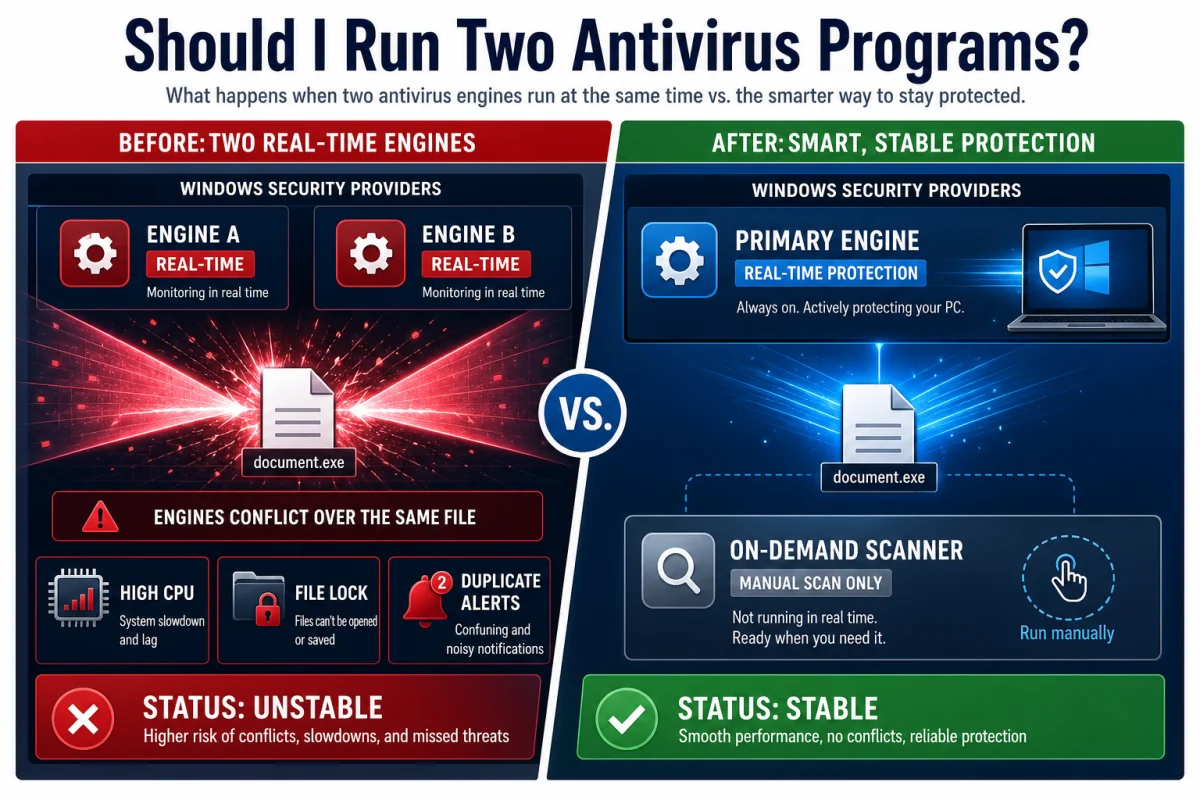
Quick answer: keep one real-time antivirus active. A second reputable tool is fine when it runs only on demand, as a rescue scanner, or in a clearly documented compatibility mode. Don't assume that more tray icons mean more protection.
Why two real-time antivirus engines can make a PC less reliable
Real-time protection sits close to the operating system. It watches files as they're created or opened, intercepts downloads, checks processes and may inspect encrypted web traffic through a local filtering component. If two products attach themselves to the same events, each can delay or alter the work the other is examining.
Double scanning
Both engines inspect the same archive, installer or game update. Disk, CPU and memory use rise without doubling the detection rate.
Quarantine races
One product moves a file while the other still has it open, producing failed actions, repeated alerts or damaged updates.
Web-filter overlap
Competing browser extensions, HTTPS filters and DNS layers can break sign-ins or make it hard to identify which tool blocked a page.
False confidence
A green dashboard doesn't prove every component loaded. Conflicts may disable a service or leave one product in passive mode.
Microsoft's current antivirus FAQ advises against running multiple real-time security products at once because they can affect performance and stability. This isn't a claim that secondary scanners are useless; it's a distinction between continuous hooks and a manually started check.

What happens to Microsoft Defender when you install another antivirus
On a normal Windows 11 consumer PC, a compatible third-party antivirus registers with Windows Security. Microsoft Defender Antivirus should then stop acting as the primary real-time engine. Windows Security remains the status hub, and Defender can become active again if the other product is removed or expires and no active provider remains.
Don't manually disable services or add broad exclusions just to force both products into real-time mode. Those changes survive longer than people remember. Open Windows Security → Virus & threat protection → Who's protecting me? and confirm that exactly one provider is active.

Safe ways to get a second opinion
| Combination | Usually safe? | Rule |
|---|---|---|
| One real-time antivirus + on-demand scanner | Yes | Disable the second tool's startup and real-time modules |
| One real-time antivirus + Defender Offline | Yes | The offline scan restarts outside the normal Windows session |
| Two full consumer suites | No | Choose one and fully uninstall the other |
| Antivirus + password manager | Yes | They solve different problems; avoid duplicate browser add-ons |
| Antivirus + VPN | Yes | Use one VPN connection and review overlapping web protection |
| Antivirus + EDR on a managed work PC | Administrator decision | Follow the vendor deployment matrix |
A good second-opinion routine is simple: update the primary antivirus, run its full scan, then start a reputable on-demand scanner. If the scanner tries to enable continuous protection during installation, decline that option. For a stubborn infection, use Microsoft Defender Offline or vendor rescue media rather than stacking more live engines.

How to recognize and fix an antivirus conflict
A conflict doesn't always display a message naming the other product. Look for a slowdown that began immediately after the second installation, repeated detections of files inside the other product's quarantine, browser certificate errors, Windows Security switching providers, update services that won't start, or a restart loop after a security-driver update.
- Confirm the providers. Check Windows Security and each product's real-time status; take a screenshot before changing anything.
- Disconnect only if protection is absent. If neither engine is active, pause normal browsing and downloads while you repair the stack.
- Choose the product to keep. Base this on current compatibility and licence value, not which alert appeared last.
- Uninstall the other product normally. Restart, then use its official removal utility only if services or drivers remain.
- Repair or reinstall the keeper. Update it, confirm the provider and run a test scan.
- Check browsers and network access. Remove the abandoned extension and verify HTTPS sites load without certificate warnings.
Adding mutual exclusions isn't a general fix. Excluding one security product's folders from the other may hide the quarantine-loop symptom while leaving two filter drivers and two behaviour engines active. Use an exclusion only when both vendors document the exact coexistence scenario.
What about a firewall, VPN or anti-ransomware tool?
Product labels are less useful than active components. Windows Firewall can coexist with one antivirus because Windows coordinates those roles, but two third-party firewalls may duplicate network filters. A VPN is normally compatible, yet two VPN or HTTPS-inspection layers can break DNS and browser traffic. Standalone anti-ransomware tools may also watch the same process and folder events as the antivirus. Inventory modules, not boxes.
How to switch antivirus without leaving a gap
- Download the new installer from the vendor. Don't use a reposted installer or advertisement link.
- Record recovery information. Save the old product's licence or account details if you may return to it.
- Uninstall the old suite. Use Settings → Apps first; use the vendor cleanup utility only if components remain.
- Restart. This releases file-system and network filter drivers.
- Check Windows Security. Defender should cover the transition when no third-party provider is active.
- Install and update the replacement. Run one full scan after signatures and engines finish updating.
- Remove duplicate extensions. Keep the web-protection extension that belongs to the active stack.
If Windows Security shows no provider, repair that before resuming normal downloads. Our malware warning-sign guide explains when unusual behaviour deserves investigation, while the comparison hub helps choose a single replacement.
Frequently asked questions
Can I run Microsoft Defender and another antivirus together?
Windows normally places Defender in a non-primary state when a compatible third-party antivirus registers. Don't force both consumer engines into real-time protection.
Can I keep Malwarebytes with another antivirus?
Yes when Malwarebytes is used as an on-demand scanner. If its real-time modules are enabled, check both vendors' compatibility guidance and avoid duplicate web filters.
Does two antivirus software give double protection?
No. Their detections overlap, while their low-level scanning and filtering can conflict. One well-maintained engine plus safe browsing and backups is a stronger baseline.
Why did Defender turn off after I installed antivirus?
That's the expected Windows behaviour when another registered antivirus becomes the primary real-time provider.
Can I use a second antivirus for a manual scan?
Yes. Use a reputable on-demand or rescue scanner and leave its continuous protection disabled.
How do I check which antivirus is active?
Open Windows Security, select Virus & threat protection, then view security providers. Confirm one active antivirus and a working firewall.
Bottom line
One real-time antivirus is the rule. Add a second opinion by changing when and how the other tool runs, not by making two engines compete for the same files.