
12 Signs Your Computer May Have Malware in 2026
One slow afternoon isn't proof of malware. The stronger signals are unauthorized change: security settings disabled, browser traffic redirected, unfamiliar accounts, unexplained network activity, ransom notes or logins that continue after you change a password.
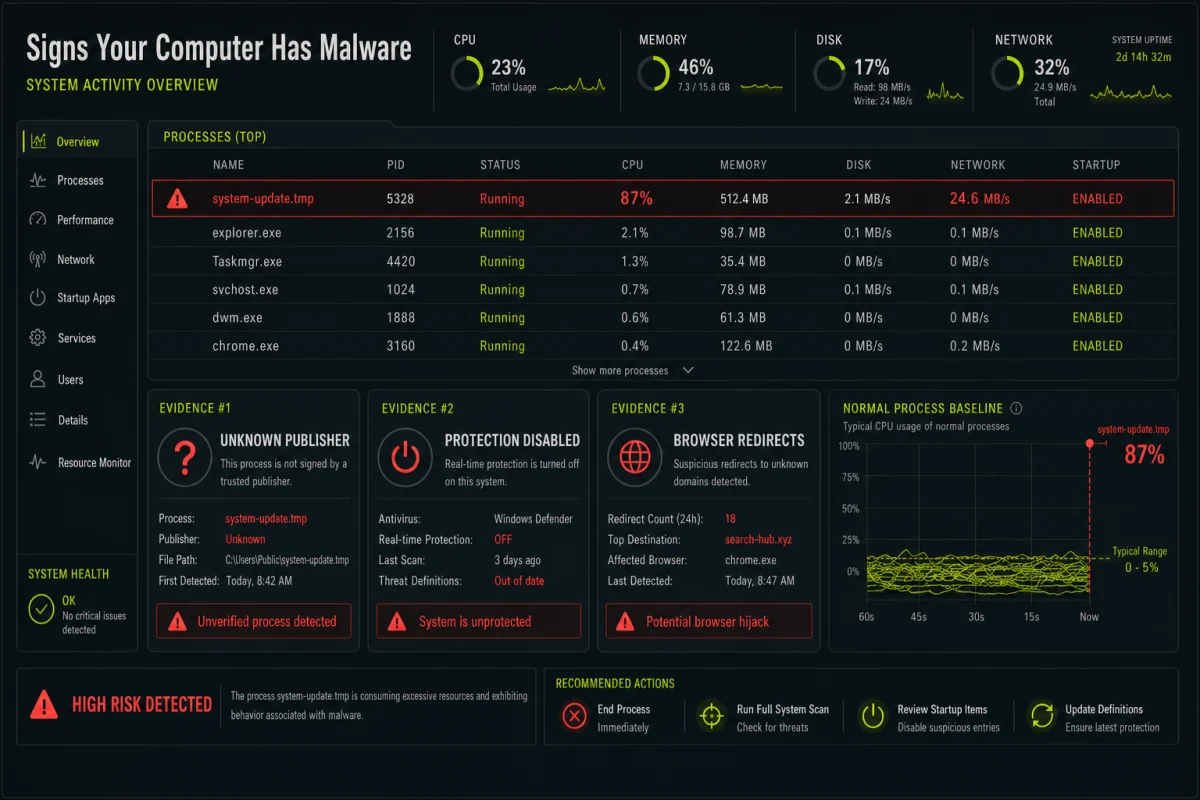
Quick answer: treat ransom notes, unauthorized remote control, disabled protection, unknown administrator accounts and confirmed account theft as urgent. Slow performance or crashes alone are weak evidence. Record the time and symptom, check Windows Security or macOS controls, and scan before installing any “fix” advertised by a pop-up.
The 12 signs that deserve investigation
| # | Signal | Why it matters | Other possible cause |
|---|---|---|---|
| 1 | Antivirus, firewall or updates disabled without your action | Malware often weakens controls before persistence or payload | Failed update, policy or incompatible security suite |
| 2 | Unknown administrator, login item, service or scheduled task | Creates durable access | Legitimate software updater |
| 3 | Browser redirects, forced search or extensions you can't remove | Adware or malicious policy may control browsing | Sync restored an old setting |
| 4 | Security alerts naming a file, path and action | Direct detection evidence | False positive; verify publisher and lab context |
| 5 | Ransom note or files renamed and unreadable | Active encryption or extortion | Storage corruption is possible but needs a different recovery path |
| 6 | Mouse movement, windows or remote tools you didn't authorize | Potential interactive control | Accessibility tool or support session |
| 7 | New email rules, sessions, recovery methods or MFA prompts | Account takeover may follow credential theft | A legitimate device or app connection |
| 8 | High network activity while the computer is idle | Possible exfiltration, mining or bot traffic | Cloud backup, game or OS update |
| 9 | Sustained CPU/GPU use by an unknown process | Possible miner or malicious worker | Indexing, media processing or update |
| 10 | Camera or microphone indicator without an expected app | Possible surveillance or unauthorized permission | Browser tab or conferencing app left open |
| 11 | Apps, pop-ups or notifications you didn't install or allow | Bundled software, adware or abusive site permission | Legitimate app promotion |
| 12 | Friends receive messages or files you didn't send | Account or device may be used to spread the campaign | A separately compromised online account |
The combination matters. A slow PC plus an unknown miner process and disabled protection is much stronger evidence than slowness alone. A login alert after you ran a fake installer should be treated as an incident even if the PC feels normal. The FTC's malware detection guidance independently lists redirects, new toolbars, repeated errors, disabled system tools and messages you didn't send; we add severity and alternative-cause checks so a symptom isn't mistaken for a diagnosis.

Common symptoms that aren't proof by themselves
Slow startup
Too many legitimate startup apps, a nearly full drive, thermal throttling or an aging disk can explain it.
Crashes
Bad drivers, memory faults and unstable overclocks are common non-malware causes.
Battery drain
Browser tabs, video calls, indexing and degraded battery health may be responsible.
One scary web page
A site can imitate a scan. A browser page can't inventory thousands of local infections in seconds.
Tech-support scams deliberately turn weak symptoms into panic. The US Federal Trade Commission's current scam guidance says legitimate security pop-ups don't ask you to call a phone number. Don't grant remote access or pay the person who created the warning.

How to check without making the situation worse
- Write down what happened. Record the exact alert, URL, file, process and time; take a photo if needed.
- Check the operating-system security centre. Confirm one active, updated antivirus and inspect protection history.
- Review recent installations and startup entries. Identify the parent software before deleting components.
- Check browsers. Review extensions, notifications, proxy, DNS and synced settings.
- Run an updated full scan. Escalate to Defender Offline or a rescue scan when normal Windows may be hiding the threat.
- Review online account logs from a clean device. Device sessions and forwarding rules can reveal theft that a local scan can't.
- Test the benign explanation. Apply OS updates, free storage and identify the heavy process rather than installing a random optimizer.
Never upload confidential work files to an unknown “virus checker.” If you use a multi-engine service, understand its privacy and sharing rules first. Companies should route samples through their security team. Microsoft's current infection-route guide is also useful when reconstructing the event: unexpected attachments, malicious macros, unknown USB devices, bundled software and compromised webpages each leave different clues.
Use built-in telemetry before downloading a diagnostic utility
On Windows 11, Task Manager can show the process, publisher, startup impact, CPU, memory, disk and network use. Resource Monitor adds per-process disk and network detail. Windows Security shows the active provider and protection history. On macOS, Activity Monitor, Login Items, privacy permissions and browser-extension lists answer many of the same first questions.
Take two observations several minutes apart. A short CPU spike during an update is normal; a sustained unknown process that returns after termination is more useful evidence. Search the exact executable name and file location, not only the generic process label. Malware sometimes imitates a system name but runs from a user temp folder rather than the signed operating-system path.
Account signs may appear before device signs
Review primary email, password-manager and identity-provider logs for unfamiliar sessions, forwarding rules, OAuth grants, recovery addresses and app passwords. If an attacker is active, revoke sessions from a clean device before changing the password. Otherwise an existing session may remain usable after the change.
Match the response to the strongest evidence
| Level | Example | Action |
|---|---|---|
| Low | Slow PC, no unauthorized change | Update, inspect resource use, scan and troubleshoot |
| Medium | Rogue extension, adware, single confirmed detection | Remove, reset affected settings, scan and monitor |
| High | Protection disabled, unknown admin, remote control, infostealer execution | Disconnect, secure accounts from a clean device, offline scan and consider reinstall |
| Critical | Ransomware, business data exposure, financial theft | Isolate, preserve evidence and use professional incident response |
Windows users can follow the Windows 11 removal workflow; Mac users should use the Mac-specific persistence and permission checks.

Frequently asked questions
What is the clearest sign of malware?
A verified detection, ransom note, unauthorized security change, unknown administrator or confirmed remote control is stronger evidence than general slowness.
Can a slow computer mean malware?
Yes, but storage, updates, heat, drivers and legitimate background apps are more common explanations. Identify the process and scan.
Can malware run without symptoms?
Yes. Infostealers and loaders may finish quietly. A known risky execution or account telemetry can be more important than visible behaviour.
Are browser virus warnings real?
A browser or security extension can block a real site, but a page claiming many local infections and giving a phone number is a scam pattern.
Should I disconnect from the internet?
Disconnect for active theft, ransomware, unauthorized remote control or rapid spread. Preserve evidence on work devices and contact the administrator.
Does a clean scan prove there's no malware?
No scan detects everything or proves that data wasn't stolen earlier. Combine scans with persistence, settings and account checks.
Bottom line
Look for unauthorized change, not generic inconvenience. The strongest signal determines the response, and account containment may be more urgent than another scan.