
Can Spybot Run With Another Antivirus?
Usually yes as a manual scanner or Immunization layer. The unsafe part is letting Spybot Live Protection and another full antivirus intercept the same files in real time.

Quick answer
Keep exactly one antivirus responsible for real-time protection. Spybot can stay beside Microsoft Defender, Norton, Bitdefender or another suite only when its overlapping real-time layer is off and the other product actually owns protection. Spybot Free may be useful for an occasional manual scan; Immunization is a different browser/hosts control. Because Spybot can also register with Windows Security, don't stop at “I turned a checkbox off”—open Manage providers and verify the result after a reboot.
Start by separating four jobs that share one Spybot name
“Is Spybot compatible?” is too broad to answer until you know what Spybot is doing on that PC. A manual System Scan reads files when you ask. Live Protection watches newly created and running processes before they start. Immunization writes preventive browser or hosts rules. Security Center registration tells Windows which product claims the antivirus role. Those layers can be present in different combinations.
The current Spybot Free page distinguishes the Free edition from the “+Antivirus Editions.” Current Home and Professional pages explicitly include antivirus and Live Protection; Home says Live Protection is enabled by default. Yet the live legacy FAQ says shared antivirus components can also make Free appear to Windows as an antivirus. Marketing labels therefore don't settle the installed state.
| Spybot component | What it does | Overlap risk | What to inspect |
|---|---|---|---|
| System Scan | Manual or scheduled detection/removal | Resource and quarantine collisions during another scan | Schedule and last scan |
| Live Protection | Intercepts programs/processes before start | Direct overlap with a full real-time antivirus | Live Protection status/driver |
| Immunization | Applies browser and hosts blocking rules | Warnings about hosts or browser permissions | Protected categories and Undo state |
| Security Center Service | Registers Spybot with Windows Security | Defender can become passive/off | Manage providers after reboot |
Our current Spybot review explains why that distinction matters when choosing the product. For coexistence, the practical rule is even simpler: an extra manual tool can be optional; a second real-time owner isn't an extra safety net.
Check Windows Security before you change either product
Open Windows Security, choose Virus & threat protection, then look for “Who’s protecting me?” or Manage providers. Record the antivirus provider, real-time state and whether protection intelligence is current. Windows wording can move between builds, so the status shown on the PC matters more than a screenshot from a guide.
Microsoft’s current consumer antivirus guidance says Defender turns off when another antimalware program protects the PC and warns that two installed/running antimalware products can cause problems. Its antivirus FAQ is more precise: don't run two real-time antivirus/antispyware products, while on-demand scanners can coexist because they run only when requested or scheduled.
Take a screenshot before changing anything. If Defender is already off, don't disable Spybot first and browse while assuming Defender will instantly return. Decide which product should own real-time protection, make one change, restart, and confirm the new state. A managed work computer may have policy-controlled providers; its administrator should make the change.
Safe configuration matrix
The table is intentionally conservative. An installer can reject a secondary security product even when its real-time switch is off because drivers, services or provider records remain installed. Current vendor requirements beat a generic compatibility promise.
| Configuration | Verdict | Safe condition | Verify |
|---|---|---|---|
| Spybot Free manual scans + Defender | Usually reasonable | Spybot Live Protection unavailable/off; scans separate | Defender is active provider |
| Spybot Home/Professional Live Protection + Defender | Don't run both real-time | Choose Spybot or Defender as the only owner | One active provider after reboot |
| Spybot manual scans + third-party full suite | Conditional | Suite permits Spybot to remain; no overlapping scan | Suite active; installer/support has no removal requirement |
| Spybot Live Protection + third-party full suite | Avoid | Disable/remove one real-time layer | No duplicate interception or provider ambiguity |
| Defender + Spybot + Malwarebytes Free manual scans | Possible, often redundant | One real-time owner; manual scans one at a time | Schedules, quarantines and provider state |
| Defender + Spybot + Malwarebytes Premium real-time | Three-way conflict risk | Choose one real-time owner; convert/remove others | Provider and real-time modules |
| One antivirus + Spybot Immunization | Usually separable | Resolve hosts/browser warnings by exact object | Browser access and hosts integrity |
If you can't tell whether a module is real-time, watch what the vendor says it does. “Scans programs before they start,” “web shield,” “behavior monitoring,” “ransomware protection,” and “real-time protection” can all intercept activity continuously. A manual button that runs a second-opinion scan is a different role.
Spybot Free with Microsoft Defender: the sensible supplemental setup
The practical Free configuration is Defender as the full-time owner, Spybot used only when you want a second opinion, and optional Immunization only if you understand the browsers and hosts entries it changes. Update Defender first, keep real-time protection on, and don't schedule Spybot to run during Defender’s scan or Windows maintenance window.
Don't assume “Free” guarantees that Windows ignored Spybot. The live Spybot 2.x FAQ says Free can fall into the antivirus-provider category because it contains shared components from paid editions. The page is labeled legacy information, so treat its controls as a diagnostic concept and verify the current installed build.
After installing or reconfiguring Spybot, restart and return to Manage providers. Defender should be active, not merely installed. Confirm Cloud-delivered protection and protection intelligence update normally, then run a Defender Quick scan. Launch Spybot afterward and verify that starting it didn't silently re-enable Live Protection or change the provider.
If you're installing fresh, our Spybot setup guide walks through edition checks, signatures and the first safe scan. The key coexistence choice belongs at setup time: don't accept an extra real-time layer by habit.
Paid Spybot with Defender: choose the real-time owner, not both
Spybot Home and Professional are sold as antivirus editions. Safer-Networking says Live Protection scans and monitors newly created and running processes, and Home enables it by default. That isn't just a cleanup scanner sitting idle; it overlaps with Defender’s continuous monitoring.
If you want paid Spybot to be the primary antivirus, let its supported installer register correctly and confirm Windows shows it as the active provider. Defender may move out of the primary real-time role automatically. Don't force Defender back on through registry policy because a second icon feels safer; Microsoft warns that two real-time products can reduce performance and produce install or update errors.
If you bought a paid license for Spybot’s other tools but want Defender to remain primary, disable Spybot Live Protection through Spybot itself, restart and verify Defender. Be honest about the value tradeoff: paying for an antivirus edition while switching off its antivirus layer may make less sense than using Free for manual scans or choosing a different purpose-built tool. Our Spybot plans and renewal guide separates those edition roles.
Don't leave the PC between owners. If Spybot’s license expires or its engine fails to update, Windows may return protection to Defender, but verify rather than waiting for an automatic transition. The provider screen, current signatures and a successful safe scan are the evidence.
Spybot with Norton, Bitdefender, ESET, McAfee and other full suites
Norton, Bitdefender, ESET, Kaspersky, Avast/AVG, McAfee and Malwarebytes Premium are full security products when their real-time modules are enabled. The brand doesn't change the rule: one product should own continuous file/process interception. Disable Spybot Live Protection or remove Spybot if the primary suite’s current installer/support policy requires removal.
Older Bitdefender community, Norton community and Spybot forum discussions show the same recurring ambiguity: people mean “installed,” “manual scanner” and “real-time” interchangeably. They also show that a suite may object to installed components even when the user thinks protection is off. These threads are historical symptom evidence, not present-day support guarantees.
Before installing the primary suite, read its current incompatible-software screen. If it names Spybot, don't bypass the block by renaming folders, disabling services or creating broad exclusions. Use our complete Spybot removal guide, reboot, install the chosen suite cleanly and verify its provider status. You can decide later whether a strictly on-demand Spybot reinstall is allowed.
For Malwarebytes, edition matters just as it does for Spybot. A free manual scanner isn't the same as Premium with real-time modules or a newly activated trial. A current r/antivirus discussion captures the community’s useful rule of thumb—one real-time product and the other only for occasional scans—but the Windows provider screen remains the reliable check.
Multiple on-demand scanners can coexist, but more isn't automatically better
Microsoft explicitly permits on-demand scanners beside real-time protection because they run only when asked or scheduled. That doesn't mean three manual scanners should all start at 2 a.m. Each can open the same archive, consume disk and CPU, lock a file during remediation, or flag another product’s quarantine and signatures.
Use one primary antivirus and at most one deliberate second-opinion workflow. Update both. Run the primary scan first; if it remediates a threat, restart and confirm protection before the second scan. Never run two full scans simultaneously, and never let one product scan the other’s quarantine or temporary working directory unless the vendors specifically support it.
Results can disagree because engines classify potentially unwanted applications, tracking artifacts and dormant installers differently. Compare the exact file path, publisher, detection family and behavior. “Spybot found 47 items after Defender found zero” may describe tracking cookies or policy entries, not 47 active infections.
A current community thread includes the familiar Defender-plus-manual-scanner pattern and also illustrates why anecdotes are directional: recommendations, hardware and tolerance for alerts differ. Use community reports to anticipate friction, not to declare universal compatibility.
What a real conflict looks like
A conflict isn't merely two products finding the same harmless cookie. Look for changes that begin after installing or enabling the second real-time layer: programs take much longer to open, CPU or disk stays high at idle, updates fail, an installer reports another security product, the same file bounces between quarantines, Windows changes provider unexpectedly, or protection can't start after reboot.
| Symptom | Likely layer | First safe check | Avoid |
|---|---|---|---|
| Apps open slowly | Two process/file interceptors | Live Protection and primary real-time status | Permanent broad exclusions |
| Defender is off | Provider registration/another AV | Manage providers | Forcing services through registry |
| Updates/install fail | Security driver/service overlap | Exact error and vendor incompatibility list | Bypassing installer checks |
| Duplicate alert/quarantine | Same object scanned twice | Paths, timestamps and which engine acted first | Restoring unknown detections |
| Hosts warning after Immunization | Persistent blocking rule | Exact hosts entry/category | Allowing the whole hosts file blindly |
| Two scheduled scans overlap | Resource contention | Spybot and antivirus schedules | Calling high CPU an infection immediately |
Preserve evidence before toggling several settings. Record the time, provider screen, enabled modules, process path and error text. Change one layer, restart and repeat the same ordinary task. That makes the result attributable and leaves a clean rollback path.
Disable Spybot Live Protection through Spybot, then reboot
The live vendor FAQ describes this route: run Spybot as administrator, open Show Details and Advanced User Mode, go to Settings → Live Protection, untick “Scan all programs before they start,” apply the change, and restart. The advanced controls can deactivate or uninstall Live Protection; uninstalling the driver may require a reboot.
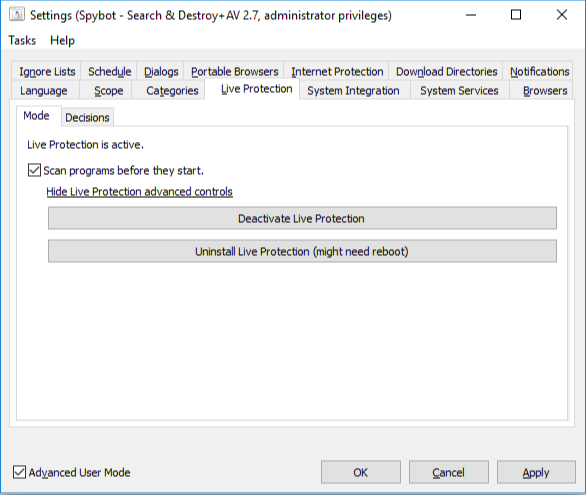
Turning off the visible scan checkbox may stop interception, while the driver or provider registration can remain. Use the current interface’s explicit status and restart request; don't delete the Live Protection driver from Device Manager or Driver Store. After reboot, launch an ordinary signed application and confirm the delay or error is gone, then check the antivirus provider.
If Spybot reports that its Live Protection driver couldn't be deactivated or uninstalled, preserve the exact message and reboot once. If it remains active, use Safer-Networking support rather than service-delete commands from an old forum post. The target is a supported inactive state, not an invisible broken driver.
Security Center registration isn't the same as Live Protection
Spybot’s legacy FAQ describes Security Center, Scanner and Update services separately. It says stopping the Spybot Security Center Service can prevent Windows from detecting Spybot as the antivirus, which lets Defender function again. It immediately adds that real-time products can still conflict and one Live Protection layer must also be disabled.
That distinction matters. Registration answers “what does Windows display as the provider?” Live Protection answers “what is intercepting processes?” Stopping registration without stopping a real-time engine can make Windows show Defender while Spybot still intercepts files; disabling Live Protection without correcting stale registration can leave Defender off. Both states require verification.
Because the FAQ is labeled legacy and Windows provider behavior changes, use its System Services path only if the installed Spybot build exposes the same signed control. Don't disable Windows Security Center itself. Don't change protected service start values in the registry. If the provider record remains stale after a supported change and reboot, collect the Spybot version, Windows build and provider screenshot for vendor support.
Microsoft’s current Virus & threat protection guidance explains that a compatible third-party antivirus can make Defender turn itself off. That automatic behavior is normal when the third party truly owns protection; it's a problem only when the displayed owner is unintended, expired or not actually protecting.
Immunization can coexist, but diagnose hosts and browser warnings precisely
Spybot Immunization isn't a second file-scanning antivirus. It blocks known unwanted destinations or browser elements through persistent settings, including the Windows hosts layer and supported browser profiles. It can therefore remain beside one real-time antivirus without creating two process scanners.
The friction appears when another security product treats hosts-file changes or browser permissions as suspicious, or a browser update rewrites the protected store. Don't disable the primary antivirus or exclude the entire hosts file automatically. Open Spybot Immunization details, identify the category that changed and compare the exact warning object. Our Spybot Immunization guide covers undo, partial coverage and browser-specific behavior.
If the antivirus restores a hosts entry that Spybot keeps reapplying, choose which product should manage that layer and make the setting stable. Repeatedly clicking “allow” in both products creates an alert loop and hides the real owner. For a business device, hosts and browser policy may be centrally managed; don't let Spybot overwrite it.
Don't solve coexistence with blanket mutual exclusions
A common forum workaround is to exclude each product’s entire program, data, temporary and quarantine folders from the other. That can suppress alerts, but it also creates blind spots exactly where downloaded data, extracted archives and remediation artifacts pass. It can hide an update compromise or leave a restored item unscanned.
Add an exclusion only when a current vendor document or support engineer names a precise signed file/process and explains the conflict. Confirm the publisher signature and path, use the narrowest scope, record the date/reason and test removing it after the product updates. Never exclude Downloads, the whole user profile, ProgramData or a broad file type to make two real-time engines appear compatible.
Schedules are the safer first control. Put Spybot’s manual scan outside the primary antivirus’s scheduled work and Windows maintenance. Avoid launching a manual scan while a game, backup, compilation or large archive extraction already saturates storage. If performance improves when schedules stop overlapping, you have solved resource contention without weakening detection.
Verify the final setup without downloading live malware
Restart after changing Live Protection or provider registration. Open Windows Security and confirm one trusted antivirus is active. Update its protection intelligence, run a Quick scan and make sure protection history opens. Then update Spybot and run a small manual scan at a separate time if that's its intended role.
Test ordinary behavior: launch a signed app, download the harmless EICAR test only if both the active antivirus and your organization permit that standard test, and use the vendor’s own documented method. A safer default is to rely on built-in status, updates and a scan. Don't use live malware, a suspicious crack or a dangerous website to prove coexistence.
| Check | Green result | If not |
|---|---|---|
| Windows provider | One intended active antivirus | Revisit registration and installed suites |
| Real-time modules | Only the intended owner intercepts continuously | Disable the overlapping module through its app |
| Updates | Primary antivirus and Spybot definitions update | Capture exact error; remove overlap first |
| Ordinary app launch | No new delay or duplicate alert | Compare with Live Protection inactive after reboot |
| Manual scans | Run one at a time and finish normally | Separate schedules; inspect quarantine paths |
| Browser/hosts | Intended Immunization works without alert loop | Undo the exact disputed category |
Keep the before/after screenshots until the PC has passed an update and restart cycle. Security software can appear healthy immediately and fail only when a driver reloads or definitions update. One clean cycle is a more useful test than a momentary green icon.
If the setup breaks, return to one known-good owner
Disconnect from risky browsing, stop any overlapping manual scans and choose the product that was healthy before the change. Disable Spybot Live Protection through Spybot, restart and verify the primary antivirus. If the primary suite’s installer or support requires Spybot’s removal, follow the normal uninstall rather than deleting services or drivers.
If Defender doesn't return after Spybot is disabled or removed, check whether another antivirus or trial still registers. A trial can enable real-time protection and take provider ownership without the user noticing. Remove or disable only the identified product through its supported interface, restart and check again.
When Spybot remains listed after removal, don't force-delete the provider service. Use the evidence packet from our uninstall guide: Windows build, Spybot edition/version, Installed apps, provider screenshot, exact service/path and steps already tried. A stale provider record is a support problem, not a reason to weaken Windows service protections.
If you decide the configuration isn't worth maintaining, simplify. One current antivirus with verified updates and an optional scanner you run deliberately is easier to understand and audit than several overlapping tools with exclusions. Complexity that nobody checks isn't defense in depth.
What official guidance, forums and lab coverage can—and can't—prove
Microsoft provides the strongest general rule because it controls Windows provider behavior: one real-time antivirus, optional on-demand scanners. Safer-Networking provides the product-specific facts: what Live Protection does, how its controls are exposed in the legacy FAQ, how Security Center registration differs and why programs may open slowly.
Current Reddit reports are useful for finding surprises such as a trial taking over Defender or a second scanner being kept only for manual checks. They can't certify your exact versions. Old Norton, Bitdefender and Spybot forum threads can show recurring classes of conflict, but a 2014 answer about TeaTimer, a previous engine or an old Windows build isn't a current compatibility statement.
We also found no current independent lab result that validates Spybot’s present antivirus engine beside another product. Lab protection scores wouldn't prove coexistence anyway; labs normally test one product in a controlled configuration. This guide therefore makes no claim that stacking Spybot with a top-scoring suite improves detection.
The evidence threshold is operational: one intended provider, one real-time interceptor, current updates, separate scans, no new performance or install failures, and a reversible configuration. That's something a reader can verify on the actual PC.
Spybot antivirus compatibility FAQ
Can Spybot run with Microsoft Defender?
Yes, if Spybot is used only for manual scans or Immunization and Microsoft Defender remains the single active real-time antivirus. Check Windows Security after installation because Spybot can register as a provider even when the intended role is supplemental. Paid Spybot Live Protection and Defender real-time protection shouldn't intercept files at the same time.
Can Spybot run with Norton, Bitdefender, ESET or McAfee?
Sometimes Spybot can remain as an on-demand scanner, but there's no universal compatibility promise. Norton, Bitdefender, ESET, McAfee and similar suites are full real-time products; keep only one real-time owner and follow the current installer or vendor support requirement if it asks you to remove Spybot entirely.
Does Spybot Free have real-time protection?
The current Free product page distinguishes Spybot Free from the +Antivirus editions, while the live legacy FAQ says shared antivirus components can still make Free register in Windows Security. Don't decide from the edition name alone. Inspect Live Protection inside Spybot and verify the active provider in Windows Security.
What is Spybot Live Protection?
Live Protection is Spybot's real-time layer. Safer-Networking says it scans and monitors newly created and running processes before they start. That role overlaps with a full antivirus, which is why only one product should perform real-time interception.
Is Spybot Immunization another antivirus?
No. Immunization applies blocking changes to supported browsers and the Windows hosts layer; it's separate from file-scanning real-time protection. It can coexist with one antivirus, but hosts or browser changes may trigger warnings. Investigate the exact blocked object instead of adding broad exclusions.
Why did Microsoft Defender turn off after I installed Spybot?
Windows may have recognized Spybot as the active antimalware provider. Open Windows Security, check Manage providers and identify which product owns real-time protection. If you want Defender to remain the owner, disable Spybot Live Protection and, where the installed Spybot build exposes it, stop its Security Center registration using the vendor's current instructions, then reboot and verify.
Can I run Spybot and another antivirus scan at the same time?
Don't run two full scans simultaneously. Even on-demand scanners compete for disk, CPU and access to the same files, and one product may inspect or quarantine the other's working files. Update both products, run the primary antivirus first, reboot if it remediates anything, then run Spybot separately as a second opinion.
Should I add Spybot and my antivirus to each other's exclusions?
No blanket mutual exclusions. Excluding entire program, download, temporary or user-profile folders creates blind spots. Add only a narrow file or process exclusion that a current vendor document or support case requires, after confirming the file is genuine, and record how to remove the exclusion.
How do I know which antivirus is active on Windows 11?
Open Windows Security, choose Virus & threat protection, then use Who's protecting me? or Manage providers. Confirm one trusted antivirus is active, its real-time protection is on and its updates are current. Wording can vary by Windows build, so the provider/status shown on your PC is authoritative.
What should I do if Spybot and another antivirus conflict?
Disconnect from risky activity, save the exact error and provider screen, stop overlapping scans and choose the intended real-time owner. Disable the other real-time layer through its own interface, restart, update the remaining owner and run a safe scan. If an installer still blocks Spybot or Windows lists a stale provider, follow the vendor's current removal/support route rather than deleting services or drivers manually.
Bottom line: keep one real-time owner
Spybot can be useful beside another antivirus when its job is explicit: an on-demand second opinion or selected Immunization controls. Don't run Spybot Live Protection at the same time as Defender or another full suite. Disable the overlap through the product, reboot and verify the provider in Windows Security.
The provider screen is the final authority, not the edition label or tray icons. Separate scans, avoid blanket exclusions, and follow a primary suite’s current removal requirement if it refuses Spybot components. A simpler verified configuration is safer than two engines silently competing for the same file.