
How to Install and Set Up Spybot Safely
The installer is the easy part. A safe Spybot setup means downloading the current signed file, choosing Free or paid protection deliberately, updating before the first scan and leaving Windows with exactly one active real-time antivirus.

Quick answer
Download Spybot only from Safer-Networking, verify a valid Safer-Networking Ltd. signature, then run the installer as administrator. Choose Free when Microsoft Defender will remain your real-time antivirus. Enter a paid Home/Professional key only when you intentionally want Spybot's antivirus and Live Protection. After installation, update definitions, confirm the edition and license dates, run one harmless scan and check Windows Security's Manage providers page. The setup isn't finished if Defender has silently stopped or two resident engines are competing.
Before installation: decide what job Spybot will do
Start with the role, not the Download button. Spybot Free supplies manual anti-spyware/PUP scanning, rootkit and startup tools, and Immunization. The official edition comparison reserves the antivirus engine, Live Protection, automatic signature updates and scheduling for Home and Professional. Free is therefore a specialist companion, not a replacement for the built-in antivirus.
For the safest common setup, leave Microsoft Defender as the active real-time provider and open Spybot Free only when you want a manual second-opinion scan or an intentional Immunization change. If you bought Home or Professional and want Spybot to own real-time protection, remove or disable the competing resident antivirus through its supported route first. Two engines scanning every process can slow the PC, block updates or leave Windows uncertain about which provider owns protection.
Record the Windows edition/build, current antivirus provider and whether the PC is managed by work or school. Create a restore point or at least a current backup before changing security services, Explorer integration or the hosts file. A managed device should follow its administrator's policy; a consumer guide isn't permission to bypass endpoint controls.
Download the current official Spybot 2.9.85.5 installer
The official Spybot 2.9 download page exposes first-party Safer-Networking mirrors. On August 9, the vendor's official file directory listed spybotsd-2.9.85.5.exe, modified June 24, 2026. That's newer than the 2.9.82 file still repeated by several download portals. Safer-Networking's detailed 2.9.82 changelog documents Windows 11, installer and Live Protection work, but it doesn't describe the later 2.9.85.5 changes.
We downloaded that exact first-party file for an evidence snapshot. It was 65,069,568 bytes with SHA-256 08d8e206d5baa738e4d50a7956984b84fccabdd36a0b7fe6b51b9fa74c4e623b. A hash is useful only for the file and date stated: Safer-Networking can legitimately replace a future installer, and a matching hash doesn't replace signature validation. Treat our value as an audit trail, not a permanent allow-list.
Don't search for a “pre-activated” package or key generator. Don't install a bundle merely because its filename contains Spybot. If the official page and directory disagree in the future, prefer the signed first-party package and ask Safer-Networking through its own support route before running it.
Verify the signer before approving administrator access
On Windows, right-click the downloaded EXE, choose Properties, open Digital Signatures, select the signature and view its details. Require Windows to report that the digital signature is valid and identify Safer-Networking Ltd. as the signer. The 2.9.85.5 package we inspected contained a code-signing certificate for Safer-Networking Ltd. in Greystones, Ireland.
A familiar icon, file size or antivirus scan isn't the same check. A repackager can copy branding, and an unsigned file can still receive a low detection count while it's new. Stop if the Digital Signatures tab is absent, Windows reports an invalid signature, the signer is different, or the browser downloaded an HTML page instead of an EXE.
After the signature passes, double-click the installer and approve the User Account Control prompt. The prompt should name the same publisher. If Windows SmartScreen warns about an unfamiliar app, return to the signature and source checks rather than clicking through reflexively. Never weaken SmartScreen system-wide to install one utility.

Choose personal use, then choose convenience or control
Spybot's official 2.x instructions say the installer asks for language, edition/personal-use intent and installation mode. A personal Free user should select the private-use route and decide later rather than pretending to own a paid key. A paid user can paste the license key from the purchase receipt and use the installer's Verify action. Don't post that key in a forum screenshot.
The convenience choice—worded in older official screenshots as wanting protection without attending to it—accepts a fuller default setup. The control choice exposes components such as scheduled tasks and system integration. The exact wording can change, so judge the function rather than memorizing an old screenshot. A typical Free companion setup doesn't need paid Live Protection and should avoid turning every integration on merely because it's offered.
Keep the default program directory unless there's a documented operational reason to change it. Review Explorer right-click integration and scheduled tasks deliberately: integration is useful for file/folder scans but can add shell complexity; scheduled scanning and automatic updates are paid-edition features. Don't enable a task under credentials you don't understand.
Install Free without accidentally replacing Defender
Complete the personal-use installation, launch Start Center and click Show details. Confirm the blue edition label says Free. Free shouldn't show the paid +AV entitlement or an active Live Protection claim. Update it before scanning, and keep it closed between manual uses when Defender is the intended real-time layer.
There's a subtle trap. Spybot's own FAQ says Windows can stop Defender when it detects Spybot as another antivirus, and that even Free may fall into this category because the installation contains components shared with paid editions. This is why “I chose Free” isn't enough evidence. The later Windows Security check is mandatory.
If the only goal was a one-time cleanup, don't immediately apply Immunization, change system services and install every shell component. First prove that updates and a manual scan work. Each additional control should solve a named problem and have a rollback route.
Activate Home or Professional during or after installation
A first-time paid user can paste and verify the purchase key on the Spybot Edition installer page. An existing Free user doesn't need to hunt for a different cracked installer. The official 2.x FAQ gives an in-app upgrade route: open Start Center, select the blue Free Edition label, open Your License, choose Enter a new license key, approve UAC, paste the receipt key and let the license files download.
After activation, reopen Start Center and confirm the intended edition. Home/Professional should show the paid +AV identity, but that label isn't proof that every driver and definition is current. Check license start and expiration dates, update the product, then make the real-time-provider decision.
If the key-entry control is absent, the official answer is refreshingly narrow: update Spybot, close Start Center and the tray process, reopen it and check again. Don't download a “license fixer,” call an unsolicited number or send the full key to anyone outside Safer-Networking's official support system.
Use the official 2.9 screens as landmarks, not pixel-perfect promises
Safer-Networking's current license-details article includes genuine 2.9 screenshots. They're the best available visual landmarks for the edition label and license panel. They're vendor support examples from 2023, not screenshots from our account, and a later 2.9 build may move a label without changing the underlying check.
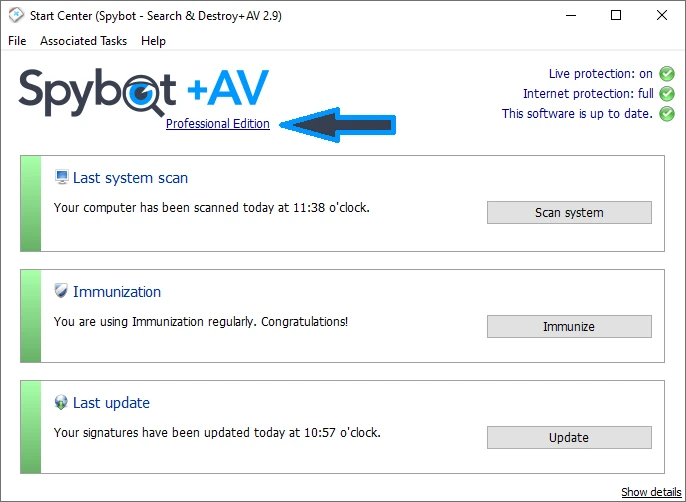
The Start Center screenshot shows three separate facts: installed edition, live/internet protection state and update status. Don't collapse them into one green-screen judgment. A Professional label can coexist with an update failure, and an up-to-date Free install still lacks paid Live Protection.
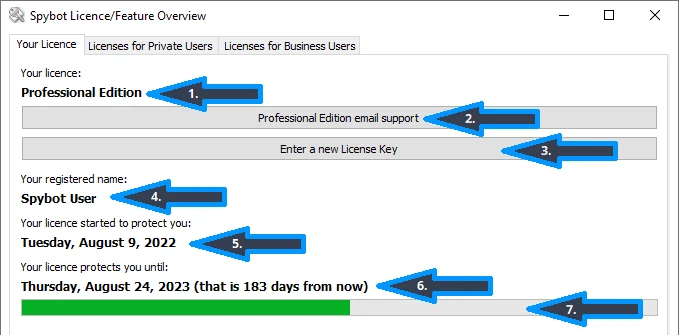
Never copy the sample dates or registered name into a support request as if they describe your license. Record your own edition, key-entry availability, start date and expiry, while keeping the license key and transaction data private.
Update definitions before the first scan
Spybot's official FAQ says a System Scan may not start until definitions are installed. Run Start Center as administrator, choose Update, then use the Update button and wait for the status check to complete. If one file fails, close the updater, reopen it and resume rather than repeatedly reinstalling the whole product.
The distinction between Free and paid matters here. Free users update manually. Licensed editions can use the Update Service and scheduling; the vendor says its default scheduled update runs after boot with a delay. Under Advanced User Mode > Settings > System Services, confirm the Update Service is active after reboot only when that behavior matches the installed edition and intended setup.
Check the visible last-update time and, if troubleshooting, open the update log. The official directory showed definition packages dated July 15 when we checked, but directory activity isn't proof that your local app received them. The local status/log is the operational evidence.
Choose exactly one real-time antivirus provider
Microsoft's consumer antivirus guidance warns that two antimalware products running together can cause problems. Its broader antivirus FAQ says multiple real-time security products can affect performance and updates. Spybot's FAQ makes the same practical point about paid Live Protection and another resident engine.
| Goal | Spybot state | Defender state | Acceptable finish |
|---|---|---|---|
| Manual specialist second opinion | Free; Live Protection absent/off; opened on demand | Active real-time provider | Defender active in Manage providers |
| Paid Spybot as primary antivirus | Home/Professional; licensed, updated Live Protection active | Passive/disabled by Windows provider registration | Spybot active in Manage providers |
| Two resident engines | Live Protection active | Real-time active | Don't keep this state |
| No active provider | Off/broken | Off/broken | Repair immediately |
Use Windows Security > Virus & threat protection > Who's protecting me? > Manage providers. Microsoft's current Windows Security scan and provider guidance documents that route for Windows 10 and 11. The name shown there matters more than a tray icon or marketing dashboard.
If Free disables Defender, stop the Security Center Service and verify recovery
Run Spybot as administrator, choose Show details, enable Advanced User Mode, open Settings and select the System Services tab. Stop Spybot's Security Center Service, apply the change and reboot. This prevents Windows from detecting the Free companion as the active antivirus provider.
After restart, open Manage providers and confirm Defender is active. If it's not, don't install a second product on top of the uncertainty. Check that Spybot Live Protection is off, restart once more, install pending Windows updates and use Microsoft's supported Defender controls. A real r/antivirus report about Defender remaining disabled after Spybot removal is directional evidence for this verification step, not proof that every installation breaks Windows.
Don't edit Security Center registry keys from a random forum recipe as the first fix. Preserve screenshots of the provider state and service setting, then use Safer-Networking or Microsoft support if the supported controls don't recover the provider.
Enable Live Protection only for the paid-primary setup
Home and Professional users who deliberately choose Spybot as primary can open Start Center as administrator, Show details, select the Live Protection status and expose its advanced controls. If the driver isn't installed, use Install Live Protection. The official FAQ says a “System Driver could not be installed” message may require a restart before retrying and then choosing Activate Live Protection.
Rebooting is part of driver state, not a superstitious fix. After restart, verify the Live Protection indicator, update status and Windows provider. If the driver still fails, record the exact message, Windows build, Spybot version and other security products before opening an official support ticket.
Don't force the driver while another antivirus remains resident. Resolve which product owns real-time scanning first. If the answer is Defender, leave Spybot Live Protection uninstalled/off and use Free-style manual scanning instead.
Apply Immunization after the baseline works—not during blind setup
Immunization writes preventive blocks to supported browser and Windows mechanisms, including the hosts-file workflow described in Spybot documentation. It's separate from antivirus activation. Run Spybot as administrator, choose Immunize, use Check System, then apply only after understanding what will change.
Before applying it, preserve the current hosts file or a restore point and list critical services: Microsoft sign-in, Steam, cloud storage, banking and work apps. Afterward, restart browsers and test those services. Real community reports describe hosts-file alerts and broken sign-ins after broad changes; they justify a rollback plan, not the conclusion that every block is malicious or every alert is harmless.
If access breaks, return to Immunization and use Undo Immunization, then narrow the responsible category. Don't create a permanent Defender exclusion for the entire hosts file simply to silence an alert. Our separate Immunization spoke will own deeper browser/category troubleshooting; this install guide keeps the first-run change conservative.
Run one first scan and review results before fixing them
With definitions current, open System Scan as administrator. The purpose of the first run is to prove the workflow: scan starts, reads the intended scope, completes, produces a log and allows the result to be reviewed. Don't seed the machine with malware or disable protection to manufacture a detection.
Spybot can classify tracking cookies, potentially unwanted programs, registry changes and deeper suspicious objects. A finding isn't permission to delete everything. Read the category, file/path, user profile and threat level. Quarantine an item when removal is justified and preserve the option to restore a false positive. The vendor warns that rootkit-style findings can also belong to legitimate software and may require expert review.
For a Free companion setup, close Spybot after the manual scan and confirm Defender still owns real-time protection. For paid primary protection, confirm Live Protection and the update service survive a reboot. These are different finish lines.
The seven-point finished-state check
- Source: installer came from Safer-Networking and the Windows signature was valid.
- Version: Start Center reports the expected current 2.9 branch, not an old 1.6/2.7 package.
- Edition: Free, Home or Professional matches the intended role and purchase.
- License: paid start/expiry dates and node usage match the receipt; no key is exposed.
- Updates: definitions completed and the last-update status/log is current.
- Provider: Windows Security shows exactly one active real-time antivirus.
- Operation: one harmless scan completed; Immunization changes were tested and can be undone.
Save a small baseline: installer version, Windows build, edition, update time, provider screenshot and any optional components enabled. That record turns later “Spybot stopped working” troubleshooting into a comparison instead of guesswork.
Why old and fake Spybot guides are unusually risky
The official support page itself mixes branches: one section links a 2.8 download, another names spybotsd-2.7.64.0.exe, while its current license screenshots show 2.9. Search also surfaces the official 1.6 tutorial, decade-old institution guides and download pages frozen at 2.9.82. These pages can explain concepts, but they don't override the current signed first-party installer.
A more serious result is a recently indexed “complete setup and license guide” on an unrelated discussion platform whose main conversion is a telephone number. Safer-Networking provides its own support form and official forum. Never give a caller remote access, a license key, payment data or a Windows credential because a search result said activation required a phone call.
Use version numbers as evidence labels. A 2.8 screenshot can illustrate the historical installer choice, but it can't prove what 2.9.85.5 will display. A 2026 headline can still wrap a 2017 review. Current source, current file and current Windows provider state are the three anchors that stale guides omit.
Install and activation problems: shortest safe recovery
| Symptom | First safe check | Next action | Avoid |
|---|---|---|---|
| Installer won't run | Official source, complete file, valid signature, supported Windows | Redownload first-party file; record SmartScreen/UAC message | Disabling SmartScreen globally |
| Key rejected | Correct edition, copied key, network/time, receipt | Update, retry in Your License, use official support | Key generators or public screenshots |
| Key button missing | Current definitions and closed/reopened Start Center | Exit tray process, update, reopen as administrator | Registry “activation” scripts |
| Live Protection driver fails | Paid license and no competing resident AV | Use advanced controls, reboot, activate, capture exact error | Forcing two real-time engines |
| Defender stopped after Free install | Manage providers and Spybot Security Center Service | Stop service, keep Live Protection off, reboot and verify | Assuming tray icons prove protection |
| Update file fails | Update log, network/proxy and updater state | Close/reopen updater and resume; restart Update Service if licensed | Downloading random definition bundles |
When escalation is necessary, send Safer-Networking the Spybot version, Windows build, edition, exact error, time and the last action that preceded it. Redact the license key, email, device name and personal paths. A reproducible report is more useful than a phone photo of the whole desktop.
Spybot installation and activation FAQ
What is the current Spybot Search & Destroy version?
The official Safer-Networking update directory listed installer 2.9.85.5, modified June 24, 2026, when checked August 9. The public detailed changelog still stops at 2.9.82, so don't infer undocumented changes from the newer file number.
Where should I download Spybot safely?
Use Safer-Networking's official Spybot 2.9 download page or its first-party update directory. Avoid repackaged download portals, cracked keys and unaffiliated activation pages. Before running the file, open Properties > Digital Signatures and require a valid Safer-Networking Ltd. signature.
Does Spybot work on Windows 11?
Yes. The official 2.9.82 changelog explicitly added full Windows 11 support, and the vendor now distributes 2.9.85.5. Use a supported, updated Windows build and the current installer; old 2.7 or 2.8 screenshots aren't proof that an old package is the right download.
Do I need a license key for Spybot Free?
No. Choose the personal-use/free route and keep Microsoft Defender or another current antivirus as the real-time provider. A key is required to unlock paid Home or Professional features such as the antivirus engine, Live Protection and automatic signature updates.
How do I activate a Spybot Home or Professional license?
Enter and verify the receipt key during installation, or upgrade an existing Free install from Start Center by selecting the blue edition name, opening Your License and choosing Enter a new license key. Approve UAC and let Spybot download the license files.
Why is the Enter a new license key button missing?
Spybot's official FAQ says to install the latest updates, close the Start Center and tray process, then reopen Spybot. If the button still doesn't appear, use the official Safer-Networking support form and include the exact version and error without posting the key publicly.
Will installing Spybot disable Microsoft Defender?
It can. Spybot's own FAQ says its Security Center Service may make Windows treat even Free as an antivirus. If Defender is meant to remain primary, stop Spybot's Security Center Service, keep Live Protection off, reboot and verify Defender under Windows Security > Manage providers.
Can Spybot and Microsoft Defender run together?
Spybot Free can remain closed and run only manual scans while Defender owns real-time protection. Don't run paid Spybot Live Protection and Defender real-time scanning as two active resident engines. Choose one provider and verify that choice in Windows Security.
What if Spybot Live Protection won't install?
Only troubleshoot Live Protection if paid Spybot is intentionally becoming the real-time provider. Open its advanced controls as administrator, install it, reboot if the driver error appears and activate it. If another antivirus remains active, resolve that ownership first instead of forcing both drivers.
What should I do immediately after installing Spybot?
Update definitions, confirm the edition and license dates, check Windows Security for exactly one real-time antivirus, run one harmless system or file scan, review rather than blindly delete results, and apply Immunization only after preserving a rollback and testing important sites.
Bottom line: installation ends at verified protection
The current first-party package is Spybot 2.9.85.5, and the safe path is straightforward: official download, valid Safer-Networking signer, correct edition, current definitions and one active Windows antivirus provider. Free works best as a closed manual companion beside Defender. Paid Home/Professional should own Live Protection only after that role is chosen deliberately.
The largest risk isn't clicking the wrong Next button. It's following an obsolete or fake guide, believing Free supplies paid antivirus, exposing a license key, or leaving Defender disabled without a working replacement. Verify the finished state in Start Center and Windows Security, preserve a rollback for Immunization and keep the evidence needed to diagnose the next change.