
Spybot Not Working, Slow or Using High CPU?
Measure the actual process and task first. A busy scan, Live Protection overlap, failed update, stale service and driver-signature error need different fixes—and none begins with deleting a service.

Quick answer
Open Task Manager and Spybot before you change anything. Record the signed process path, CPU and disk use, the active Spybot task, current file or signature, elapsed time, Spybot edition/version and exact error. High CPU during an intentional scan can be normal; slow program launches after installation point toward Live Protection; a grey Scan button often points to incomplete definitions; update, service and Error 577 problems follow separate branches. Stop overlapping scans, keep one real-time antivirus owner, change one supported setting, restart and reproduce the same safe task.
Five minutes of evidence prevents an hour of random fixes
Press Ctrl+Shift+Esc and open Task Manager. Sort Processes by CPU, then by Disk. Don't trust a filename alone: open file location or Properties and confirm the process is signed by Safer-Networking and runs from the expected Spybot folder. Record whether the busy component is the interface, scanner, updater, Live Protection or a cleanup task.
In Spybot, note the edition and version, update status, active scan type, percentage, current item and whether Live Protection is active. Capture the exact wording of an error instead of paraphrasing it. Microsoft’s current Windows performance guidance likewise starts with Task Manager’s Processes, Performance and Startup views because the resource owner matters more than a generic “high CPU” label.
| Capture | Why it matters | Don't assume |
|---|---|---|
| Signed process and full path | Separates Spybot from a lookalike name | Every process containing “spy” is Spybot |
| CPU, disk and memory over time | Shows active work versus a flat hang | One 100% snapshot proves a fault |
| Task, percentage and current item | Distinguishes scan, update and cleanup | A paused percentage means no progress |
| Edition/version and Windows build | Controls which vendor fix applies | A Spybot 1.x or XP fix is transferable |
| Provider and Live Protection state | Exposes two real-time engines | Green tray icons mean safe coexistence |
| Exact error and timestamp | Routes -2005, 577, proxy and checksum failures | All update errors share one cause |
Save one screenshot before and one after each change. If the machine belongs to work or school, stop before service, provider or clean-boot changes; policy may control them. Don't upload a screenshot containing a license key, account email or unrelated process list to a public forum.
Decide whether Spybot is busy or actually stuck
An antivirus scan is deliberately resource-intensive. Reading many small files can drive disk use; unpacking archives and comparing signatures can drive CPU; remediation can pause while a file is locked or a restore point is prepared. A short spike during a task you started isn't evidence of infection or a broken program.
Look for motion rather than a magic percentage. Does the current file or signature change? Does disk activity move? Does elapsed time match a large archive, slow hard drive or first full scan? Does Stop remain responsive? A healthy scan can hold one displayed percentage while work continues underneath. An abnormal state is a long interval with no item/progress change, little meaningful disk activity, an unresponsive window and the same state after a restart/update.
If programs became slow after installation, test Live Protection first
Safer-Networking’s current-page article “After installing Spybot, my PC is slow” names Live Protection as a likely cause. The component scans programs before they start, so the visible symptom can be a delay in browsers, games or ordinary utilities rather than Spybot’s own window using CPU.
Choose the intended real-time antivirus owner. If Spybot is supplemental, run it as administrator, open its Live Protection settings, deactivate or uninstall that layer using the product control, accept the requested reboot, then time the same ordinary launch. Our Spybot coexistence guide covers provider registration and the one-owner rule in detail.
Don't delete the driver from Device Manager, change its service registry entry or disable Windows driver-signature enforcement. If the supported control can't deactivate the driver, capture the message and version. A failed driver state belongs to the Error 577/repair branch, not a cleanup experiment.
Remove two-real-time-engine overlap before judging performance
Microsoft and Safer-Networking both warn about simultaneous real-time security products. When Spybot Live Protection and Defender, Norton, Bitdefender, ESET, McAfee, Malwarebytes Premium or another full suite inspect the same program start, each may wait on the other, rescan temporary output or react to a quarantine operation.
Open Windows Security → Virus & threat protection → Manage providers and verify the intended owner. Don't disable every security program merely because an old update page says so. Keep one trusted real-time owner active, stop only the overlapping Spybot layer through Spybot, restart and retest. If a primary suite’s installer requires Spybot removal, follow that current vendor requirement.
A manual Spybot scan can still consume resources beside one real-time owner. Schedule it separately and don't run two full scans at once. If load returns only during Spybot’s manual scan, continue with the scan branches instead of changing provider services.
High CPU during a System Scan: reduce contention, not protection
Close games, virtual machines, compilers, backup jobs and large archive operations. Let the primary antivirus finish any scheduled scan first. Plug a laptop into power and leave enough free disk space for temporary files and remediation. Don't change process priority to Realtime or pin Spybot to one CPU using an old script; that can make the system less responsive or distort the result.
If the scope includes every user, inactive disks, network shares or large archives, start with a bounded folder/file scan. A small scan proves that definitions, scanner service and result handling work. Then expand scope once. Repeatedly restarting a full scan at the same difficult archive wastes more time than isolating that folder with evidence.
Microsoft’s Startup apps guidance explains how Task Manager reports startup impact. Disable an unnecessary Spybot tray/startup convenience only if the product still updates and the intended protection remains; don't disable the primary antivirus startup entry to make a benchmark look better.
A paused percentage isn't the same as a frozen scan
Record the current item and wait while watching disk/CPU and the item counter. A real Spybot forum case noted that an antivirus progress display could pause around 4.7% while signatures continued moving. That thread is old and can't predict current timing, but it demonstrates why percentage alone is weak evidence.
If Spybot’s Stop control responds, stop from inside the app and save the partial results/log. Don't end the process while it's fixing or quarantining an item. Restart Windows, update definitions and run a scan of a smaller scope. If the same signed file/archive is the repeat boundary, note its path, size and publisher; don't open it or exclude its whole parent folder.
If the window and Stop control are unresponsive and no meaningful activity changes, use Task Manager only after the evidence is saved. End the verified Spybot scan process—not an unrelated Windows process—then restart before another scan. A repeatable hang at the same item belongs in the vendor support packet.
When Update fails, preserve the error and retry once
The vendor’s legacy Update Failed page says the updater can fail on its first attempt and recommends retrying after opening Spybot as administrator. A single controlled retry is reasonable; an endless click loop isn't.
Check Windows date/time, ordinary HTTPS access and available disk space. Let the status check finish before pressing Update again. If a named file fails, save its name and code. Don't download definition archives or executable patches from a mirror not linked by Safer-Networking, and don't temporarily switch off the only real-time antivirus for routine updating.
| Update symptom | Next branch | Evidence to keep |
|---|---|---|
| First download attempt fails | Retry once after status check | Failed file and code |
| Updating Service stopped | System Services | Service status before/after reboot |
| Connection/proxy message | Internet Protection settings | Configured proxy and network test |
| Bad checksum/hash | Cache/mirror/vendor support | File, mirror, time and update log |
| Error -2005 | Paid antivirus signatures | Edition/license state and exact code |
| Updater stays busy after boot | Schedule/service/overlap | Task Scheduler trigger and process activity |
Check the Updating Service without disabling Windows services
The live Spybot 2.x FAQ describes three product services: Security Center, Scanner and Updating. For a stopped updater it gives the route Start Center → Show details → Advanced User Mode → Settings → System Services, then Start for Updating Service and “Active after every reboot.” Apply, close and restart Spybot.
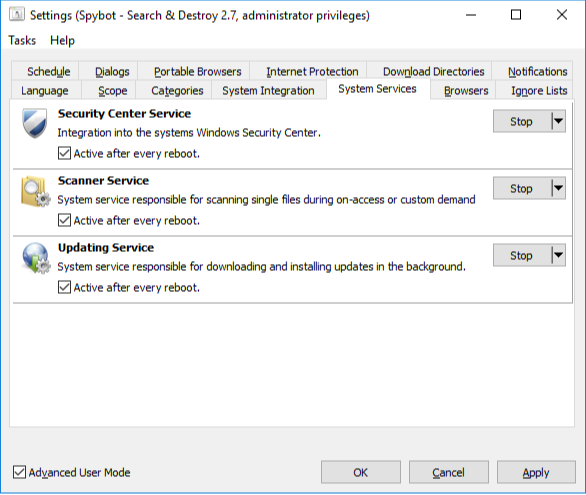
Start only the service required by the symptom. The Updating Service downloads/install updates; Scanner supports file scans; Security Center registration affects what Windows sees as the antivirus provider. Turning all three off can hide the cause and leave protection ambiguous. Never disable the Windows Security Center service itself.
If Spybot’s control can't start its own service, record the exact service display name, error and signed executable path. Don't use sc delete, create a replacement service or copy an executable from another computer. A supported repair/reinstall is safer than reconstructing product services manually.
Proxy and network fixes should be reversible
The vendor update page suggests checking Settings → Internet Protection for “Use Spybot Proxy” or a custom update proxy. If you don't intentionally use one, record the current state, untick the configured proxy, apply, restart Spybot and retry once. If a workplace requires a proxy, don't bypass policy; ask the administrator to allow the official update destination.
Importing old Internet Explorer proxy settings is a legacy route, not the first choice on Windows 11. Compare with Windows Settings → Network & internet → Proxy and the organization’s current configuration. Revert any experimental Spybot proxy change that doesn't alter the error.
A checksum/hash failure isn't permission to ignore integrity. Retry from the official updater, save the update log and time, and contact Safer-Networking if the same file repeatedly fails. Don't turn off HTTPS inspection, certificate validation or the real-time owner broadly to make the error disappear.
Error -2005 belongs to the paid antivirus-signature branch
Safer-Networking’s knowledge-base index lists “Failed to install Spybot 2 antivirus signatures (error -2005)” as a distinct error. Treat it separately from Free weekly antispyware definitions. Confirm the edition, whether the +AV license is valid, the installed version, available disk space and whether the antivirus-definition part—not the ordinary Spybot detections—failed.
Save the update log and exact timestamp. Retry only after the Updating Service and network path are healthy. Don't copy paid signature files from another installation or convert the system to Free mid-diagnosis without preserving the license state. If the code persists, send the evidence to vendor support.
If you no longer want the paid antivirus role, use the supported edition/license path and verify another real-time owner before changing it. Our Spybot pricing and renewal guide explains the current edition boundary; troubleshooting must not accidentally leave the PC without real-time protection.
Error 577 is a signature/driver/provider problem, not a bypass prompt
Windows Error 577 means Windows couldn't verify a digital signature for the relevant file. The Spybot knowledge-base index links an old “Running Spybot and Windows Defender” article to that code, while current Windows and Spybot builds can differ. Capture the driver/service name, Spybot version, Windows build and provider screen.
Don't disable driver-signature enforcement, Secure Boot or memory-integrity protections to load an old driver. Don't download a replacement driver from a forum. Verify the installer came from Safer-Networking and is signed, update Windows, and use the vendor’s current installer/repair route. If another antivirus owns real-time protection, keep it active while Spybot Live Protection remains off.
A current signed build that still receives 577 needs vendor analysis. An unsupported old build may need complete removal rather than a forced driver load. The complete Spybot uninstall guide keeps Quarantine, Immunization and provider handoff in the correct order.
If Explorer crashes on right-click, remove only Spybot’s shell integration
The live FAQ says Spybot System Integration can cause a Windows Explorer right-click crash. Run Spybot as administrator, enable Advanced User Mode, open Settings → System Integration and use the Uninstall control beside Windows Explorer Integration. Apply, close and restart Windows.
Test right-click on the same ordinary file after reboot. If the crash ends, leave that optional integration off; manual File Scan remains available inside Spybot. If it continues, another shell extension may be responsible. Use a clean boot or a reputable signed shell-extension diagnostic rather than deleting every context-menu registry key.
Don't remove the Scanner Service merely because the crash happens during a “Scan with Spybot” menu action. First remove the menu integration through Spybot. Service repair belongs later only if the core scanner also fails.
SDCleaner or SDDelfile at every startup means cleanup didn't settle
Spybot can schedule removal at reboot when a file is locked. One cleanup launch after a scan may be expected. Reappearance at every boot means the same item may still be locked, the result wasn't recorded, or the task is recreated. Save the scan/cleanup log, exact target path and whether the item still exists.
Let one full restart finish without interrupting the signed component. Then open Spybot’s results and Quarantine. Don't restore an unknown detection just to stop the task, and don't delete the scheduled entry before you know which file was pending. If the target belongs to Windows or another signed product, escalate instead of forcing deletion.
If the cleanup loop began after a false positive, preserve the detection name and file hash. The safe outcome may be restoring a verified file from Quarantine and submitting it to the vendor, not granting the whole folder an exclusion.
“Could not remove” and false positive need different handling
A locked malicious process, a protected system file and a harmless misclassification can all produce a failed fix. Review the path, publisher, detection name and behavior. The vendor FAQ describes SDCleaner and Safe Mode for stubborn items, but much of that material is old; don't run a generic cleanup executable from an unverified path.
For a suspected false positive, leave the item quarantined, preserve its hash and submit it through Safer-Networking’s official support route. Don't publish or email an executable casually. Restore only after you understand the file and another trusted scanner or publisher evidence supports it.
Spybot rootkit findings are heuristic: the live FAQ itself warns that items with rootkit properties aren't necessarily malware. Don't delete an unfamiliar driver because a property sounds dangerous. Create a restore point where appropriate and obtain product-specific analysis.
Use a clean boot only to isolate a reproducible conflict
If Spybot works after overlapping scans, services and startup jobs are stopped but fails in normal Windows, Microsoft’s current clean-boot procedure can isolate a background conflict. It's more controlled than disabling random services because it requires hiding Microsoft services, recording disabled startup items and testing in groups.
Keep the primary antivirus/protection state known during the test. Don't use System Configuration’s advanced boot options. Test one ordinary Spybot action—not a live malware sample—then restore Normal Startup using Microsoft’s steps. A clean boot that fixes the issue proves another startup app/service is involved; it doesn't identify which one until the binary re-enable process is completed.
On a managed device, clean boot can conflict with policy and support tooling. Leave that branch to the administrator. If Spybot still fails in the clean environment, the problem is more likely the product, its data, driver or Windows component and belongs to repair/support.
Repair or reinstall only after the failing layer is identified
Microsoft’s current app repair guidance notes that Repair/Change isn't available for every desktop program. If Spybot exposes a supported Change/Repair action in Programs and Features, use it with the current vendor installer. Don't assume the Windows Settings Reset option exists for this classic desktop application.
Before reinstalling, record edition/version and license, review Quarantine, and undo Immunization if a full uninstall is required. Save logs outside the program folder. Download only from Safer-Networking, verify the publisher signature and install a build intended for the current Windows version. Our setup guide covers the clean first-run state.
A reinstall is justified when program files/services are damaged, a signed current driver won't install, or the same failure persists in a clean boot. It's unnecessary for a grey scan button before definitions, an overlapping schedule or a deliberate proxy misconfiguration.
Version gate: don't apply famous old fixes to a current PC
| Old result | Original scope | 2026 handling |
|---|---|---|
| System Scan shows three dots | Spybot 2.5 on Windows XP/Vista | Don't downgrade Windows 11 Spybot using this article |
| Freeze at Zlob.ZipCodec | Specific old program-file bug and vendor mini-installer | Never download the historic patch for an unmatched build |
| Scan stalls around 4.7% | Old +AV progress-report case | Watch signatures/activity; percentage alone isn't proof |
| Disable all security programs | Legacy scan/update advice | Keep one real-time owner; stop only the diagnosed overlap |
| Delete temp and disable restore points | Old generic freeze advice | Not a default fix; preserve recovery and evidence |
| Error 577 Defender fix | Old Windows/Spybot integration state | Verify current driver signature, provider and build |
The vendor pages remain valuable because they name Spybot-specific components. Their “Legacy Information” label is equally valuable: it tells us to use the symptom and concept, not blindly execute the old version’s remedy. The current installed build is the authority.
A six-month-old r/sysadmin discussion remembers Spybot as useful but slow; that's community history, not a performance benchmark. Hardware, definitions and product versions differ too much for anecdotal scan time to be a target.
Send support a reproducible evidence packet
- Windows edition, build and whether the device is managed.
- Spybot edition, version and installer source.
- Signed process/service/driver name and full path.
- Exact error code/text and timestamp.
- Task Manager CPU/disk screenshot over time.
- Spybot scan/update log and current file/signature where it stopped.
- Windows Security provider and Live Protection state.
- Changes tested one at a time and their after-reboot result.
- Whether a clean boot changed the behavior and whether Normal Startup was restored.
Use Safer-Networking’s support form and redact the license key, email, device name and unrelated processes. Don't attach a suspicious executable unless the vendor’s secure submission flow requests it. A precise packet lets support distinguish a definition dependency, update service, proxy, driver signature, shell extension and product corruption without asking you to repeat risky experiments.
Spybot troubleshooting FAQ
Why is Spybot using so much CPU?
High CPU can be normal while Spybot is actively scanning, updating or fixing detections. It becomes a troubleshooting signal when the signed Spybot process stays busy without progress after the task should have ended, when ordinary programs open slowly, or when a second real-time antivirus is intercepting the same files. Record the process, active task, elapsed time and disk activity before stopping anything.
Why did my PC become slow after installing Spybot?
Safer-Networking says Spybot Live Protection can slow program launches because it scans processes before they start. Another active real-time antivirus can increase that overlap. Choose one real-time owner, disable Spybot Live Protection through Spybot if it isn't the owner, restart Windows and compare the same ordinary app launch.
How long should a Spybot scan take?
There's no reliable universal duration because scope, file count, archives, storage speed, exclusions and edition differ. Watch whether the current file or signature changes and whether CPU or disk activity continues. A percentage that pauses isn't automatically a hang; a process with no file/progress change and no meaningful activity for an extended period needs the scan branch in this guide.
Why is the Spybot System Scan button greyed out?
The vendor's legacy knowledge base says System Scan remains unavailable until a complete definition update has finished. Run Spybot as administrator, complete the update, close and reopen it, then retry. If the update itself fails, diagnose the exact update error and service rather than reinstalling immediately.
What should I do when a Spybot scan is stuck?
Save the current detection/file name, percentage, elapsed time and Task Manager state. Stop overlapping scans and wait long enough to distinguish a slow archive from no progress. If Spybot's Stop control responds, use it and save the partial log. Restart, update definitions and test a smaller scope before another full scan. Don't force-delete the file shown on the progress line.
Why does Spybot Update fail?
Retry once after the updater's status check, verify network and date/time, then check Spybot's Updating Service and whether an old Spybot or custom proxy is configured. Change one setting at a time and revert it if it doesn't help. Preserve errors such as -2005 or checksum/hash failures because they belong to different branches.
What is Spybot Error 577?
Windows Error 577 means a digital signature couldn't be verified for a driver or service. Spybot's old knowledge base ties the message to Live Protection and Defender coexistence, but the exact driver, Spybot version and Windows build matter. Don't disable driver-signature enforcement or install an unsigned replacement. Verify the active antivirus provider and use a current signed Spybot installer or vendor support.
Why does Windows Explorer crash when I right-click after installing Spybot?
The vendor FAQ identifies Spybot System Integration as one possible cause. Open Spybot as administrator, use Advanced User Mode, go to Settings and System Integration, uninstall the Windows Explorer integration, apply the change and restart. If the crash remains, use a clean boot or shell-extension investigation rather than deleting random context-menu registry keys.
Why does SDCleaner or SDDelfile run every time Windows starts?
It usually means a cleanup-at-reboot item didn't finish or keeps being recreated. Save the Spybot scan/cleanup log and exact target path, let one restart complete, then check whether the same signed Spybot component and item return. Don't delete the startup task before you understand which remediation is pending, and never restore an unknown detected file just to stop the prompt.
Should I reinstall Spybot to fix every error?
No. Reinstall is appropriate after the edition/version, license, Quarantine and Immunization state are recorded and a damaged program or driver is the likely layer. A grey scan button may need only definitions; slow launches may need a Live Protection decision; an update may need its service or proxy corrected. Use only the vendor installer and follow a bounded uninstall/reinstall route.
Bottom line: measure, isolate one layer, then verify
High CPU isn't one defect. During a scan it can be expected work; after installation it may be Live Protection; with another suite it may be double interception; with no progress it may be a scan or service failure. Capture the task and process before choosing the branch.
Keep one real-time owner, use Spybot’s own controls, reject unsigned patches and version-mismatched legacy fixes, restart when a driver or service changes, and repeat the same safe task. If the state won't settle, preserve the evidence and repair or remove Spybot through the supported path instead of deleting Windows safeguards.