
How to Cancel Spybot and Request a Refund Safely
Stopping the next charge, refunding the last one and uninstalling Spybot are three different jobs. The safe route starts with the real 2Checkout order, ends with written confirmation and never requires a phone number copied from a search result.

Quick answer
Find the Spybot receipt, open the official 2Checkout shopper portal from 2co.com, match the exact order and cancel automatic renewal before its displayed renewal date. Save the cancellation timestamp and effective date, then reopen the order in a new session to verify the change. A refund for a charge already processed is a separate request. The live Spybot checkout used 2Checkout when we checked, but older/reseller orders may differ—follow the processor named on your receipt. Uninstalling the Windows app doesn't cancel billing.
First choose the action you actually need
“Cancel Spybot” is overloaded. One reader wants to prevent next year's charge; another wants money back for yesterday's renewal; a third wants to remove the program from Windows; a fourth only wants to free a licensed device. Treating them as the same action is how people uninstall successfully and still get billed.
| Your goal | System of record | Proof of completion | What it doesn't do |
|---|---|---|---|
| Stop next renewal | 2Checkout/processor subscription | Renewal off/end scheduled plus confirmation | Refund a settled charge |
| Refund current charge | Specific processor order/refund case | Written approval and payment reversal | Always stop future renewal unless confirmed |
| End local protection | Spybot/Windows installation | Services removed and another provider active | Change processor billing |
| Check paid access | Spybot License Overview | Edition/start/expiry/remaining days | Prove auto-renewal is off |
Complete the billing action first, because it leaves an external timestamp you can preserve. Then decide whether to keep using the paid term until expiry and whether to uninstall. If you're still deciding whether Spybot belongs on the PC, our current Spybot review covers the product role; this page stays focused on money, entitlement and proof.
Confirm that this order actually renews
Spybot's current Home Edition page and Professional page describe a 12-month subscription and say the company will remind customers before renewal. That makes recurring billing plausible, but it doesn't prove the status of your particular transaction. Promotions, historical licenses, manual-renew plans, resellers and business invoices can differ.
Read the receipt and 2CO order record for four fields: product/edition, subscription or renewal type, next billing date and next amount. Don't infer automatic renewal from the expiration date shown inside Spybot. A license can expire on a date whether renewal is manual or automatic.
Check which email address owns the order and whether the card or PayPal account still belongs to you. If the purchase was made by an employer, family member or reseller, the person with the receipt may control renewal. Don't cancel a business endpoint license you aren't authorized to administer.
If the order says manual renewal or one-time purchase, there may be nothing to cancel. Save that evidence and set your own reminder before expiry. If it says automatic/recurring, continue with the processor controls and act before the displayed renewal date rather than relying on a general calendar assumption.
Find the real 2Checkout order without trusting an ad or phone result
On August 10, the live Spybot Home purchase form posted to secure.2checkout.com. The processor's official Shopper Support Center says MyAccount can retrieve invoices and license keys and manage subscription cancellation. It also offers order lookup for charges that appear as 2CO.com*MerchantName.
Start at 2co.com and follow its Shopper Login, Transaction/Order Lookup or Subscription Cancellation route. Don't type credentials into a site merely because it contains “2co” somewhere in the path. The registrable domain must be 2co.com or 2checkout.com, and the secure MyAccount route referenced in current processor terms is secure.2co.com/myaccount/.
Match the order number, amount, currency, purchase email, product name and last payment date. A statement descriptor alone isn't enough: 2Checkout processes many unrelated vendors. If multiple Spybot orders exist, handle each renewal separately and label the confirmations by order number.
Older receipt emails may mention Avangate, a historical 2Checkout name. That's useful search language, not permission to follow an old third-party login link. Reach the current shopper portal from the processor's official front door and retrieve the record there.
Cancel renewal in official 2CO MyAccount
Open the matched subscription and read the renewal date before changing it. Use the control to cancel the subscription or disable automatic renewal—wording can differ by renewal type and region. Read any retention offer carefully; accepting a discount or additional term may change the effective date and price.
The current 2Checkout shopper terms say cancellation before the renewal date avoids billing for the forthcoming term and normally terminates the subscription when the current term expires. They also say MyAccount can manage or cancel a subscription and that confirmation should state receipt time and effective date.
Finish the flow until a durable status appears. Closing a pop-up, declining a retention offer or removing a card isn't the same as a cancellation record. Save the page as PDF or screenshot it with the order number, renewal state and effective date visible; redact card details before sharing.
If MyAccount offers immediate termination versus end-of-term cancellation, read the entitlement consequence and refund language before choosing. Don't choose immediate loss of paid service merely because the button sounds more final. For most readers, stopping the next renewal while using the remaining paid term is the intended outcome.
Verify the cancellation in a second session
Wait for the processor confirmation, then sign out or open a fresh private window and retrieve the same order again. The renewal field should now say cancelled, manual, disabled or scheduled to end, with no forthcoming automatic charge. Record the exact wording; don't translate “current subscription active” into “cancellation failed” if the end date remains in the future.
Check the effective date in both portal and email. If they disagree, open a written 2Checkout support case immediately and attach both views. A chat message without a case ID is weak evidence; a processor-generated confirmation tied to the order is strong evidence.
| Evidence | Expected after stopping renewal | Red flag |
|---|---|---|
| 2CO subscription record | Automatic renewal off or end scheduled | Next automatic charge still listed |
| Confirmation email | Order, receipt time and effective date | Only a support auto-reply |
| Current entitlement | Active through paid expiry unless immediate termination chosen | Unexpected early deactivation |
| Refund case | Separate pending/approved/denied state | Assumed from cancellation alone |
Set a reminder a few days before the former renewal date and check the portal once more. This isn't because cancellation should be unreliable; it's cheap insurance against acting on the wrong order or confusing a refund ticket with a renewal change.
What happens to the current Spybot license
Open Start Center and click the displayed edition under the Spybot logo, then choose Your License. The official 2.9 license-details guide says this screen shows the edition, license name, start date, expiration date and remaining days. That's the local entitlement view.
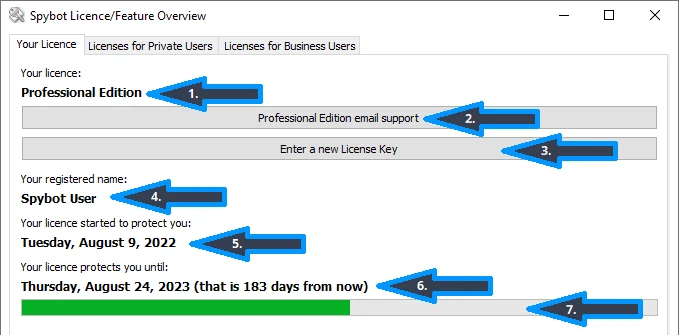
Stopping renewal shouldn't be confused with deleting the installed key. Keep a note of the paid expiry and the number of licensed nodes. If the cancellation confirmation says service ends at expiry, the paid antivirus and Live Protection can remain available until then; verify the actual status rather than deliberately breaking activation to “test” cancellation.
Plan the protection transition before expiry. If paid Spybot owns real-time antivirus, re-enable or install the intended replacement and confirm exactly one active provider in Windows Security. Our Spybot setup guide explains the provider check. A cancelled renewal shouldn't become a gap in protection.
Request a refund separately from cancellation
A settled payment needs its own refund case. The current 2Checkout Refund Policy directs shoppers to MyAccount or official support with the order number and reason. It says refunds are generally granted for 14 days from order date, while warning that product access/conditions can limit that period and that requests are reviewed.
State the precise request: refund the renewal/order dated X, amount Y, order Z. Explain whether it was an accidental renewal, duplicate, wrong product, non-delivery or product problem. Attach the cancellation confirmation, receipt and relevant error/support history. Don't send a full card number, password or license key.
Ask the case handler to confirm two independent outcomes: the decision on this charge and the future renewal state. A refund can be processed while an underlying subscription remains renewable; a subscription can be cancelled while the refund is denied. Close both loops in writing.
Don't promise yourself a date based on a generic blog. Payment method, bank, direct-debit rules and processor review affect timing. Record the processor's approved amount, destination method and reference, then check the statement rather than treating an approval email as the final settlement.
Spybot's refund documents conflict—use the order-specific record
Safer-Networking's Terms & Conditions of Sale say downloadable products are non-refundable and online download orders can't be cancelled. The same page explicitly labels itself Legacy Information. Its categorical wording shouldn't be presented as the only current rule for a 2026 subscription processed by 2Checkout.
The private-user EULA takes a different position: Section 5 describes cancellation within seven days by written notice and return of software. That document also lists compatibility only through Windows 10, while current product pages support Windows 11. It's evidence of policy/version drift, not a clean universal guarantee.
The processor's current refund policy generally mentions 14 days with limitations. These three documents can't honestly be collapsed into “Spybot has a guaranteed 14-day refund” or “Spybot never refunds.” The defensible approach is to preserve the checkout disclosure and receipt, file through the current processor, cite the relevant terms and mention applicable statutory rights without inventing an outcome.
Our Spybot pricing and renewal guide records the current 12-month product language. This page goes further only where the evidence supports cancellation and refund workflow.
Consumer rights may override a policy, but the details are regional
Safer-Networking is based in Ireland and 2Checkout sells globally. Ireland's CCPC digital-content guidance explains remedies when content isn't supplied, doesn't work as agreed or can't be fixed without serious inconvenience. Those are statutory issues, not discretionary “changed my mind” refunds.
EU Your Europe guidance describes a 14-day withdrawal period for many distance contracts and exceptions for online digital content when supply starts after express agreement to lose that right. The checkout consent, region, product type and whether access began can matter.
This guide isn't legal advice and can't decide eligibility from a headline. If a request is refused and you believe mandatory rights apply, make a formal written complaint quoting the order, problem, requested remedy and the official consumer guidance for your jurisdiction. Preserve every response.
A vendor policy can't erase a right that local law makes non-waivable, but neither does a general 14-day phrase guarantee every downloaded license refund. That distinction is why the evidence packet and order-specific disclosures matter.
If the receipt is missing or the purchase email is wrong
Search every plausible mailbox for “Spybot,” “Safer-Networking,” “2Checkout,” “2CO,” “Avangate,” the amount and the approximate purchase date. Check spam and archived mail. Don't publish the receipt in a forum; order numbers plus email can be account-recovery material.
Use official 2CO Transaction/Order Lookup or Shopper Support. Supply the charge date, amount/currency, statement descriptor, likely email addresses and only the masked payment details requested by the secure form. If you mistyped the email at checkout, say so and give the correct address plus proof that you control the payment.
If no 2CO order matches, inspect the statement's complete merchant descriptor and the original download source. The purchase may have come from a reseller, a different processor or a lookalike site. Don't cancel an unrelated 2CO subscription just because the amount is similar.
Safer-Networking's official support form can help with the product/license side. Payment identification belongs primarily with the processor that captured the charge. Keep one timeline so the two support teams don't receive contradictory dates or requests.
If you were charged after cancellation
Compare the cancellation receipt time with the renewal time and effective date. A cancellation submitted after renewal can stop the next term without reversing the term that just began. A cancellation submitted before the deadline with a processor confirmation is a different case and stronger evidence of a billing error.
Reopen the same order, capture the current renewal state and file a written 2Checkout case with the cancellation confirmation and renewal receipt. Also notify Safer-Networking sales/support with the processor case ID. Ask for a direct answer on both refund and future renewal.
| Situation | Evidence that matters | First route |
|---|---|---|
| Cancelled after renewal date | Renewal/effective timestamps | Separate refund request; future term already stopped |
| Cancelled before date, still charged | Processor confirmation and statement | 2Checkout billing correction case |
| No matching order | Full descriptor, amount, date, receipt source | 2CO lookup or payment provider identification |
| Duplicate charge | Two transaction IDs for one entitlement | Processor duplicate-payment case |
| Truly unauthorized | No order/account relationship and secure account review | Processor plus card/PayPal fraud process |
Don't edit screenshots or omit facts to force a refund. A concise, chronological packet usually beats an angry paragraph: order, cancellation time, promised effective date, charge, requested remedy.
PayPal, cards and genuinely unauthorized charges
If PayPal funded the order, first cancel the actual subscription through 2CO and preserve its confirmation. Then inspect PayPal's automatic-payment entry as an independent check. Removing a funding agreement alone may cause failed collection without changing the subscription record or producing a proper cancellation receipt.
For card purchases, replacing the card isn't the normal cancellation route. Account updater services can sometimes carry recurring authority to a replacement card, and a blocked payment doesn't prove the contractual renewal was cancelled. Use the merchant/processor control first.
If you truly don't recognize the order, secure the email and payment accounts, use official 2CO lookup, contact the processor and notify the card issuer or PayPal through their authenticated app/site. Don't call a number in the search result. Don't give anyone a one-time code or remote desktop access to “verify” a refund.
If you authorized the subscription but dislike the renewal or refund decision, describe it accurately. A chargeback can be a last-resort consumer remedy for an unresolved valid dispute, but falsely reporting authorized use as card fraud creates a different problem. Ask the issuer what evidence and dispute category apply.
Uninstalling Spybot is a separate Windows job
Removing Spybot deletes local components; it doesn't reach the 2Checkout order. Cancel billing and save proof before uninstalling. If you used Immunization, undo it first so the program can remove its supported browser/hosts changes. Our Immunization guide explains the rollback boundary.
Paid Home/Professional may own Live Protection and Windows Security registration. Before removal, identify the replacement real-time antivirus. After uninstall and reboot, open Windows Security > Virus & threat protection > Manage providers and confirm Defender or the chosen replacement is active and updating.
Keep the receipt, cancellation and refund record after uninstall; don't depend on files inside the removed program. If you might reinstall during the paid term, preserve the legitimate license route without publishing the key.
Search results contain fake Spybot cancellation phone guides
Current results include at least two “2026 complete guides” posted to an unrelated coding-discussion site. They repeat different toll-free numbers, invent a generic Spybot account portal and push the reader toward a call. Neither number is supplied by the official Spybot product/support pages or 2Checkout shopper center.
Don't call. Don't install remote-support software, share the order email password, reveal the full card number, read out a one-time code or paste the license key. A legitimate refund doesn't require purchasing gift cards, moving money between accounts or letting a stranger view online banking.
Use bookmarks created from the official domains after verification. The processor is 2co.com/2checkout.com for the current checkout we observed; Safer-Networking support lives on safer-networking.org. A search snippet that says “official” isn't domain evidence.
Keep a compact cancellation and refund evidence packet
- Order number, product/edition, purchase and renewal dates.
- Masked statement descriptor, amount and currency.
- Screenshot/PDF of renewal state before and after cancellation.
- Cancellation receipt time and effective date.
- Refund case ID, reason, requested amount and attachments.
- Processor/vendor responses and promised timing.
- Spybot License Overview expiry and remaining days.
- Windows real-time provider verified before paid protection ends.
Redact the license key, full card/account number, address and unrelated transactions. Store the packet somewhere independent of the Spybot installation. The purpose isn't bureaucracy; it's to make the next action obvious if the portal changes, a renewal posts or support asks for proof.
Spybot cancellation and refund FAQ
How do I cancel a Spybot subscription?
Identify the Spybot order in the official 2Checkout/2CO MyAccount linked from 2co.com, open its subscription or renewal controls and cancel before the renewal date shown. Save the confirmation and effective date, then reopen MyAccount in a new session to verify that automatic renewal is off or the subscription is scheduled to end.
Does uninstalling Spybot cancel the subscription?
No. Uninstalling changes only the local Windows installation. The current Spybot checkout uses 2Checkout, so future billing must be stopped in the processor-side order/subscription record. Cancel and verify billing first; uninstall separately if you no longer want the program.
Will Spybot stop working immediately after I cancel renewal?
2Checkout's current terms say cancellation before renewal normally ends the subscription at the expiration of the current paid term. Check the confirmation and the Spybot License Overview expiry date. Plan another real-time antivirus before paid Live Protection ends rather than assuming cancellation switches it off instantly.
Can I get a refund for Spybot?
You can submit a refund request through official 2Checkout MyAccount or Shopper Support. Its current policy generally describes a 14-day period but allows product/access limitations and case-by-case review. Spybot's own legacy legal pages conflict, and statutory rights vary, so a refund can't be guaranteed.
Is stopping auto-renewal the same as requesting a refund?
No. Stopping auto-renewal prevents the next term when completed before the renewal date; it doesn't automatically reverse a charge already processed. A refund request is a separate case tied to a specific order, payment and reason.
Why does my statement say 2CO.com instead of Spybot?
The live Spybot Home checkout posted to secure.2checkout.com when checked August 10, 2026. 2Checkout says statement entries can appear as 2CO.com followed by the merchant name. Use its official order lookup to match the amount, date, email and merchant before concluding a charge is unauthorized.
What if I can't find the Spybot receipt?
Search the purchase email address for Spybot, Safer-Networking, 2Checkout, 2CO and Avangate. Then use official 2CO order lookup or Shopper Support with the charge date, amount, card or PayPal reference and likely email addresses. Don't give a search-result caller remote access or full card credentials.
What if Spybot renewed after I cancelled?
Collect the cancellation timestamp, confirmation, effective date, renewal receipt and statement entry. Recheck the same 2CO order, then open a written billing case with 2Checkout and Safer-Networking. If a genuinely unauthorized or unresolved charge remains, ask your payment provider about its dispute process without falsely describing an authorized purchase as fraud.
Should I cancel PayPal automatic payments too?
First cancel the Spybot subscription in 2CO and preserve confirmation. Then review PayPal's automatic-payment record as a second verification layer if PayPal funded the order. Removing a payment method alone isn't a substitute for processor cancellation and can leave an unpaid active renewal attempt.
Where can I see when my Spybot license expires?
Open Spybot Start Center, click the displayed edition, then choose Your License. The official 2.9 guide says this view shows edition, license name, start date, expiry date and remaining days. It confirms local entitlement; 2CO MyAccount remains the source for renewal status.
Bottom line: close billing, money and software as separate loops
For the current direct Spybot checkout, 2Checkout is the billing system to verify. Cancel the exact renewal before its date, save the processor's effective-date confirmation and check it again in a fresh session. That closes future billing.
File a separate evidence-backed request for a charge already taken. Don't promise yourself a refund from one conflicting vendor paragraph, and don't surrender rights because another page says “no exceptions.” Use the current order terms, official processor policy and the law that actually applies.
Finally, decide what happens on the PC. Use the paid term until expiry if appropriate, move real-time protection deliberately and uninstall only when local removal is wanted. No legitimate step in this process requires a stranger's phone number from Google.