
How to Install, Activate and Set Up HitmanPro Safely
There are three legitimate setups hiding behind one product name: run the small scanner once, keep that scanner installed for later checks, or install HitmanPro.Alert for continuous protection. Pick the route before clicking anything, because the licenses and the Windows security state aren't interchangeable.

Quick answer
On Windows 11, download the official 64-bit HitmanPro scanner when you want a second opinion; install HitmanPro.Alert only when you want its continuous protections. Regular HitmanPro can run directly and may offer to keep a local copy for repeat scans, but neither option turns it into a real-time antivirus. Alert requires installation, uses its own key and should be trialed against Defender, browsers, games, VPNs and essential work apps before purchase.
Choose one of three setup routes before downloading
| Route | What remains on the PC | Use it when |
|---|---|---|
| Run regular HitmanPro once | The downloaded executable and any saved log | You want one bounded second-opinion scan |
| Install regular HitmanPro | Convenient Windows access for later on-demand scans | You plan to scan periodically but already have real-time protection |
| Install HitmanPro.Alert | Continuous service, drivers and application protections plus the scanner | You deliberately want ransomware, exploit, browser and privacy layers |
The first two routes use regular HitmanPro. They differ in convenience, not protection timing: the program does meaningful work when you launch a scan. Alert is the only route here that remains active around process starts, browsers and selected file activity. Our HitmanPro versus Alert comparison explains the deeper feature boundary; this page handles the safe setup itself.
Don't let an installer choice decide the product for you. Someone investigating one suspicious file doesn't need a second continuous engine by default. Someone expecting ransomware prevention shouldn't install the regular scanner and assume a Start-menu shortcut means permanent monitoring.
Before downloading: update Windows and preserve the current state
Finish Windows Update, restart if one is pending and note which security provider Windows Security currently reports. Save open work and make sure important files have a current backup. Alert's installation changes the continuous protection stack; a baseline makes it possible to tell whether a later warning, crash or missing tray state is new.
The official page still lists legacy Windows versions for which Microsoft support has ended. That's binary availability, not a 2026 security recommendation. Microsoft's Windows release information says ordinary Windows 10 support ended October 14, 2025, with ESU or specific LTSC editions as exceptions; Windows 7, 8, 8.1, Vista and XP aren't sensible internet-facing antivirus platforms. Move to a supported Windows release rather than treating HitmanPro as an operating-system patch.
If another real-time antivirus is installed, don't uninstall it merely to run regular HitmanPro. The scanner is designed for coexistence. Alert can also coexist by vendor design, but its deeper protections require a real compatibility trial, so record the antivirus version, VPN, browser extensions, games/anti-cheat and business software that must keep working.
Download only from the Sophos-owned HitmanPro page
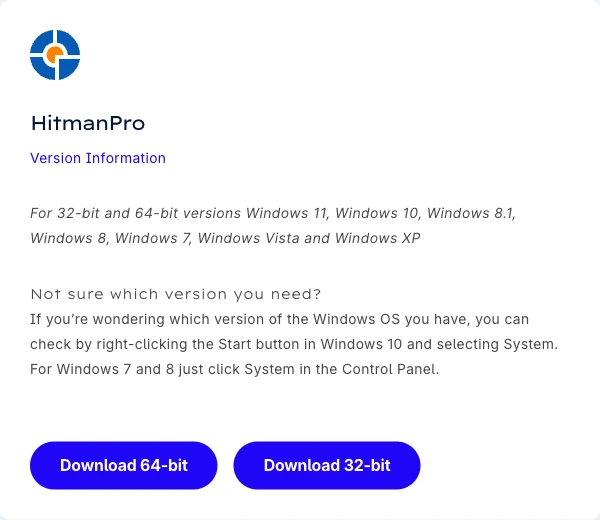
Start at the current official HitmanPro Downloads page, which redirects into Sophos's HitmanPro section. The regular scanner buttons point to download.sophos.com: HitmanPro_x64.exe for 64-bit Windows and HitmanPro.exe for 32-bit Windows. Alert has a separate download button for hmpalert3.exe.
Pause if the address moves to a look-alike support domain, a download portal or a page that demands a phone call, remote access or payment before providing the file. A genuine support process may eventually request logs; it doesn't require a stranger to take control of the computer just to obtain the public installer.
Windows may show a SmartScreen or User Account Control prompt because an executable is starting. Read the filename, source and publisher details instead of clicking through by reflex. If the origin or signature information looks wrong, delete that download and return to the official page; don't bypass the warning with an unofficial mirror.
Choose 64-bit or 32-bit from Windows System type
Windows 11 is 64-bit only, so its normal scanner choice is HitmanPro_x64.exe. On Windows 10 ESU/LTSC or another legitimate managed legacy case, open Start → Settings → System → About and read System type under Device specifications. Microsoft's 32-bit and 64-bit Windows guide confirms that path.
Select for the installed operating system, not merely the processor. A 64-bit-capable CPU can still be running 32-bit Windows on an old machine. Choosing the 32-bit file “because it probably works everywhere” gives up the native match and is unnecessary on every Windows 11 PC.
The current HitmanPro release page lists scanner build 346 from February 5, 2026 and includes ARM scan/upload fixes. That shows active ARM work; it doesn't change the page's architecture choice—use the 64-bit Windows build on current Windows 11 devices.
Run regular HitmanPro once without adding continuous protection
Save the matching executable to Downloads or a known clean USB drive, then open it and approve the verified Windows prompt. Regular HitmanPro is deliberately small and the official product page says to “just download and run.” A current first-run flow may ask whether to perform a one-time scan or install a copy on this computer; choose the one-time route when this is a bounded check.
Leave the computer online because the scanner uses cloud classification. Close browsers only if the current scan asks to inspect or clean browser artifacts; save work first. A one-time run is appropriate after a suspicious download, unexplained behavior or as a second opinion after the primary antivirus, but it isn't a substitute for a supported real-time provider.
Running from USB can help when you don't want to keep the executable on the target PC, but it isn't an offline rescue environment. Malware running with high privileges can interfere with tools launched inside the same Windows session, and the scanner's cloud workflow still needs connectivity. For a badly compromised machine, isolate it and escalate to trusted recovery rather than piling on scanners.
Install regular HitmanPro only for convenient repeat scans
If the current first-run screen offers to install HitmanPro on this computer, select that route when you want the scanner available from Windows later. Complete the initial scan, then close and reopen HitmanPro from the Start menu. Official activation support uses that restart-from-Start-menu flow before opening Settings, which is a useful acceptance test for the installed copy.
Don't mistake the installed shortcut for a live shield. Regular HitmanPro remains on demand. Microsoft Defender or another supported primary antivirus should continue owning continuous protection unless you deliberately install Alert and validate the changed security state.
An installed copy makes logs, license access and future scans easier, but it also creates another maintenance item. Check the release page periodically and don't keep an abandoned executable forever on a shared USB stick. Build 346 is current as of this fact-check; the live release page controls after publication.
Install HitmanPro.Alert as a separate continuous product
Download Alert from the same official page, open hmpalert3.exe, accept the terms only after reading them and choose Install. The official Alert installation procedure says the product prepares itself for first use after that step. Keep Windows online and avoid starting several security installers at once.
Alert includes the regular HitmanPro scanner, so don't buy both licenses just to obtain scanning. Its current build track is separate: Alert build 2059 shipped May 11, 2026 after major March and April protection and compatibility updates. The current Alert platform page also says it's for client Windows, not Windows Server. A phased rollout can leave a working machine one build behind briefly; verify the update state rather than forcing an unofficial installer.
Restart Windows if the installer or protection state requests it. After sign-in, open Alert from its tray icon and check the main status before changing modules. Test the browser, VPN, office/development tools, backups, games, launchers and sleep/resume during the trial. The first successful boot is a checkpoint, not the end of compatibility testing.
Run the first scan, then review before removing anything
Start the scanner and let it reach a completed result while online. With Alert, its anti-malware menu can launch the included HitmanPro scan in the background. A completed scan verifies more than an icon: the executable can enumerate the machine, contact the classification service and return a result.
Read each category. Executable malware, suspicious behavior, potentially unwanted applications and tracking cookies don't carry the same risk or response. Check the full path, publisher/signature, detection name and whether the file came from a trusted installer. Don't remove a shared library, business application or browser profile item solely because a red label looks decisive.
If a finding seems wrong, follow the official false-positive procedure: scan again, choose Save log and send the log with a short explanation to HitmanPro support. Preserve the original file safely when an expert may need to inspect its signer, hash or source.

Activate the scanner key or Alert key in the matching product
For regular HitmanPro, open Settings in the lower-left area, select the License tab, enter the product key including hyphens and choose Activate. This is the current official scanner activation route. Keep the Cleverbridge purchase email because it links the key, order and buyer email.
For Alert, open the red or green tray interface, choose Activate license, enter the Alert key including hyphens and choose Activate product key. The Alert activation page repeats an important warning: don't activate a replacement key while the old license still has days left, because those unused days aren't carried over.
A “license not suitable for this product” message usually means the key and installed product don't match. Official support says a regular HitmanPro key can't activate Alert. Don't solve that by buying another random key; verify the product name and order reference, then use the documented support remedy. Our pricing and renewal guide preserves the current license combinations and manual-renewal details.
Use the 30-day trial to test the role you actually need
Both current product pages advertise a 30-day trial without a credit card. For regular HitmanPro, use it to answer whether the scanner finds a meaningful issue, whether that finding can be verified and whether cleanup completes safely. Don't spend the trial deleting harmless cookies and then infer that the scanner protected the PC for a month.
For Alert, use the same period as a stability test. Work through normal browsers, banking, video calls, VPN, office or development tools, games, anti-cheat, overlays, backups and sleep/resume. Alert's 2026 release notes contain game-detection and browser-compatibility fixes, so a trial on the actual machine is more informative than someone else's “works fine” comment.
Change one security layer at a time and keep a rollback path. If Alert only behaves after most continuous modules are disabled, the regular scanner—or no extra product—is probably the better fit. If a specific module solves a real need without breaking the stack, the paid Alert license has a defensible purpose.
Keep Microsoft Defender state explicit during coexistence testing
Regular HitmanPro can run beside Defender because it's on demand. Alert is also marketed as compatible with existing security software, and the official Alert antivirus requirement answer says current Alert builds don't require a separate antivirus. That technical statement doesn't mean every machine should disable Defender or stack two real-time suites blindly.
Before installing Alert, open Windows Security and record the provider/status. After installation and after the first reboot, check it again. Decide deliberately whether Alert is an additional specialist layer or the intended main provider, then verify updates and a test scan. Two tray icons don't prove two healthy protection engines, and one hidden provider doesn't prove the system is unprotected.
Community discussions repeatedly split on Alert coexistence because different antivirus, browser and game combinations behave differently. Treat those reports as warning signals, not universal instructions. The current official release notes document real compatibility fixes involving ESET, Chromium builds, games, Visual Studio and VMware ThinApps, which supports a measured per-machine trial.
Verify setup after a reboot, not just after the installer closes
| Check | Regular scanner | HitmanPro.Alert |
|---|---|---|
| Launch path | Executable or Start-menu entry opens | Tray interface opens after sign-in |
| Product state | Correct trial/key in Settings → License | Correct Alert trial/key and intended modules |
| First scan | Completes and log can be saved | Included scanner completes |
| Continuous protection | Owned by Defender/another antivirus | Alert service/modules survive reboot |
| Compatibility | Primary antivirus remains healthy | Browsers, VPN, games and work apps pass |
Restart Windows once the install and scan are complete. Reopen the regular scanner from the path you expect or open Alert from its tray icon. Confirm the correct license/trial, current build family, completed scan and intended Windows Security state. An installation isn't accepted while an activation prompt, stopped service or unexplained provider change remains.
Save the first clean log or the exact detection log with the date and product build. For Alert, preserve technical details from any intercepted event before suppressing it. The support workflow can show the module, process tree and file context; that evidence is more useful than a cropped alert screenshot with no path or timestamp.
Safe fixes when download, scan or activation fails
Identify the stage first: official download, Windows launch prompt, first scan, cloud connection, installation, reboot, activation or an application conflict. Write down the exact error and time. “HitmanPro does not work” invites broad fixes; “build 346 freezes during disk enumeration after 18 percent” gives support something reproducible.
For a scan freeze, the official scan-freeze procedure first recommends checking Windows disk/system integrity and then, if the freeze persists, switching Settings → Advanced → Disk mode from Direct to Compatible. The procedure involves administrative repair commands, so back up important data and treat file-system errors as a Windows health issue, not merely an antivirus setting.
For activation trouble, confirm the matching product key, hyphens, internet connection and order email. The official older procedure suggests testing the Proxy tab with No Proxy when a stale proxy blocks activation. If the key has reached its activation limit, the activation-limit support page asks for the key; don't post it in a public forum or screenshot.
For an Alert application conflict, capture the executable and module before changing anything. The official game compatibility procedure uses a targeted application exclusion. That may be appropriate for a verified trusted game or work app, but excluding an entire folder or suppressing an unknown executable isn't. Re-enable any temporarily changed protection after the test.
Switch Alert to Advanced interface only when you need the controls
Alert installs with its Standard interface. The official Advanced interface procedure says experienced users can open the gear control and choose Advanced interface to reach the fuller module view. That's useful for diagnosing a named exploit mitigation, checking applications and reviewing the protection layout; it isn't a requirement for an ordinary successful install.
Don't toggle every module after switching views. Preserve defaults, reproduce the specific problem, change one bounded control and document the result. If an alert is uncertain, use its technical details and support path rather than suppressing it because the advanced screen exposes a switch.
The best first-run configuration is intentionally boring: correct product, official file, matching architecture, completed scan, matching key, intended Windows Security state and normal applications after reboot. Advanced controls belong to a measured troubleshooting step, not a post-install ritual.
HitmanPro installation and activation FAQ
Do I need to install regular HitmanPro?
No. Regular HitmanPro can run as an on-demand scanner from its downloaded executable. If the current first-run screen offers to install a copy, choose that only when you want Start-menu access and repeat scans. HitmanPro.Alert is different: its continuous protections require installation.
Should I download the 64-bit or 32-bit HitmanPro file?
Every Windows 11 installation is 64-bit, so use HitmanPro_x64.exe there. On an older supported or ESU-covered Windows installation, open Settings → System → About and read System type. Use the 32-bit file only when Windows itself is 32-bit; processor capability alone isn't the right selector.
Where is the official HitmanPro download?
Use the Sophos-owned HitmanPro Downloads page. Its regular scanner buttons lead to download.sophos.com for HitmanPro_x64.exe and HitmanPro.exe, while the Alert button leads to hmpalert3.exe. Avoid look-alike support domains, download portals and search ads that substitute a phone number or remote-access session.
Can HitmanPro run with Microsoft Defender?
Regular HitmanPro is designed as a second-opinion scanner and can run beside Defender. Alert is also marketed for coexistence, but it adds real-time drivers and application protections, so test browsers, games, VPNs and work software. After installation, confirm Windows Security still reports the protection state you intended.
Does HitmanPro.Alert include the regular HitmanPro scanner?
Yes. Alert includes the scanner and can start a HitmanPro scan from its anti-malware menu. A regular HitmanPro license doesn't unlock Alert's continuous modules, so use the product key that matches the product you installed.
How do I activate a HitmanPro product key?
In regular HitmanPro, open Settings → License, enter the key including hyphens and choose Activate. In Alert, open the tray interface, select Activate license, enter the key including hyphens and choose Activate product key. Don't activate a replacement key early because unused days on the old key aren't added.
Why does my HitmanPro key say it isn't suitable for this product?
HitmanPro and HitmanPro.Alert use different license types. Official support says a regular HitmanPro key won't activate Alert. Buy or retrieve the correct product key and contact support with the relevant order references rather than repeatedly reinstalling or buying from an unofficial seller.
How do I know HitmanPro.Alert installed correctly?
Open Alert from its Windows tray icon, confirm the license or trial state, check that its protection areas are enabled as intended and start the included scanner once. Restart Windows, reopen the tray interface and confirm the service survived the reboot. Also check that browsers, VPNs, games and essential work apps still behave normally.
Should I remove everything HitmanPro finds?
No. Separate executable malware from suspicious behavior, potentially unwanted applications and tracking cookies. Check the path, publisher, detection name and context, then save the log. Official support asks users with a suspected false positive to scan again, save the log and send it with an explanation.
Can I install HitmanPro on Mac, iPhone or Android?
No. The current consumer HitmanPro products are Windows-only. Seats can't be moved to macOS, iOS or Android, and downloading a similarly named mobile app from outside an official store wouldn't create a supported HitmanPro installation.
Bottom line: install only the protection role you intend
Use the official 64-bit scanner on Windows 11, run it once when you need a second opinion and keep an installed copy only for repeat convenience. Review results before removal and leave Defender or another supported primary provider responsible for continuous protection.
Install Alert only for its always-on modules. Activate it with an Alert key, check the tray and Windows Security state after reboot, run the included scanner and spend the trial on real compatibility. That separation keeps a simple investigation from becoming an unnecessary security-stack change—and prevents an Alert buyer from mistaking the regular scanner for permanent protection.