
PC Matic Not Working, Slow or Using High CPU
A busy scan, a red shield and a blocked program are three different failures. The fastest safe fix starts by naming the trigger and the layer, not by ending whatever process sits at the top of Task Manager. This guide shows what to wait for, what to record, what to restart once and when to preserve logs for support.

Quick answer: If CPU is high during a visible Full scan or update, let that work finish and retest at idle. If the same load persists, a scan repeats the same step, PC Matic won't open or SuperShield stays red after one restart, capture Task Manager ownership and generate a PC Matic 6 log. Check for a second third-party antivirus, test only the affected layer and reinstall last.
Start with the symptom, not a generic reset

| Symptom | First evidence | First safe action | Escalate when |
|---|---|---|---|
| High CPU | Process, trigger, scan/update state | Let active work finish; retest at idle | Load persists, loops or crashes |
| Scan at one percentage | Current step, elapsed progress, disk/network, Scan History | Wait for work/communication; restart once if truly unchanged | Same step repeats after controlled Quick scan |
| Won't open/update | Error text, Windows build, current version, recent change | Restart once; check conflict and current installer | Interface and protection status remain unavailable |
| Yellow/red shield | Color, tooltip/message, version | Allow update or restart once; generate logs | Red returns or protection is unavailable |
| Blocked app/site | Executable alert, extension alert or firewall event | Verify target; test one matching layer | Verified item can't be narrowly allowed |
| Whole PC slow | CPU, memory, disk, temperature, startup and non-PC-Matic load | Prove which resource and process is saturated | Windows remains unstable outside PC Matic activity |
The first five minutes should preserve evidence
Before restarting, write down what the computer was doing: booting, starting a Full scan, resuming a scheduled scan, installing an application update, launching a new executable or opening one site. Note the local time and time zone. A symptom with a trigger is reproducible; “the computer was slow earlier” rarely is.
| Capture | Where | Why it matters |
|---|---|---|
| CPU, memory and disk owner | Task Manager sorted by each resource | Separates PC Matic, Windows, browser, updater and storage load |
| Process identity | Expand group; open file location; Properties → Digital Signatures | A familiar name in an unknown path isn't trustworthy evidence |
| Scan state | Security page and Scan History | Shows the step, completion and whether a scheduled job resumed |
| Protection state | System-tray shield plus app status | Green, yellow and red imply different actions |
| Error and recent change | Exact text, screenshot, Windows/app update history | Connects the failure to a version or event |
| Other security software | Settings → Apps and vendor remnants | Two third-party engines can contend for files and services |
Don't take a screenshot that exposes email, order ID, customer name, device serial or file paths containing a person's name. Redact the copy you share; keep the original locally if support needs exact paths.
High CPU during a scan isn't automatically a defect
A Full scan reads far more data than a Quick scan, while an application update can unpack, verify and install files. Both can raise CPU and disk use. PC Matic's current Security Scans documentation exposes the current scan step and offers Quick, Full or Skip for the malware portion; it doesn't publish a universal CPU ceiling, temperature limit or maximum duration.
| Pattern | Likely interpretation | Next check |
|---|---|---|
| Rises with visible scan/update; falls afterward | Temporary workload | Record duration and retest at idle |
| Persists after scan completes | Loop, second task, conflict or unrelated process | Confirm process/path and Scan History |
| Returns at the same stage | Repeatable file, component or communication boundary | Generate logs; avoid endless retries |
| PC hot but Task Manager owner differs | Not yet a PC Matic diagnosis | Trace the actual owner and thermal clock |
| Service crashes or shield turns red | Protection failure, not just performance | Preserve logs and escalate promptly |
Task Manager percentage is relative to the available CPU. The same scan can look much heavier on a low-power or thermally throttled computer. Don't invent a single “normal” number. Compare the same device before, during and after the trigger.
For a repeatable baseline, let Windows settle after sign-in, close the workload you used during the scan and record three short idle observations rather than one instant peak. Then run the same scan type with the same power mode. The useful evidence is the shape: load rises with the named work, the scan advances and the process returns near its own earlier idle state. A screenshot taken only at the highest moment can't show that recovery.
CPU temperature is a hardware and cooling signal, not a product verdict. A high temperature with low clock speed can make ordinary processes consume a larger percentage of the remaining capacity. If fans, temperature or clock behavior stay abnormal when no scan/update is active, inspect cooling and the actual process owner before blaming PC Matic.
A scan at 90% may be waiting, communicating or genuinely looping
Current PC Matic scan documentation says the interface displays the current step and its progress. Capture both; a percentage without the stage loses the most useful clue. Watch whether elapsed time, file activity, disk activity or network traffic changes over a reasonable observation window.
PC Matic also says an interrupted scan should resume after reconnection and finish later. A 2024 r/antivirus stuck-at-90% thread confirms that users search this symptom, but it can't establish a current defect or typical duration. The replies also mix product opinions with a separate blocked-game issue, so we use it only as directional evidence.
- Record the current step and the last time it changed.
- Confirm the computer is online and not sleeping.
- Check whether another scheduled or manual scan overlaps.
- If no work changes after observation, stop only through the product's visible control when available.
- Restart Windows once and run a controlled Quick scan.
- If the same step repeats, stop retrying and generate a log.
Don't delete a file merely because progress paused while scanning it. A large archive, virtual-machine disk, mail store or damaged file needs evidence from the log before a safe exception or cleanup decision.
If a controlled Quick scan completes but Full repeatedly stalls, that narrows the investigation without proving which file is responsible. Preserve the Full-scan log and test only a vendor-approved narrow exclusion after the file is identified and its role is understood. Excluding an entire user profile or drive makes the next scan faster by making it less meaningful.
A late scheduled scan can be expected behavior
PC Matic recommends a weekly Quick malware scan and a monthly Full scan on different days. Its scheduler documentation says the time can vary with computer and internet status, a missed job can run when the device returns online and an interrupted scan can resume later.
That means an unexpected daytime scan isn't automatically a scheduler bug. Open Scan History, confirm which job ran and compare individual-device and global schedules. Remove accidental duplicates and separate the weekly/monthly days. If a machine sleeps through the planned window, adjust power availability or the schedule instead of disabling scans.
Use the completed scan date and type in Scan History. A report email or monthly summary can corroborate activity, but it shouldn't replace the local record when you diagnose one endpoint.
If PC Matic won't open, separate interface failure from protection failure
The desktop interface can fail while a protection service still runs, or the whole stack can be unavailable. Check the system-tray shield and Windows Security provider status before assuming one from the other. Record an error, blank window, crash, sign-in loop or missing shortcut precisely.
- Restart Windows once rather than repeatedly ending tasks.
- Open PC Matic from Windows search or the installed shortcut.
- Record the current Windows edition/build and whether the account can sign in.
- Check Settings → Apps for a second third-party antivirus.
- If the current app opens, generate a log immediately.
- If it still fails, obtain the current installer through the PC Matic install and setup guide and keep the old state until evidence is saved.
Running as administrator can be a useful one-time diagnostic for an install or account operation, but it shouldn't become the permanent requirement for normal protection. If elevation is always necessary, capture that as part of the support ticket.
“Won't update” can mean three different packages
First name the object: the PC Matic application or engine, a third-party application updated by Performance, or Windows itself. They use different publishers, logs and recovery routes. The PC Matic patch and driver guide owns application-update and managed-driver boundaries.
For a PC Matic app update, capture the version shown in settings, exact error and installer source. For a third-party app, record publisher, installed/target versions and whether its native updater or Store owns it. For Windows Update, use Microsoft's current Windows Update troubleshooting.
Don't download a “PC Matic updater” from a driver or download mirror. Verify the domain and signature. If the failure repeats, a vendor log plus package identity is more useful than clearing every temporary folder.
Yellow and red SuperShield states have different urgency
PC Matic's current protection-status page says green means SuperShield is active, yellow means it's updating and red means it isn't functioning properly. A black/dark-green shield represents blacklist-only mode and isn't the recommended full SuperShield protection level.
Allow a yellow update to finish while the PC stays online. For red, capture the tooltip/message and app version, restart once and verify again. PC Matic also hosts a red-shield restart article, but it's explicitly labeled PC Matic 4 (Legacy App). Its restart/contact-support principle is safe; its screenshots and menu paths aren't proof of the current PC Matic 6 interface.
The success condition is a healthy registered provider and green protection state—not the disappearance of an alert after disabling the component that raised it.
Check for a second third-party antivirus and its remnants
Microsoft says running two third-party antimalware products can make Windows slow, unstable or restart unexpectedly. Its antivirus guidance also warns that some security suites may not uninstall completely. PC Matic's Japanese regional support similarly associates non-progressing scans with residual security software; that's a useful conflict hypothesis, not proof for every slow PC.
Inventory installed suites, browser/network security companions and old vendor services. Use the unwanted vendor's supported uninstaller and restart. Don't delete drivers or registry keys by hand. Microsoft explains that Defender normally turns off when another antivirus is active and returns after it's removed; manually disabling Defender services isn't the right conflict test.
If you remove PC Matic itself, verify Windows Security activates before browsing or downloading. The complete PC Matic uninstall guide covers that handoff.
A blocked executable, website and network connection belong to different layers
| What fails | Likely layer | Evidence | Narrow test |
|---|---|---|---|
| Program won't launch | SuperShield default-deny | Executable alert, path, publisher, hash/reputation | Verified one-time or exact-file allow |
| One site is blocked | Browser Security/Scam Blocker | Extension notice and domain | Pause for that site; retest; restore |
| App opens but has no network | Enhanced Firewall or network stack | Rule/event plus destination | Review one app rule |
| Many sites/apps fail | DNS, proxy, VPN, firewall or connectivity | Other browser/device comparison | Test one network layer at a time |
Follow the SuperShield allowlisting guide for executables. Current PC Matic Browser Security documentation describes a per-site power control for its browser extension; that doesn't disable the endpoint antivirus. Never add an entire drive, Downloads folder, game library or browser directory just to make one verified item run.
Identify the process before deciding whether it belongs to PC Matic
In Task Manager, expand grouped processes, then use Details and Open file location. Inspect the publisher and digital signature. Record the path; malware can borrow a familiar filename from a different directory, while legitimate Windows and security work can appear under a host process.
Don't rely on a process list copied from PC Matic 4, an MSP console article or an old forum. Home and managed products can use different components, and versions change. PC Matic's own process library tells users to identify Task Manager processes, but its large historical database is context—not permission to kill a current security component.
If the process is Microsoft Defender rather than PC Matic, first confirm which antivirus Windows Security reports as active. If it's a browser, updater, compression tool or Windows servicing process, troubleshoot that owner instead of attributing all load to the most visible security app.
When the whole PC is slow, prove the bottleneck
PC Matic's Performance page shows CPU, RAM and disk measurements, but a high device score or chart doesn't name the process. Task Manager must connect saturation to an owner. Check whether CPU is actually high, memory is paging, disk active time is saturated, storage is nearly full or the CPU is thermally throttling.
Compare behavior with no manual scan running. A failing drive, Windows Update, browser tabs, cloud sync, game launcher, backup or runaway application can coincide with PC Matic without being caused by it. Change only one variable and retest the same workload.
Don't run a cleaner, registry optimizer, driver pack and antivirus reinstall together. Even if performance improves, you lose causality and may create a second problem.
Use Windows repair tools only when symptoms point beyond PC Matic
If multiple Windows components fail, installers crash broadly or the system freezes outside PC Matic activity, check Windows Update and system integrity. Microsoft's current System File Checker guidance says to run DISM first and SFC second from an elevated Command Prompt.
| Order | Built-in command/action | Purpose | Boundary |
|---|---|---|---|
| 1 | Install current Windows updates; restart | Finish pending servicing | Record failure codes first |
| 2 | DISM.exe /Online /Cleanup-image /Restorehealth | Repair component-store source | May require Windows Update/network |
| 3 | sfc /scannow | Verify and repair protected system files | Don't close before 100% |
| 4 | Retest the same PC Matic symptom | Prove whether Windows repair mattered | Don't add more changes yet |
One PC Matic support page links a broad third-party Windows repair utility. We don't use that as a first-line PC Matic fix: it changes too many system areas before logs establish the failing layer. Built-in Microsoft repair and vendor-specific evidence are easier to explain and reverse.
Generate the PC Matic 6 log before reinstalling
PC Matic's current PC Matic 6 Logfile guide uses a short route: open PC Matic, open the three-line menu, choose Help, select Logs and press Generate. The page says the log is uploaded to technical support.
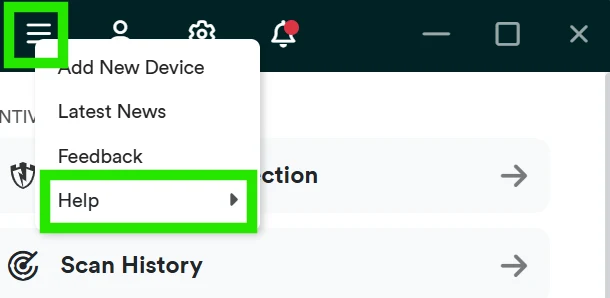
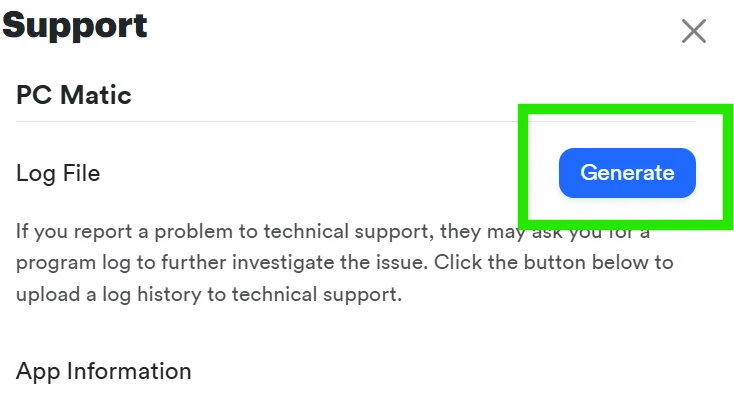
Generate the log while the evidence is fresh. Note the upload time and include the same email address used for the ticket so support can associate it. Don't publish the log: it can contain device, account or path information.
Reinstall only after logs and a reproducible test
A reinstall is justified when the current installer can't repair the app, the interface or service repeatedly fails after restart, or support directs a clean removal. It isn't the first response to temporary scan load, a single blocked program or an unknown scheduling time.
- Generate PC Matic 6 logs and record settings/status.
- Save the installer source and account access.
- Use the supported uninstall route; don't delete services, drivers, folders or registry keys by hand.
- Restart and verify Windows Security protection during the gap.
- Install from the official current source.
- Verify green SuperShield and “This device is protected.”
- Run a controlled Quick scan before restoring broad schedules.
Use the linked complete-uninstall and install/setup guides for the version and Home-versus-managed branches.
Pro/MSP administrators have live status and console-only actions
Current managed Scanning documentation provides live status for an on-demand scan. Device Options exposes performance trends and a console action to restart the SuperShield real-time service when a red shield is reported.
Those are authenticated Pro/MSP controls, not Home instructions. Confirm customer, device, policy and maintenance window before a remote action. Check whether one endpoint or a whole group is affected, preserve the live stage and events, then use the console's scoped restart rather than a generic Task Manager kill.
Don't copy MSP command examples into a consumer PC without knowing the installed product. Managed scheduling and Home scheduling have different ownership and evidence.
A useful support packet is small, exact and reproducible
| Field | Include | Redact from shared screenshots |
|---|---|---|
| Identity | Home or Pro/MSP, Windows edition/build, PC Matic version | License keys, order IDs, customer names |
| Timeline | Local timestamp/time zone, trigger, last known good event | Unrelated browsing/history |
| Symptom | Exact error, shield color, scan step/percentage | Email or device serial where unnecessary |
| Ownership | Task Manager process, file path, publisher/signature | Personal username inside paths in public posts |
| Changes | Recent Windows/app/security update or second suite | Unrelated software inventory |
| Evidence | Generated PC Matic 6 log and shortest repeat sequence | Never upload the raw log publicly |
The official PC Matic support page offers account and non-account product-support routes. Its free help desk covers PC Matic software; broad computer repair is a separate paid service. Use only the official domain and ticket route—search-result “support numbers” are a common scam surface.
Reduce the reproduction to the fewest steps that still fail: restart, wait for idle, open the named page or start the named scan, then note the point of failure. Say whether it happens on one device, every device or one managed customer. A support engineer can act on “Quick scan stops at the Performance stage twice on one Windows 11 device” far faster than on “PC Matic freezes sometimes.”
Avoid fixes that remove the symptom by removing evidence or protection
- Don't end an unidentified process or disable PC Matic services from an old forum list.
- Don't manually disable Defender services; let Windows manage provider handoff.
- Don't allow an entire drive, Downloads folder, game library or browser directory.
- Don't delete PC Matic drivers, services, folders or registry keys by hand.
- Don't run a registry cleaner, driver pack, repair-all utility and reinstall in one batch.
- Don't assume a red shield is fixed because the icon disappeared after protection was turned off.
- Don't post raw logs, order IDs or customer screenshots publicly.
The success condition is measurable: the intended provider is active, the shield is healthy, the controlled scan completes, the named workload returns to idle and the previously blocked verified item works through a narrow rule if one was needed.
PC Matic not working and high CPU FAQ
Is high CPU normal while PC Matic scans?
It can be. A Full scan can legitimately use more CPU, disk and time than a Quick scan. PC Matic doesn't publish one universal normal percentage, temperature or duration. The useful test is whether the named process falls back after the scan or update ends; persistent idle load, repeated crashes or the same loop after restart deserve investigation.
Is a PC Matic scan stuck if it stays at 90%?
Not necessarily. Record the current scan step, elapsed time, disk and network activity, then check Scan History. PC Matic says interrupted scans may resume after reconnection, so a percentage can pause while work or communication continues. If the same step makes no progress after one restart and a controlled Quick scan, generate logs and contact support.
Why did a scheduled PC Matic scan run late?
Current PC Matic documentation says schedule timing can vary with device and internet status. A missed scan may run when the computer returns online, and an interrupted scan can resume later. Keep weekly Quick and monthly Full scans on different days, then compare the actual completion in Scan History before calling the scheduler broken.
What do yellow and red PC Matic shields mean?
PC Matic's current protection-status page says yellow means SuperShield is updating and red means it isn't functioning properly. Record the exact color, tooltip or message and app version. Restart once; if red returns, generate a PC Matic 6 log and use official support. Don't apply PC Matic 4 menu screenshots to a current interface without checking the version.
What should I do if PC Matic won't open?
Capture the error and Windows build, restart once, then launch the current installed app with the normal shortcut or Windows search. Check for another active third-party antivirus and use the current PC Matic installer only after preserving logs. If the interface still fails while SuperShield status is uncertain, treat loss of protection as a support priority.
Can I end a PC Matic process to fix high CPU?
Don't end an unidentified process just because Task Manager shows load. Expand the process, inspect its file location, publisher and digital signature, record what triggered it and wait for the active scan or update to finish. Home and Pro/MSP use different components; a process name copied from an old forum isn't enough authority to kill a security service.
Should I disable Microsoft Defender when PC Matic has a problem?
No as a generic fix. Windows normally manages Defender when another registered antivirus is active and turns it back on after that product is removed. Microsoft warns that two third-party antimalware products can make a PC slow or unstable, so inventory and remove an unwanted second suite through its supported uninstaller rather than manually disabling Defender services.
Why does PC Matic block a program or website?
First identify the layer. SuperShield blocks executable launches, Browser Security or Scam Blocker can affect a site, and Enhanced Firewall rules can affect app network access. Verify the file or domain, test one layer narrowly and restore the prior state after the test. Don't solve one block with a whole-drive allowlist or by turning every protection layer off.
Should I reinstall PC Matic immediately?
Usually not. A reinstall can remove the state support needs to diagnose the failure. Capture the symptom, generate PC Matic 6 logs, check conflicts, restart once and reproduce with a small controlled test. If reinstall is still justified, use the current installer, the complete-uninstall route where needed and verify a green shield plus a successful Quick scan afterward.
What should I send PC Matic support?
Send the PC Matic 6 generated log, timestamp and time zone, Windows edition/build, PC Matic version, shield color, exact error, scan step, Task Manager process/path/publisher, recent install or update, other security software and the smallest repeatable sequence. Include screenshots with personal or customer information redacted.
Bottom line: diagnose the layer, preserve logs and change one thing
Temporary CPU during a visible scan is a workload; persistent idle load is a diagnostic problem. A scan percentage needs its stage and history. A red shield needs current-version evidence and a PC Matic 6 log. A blocked app, site and network connection belong to different controls.
Start with trigger, process and status. Retest after active work ends, restart once, remove only a confirmed second third-party antivirus, use Microsoft repair when Windows itself is damaged and reinstall last. The goal isn't merely to silence an alert—it's to restore verified protection without creating a second failure.