
How to Install and Set Up Scanguard Safely
A successful installer is not the finish line. Scanguard is ready only after the right account is active, updates complete, Windows or macOS recognizes the protection component and the previous antivirus is no longer competing in the background.

Quick answer: Check the exact OS and processor first, download through Scanguard’s Online Portal, install with an administrator account, restart/sign in on Windows or approve Full Disk Access and the system extension on macOS, then verify Real-Time Protection and the active security provider. Windows on ARM is currently unsupported.
Before installing Scanguard, identify the device you actually have
Open the system information screen and record the operating system version, build, processor architecture, available memory and free storage. “Windows 11” is not specific enough: an Intel/AMD PC and an ARM-based Snapdragon PC can look identical in a store listing, while Scanguard currently excludes Windows on ARM. On Mac, record both the macOS version and whether the chip is Intel or Apple silicon.
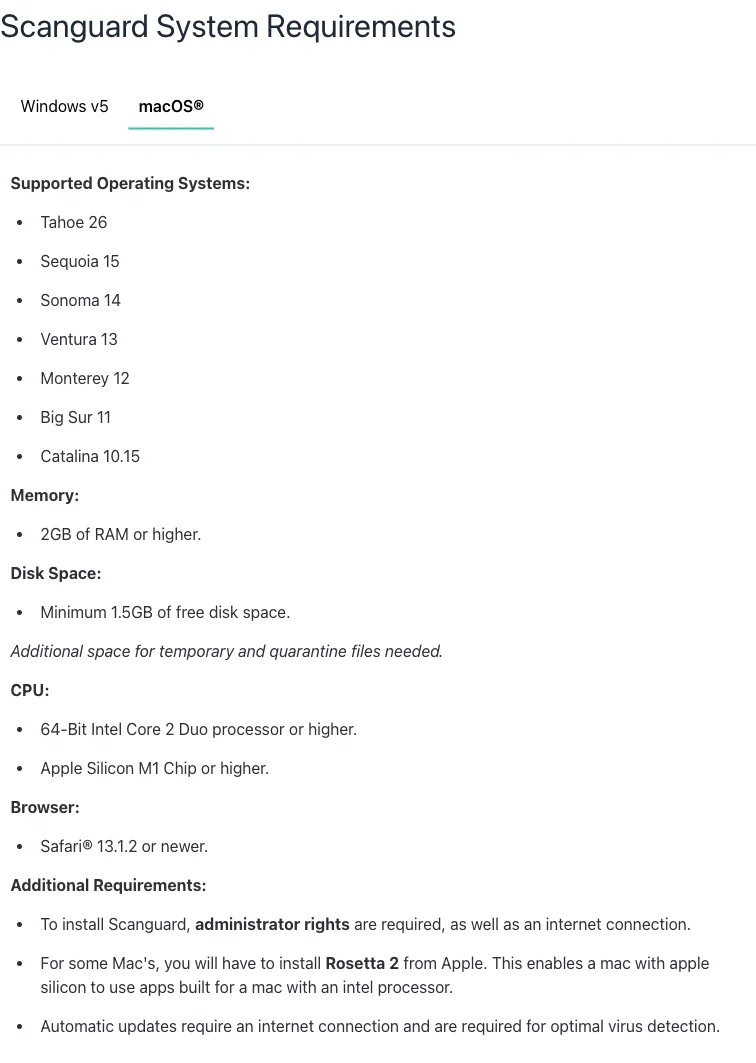
Scanguard’s current requirements page lists 2 GB RAM, 1.5 GB free disk space plus additional temporary/quarantine capacity, administrator rights and an internet connection. Those are minimum install gates, not a comfort target. A nearly full drive can stall setup, updates or quarantine even when 1.5 GB technically remains.
Use an administrator account you control, but do normal browsing from a standard account if that is your usual security practice. Have the paid-account email and password available before the restart. Save work, update the operating system, and create a restore/backup point appropriate to the platform before changing security providers.
Inventory the protection already present before you begin. On Windows, note the provider shown in Windows Security and whether a work account manages it. On Mac, inspect Login Items & Extensions and Privacy & Security for an existing endpoint agent. This short record prevents a common diagnostic dead end: after two products, one restart and several permission prompts, nobody remembers which service was active first. If the device belongs to an employer or school, a managed security profile takes priority over this consumer guide.

Scanguard’s Windows requirements contradict its own main site
The official requirements page is current enough to list macOS Tahoe 26, yet its Windows tab names Windows 7 SP1, Windows 8/8.1 and Windows Server 2016/2019 while omitting Windows 10 and 11. Scanguard’s main site separately says “Windows 7+.” We cannot turn those two statements into a clean Windows 11 guarantee.
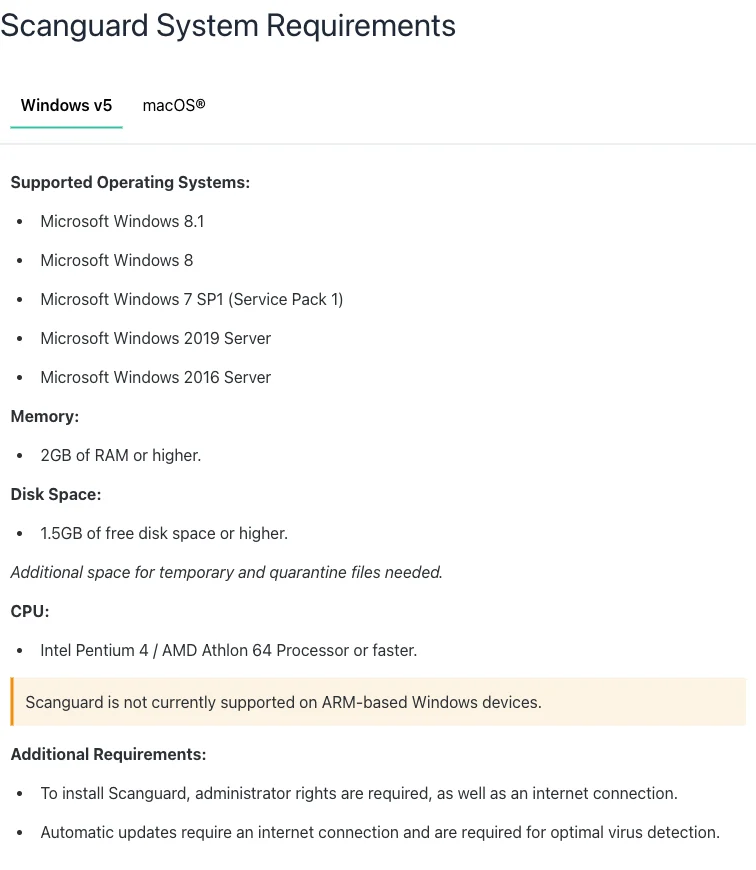
If the PC runs Windows 11 on Intel or AMD, the live installer may work, but verify before paying or uninstalling a working provider. If it runs Windows on ARM, stop: the vendor explicitly says it is unsupported. If it runs Windows 10, remember Microsoft ended normal free security updates on October 14, 2025; antivirus does not patch an unsupported operating system.
Windows S mode creates another hard boundary. Microsoft’s current S mode guidance says only Microsoft Store apps can install and leaving S mode is one-way. Do not make that permanent platform change only because a download page says “run installer.” Decide whether leaving S mode is acceptable, or keep the built-in protection and supported Store-only model.
Download Scanguard from the portal, not a search ad or mirror
The safest route begins in the verified `dashboard.scanguard.com` Online Portal reached from a typed/bookmarked Scanguard domain. The official download and install guide directs subscribers to an Install Scanguard button and provides a fallback through `download.scanguard.com`. Those are the routes this guide recognizes.
Before entering credentials, inspect the hostname and HTTPS connection. Avoid “driver,” “support,” “cracked,” “offline installer” or “free premium” pages, especially if they ask you to disable security first. A real installer may request administrator approval because endpoint protection needs system-level components; an unrelated remote-support operator does not need your payment card, email password or screen control to make the installer start.
A filename alone is weak evidence. Windows users can open the downloaded file’s Properties and inspect the Digital Signatures tab before running it; macOS users should expect Gatekeeper to identify the developer during the normal package flow. The publisher wording can change after a legitimate vendor update, so this is a consistency check against the official route—not permission to trust any file carrying a familiar-looking icon. If the signature is missing, invalid or names an unrelated company, stop and download again from the portal.
Keep the installer only long enough to complete setup and a support case. The portal-generated session can also help the Mac app sign in automatically. If the downloaded file arrives from another domain or has an unexpected archive/script extension, discard it and restart from the verified portal. Store a screenshot of the portal subscription and installer error rather than emailing the executable to strangers; support normally needs the version, timestamp and logs, not an untrusted copy forwarded through a personal inbox.
Install Scanguard on Windows without creating a protection gap
Save work and close browsers or applications that hold large updates. Open the official downloaded installer, approve the Windows User Account Control prompt only after confirming it names the expected Scanguard/Total Security publisher context, and choose Install. Let the setup files download; do not power off the PC because the progress bar pauses briefly.
The official route then asks for a restart. Accept it when work is saved, sign back into Windows, open Scanguard and use the account that owns the subscription. If Real-Time Protection does not enable automatically, use the in-app Enable control. A red toggle is a troubleshooting state, not a reason to switch off every other Windows protection control blindly.
| Stage | Expected result | Stop if |
|---|---|---|
| Installer launch | Windows asks to allow a known installer to make changes | Publisher/domain/file type is unexpected |
| Setup download | Progress completes with internet active | Repeated 0%, disk-full or unsigned/blocked warning |
| Restart | Windows returns normally | Boot loop, blue screen or recovery prompt |
| Sign-in | Paid account and device appear | Unknown email, duplicate purchase prompt or no entitlement |
| Real-time state | Scanguard reports protection enabled | Toggle remains red or Windows shows no active provider |
If another third-party suite is installed, find its license details and vendor removal instructions before touching it. Two real-time file-system filters can create slowdowns, duplicate alerts or failed provider registration, but removing the old suite too early creates the opposite risk. The sensible handoff is to keep Windows online only as needed, start from a known-clean installer, complete Scanguard setup, and then use the old vendor’s supported uninstaller if Windows still reports both products. A restart between removal and final verification is often required because security drivers load at boot.
Do not uninstall Microsoft Defender: it is part of Windows. Microsoft says Defender normally turns off when another antimalware program is installed and working, and returns if that provider is absent or expired. The safe sequence is install, verify Scanguard registration, then investigate any genuine conflict without leaving both providers disabled. Also leave Windows Firewall enabled unless a documented support step addresses a specific rule; antivirus registration and the network firewall are separate controls.
Verify Scanguard in both its app and Windows Security
Open Scanguard first. Confirm the correct account email, subscription status, last update, Real-Time Protection state and device name. Run a quick scan and wait for a normal completion. A green dashboard can still be incomplete if signatures never updated or the app is signed into a free account.
Then open Windows Security → Virus & threat protection and inspect the security-provider status. The important result is one working real-time provider, not two products both claiming to scan every file. Microsoft’s consumer antivirus guidance says Defender turns off when another antimalware program protects the PC; its Defender FAQ warns that disabling it without another working product leaves the device vulnerable.
Provider status is more useful than a desktop shortcut or a process visible in Task Manager. A shortcut proves only that files were copied, and a running interface can coexist with a failed protection service. Check again after a restart and after the first definition update. If Windows shows Scanguard as active but the app reports real-time protection off, capture both screens: that mismatch is evidence for support and should not be hidden by repeatedly toggling unrelated settings.
Restart once more if provider registration is stale, then recheck. If an old antivirus still runs, remove it through its normal uninstaller or vendor removal tool after saving its license and settings. Do not delete program folders by hand while services are active; that can leave drivers registered and make the new provider harder to diagnose.
Install Scanguard on macOS with the package installer
From the verified portal, download the macOS file and open `scanguard.dmg` from Downloads. Scanguard’s guide says to open the package icon, choose Continue and Install, select the destination if the Mac has more than one drive, then authorize installation with the local Mac administrator credentials. This is a package flow—not a generic drag-to-Applications instruction.
Close the installer when it reports success and open Scanguard. Use Get Started Now; the app may reuse the browser’s authenticated session, or it will ask for the Scanguard account credentials. Confirm the account before granting broad permissions. A receipt tied to another email will not unlock paid features in the current session.
On a work- or school-managed Mac, stop if System Settings says the permission is controlled by an organization. Endpoint agents and system extensions can be governed by MDM, and installing a personal antivirus can violate policy or collide with the managed provider. Ask the administrator rather than trying to bypass the profile.
Full Disk Access and the system extension are protection gates
Scanguard’s current Mac setup opens System Settings and asks for Full Disk Access, then installs/enables its endpoint real-time extension and relaunches. Apple explains that Full Disk Access can expose files from other apps, messages, browser data and backups. Grant it only to the verified Scanguard component created by the official installer.
Extension approval can appear in different locations. Apple says system-extension alerts may route to Login Items & Extensions on macOS Sequoia 15 or later, or Privacy & Security on earlier versions. Follow the live macOS label rather than an old screenshot. Restart/relaunch when prompted, then confirm the Scanguard extension and Full Disk Access toggle remain enabled.
The permission list may show a helper or endpoint component rather than the marketing name alone. That is not automatically suspicious, but the component must originate from the package you just obtained through Scanguard. If an older Scanguard entry remains disabled beside a newer one, avoid enabling both at random. Record the names and version, relaunch the current app, and use official support or the supported uninstaller to clear a stale extension.
Do not reduce Startup Security, disable System Integrity Protection or approve an unknown developer as a routine fix. Those steps change the trust boundary of the whole Mac. If Scanguard requests a legacy-extension path not documented for the exact current version, capture the alert and contact official support before proceeding. Once protection works, review Privacy & Security again so no abandoned helper from a failed attempt retains broad disk access.
Apple silicon may invoke Rosetta—but that path has an expiry
Scanguard says some Apple-silicon Macs may need Rosetta 2 because a component was built for Intel. If macOS displays its own Rosetta installation dialog after you open the verified app, the operating system can install it. Do not download a “Rosetta installer” from a third-party site.
Apple’s February 2026 Rosetta guidance says general support remains through macOS 27 and becomes limited from macOS 28. That makes a current successful install different from a permanent compatibility promise. In Finder → Get Info, check whether Scanguard is Intel, Universal or Apple silicon, and prefer a current native/Universal build when the vendor supplies one.
If a future macOS upgrade warns that an Intel component will stop working, pause the OS upgrade until Scanguard confirms a compatible release or choose another provider. Endpoint protection that cannot load its extension after an upgrade is not a harmless cosmetic warning.
Missing paid features usually mean the wrong app state or account
Scanguard’s paid-feature recovery page says the user may have downloaded the free version or may not be signed in. On Windows, open the app and use Login. On Mac, open General Settings, log out and sign back in. Use the exact email shown on the order receipt and Online Portal.
Do not buy the subscription a second time simply because an Activate card appears. First compare the app email with My Subscriptions, confirm the payment completed and check whether the device is already assigned. If the account email is inaccessible, use Scanguard’s verified recovery process rather than creating a new account that cannot see the original license.
Core Premium and separately billed add-ons are different entitlements. The current Scanguard pricing guide explains that one login can contain several renewal switches. A VPN or ad-blocking card remaining locked does not necessarily mean the antivirus purchase failed; check which service the receipt actually names.
Run one update, one quick scan and one normal-workload test
Wait for definitions and application updates before judging protection. Then run a quick scan without downloading live malware or using an unsafe “test virus” from a random site. Record the scan duration, findings and whether quarantine actions are understandable. A completed clean scan proves the engine ran; it does not prove the device was never compromised.
Use the computer normally for an hour: open work apps, copy ordinary files, browse trusted sites and watch CPU, memory, disk, battery and fan behavior. Check that WebShield does not block routine services and that real-time status stays enabled after sleep/restart. The Scanguard review covers broader protection evidence; this first-run check is about whether this installation is operational on this device.
Take one baseline screenshot only after the account, update and real-time indicators agree. It gives you a useful before-state if a later OS or app update changes provider registration. Do not treat a promotional “protection score” as the baseline; record concrete states such as definition timestamp, app version, device name and scan result. Recheck these after the next normal reboot, because an endpoint service that fails to load at startup was never fully installed.
If a file is flagged, preserve the alert name and path. Do not restore it automatically and do not upload personal documents to public scanners without considering privacy. A likely false positive needs its own evidence and allowlist path, not a blanket exclusion of Downloads or the entire drive.
If setup is stuck at 0%, use a safe failure ladder
Start with reversible checks: confirm supported processor/OS, internet, date/time, 2 GB RAM and several gigabytes of free space; restart; remove only a known partial Scanguard entry through Apps/Programs; then redownload from the official portal. Temporarily disconnecting from a VPN or proxy can help if the setup cannot reach its update service, but restore the network protection afterward.
Next, identify the current antivirus and use its normal uninstaller if it blocks provider registration. Keep Defender available until Scanguard works. On Mac, recheck Full Disk Access and extension approval. Capture the exact error, percentage, timestamp and OS build rather than reporting only “doesn’t install.”
Scanguard’s official 0% installation article escalates to Safe Mode, folder deletion, temporary-file deletion, DNS flushing and registry removal. Those actions are too broad for a universal first-line guide. Registry editing can damage Windows and deleting all temporary files can disrupt unrelated work; use backups and an exact, support-directed target if the safe ladder fails.
Stop the install when the problem changes category
A red Real-Time Protection toggle after a successful install belongs to the dedicated protection troubleshooting path, especially on Mac where extensions and permissions are involved. A missing account, duplicate charge or inaccessible email belongs to account/billing recovery. A blue screen, boot loop or managed-device restriction needs vendor/administrator support before another reinstall.
Prepare a compact support packet: OS name/build, processor, Scanguard version, installer source, account email domain (not the full password), exact error text, timestamp, restart count, active security providers and screenshots with personal data redacted. Generate product logs only through the official support instructions and inspect what they contain before sharing.
If you abandon the install, verify another supported provider is active. On Windows, Defender should return when no other working antivirus is registered; confirm rather than assume. On Mac, removing a partially installed endpoint component may require Scanguard’s normal uninstaller so its extension and Full Disk Access entry are not left behind.
Scanguard installation and setup FAQ
These answers cover the compatibility, account and permission questions that most often block a safe first installation.
Where should I download Scanguard?
Use the Install Scanguard control in the verified Online Portal or the official download.scanguard.com route linked from Scanguard support. Avoid download mirrors, sponsored support pages and repackaged installers. Check the address before entering an account password or approving an administrator prompt.
Can I install Scanguard on Windows 11?
Scanguard’s current documentation is inconsistent: its main site says Windows 7+, but the detailed requirements page lists Windows 7/8/8.1 and older Server editions while omitting Windows 10/11. Confirm support for your exact Windows 11 build and Intel/AMD processor through the current installer or official support before buying or removing existing protection.
Does Scanguard support Windows on ARM?
No. Scanguard’s current system-requirements page explicitly says ARM-based Windows devices are not supported. A Windows 11 laptop with a Snapdragon processor can therefore be unsuitable even though it looks like an ordinary Windows PC.
Can Scanguard install in Windows S mode?
Windows S mode permits Microsoft Store apps only. If Scanguard is not available through the Store for your device, installation would require leaving S mode, and Microsoft says that change is one-way. Do not leave S mode solely for an antivirus without deciding whether the tradeoff is worth it.
Should I disable Microsoft Defender before installing Scanguard?
Do not leave the computer unprotected. Microsoft says Defender normally turns off when another antimalware provider is installed and working, then returns if that provider is missing or expired. Install Scanguard first, verify its provider and real-time status, and troubleshoot conflicts without creating an unprotected gap.
Why are my paid Scanguard features missing?
The app may be in a free or wrong-account state. Scanguard says Windows users should sign in, while Mac users can log out in General Settings and sign back in. Use the same email that owns the paid subscription and check My Subscriptions before buying again.
Why does Scanguard need Full Disk Access on Mac?
Real-time endpoint protection needs permission to inspect files macOS otherwise restricts. Apple says Full Disk Access can expose data from other apps and backups, so grant it only to the verified Scanguard component requested during setup and review the entry in Privacy & Security afterward.
Does Scanguard need Rosetta on Apple silicon?
Scanguard says some Apple-silicon Macs may need Rosetta 2. Apple’s February 2026 guidance says Rosetta remains generally available through macOS 27 and becomes restricted from macOS 28. If prompted, install it through the macOS dialog—not an unrelated download—and check for a current native or Universal Scanguard build.
What should I do if Scanguard installation is stuck at 0%?
Restart, confirm supported OS/processor and free space, remove only known partial Scanguard installs through normal system controls, and redownload from the official portal. If it still fails, collect logs and contact support. Do not start deleting registry keys or broad folders without a backup and an exact support-directed target.
How do I know Scanguard is actually protecting the device?
A finished installer is not enough. Confirm the app is signed into the correct paid account, updates complete, Real-Time Protection is enabled, Windows Security or macOS permissions show the expected provider/component, a quick scan completes and the previous antivirus no longer remains active in parallel.
Bottom line: verify protection, not installation
Use the official portal, confirm the exact OS and processor, preserve a working security provider during the handoff and treat macOS permissions as security decisions. Scanguard is installed only when the correct paid account is active, updates and a quick scan finish, and the operating system recognizes the expected protection component.
If those checks fail, stop repeating the installer. Capture the evidence, use the safe failure ladder and escalate to the correct account, protection or platform path without weakening the whole device.