
How to Install and Set Up VIPRE Safely
The installer is the short part. A safe setup means matching the key to the right product, handing off from the old antivirus without a gap, granting only expected permissions and proving protection still works after a restart.

Quick answer: on Windows, confirm 64-bit Windows 11 or Windows 10 21H2+, 2 GB RAM, 2.5 GB free space and an internet connection; VIPRE says Windows on ARM is unsupported. Save the 25-character key, download the correct official package, remove the old real-time antivirus, restart, run the installer, enter the key, update software and definitions, scan, restart and verify Active Protection. On Mac, use the separate .pkg route, approve the expected system extension and Full Disk Access prompts, but verify newer macOS compatibility because VIPRE's published Mac requirements stop at Monterey.
Check the current requirements, not the oldest install article
VIPRE's documentation contains a real conflict. Its older generic installation article still mentions Vista or newer, 1 GB RAM and 1 GB disk space. The dedicated Advanced Security requirements list is stricter: 64-bit Windows 11, or 32/64-bit Windows 10 21H2 and later, 2 GB RAM, 2.5 GB free space and an internet connection.
Use the dedicated requirements page because it names the current Windows branches and the larger hardware minimum. It also says Windows on ARM is unsupported. That matters on newer Snapdragon PCs: a machine can run Windows 11 and still fail VIPRE's architecture test. Linux isn't a home-client option, and the Windows package isn't the Mac installer.
| Device | Current published route | Main check before purchase |
|---|---|---|
| Windows 11 | 64-bit Windows package | Not Windows on ARM; 2 GB RAM and 2.5 GB free space |
| Windows 10 | 32/64-bit package, 21H2 or later | OS build and remaining vendor support |
| Mac | Separate Advanced Security .pkg | VIPRE's published compatibility list stops at macOS Monterey 12 |
| Android | Separate VIPRE Android Security product | Not an Ultimate Windows/Mac antivirus slot; compare the Android antivirus guide |
| iPhone/iPad or Linux | No equivalent current consumer antivirus installer listed | Use the iPhone security guide or another platform-appropriate product |
For platform comparisons, see our Windows 11 and Mac antivirus guides. Compatibility isn't a minor footnote: an antivirus that can't load its protection driver or receive current updates isn't installed successfully even if a desktop icon appears.
Match the installer to the product key
VIPRE Home currently sells Antivirus Plus, Advanced Security and Ultimate Security. Plus is a one-Windows-device product. Advanced is the one-computer Windows/Mac tier. Ultimate expands the Windows/Mac entitlement to five devices and adds separate Privacy Shield and Internet Shield VPN applications. The VIPRE pricing guide maps those boundaries before a reader spends time on the wrong package.
VIPRE's activation troubleshooting says keys beginning 411, 405 or 422 should be used with Advanced Security, while 413 belongs to Antivirus Plus. Treat those prefixes as a diagnostic clue, not information to post publicly. A complete product key is a license credential.
Ultimate is a bundle, not a single universal installer. Install Advanced Security on each licensed Windows or Mac computer, then add Privacy Shield or Internet Shield only where those components are supported and useful. A VPN installation isn't proof that the antivirus is active, and a green antivirus status isn't proof that the VPN connected.
The five-stage safe installation workflow
A reliable handoff has an order. Verify the device and product first. Preserve the receipt and key. Download the replacement before removing protection, but don't run it yet. Uninstall the competing real-time antivirus through its normal route, restart, install VIPRE, then update and verify. This reduces the unprotected interval without stacking two active security drivers.

Don't disable every operating-system defense in advance. Microsoft Defender may move into a passive or active role during the handoff; macOS keeps Gatekeeper and XProtect. Those built-in controls are part of the safety net. The goal is one compatible third-party real-time antivirus after setup, not a computer with every security control turned off.
Prepare the receipt, key and rollback path
VIPRE says the product key is a 25-character code in five groups and arrives in the purchase receipt email. Save that email and a masked copy before uninstalling anything. If the existing VIPRE app still opens, record the current product name, Account status, key ending and expiration date. Those fields help distinguish renewal, replacement and wrong-installer problems later.
Download from the current Windows guided-start page or the Mac install page. Check that the browser address is a VIPRE-owned domain and that the link hands off to the expected go.vipre.com or signed package route. Don't search for an activation telephone number; that SERP is heavily polluted by fake support pages.
Before removing the old antivirus, confirm that the new installer file exists, the internet connection works, an administrator account is available and important work is backed up. Keep the old vendor's license information until VIPRE remains healthy after restart. A rollback plan isn't pessimism; it prevents panic purchases and unsafe downloads when an installer refuses to finish.
Remove the old antivirus without creating a driver conflict
VIPRE's current Windows start guide tells users to uninstall any existing antivirus before setup. Use Windows Settings or the old vendor's own uninstaller, then restart even if the dialog doesn't demand it. Don't select an aggressive “remove and continue” shortcut inside an antivirus installer when the old product has a dedicated cleanup path; incomplete filter drivers can cause network, boot and scan failures.
Cloud backup clients, password managers and VPNs aren't automatically competing antivirus products. Remove the component that provides real-time malware protection, not every security-adjacent tool on the computer. If the old suite bundles a VPN or password manager you still use, confirm whether uninstalling the suite removes those components and export anything needed first.
If the previous product won't uninstall, use that vendor's official removal tool or follow our malware-removal and cleanup guidance. Random registry cleaners and driver-deletion scripts can leave Windows less stable than the original conflict. The safe path is named software, named vendor, named removal route, restart, then VIPRE.
Install VIPRE Advanced Security on Windows
- Download the correct package. The official guided-start page currently names
vipre-advanced-security.exe. Don't rename another executable to imitate it. - Open the saved file. Read the Windows User Account Control prompt and confirm it identifies the expected VIPRE publisher before choosing Yes.
- Enter the 25-character product key. Keep the receipt private and type the five groups carefully. Read the End User License Agreement before Agree and Continue.
- Choose the location only if necessary. The default program directory is the least surprising option. A custom location doesn't move every driver or definition file.
- Let the compatibility scan finish. VIPRE checks for another antivirus. If it finds one, stop and remove that product through the vendor's supported route rather than forcing two drivers to coexist.
- Wait for files, definitions and first scan. Don't reboot or end the installer while it's actively changing protection components.
- Select Continue to VIPRE. The desktop application should open into the correct licensed product rather than Trial or Expired.
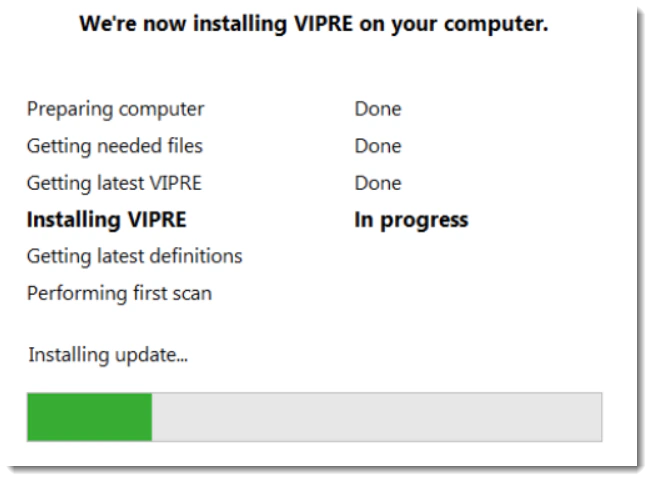
The screenshot comes from VIPRE's current knowledge-base article, but the interface can change before this guide does. Trust the signed publisher, product name and official path rather than pixel-matching every button. If the current installer asks for materially different permissions or a payment method where the official guide does not, stop and recheck the source.
Activate and configure the Windows first run
A first installation should accept the key during setup. If VIPRE opens as Trial or Expired, use Account → Product Key → Change, enter the correct 25-character key and save. VIPRE's registration guide says the app should then display the new expiration date.
Open Manage and Updates. Check program updates and definition updates separately. VIPRE's software-update instructions use Manage → Updates → Software Updates → Check Now, followed by Install and Update Now when an update exists. Restart if the installer requests it.
Then verify Active Protection, web filtering and the firewall configuration that fits the network. Don't enable every aggressive option blindly on a work laptop or a computer with specialist software. Run the first full scan after definitions are current, review detections rather than deleting unknown business files automatically, and create an exclusion only after confirming a false positive.
The Mac installer is current; the compatibility table isn't
VIPRE's Mac installation article was updated January 8, 2026 and explicitly says it applies to Mac laptops and desktops, not iPhone or iPad. The separate Mac requirements page was last updated in 2023 and lists macOS Monterey 12 down through El Capitan 10.11, with 2 GB RAM, 1 GB free space and internet access.
That list doesn't answer whether a newer macOS release or Apple silicon combination is supported today. Don't interpret silence as approval or as a definite incompatibility. Before buying or upgrading macOS, confirm the exact OS version and Mac architecture with VIPRE through its official support form. Our Mac antivirus guide is the fallback when published compatibility can't be verified.
The Windows requirements note that the Windows installer doesn't support Macintosh. That statement describes the Windows package, not the existence of the separate Mac build. Use the .pkg route; don't run a Windows compatibility layer or download an unofficial converted installer.
Install VIPRE on Mac and complete the permissions
- Download from VIPRE's current Mac guide. The file should be a .pkg package from the official route.
- Double-click the package. Continue through Introduction and License, read the agreement, then choose Agree if you accept it.
- Use the default destination unless there's a reason not to. Enter a Mac administrator name and password when the system installer requests authorization.
- Finish the package install. Close the installer only after macOS reports a successful installation.
- Open VIPRE and follow its permission prompts. Security software can't scan protected files until macOS grants the required access.
- Approve the expected extension. The exact location depends on macOS version: newer releases can use Login Items & Extensions or Privacy & Security, while older releases use Security & Privacy preferences.
- Grant Full Disk Access when the current VIPRE build requests it. Verify the requesting application is the installed VIPRE app, then restart if required.
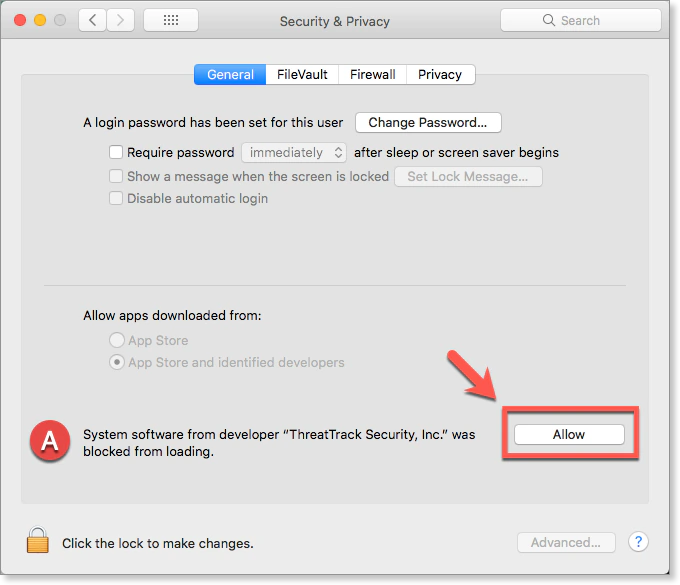
VIPRE's extension article still shows the old System Preferences interface. Apple's current Privacy & Security guidance places Full Disk Access in System Settings. Apple also says macOS Sequoia 15 or later can surface extension controls in Login Items & Extensions, with earlier releases using Privacy & Security. Follow the current system prompt and Apple path, not the screenshot's old tab layout.
Verify protection instead of trusting “installation complete”
Installation success means files were copied. Activation success means the key and subscription were accepted. Protection success means current components are running with the needed permissions. Check all three. Record the product name, subscription expiration date, program version, definition date, Active Protection state and most recent scan result.
Windows checks
Correct plan and expiry; Active Protection enabled; software and definitions current; no competing third-party real-time AV; firewall/network state expected; full scan completes; status remains healthy after restart.
Mac checks
Correct Mac build and subscription; system extension allowed when requested; Full Disk Access granted to the expected VIPRE app; definitions current; scan completes; no red At Risk state after restart.
Use the EICAR test file only if you understand the safe test procedure and the vendor supports it; never download live malware to prove an antivirus works. For the independent protection and performance verdict, read our VIPRE review. A successful setup doesn't turn an unsuitable product into the best choice.
After the first scan, review scheduled-scan timing, notifications and update settings. Avoid scheduling a full scan during gaming, video calls or backups. Keep automatic security updates enabled unless a managed environment has a tested replacement process. First-run tuning should reduce friction without disabling the controls that justified installing the product.
Fix installation and activation errors in the safest order
If the key is rejected, first confirm the plan and installer, then retype the key from the receipt. VIPRE says Advanced keys can begin 411, 405 or 422 and Plus keys 413. If the product matches and the key is still rejected, too many registrations can lock it. Use an official support ticket; don't buy another subscription or expose the key to a forum.
If the app opens as Trial, compare the Account key with the receipt, choose Change if it differs, then use Refresh while online. The official trial-status article says an unreachable licensing server can leave the subscription state incorrect even when the key matches.
If installation or a program update fails, restart, verify free space and architecture, remove remaining antivirus components, and download a new official package. VIPRE's failed-update recovery uses the official removal tool, restart and fresh reinstall while preserving the key. Don't delete FLTMGR, filter drivers or registry services manually based on an anonymous post.
If the installer or app asks for a support call, navigate to VIPRE's official site yourself. Search results for VIPRE activation are contaminated with fake telephone-support pages on unrelated domains, PDFs and social posts. A remote-access request, gift-card payment or demand to disable security is a stop signal. Compare other supported products through our antivirus comparison index rather than accepting unsafe help.
Reinstall without losing the key or duplicating billing
Before a repair reinstall, capture the product name, key ending, expiration date and renewal seller. Download the fresh package first. Use normal uninstall, restart and retry. Move to VIPRE's official removal tool only when the existing installation is broken or the normal route leaves components that block setup.
A new installer doesn't require a new subscription. A new product key doesn't prove the old subscription stopped renewing. If a discounted replacement key is used, verify the new expiration date in Account and separately inspect the old receipt's auto-renewal status. Our pricing and renewal guide explains that billing boundary.
Once the reinstall is healthy, delete obsolete installers that contain old product packaging, but keep receipts and masked license records. Don't store a full key in a public note, shared screenshot or support forum. The goal is recoverable ownership without creating a credential leak.
VIPRE installation and activation FAQ
Where should I download VIPRE?
Use the current installer linked from VIPRE's official Home Support or the order email/account that owns the subscription. For Windows Advanced Security, the official guided-start page links the vipre-advanced-security.exe package. Don't use a search ad, document-sharing site, cracked installer or a phone number embedded in a search result.
What are VIPRE's Windows system requirements?
VIPRE's dedicated requirements page currently lists 64-bit Windows 11 or Windows 10 21H2 and later, 2 GB RAM, 2.5 GB free disk space and an internet connection. It says Windows on ARM isn't supported. An older generic install article shows lower Vista-era requirements; use the dedicated requirements page and verify the current installer before proceeding.
Can I install VIPRE on a Mac?
Yes, Advanced and Ultimate currently advertise Windows/Mac coverage and VIPRE maintains a Mac installer guide updated January 8, 2026. However, its separate Mac requirements list was last updated in 2023 and stops at macOS Monterey 12. Verify a newer macOS release with official support before buying or changing security settings.
Should I remove my old antivirus before installing VIPRE?
Yes. VIPRE's current guided-start page tells users to uninstall an existing antivirus first. Download and verify the VIPRE installer and preserve the old license information before removal, use the old vendor's normal uninstaller, restart, and keep only one third-party real-time antivirus active after the handoff.
Where is my VIPRE product key?
VIPRE says the 25-character product key is delivered in the original purchase receipt email. It uses five groups of five letters or numbers. Keep it private. A first installation asks for the key during setup; an existing installation can change it from Account, Product Key, Change.
Why does VIPRE say my product key is incorrect?
Retype the key without exposing it and confirm that the installed product matches the key. VIPRE says keys beginning 411, 405 or 422 belong to Advanced Security, while 413 belongs to Antivirus Plus. A key can also be locked after too many registrations; use official VIPRE support rather than buying another key immediately.
How do I know VIPRE installed correctly?
Confirm the intended product name and expiration date, install software and definition updates, verify Active Protection is enabled, run the initial scan, restart, and check the status again. On Mac, also confirm the required system-extension and Full Disk Access permissions. Installation, activation and a healthy protection state are separate checkpoints.
Why is VIPRE installed as a trial after I paid?
Open Account and compare the displayed key with the purchase receipt. If it differs, choose Change and enter the correct key. If it matches, use Refresh while connected to the internet. VIPRE's support article says the app can remain Trial when it can't reach the license server.
What should I do if VIPRE installation or an update fails?
Restart first, confirm the correct product and system support, remove any remaining competing antivirus, and retry a fresh official installer. VIPRE's failed-update article recommends retaining the key, using the official removal tool for a broken existing installation, restarting and reinstalling. Don't delete random drivers or use an unverified cleanup utility.
Does uninstalling VIPRE cancel the subscription?
No. Removing the application affects the device, not the billing agreement. Manage automatic renewal from the link in the original receipt or renewal notice. The pricing and renewal guide explains the current direct-subscription cancellation and refund rules.
Verdict: finish the protection check, not just the installer
On Windows, the safe route is the matching signed package, one preserved 25-character key, a clean handoff from the old antivirus, current definitions, a first scan and a restart check. On Mac, the separate .pkg route also needs extension and disk-access permissions, with extra caution because the published compatibility table lags the installation article.
Stop if the architecture is unsupported, the product and key disagree, the installer comes from outside VIPRE, or a search-result phone number asks for remote access. A properly finished setup leaves one clear subscription, one compatible real-time antivirus and evidence that protection remains active after the machine starts again.