
How to Uninstall HitmanPro Completely and Safely
Don't start by deleting every file with “HitmanPro” in its name. First identify whether you ran the portable scanner, saved an installed copy, use HitmanPro.Alert, or have a managed Sophos endpoint. Each state has a different safe exit.

Quick answer: if ordinary HitmanPro only ran from the downloaded EXE, close it and delete that file after saving any scan evidence. If you saved or installed the scanner, remove it through Windows Installed apps or Programs and Features. HitmanPro.Alert is resident software: uninstall it through Windows, restart, then verify the intended antivirus provider and firewall in Windows Security. Don't use old registry, service or driver deletion recipes as the default cleanup.
First identify which HitmanPro state exists on this PC
“HitmanPro” can mean two different products and at least three different installation states. The ordinary HitmanPro scanner is designed as a small on-demand second opinion. Its current product page says it can run without installation. HitmanPro.Alert is the resident product that continuously protects browsers, documents and other applications, so Alert must install persistent components.
The scanner itself creates a second split. The current installation article says opening the download and choosing Next begins a scan. Continuing through the later prompt saves HitmanPro on the computer and creates shortcuts. Someone who stopped after the scan may have only one downloaded EXE; someone who accepted the save step has an installed convenience copy.
| What you find | Likely state | Safe removal route | What not to do |
|---|---|---|---|
| One downloaded HitmanPro EXE; no app entry or shortcut | Run-once scanner | Close it and delete the EXE | Don't hunt for nonexistent drivers |
| HitmanPro in Installed apps or Programs and Features | Saved/installed scanner | Use the Windows uninstall entry | Don't delete its folder first |
| HitmanPro.Alert listed; resident tray/protection status | Alert | Uninstall, restart, verify security handoff | Don't treat it as portable |
| Sophos organization, Central, tamper policy or work device | Managed endpoint | Use administrator-owned removal | Don't bypass management |
Check Settings → Apps → Installed apps, then Control Panel → Programs → Programs and Features if necessary. Search the Start menu for both names. Record what Windows calls the entry, the displayed version, whether an organization manages the device, and whether Windows Security currently names another antivirus provider. This takes two minutes and prevents most bad cleanup advice.
Don't infer the product from a purchase email alone. A scanner license and an Alert license aren't interchangeable, as our HitmanPro versus HitmanPro.Alert guide explains. Identify the software state on the PC before touching the order.
Preserve cleanup evidence and protection before removing anything
An uninstall isn't automatically the first safe step on a computer that may be infected. If HitmanPro just found malware, save the scan log and resolve the quarantine decision. A detected file could be a confirmed threat, a false positive that support needs to inspect, or the only remaining sample in an incident record. Deleting every program-data folder can destroy context without making the machine safer.
Finish any pending restart requested by a malware-removal action before changing products. If the scanner says remediation will complete at boot, let that state settle and run a verification scan. On a work, legal, financial or compromised-email incident, preserve the evidence required by the responsible administrator or investigator rather than improvising a consumer cleanup.
| Checkpoint | Why it matters | Minimum record |
|---|---|---|
| Detection or quarantine pending | Removal can erase useful context | Log, detection name, file path, decision |
| Restart pending | Old and new component state can overlap | Complete restart and note result |
| Only resident protection | Removing Alert can create a gap | Replacement or Defender handoff plan |
| License/support case active | Build and error may be needed | Product, build, Windows version, case ID |
| Managed device | Policy may reinstall or block removal | Organization and administrator contact |
Close browsers, banking sessions and sensitive work before removing Alert, because the device is changing security-provider state. Download no “cleanup tool” from an ad or mirror. If you expect to reinstall, bookmark the current official Sophos HitmanPro downloads page; it's the present source for the x64/x86 scanner and the Alert installer.
Finally, separate protection continuity from brand loyalty. A PC shouldn't spend hours with no known resident provider just because the old product is frustrating. The ordinary scanner isn't a substitute for a resident antivirus. Arrange the next state before you remove Alert.
Remove a run-once HitmanPro scanner by closing and deleting its EXE
If you downloaded the ordinary scanner, ran it once and never saved it to the computer, there may be nothing to uninstall. Confirm HitmanPro is closed in its own window. If Windows says the file is in use, open Task Manager and end only the clearly identified HitmanPro scanner process, or restart and try again. Don't terminate unrelated Sophos services just to release a download.
Now verify the negative evidence: no HitmanPro entry in Installed apps, no entry in Programs and Features, and no Start-menu shortcut created by the product. Delete the downloaded scanner EXE and empty the Recycle Bin when you're sure you don't need the file. That removes the portable program itself.
The absence of an uninstaller isn't an error in this state. It's a consequence of the scanner's run-without-installation design. Generic uninstall pages often turn this simple case into a registry hunt because they assume every executable installed a service. Don't let a leftover browser download record or recent-file entry change the diagnosis.
Scan logs and quarantined items are a separate question. Preserve what you need before cleanup; don't delete a data directory merely to make a filename search return zero. “Completely removed” should mean the executable is gone, no scanner process remains, and no installed application was created—not that every historical string has been scrubbed from Windows.
Remove a saved or installed HitmanPro scanner through Windows
If the scanner appears in Installed apps or Programs and Features, use that registration. On Windows 11, open Settings → Apps → Installed apps, locate HitmanPro, choose the More menu and Uninstall. On Windows 10, the label may be Apps & features. Follow the product and Windows prompts rather than deleting the executable before the uninstaller can find it.
If Settings doesn't expose the action, open Control Panel → Programs → Programs and Features, select HitmanPro and choose Uninstall or Uninstall/Change. The Windows route isn't a cosmetic preference: it gives the product a chance to remove its registered application state and shortcuts cleanly.
Restart if the uninstaller or Windows asks. Even for the lightweight scanner, judging the result before a requested reboot can produce false “leftover” alarms. After the restart, check that the app entry and Start shortcut are gone and that no HitmanPro scanner process is running. A download you kept elsewhere isn't evidence that uninstall failed; it's simply another portable copy.
If you plan to keep using HitmanPro only for occasional checks, the installation and setup guide explains the run-once choice. Removing the saved copy and later downloading a fresh scanner from the official page is often cleaner than leaving an old binary in Downloads for months.
Uninstall HitmanPro.Alert as resident security software, then restart
Alert isn't the portable scanner. Its current product page describes continuous protection for browsers, documents and other applications, so it has persistent components appropriate to resident endpoint protection. Use Settings → Apps → Installed apps or Programs and Features, select HitmanPro.Alert, and run the standard uninstaller. Read any choices about retaining settings instead of clicking through blindly.
Restart Windows after removal. The reboot is part of the verification boundary: a loaded component can remain in memory until shutdown even when its files are scheduled for removal. Conversely, a folder can remain for logs even though the protection provider is no longer active. Looking before the restart doesn't distinguish these states reliably.
Current official Alert support provides the same high-level sequence for a generic activation problem: uninstall Alert, reboot and reinstall from the official downloads page. It doesn't direct every consumer to a universal force-removal utility or a public command-line recipe.
After reboot, go straight to Windows Security verification before downloading or opening risky files. If Alert was the registered resident provider, Microsoft Defender should normally resume when no other active antivirus is registered. That handoff is a result to observe, not a reason to disable services or assume a green desktop icon is enough.
Stop consumer cleanup if Sophos or an organization manages the device
A work or school endpoint can include HitmanPro.Alert technology under Sophos management, even when the visible symptom looks like a consumer Alert installation. Organization branding, Sophos Central enrollment, tamper-protection prompts, a locked uninstall control or automatic reinstallation after reboot are strong signals that policy owns the software.
Don't bypass tamper protection, remove management certificates, delete Sophos services or use consumer registry instructions on that device. Those actions can violate policy and leave the endpoint in a partially managed state. Record the exact device name, product entry, message and time, then use the organization’s IT or Sophos administrator route.
The same rule applies to a privately owned computer that still belongs to an old employer's management tenant. The correct outcome is a documented de-registration and supported uninstall, not a battle with protected components. If ownership has legitimately transferred, the former or current administrator may need to release the device before local removal succeeds.
Generic web guides blur consumer HitmanPro with Sophos Endpoint cleanup utilities. We found no current public universal consumer HitmanPro remover that justifies that substitution. A tool intended for a managed endpoint has different assumptions and can do more damage than the original failed uninstall.
Microsoft provides three supported Windows removal routes
Microsoft's current app-removal guide lists the Start menu, Settings and Control Panel. For HitmanPro, Installed apps is the best first route because it exposes the registered product clearly; Programs and Features is the sensible fallback when Settings doesn't offer Uninstall.
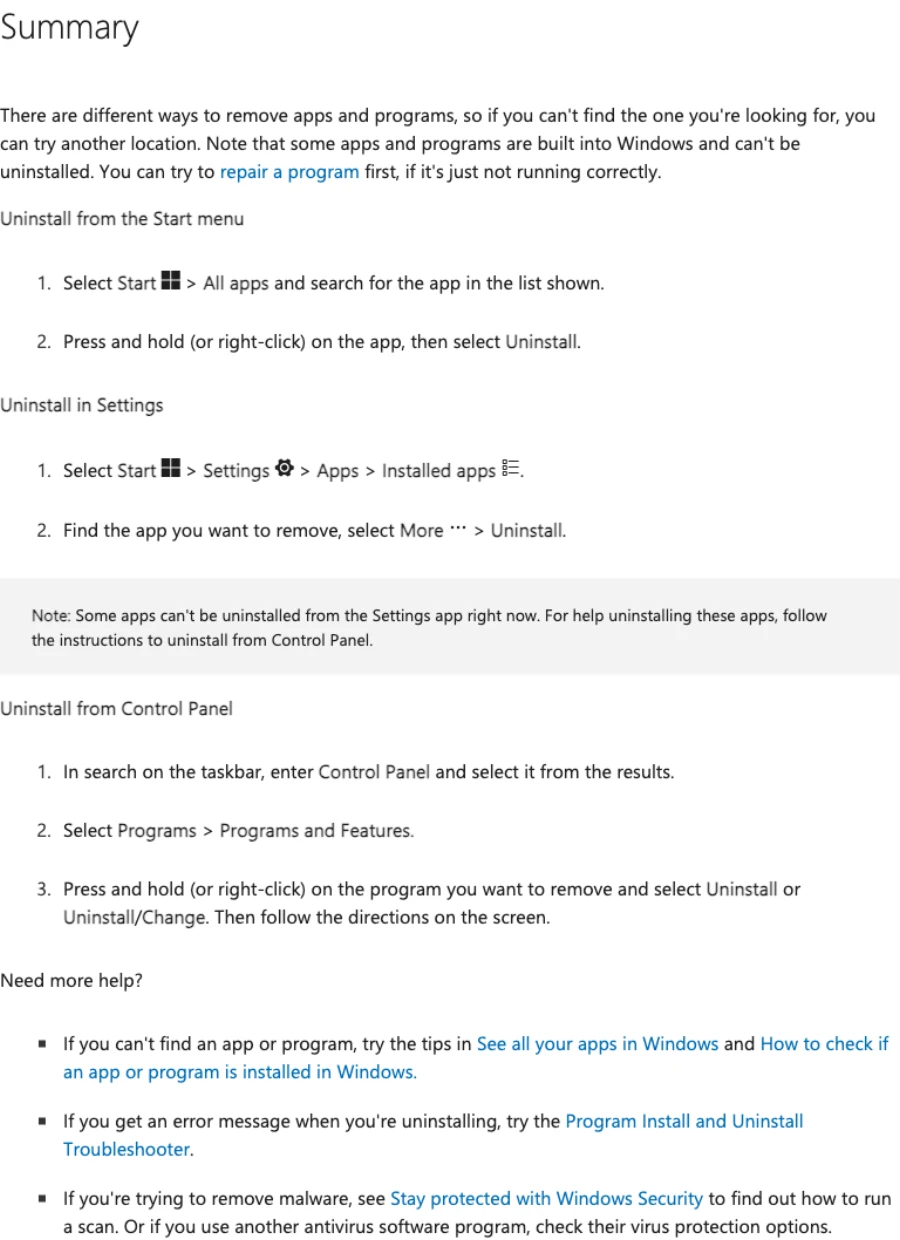
The screenshot is instructional evidence, not HitmanPro product UI. Menu wording can differ slightly between Windows 10 and Windows 11, but the underlying distinction stays the same: remove a registered application through its registered action. Don't delete the program folder first and then wonder why Windows can't run the uninstaller.
Start-menu Uninstall can simply redirect to Settings or Control Panel, so it isn't a fourth product-specific mechanism. If one route can't find the registered product, check the other before escalating. If neither lists ordinary HitmanPro, return to the run-once diagnosis; if Alert is visibly active despite no entry, preserve that mismatch as a support clue.
If HitmanPro won't uninstall, preserve the error and escalate in order
Start with one normal restart, sign in to an administrator account and retry the registered uninstall route. Close HitmanPro windows and ordinary applications, but don't disable Windows Security, delete services or boot into a tamper-bypass routine from an old forum. Record the exact error, product name, displayed build and whether Windows still registers a provider.
When Windows says the installer or uninstaller registration is damaged, use Microsoft's Program Install and Uninstall troubleshooter. Its purpose is to repair issues such as corrupted registry keys that block installation or removal. That's narrower and safer than downloading a third-party force uninstaller that guesses which components belong to the product.
If Alert remains active, the entry returns, or the error mentions policy or tamper protection, stop and use current HitmanPro support or the organization administrator. Include the error, screenshots, Windows build, HitmanPro/Alert build, whether the endpoint is managed and what the Microsoft troubleshooter reported. Don't post a complete license key in a forum.
Old community pages mention commands such as an Alert executable with an /uninstall switch. That history explains the query, but it isn't a universal 2026 instruction. Paths, architectures, self-protection and product ownership have changed. Use a command only when current HitmanPro support gives it for the exact installed build and explains the expected result.
Judge leftovers by activity and ownership, not by a filename search
A clean removal is an operational state. The application is no longer registered, its process and resident provider are gone after restart, and Windows protection is healthy. It doesn't require erasing every log, prefetch record, download history, event entry or historical string containing “HitmanPro.” Some records exist precisely so Windows and support can explain what happened.
Old guides commonly point at HitmanPro or Alert folders under Program Files and ProgramData, then tell the reader to delete them with registry keys, services and drivers. Those paths can contain settings, logs, quarantine material or managed components. Their presence alone doesn't show that a driver is loaded or a provider is active. Preserve evidence first and let the supported uninstaller own its components.
After the restart, an empty or plainly inactive log folder can be discussed with support if disk hygiene matters. An active service, a Windows Security provider that still names Alert, a locked driver or automatic recreation is different: capture it and escalate. Don't convert a supportable state into a broken endpoint by running sc delete, removing driver packages or taking ownership of protected registry branches.
Third-party uninstallers add another uncertainty layer. They may present a long list of “traces” because that looks thorough, not because each item is safe to remove. We don't recommend one for routine HitmanPro cleanup. The Windows registration, reboot and provider handoff give stronger evidence than a zero-result string search.
Verify the Windows Security handoff after the restart
Open Windows Security. Under Virus & threat protection, check which provider is active. If no other supported antivirus is installed, Microsoft's current Defender FAQ says Microsoft Defender Antivirus normally turns on automatically. If another resident product is intended, confirm Windows names that product rather than assuming Defender must be active at the same time.
Open Firewall & network protection and confirm the appropriate network profiles are protected. Run Windows Update or the active provider's update, then complete a safe quick scan. Don't test the handoff by downloading live malware or disabling browser protections. A current signature/update state and a normal scan are enough for this checkpoint.

Microsoft's current Windows Security technical documentation gives a blunt boundary: don't disable the Security Center service. Doing so can prevent correct status reporting and can interfere with Defender enabling after a third-party product is removed. A red or unknown status should be investigated, not hidden by stopping the service.
| Check | Healthy result | Unsafe assumption |
|---|---|---|
| Installed apps | Target product entry gone | A folder alone means failure |
| Restart | Completed without pending removal | Sign-out equals reboot |
| Security provider | Intended antivirus is named and active | Desktop icon proves protection |
| Firewall | Expected profiles protected | Antivirus removal can't affect status |
| Updates | Protection intelligence/provider current | Installed means current |
| Verification scan | Completes normally | Use a live malware sample |
If Defender or the intended provider doesn't return, fix the handoff—not the symptom
First restart once more and wait for Windows Security to finish refreshing its provider state. Check Windows Update and the current status page inside Windows Security. If a different third-party antivirus remains installed, Defender may correctly stay out of the active role. The objective is one known resident provider, not forcing two products to report active simultaneously.
If Windows Security still names HitmanPro.Alert after a supported uninstall and reboot, capture the provider screen and exact app list. That's stronger support evidence than deleting a folder. If Windows reports no provider or protection won't start, use Microsoft's current Windows Security support and HitmanPro support with the timeline of uninstall, reboots and troubleshooter result.
Don't disable or reconfigure the Security Center service to clear a warning. Don't import registry files from a video, run a random “Defender reset” script, or reinstall Alert over a partially removed managed endpoint without guidance. Each can make the displayed symptom move while leaving the underlying registration inconsistent.
For a machine that was infected, a failed provider handoff can be part of the incident rather than an uninstall bug. Disconnect from sensitive accounts, use a trusted device for password changes if compromise is plausible, and follow our malware-removal guidance or professional incident support before resuming normal work.
Reinstall only when the removal state is stable and the product still fits
Reinstallation makes sense for a damaged Alert activation, a corrupted installed scanner or a clean test of the current build. It doesn't make sense as a way to bury an unresolved provider registration. Reach a stable state first: old entry gone, restart complete, protection provider known and evidence saved.
Download only from the current official page. Choose the scanner architecture intentionally, or the separate Alert installer when continuous protection is the goal. Our HitmanPro pricing and renewal guide explains licenses, while the broader HitmanPro review decides whether the scanner's second-opinion role still adds value alongside a primary antivirus.
If you removed Alert because of conflicts, don't reinstall until the competing resident product and current support guidance are clear. Two security products can coexist in some combinations, but that doesn't prove two real-time stacks will behave well on this PC. Keep the arrangement simple enough to verify.
If the goal was merely to free disk space or stop using the scanner, leave it removed. Windows doesn't need the ordinary HitmanPro EXE to maintain resident antivirus protection. The scanner is an optional on-demand tool, not the Windows Security control plane.
Uninstalling doesn't cancel a license or request a refund
Software removal and billing live in separate systems. Deleting the scanner or uninstalling Alert doesn't contact Cleverbridge with the purchase email and order reference. It doesn't reverse a payment, deactivate the key by itself or create proof that a future charge is off.
Current official consumer support says both HitmanPro and HitmanPro.Alert use manual renewal, so many buyers have no recurring switch to cancel. A refund remains a case-specific Cleverbridge request and, when processed, can deactivate the associated license. Our HitmanPro cancellation and refund guide covers that transaction safely.
Save separate evidence for the two jobs: screenshots or notes showing the application and provider state for removal, and merchant messages showing the order, decision, amount and license effect for billing. One can succeed while the other remains unresolved.
Don't keep a resident product installed solely because a billing case is open if it's broken or unsafe, but don't remove the only protection layer impulsively either. Arrange the protection handoff and preserve the order evidence, then handle each system through its owner.
Troubleshooting matrix for the common HitmanPro removal failures
The matrix below is deliberately conservative. It gives the smallest supported next action that preserves evidence and keeps the security state understandable. A longer list of destructive commands would look more technical and be less useful.
| Symptom | Most likely explanation | Next safe action | Escalate when |
|---|---|---|---|
| No uninstall entry; only download exists | Run-once scanner | Close and delete the EXE | A resident provider or service still names Alert |
| Installed app entry exists | Saved scanner or Alert | Use its Windows uninstall action | It errors after restart and retry |
| Uninstaller says package/registration is damaged | Broken Windows uninstall registration | Run Microsoft troubleshooter | Product remains active afterward |
| Removal blocked by tamper or organization | Managed Sophos endpoint | Contact administrator | Ownership/policy can't be resolved |
| Folder remains after successful uninstall | Logs, quarantine or inactive data | Verify provider/process first | Files/services are active or recreated |
| Defender doesn't become active | Another provider, stale registration or damaged handoff | Restart, update, inspect provider | No known provider becomes healthy |
| Alert returns after reboot | Policy, incomplete uninstall or reinstall job | Capture build, policy and error | Standard/support route can't remove it |
| Need refund after removal | Billing job was never submitted | Use Cleverbridge order route | Merchant can't identify the transaction |
For support, send the product name exactly as Windows shows it, build, Windows edition/build, whether the PC is managed, uninstall route, exact error, reboots completed, Microsoft troubleshooter result and current Windows Security provider. That packet is actionable and doesn't expose the full license key.
A final file search can be useful for an administrator diagnosing a specific active component. It isn't the acceptance test for ordinary readers. Use registered application state, process/provider activity and protection health as the acceptance criteria.
HitmanPro uninstall FAQ
Can I uninstall HitmanPro by deleting the EXE?
Yes only when the ordinary HitmanPro scanner was run as a portable, run-once executable and was never saved or installed. Close HitmanPro, confirm it has no entry in Installed apps or Programs and Features and no Start shortcut, then delete that downloaded EXE. HitmanPro.Alert is different and must be uninstalled through Windows.
Why is HitmanPro not listed in Installed apps?
The ordinary scanner can run without installation. If you opened the downloaded scanner, ran a scan and never chose the option that saves HitmanPro and creates shortcuts, there may be no installed application to remove. Delete the closed download after preserving any scan evidence you need. Also check that the resident product isn't separately listed as HitmanPro.Alert.
How do I uninstall an installed copy of HitmanPro?
Open Settings, choose Apps and then Installed apps, find HitmanPro, use More and choose Uninstall. If it isn't available there, use Control Panel, Programs, Programs and Features. Follow the product prompts and restart if requested. After restart, confirm the entry and shortcuts are gone.
How do I uninstall HitmanPro.Alert?
Use Windows Installed apps or Programs and Features to uninstall HitmanPro.Alert, follow its current prompts and restart Windows. Alert is a resident product, so don't treat its folder or executable like the portable scanner. After reboot, verify Windows Security recognizes the intended antivirus provider and that the firewall is on.
What if HitmanPro.Alert won't uninstall?
Restart once and retry the standard Windows route from an administrator account while preserving the exact error and build. If the uninstall registration is broken, use Microsoft's Program Install and Uninstall troubleshooter. If Alert remains active or the device is Sophos-managed, contact current HitmanPro or organization support instead of deleting services, drivers or registry keys.
Should I delete HitmanPro registry keys and drivers manually?
No as a routine cleanup step. Old guides mix product versions and may target active security components, quarantine data or a managed Sophos endpoint. A leftover name doesn't prove a driver is loaded. Complete the supported uninstall, restart and verify Windows Security first; escalate active remnants with the exact build and error.
Does Microsoft Defender turn on after HitmanPro.Alert is removed?
Microsoft says Defender normally turns on when no other active security product is registered. Restart, open Windows Security and check Virus and threat protection plus Firewall and network protection. Don't disable the Windows Security Center service; Microsoft warns that doing so can prevent the expected handoff.
Can I uninstall HitmanPro while malware is quarantined?
Resolve the case first. Save the scan log, identify what was quarantined and decide with reliable support whether anything must be restored, submitted or retained as evidence. Don't blindly delete program-data folders while a cleanup or support case is unfinished. Then remove the scanner or Alert once the PC has a safe protection plan.
Is there an official HitmanPro removal tool?
We didn't verify a current public universal consumer removal tool for HitmanPro or HitmanPro.Alert. Current official Alert troubleshooting tells users to uninstall, restart and reinstall from the official downloads page. Don't substitute a Sophos Endpoint cleanup utility or an old command from a forum unless current HitmanPro support gives it for your exact build.
Does uninstalling HitmanPro cancel the license or refund the purchase?
No. Removing software changes the Windows device; it doesn't change the Cleverbridge order. Current consumer HitmanPro renewal is manual, and a refund is a separate case-specific request. Save the order and refund outcome independently from the uninstall evidence.
Verdict: remove the right product, then prove protection is healthy
The ordinary HitmanPro scanner can be as simple as one closed EXE. A saved scanner has a Windows uninstall entry. HitmanPro.Alert is resident security software that needs a standard uninstall, restart and provider handoff. A Sophos-managed endpoint belongs to its administrator. Those four states are the core of a complete removal.
Don't measure success by how aggressively a cleanup tool deletes names. Measure it after reboot: the target app is no longer registered, no target process or provider is active, the intended antivirus and firewall are healthy, updates work and a safe scan completes. Preserve quarantine and support evidence until the case is resolved.
If the standard path fails, use Microsoft's registration troubleshooter and current HitmanPro or organization support. Blind registry, service and driver deletion isn't a badge of thoroughness; it removes evidence and can damage the protection handoff. Billing remains separate, so settle any Cleverbridge refund or manual-renewal question through the order route.