
McAfee Gamer Security, App Boost and Web Boost in 2026
Gamer Security and App Boost are legacy US consumer features, but Web Boost is still live. Here is the evidence, the safe removal order and the replacements that make sense now.

Quick answer: McAfee Gamer Security and App Boost are legacy US consumer features in 2026: neither appears in the current US plan matrix, and we couldn't verify a live US Gamer Security checkout. McAfee hasn't published one clean global retirement date, so stale regional pages shouldn't be mistaken for a current US offer. Web Boost is different. Its official Chrome Web Store listing remains live as version 1.1.0.107, updated October 2, 2025, and still pauses autoplaying videos. Existing users should identify the exact component, verify account entitlement, change one layer at a time and confirm replacement antivirus before broad removal. New buyers should use maintained current products rather than old keys or archived installers.
Short answer: not every old McAfee “Boost” feature is dead
McAfee Gamer Security and App Boost now belong to the legacy side of the consumer portfolio for a US buyer. We couldn't reproduce a current US Gamer Security checkout, neither feature appears in McAfee's live 2026 US plan matrix, and the old gaming route redirected away from the product in our browser. McAfee hasn't published one clean retirement notice for either name, so we call them legacy rather than inventing a discontinuation date.
Web Boost is different. The official Chrome Web Store listing is still live, identifies McAfee LLC as the publisher and shows version 1.1.0.107 updated October 2, 2025. It still does one narrow job: stop autoplaying videos to reduce unwanted playback, bandwidth and battery use. That is why a useful 2026 answer must separate four products that search results keep blending together.
What still works in 2026
| Feature | Original job | Evidence checked | 2026 conclusion |
|---|---|---|---|
| Gamer Security | Lightweight antivirus, game mode and system telemetry | Old McAfee launches and stale regional pages; no current US checkout | Legacy standalone product |
| PC Boost | Umbrella for App Boost and Web Boost | Old McAfee launch copy and indexed regional support pages | Legacy suite label in the US |
| App Boost | Prioritize the foreground Windows app | Old suite pages and community reports; absent from current US matrix | Legacy integrated feature |
| Web Boost | Pause autoplay video in Chrome | Live official Chrome Web Store listing updated Oct. 2, 2025 | Still available as an extension |
| WebAdvisor | Warn about risky sites, links and downloads | Current McAfee support and browser-security pages | Current, but not Web Boost |
| PC Optimizer | Clean storage and stop background processes | Current US product page and checkout route | Current separate product |
The words “legacy” and “current” describe availability we could verify, not whether a component installed years ago still launches on one computer. An old binary can remain functional after sales and support move on, while an indexed regional page can survive long after a US offer disappears. A live executable isn't the same as a maintained purchase path.
Our status call uses the current US product matrix as the buying baseline because this page targets US English search intent. Regional pages can differ, and some McAfee country sites still display PC Boost or Gamer Security copy. Anyone buying outside the US should verify the exact local checkout, supported Windows version and renewal terms rather than assuming the regional page represents a new license.
Why search results look contradictory
McAfee's web estate contains years of product launches, help pages and localized storefronts. A 2018 McAfee portfolio article introduced PC Boost, a 2019 article announced Gamer Security, a 2021 article offered it to some Total Protection and LiveSafe customers, and current search results can still surface a Spanish-language gaming page. Meanwhile, the current US plans emphasize antivirus, VPN, scam detection, identity tools and web protection.
Search engines don't label an old vendor page “historical” merely because its offer stopped being central. Some pages also carry a recent crawl date even when the underlying copy, requirements or template belong to an older product generation. We therefore checked the destination, current plan comparison and extension store instead of treating a fresh snippet date as a release date.
The product family split at a glance
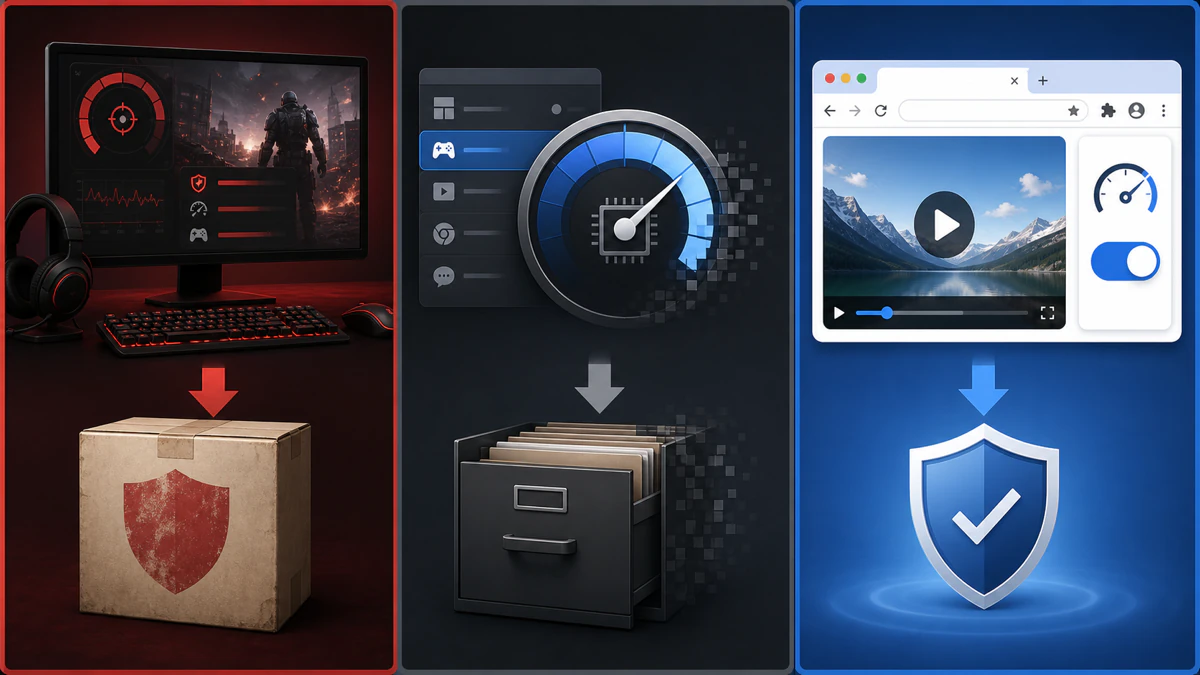
The left and middle panels represent product concepts whose original pages or controls may still be found but whose current US entitlement isn't established. The right panel represents the live Web Boost extension. WebAdvisor sits outside this diagram because it's a security-rating and download-warning product, not a video-autoplay control.
This separation matters during troubleshooting. Removing WebAdvisor because a video won't autoplay may reduce phishing protection without touching Web Boost, while deleting the main McAfee suite to remove one Chrome extension is unnecessarily broad. Identify the exact component before changing it.
What McAfee Gamer Security was
McAfee announced Gamer Security at CES 2019 and described a gaming-focused interface, Game Mode, system status reporting and minimal security resource use. The commercial version combined cloud-assisted “MicroAV” protection with CPU, GPU, memory and frame-rate monitoring, plus controls intended to pause background services and give the game more room. McAfee's 2019 launch explanation confirms that it was a distinct Windows product, not merely a renamed checkbox in Total Protection.
In 2021 McAfee offered one free year for one gaming PC to some US Total Protection and LiveSafe customers. That historical entitlement explains why old accounts, emails and support threads still mention a download. It doesn't prove that a current McAfee+ plan includes a fresh Gamer Security license in 2026.
Can you still buy McAfee Gamer Security?
We couldn't verify a current US standalone checkout on July 31, 2026. The old US gaming URL redirected to a general regional homepage in our live browser, and McAfee's current US antivirus comparison doesn't name Gamer Security. A localized gaming page still indexed by search describes Windows 10 version 1809 or later, but its presence isn't enough to establish current US sales, support or Windows 11 compatibility.
If Gamer Security appears in an existing McAfee account, check whether the download is tied to an unexpired historical entitlement and ask support for the exact lifecycle status. Don't buy a key from a marketplace or download the installer from an archive. A security product that can't receive current engine, certificate and compatibility updates isn't a safe bargain.
If Gamer Security is already installed
Start with evidence rather than removal. Open Windows Settings → Apps → Installed apps, record the exact product name and publisher, then check the McAfee account that originally activated it. In Task Manager, record resource use while idle and during one reproducible game session. That tells you whether the problem is the old product, an active scan, a game update or another overlay.
Keep Windows and the game current, save the license details and create a normal restore point before changing protection. If the product reports that definitions or subscription status are current, don't assume that means the separate product is still sold. It means only that this installation reached a functioning update route at that moment.
How to remove Gamer Security without leaving Windows exposed
Enable Microsoft Defender or install the intended replacement before spending time unprotected, but avoid running two full real-time antivirus engines longer than needed. Use Windows Installed apps to uninstall the named Gamer Security product, restart, then open Windows Security and confirm Virus & threat protection has an active provider. Run a quick scan and launch one game to establish the new baseline.
If the normal uninstaller fails, use McAfee's current support route or the official Consumer Product Removal tool only after saving account and license information. That tool can remove more than Gamer Security, so it isn't the first choice when a current McAfee suite must remain. Our complete McAfee uninstall guide explains the broader cleanup and post-removal checks.
What App Boost actually did
App Boost arrived under the PC Boost umbrella in McAfee's 2018 consumer portfolio. McAfee said it watched which Windows application was in focus and automatically allocated more CPU resources to that foreground app. Older marketing claimed up to 36 percent higher CPU performance in a third-party test, faster application launches and faster content creation, with the usual warning that results vary by hardware and workload.
That mechanism wasn't antivirus scanning and it wasn't overclocking. It was a resource-prioritization feature integrated into older McAfee consumer suites. A game, browser or editor could appear in its activity history, but the feature didn't add CPU cores, improve a weak GPU or guarantee higher frame rates.
Is App Boost still included with McAfee?
App Boost is absent from the current 2026 US antivirus plan matrix we checked. Indexed McAfee regional PC Boost pages still describe App Boost and Web Boost with Windows 10 requirements, but those pages use an older product structure and don't establish a current US plan entitlement. We therefore classify App Boost as a legacy integrated feature in the US consumer lineup.
An older LiveSafe or Total Protection installation may still expose the tile. That's a local product-version fact, not proof that reinstalling today's McAfee app will restore it. Before a repair install, take a screenshot of the feature list and ask support whether the account's current installer includes the same module.
Why users turned App Boost off
Community threads describe high CPU use, lag, settings that appeared to re-enable and uncertainty about which applications were being prioritized. Those reports are directional evidence, not controlled performance tests, but they reveal the real troubleshooting intent behind “McAfee App Boost”: people usually want to stop an unexpected intervention, not learn a marketing definition.
Measure before deciding. Capture Task Manager CPU, memory, disk and GPU figures for the same workload with App Boost enabled and disabled, after the PC settles from startup. One short run can be distorted by shader compilation, Windows Update, antivirus definitions or a browser cache, so repeat the test and compare frame-time stability rather than only average FPS.
How to disable App Boost on an older McAfee build
If the tile exists, use the switch inside the McAfee app and restart the foreground application. Names and menu positions vary across old LiveSafe and Total Protection builds, so follow the control visible in that build rather than a registry edit from a forum. Confirm the state after reboot because some users reported that their old version re-enabled the feature.
If App Boost won't stay off, update the McAfee app and record its version before contacting support. Avoid disabling random McAfee services in Services.msc; those services can also belong to real-time protection, firewall or update components. A stubborn performance module isn't a reason to weaken the security engine blindly.
PC Boost was a label, not one optimizer
McAfee used PC Boost as the umbrella for App Boost and Web Boost. One prioritized the foreground Windows application, while the other stopped autoplay video in Chrome. Old reviews sometimes describe “PC Boost” as though it cleaned junk files or tuned every part of Windows, which overstates what those two components did.
The current McAfee PC Optimizer is a separate product and shouldn't be treated as the same feature under a new name. Its live US page focuses on junk cleanup, unnecessary background processes, storage and an on-demand instant boost. Anyone comparing an old PC Boost entitlement with PC Optimizer should compare functions and price, not assume a free migration.
Web Boost is still live
The official McAfee Web Boost Chrome listing was live when checked, showed version 1.1.0.107 and an October 2, 2025 update. The listing described about one million users, 187 ratings and a 4.1/5 score. Store figures change, so they're a dated observation rather than a permanent rating claim.
The extension pauses automatically playing video. That can reduce unwanted sound, bandwidth and battery use, particularly on pages with embedded media. It isn't an ad blocker, antivirus engine, phishing detector, VPN or general-purpose browser accelerator, and it doesn't replace the current WebAdvisor security extension.
Web Boost permissions and privacy
The Chrome Web Store publisher disclosure said the extension didn't collect or use user data for the listed purposes when we checked it. Store privacy disclosures are statements from the developer, not an independent code audit. Chrome still grants an extension the permissions shown during installation, and users should review those permissions whenever an update changes them.
Install only from the official Chrome Web Store listing offered by McAfee LLC. McAfee's own 2025 guidance on malicious browser extensions recommends using official stores, reviewing permissions and removing extensions that are no longer needed. The same discipline applies even when the publisher is familiar.
Web Boost isn't an ad blocker
Web Boost acts on autoplaying video rather than the wider advertising and tracking stack. It may pause a media element while leaving the surrounding ad slot, script or tracker in place. A privacy extension can block different resources and may make Web Boost redundant, but combining several extensions can also create breakage that's hard to attribute.
Use the narrowest tool that solves the problem. If the only complaint is unwanted autoplay, Chrome site permissions or Web Boost may be enough. If the goal is tracking protection, evaluate a reputable privacy tool separately and check the websites that matter, especially video calls, training portals and streaming services.
Web Boost versus WebAdvisor
WebAdvisor evaluates websites, search links and downloads for security risk. Web Boost pauses autoplay video. Their icons and McAfee branding can make them look like one browser package, but disabling or removing one doesn't necessarily remove the other, and their value should be judged against different problems.
When Chrome reports that “McAfee” is controlling a setting, open chrome://extensions and read the full extension names. A video problem points first to Web Boost; a blocked download or red site warning points first to WebAdvisor. Our McAfee WebAdvisor review and removal guide covers the security extension in depth.
When Web Boost blocks a video you want to play
Clicking the video's own play control should allow intentional playback, but page designs and embedded players vary. First verify that audio isn't muted and Chrome's site permission allows sound. Then temporarily disable only Web Boost from the extension manager and reload the page; if playback returns, you have isolated the responsible component.
Re-enable it and test whether the extension offers a site-level pause or exception in its current interface. If no usable exception exists and the site is part of work, school or accessibility needs, leave Web Boost disabled or remove it. A feature that saves bandwidth on news pages isn't worth breaking required training or communication.
How to disable Web Boost temporarily
In Chrome, open the three-dot menu, choose Extensions → Manage extensions, locate McAfee Web Boost and switch it off. You can also enter chrome://extensions directly. Reload the affected tab and reproduce the problem before changing any other extension or antivirus setting.
Disabling preserves the extension and is the best diagnostic step. If the symptom remains, Web Boost wasn't the cause, so turn it back on if you still want autoplay control. Continue by checking Chrome site permissions, hardware acceleration, another media extension and the page's own player.
How to remove Web Boost from Chrome
Open Chrome's extension manager, select Remove on McAfee Web Boost and confirm. Restart Chrome, then return to the manager and verify that the extension is gone from the intended profile. Chrome profiles maintain separate extension sets, so repeat the check in any other profile that showed the behavior.
Removing Web Boost doesn't cancel a McAfee subscription and shouldn't remove the main antivirus. If the extension returns, check whether Chrome sync, an enterprise policy or the McAfee app is offering it again. Don't delete Chrome profile folders or edit policy keys until you know who manages the browser.
Does Web Boost work in Microsoft Edge?
The live McAfee listing we verified is in the Chrome Web Store, and old official PC Boost requirements name Google Chrome. Chromium-based Edge can install some Chrome extensions, but that technical possibility isn't the same as a current McAfee support promise. We don't present Edge as officially supported without a current McAfee listing or help document that says so.
Edge already provides media autoplay controls whose availability can vary by version and policy. Use the browser's own settings first if the goal is simply to limit autoplay. If a work or school organization manages Edge, ask its administrator before installing an extension from another store.
Does Web Boost work in Firefox or Safari?
Chrome extensions aren't Firefox or Safari packages. An old Mozilla support thread discussed trying to adapt Web Boost, but that community exchange isn't current vendor support. Don't load unpacked copies or converter-built packages into a browser to recreate a narrow convenience feature.
Firefox and Safari have their own autoplay controls and extension stores. Use native site permissions or a maintained extension published for that browser. This avoids giving an unofficial port broad page access and makes updates and removal predictable.
Audit the installed McAfee components before removing anything
Open Windows Installed apps and record every entry containing McAfee, including the exact name, publisher and install date. Then inspect each Chrome profile's extension manager. In the McAfee account, record the current plan and protected devices. Those three views distinguish a licensed security suite, a standalone legacy product and a browser extension.
Don't rely on a Start-menu search alone. WebAdvisor can appear as a Windows program and browser extension, Web Boost can live only inside a browser profile, and an old suite module may be visible only inside McAfee. A screenshot of the inventory creates a rollback reference without exposing license keys.
Use Task Manager to identify the performance problem
Sort Task Manager by CPU, memory, disk and GPU while the PC is idle, then repeat during the exact game or browser action that feels slow. Record the process name and time rather than assuming every process with “McAfee” in its description is Gamer Security or App Boost. An antivirus scan, update service and optimizer can produce different patterns.
For gaming, capture frame time, not only average FPS. Brief stutter can come from shader compilation, storage pressure, an overlay, driver telemetry or a scheduled scan even when average performance looks normal. Our McAfee high CPU, memory and disk guide provides a broader diagnostic path, while the McAfee repair guide covers failed updates and scans.
Check the entitlement before reinstalling
Sign in to the McAfee account that owns the purchase and compare its available downloads with the components on the PC. If Gamer Security or App Boost is installed but absent from the account, a clean reinstall may not bring it back. Ask support to identify the entitlement before uninstalling a working historical copy that the owner still wants.
Save the order email and renewal terms, but never post license keys or account screenshots publicly. If the plan came from a PC maker, retailer or internet provider, that channel may control activation. Our McAfee pricing and renewal guide explains why the product name on a receipt can differ from today's storefront.
Create a low-risk rollback point
Save work, sync browser bookmarks and create a normal Windows restore point if System Protection is enabled. Export extension names or take screenshots rather than copying extension folders. Record the game, driver and Windows versions used in the baseline so that a simultaneous update doesn't confuse the result.
A restore point isn't a backup of personal files, and it shouldn't be the only recovery method. Keep important saves and documents in their normal backup. The goal here is modest: preserve enough state to reverse a component change without turning a browser inconvenience into a full Windows rebuild.
The safest removal order
Remove the narrowest component first. Disable Web Boost and test; remove it only if the result is clear. Turn off App Boost through its own tile and test; uninstall the wider suite only if no supported component control exists and the owner has chosen a replacement. Treat Gamer Security as a separate antivirus removal and verify protection immediately afterward.
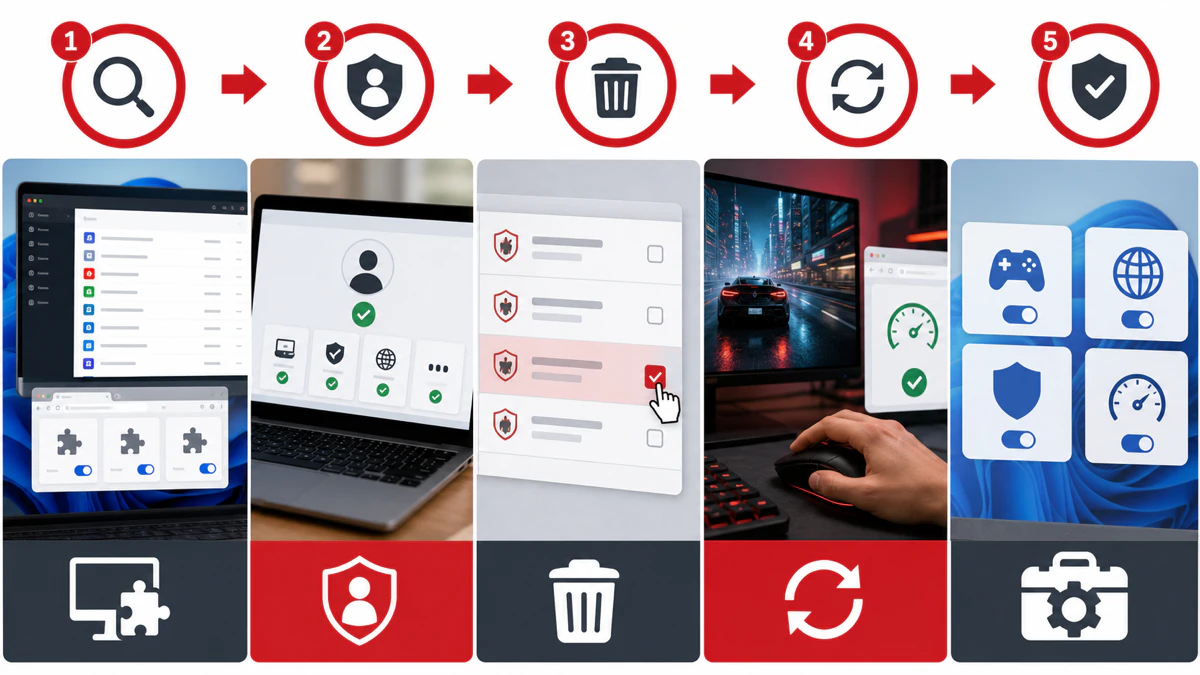
Reboot after a Windows security-product removal even when the uninstaller doesn't insist. Then check Windows Security, Chrome extensions and the original symptom. A successful uninstall isn't proven by a missing desktop icon; the provider, services and browser hooks must match the intended end state.
When to use the McAfee Consumer Product Removal tool
The official removal tool is for a failed normal uninstall or a deliberate complete cleanup. It can remove shared consumer components, so it's too broad for the first attempt at removing Web Boost or disabling App Boost. Download it only from current McAfee support, close work and follow the current on-screen instructions.
After it finishes, restart and verify that Microsoft Defender or the selected antivirus is active. Reinstall only from the McAfee account or current official download. Never use a copy bundled with a “driver updater,” forum ZIP or video description.
If an extension or component comes back
Chrome sync can restore an extension to another signed-in profile, and managed browsers can enforce extensions through policy. A McAfee application may also offer a companion extension again after repair or update. Identify which route restored it before repeating the same uninstall.
Open chrome://management and chrome://policy only to inspect whether the browser is managed; don't delete policy keys on a work or school computer. On a personal PC, check every Chrome profile and the McAfee app's browser-protection prompts. If an unwanted component persists after a clean official removal, send those observations to support.
Don't disable real-time protection just to gain FPS
Turning off antivirus scanning entirely creates a larger risk than an occasional frame-time spike, especially around game mods, cheat tools, voice-chat links and unofficial downloads. The safer approach is to identify the process, schedule scans away from play, update the engine and use a narrowly documented exclusion only when a legitimate file is repeatedly misclassified.
Never exclude the whole Downloads folder, game-library root or user profile. Verify the file through the publisher, digital signature and a second reputable scanner, then exclude only the minimum path if McAfee support or the game vendor confirms the conflict. Our scan, quarantine and exclusions guide covers that decision.
Use Windows Game Mode as the current baseline
Windows 11 and Windows 10 include Game Mode, which is maintained with the operating system and aims to reduce background activity during play. Enable it in Settings → Gaming → Game Mode, then test the same scene and frame-time metric; Microsoft's Windows 11 graphics guidance also documents windowed-game optimizations. Neither setting will transform weak hardware, but both are cleaner baselines than an unsupported legacy optimizer.
Also close unnecessary launchers, overlays and browser tabs, keep GPU drivers current and allow shader compilation to finish. Change one variable at a time. A five-tool “optimizer stack” often creates more hooks, services and uncertainty than it removes.
Move scans and updates out of the play window
If stutter coincides with a full scan, let the current scan complete and schedule future scans for an idle period where the installed McAfee version permits it. Keep real-time protection active. Updates are usually brief, and repeatedly blocking them can leave the engine in a worse state than the performance issue being solved.
Record the scan type and affected drive. A game on a slow external disk can suffer more when another process reads the same device. Moving the game to SSD storage or correcting a failing drive may help more than any foreground-app booster.
When McAfee blocks a game configuration file
A current 2026 community report described McAfee preventing several games from saving graphics settings until the user added exclusions. One report can't establish a general McAfee defect, and disabling real-time scanning “forever” is unsafe. It does show why users need a controlled false-positive workflow rather than a blanket recommendation.
Check Protection History or quarantine for the exact file and detection name, verify the game's publisher and installation source, and submit a suspected false positive to McAfee if appropriate. Restore and exclude only the validated file or narrow folder required by the game. If the symptom is network access rather than file writing, use the McAfee firewall and blocked-app guide instead of creating an antivirus exclusion.
Stop interruptions without stopping protection
Older Gamer Security marketed a quiet gaming experience, but the current suite may expose notification controls rather than a named game mode. Disable promotional or informational alerts where current settings permit, keep critical threat warnings, and use Windows Focus or Do Not Disturb during play. This preserves the alert you'd want after a malicious download.
Browser notification scams often imitate McAfee and aren't generated by the installed antivirus. If a warning appears inside Chrome or lists a strange website as the sender, follow our fake McAfee pop-up removal guide before changing the security suite.
Troubleshoot browser slowdown in layers
Open Chrome's Task Manager with Shift+Esc and sort by CPU or memory. Test the page in a Guest window, then with Web Boost disabled, then with other media or privacy extensions disabled one at a time. Clear one site's data only if the problem is limited to that site; a full browser reset isn't an opening move.
If hardware acceleration is involved, note the current state before toggling it and restart Chrome. A video decoder or GPU driver problem can resemble an extension conflict. Google documents current Chrome media and sound controls; re-enable any extension that testing clears so the browser doesn't lose unrelated protection.
Best replacements depend on the job
| Old need | First replacement to test | Why | What it doesn't replace |
|---|---|---|---|
| Quiet gaming | Windows Game Mode + Focus | Built into maintained Windows versions | Antivirus protection |
| Light gaming antivirus | Current McAfee suite or another tested AV | Maintained engines and Windows support | GPU or CPU upgrade |
| Foreground app priority | Fix the actual bottleneck first | Avoids opaque optimizer behavior | More hardware capacity |
| Stop autoplay video | Web Boost or browser site controls | Narrow, reversible control | Ad/tracker blocking |
| Junk and background cleanup | Windows Storage Sense or current PC Optimizer | Current maintenance route | Malware protection |
No single replacement recreates the old bundle because the old bundle combined unrelated jobs. Start from the symptom, not the brand name. A user who wants fewer video interruptions doesn't need a PC cleaner, and a gamer with shader stutter doesn't need another browser extension.
If the current McAfee suite itself is the concern, compare lab results, system impact, renewal cost and device count. Our McAfee review, McAfee alternatives guide and gaming antivirus rankings provide those broader comparisons.
Is McAfee PC Optimizer the replacement for App Boost?
It's the nearest current McAfee performance product, but not a one-for-one replacement. The live PC Optimizer page focuses on junk cleanup, background processes, storage, bandwidth and an on-demand boost. App Boost's defining behavior was automatic foreground-application prioritization.
Evaluate PC Optimizer as a separate purchase with separate current requirements and renewal terms. Windows already includes Storage Sense, startup-app controls and Task Manager, so test those first. Don't buy an optimizer because an old McAfee tile disappeared unless its current functions solve a measured problem.
Is Microsoft Defender enough after removing Gamer Security?
For many careful Windows users, Microsoft Defender provides a maintained baseline with real-time antivirus, firewall integration and current Windows support. Whether it's enough depends on the household's need for VPN, identity monitoring, scam tools, support and cross-device management. It isn't a recreation of Gamer Security's old telemetry dashboard.
After removal, open Windows Security and confirm Microsoft Defender Antivirus is active rather than assuming it switched on. Run updates and a quick scan, then test the game. Our Microsoft Defender review explains protection, limitations and when a paid suite adds practical value.
Should you buy a Gamer Security key in 2026?
We wouldn't buy an unverified key from a reseller. A product can activate today yet lack a supported reinstall path, current compatibility or a clear renewal relationship. The stale regional pages and old launch articles make the offer look more current than the verified US storefront does.
Choose a maintained security product whose current page names the supported Windows version, devices, first-term price and renewal price. If McAfee is preferred, buy the current suite and judge its measured gaming impact. If a dedicated game mode is essential, compare current products that document one rather than purchasing an archived promise.
What to send McAfee support
Provide the product name, app version, Windows build, purchase channel, account entitlement screenshot with personal details hidden, Chrome version and the exact component involved. State whether the problem is availability, activation, high resource use, video playback, unwanted reinstall or complete removal. Include a timestamped reproduction and the process or extension ID.
For Web Boost, the current Chrome extension ID is klekeajafkkpokaofllcadenjdckhinm. For an installed Windows product, use the name shown in Installed apps rather than guessing from an icon. Never send passwords, recovery codes or full license keys through a public forum.
What community reports add — and what they can't prove
Reddit and support forums show recurring App Boost complaints, questions about disabling it permanently and Gamer Security installers that stopped opening after a Windows reinstall. They also show that users often conflate WebAdvisor, Web Boost and the main suite. Those patterns shaped our troubleshooting sections, but anonymous comments don't establish a lifecycle date or universal performance result.
We link community evidence only where it describes a reproducible user problem, and we verify product status against McAfee and the official extension store. Advice that begins with disabling all protection, deleting registry keys or installing an unknown cleanup utility doesn't pass our safety gate. Directional frustration is useful; improvised remediation isn't automatically trustworthy.
A short timeline
McAfee introduced PC Boost with App Boost and Web Boost in its September 2018 consumer portfolio. Gamer Security entered beta around CES 2019 and reached commercial availability later that year. In May 2021, qualifying US Total Protection and LiveSafe customers were offered a one-year Gamer Security license for one gaming PC.
By the current 2026 US consumer lineup, McAfee's emphasis had shifted to broad device, privacy, scam and identity protection. Web Boost remained separately visible in Chrome and received a 2025 update, while the old gaming and PC Boost names persisted mainly through old articles, support fragments and localized pages. That uneven transition is the central fact this guide resolves.
How we reached the status verdict
We checked the current US antivirus plan matrix, loaded the old US gaming URL in a real browser, examined the indexed regional gaming and PC Boost pages, read McAfee's original portfolio and launch articles, and checked the official Chrome Web Store entry. We then compared current product names and reviewed community reports for actual failure modes.
We didn't infer a formal end-of-life date where McAfee didn't publish one. “Not in the current US matrix” is narrower and more defensible than “shut down worldwide.” If McAfee restores a named US offer or posts a lifecycle notice, the status table should be updated with that primary evidence.
Verdict: preserve the useful part, retire the confusion
Web Boost remains a legitimate current Chrome extension for one narrow preference: stopping autoplay video. Keep it if it solves that problem without breaking required sites, or disable and remove it through Chrome if native controls are enough. Don't mistake it for WebAdvisor, ad blocking or antivirus.
Gamer Security and App Boost should be treated as legacy US consumer features unless a live account or local McAfee support proves a current entitlement. Existing users should audit before uninstalling, replace protection deliberately and test one change at a time. New buyers should choose maintained current products instead of chasing old keys or installers.
McAfee Gamer Security, App Boost and Web Boost FAQ
Is McAfee Gamer Security discontinued?
McAfee Gamer Security is a legacy US consumer product in 2026. We couldn't verify a current US checkout, and it's absent from McAfee's current US plan matrix. McAfee hasn't published one clear worldwide retirement date, while stale regional pages remain indexed, so verify any existing entitlement directly with McAfee.
Can I still download McAfee Gamer Security?
An old account may still show a historical download, but a current public US download and purchase route wasn't verified. Don't use software archives or marketplace keys. Confirm that the account has an active, supported entitlement and that McAfee supports the current Windows build before installing it.
What happened to McAfee App Boost?
App Boost was the foreground-application prioritizer inside the older PC Boost bundle. It doesn't appear in the current US McAfee antivirus plan matrix, although older and regional PC Boost pages remain searchable. Treat it as a legacy integrated feature rather than a guaranteed part of a current reinstall.
Is McAfee Web Boost still available?
Yes. The official Chrome Web Store listing from McAfee LLC was live when checked and showed version 1.1.0.107 updated October 2, 2025. It pauses autoplay video; it isn't antivirus, WebAdvisor, an ad blocker or a VPN.
How do I turn off McAfee Web Boost?
Open Chrome's Extensions menu, choose Manage extensions, find McAfee Web Boost and switch it off. Reload the problem page and test before changing anything else. If the issue disappears, keep it disabled, look for a site exception or remove it from the same extension screen.
Why does McAfee Web Boost keep coming back?
Check every Chrome profile, Chrome Sync, browser management policy and prompts from the installed McAfee app. A synchronized or policy-installed extension can return after manual removal. Don't delete policy keys on a work or school computer; ask its administrator.
Is Web Boost the same as McAfee WebAdvisor?
No. Web Boost pauses autoplaying video to reduce unwanted playback and bandwidth use. WebAdvisor checks sites, links and downloads for security risk. Removing the wrong extension can leave the original problem untouched and remove a protection you intended to keep.
Is McAfee PC Optimizer the replacement for App Boost?
PC Optimizer is a current McAfee performance product, but it isn't a direct rename. It focuses on junk cleanup, unnecessary background processes, storage and an on-demand boost. App Boost's defining feature was automatic CPU prioritization for the foreground Windows application.
Should I disable McAfee real-time scanning while gaming?
No. Keep real-time protection active and diagnose the exact process or scan. Schedule full scans outside play, use Windows Game Mode and apply only a narrow, verified exclusion for a legitimate false positive. Never exclude Downloads, the whole game library or the user profile.
What should replace McAfee Gamer Security?
Use a maintained current antivirus with acceptable measured game impact, Windows Game Mode for background behavior and Focus for noncritical notifications. Microsoft Defender is a reasonable baseline for many users; current paid suites add features such as VPN, identity protection, support and cross-device management.