
Scanguard Not Working or High CPU? Diagnose Before You Fix It
A busy scan is not the same problem as persistent idle load, a frozen interface or a Windows crash. This guide separates those states, preserves the evidence and repairs the smallest confirmed fault while keeping one real-time antivirus active.

Quick answer: If Scanguard is using substantial CPU while a visible scan or update is active, let the job finish when the computer remains responsive and safe, then measure again. If load continues while the app is idle, record the busy process, executable path and publisher, CPU, disk, memory, duration and timestamp. Check scan timing, product and system updates, and whether another real-time antivirus is registered. Use a temporary clean boot to isolate conflicts, generate Scanguard troubleshooting data, and reinstall only after the evidence is saved. Do not disable all protection, delete drivers, tune the pagefile or run a registry cleaner as opening moves.
Match the symptom before changing Scanguard
“Scanguard is not working” hides several different failures. The app may refuse to open, a scheduled scan may overlap with work, a scan may pause on one object, an update may loop, a background process may remain busy while the app appears idle, or Windows may crash. Those states share a product name, but they do not share one cause. Reinstalling can replace damaged program files; it cannot repair failing storage, a second antivirus conflict, an unsupported operating system or a corrupt Windows component by itself.
Start with what the screen and system were doing at the moment of trouble. Save the exact message, task, time and recent change. A scan starting every Tuesday during a backup is a scheduling collision. A signed Scanguard component consuming resources with no visible task after every reboot is a different case. A blue screen after a driver update belongs on a crash path until evidence connects it to the security suite.
| Symptom | First evidence | First safe move | Do not start with |
|---|---|---|---|
| High CPU or loud fan | Process, task, duration, CPU/disk trend | Compare active task with true idle | Disabling every shield |
| App will not open | Install state, signer, update, error | Restart once; preserve logs | Deleting services or folders |
| Scan appears stuck | Path, count, elapsed time, free space | Stop in-app if unsafe; test a smaller scope | Deleting or broadly excluding the item |
| Update loops | Version, network, disk, exact message | Use Check for Updates; restart once | Random DNS or registry changes |
| Crash or blue screen | Stop code, timestamp, recent drivers, dump | Preserve crash evidence | Blaming Scanguard from timing alone |

Take an evidence baseline instead of chasing one peak
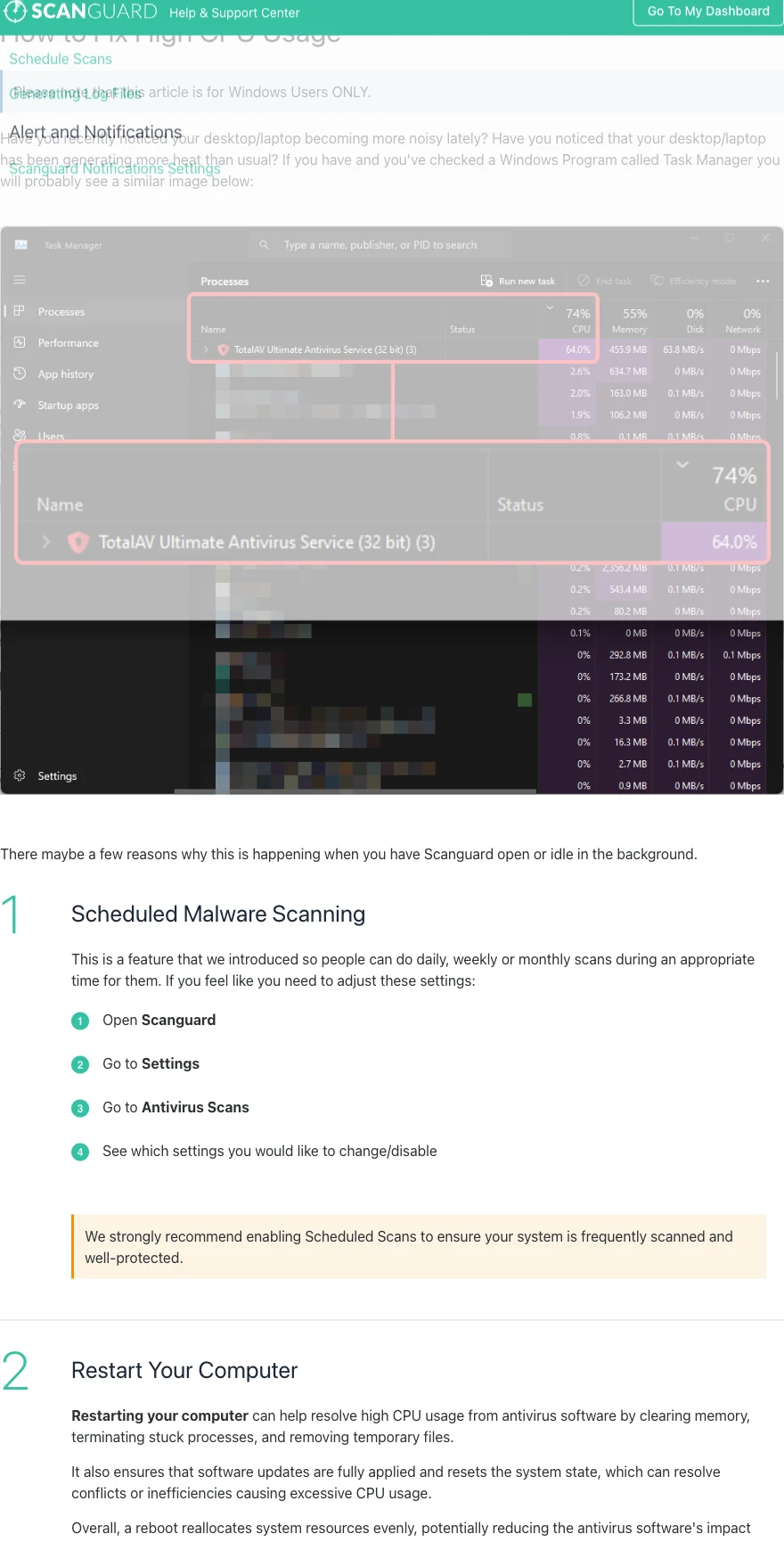
On Windows, open Task Manager, sort Processes by CPU and watch for several minutes. Record the busy process, CPU range, memory, disk activity and whether Scanguard shows a scan or update. Open the process file location and inspect the publisher or digital signature. A security-looking filename in Temp or Downloads is not validated by its name; an expected signed component under the installed application path is stronger evidence, but still needs task correlation.
Create three observations: during the visible task, immediately after it ends, and after ten to fifteen minutes of genuine idle. Idle means no backup, cloud sync, game update, archive extraction, installer, developer build or browser workload. There is no universal “normal Scanguard CPU” number because a percentage means different work on a two-core laptop and a many-core desktop. Duration and repeatability matter more than a dramatic screenshot.
| Capture | Why it matters | Useful detail |
|---|---|---|
| Process identity | Shows what is actually busy | Name, path, publisher/signature |
| Visible task | Separates work from idle | Scan type, update or installation |
| Resource timeline | Shows whether load returns | CPU, disk, memory over time |
| Timestamp | Links logs, schedule and crashes | Start, finish and recurrence |
| Recent change | Narrows the conflict | OS/app/driver/antivirus update |
| Device state | Explains throttling or failure | Power, heat, free disk, network |
The current Scanguard high-CPU article contains a screenshot labelled with a TotalAV-family service name. That is evidence about the vendor’s support page, not a promise that every current Scanguard build exposes the same label. Verify what is on your computer. Do not end a protected service repeatedly just because its name resembles a screenshot; use the app’s own Stop control for a visible scan and preserve the process evidence.
Visible scan or update load: let the task explain the work
Scanguard’s current high-CPU guidance points first to Scheduled Malware Scanning under Settings → Antivirus Scans. Compare the slowdown with the configured scan type, day and time. A system scan reading archives while a backup or game update is hitting the same drive can create heavy CPU and disk activity without a damaged antivirus engine.
The vendor describes a Quick Scan as commonly taking five to ten minutes and says a System Scan can take a while in its scan customization guide. Treat those words as orientation, not a guarantee. File count, storage speed, archives, encryption, cloud placeholders and other work change scan time. When the machine remains responsive and temperatures are controlled, let the verified task complete, then measure the post-task state.
If the timing collides with real work, move the scheduled scan to a period when the device is normally awake, powered and not doing another disk-heavy task. Do not solve the collision by abandoning scheduled protection. The useful outcome is a scan that actually finishes and resource use that falls afterward. A recurring spike that follows the schedule is easier to repair than a background load with no visible task.
Persistent load while idle needs a reproducible trigger
Investigate when the same verified component stays busy after the visible task ends, returns after every restart, or rises when one trusted application opens a particular folder. Large archives, mail stores, virtual machines, code repositories and backup jobs can make real-time inspection repeat thousands of times. Close or finish the trusted workload and see whether Scanguard returns to baseline. The relationship needs to repeat before it becomes a useful hypothesis.
Do not add a broad exclusion simply to make the graph fall. Excluding Downloads, Program Files, a user profile, browser data or an entire drive removes inspection from places attackers use. If a known-safe workload reproduces the problem, reduce the test to the smallest folder or file set, verify the file path and publisher, update both applications and document the result. A narrow temporary exception belongs later, with an owner and removal date, not at the top of a performance checklist.
Also check whether disk, not CPU, is the limiting resource. Low free space, storage errors or a cloud placeholder that never resolves can make the interface appear frozen while a process waits. Record the active file or folder when available. If free space is changing rapidly or the drive reports errors, stop the visible scan from Scanguard and protect the storage evidence before running cleanup utilities.
Scanguard will not open or the interface freezes
Confirm that the shortcut points to the installed signed application and that the account and subscription are not merely showing a browser prompt. Then restart once and wait for startup and product updates to finish. Try the verified tray icon or installed-app entry rather than a shortcut copied from an old download. If Windows Security shows protection is still active, a broken interface and a broken engine are not automatically the same problem.
When the app opens briefly, save the version, exact error and update state. When it never opens, do not rename its folder, delete services or remove every Scanguard registry match. Those changes can break the uninstaller and erase the state support needs. Use our complete Scanguard removal guide when a reinstall becomes justified; it separates supported removal from dangerous manual cleanup.
If several unrelated applications or Windows features also fail, move to the operating-system branch. Scanguard cannot repair a damaged user profile, failed storage or a broken Windows servicing stack. Conversely, if only Scanguard fails in a clean environment and a fresh signed build reproduces the same fault, the vendor needs the logs and exact reproduction rather than another round of speculative tuning.
A stuck scan is a path-and-progress problem
A progress bar can look still while the engine unpacks a large archive or reads a slow location. Watch whether the scanned-object count, process CPU or disk activity changes. Save the exact displayed path, count, elapsed time and free space. If nothing advances and heat or responsiveness becomes unacceptable, stop the scan from the Scanguard interface. A stopped scan is incomplete and should not be reported as a clean result.
Update Scanguard, then test a Custom Scan on the parent folder and successively smaller scopes. This separates one archive, permission boundary, disconnected drive or cloud placeholder from a general engine failure. Do not delete the item because its name is on screen, and do not exclude it to “unstick” the product. If the same object stalls again, preserve it safely and generate troubleshooting data before reinstalling.
If the stalled item is quarantined or detected, treat classification and performance as separate questions. Verify the detection name, source, signer and hash through appropriate channels before restoring anything. Our current Scanguard review covers the product and independent test context; this page owns the local fault diagnosis and does not turn an unverified path into a malware verdict.
Update failures: record the result before reinstalling
Scanguard’s current update instructions say Windows users can right-click the tray icon under hidden icons and choose Check for Updates. On macOS, use the Scanguard menu/taskbar icon and Check for Updates. Capture the start time, completion or exact error. An active updater changes the interpretation of CPU use and should not be called idle work.
Check ordinary internet access, system date and time, free disk space and whether a managed proxy, VPN or firewall policy affects the connection. Do not enable a random public DNS server or disable the firewall merely because an update failed once. Retry once after a controlled restart. If the update still loops, generate logs and use the current installer; Scanguard’s own guidance moves persistent update trouble to reinstall.
The local Scanguard installation and setup guide covers signed download sources, current Windows/macOS requirements and first-run verification. Reuse that path instead of downloading an “updated” installer from a search ad, mirror or support-number PDF. A successful update is proven by a current app/definition state and a clean restart, not by the disappearance of a spinner.
Two real-time antivirus products can create a real conflict
Scanguard’s real-time protection troubleshooting page recognizes that another active antivirus can conflict. On Windows, open Windows Security and check the registered security providers, then review installed applications. Decide which product is intended to provide real-time protection. Remove only an unwanted competing suite using that vendor’s official uninstaller, restart and verify the provider state again.
Do not manually disable Microsoft Defender as the universal answer. Windows normally coordinates its built-in antivirus with a compatible third-party provider. The safe target is one clearly active, supported real-time antivirus—not two fighting for the same files and not zero after a failed removal. Optional or periodic scan settings are a separate policy decision and should not be changed without confirming the current provider state.
The same official Scanguard page also suggests removing Intel Rapid Storage in one troubleshooting branch. We do not recommend deleting a storage driver as a generic antivirus repair. A driver should enter the case only when crash or device evidence points to that exact component, the hardware vendor provides a supported replacement and a rollback path exists. Removing storage software blindly can turn a performance complaint into a boot or data problem.
Use a Windows clean boot to isolate—not permanently disable
When the issue survives updates and no obvious second antivirus is installed, a temporary clean boot can test whether another background service or startup app triggers it. Follow Microsoft’s current Windows 11 and Windows 10 clean-boot procedure. Hide Microsoft services before disabling non-Microsoft services, record every change and keep Scanguard itself available for the controlled test.
Reproduce the original task under the same conditions. If the fault disappears, re-enable services and startup items in groups until it returns; that identifies the conflict. If nothing changes, restore normal startup and move on. A computer left in selective startup is not repaired—it is simply operating without some software. Microsoft’s startup-app guidance helps return and test items deliberately.
On a work or school device, stop before changing managed services. Endpoint agents, encryption, VPN and monitoring tools may be required by policy, and their logs may be evidence. Give the administrator the process timeline and reproduction rather than defeating controls. The goal of isolation is to name the conflicting component, not to create a permanently weaker machine.
Reinstall only after the state and logs are preserved
A clean reinstall is reasonable when Scanguard alone will not open, updates remain broken, its service repeatedly crashes or the same idle load survives schedule and conflict checks. Before removal, save the version, error, provider state, resource timeline, logs and any quarantine or narrow exclusion information you still need. Download the current signed installer through the official site or authenticated account before removing a functioning provider.
Follow the dedicated Scanguard uninstall guide, restart, and verify that Microsoft Defender or the intended replacement provides real-time protection while Scanguard is absent. Then use the verified setup workflow, let updates complete and confirm that the product registers correctly. Broad Program Files, ProgramData, AppData and registry deletion is not routine maintenance.
Scanguard’s separate 0% installation article contains Safe Mode cleanup, temporary-file deletion and registry steps. Reserve that path for a reproducible installation failure under authenticated support, scoped to exact Scanguard-owned items, with a backup and rollback plan. It should not be copied into a high-CPU article as if all slow computers need registry surgery.
A crash or blue screen requires crash evidence, not a guess
Scanguard’s current Windows crash page suggests memory testing, disk checking, Windows updates and virtual-memory changes. The first three can belong to a broader diagnosis when evidence supports them. Manual pagefile tuning is not a safe default for a general reader; Windows automatic paging management is the better baseline while the actual failure is identified.
Save the stop code, exact time, what the device was doing, recent Windows/application/driver changes and any Reliability Monitor, Event Viewer or dump evidence. Do not delete Windows Error Reporting data or run a cleaner before the case is understood. A security driver can participate in a crash, but timing is correlation. Memory faults, storage errors, firmware, graphics/network/storage drivers and damaged Windows components remain possible.
Windows 10 free support ended October 14, 2025. If the affected machine is not covered by an appropriate Extended Security Updates path, move it to a supported operating system before treating an old environment as a stable antivirus test bed; our Windows 11 antivirus guide compares current supported choices without turning an operating-system crash into a product recommendation. For repeated blue screens, involve the device maker, Microsoft or a qualified technician with the dump and exact driver stack; do not remove a storage driver from a generic help-page suggestion.
On Mac, use Activity Monitor and verify permissions
Scanguard’s public high-CPU article is marked Windows-only, so do not translate its Task Manager process label directly to macOS. Use Apple’s Activity Monitor CPU view to watch the busy process over time. Record the process, CPU trend, memory pressure, disk activity and whether a Scanguard scan or update is visible. Compare the active task with the state after it ends.
If protection fails rather than performance, confirm the installed app is verified, the account is current and the permissions requested by the signed Scanguard build are approved under Privacy & Security. Grant Full Disk Access or system-extension approval only to the verified application, not to a similarly named download. Restart once after the permission or application update and check the original state again.
Do not paste an old vendor command that deletes a library folder into Terminal because a menu is frozen. Preserve the app version and logs, use the supported uninstaller, and reinstall from the official source if necessary. Force Quit can close an unresponsive interface, but a security extension may restart; that behavior needs process and permission evidence rather than repeated force termination.
High Performance, driver updates, DISM and SFC are not one-click cures
The current Scanguard high-CPU page recommends Windows High Performance mode. That plan may let the CPU sustain higher clocks; it does not remove the work. On a laptop it can increase battery drain, heat and fan noise—the symptoms many readers want to fix. Measure under the normal manufacturer-recommended or Balanced mode unless a documented hardware or workload need says otherwise.
Update Windows and device drivers through Windows Update or the hardware maker’s verified support path when the evidence points there. Avoid third-party driver-updater tools. A recent graphics or storage driver change matters in a crash case, but “update every driver” can introduce new variables into a simple scheduled-scan collision. Make one traceable change at a time and preserve the previous version or rollback path.
Scanguard’s page ends with sfc /scannow. Microsoft’s current System File Checker guidance uses DISM RestoreHealth before SFC to repair Windows components. Use that sequence when several Windows features fail, servicing is corrupt or system-file evidence exists—not as a ritual response to any fan spike. Record the command result and return to Scanguard logs if Windows reports a healthy system.
Generate Scanguard troubleshooting data before reinstalling
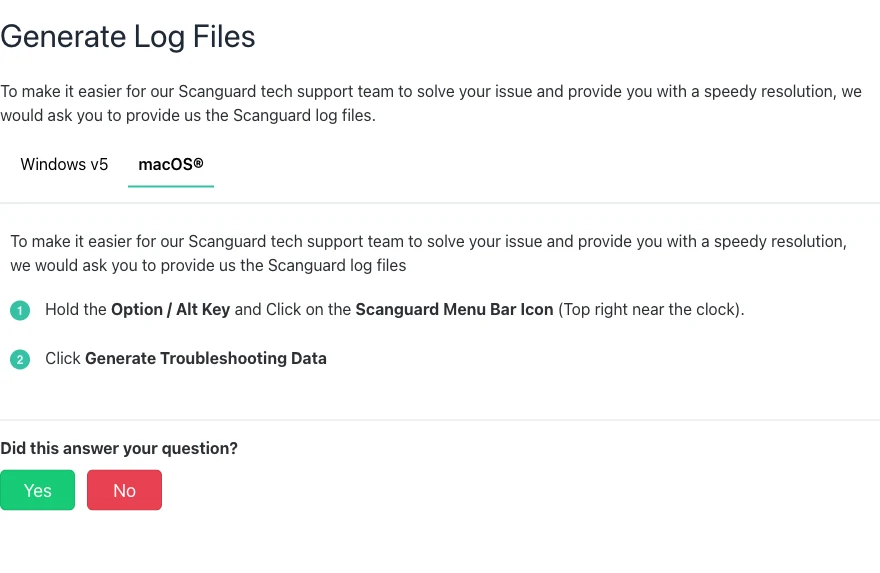
Scanguard’s current log guide says Windows users can hold Shift while right-clicking the Scanguard tray icon and select Generate Troubleshooting Data. Its documented manual location is %programdata%/scanguard/logs, which can be compressed into a ZIP. On macOS, hold Option or Alt while clicking the menu-bar icon and select Generate Troubleshooting Data.
Create the archive while the failure is recent and before uninstalling. Logs may contain usernames, local paths, device details, timestamps or network context. Review the scope where practical and send the archive only through the signed app, authenticated Scanguard account or verified help domain. Do not post raw logs publicly or send them to a phone number or address copied from an unrelated search-result document.
| Include | Example | Why support needs it |
|---|---|---|
| System | OS version, architecture, device model | Checks support and driver context |
| Scanguard state | Version, account, provider, update | Separates entitlement and engine issues |
| Reproduction | Task, time, path, exact error | Makes the failure repeatable |
| Resource record | CPU/disk/memory during and after task | Distinguishes task load from idle |
| Recent change | Update, driver, second antivirus | Narrows the conflict window |
| Diagnostics | Generated ZIP and crash evidence | Links symptoms to internal events |
Avoid fixes that destroy protection or evidence
The most dangerous troubleshooting advice acts before identifying the failure. Disabling every antivirus, adding a drive-wide exclusion, deleting a storage driver, erasing registry matches, changing the pagefile, running a “PC cleaner” and deleting crash reports can make the original state impossible to reconstruct. Some actions may have a narrow expert use, but none is the safe first response to “Scanguard uses CPU.”
| Risky shortcut | Why it fails | Safer replacement |
|---|---|---|
| Disable all protection | Creates an unprotected state | Verify and keep one provider active |
| Exclude a whole drive/profile | Hides threats and the real trigger | Reduce to one verified reproducible path |
| Delete Intel/storage drivers | Can affect boot or data access | Use exact crash/driver evidence and rollback |
| Force High Performance | Can increase heat and fan noise | Diagnose in normal/Balanced mode |
| Manually tune pagefile | Adds a system variable without proof | Keep automatic management while diagnosing |
| Registry/folder sweep | Can break uninstall and erase logs | Supported uninstall; scoped support cleanup |
| Delete crash reports/logs | Removes the best evidence | Preserve and attach to a verified case |
Make one reversible change at a time and test the original workload after each change. That pace is not bureaucracy; it is how causation is established. When several settings change together and the symptom disappears, nobody knows which action helped, which weakened protection or whether the problem would have ended with the scan anyway.
Prove the repair with the same workload
A quiet fan after closing the app is not proof. Restart, sign in, let Scanguard update and confirm the intended real-time provider is active. Re-run the smallest safe workload that reproduced the fault: the same scan scope, trusted application, update check, sleep/wake transition or scheduled window. Watch the task through completion and compare the same post-task idle period used in the baseline.
The repair passes when the app opens, definitions update, the task completes, resource activity returns after the work, protection survives restart and the original error does not recur. If a clean boot identified another service, return to normal startup and verify the conflict-specific change. If reinstall helped, keep the saved case note until the next scheduled scan completes successfully.
Remove temporary diagnostic exclusions, restore services that were disabled for isolation and confirm there is still one primary real-time antivirus. Escalate when protection cannot stay enabled, the same service repeatedly crashes, a scan sticks on the same path twice, updates remain stale, a blue screen repeats, or sustained idle load survives current updates, conflict isolation and one clean reinstall.
Scanguard not working and high CPU FAQ
Is high CPU normal while Scanguard runs a scan?
A temporary rise can be normal while a visible scan, definition update or application update is doing real work. Record the active task and watch whether CPU and disk activity fall after it finishes. Sustained load while Scanguard shows no task, or load that returns after every restart, needs diagnosis.
What CPU percentage is normal for Scanguard?
There is no honest universal percentage. Core count, storage speed, file count, archives, power mode and competing work change the reading. Compare the same computer during the task, immediately afterward and after genuine idle; duration and correlation are more useful than one peak number.
Why will Scanguard not open?
First confirm that the signed application is still installed, the subscription is signed in, Windows or macOS is current and no update is still completing. Restart once and try the verified app shortcut. If the interface still will not open, preserve logs where possible and use the supported uninstall and reinstall path rather than deleting services or registry keys.
What should I do if a Scanguard scan is stuck?
Record the exact file or folder shown, object count, elapsed time, disk activity and free space. If nothing changes and the device is overheating or unusable, stop the scan from the app. Update Scanguard, test a smaller Custom Scan scope and generate logs if the same path stalls again; do not delete or exclude the item just because progress paused.
Should I switch Windows to High Performance to fix Scanguard CPU use?
Not as the default fix. High Performance can let the processor sustain more work and increase heat, fan noise and battery drain without identifying the cause. Diagnose under the normal manufacturer-recommended or Balanced mode unless a documented device or workload requirement says otherwise.
Should I disable Microsoft Defender to make Scanguard work?
Do not turn off all protection as a blind fix. Check Windows Security to see which antivirus is registered as the active provider. Keep one intended real-time provider active, and remove only an unwanted competing antivirus through its official uninstaller when a conflict is confirmed.
Should I add an exclusion to reduce Scanguard CPU?
Only after a narrow, known-safe file or workload reproducibly causes the problem and its path and publisher have been verified. Broad exclusions for Downloads, Program Files, a user profile, browser data or an entire drive create durable protection gaps and can hide malware or a damaged file instead of fixing the cause.
Can Scanguard cause a blue screen or system crash?
A security driver can be involved in a crash, but timing alone does not prove causation. Save the stop code, time, recent driver or update change, Reliability Monitor or event context and available dump evidence. Memory, storage, firmware, Windows components and other drivers must remain in the investigation.
How do I generate Scanguard troubleshooting logs?
On current Windows documentation, hold Shift while right-clicking the Scanguard tray icon and choose Generate Troubleshooting Data; the documented manual folder is %programdata%/scanguard/logs. On macOS, hold Option or Alt while clicking the Scanguard menu-bar icon and choose Generate Troubleshooting Data. Send archives only through authenticated support.
When should I reinstall Scanguard?
Reinstall after you have recorded the symptom, checked for an active scan or update, verified one antivirus provider, restarted, installed current system updates and generated logs where possible. Use the official uninstaller, restart, install the current signed build and then verify that protection, updates and the original workload all behave correctly.
Bottom line: diagnose the state and keep protection continuous
Scanguard can legitimately use CPU and disk while a real scan, update or installation is active. The stronger warning signs are work that remains after the task, a reproducible stuck path, an update loop, an interface or service that repeatedly crashes, or protection that will not stay enabled. Those signs deserve evidence, not a universal percentage or a random list of destructive tweaks.
Record the process and task, compare active and idle states, reschedule collisions, update and restart once, verify one antivirus provider, isolate third-party conflicts, preserve crash data and generate Scanguard logs. Reinstall only after that record exists. The repair is finished when the same workload completes, resource use returns, the current build survives restart and one real-time provider remains clearly active.