
How to Install and Set Up Malwarebytes Safely in 2026
Installation isn't finished when the progress bar disappears. You still need to confirm the download source, understand whether Free, trial or paid protection is active, and verify the security provider and permissions on the device.

Quick answer: Download Malwarebytes only through malwarebytes.com, its Help Center, Google Play or Apple's App Store. On Windows, run the expected MBsetup.exe, choose Personal for your own device, activate only if you already have a subscription, and then check My subscription plus Windows Security → Settings → Manage providers. On Mac, use the official package and grant Full Disk Access only to the verified app. Android gets a first malware scan; iPhone and iPad instead require their web, call, ad or text extensions to be turned on. Finish by updating, running the first scan and confirming that every intended protection module is active.
Before installing, decide what job Malwarebytes will do
There are three states you may see after downloading Malwarebytes: the permanent Free scanner, a 14-day Premium trial, or an activated paid subscription. The installer looks similar across them, but the security outcome is different. Free waits for you to scan; trial and paid protection can monitor continuously and may register as the Windows antivirus provider.
If you want a second opinion beside Microsoft Defender, your end state is Defender active plus Malwarebytes Free on demand. If you bought Standard, Plus or Ultimate and want Malwarebytes to protect continuously, your end state is an activated subscription with the platform's paid modules running. Read the dedicated Malwarebytes Free vs Premium comparison before setup if that choice is still unclear.
Count the device seat before activating. Signing into an existing subscription or entering a license key can consume a seat; a short-lived MB code can activate a relative's device without handing over the account password. The current Malwarebytes pricing and renewal guide explains device bands and billing, while this page keeps the operational boundary: install the right application, activate the intended entitlement and prove it's working.
Close important documents and save current work. The Windows installer may request a restart in some circumstances, and macOS permission changes can briefly reopen the app. Don't uninstall the current real-time antivirus in advance unless a verified compatibility plan requires it; a failed setup shouldn't leave the device unprotected.
Download Malwarebytes safely: the domain matters more than the blue button
Start from `malwarebytes.com` or the Malwarebytes Help Center and follow the official platform link. The current Windows installation article downloads `MBsetup.exe` from a Malwarebytes download host. The Mac article points to the signed Mac package. Android and iPhone users should stay inside Google Play or Apple's App Store.
Search results contain pages with “Malwarebytes setup” in the title and official-looking colors but unrelated domains. Don't use a cracked, portable, lifetime, patched or pre-activated build. Don't turn off Defender, Gatekeeper or browser warnings merely because a third-party tutorial says the installer needs it. A security tool from an untrusted source creates a worse problem than the one it's supposed to solve.
On Windows, right-click the downloaded file, open Properties and inspect its digital-signature or publisher information before approving the administrator prompt when the source is uncertain. On Mac, use the package reached from the official link and read the Gatekeeper prompt. A familiar file name isn't authentication; attackers can name another file `MBsetup.exe`.
If the browser claims the official download is uncommon or Windows says it isn't a verified Microsoft Store app, stop and compare the message with Malwarebytes' linked support instruction instead of bypassing it reflexively. Preserve the exact URL and warning. The correct response to a source warning is verification, not disabling protection globally.
Check the current system requirements before troubleshooting the installer
Malwarebytes' desktop requirements were updated June 30, 2026. Windows support now means Windows 10 or Windows 11, at least 4 GB of RAM, preferably 8 GB, and 1 GB of free installation space. ARM-based Windows 11 devices are supported, including Windows 11 running on an ARM-based Mac processor.
Current Mac support runs from Big Sur 11 through Tahoe 26. The vendor doesn't publish a Mac RAM or disk minimum in that article, but it still requires an active internet connection. The connection is needed not only for the initial download, but also for activation, application updates and component/database updates.
| Platform | Supported versions checked July 2026 | Important setup requirement | Common wrong assumption |
|---|---|---|---|
| Windows | Windows 10 and 11 | 4 GB RAM minimum, 8 GB preferred; 1 GB free disk; internet | Old Windows 7/8 guides are still current |
| macOS | Big Sur 11 through Tahoe 26 | Internet and required permissions for paid protection | The package needs no system permissions |
| Android | Versions 9 through 17 | Google Play, internet and feature-specific permissions | Every permission is required before any feature works |
| iOS/iPadOS | 17, 18 and 26 | App Store plus Safari/call/text extension setup | The app performs a Windows-style device scan |
| ChromeOS | Malwarebytes v5 not supported | Use platform-native security and supported browser tools | The Android app makes every Chromebook supported |
The mobile version list comes from the June 23, 2026 Android and iOS requirements page. If a version isn't listed, don't force an older APK or profile from a mirror. Update the operating system when possible or choose a supported protection route.
Install Malwarebytes on Windows 10 or 11
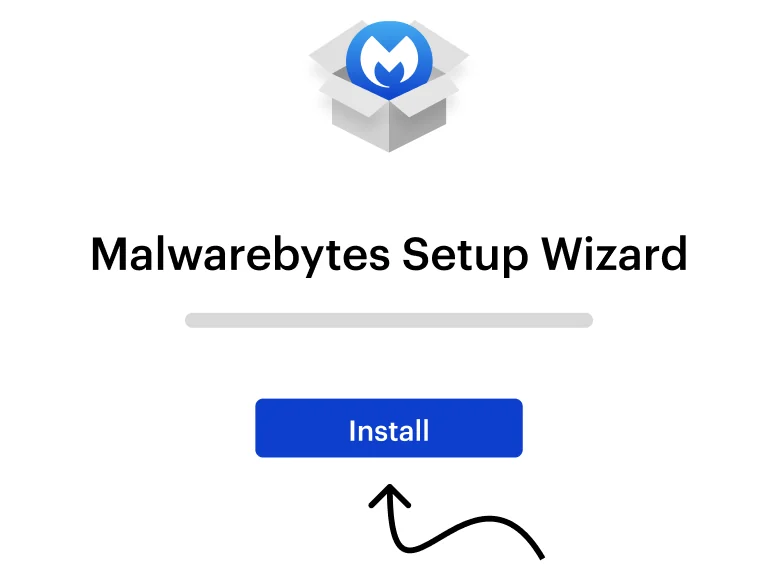
Download the installer from the official Windows article, open Downloads and confirm that the expected file is `MBsetup.exe`. Double-click it, review the User Account Control publisher prompt and approve only when the file came from the verified source. In the current Setup Wizard, click Install.
Choose Personal for a computer owned by you or your family. Choose Business only for an employer-owned device or an appropriate Teams/business deployment. The official page notes that the business product doesn't present the consumer VPN in the same way, so this choice isn't cosmetic.
The installer may show additional product offers. The official flow explicitly allows Skip this step; declining an add-on doesn't cancel the core install. Wait for completion, then click Open Malwarebytes. If a restart is requested, save work and let the verified installer resume rather than launching another copy.
Don't install a second copy because the progress bar appears paused for a few seconds. Don't run a registry cleaner between attempts. Copy the exact error if the installer fails, note whether the failure occurred before or after the administrator prompt, and use the problem section below.
Activate a paid subscription—or deliberately remain on Free
The current Windows welcome flow can activate through a Malwarebytes account, a license key or an MB code. Account sign-in is the clean route for a direct purchase because it shows the subscription and device allocation. A legacy key can still be entered where offered. An MB code is short-lived and can activate another device without sharing the owner's password.
Click Activate now only when you own an entitlement you intend to use. Sign in, complete the email verification code if requested and continue to the dashboard. The official desktop activation guide shows the current My subscription path and the same account-based activation model.
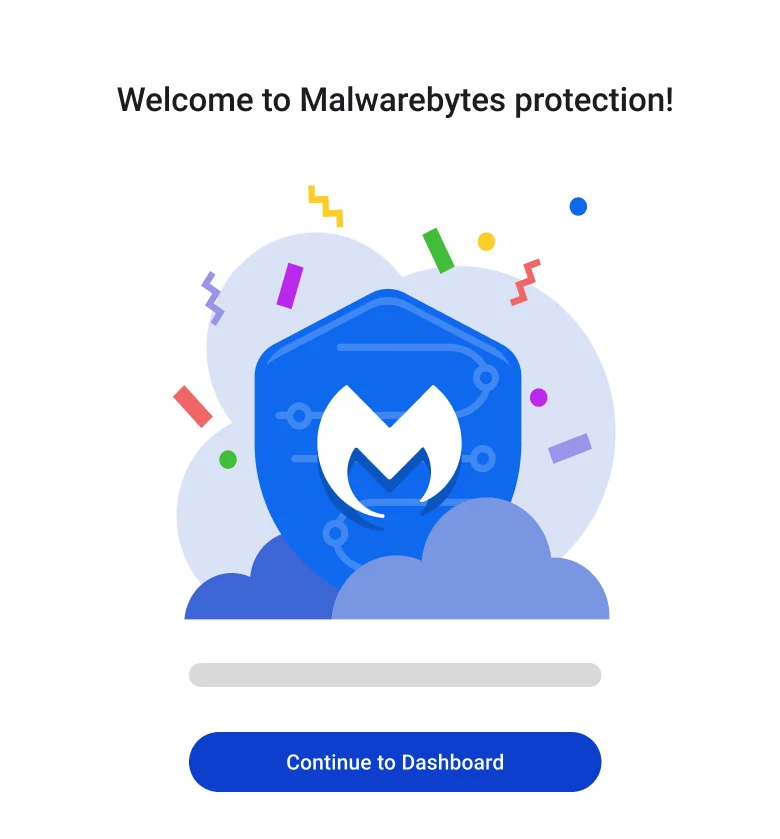
If you want the permanent Free scanner, don't buy simply because onboarding presents paid features. A new installation may start a 14-day Premium trial. Open the person icon and My subscription to see the current state and end the trial where the app offers that control. When Free is active, manual scans remain but paid real-time modules don't.
Recent community questions show why the state must be named. Users see “14 days remaining” and conclude that Malwarebytes itself disappears afterward. Malwarebytes Support confirmed in an April 2026 r/Malwarebytes thread that the official Free scanner still exists. Use that thread as evidence of confusing onboarding, then use My subscription and the official feature matrix as the authority on your installation.
Check whether Microsoft Defender or Malwarebytes is the active antivirus
Windows avoids running two registered primary antivirus engines as if both own the same job. A paid or trial Malwarebytes setup can register with Windows Security Center, and Microsoft Defender Antivirus then turns itself off automatically while the current third-party provider is active. That's normal provider arbitration, not proof of infection.
Open Windows Security → Settings → Manage providers and expand Antivirus. Microsoft documents that path in its current Windows Security app settings. Confirm the provider matches the plan you chose.
For the no-cost companion setup, Microsoft Defender should be the active real-time antivirus and Malwarebytes Free should run on demand. For the paid-primary setup, Malwarebytes should appear as the active provider and its real-time modules should be on. The June 2026 Malwarebytes General settings article explains that its Windows Security Center switch controls how Windows recognizes the app.
Don't try to force both into identical full real-time roles. Our Malwarebytes versus Windows Defender comparison covers the tradeoff, and the current Microsoft Defender review explains the built-in option. The setup test is simpler: one intentional primary provider, no unexplained red status, and the expected Malwarebytes state.
Run the first Windows checks before trusting the green dashboard
On first installation, Malwarebytes offers a set of onboarding checks. The official Windows article names a Device Security scan for malicious files, an Online Safety scan for exposed personal information and Trusted Advisor for configuration recommendations. Run the device-security check first; the other two answer different questions and shouldn't be mistaken for malware scans.
Allow the application to update before judging the result. An active internet connection is required for current component and database updates. Note the application version, last update time, scan type, duration and number of items checked. If the scan can't start or the database remains stale, preserve the error for the dedicated troubleshooting route instead of repeatedly reinstalling.
Review detections before deleting anything. Quarantine is reversible; deletion may not be. Pay attention to the detection category and full path, especially for a tool, game mod, administration utility or old installer you recognize. The future scan-types guide will handle deep, custom and rootkit choices; this first pass is about establishing a clean baseline without turning every potentially unwanted item into a crisis.
Free users can enable the current one-per-month Windows scan under the scheduler. Paid users can configure broader scheduled Threat Scans. The distinction is covered in the Free/Premium page. A monthly scan doesn't replace Defender or another real-time provider.
Finally open Trusted Advisor and work through critical items you understand. Don't grant broad exclusions or disable a protection layer merely to make the score green. A recommendation is useful only when it matches the role chosen at the start.
Install Malwarebytes on Mac from the official package
Use the official Mac download, then open Downloads and double-click the Malwarebytes package. The current installer walks through Introduction, Read Me and the software license agreement. Confirm the standard installation, click Install, then approve with the local Mac username/password or Touch ID.
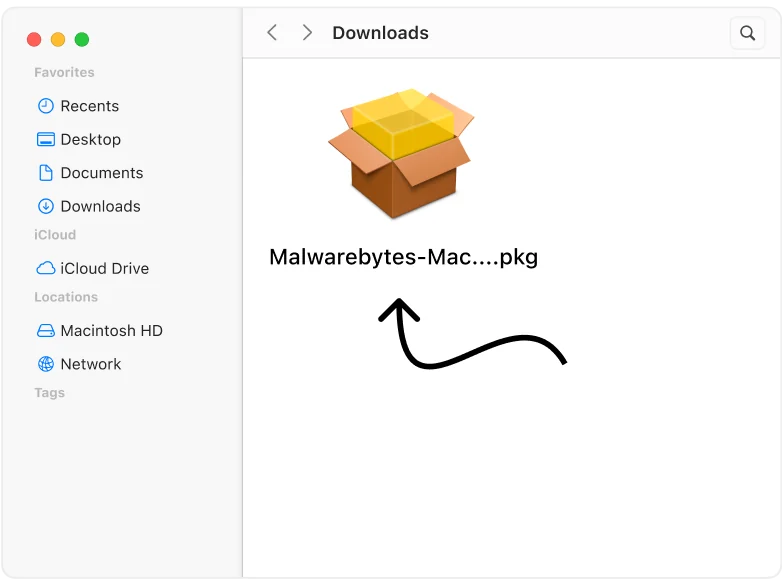
When the package completes, close the installer and move it to Trash if you don't need to retain it. The app then asks whether this is a Personal Mac or Business Mac. Choose by device ownership, not by whether you use the computer for occasional work.
The current Mac install page offers Maybe later for the Free path and Buy Now for a subscription. It explicitly says Free doesn't include scheduled scans or Real-Time Protection. If you already bought a plan, continue to the app and activate the existing entitlement rather than purchasing a second subscription.
Macworld's March 2026 Malwarebytes for Mac review also found the installation straightforward but highlights the platform permissions. The package being installed is only the first half of paid Mac setup.
Grant Mac permissions only to the verified application, then check status
Malwarebytes' official Quick Start Guide says Mac users must grant permissions such as Full Disk Access before protection is fully usable. Follow the guidance launched from the verified app and read the macOS panel before changing it. Full Disk Access is powerful; that's normal for a security scanner that must inspect protected areas, but only when the application and package are authentic.
Return to Malwarebytes after the permission change. Confirm that the intended Real-Time Protection and Web Protection modules report active for a paid or trial setup. For Free, confirm that manual scanning works and don't treat unavailable paid modules as an installation error.
If the app can't see its permissions, quit and reopen it once, then check the relevant Privacy & Security panel. Don't repeatedly remove and re-add random entries. If an old installation left remnants and a reinstall fails, Malwarebytes' June 2026 Mac reinstall article uses its official uninstall tool, a restart and a clean reinstall.
Run the first scan and inspect the report. Mac and Windows share some scan names, but their protection modules aren't identical. Don't copy a Windows tutorial's registry or service steps onto macOS.
Install Malwarebytes on Android and run the first mobile scan
Open Google Play, search for Malwarebytes Mobile Security and verify the developer/listing before installing. The current Android installation guide says to tap Open, Get Started and allow real-time security updates. If you already own a subscription, choose the existing-subscription path instead of buying again.
The dashboard presents security features individually. Turn on the features you intend to use and grant their required permissions when the system asks. Android storage or file access may be needed for a scan, and notification permission is needed for alerts. Don't grant unrelated accessibility or device-administrator access to an app from outside Google Play.
Run Scan now and review the app/file findings. Android is the mobile platform here with a conventional malware scanner. Free can scan; paid adds real-time, ransomware and safe-browsing protection according to the current feature matrix. Resolve the dashboard's “Start here” recommendations only after reading what each change enables.
If the subscription was bought from Google Play, restore the store purchase. If it came from the Malwarebytes Online Store, sign into the Malwarebytes account. The official mobile activation article separates those paths and also supports an MB code.
Install Malwarebytes on iPhone or iPad, then enable the actual extensions
Open Apple's App Store, search for Malwarebytes Mobile Security and verify the listing before tapping Get. The current iOS installation article continues through Open, Get Started and notification permission. Existing subscribers should choose Already have a subscription and restore or sign in through the correct merchant path.
Installation alone doesn't enable every iOS feature. Paid Web Protection and free Ad Blocking use Safari extensions; iPhone Call Protection uses Call Blocking & Identification; text filtering has its own system control. Follow the current iOS settings instructions, then return to the dashboard and confirm the status.
Don't look for a Windows-style full-device scan. iOS isolates apps, so Malwarebytes works through web, call, message and scam-protection features rather than inspecting the entire file system. The mobile requirements and Free/Premium page explain which controls apply to iPhone versus iPad.
If Malwarebytes doesn't appear under Safari Extensions on iOS 18 or later, check whether the app is locked behind Face ID or hidden, and whether Screen Time web-content restrictions are active. Malwarebytes' July 7, 2026 blocked-extension troubleshooting documents both causes. Change only the setting that blocks the extension, then re-enable the intended protection.
Set up Browser Guard as a separate browser component
Windows onboarding or Trusted Advisor may recommend Malwarebytes Browser Guard. It's an extension rather than proof that the desktop app's paid Web Protection is active. Install it from the official Malwarebytes Browser Guard page or the verified browser store, then confirm it appears under extensions in the browser you actually use.
Browser Guard can block ads, trackers, scam pages and malicious destinations. That can complement both Free and Premium configurations, but it doesn't turn Free into a full real-time antivirus. It also doesn't protect a different browser where the extension is absent.
If another content blocker already runs, use one normal browsing session to check logins, checkout pages and sites you trust. Don't disable every privacy extension because one page breaks. Identify which component blocked the request, allow only the trusted site or feature that needs it, and keep the scope narrow.
The dedicated Browser Guard review will own its settings, privacy and false-positive behavior. During installation, the pass condition is simpler: official source, correct browser, enabled extension and no assumption that it replaces device protection.
The five-minute post-install verification checklist
1. Confirm identity and source. The application came from an official Malwarebytes link or platform store. The account email, subscription name and expiration date match the intended purchase. No second checkout was created accidentally.
2. Confirm the protection role. My subscription clearly says Free, trial or the paid plan you own. On Windows, Manage providers shows the intended primary antivirus. On Mac and mobile, required permissions or extensions are enabled only for the intended features.
3. Confirm freshness. The application and threat intelligence have updated successfully. The version is current enough for the supported operating system. A stale database or permanently spinning update is a failed setup, even when the dashboard opens.
4. Confirm operation. A first device-security scan completes, the report opens and quarantine is accessible. On Android, Scan now works. On iOS, test that the enabled Safari/call/text feature reports active rather than searching for a device scan that can't exist.
5. Confirm the recovery route. You know which merchant owns billing, where to release the device seat and where the official support link lives. Save the original order and activation email. If a security application fails later, that record prevents a reinstall from becoming a second subscription.
Keep the result simple enough to explain: one real-time provider, one known subscription state and platform-appropriate secondary tools. Our free antivirus guide helps if Free plus the existing provider isn't the right combination; the full Malwarebytes review covers the broader paid verdict.
Common installation problems and the safe first response
| Problem | Safe first response | Don't do this |
|---|---|---|
| Not a verified Microsoft app | Confirm the official download URL, publisher/signature and current Malwarebytes support instruction | Disable Windows protection globally or download a mirror |
| Installer won't open | Copy the error, check supported OS, free space, internet and one restart | Run several differently sourced installers |
| Defender appears off | Check trial/subscription state and Windows Security Manage providers | Assume infection or force two primary engines |
| Paid features remain unavailable | Verify account, seat, activation method, update and platform support | Buy a duplicate subscription |
| Mac protection says permissions missing | Grant the requested permission to the verified app and reopen it | Add unrelated apps to Full Disk Access |
| iOS extension is absent | Check Face ID app lock and Screen Time web restrictions | Install a configuration profile from a third party |
| First scan won't complete | Record the scan type, stage, error, version and last update time | Delete quarantine or registry data blindly |
A suspicious file or browser redirect can justify a second-opinion cleanup with the existing Malwarebytes AdwCleaner guide, but AdwCleaner isn't an installer repair tool. A persistent update, scan or service problem belongs in the dedicated troubleshooting page rather than a cycle of uninstalls.
If the machine may already be compromised, use another trusted device to reach Malwarebytes and save the official installer. Avoid entering payment or account credentials on a system that's visibly redirecting security sites. Our scam-protection guide explains why fake support and renewal pages often target people searching for urgent antivirus help.
When official support asks for a Support Tool or diagnostic log, download that utility only through the linked Help Center route. Read what information it collects before sending the archive. Never hand remote control to a phone number from an unsolicited “renewal” invoice.
Setup is complete when the state is verified, not when the icon appears
A successful installation has five pieces of evidence: a verified source, a supported operating system, the intended Free/trial/paid state, a deliberate primary security provider and a completed first check. Missing any one of them can leave a polished dashboard that doesn't deliver the protection the user thinks it does.
For Free on Windows, the clean finish is Defender active, Malwarebytes available on demand and the trial no longer changing provider behavior. For paid Windows, it's an activated seat, real-time modules on and Malwarebytes correctly reported by Windows Security. For Mac, it includes the necessary permissions. For Android, it includes a successful scan and enabled intended protections. For iPhone or iPad, it means the relevant system extensions—not a nonexistent full-device malware scan—are active.
Don't keep changing settings after the checklist passes. Let the application update, review its notifications and revisit only a concrete problem. If the subscription later expires, use our antivirus expiration guide to avoid a protection gap while changing products or reverting to Free.
Installing and setting up Malwarebytes FAQ
Where should I download Malwarebytes from?
Use malwarebytes.com or an official Malwarebytes Help Center download link on Windows and Mac. Use Google Play for Android and Apple's App Store for iPhone or iPad. Avoid cracked, portable, lifetime or pre-activated installers and lookalike setup domains.
What is the official Malwarebytes installer name on Windows?
The current official Windows instructions identify the installer as MBsetup.exe. File names can evolve, so the verified Malwarebytes download source and valid digital publisher matter more than the name alone. Don't approve an unexpected administrator prompt for a file from an unrelated domain.
Can I install Malwarebytes Free without buying a subscription?
Yes. Malwarebytes still offers a permanent Free scanner, although a new installation may begin with a 14-day Premium trial. Free has manual scanning and selected utilities but no continuous malware, web or ransomware protection, so keep an active real-time antivirus.
Will installing Malwarebytes turn off Microsoft Defender?
A paid or trial Malwarebytes installation can register as the active third-party antivirus, and Windows then turns Defender Antivirus off automatically. The permanent Free scanner should be used on demand beside Defender. Check Windows Security, Settings, Manage providers after installation and after the trial changes.
What permissions does Malwarebytes need on a Mac?
The verified paid Mac app guides the user through Full Disk Access and other system permissions required for its protection features. Grant them only after installing the official signed package. Then return to the Malwarebytes dashboard and confirm that the intended modules report active.
Does Malwarebytes scan an iPhone for malware?
No. iPhone and iPad don't receive a traditional whole-device malware scanner. Malwarebytes uses platform features such as Safari web and ad protection, scam analysis, text filtering and iPhone call protection, depending on the subscription and device.
What should I do immediately after installing Malwarebytes?
Confirm the subscription state, update the application and threat database, run the first device-security scan, review rather than blindly delete findings, and verify the active protection modules. On Windows, also confirm the antivirus provider in Windows Security; on Mac and mobile, confirm the required permissions or extensions.
Why will Malwarebytes not install or open?
First preserve the exact error message, verify the operating system is supported, confirm an active internet connection and restart the device. Don't repeatedly run different installers. Use the official platform-specific troubleshooting or Support Tool only after confirming the correct product and download source.
Is Malwarebytes Browser Guard installed automatically?
The Windows setup or Trusted Advisor may offer Browser Guard, but the extension is a separate component and should be installed only from the official browser store or Malwarebytes link. After installation, verify that the extension is enabled in the intended browser and avoid duplicate content blockers if they cause site problems.