
How to Uninstall ESET Completely Without Losing Network or Antivirus Protection
Most computers need only the normal ESET installer removal and a restart. The Safe Mode tool is for a failed uninstall or leftover drivers, because it can reset network settings and removes more than an ordinary app button.

Quick answer: In Windows 11 or 10, search for ESET, choose Uninstall, use the app menu’s Modify action, then select Remove in the ESET installer and restart. Verify that ESET no longer appears in Installed apps, services or Windows Security and that Microsoft Defender or your replacement antivirus is active. Use ESETUninstaller.exe in Windows Safe Mode only when normal removal fails or a broken installation prevents reinstalling; export settings first and back up network adapter configuration because the tool can reset it.
Need a different ESET task? The complete ESET guide hub routes review, plans, setup, banking, troubleshooting, firewall and HTTPS, Android, VPN, password migration, billing and removal without mixing their steps.
Before removal: decide whether you're fixing, switching or cancelling
Uninstalling ESET is appropriate when you're replacing it, repairing a damaged installation, returning a device or troubleshooting a conflict. It isn't a billing action. If the goal is to stop the next charge, first follow the ESET cancellation guide and save the commercial confirmation.
Export ESET settings if you plan to reinstall and have custom firewall rules, exclusions or scan profiles worth keeping. Record the current product name and subscription in ESET HOME. A HOME Security Premium subscription can install an app named Smart Security Premium or Internet Security, so a later name difference doesn't necessarily mean the wrong license.
Download the current installer or chosen replacement before removal, especially on a computer with unreliable network access. Save open work and create a restore point or backup. If the computer belongs to work or school, stop: the product may be centrally managed and will return under policy even after local removal.
Close browsers and VPN sessions. If ESET VPN is installed as a separate application, decide whether it should remain. Removing the Windows security app doesn't automatically establish that every related ESET application or subscription is gone.
Use normal Windows uninstall first
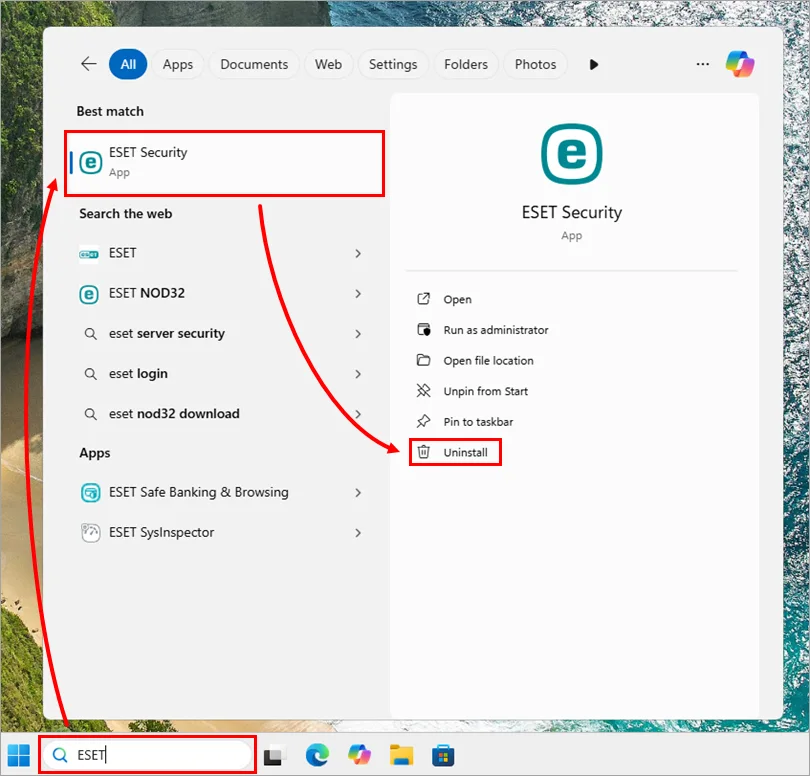
- Open the ESET app entry. Press the Windows key, type ESET and choose Uninstall.
- Find the installed ESET application. In Installed apps or Programs and Features, open the three-dot menu and choose Modify. ESET’s current guide uses Modify because its own installer handles removal.
- Continue in the ESET installer. Choose Next. If a settings or parental-control password is requested, enter it or use ESET’s official unlock route.
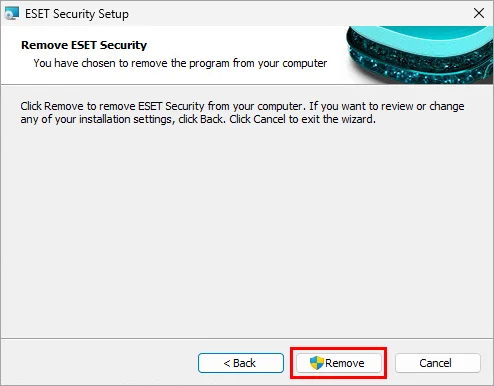
- Select Remove. Confirm Remove again when asked. Don't interrupt the driver and service cleanup.
- Finish and restart. Restart Windows even if the machine appears normal. Security-provider registration and filter drivers settle during boot.
This sequence follows ESET’s November 2025 Windows home uninstall guide. It's safer than manually deleting Program Files folders because the registered installer knows which drivers, services and Windows Security entries belong to the product. ESET’s settings-password guidance also explains why the removal prompt isn't the ESET HOME account password.
Restart, then verify software, service, provider and network
After restarting, check Settings → Apps → Installed apps. The removed ESET security application should be absent. Separate entries such as ESET VPN can remain if you didn't choose to remove them. Don't delete a remaining entry solely because it shares the vendor name; decide whether it's still licensed and wanted.
Open Windows Security → Settings → Manage providers. Microsoft’s current Windows Security provider guidance shows the antivirus, firewall and web-protection cards. Microsoft Defender Antivirus normally resumes on a personal Windows computer when a compatible third-party provider is removed. Confirm that real-time protection is on and definitions can update. If another replacement antivirus is already installed, verify that it—not a stale ESET record—is the active provider.
Test web browsing, DNS, a local printer or NAS and any work VPN. Normal ESET removal should preserve networking. A failure after manual ESET Uninstaller requires the network checks described later.
Search Services for an active ESET Service only when symptoms remain. Leftover folders don't prove a live driver is intercepting traffic. Conversely, an absent desktop shortcut doesn't prove the security provider was deregistered. Provider status and services are stronger evidence than icons.
When normal uninstall fails, identify the failure before escalating
A normal removal can fail because the ESET settings password is unknown, Windows Installer is busy, a restart is pending, files are damaged or a previous removal stopped halfway. Save the exact error code and screenshot. Restart once and retry before using a cleanup tool.
If you're uninstalling only to repair an update or launch problem, ESET’s reinstall guide says a partial prior uninstall can itself cause later performance and installation trouble. That's the right point to use the manual tool—not while the ordinary installer still works.
Don't use a third-party “registry cleaner,” delete `C:\Program Files\ESET` by hand or remove random network drivers. Those actions erase visible evidence while leaving protected components, installer records or damaged networking behind. The official tool is purpose-built and creates a log.
If Windows can't start normally, protect files and system recovery first. Antivirus removal isn't a substitute for diagnosing disk failure, ransomware or a broken Windows update.
A repair install can be the narrower response when the ESET application still registers correctly but one component is damaged. By contrast, a stale provider entry, failed reinstall and service that survives ordinary removal are stronger reasons for the Safe Mode tool. Decide from the symptom rather than treating “complete uninstall” as a ritual: the deeper method adds network risk without improving a healthy normal removal.
Use ESET Uninstaller in Safe Mode only as the escalation path
ESET updated its manual Uninstaller instructions in April 2026. The tool must run in Windows Safe Mode; it won't proceed in normal mode. Download `ESETUninstaller.exe` from that official page and keep it in a local folder that isn't synchronized by OneDrive.
- Export ESET settings. Manual cleanup doesn't restore them automatically during reinstall.
- Back up network adapter settings. Open an administrative command prompt and run
netsh -c interface dump > C:\NetworkSettings.txt. - Boot Windows into Safe Mode. Use Microsoft’s supported recovery path and know how you'll return to normal boot.
- Run the official ESET Uninstaller. Read the warning, type
y, choose the number corresponding to the intended ESET installation and confirm it. - Run the tool again. Confirm the product no longer appears under Installed ESET products.
- Restart into normal Windows. Don't leave the machine permanently configured for Safe Mode.
The tool writes `~ESETUninstaller.log` beside the executable. Keep it until the machine is stable. Advanced switches such as `/force`, `/reinst`, `/mode=online` and `/mode=offline` exist, but they remove safeguards or change driver handling. Use them only when ESET documentation or support calls for the exact switch.
Protect network settings before the manual tool
ESET explicitly warns that ESET Uninstaller can require network adapter drivers to be reinstalled. The `/reinst` path can reset Network Interface settings. This is why the `netsh` backup belongs before Safe Mode, not after the connection disappears.
If networking is broken after normal boot, open Device Manager and check the physical Ethernet or Wi-Fi adapter before changing DNS, firewall and router settings at once. Reinstall the manufacturer’s adapter driver if Windows reports a driver failure. To restore the saved interface configuration, open an administrative command prompt and run netsh -f C:\NetworkSettings.txt.
Test in layers: obtain an IP address, reach the router, resolve a domain and then open HTTPS. A local printer failure with normal internet access points somewhere different from a missing adapter. Changing several layers together makes the manual cleanup harder to diagnose.
If the original problem was blocked internet or certificate errors rather than uninstall failure, the forthcoming firewall and SSL/TLS guide may avoid manual removal entirely.
For a clean reinstall, reuse the subscription and verify the handoff
You don't need to buy ESET again. Its manual-uninstaller page says the existing subscription remains active for its duration regardless of how often the application is removed and installed, subject to the device allowance. Sign in to ESET HOME, remove an obsolete device entry if necessary and create a current installer.
Follow the clean ESET installation guide: remove any competing real-time antivirus, use the official installer, let modules update and run an initial scan. Import old settings only when you trust them. A damaged firewall rule or exclusion can reintroduce the conflict you were trying to remove.
If reinstall still fails, record the installer error and attach the ESET Uninstaller log to an official support case. Repeated cleanup runs without new evidence can remove more state without revealing the cause.
After reinstall, verify ESET in both its Overview screen and Windows Security. After switching to another product, verify the replacement instead. A successful installer window isn't the final proof; registered, updating real-time protection is.
Run one update and one scan after the reinstall, then restart again and repeat the provider check. This catches a setup that looks healthy only until a driver reloads. If the original problem was high CPU, measure the same idle period and scan workload before deciding it returned. If the problem was web access, test the same HTTPS site and local device before restoring custom rules. A controlled before-and-after check is more useful than the general feeling that the PC is faster.
Removing the app doesn't remove the account or recurring charge
ESET HOME can retain the subscription and device record after application removal. That's useful for reinstalling or moving a seat. Remove the old device entry only when you no longer need to manage it, and don't delete the whole ESET HOME account as a shortcut for cancellation.
To stop renewal, use ESET HOME → Subscriptions → Manage subscription or the store that billed you. Turning renewal off normally leaves protection active through the paid term. The dated ESET pricing and renewal guide explains the current device and VPN counters.
If you're switching, compare the reason rather than buying the first discount. ESET vs Bitdefender is useful for broad multi-device protection, ESET vs Norton for identity and bundle questions, ESET vs AVG for price and commercial messaging, and ESET vs Microsoft Defender for the built-in baseline.
Keep the removal log, cancellation confirmation and replacement installer until the next restart, update and scan all pass. Then delete unencrypted diagnostic files that contain paths or system details you no longer need.
This page is intentionally Windows-specific. On macOS, use the current ESET Cyber Security uninstaller and macOS permission cleanup; on Android, uninstall through the system or Google Play and review device-administrator and accessibility permissions. Don't run the Windows Safe Mode utility against another platform or assume that removing a mobile app cancels a Google Play subscription. The merchant and the installed application remain separate records everywhere.
ESET uninstall FAQ
Does uninstalling ESET cancel my subscription?
No. Removing the application changes one device. Auto-renewal remains a separate billing setting controlled by ESET eStore, Google Play, Apple or the reseller.
What is the normal way to uninstall ESET?
In Windows, search for the ESET app and choose Uninstall, open its three-dot menu, choose Modify, then use the ESET installer’s Remove path and restart.
When should I use ESET Uninstaller?
Use the official Safe Mode tool when normal uninstall fails, ESET remains active, or a partial removal prevents reinstalling. It isn't the first step for a healthy installation.
Why must ESET Uninstaller run in Safe Mode?
ESET says the manual tool won't proceed in normal Windows mode. Safe Mode reduces active product drivers and services so the cleanup can remove protected components.
Can ESET Uninstaller break the internet connection?
It can reset network-interface settings and may require network adapter drivers to be reinstalled. ESET documents a netsh export and restore procedure, so back up network settings before using the tool.
Do I need a new subscription to reinstall ESET?
No. ESET says an existing subscription remains valid for its term regardless of how many times the application is removed and installed, subject to the purchased device allowance.
Will Microsoft Defender turn back on automatically?
It normally resumes after a compatible third-party antivirus is removed, but verify the provider and protection status in Windows Security rather than assuming.
How do I remove ESET if I forgot the settings password?
The normal uninstaller can ask for the ESET settings or parental-control password. Use ESET’s official unlock process or support rather than bypass tools or registry edits from an unknown site.