
Scanguard Scans, Quarantine, Schedules and Exclusions
Choose the smallest scan that answers the question, schedule work that can finish, and treat quarantine as a decision point—not a trash can. This guide covers the current Windows paths, the macOS boundary, false-positive evidence and the narrow circumstances in which an exclusion is defensible.

Quick answer: Use Quick Scan for a fast check of likely malware locations and System Scan when the question requires broader coverage. Schedule the job for a time the computer is awake, powered and not running backups or other disk-heavy work, then verify that it completed. Leave an uncertain detection quarantined while you record its path, source, signature and hash. Permanently delete a confirmed threat; restore only after authoritative evidence supports a false positive. If an exclusion is unavoidable, make it exact, temporary and owned—never exclude a whole drive or user profile to silence an alert.
Choose the scan that answers the question
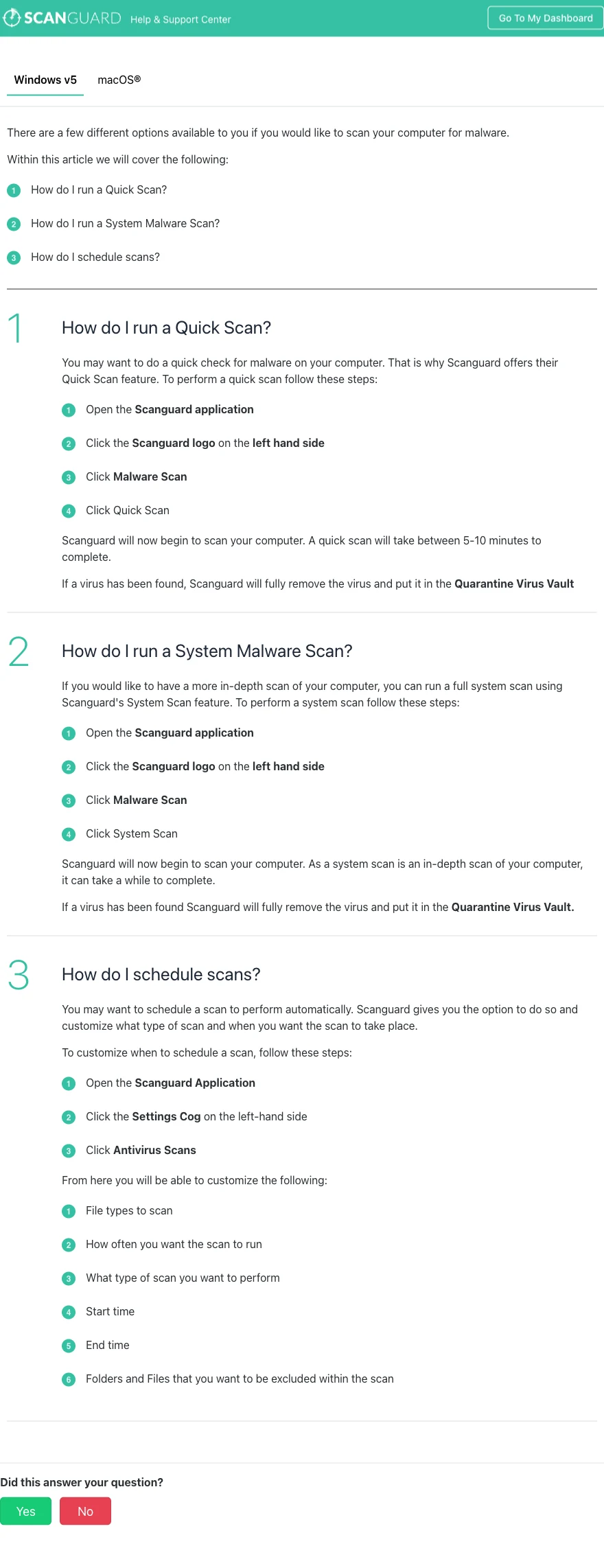
Scanguard's current Customize Your Scans guide documents two on-demand choices in its Windows v5 path: Quick Scan and System Scan. Open Scanguard, choose the Scanguard logo, select Malware Scan and pick the mode. Quick Scan is the sensible first pass when you want to check common high-risk locations after an unexpected download, browser redirect or routine concern. System Scan is the broader choice after first installation, a meaningful exposure, a real detection or when a fast pass did not answer the question.
The vendor says Quick Scan commonly takes five to ten minutes and describes System Scan as a more in-depth job that can take a while. Treat that language as orientation rather than a service-level promise. A modern SSD with a small file set and an older laptop full of archives, cloud placeholders and virtual-machine images are not comparable. File count, storage condition, encryption, power mode and other programs reading the same disk change the duration.
| Question | Start with | What it answers | Important limit |
|---|---|---|---|
| Did a recent download or common startup location trigger concern? | Quick Scan | Fast check of likely active-malware locations | Not every file or attached drive is covered |
| Is this a first baseline or a broader post-exposure check? | System Scan | More in-depth system coverage | Longer and more storage-intensive |
| Does one trusted folder repeatedly cause trouble? | Smallest available scope in your build | Tests a reproducible path | Do not assume every build exposes Custom Scan |
| Did ransomware or an infostealer execute? | System Scan plus incident response | Finds known detectable artifacts | A clean scan cannot reverse stolen data |
Independent reviews sometimes call a Scanguard workflow “Smart Scan” or describe a Custom Scan. The checked official page currently labels Quick and System, so this guide does not pretend those names are interchangeable or promise that every build has the same controls. If your installed app exposes another mode, read its scope summary and record the version. The useful question is what locations and object types the current build will inspect, not which marketing label looks broader.
A clean scan is evidence, not proof of a clean history
A clean Quick Scan means no detection was raised in the locations and object types that run covered. It does not mean every file, disconnected drive, browser account or cloud item was inspected. A completed System Scan provides broader evidence, but it still operates with the engine and definitions available at that time. New malware, fileless behavior, remote account abuse and an attacker who already stole a session token may sit outside what one local scan can prove.
Interpret the result alongside what happened. If an attachment was never opened, a current scan is clean, the browser and operating system are updated and there are no account alerts, the risk story is different from a credential stealer that ran before Scanguard intervened. In the second case, changing affected passwords from a clean device after containment matters more than running the same scan five times. Our malware-removal guide covers the wider recovery decision without treating an antivirus result as a forensic certificate.
Also separate on-demand scans from real-time protection. A schedule can run perfectly while a real-time component is disabled, unregistered or unable to inspect a particular location. The upcoming Scanguard real-time-protection guide owns that health check. This page stays focused on choosing and completing scans, then deciding what to do with their results.
Build a Scanguard schedule that can actually finish
On the checked Windows v5 documentation, open the Settings cog and choose Antivirus Scans. Scanguard lists controls for file types, frequency, scan type, start time, end time and excluded folders or files in its scan-scheduling instructions. A saved schedule is only a configuration. It becomes useful when the computer is awake at the chosen time, the task starts, and the result can be reviewed afterward.
Pick a window when the machine is normally connected to power and not sleeping. Avoid overlap with backups, cloud synchronization, large game or app updates, archive extraction and developer builds because those jobs compete for the same storage and can make a healthy scan look broken. If the device is a laptop that is usually closed overnight, a midday low-use window may be more reliable than an impressive-looking 2 a.m. schedule that never runs. After saving it, verify that it really completed at the next planned run.
| Schedule choice | Practical rule | Verification |
|---|---|---|
| Frequency | Use a cadence the device can sustain; do not substitute it for real-time protection | Check recent history after the next planned run |
| Scan type | Quick for a routine fast check; System for broader periodic or post-exposure coverage | Confirm the saved mode matches the completed job |
| Start/end time | Choose an awake, powered, low-I/O window | Verify it started and did not stop at sleep |
| File types | Keep useful coverage unless a documented workload requires a change | Record the reason for any reduction |
| Exclusions | Exact, proven-safe, temporary and reviewed | Owner plus removal date |
Run the scan and verify the result, not just the button click
Before a System Scan, connect power, save open work and make sure the system drive has usable free space. Finish a backup or large download instead of forcing both tasks to fight for disk access. Update Scanguard and the operating system first when practical, then note the start time, selected mode and reason for the scan. That small record becomes important if the job stops or a detection later needs investigation.
Watch whether the object count, current path, CPU or disk activity changes. A progress bar can pause while a large archive or container is being inspected, so one frozen-looking percentage does not establish a hang. When the scan finishes, record the end time, result, detection name and original path before changing quarantine. If the page offers history or a report, keep it until the issue is settled.
After a scheduled scan, confirm that it really completed rather than assuming the absence of a popup means success. Check the recorded result and the next planned run. If the same task repeatedly starts during work, adjust the schedule. If it never starts because the computer sleeps, choose a realistic window. Operational reliability beats an aggressive cadence that is continually interrupted.
When a Scanguard scan appears stuck
Record the exact path or object shown, elapsed time, object count, disk activity and free space. If the number or disk reads continue to change and the machine remains usable, give the current object time. Large archives, mail stores, virtual machines, cloud placeholders, disconnected removable storage and storage errors can all produce long pauses. None of them proves that the named file is malicious.
If the computer overheats or becomes unusable, stop the scan through Scanguard's interface. Do not end random services, delete the displayed object or exclude its parent folder as a first response. Update the product, restart once, and test the parent folder or a smaller scope if the installed build offers that control. A repeatable stall on the same path is valuable evidence; a broad exclusion destroys it.
When the same failure returns, follow the full Scanguard stuck-scan and high-CPU workflow. It covers process verification, competing antivirus providers, clean-boot isolation, storage and system evidence, current log generation and a supported reinstall. That separation keeps this scan guide useful without duplicating a much deeper troubleshooting branch.
Quarantine is a safe review state, not a verdict
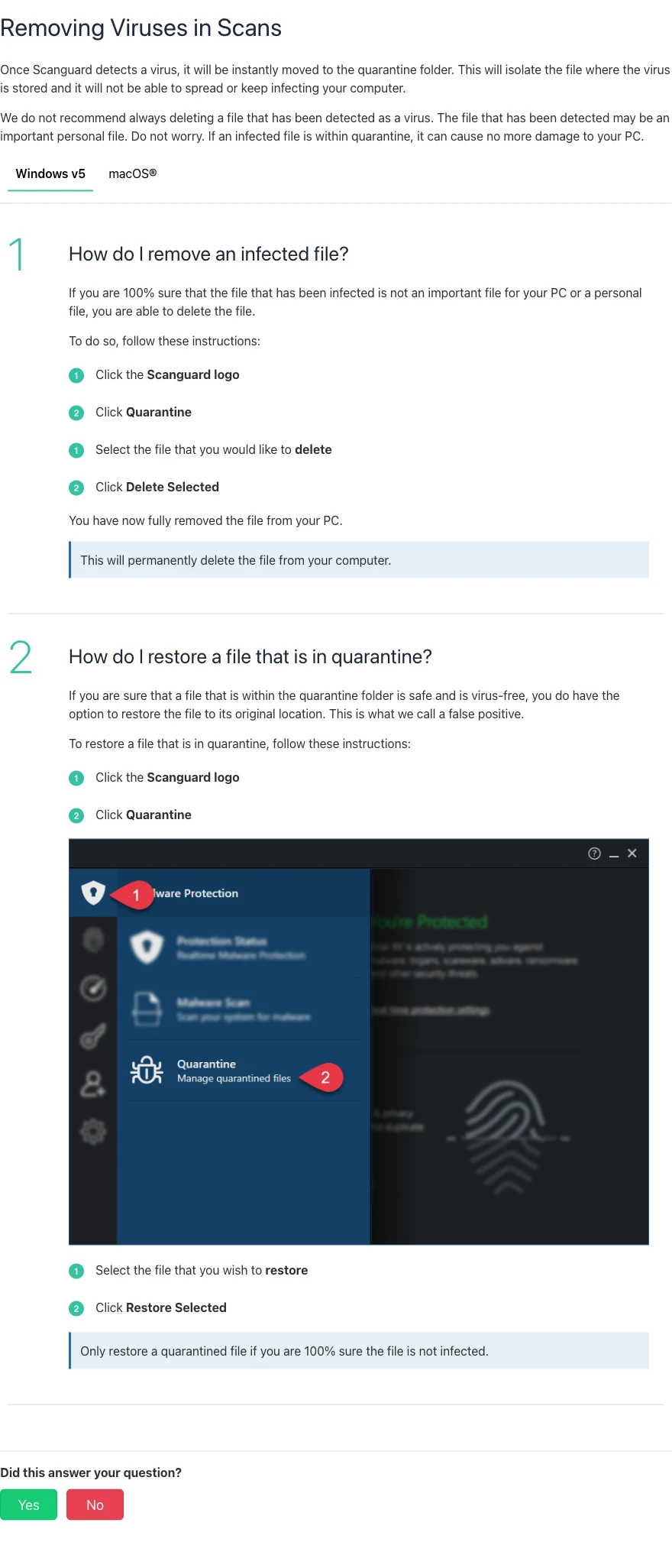
Scanguard's current quarantine guide says a detected item is moved into its Quarantine Virus Vault so it cannot continue spreading or infecting the computer. In practical terms, quarantine normally isolates the file from ordinary use. It buys time to investigate without immediately returning the item to an executable location or permanently destroying evidence.
The Windows v5 path shown by Scanguard is logo → Quarantine. Select an item and choose Delete Selected for permanent removal or Restore Selected to return a suspected false positive to its original location. On the documented macOS path, the permanent action is labelled Clean Selected and the alternative is Restore Selected. Those actions are not equivalent: deletion is final, while restoration deliberately puts the item back where software or a user can reach it.
Do not clear the list simply because a notification is uncomfortable. Leave an unknown file quarantined while you identify it. Keep the detection name, severity or category, original path, time, source and whether it was executed. A familiar filename can still be placed in an unexpected folder, and malware often copies names from legitimate software. The path and signer tell a stronger story than the icon.
Leave, delete or restore: use an evidence threshold
Leave the item quarantined when its source is unknown, the signer is absent or unexpected, it came from an attachment or unofficial installer, it was already executed, or you cannot recreate it from a trusted source. This is the default while facts are incomplete. There is normally no deadline forcing you to restore or delete an isolated file merely to make the dashboard look tidy.
Delete a confirmed threat when the item is not required for incident evidence, legal or business retention, and a trusted backup exists if the underlying data matters. Permanent deletion removes that quarantined copy; it does not prove the system has no persistence or secondary payload. If the file was a keygen, crack, unknown script or unexpected executable, a friendly filename and a comment saying “false positive” are not counter-evidence.
Restore only after multiple strong facts agree: the file came from the verified developer channel, its digital signature or published hash matches a known-good release, the version is expected, and the developer or Scanguard confirms the classification. If that proof is not available, keep the file quarantined. An application failing to launch is inconvenient; restoring an active credential stealer can be materially worse.
| Action | Evidence threshold | Next check |
|---|---|---|
| Leave quarantined | Source, signer, behavior or execution history is uncertain | Record metadata and investigate without running it |
| Delete/Clean | Threat is confirmed and the item is not required for evidence or recovery | Complete wider response if it already ran |
| Restore | Verified source, signature/hash and authoritative false-positive confirmation agree | Update, monitor and remove any temporary exception |

Investigate a suspected false positive without running the file
Start from metadata, not execution. Capture the exact detection name and category, original full path, filename, size, version, download source and time. Inspect the digital signature from the operating system and calculate a SHA-256 when you can do so without restoring or opening the object. Compare the signer and hash with a verified developer release, not a mirror, search ad or file-sharing page. Restore only after the developer or security vendor confirms the classification and the rest of the evidence agrees.
| Evidence | Stronger signal | Weak or misleading signal |
|---|---|---|
| Source | Developer's authenticated domain or managed repository | “I found it on a forum” |
| Signature | Valid expected publisher and intact chain | Familiar filename or icon |
| Hash | Matches a published known-good release | Different hash dismissed as “probably updated” |
| Behavior | Expected documented activity in a controlled review | It seems quiet after double-clicking |
| Vendor response | Scanguard or developer confirms classification | Anonymous comment or AI-generated assurance |
| Context | Correct path, version and installation chain | One engine or detection count used as a vote |
Keep the product version, definition/update state and a screenshot of the quarantine detail because classifications change. If a business application is blocked, ask its publisher for the signed current installer and documented hashes. Do not ask an employee to retrieve the file from quarantine and run it “to see what happens.” A false-positive investigation should reduce uncertainty without creating a second incident.
Search VirusTotal by hash before uploading anything
VirusTotal explains that public submissions are shared with its security-industry partners. Search the SHA-256 first because an existing report may answer the question without sending another copy. Never publicly upload documents containing passwords, financial or health data, customer information, private source code, API keys or internal designs. VirusTotal offers a separate licensed Private Scanning workflow; public upload is not a substitute.
Do not count engines as jurors. Related products can share signatures, machine-learning labels need context, and a very new malicious file may have few detections. Conversely, a tool that changes system settings can attract riskware or potentially unwanted labels without being a conventional trojan. Read the detection names, signature, first-seen context, behavior and relationships, then compare them with the expected developer release.
If confidential material was uploaded accidentally, follow VirusTotal's accidental-upload process immediately. Do not compound the exposure by pasting the public report link into more forums. When privacy or business retention is involved, use your organization's incident route and the software vendor rather than improvising with a public scanner.
Submit a suspected miss or false positive through Scanguard
Scanguard's sample-submission help covers four cases: a malicious file the product missed, a safe file blocked by mistake, a malicious site it missed and a safe site blocked by mistake. The help page says file samples should be archived as ZIP, RAR, 7z or TAR and protected with the password infected, then sent through Scanguard's official submission site.
Use scanguard.com/submit-file reached from the official help center. Do not trust an upload form from a search advertisement, phone caller or forum message. Never open or execute the suspicious file to prepare the package, and do not disable all protection merely to extract it. If the file is trapped in quarantine and the supported product cannot package it safely, give Scanguard the metadata and ask support for its current collection method.
Explain what you believe is wrong and supply the detection, original path, source URL, signer, hash, product version and timestamp. Do not include confidential content blindly. A useful submission lets the analyst reproduce the classification while limiting unnecessary exposure. Keep the item quarantined until the result arrives; a submission receipt is not itself confirmation that restoration is safe.
An exclusion is a temporary exception, not a performance feature
Microsoft's general antivirus guidance warns that excluded items are not scanned and can leave a device open to infection. The same security principle applies when configuring Scanguard: an exclusion reduces inspection. It may be justified for a proven false positive or a verified high-I/O workload while the vendor fixes compatibility, but it should never be the first response to an unexplained alert or slow scan.
Verify the exact path, publisher and business owner. Exclude the smallest file or folder that reproduces the problem, not Downloads, a complete user profile, Program Files, browser data, backup roots or an entire drive. Record why the exception exists, who approved it, when it expires and how the underlying file will be monitored. Re-test after the relevant Scanguard or application update and remove the exclusion when it is no longer required.
Never exclude an item merely because Scanguard detected it. That sequence turns the alert into a durable blind spot. Establish legitimacy first, submit the false positive, then use the narrowest temporary exception only if waiting blocks essential work.
The current Windows schedule page includes excluded folders and files among scan controls. That does not prove every Scanguard protection layer interprets the entry identically, nor does the less detailed public macOS tab prove exact platform parity. After any exception, verify the specific scan or real-time workflow it was meant to affect and confirm that the rest of protection remains active.
If the detected threat already ran, quarantine is only one step
If the file was ransomware, an infostealer, remote-access trojan or credential-stealing script and it executed, stop sensitive logins on the affected computer. Isolate the device from networks when encryption, lateral movement or active remote control is suspected, preserve the detection and relevant logs, and use a clean device to protect affected accounts after containment. The FTC's consumer malware guidance emphasizes changing compromised credentials and updating systems, while CISA's ransomware guide treats isolation and evidence preservation as incident work.
Deleting the quarantined copy removes one known artifact. It does not revoke a stolen browser session, rotate an exposed password, find every persistence mechanism or restore encrypted data. Run the broader scan, inspect account alerts and recovery contacts, and involve organizational IT or an incident responder when business data, privileged accounts or multiple devices are involved.
When the device cannot keep real-time protection active, repeatedly redetects the item, or shows continuing network or account abuse, do not restore normal use because one scan says clean. The cost of a clean rebuild may be lower than the uncertainty of an incompletely investigated credential theft. Preserve what you need first, restore data from a known-good backup and change credentials from a separate clean system.
On Mac, follow the visible current labels and verify permissions
Scanguard's quarantine guide documents Quarantine, Clean Selected and Restore Selected for macOS, while the Windows permanent action is called Delete Selected. The public macOS scheduling copy checked for this article does not expose the same level of control detail as the Windows v5 page. Do not assume a menu, scan type or exclusion from a Windows screenshot exists under the same name on your Mac.
Use the modes and scope actually displayed by the signed current application. Before a broad scan, connect power and finish storage-heavy work. If Scanguard cannot inspect expected locations, verify the permissions requested by the genuine app under Privacy & Security rather than granting Full Disk Access to a similarly named download. Our Scanguard installation and setup guide covers the supported setup path.
If an item is restored, return it only to a controlled location after the same source, signature, hash and vendor checks used on Windows. If the app or scan freezes, preserve the version and logs and use the supported uninstaller instead of pasting old deletion commands into Terminal. The complete Scanguard uninstall guide keeps removal scoped and reversible.
A practical Scanguard scan and quarantine routine
For routine use, keep real-time protection active, let Scanguard update, and run a Quick Scan when you need a fast check of likely active locations. Use a System Scan for a first baseline, meaningful exposure, a real detection or a broader periodic check. Schedule that work when the device is awake and low-use, and review the actual result after the next run instead of treating the saved setting as proof.
When a detection appears, capture the details before acting. Leave uncertainty in quarantine; delete a confirmed threat when evidence and recovery needs permit; restore only after authoritative proof. Submit suspected mistakes through the official vendor channel and treat public multi-engine analysis as non-confidential evidence, not a ballot.
Review exclusions as technical debt. Each one needs a narrow scope, verified owner, reason and removal date. If a scan will not complete, two antivirus products compete, or the same path repeatedly stalls, move to the dedicated troubleshooting workflow rather than weakening coverage. Readers comparing the product's wider strengths, plan limits and lab context can return to our full Scanguard review.
Scanguard scans, quarantine and exclusions FAQ
What is the difference between Scanguard Quick Scan and System Scan?
Quick Scan checks the locations most likely to contain active malware and is useful for a fast first pass. System Scan is the broader option documented by Scanguard for a more in-depth check. A clean Quick Scan does not mean every file and attached drive was inspected, while a System Scan still cannot prove that an already executed threat caused no earlier damage.
How long should a Scanguard scan take?
Scanguard says a Quick Scan commonly takes five to ten minutes and warns that a System Scan can take a while. Those are vendor guideposts, not guarantees. File count, archives, storage speed, cloud placeholders, encryption and competing disk work can change the result, so watch progress and resource activity instead of enforcing a universal timer.
Can I schedule Scanguard scans?
On the current Windows v5 help path, open Settings and Antivirus Scans. Scanguard documents controls for file types, frequency, scan type, start and end time, and excluded folders or files. Choose a time when the computer is normally awake and powered, then verify that the next scan actually ran and finished.
What does Scanguard quarantine do?
Quarantine is an isolation and review state. Scanguard moves a detected item out of normal use so it is normally blocked from continuing to run or spread. Leave an unknown item there while you record the detection, original path, source, signature and hash; there is usually no reason to rush into restore or permanent deletion.
Should I delete everything in Scanguard quarantine?
No. Delete a confirmed threat when you no longer need it for evidence or recovery and a trusted copy exists if the file matters. If the item ran before detection, deleting the quarantined copy is not the whole incident response because persistence, stolen credentials or another payload may remain.
When is it safe to restore a file from Scanguard quarantine?
Restore only when strong evidence agrees that the item is legitimate: a verified source, expected digital signature or known-good hash, the correct product version and confirmation from the developer or Scanguard. A familiar filename, one forum answer or a low detection count is not enough proof.
How do I report a Scanguard false positive?
Record the detection name, original path, file version, source, signature and SHA-256 first. Use Scanguard's official sample-submission page reached from its help center and choose the safe-file-blocked-by-mistake category. Do not execute the file, disable all protection or upload confidential material to a public analysis service.
Is VirusTotal safe for checking a quarantined file?
Search the SHA-256 first. A public VirusTotal upload is shared with security partners and is unsuitable for confidential documents, private source code, credentials or customer data. Treat engine results as evidence that needs context, not a majority vote, and use a private licensed workflow or the vendor when confidentiality matters.
Should I add a Scanguard exclusion after a false positive?
Only if the file is proven legitimate and work cannot continue while the vendor corrects the detection. Exclude the smallest exact file or folder, document the reason and owner, set a review date, and remove the exception after the classification is fixed. Never exclude Downloads, an entire profile, Program Files or a whole drive as a convenience.
What should I do if a Scanguard scan gets stuck?
Record the displayed path, object count, elapsed time, disk activity and free space. Stop the scan from the app if the computer overheats or becomes unusable, update Scanguard, and test a smaller scope if the current build offers one. Do not delete or exclude a file only because the progress display paused; use the dedicated troubleshooting guide if the same path stalls again.
Bottom line: make every scan and quarantine action prove something
Quick Scan and System Scan answer different questions. The first is a fast check of likely locations; the second provides broader coverage and needs more time. Neither is a forensic guarantee, and a schedule matters only when the device is awake and the job completes. Record the mode, start, result and any detection before changing the state.
Quarantine gives you time. Use it. Keep an unknown item isolated, delete a confirmed threat when evidence and recovery allow, and restore only after source, signature, hash and vendor evidence agree. Exclusions should be exact, temporary and reviewed. That discipline prevents a false positive from stopping useful work without turning a convenient fix into a permanent security hole.