
Avast Not Working or Using High CPU, RAM or Disk? Diagnose It Safely
Find the process and trigger first. Then update, restart, test one component, repair and clean-reinstall only if the evidence still points to Avast.
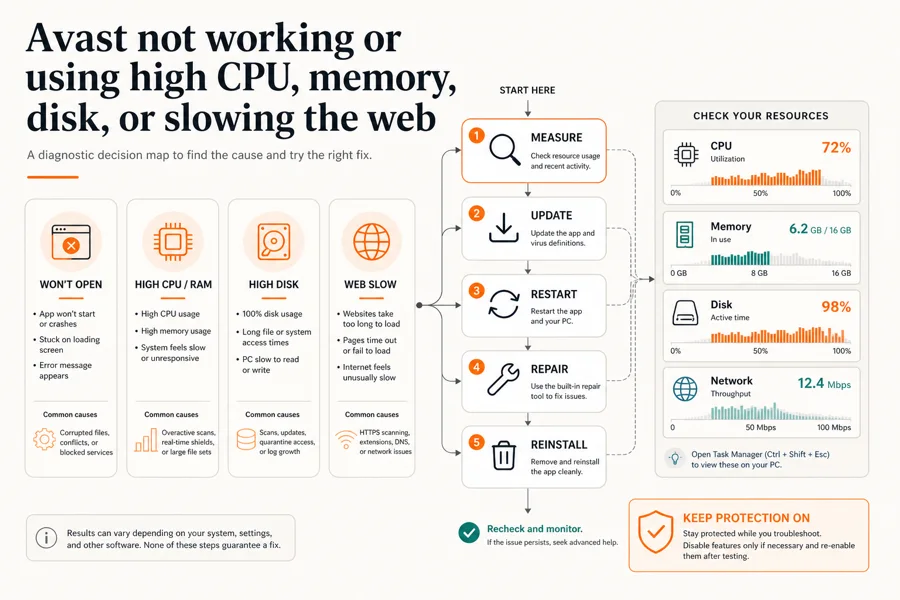
Safe order: press Ctrl + Shift + Esc, sort Task Manager by the resource that's actually saturated, and write down the Avast process and current task. Let an update, first scan or large file job finish. If the load remains reproducible, update Avast and its definitions, restart, run one narrow shield test if relevant, restore the shield, repair the installation and retest. Use Avast Clear for a clean reinstall only after repair fails. Don't end protected services, delete program folders or create drive-wide exclusions.
Need a different Avast task? The complete Avast guide hub routes review, plans, Free versus Premium, setup, troubleshooting, privacy, features, billing and removal without mixing their steps.
Start with the symptom, not a random “Avast high CPU” fix
| What you see | First useful check | Don't begin with |
|---|---|---|
| App won't open | Restart, update state, Windows Installed apps repair | Deleting Avast folders |
| High CPU or RAM | Process name, active scan/update/file task, quiet retest | Ending AvastSvc.exe |
| High disk | Disk-active process, scan type, file/drive being read | Excluding the whole drive |
| One site fails | Same URL/browser, private window, brief Web Guard comparison | Turning all shields off |
| All browsing is slow | Baseline speed, extensions, VPN, other security software, Web Guard test | Assuming the ISP or Avast is guilty |
| Protection says off | Exact shield, app version, update and repair | Installing a second real-time antivirus |
A resource graph is a clue, not a diagnosis. Antivirus software legitimately reads files, checks network traffic and applies updates; a brief spike while it performs that work is different from the same process consuming resources in an otherwise quiet session. The useful question isn't “Is 20 percent bad?” but “Which signed process rose, what started at the same moment, did it fall when the work ended, and can I reproduce it?”
That distinction is where many ranking pages go wrong. They combine old Avast interfaces, terminate services, remove optional features at random and declare success without a second measurement. Our route keeps one known configuration, changes one variable at a time and returns the PC to a protected state after each test.
Capture two minutes of evidence before you change the system
- Capture the symptom before changing anything. Open Task Manager, sort by the affected resource and record the Avast process, resource, active task, start time and whether the load falls when the task ends.
- Separate temporary work from sustained load. Allow an install, update, first scan or large file operation to finish, then observe the same process again during a quiet period.
- Update Avast and its definitions. Use the app or tray update commands, complete both definition and application updates, and accept a restart when requested.
- Restart Windows and reproduce once. Restart cleanly, open only the app or site needed to trigger the symptom, and compare the same measurement.
- Use one controlled component test. Only when the symptom points to a shield, disable that component briefly on a trusted target, record the result and turn it back on immediately.
- Repair the Avast installation. Open Windows Installed apps, start the signed Avast setup flow, choose Repair, finish and restart; expect some customized settings to reset.
- Clean-reinstall only if repair fails. Use the official Avast Uninstall Tool and Remove & Reinstall path instead of deleting services, drivers, folders or registry keys.
- Verify protection and collect an escalation packet. Confirm one active antivirus, then save Avast and Windows versions, process name, timing, trigger, logs and screenshots for support.
In Task Manager, select Processes and click CPU, Memory or Disk to sort. Expand grouped Avast entries if Windows offers the arrow. Record the display name, and use Properties or Open file location only for inspection. Avast's own diagnostic documentation identifies AvastUI.exe as the interface, AvastSvc.exe as the antivirus service, afwServ.exe as the firewall service where installed and avast.setup as setup/update activity. Names and modules vary across Avast One and legacy Free/Premium builds.
Don't create a process dump casually. Avast's process-dump instructions are intended for cases where Support requests one, and dumps can contain sensitive in-memory information. A normal first packet needs a screenshot, process name, versions, time and reproducible trigger—not a memory dump posted publicly.
A short spike can be normal; sustained quiet-period load deserves a fix
Installation, a program update, streaming definition changes, the first scan after setup, an archive extraction, a large download and a folder full of newly created files all give an antivirus real work. Disk activity can remain visible while Avast inspects files that another program is reading or writing. A laptop fan responding during that interval doesn't prove corruption or infection.
Let the named task finish, close the file-heavy application, keep the PC awake and watch whether the same Avast process settles. There's no responsible universal CPU, RAM or disk percentage because processors, drive types, memory pressure and workloads differ. The red flag is a repeatable pattern: the triggering task has ended, Windows is otherwise quiet, the same signed Avast process remains the dominant consumer, and a restart doesn't clear it.
Capacity matters as well. Avast's current Windows requirements list 4 GB RAM and 3 GB of free disk space for Avast Free Antivirus and Premium Security 26.x. Meeting a minimum doesn't guarantee a fast experience under several browsers, games or development tools. If Windows is paging heavily because memory is full, “Avast high disk” can be a system-wide memory-pressure symptom rather than a bad Avast scan.
If Avast won't open, crashes or says a shield is off
Start with a normal Windows restart, not repeated clicks on the tray icon. After restart, check Windows Security → Virus & threat protection to see which provider Windows believes is active. If Avast is registered but its window shows “Sorry, we’ve crashed,” “our screen didn’t load” or a similar loading error, use the signed repair flow described below.
Update both the application and definitions if the interface or tray menu is available. A shield-specific off message after an update can be a component problem; Avast's documented response to malfunctioning features is repair. Don't install another full real-time antivirus on top while Avast remains registered. Two providers can add file and network hooks that make the original symptom harder to isolate.
If Windows doesn't detect the installed product, take a screenshot of the Windows Security provider page and the Avast version before repair. Avast has a separate provider-detection article; if repair and reboot don't restore registration, a clean reinstall is more controlled than registry edits copied from an old forum thread.
If definitions or the Avast application update is stuck
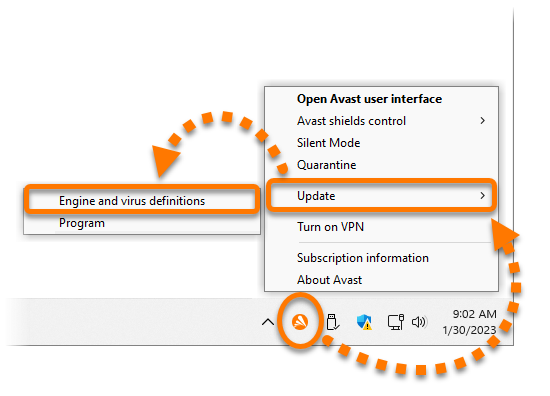
Avast enables automatic updates by default, but a failed download, pending restart, proxy or damaged installation can leave the UI behind. Right-click the Avast tray icon and choose the engine/virus-definitions update, then the program update where those commands exist. In the app, Settings → General → Update is the documented Free/Premium route. Follow the labels in your build rather than forcing an older screenshot's exact menu.
Record whether the failure affects definitions, the application or both. Also note the error text, internet connection and whether a proxy is intentionally configured. Don't add a random proxy or turn off TLS inspection merely because an update fails. Complete Windows updates and the requested restart, try once more, then use repair. Avast explicitly lists failed application updates as a reason to repair the installation in its update guide.
If the installer itself fails, preserve its “View setup log” option if shown. Don't upload logs to a public forum because usernames, paths and network details can be present. Send them only through the official support case when requested.
Fix sustained Avast CPU or memory usage by finding the trigger
When avast.setup is active, finish or restart the update path first. When AvastSvc.exe rises only during a scan, identify the scan and file set. When AvastUI.exe remains heavy after the window closes, capture the UI state and repair. The process-to-trigger pairing is more useful than a generic list of Windows services to stop.
Close one workload at a time: archive manager, game launcher, compiler, virtual machine, backup/sync client or browser download. Retest the same task once. Real-time protection can inspect the files those tools touch, while a second security product can inspect the same activity again. Remove an obsolete second real-time suite through its own uninstaller; don't simply disable its icon and assume its drivers are gone.
For games or presentations, use Avast's supported quiet or Do Not Disturb features when available, but don't confuse notification suppression with turning off malware inspection. If a particular signed application repeatedly triggers measurable work, update both products and check whether the vendor documents an integration issue. An exception is the last narrow tool, not the first: scope it to the exact trusted file or folder and record why it exists.
After each change, repeat the same operation and compare the same resource column. If the problem survives current updates, a clean restart and repair, collect the packet in this guide. Sustained memory growth across hours is especially useful to document with timestamps; don't restart the service every time and erase the pattern before Support can see it.
High disk use and a “stuck” scan need file and drive context
A full or deep scan reads far more data than a quick scan. Large archives, virtual-machine images, mail stores, backups and a slow or unhealthy drive can make progress appear frozen even while the disk is active. Record the scan type, percentage, elapsed time, last visible object and whether Task Manager still shows reads. If the same scan has no progress and disk activity has stopped, update, restart, repair and try one clean scan.
Don't solve scan delay by excluding C:\, Downloads or the entire game library. A broad exclusion removes the very inspection the user installed the product for. If one enormous, trusted developer cache causes repeated work, prove that relationship first and use the narrowest supported scope. Re-check the exception after the software changes.
Avast documents a persistent scan cache that can make later scans faster, and its advanced scan settings list scan logs under C:\ProgramData\AVAST Software\Avast\report for Free/Premium Antivirus. Don't assume the same path for every Avast One build. Check the UI's scan history first, and preserve the relevant log before a clean reinstall if Support needs the failure.
If all processes show disk pressure, inspect Windows storage health, free space, paging and active backup/sync work. A drive at 100 percent active time can have low throughput when it's failing or handling many small requests. Avast may be visible because it's reading files, but the underlying bottleneck can be the drive or another producer of those files.
When Web Guard slows, blocks or breaks websites
Use the same URL, browser profile and network for the comparison. First try a private window or a second current browser; extensions, stale cookies and one website can mimic a security-filter failure. If several sites fail only after Avast is installed or updated, briefly disable Web Guard, restart the browser and test one trusted page. Re-enable the shield immediately after recording the result.
If disabling Web Guard changes nothing, Avast is probably not the cause of that symptom. Check VPN, DNS, router, browser extensions and other filtering software. If the page works only with Web Guard off, keep the result narrow: Avast's May 2026 website-access procedure next tests HTTPS scanning and, where present, hardware network acceleration. Repair and restart after identifying the setting.
Turning off HTTPS scanning reduces one layer of inspection, even though downloaded content can still meet File Shield later. It's a diagnostic trade-off, not a universal speed tweak. For a falsely blocked site with a malware alert, submit it through Avast's false-positive process and wait for updated definitions before adding an exception. Only exclude a URL you independently trust, and remove the exclusion once the detection is corrected.
A May 2026 r/antivirus report described major websites hanging with Avast One Web Shields enabled and recovering when the shields were disabled. That's a credible reason to include the test, not proof that every slow connection is Avast's fault. Avast asks for the affected URL, browser/version, Avast version, Web Guard comparison and error screenshot—exactly the evidence that turns a complaint into a reproducible case.
Repair Avast One, Free Antivirus or Premium Security correctly
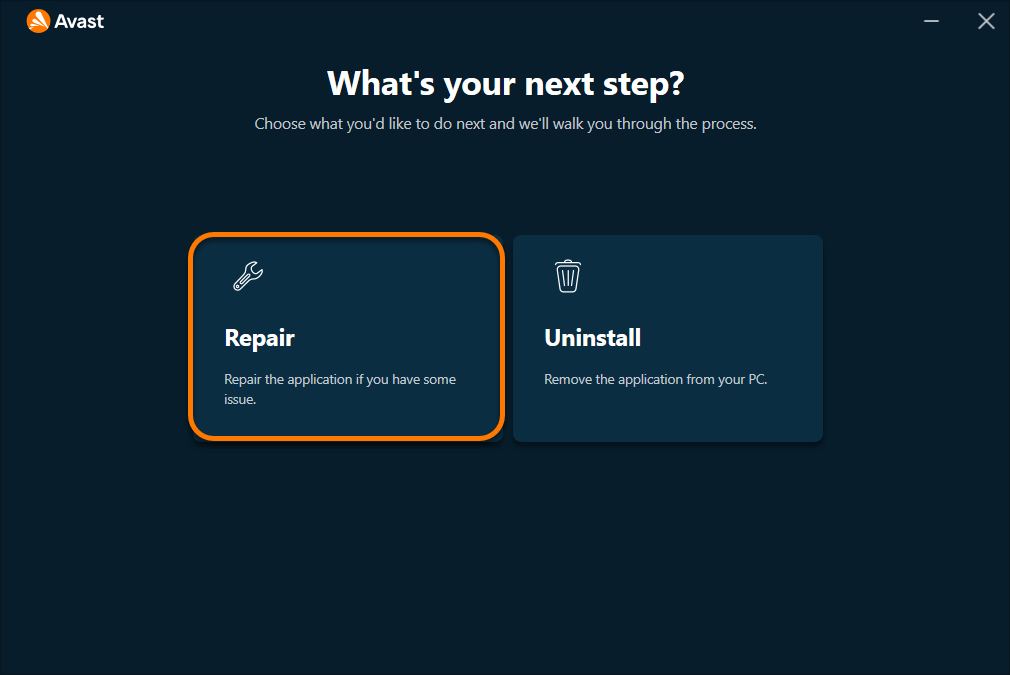
Close other applications and save work. In Windows 11, open Settings → Apps → Installed apps, find Avast One, Free Antivirus or Premium Security, open its options and choose Uninstall as Avast's documentation directs. That command launches Avast Setup; approve User Account Control only for the expected signed publisher, then choose Repair, not Uninstall.
Let setup complete and restart when requested. Avast warns that some customized settings can return to defaults, so verify shields, intentional exceptions, update behavior and account entitlement afterward. Repeat the original workload once and compare the same Task Manager measurement. A repair that merely makes the window open but leaves the reproducible load unchanged is partial evidence, not a finished diagnosis.
Use the version-specific source: Repairing Avast One for Avast One and Repairing Avast Antivirus for Free/Premium. Both name broken features, stuck scans and failed application updates as repair cases.
Clean-reinstall only after update, restart and repair fail
A clean reinstall is justified when the interface or component still fails, provider registration remains broken, or the same resource problem returns immediately after repair. Download the official Avast Uninstall Tool, save work, prepare the Windows account password and device-encryption recovery key, then use its Remove & Reinstall route. The tool can reboot into Safe Mode so it can remove locked security components.
Our complete Avast removal guide covers Avast Clear, Safe Mode and the Microsoft Defender handoff in detail. If you reinstall, follow the current Avast installation guide, add only the required modules, update first, and test before restoring old settings or exclusions.
Uninstalling doesn't cancel billing. If the goal has changed from repair to leaving, follow the separate Avast cancellation and refund route through the merchant. After any removal, restart and verify that Microsoft Defender or the chosen replacement is active in Windows Security before browsing or downloading.
Six “fixes” that make the problem harder or protection weaker
- Don't repeatedly end AvastSvc.exe. It can be protected or restart, and the action erases useful timing evidence without repairing the cause.
- Don't change Avast services to Disabled. A green interface doesn't prove that real-time protection is functioning after unsupported service changes.
- Don't delete program folders or drivers manually. Use repair or Avast Clear so provider registration and security drivers are handled together.
- Don't leave Web Guard or HTTPS scanning off without documenting the trade-off. Use a short test, restore protection, then repair or escalate.
- Don't exclude a drive, profile or Downloads folder. Narrow, justified exceptions are safer and easier to review.
- Don't call phone numbers from search-result PDFs or unrelated support pages. Use Avast's official support domain and never grant remote access to an unsolicited “technician.”
Also avoid piling Cleanup tools, driver updaters and a second antivirus onto a performance incident. Each adds another variable. Stabilize the current provider, measure one repeatable workload and decide from evidence whether Avast still fits.
Build a support packet that can reproduce the fault
| Field | Useful example | Why it matters |
|---|---|---|
| Product and version | Avast One 26.x; exact build copied from About | Separates current and legacy UI paths |
| Windows | Edition, version, build, CPU architecture | Finds compatibility and ARM differences |
| Process | Display name, executable, signed path | Distinguishes UI, service, firewall and setup |
| Trigger | Deep scan, archive extraction, one URL, idle after update | Makes the issue reproducible |
| Timing | Start, duration, whether it settles | Separates a spike from persistence |
| Measurements | Task Manager screenshot before and after one change | Shows effect without invented thresholds |
| Protection state | Windows Security provider and affected shield | Prevents an unnoticed protection gap |
| Logs/errors | Scan name, last object, exact error text | Points Support to the failing component |
For website problems, add the exact URL, browser and version, private-window result, Web Guard on/off result and any detection name. For performance, describe one application or task that becomes slow and identify the Avast process. Avast may then ask for a process dump; create and transmit it only through the requested official channel.
Redact unrelated account names, file paths and browser content from screenshots. Don't publish setup logs or dumps. Preserve the evidence before Avast Clear, because a clean reinstall can remove the logs that explain the failure.
Keep Avast, clean-reinstall it or replace it?
Keep it when the load matches a real task, settles afterward and the PC remains responsive. Independent lab performance matters more than one Task Manager snapshot; our current Avast review puts the 2026 protection and performance results in context.
Repair or clean-reinstall when the product fits but a specific component, update or provider registration is damaged. Retest before restoring old customizations. If the problem started after moving to the new Avast One interface, confirm the installed product and available controls rather than following a Free Antivirus screenshot from years ago.
Replace it when the same measured issue returns after current updates, repair and one clean reinstall, when the hardware is too constrained for the full suite, or when prompts and product design make it a poor daily fit. Compare the best Avast alternatives by reason and the current Microsoft Defender review. Don't run the candidates simultaneously.
If the issue is value rather than stability, the Avast Free versus Premium guide and plans and renewal guide may solve it without switching protection. If the actual complaint is repeated upsell or notification behavior, change the relevant privacy and notification settings instead of weakening malware defenses.
Avast not working and high resource use FAQ
Why is Avast using so much CPU?
First identify the Avast process and what the PC is doing. CPU can rise during installation, an application or definition update, a first scan, archive extraction or heavy file activity. If the same process remains high after that work ends, update Avast, restart, reproduce the symptom once, repair the installation and retest before considering a clean reinstall.
Is Avast Service or AvastSvc.exe malware?
AvastSvc.exe is the documented antivirus service when it's the genuine Avast-signed file in the expected installation. Don't judge by the name alone: inspect the file path and digital signature. An unknown path or publisher needs investigation, while a genuine process with sustained load needs trigger-based troubleshooting.
Can I end Avast Service in Task Manager?
Don't use End task as a permanent fix. Security services can be protected, can restart, and can leave protection in an unclear state. Record the process and trigger, then use the supported update, restart, repair or clean-reinstall route. Disable one shield only for a brief controlled test when the symptom specifically requires it.
How do I fix Avast when it won't open?
Restart Windows, confirm that the application and definitions are current, and use the Avast Setup repair flow from Windows Installed apps. Repair is Avast's documented response to broken features, stuck scans and failed updates. If repair and restart don't restore the app, use the official Avast Uninstall Tool to remove and reinstall it.
Why is an Avast scan stuck at 0 or 100 percent?
The progress display can pause while Avast processes a large archive, inaccessible file or slow drive, but a scan that never completes after disk activity stops needs action. Save the scan name and last visible file, update and restart, check the drive, run repair, then retry one scan. Avoid broad exclusions just to make the counter move.
Can Web Guard slow my internet?
Avast says Web Guard can affect connection tests or browsing in some hardware and network conditions. Compare the same trusted page and browser with Web Guard briefly on and off. If only the off test works, re-enable it, then test HTTPS scanning or hardware network acceleration as Avast documents, repair the app and report the exact URL if needed.
Should I disable HTTPS scanning in Avast?
Only as a narrow diagnostic step after a brief Web Guard test shows Avast changes the result. HTTPS scanning protects traffic that File Shield sees only after download, so disabling it reduces a layer of inspection. If it fixes the issue, repair Avast and retest; don't silently leave the whole Web Guard disabled.
Will repairing Avast delete my subscription?
Repair changes the local installation and can reset some customized settings, but it doesn't cancel the subscription. Sign in and verify the entitlement afterward if paid features look unavailable. Billing changes must be made through the merchant that controls renewal.
When should I replace Avast instead of repairing it?
Replace it when the same verified performance or compatibility problem returns after current updates, repair and one clean reinstall, or when the product no longer fits your hardware and preferences. Prepare the replacement first, remove Avast through its official route, restart and verify that Microsoft Defender or the new provider is active.
The fastest safe fix is a controlled comparison, not a service kill
Measure the exact process and trigger, let legitimate work finish, update, restart and change one component only when the symptom points there. Restore protection after the test. Repair is the supported next step for a broken feature, stuck scan or failed update; Avast Clear belongs after repair, not before it.
If the same fault survives one clean reinstall, the result is meaningful. Preserve the before/after evidence, verify one active antivirus and choose whether to escalate or replace Avast. A repeatable diagnosis protects both the PC and your time.