
Bitdefender High CPU, RAM or Disk? Measure It Before You Disable Anything
A spike during a System Scan is expected. A fan that never settles, disk activity after the scan ends or memory that grows for hours isn't the same problem. This guide separates those states and gives you a safe path from Task Manager evidence to a fix.

Quick answer: expand Bitdefender in Task Manager and watch `bdservicehost` in three states: while a scan or update is active, immediately after it ends, and after 10–15 minutes of genuine idle time. Bitdefender says roughly 500 MB RAM is a normal reference point and CPU should be effectively idle when no scan or automatic task is running. A brief spike is expected. Persistent CPU/disk activity, memory that keeps growing or repeatable lag under one workload is the signal to update, remove another security suite, adjust scan timing, isolate one module and only then repair or reinstall.
Need a different Bitdefender task? The complete Bitdefender guide hub routes plans, Free versus paid, setup, VPN, troubleshooting, performance, billing and removal without mixing their steps.
First decide whether the load is temporary or persistent
| What you see | Likely meaning | What to do |
|---|---|---|
| CPU/disk rises during a visible scan, then falls | Expected scan workload | Let it finish; move future scans to idle time |
| First full scan takes much longer than later scans | Large data set, archives or first-pass indexing | Watch item count and path, not time alone |
| About 500 MB RAM and flat over time | Within Bitdefender's published reference range | Judge alongside paging and responsiveness |
| CPU or disk stays busy 10–15 minutes after tasks end | Background trigger, conflict or fault | Update, reproduce and isolate |
| RAM keeps climbing across repeated idle checks | Possible leak or workload repeatedly retriggering scans | Track time and app activity; escalate if persistent |
| Lag appears only with one game, build or sync client | Workload-specific file or behavior inspection | Test one module; use a narrow exception only if proven |
The number at one instant is weak evidence. A six-year-old laptop with 4 GB RAM, a modern desktop with 32 GB and a workstation compiling thousands of files won't feel the same load. The pattern matters: what was happening, which process owned the resource, how long it lasted and whether it returned to the same baseline.
If Bitdefender is grey, updates never complete, websites are blocked or the internet disappears, use the separate Bitdefender not-working guide. Those are functional failures. This page handles a product that's running but using more CPU, RAM or disk than the workload can tolerate.
What is bdservicehost, and is it malware?
`bdservicehost.exe` is the protected main process for Bitdefender's anti-malware services. Bitdefender places it under C:\Program Files\Bitdefender\Bitdefender Security\ and says it includes the virus shield plus supporting components. Multiple child processes under the Bitdefender group are therefore not automatically duplicates or infections.
Open Task Manager, expand the group and use Open file location or Properties to verify the signed file lives in the expected Bitdefender directory. A similarly named executable somewhere in Temp, Downloads or a user profile deserves a scan and support review. Don't upload private files or execute an unknown copy merely to test it.
Bitdefender's current bdservicehost guidance gives two useful reference points: around 500 MB RAM is typical, and CPU should be effectively zero at idle when no scan or automatic task is active. These are vendor expectations, not a warranty that 501 MB is bad or that a momentary 1% reading proves a fault.
Build a ten-minute baseline that another person can reproduce
Close work you can't safely interrupt, then open Task Manager with Ctrl + Shift + Esc. Sort by CPU, Memory and Disk in turn. Expand the Bitdefender group and write down the total plus each visible child. The Microsoft Task Manager reference explains the current views if the columns or grouping differ.
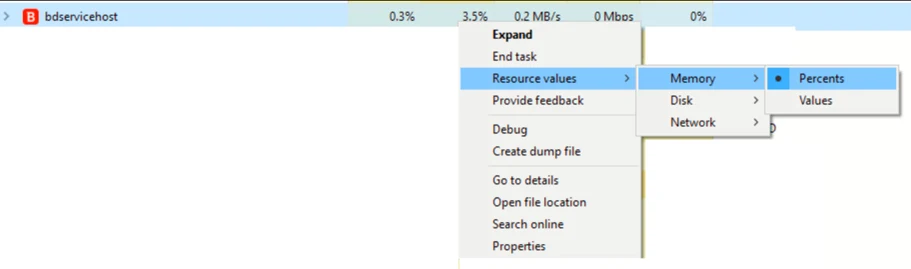
- Active state: record whether a scan or update is visible and sample CPU/RAM/disk for two minutes.
- Post-task state: wait until that task reports complete, then sample again.
- Idle state: close games and editors, pause deliberate file copies, leave the PC alone for 10–15 minutes and record a final sample.
Also note fan noise, Windows uptime, storage type, free disk space and whether OneDrive, Dropbox, backup software, Steam or a build tool is moving many files. “Nothing is open” doesn't mean the machine is idle. Cloud sync and indexers can create a continuous stream of new or changed files that real-time protection must inspect.
Eight safe fixes, in the order we would use them
- Confirm that bdservicehost is the process. Open Task Manager, expand the Bitdefender group and record the exact process, file location, CPU, memory and disk values. Don't assume total system load belongs to Bitdefender.
- Measure the same three states. Record usage during a scan or update, immediately after it ends and again after 10 to 15 minutes of real idle time. Note whether memory returns, stays flat or keeps growing.
- Update, restart and repeat the baseline. Install current Bitdefender and Windows updates, restart once and repeat the same observation under the same workload. A different test can't prove the change worked.
- Remove another real-time security suite. Uninstall a second third-party antivirus or endpoint suite with its vendor removal method, restart and measure again. Simply turning its interface off may leave filter drivers loaded.
- Move scans away from active work. Schedule scans for an idle period and use Auto or Low scan priority when responsiveness matters. High priority finishes sooner by taking more resources from other applications.
- Isolate one protection module briefly. If one trusted application reliably triggers the load, test one relevant Bitdefender module for a short controlled window, then re-enable it immediately. Change one variable at a time.
- Use a narrow exception only for a proven trigger. Exclude only the verified safe executable or working folder that causes the repeatable issue. Never exclude a whole drive, user profile, browser or Downloads folder.
- Repair, reinstall or escalate with evidence. Run Windows System File Checker when system corruption is plausible. If sustained idle load survives update, conflict removal and restart, reinstall Bitdefender and send support a timed evidence packet.
Bitdefender explicitly recommends updating, removing other security solutions, checking Windows files with SFC and adjusting scan schedules. Microsoft's System File Checker instructions start with DISM and then sfc /scannow; use that branch when corruption is plausible, not as a ritual for every fan spike.
High CPU and fan noise: find the event that keeps retriggering work
If CPU falls after the scan or update completes, the fix is scheduling. If it stays high at idle, look at the Activity and Notifications timing, Windows Update, another security suite and applications that repeatedly create files. Reboot once after updates; a pending restart can leave both Windows and security components doing cleanup work.
Recent 2026 discussion in r/BitDefender ranges from almost invisible idle use on a modern desktop to stutter on lower-spec hardware and high-end gaming systems. A long-running Bitdefender Community thread also reports sustained fan and CPU load on some installations. These reports show the symptom is real, but they don't establish one universal cause or a safe percentage threshold.
Don't change process priority, disable the service or end `bdservicehost`. It's protected because it provides real-time inspection. If the process restarts after being killed, you have learned nothing; if it does not, you may have removed protection while leaving the underlying trigger untouched.
High RAM: distinguish a stable working set from growth over time
RAM use isn't automatically a leak. Security software keeps engines, signatures and caches ready to avoid rereading everything from disk. The more useful test is a small time series: record the same grouped process total after restart, after a normal workload, after that workload closes and after 15 minutes idle. A stable 600–800 MB on a roomy machine can be less harmful than 450 MB on a 4 GB system that's already paging.
Concern rises when memory climbs steadily across equal idle intervals, reaches multiple gigabytes, causes heavy paging or never releases after the triggering work ends. A June 2026 community report about growing bdservicehost memory drew the same distinction from Bitdefender support: temporary scan spikes are expected, while continuous growth points elsewhere and needs investigation.
Before reinstalling, close a cloud-sync or backup client for one controlled window, without deleting its data, and repeat the observation. If growth stops only when that client stops, the interaction is the lead. If it grows after a clean restart with no active workload, update, preserve the timestamps and escalate rather than cycling through broad exclusions.
High disk usage and scans: choose responsiveness or finish time
Disk activity rises when Bitdefender reads many small files, opens archives or follows a first full scan across backups. Traditional HDDs feel this much more than SSDs because seeking dominates. Check the current scan path and item count. A changing path means progress; the same path and unchanged count for a long period may indicate a problematic archive, disconnected location or genuine stall.
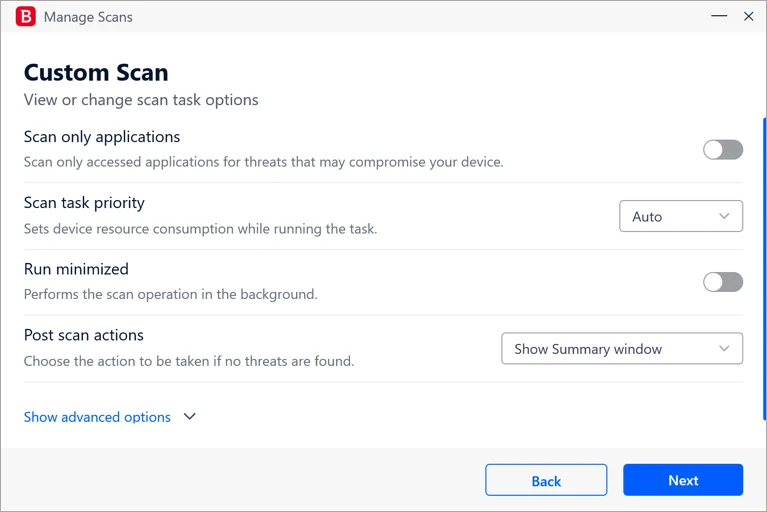
The official custom-scan guide labels the control Scan task priority and offers Auto, High and Low. Auto adapts to system activity. High reduces scan time by letting other programs run slower. Low preserves responsiveness but makes the scan take longer. For a PC you're actively using, Auto or Low is usually the sensible trade.
Bitdefender's scan-duration article says first scans, large data volumes, backups and compressed archives can take longer, while later scans benefit from indexed files. Don't exclude a backup merely because it's slow: that's often the data whose integrity matters most.
Gaming, audio production, compiling and cloud sync need workload-specific tests
A game can stutter because a scheduled scan starts, because its launcher patches thousands of files, or because CPU/GPU temperatures, overlays and drivers are already near a limit. Audio work is sensitive to latency even when average CPU looks modest. Development builds and package installs can create or rewrite tens of thousands of files. Sync clients then touch many of them again.
Reproduce the exact workload for a short, safe interval and note whether `bdservicehost` rises at the same moment. Then move a scheduled scan, close one sync client or briefly isolate one relevant protection module. Don't simultaneously change game mode, drivers, scan settings and exclusions. One changed variable gives you an explanation; four changes give you a lucky outcome you can't maintain.
If performance is the buying decision rather than a repair issue, compare the current Bitdefender review, free-versus-paid breakdown and the Bitdefender alternatives guide. A reproducible incompatibility on your essential workload can be a valid reason to switch even when lab protection is strong.
Use exceptions as a scalpel, not a blanket
Bitdefender permits file/folder Antivirus exceptions and application exceptions for Advanced Threat Defense. An exception is justified only when you have verified the file or folder is trusted, the symptom appears on demand, a short module test removes it and protection is restored immediately after the test.
Reasonable candidate
A signed local compiler or a specific generated build-output directory that reliably triggers scanning, contains no downloaded executables and is covered by source control and a separate review path.
Dangerous shortcut
The entire C: drive, user profile, browser, Downloads, email store, backup root or a folder that receives untrusted files. These create blind spots larger than the original performance problem.
After adding a narrow exception, repeat the exact workload, document why it exists and set a reminder to retest after the next Bitdefender build. If the exception doesn't materially change the measured load, remove it. Our installation and setup guide covers a clean baseline; the complete uninstall guide is the supported fallback when repair or reinstall is necessary.
Give Bitdefender Support a case they can reproduce
Escalate when CPU or disk remains active through a genuine idle window, RAM keeps growing, the issue survives updates and conflict removal, or a clean reinstall returns to the same state. Start through the official Support Center, not a phone number in an advertisement.
- Windows edition/build and hardware: CPU, installed RAM, HDD or SSD.
- Bitdefender product, service/build version and last update time.
- Task Manager screenshots at active, post-task and 10–15 minute idle states.
- Exact `bdservicehost` CPU, memory and disk values plus file location.
- The scan, game, build, sync or other workload that reproduces the issue.
- Changes already tested, one per line, with the measured result.
- Whether a second security suite was removed and the PC restarted.
Redact usernames, account email, license data and private paths. If support asks for diagnostic logs, generate them through the official tool and ticket flow. Never send logs to a stranger from a forum or grant remote access to an unsolicited caller.
Bitdefender performance FAQ
Why is Bitdefender using so much CPU?
CPU can rise during an update, on-demand scan or background task. It becomes a troubleshooting issue when bdservicehost remains active after the task ends and the PC has been genuinely idle for 10 to 15 minutes. Measure the process, state and duration before changing protection.
How much RAM should bdservicehost use?
Bitdefender's current support article gives around 500 MB as a normal reference point. It isn't a universal limit. Look for memory that keeps growing, reaches multiple gigabytes, causes paging or fails to settle after the workload ends.
Can I end the bdservicehost process?
No. It's Bitdefender's protected anti-malware service and is designed to run continuously. Ending services, changing startup settings or deleting files can break protection. Use update, conflict removal, controlled isolation, repair or reinstall instead.
Why is Bitdefender using 100% disk?
A first System Scan, large archives, backups, compressed files, an HDD or another disk-heavy application can saturate storage temporarily. Check the current scan path and whether the queue is moving. Persistent disk activity after scans and updates end needs investigation.
Which Bitdefender scan priority should I use?
Use Auto for most systems. Low gives other programs more room but extends scan time; High finishes sooner while allowing other programs to run slower. High priority isn't a fix for a sluggish PC during a scan.
Does Bitdefender cause gaming stutter?
It can contribute if a scan, update or real-time inspection overlaps the game, but total system load, overlays, drivers, thermal limits and other security tools can produce the same symptom. Reproduce the stutter, record bdservicehost activity and change one factor at a time.
Should I add my game or development folder to exclusions?
Only after a brief controlled test proves a specific trusted executable or working directory is the trigger. Prefer the narrowest possible exception and avoid excluding downloads, build inputs from strangers, entire drives or broad user folders.
When should I contact Bitdefender Support?
Escalate when idle CPU or disk stays elevated, memory keeps growing, the issue survives updates, restart and conflict removal, or a clean reinstall doesn't help. Include timestamps, screenshots, process values, Bitdefender build, Windows version and exact reproduction steps.
Bottom line: the return to idle is the test
Don't judge Bitdefender from the highest number you catch during a scan. Measure the active task, wait for it to finish and compare a real idle window. A temporary spike that returns is normal work; sustained CPU or disk, growing memory and repeatable workload lag deserve a structured fix.
Update first, remove conflicts, move scans, isolate one module and keep exceptions narrow. If the same measured fault survives a clean reinstall, the right next step is a support case with evidence—or a product change—not permanent disabled protection.