
ESET Safe Banking & Browsing: What It Protects and How to Fix It
The green browser frame isn't a second bank and it doesn't make a fraudulent site legitimate. It hardens a supported browser against interference while the bank’s own HTTPS connection and your account controls still do their jobs.

Quick answer: Safe Banking & Browsing is an extra Windows browser-protection layer included in current ESET HOME Security plans. By default, Secure all browsers opens supported browsers in secure mode. It can protect browser memory, keyboard input, clipboard data and screen capture, but it can't validate a fake bank, reverse a transfer or replace HTTPS, multifactor authentication and fraud monitoring. If it won't start, update ESET and the browser, restart, disable and re-enable the feature, then reinstall only if the official recovery sequence still fails.
Need a different ESET task? The complete ESET guide hub routes review, plans, setup, banking, troubleshooting, firewall and HTTPS, Android, VPN, password migration, billing and removal without mixing their steps.
Safe Banking & Browsing hardens the browser on your PC
ESET describes Safe Banking & Browsing as an additional layer for financial data during online transactions. Its current version 19 feature help says the default Secure all browsers setting starts supported browsers in secure mode. That is why a green ESET frame can appear during ordinary browsing instead of only when you click a bank tile.
The useful mental model is local hardening. The feature can make it harder for another process on the computer to inspect protected browser memory, capture typed credentials, alter payment data in the clipboard or record the browser screen. ESET’s current version 19 advanced setup documents Enhanced memory protection, Enhanced data protection, Keyboard protection, Clipboard protection and Browser screen protection.
These controls overlap with real attacks. A keylogger wants the password before encryption. Clipboard malware wants to replace an account or wallet address after you copy it. Screen-capture malware wants the balance, one-time code or personal details visible after login. Hardening the browser doesn't guarantee those attacks fail, but it adds friction around the point where sensitive data is handled.
ESET LiveGrid must remain enabled for Safe Banking & Browsing to work as designed. That dependency is easy to miss when a privacy-focused user disables cloud reputation settings and later treats the browser failure as unrelated. ESET’s Security tools overview places the browser, Anti-Theft, encryption and VPN controls in their current context.
The protected frame doesn't certify the website or the payment
A phishing page can still open inside a protected browser. ESET can block known malicious destinations, but the green frame mainly tells you that secure mode is active—not that the company behind the current page is genuine. Check the full domain, the bank’s own HTTPS identity, the requested amount and the destination before approving anything.
The feature also doesn't encrypt traffic by itself in the way a VPN does. HTTPS between the browser and the bank protects that connection. ESET’s protected mode works around the browser locally. The current ESET HOME feature matrix and our plan comparison show that Premium and Ultimate now include ESET VPN, but a VPN can't rescue credentials voluntarily entered into a fake site either.
It can't reverse a transfer, stop account takeover after an approved push notification, replace a password manager or create an offline backup. Treat it as one layer beside unique credentials, multifactor authentication, bank alerts, device updates and a deliberate payment review.
That boundary is why we don't score the presence of a banking browser as “complete banking safety” in the broad ESET review. It's a useful defense with a specific job.
How to open the protected browser
- Open the main ESET window. On the Overview screen, choose Safe Banking & Browsing. If the tile is hidden, use Show more features.
- Let the default browser launch. ESET marks secure mode with a green border and a protected label.
- Verify two things separately. Confirm the ESET frame, then confirm the bank’s exact HTTPS domain before entering a password.
- Finish and close the protected session. Don't leave a bank tab open on a shared or unlocked computer.
If Secure all browsers remains enabled, you may not need to launch the tile manually. ESET applies its supported browser protections to ordinary sessions. If you disable Secure all browsers, the tile provides a deliberate protected window and known banking sites can trigger one automatically.
Configure the narrow control, not the whole shield
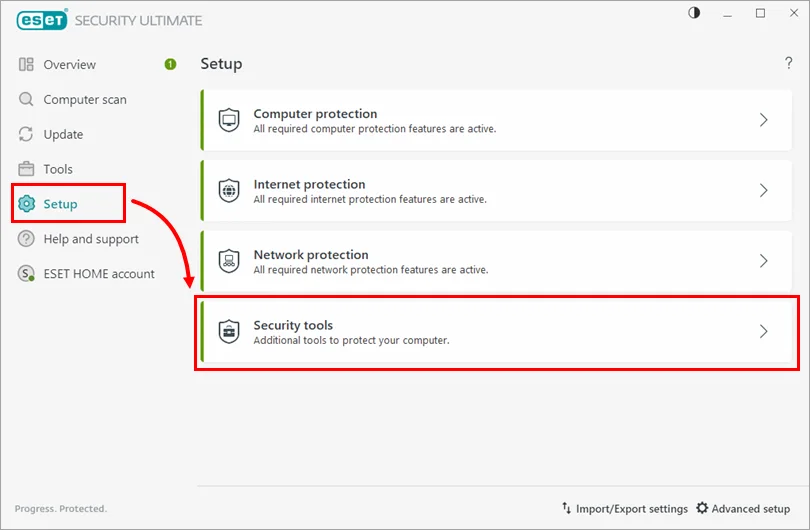
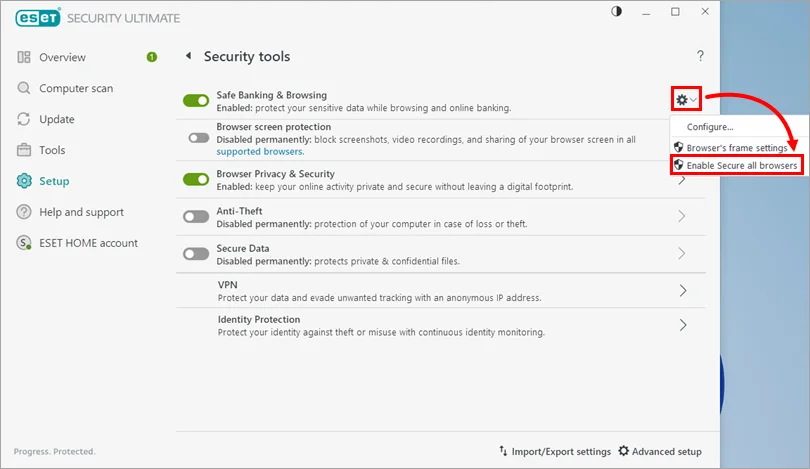
Open Setup → Security tools and use the gear beside Safe Banking & Browsing for the basic Secure all browsers choice. For detailed controls, press F5, then go to Protections → Browser protection → Safe Banking & Browsing. ESET’s May 2026 Secure Browser guide uses this current path.
Extension installation mode can allow only essential browser-vendor extensions or all supported extensions. Existing extensions aren't retroactively removed simply because the mode changes. If one extension breaks secure mode, identify and allow or remove that extension instead of abandoning browser protection across every site.
Enhanced data protection can block another application from reading or writing the protected browser profile. When a legitimate app conflicts, ESET provides a Browser protection allowlist. Add only the exact executable or extension ID whose need you can explain. A broad folder exclusion would solve more than the intended problem.
Screen protection can surprise a user who needs a receipt screenshot, screen reader workflow or legitimate remote assistance. It blocks screenshots, recording and screen sharing to reduce disclosure. Temporarily changing that specific setting is safer than disabling Safe Banking & Browsing, web protection and the firewall together.
Supported browsers and the Windows ARM exception
ESET Smart Security Premium version 19 help lists Microsoft Edge 94 or later, Google Chrome 94 or later, Mozilla Firefox 67 or later and Brave 1.65.114 or later. Those are minimums in the documentation, not a reason to keep an old build. Run a currently supported browser and install security updates promptly.
On Windows devices with an ARM processor, ESET Support says Secure Browser is supported only in Firefox and Microsoft Edge. A Chrome or Brave problem on ARM is therefore not automatically a damaged installation. Check Settings → System → About → System type before troubleshooting the wrong layer.
Browser forks, portable builds, enterprise policy and aggressive extension suites can fall outside the tested path. If a bank works in a current supported browser but not in a niche browser, keep the secure transaction in the supported one rather than weakening ESET globally.
macOS, Android and iOS use different ESET applications and protections. This guide describes the Windows protected-browser feature, not Android Payment Protection. The planned mobile guide will keep those behaviors separate.
Safe Banking & Browsing not working: use this repair order
- Update ESET and the browser. A current protection module working with an old browser—or the reverse—creates avoidable compatibility failures.
- Close every browser process. Use Task Manager if a background process remains, then open the protected window again.
- Restart Windows. ESET’s current recovery path includes a device restart after disabling the feature.
- Disable and re-enable Safe Banking & Browsing. Treat the off period as diagnosis; browser protections aren't active while it's disabled.
- Test a second supported browser. This separates a browser profile or extension conflict from the ESET protection service.
- Review keyboard and security extensions. Another anti-keylogger, secure browser or endpoint tool may hook the same input path.
- Reinstall only after the supported checks fail. ESET’s May 2026 support page escalates to uninstall and reinstall when the protected browser still can't launch.
Record the error exactly, including codes such as 0x847695d0, the ESET application version, Windows build, browser build and whether Secure all browsers or manual launch fails. “Banking protection is broken” hides the evidence support needs.
Don't download an old browser or permanently disable keyboard protection based on a forum reply. Community reports can reveal conflicts, but the fix must match the current application. The general ESET setup guide explains a clean reinstall, while the forthcoming troubleshooting page handles ESET Service and update failures.
A safer payment routine still depends on the person
Open the bank from a saved bookmark or type its address. Avoid links in email, text messages and search ads. Confirm the bank domain and HTTPS indicator, then check that the ESET protected frame is present. These checks answer different questions: who the site is, whether the connection is encrypted and whether the local browser is in secure mode.
Use a unique password or passkey and approve multifactor prompts only for the transaction you initiated. Read the amount and recipient in the bank’s final confirmation, not only on the merchant page. Clipboard protection is valuable, but a manual final comparison catches social engineering that malware controls can't.
After payment, save the receipt through the bank’s intended workflow. If screenshot protection blocks an image, prefer the bank’s PDF or email receipt. Log out, close the protected window and lock the computer. On a shared device, use a separate operating-system account rather than trusting a private tab.
If the bank warns about a new device, unusual location or changed beneficiary, stop and verify through a known phone number or the bank app. Don't let the green frame create urgency or confidence that overrides the bank’s warning. Likewise, a support caller who asks you to open the protected browser, install remote-control software or move money to a “safe account” is using social engineering that local browser hardening can't detect reliably. Human verification remains the last control.
Should you keep Secure all browsers enabled?
Keep it enabled when supported browsers work normally and you want the browser protections applied consistently. This is ESET’s default and prevents the common mistake of forgetting to open a special window before a sensitive session.
Use manual secure launch when a supported work extension or accessibility tool has a documented conflict that can't be resolved narrowly. Disable Secure all browsers but leave the Safe Banking & Browsing feature itself available, then use the dashboard tile for financial activity.
Temporarily disable the feature only to prove that it causes a specific problem. Re-enable it after the test. If the problem involves all websites, printers or local apps rather than the protected browser alone, diagnose the firewall or SSL/TLS layer instead.
Choose a different security setup when the protected-browser model repeatedly conflicts with required software. Check the current ESET price and renewal terms, then compare ESET vs Bitdefender, ESET vs Norton and ESET vs Avast by workflow, not by the count of feature labels.
ESET Safe Banking & Browsing FAQ
What is ESET Safe Banking & Browsing?
It's an additional Windows browser-protection layer designed to protect financial and web activity from local interference. Current advanced controls can harden browser memory, keyboard input, clipboard handling and screen capture.
Is Safe Banking & Browsing included in Essential?
Yes. The current US ESET plan matrix lists Safe Banking and Safe Browsing across Essential, Premium and Ultimate on Windows. Exact app names and platform features differ.
Why do all my browsers have a green ESET frame?
Secure all browsers is enabled by default in current ESET Windows home applications. It starts supported browsers in secure mode, rather than protecting only a manually opened banking window.
Which browsers does ESET support?
ESET version 19 documentation lists current Microsoft Edge, Google Chrome, Mozilla Firefox and Brave versions. On Windows ARM devices, ESET Support says Secure Browser is limited to Firefox and Edge.
Does the green frame prove a bank website is genuine?
No. Secure mode protects the local browser environment. You must still verify the domain, HTTPS certificate, transaction details and multifactor prompt. A protected browser can still display a convincing phishing page.
Why will ESET Secure Browser not open?
Common causes include an outdated browser or ESET build, another keyboard or browser-hardening product, damaged protection components or a pending restart. Use the official update, restart, disable/re-enable and reinstall order.
Can I disable Safe Banking & Browsing?
Yes, but ESET warns that its extra browser protections are unavailable while disabled. Use a temporary disable only to isolate a problem, then re-enable it or use a narrowly scoped supported fix.
Why can I not take a screenshot in the protected browser?
Browser screen protection can block screenshots, recordings and screen sharing in secure mode. This is intentional. Disable that specific control only when the disclosure risk is understood and re-enable it afterward.