
HitmanPro Not Working or High CPU? Safe Fixes
A busy scanner isn't automatically broken, and a frozen PC isn't something to fix with random exclusions. First identify which HitmanPro product and process you're looking at, preserve the scan evidence, then apply the smallest product-specific fix.

Quick answer: if CPU or disk activity rises only during an active HitmanPro scan and falls when it completes, that's usually workload, not a fault. If progress and the current path stop changing, the PC freezes, or load remains after HitmanPro exits, save the build, process, scan phase and log. For a whole-PC freeze, official HitmanPro support says to back up, run chkdsk /f, run sfc /scannow, retry, then switch Settings → Advanced → Disk mode from Direct to Compatible if needed.
First identify the HitmanPro product and the process using resources
Three different product contexts appear in search results under the same name. Ordinary HitmanPro is the small on-demand scanner you launch for a second opinion. HitmanPro.Alert is an installed resident product with exploit and ransomware defenses plus a scan action. Sophos Endpoint is a managed business stack that can use related HitmanPro technology under administrator policy. A fix written for one isn't automatically safe for the others.
Open Task Manager, sort by CPU and then Disk, and note the exact process name, publisher, path and whether the HitmanPro window is actively scanning. Don't stop at “HitmanPro is high.” A browser, Windows service, primary antivirus or application being scanned may own the load. If the file is unsigned or running from an unexpected temporary folder, preserve that fact before ending it.
The current HitmanPro build 346 release notes date the scanner to February 5, 2026 and say Disk Access Mode now appears in the title bar. The current HitmanPro.Alert build 2059 notes are dated May 11, 2026. Record the version you actually have instead of assuming a search result describes it.
| What you see | Likely context | Correct first record | Don't assume |
|---|---|---|---|
| Small scanner window you launched | HitmanPro scanner | Build, scan mode, percent, current path | That Alert service fixes apply |
| Installed protection and Alert dashboard | HitmanPro.Alert | Alert build, mitigation or scan event | That it's only the portable scanner |
| Company-managed Sophos controls | Sophos Endpoint | Tenant policy, endpoint logs, admin case | That consumer exclusions are authorized |
| No visible HitmanPro scan | Unknown owner | Process path, signature, startup source | That a miner or HitmanPro owns the graph |
Our HitmanPro versus HitmanPro.Alert guide maps the product boundary in more detail. If you're still installing the scanner, use the current setup guide rather than diagnosing an old or unofficial binary.
High CPU and high disk can be normal while the scan is making progress
An on-demand malware scan is deliberately resource-intensive for a limited period. It enumerates objects, reads file metadata and content, hashes candidates, checks startup points and may request cloud classification. On a hard drive, archive-heavy folder or system with many small files, disk activity can dominate. On a fast SSD, hashing and decompression can make CPU more visible.
The useful question isn't whether Task Manager briefly shows a large number. It's whether the scan continues to move, whether the active file or phase changes, whether Windows remains usable enough to save work, and whether resource use falls after completion or exit. A smooth, finite spike is very different from an unchanged percentage with no meaningful I/O.
Don't compare one PC's percentage directly with a forum screenshot. CPU model, storage health, thermal limits, file count, active primary antivirus and scan mode change the result. We don't invent a “safe 30 percent” ceiling because no current official consumer document supports one.
| Pattern | Usually means | Action |
|---|---|---|
| CPU/disk high; percent and path keep changing | Active scan work | Let it run; avoid launching another scanner |
| One large archive causes a long pause; I/O continues | Expensive object inspection | Record path and wait; don't delete the archive blindly |
| Percent/path unchanged; I/O nearly zero | Possible stall | Capture evidence and use stuck-scan triage |
| PC freezes or storage errors appear | Disk/index/system problem possible | Back up and use official freeze order |
| Load remains after scan and HitmanPro exit | Different process, service or failure | Identify owner and persistence |
Capture the scan state before changing anything
Write down the exact build, Windows edition and build, Direct or Compatible disk mode, scan type, percentage, current path and elapsed time. Take a screenshot that doesn't expose personal data. In Task Manager, note CPU, disk throughput, memory and the owning process. This small record separates “slow at one archive” from “stalls at the same NTFS location every time.”
Save the HitmanPro log when the interface allows it. A log can contain usernames, folder paths, application names and other system details, so keep the original private and share it through the official support case rather than posting the whole file publicly. Redact only what support doesn't need and retain an untouched copy.
Preserve the trigger too: suspicious download, browser redirect, primary-antivirus detection, power loss or post-cleanup verification. If the PC recently crashed or lost power, that matters because HitmanPro's freeze article points directly to corrupted NTFS indexing as a frequent cause. If the device has drive-health warnings, back up before repair.

This evidence workflow is the troubleshooting counterpart to our safe second-opinion scan guide. It gives support enough detail to act and gives you a baseline to prove whether a change helped.
If the scan is active but heavy, reduce contention without weakening protection
Save work and let the current scan finish if progress is healthy. Avoid starting another antivirus scan, backup, game update or large file copy at the same time. Those jobs compete for disk and make percentages harder to interpret. Keep the primary antivirus active; coexistence is part of the ordinary scanner's second-opinion role.
On a laptop, connect trusted power and make sure ventilation is clear. Thermal throttling can stretch a scan without making HitmanPro defective. If the system remains responsive, record the baseline and schedule future scans for an idle period rather than editing security policy around a temporary peak.
If the same file repeatedly creates excessive load, don't immediately exclude or delete it. Record the full path, source, size and signature. An archive, disk image, virtual-machine file or damaged object can be expensive to inspect. A business-critical file deserves vendor/support review before an irreversible action.
Close the scanner normally after it finishes and confirm that CPU and disk fall. That postcondition matters more than the peak. If load persists, skip to the post-exit section rather than rerunning the scan and compounding the signal.
Distinguish a stuck scan from one slow file or a busy drive
A scan isn't proven stuck because the percentage looks unchanged for a few minutes. Watch whether the current path changes, disk throughput continues, the HitmanPro window repaints and the rest of Windows responds. Large archives, many small files and storage retries can create long plateaus that still end normally.
When progress, path and useful I/O all stop, note where it happened and whether the same point repeats after a normal restart. Don't hard-power-off unless the whole operating system is unresponsive and there's no safer recovery. Repeated forced shutdowns can worsen the disk state that the next scan has to read.
| Observation | Next check | Safe response | Escalate when |
|---|---|---|---|
| Same percent, path changes | Disk throughput and active phase | Continue observing | System becomes unstable |
| Same archive/path, I/O active | File size, source, storage errors | Record and allow time | It repeats or drive warns |
| No progress, no I/O, app responds | Build, network/cloud state, log | Exit normally, restart, retest once | Same state recurs |
| Whole Windows session freezes | Recent BSOD/power loss, drive health | Back up; use official repair order | Repair reports errors or freeze remains |
Current build 346 fixed ARM scan and failed-upload issues, so update from the official download route before building a workaround around an older binary. Verify the signature and source again; don't download a “patched” scanner from a mirror.
For a whole-PC freeze, follow the official disk-repair order
The current HitmanPro scan-freeze article says corrupted NTFS indexing after a blue screen or unexpected power loss accounts for nine out of ten cases seen by support. That's the vendor's case experience, not a universal diagnostic law, but it explains why disk and system integrity come before exclusions.
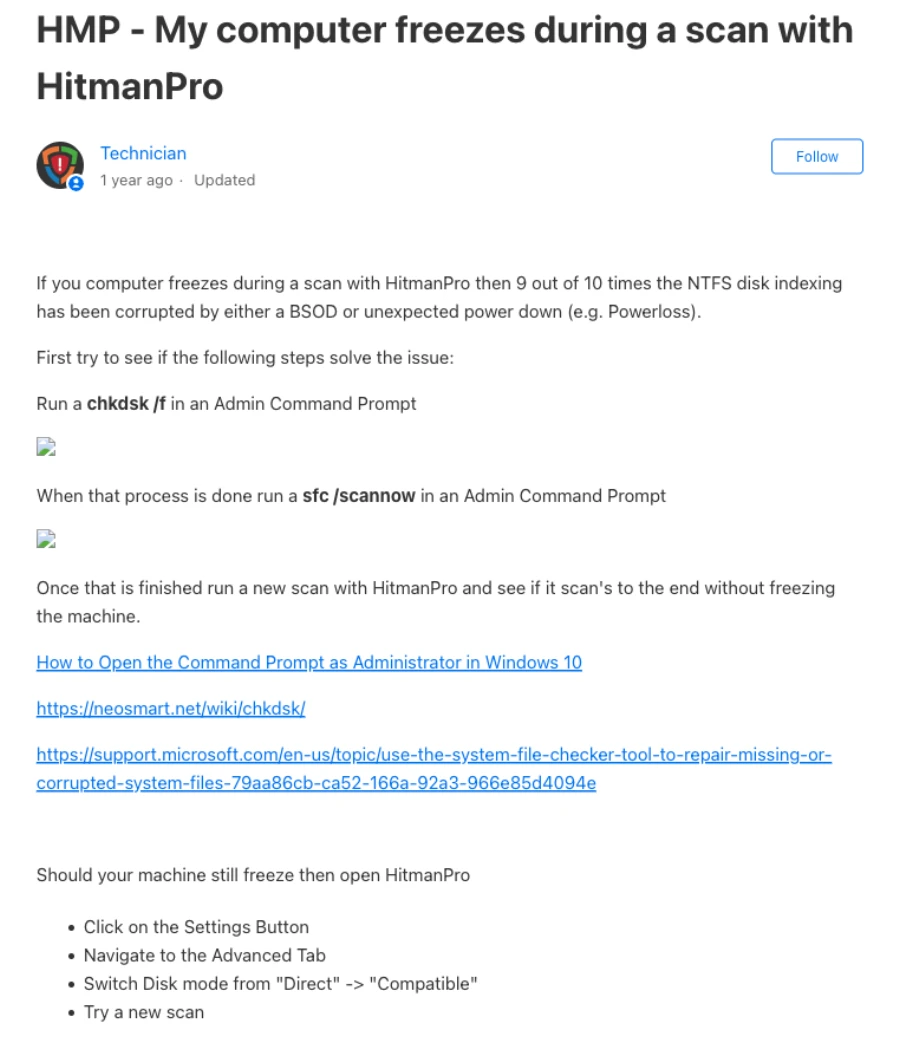
Back up important files. Open Command Prompt as administrator, run chkdsk /f, allow Windows to schedule and complete the check if the volume is in use, then run sfc /scannow. Microsoft's current chkdsk reference explains the repair flag, and its System File Checker guidance covers the supported system-file sequence.
Retry the same HitmanPro scan. If the computer still freezes, official support says to open Settings, choose Advanced and switch Disk mode from Direct to Compatible, then scan again. Build 346 displays the active Disk Access Mode in the title bar, which makes the test easier to document.
Compatible mode is a compatibility fallback, not an invisible no-cost toggle. It may not expose the same low-level view used by Direct mode, particularly for rootkit-oriented inspection. Record the mode in the result. If disk repair reports errors, SMART/drive-health warnings appear or freezes affect other workloads, stop stressing the drive and diagnose the storage system.
HitmanPro may close Chromium browsers to inspect cookie data
Unexpected browser closure feels alarming because it can resemble malware behavior. HitmanPro's release history for build 338 documents a running-browser prompt and a setting related to closing browsers for tracking-cookie access. A contemporaneous r/antivirus question about Chrome closing during a scan shows that users were surprised by the behavior.
Save forms, drafts and authenticated work before scanning. Verify the binary came from Sophos/HitmanPro and is correctly signed. A browser closing during that verified workflow can be expected; the behavior alone is neither proof that the machine is infected nor proof that every binary called HitmanPro is safe.
If browsers close when no scan is running, or an unknown executable triggers the event, investigate the process path and startup source separately. Don't excuse unrelated behavior with a product feature. Likewise, don't restore all cookies merely because the scanner labels tracking data; cookie cleanup and account compromise are different questions.
Cloud, upload and proxy failures need a network diagnosis, not a disabled firewall
HitmanPro is cloud-assisted, so classification can fail when DNS, TLS inspection, a proxy, captive portal, system clock or network policy blocks the request. Build 346 explicitly mentions fixes for failed uploads, including ARM-related scan/upload work. Start by recording the exact message and whether the failure happens at launch, during classification or only for one sample.
Confirm Windows date and time, ordinary HTTPS access and whether the device is behind a company proxy, VPN or filtering gateway. On a managed device, give the administrator the build, timestamp, destination or event from approved logs. Don't bypass an organization firewall or paste credentials into a random proxy dialog.
Testing a different trusted network can isolate the path, but preserve the normal configuration and restore it after the test. If a live compromise is suspected, don't reconnect an isolated endpoint merely to satisfy a consumer scanner. Use an approved incident-response path that can preserve evidence and control exfiltration.
| Failure point | Likely checks | Safe test | Avoid |
|---|---|---|---|
| Scanner can't reach cloud | Clock, DNS, captive portal, proxy | Approved direct/trusted network | Turning off every firewall |
| One upload fails | Build, file access, privacy policy | Retry current build; save log | Uploading confidential files publicly |
| Managed endpoint blocked | Tenant policy and gateway events | Administrator-led policy review | Personal bypass or exclusion |
| Disconnected during live incident | Containment plan | Trusted response channel | Reconnect only for a scan |
If the scanner won't launch or disappears, verify source, architecture and policy
Download a fresh current copy from the official Sophos HitmanPro downloads page. Compare the requested architecture with the device, check the digital signature and record any Windows Security or primary-antivirus message. Build 346 includes ARM scan fixes, so an old copy is especially poor evidence on ARM hardware.
If Windows blocks the file, use the exact reputation or policy message rather than disabling SmartScreen or the primary antivirus. A clean official signature, correct source and a support-verifiable hash are relevant; a mirror's filename isn't. On a managed PC, application control may intentionally prevent execution and only the administrator should change that policy.
When the scanner opens and immediately closes, check Event Viewer and the primary provider's history for the timestamp, then retry once after a normal restart. Don't repeatedly rename the binary, inject compatibility shims or run it from a random cleanup toolkit. Those changes erase the boundary between a product fault and a modified environment.
If the goal is simply a second opinion and the official scanner can't run safely, stop. An alternative supported scanner or administrator-led offline investigation is better than weakening the system to force one brand to launch.
HitmanPro.Alert “Scan Failed” is a separate, version-sensitive problem
The resident Alert product can launch a HitmanPro scan through its own interface. Current Alert build 2059 release notes say Sophos fixed a Scan Failed issue that appeared when users pressed Scan Computer or Scan with HitmanPro. The safe first action is to confirm you're actually using Alert, update through the supported route and repeat the same action.
The official Alert Scan Failed support article should be read in that product context. Don't copy Alert service repairs into the standalone scanner, and don't delete drivers or protection services based on an old forum comment. Resident security components have tamper protection, update state and rollback implications.
If build 2059 or later still fails, record the Alert build, Windows build, exact button, timestamp, primary security products and any mitigation event. A Sophos support case can then distinguish an Alert integration failure from a scanner, network or endpoint conflict without sacrificing resident defenses.
Activation errors are licensing state, not a reason to reinstall repeatedly
An activation problem doesn't explain high CPU, and reinstalling the scanner doesn't create another license seat. HitmanPro support maintains separate articles for activation error 20, maximum activations and lost keys. Use the exact message and official order reference.
Check that a HitmanPro key is being used for HitmanPro rather than HitmanPro.Alert, that the device and term match the purchase, and that the clock/network are correct. Our pricing and activation guide explains the product-key boundary and why activating a new key early can affect the remaining period.
If a device was replaced or the maximum count is reached, contact official support with the purchase record. Don't buy a discounted key from an unknown reseller to “repair” state. Billing, cancellation and refund questions belong to the HitmanPro cancellation and refund guide, not a scan-performance workaround.
Repeated traces usually require path and recreation analysis
A saved result can call something a trace without proving a live resident threat. It may be a file remnant, registry entry, cookie, scheduled object or artifact recreated by a browser or application. Compare the exact path, classification and proposed action across scans. “Seven traces again” isn't enough to identify the source.
Restart if remediation requests it, then run one verification scan. If the identical object returns, ask what recreated it: browser sync, extension, startup entry, installer cache, scheduled task or active program. A community thread about recurring HitmanPro traces is useful as evidence of the question, not as a substitute for the poster's private log and machine state.
Don't publish the whole log casually. Usernames and paths can expose personal or organizational information. Share the relevant excerpt through official support, keep the full original private and describe what changes after cleanup. If symptoms persist while traces remain ambiguous, broaden the incident investigation rather than assuming the count proves infection.
For a possible false positive, rescan and save the log before remediation
The current HitmanPro false-positive procedure is concise: scan again, choose Save log at the lower left and send the log with a short explanation to support. That preserves the vendor's path to reproduce and reclassify the detection.
Before restoring or deleting a disputed file, record its source, signature, hash, path, detection name and whether the primary antivirus agrees. A current Steam-related HitmanPro false-positive discussion shows why a recognizable application name isn't enough; the actual log and file context matter.
Quarantine is generally more reversible than deletion, but it isn't permission to restore a file merely because an application stops working. For confidential software, don't upload the binary to public multi-scanner services without authorization. Use the vendor and official support channels appropriate to the data.
If CPU or disk stays high after HitmanPro exits, find the true owner
Close HitmanPro normally and watch Task Manager for several minutes. Sort by CPU and Disk again. If another process remains high, the scan may have exposed contention without owning the continuing load. Record the executable path, publisher, command line where permitted and startup relationship.
If a HitmanPro or Alert component remains, remember the product distinction. Ordinary on-demand scanning shouldn't be described as permanent protection; Alert has resident components by design. For a clean removal test, follow the HitmanPro uninstall guide and keep the primary antivirus active rather than manually deleting services or drivers.
Persistent disk retries, event-log storage errors, freezes in unrelated applications or a rapidly worsening drive are a storage incident first. Persistent unknown CPU plus unauthorized account sessions, disabled protection or unfamiliar persistence is a security incident. Both deserve evidence and a controlled response, not another cycle of scans.
High CPU alone can't prove a cryptominer or malware infection
A hidden miner is one possible explanation for persistent unexplained load, but the graph alone doesn't name it. Confirm which process owns the resources, its path and signature, how it starts, whether it returns after restart and whether network connections or account/security changes support compromise. Malware can also idle when Task Manager opens, so one snapshot isn't conclusive in either direction.
Run the updated primary antivirus and one current HitmanPro second opinion, preserve both results and inspect persistence through supported system or administrator tools. If accounts are compromised, change credentials from a trusted device and revoke sessions; an endpoint scan can't undo stolen tokens.
High-value, business or repeatedly compromised systems may need forensic collection or a known-clean rebuild. The HitmanPro review explains why an on-demand scanner is useful but not a complete endpoint-control plane. Don't let a clean consumer scan overrule concrete account or network evidence.
Avoid fixes that remove protection, evidence or rollback options
Don't disable the primary antivirus, create broad folder exclusions, delete Sophos/HitmanPro services or drivers, run an unsigned cleanup script, or grant an unknown remote helper access just because a forum post says it reduced CPU. Those actions can weaken security and make the original fault impossible to reproduce.
A narrow enterprise exclusion documented for a specific monitoring agent isn't a universal consumer fix. Search results include a Quest support case involving Sophos Endpoint and one server-monitoring product; it proves that a particular interaction existed, not that every HitmanPro resource issue should bypass scanning. Managed changes belong to the administrator with policy backup and rollback.
Change one variable, preserve the baseline and repeat the same test. Back up before disk repair. Keep remediation reversible where possible. Stop when the product is stable or the evidence points outside HitmanPro; more tweaking isn't the same as better diagnosis.
HitmanPro not working and high CPU FAQ
Is high CPU during a HitmanPro scan normal?
Temporary CPU and disk activity can be normal while the on-demand scanner enumerates files, hashes objects and asks cloud services for classifications. It becomes a troubleshooting problem when progress doesn't change for a meaningful period, load remains after the scan and process exit, the PC overheats or storage errors appear.
How long should I wait before calling a HitmanPro scan stuck?
There's no safe universal minute count because disk size, file count, hardware and the object being inspected differ. Record the percentage, current path, CPU, disk throughput and elapsed time. If neither progress nor the active file changes and the system stops responding, preserve the evidence and use the freeze workflow.
Why does HitmanPro close Chrome or another Chromium browser?
HitmanPro build history documents prompts and settings for closing running Chromium browsers so tracking-cookie data can be accessed. Save browser work before scanning. Browser closure during a verified official scan can be expected behavior, but it doesn't by itself prove either safety or compromise.
What should I do when HitmanPro freezes the whole PC?
Back up important data first. Current official support says to run chkdsk /f in an Administrator Command Prompt, then sfc /scannow, retry the scan and, if freezing continues, change Settings, Advanced, Disk mode from Direct to Compatible. Investigate drive-health warnings rather than repeatedly forcing scans.
Does Compatible Disk Mode make HitmanPro less effective?
Compatible mode avoids the same low-level direct disk path and can resolve conflicts or damaged-index behavior, but that compatibility may reduce visibility into some low-level or rootkit-style objects. Use it as a documented fallback, record the mode and don't describe that scan as identical to Direct mode.
How do I fix HitmanPro Scan Failed?
First identify the product. HitmanPro.Alert build 2059 release notes say a Scan Failed issue triggered by Scan Computer or Scan with HitmanPro was fixed in May 2026, so update Alert and retest. Ordinary scanner failures need their own build, network, disk and log diagnosis; the Alert fix isn't universal.
Can a proxy, VPN or firewall stop HitmanPro scanning?
They can interfere with cloud classification or uploads, but don't disable security controls blindly. Confirm system time, internet access and the exact failing stage; test an approved network path or current proxy configuration; then restore the normal environment. On managed devices, the administrator should review logs and policy.
Why does HitmanPro keep finding the same traces?
A trace can be a file, registry entry, cookie, remnant or object recreated by another source. Compare the exact path and classification across saved logs, restart when remediation requests it, and identify the recreating program or browser state. A repeated line isn't automatic proof of an active resident infection.
Could persistent high CPU mean a cryptominer?
It could be one hypothesis, but high CPU alone doesn't identify malware. Verify which signed process owns the load, whether it persists after HitmanPro exits, what starts it and whether network, account or security changes support compromise. Use the primary antivirus and broader incident evidence rather than naming a miner from one graph.
Should I add exclusions or disable my antivirus to make HitmanPro work?
Not as a first-line consumer fix. Blind exclusions and disabled real-time protection weaken the very system being checked and can hide the cause. Use current official product-specific guidance, change one reversible variable at a time and involve the administrator when managed Sophos Endpoint or another enterprise control is present.
Verdict: measure the symptom, then use the smallest supported fix
Temporary resource use during a progressing scan is normal work. A repeatable stall, whole-PC freeze, cloud failure, Alert Scan Failed message or post-exit process is a different fault with a different evidence trail. Start with the product, process, build, scan phase and path instead of treating every graph as malware.
For whole-PC freezes, the current official order is backup, chkdsk /f, sfc /scannow, retry, then Compatible disk mode if necessary. For Alert's Scan Failed issue, update and confirm the current resident-product build. For disputed detections, rescan and save the log before changing the file.
The safe boundary is simple: no blind exclusions, disabled primary protection, service deletion or random scripts. One reversible change, one matched retest and a private evidence record will solve more cases—and create far less damage—than forcing the scanner to run at any cost.