
How to Download, Install, Activate and Set Up AVG Antivirus
A clean AVG installation starts before the installer runs: use the official download, remove conflicting resident antivirus software, read optional offers, then verify protection and updates instead of trusting a green home screen alone.

Quick answer: Download AVG only from avg.com or the official support page, run the Windows installer as administrator, read every optional component and browser offer, then choose Run smart scan. AVG Free activates automatically; Internet Security can be activated with the linked AVG Account, a valid activation code or a sign-in key. Finish by updating both virus definitions and the application, checking Web Shield and confirming that Windows Security sees AVG as the active provider.
Need a different AVG task? The complete AVG guide hub routes review, plans, setup, troubleshooting, Web Shield, privacy, browser, VPN, Android, utilities, billing and removal without mixing their steps.
Prepare the device before opening an AVG installer
Start by checking the operating system and processor, not by searching for an activation key. AVG’s current Free installation page lists Windows 11, 10, 8/8.1 and Windows 7 SP1 with the Convenient Rollup Update on compatible 32- or 64-bit hardware. It requires SSE3, at least 1 GB RAM, 2 GB free disk space and an internet connection. The page explicitly says ARM-based Windows devices aren't supported.
Install pending Windows updates and restart before adding a low-level security product. Save open work and make sure you can sign into an administrator account. A recovery point is helpful on a business-critical or unusually configured PC, but it isn't a backup: copy irreplaceable files to a separate location first.
Remove another primary antivirus with its normal uninstaller and restart. If that vendor supplies a cleanup tool, use it only when normal removal fails. Two resident products can attach to the same file, web and network activity, producing timeouts, double alerts or a failed AVG setup. Microsoft Defender is different: Windows normally changes its real-time state when AVG registers as the active provider.
Finally, identify the desired outcome. AVG Free is enough when the job is core protection. Internet Security needs a paid entitlement. Ultimate can trigger installation of additional products. Read the current AVG review for the broad evidence and the Free versus Internet Security comparison for the entitlement boundary before a setup session turns into an accidental bundle purchase.
Download AVG from the official source and check the file
Use AVG’s official download page or the installation article above. The current Windows Free installer is named avg_antivirus_free_setup.exe. A filename alone isn't proof, so confirm that the browser downloaded it from an AVG-owned HTTPS address and that Windows identifies the publisher before granting administrator access.
Don't search for “AVG key,” “AVG crack” or a repacked offline installer. Those results mix licence abuse with one of the easiest malware-delivery stories on the web: a user intentionally grants administrator rights to an executable promising free security. A legitimate paid purchase appears in the linked AVG Account or includes an activation code in the order confirmation.
If the download fails, try the official page in a current browser, disable only a clearly identified conflicting download filter for one controlled test, then restore it. Don't add a whole downloads folder as a permanent antivirus exception. A damaged installer should be deleted and downloaded again from the primary source.
Install AVG on Windows without accepting things you don't want
Right-click the official installer and choose Run as administrator. Windows User Account Control should name the expected publisher. If the prompt names an unrelated company, shows an unknown publisher or appears for a file from a mirror, cancel and investigate.
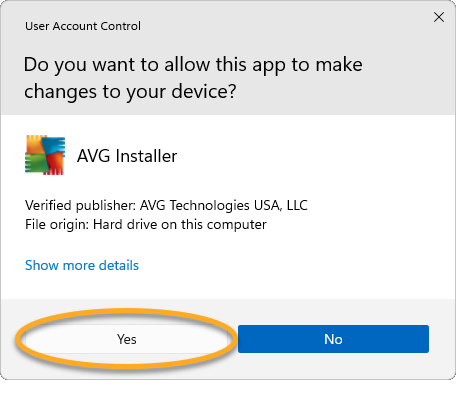
The installer lets you choose a language and begin installation. Read the entire window before clicking. AVG can present browser or product offers in setup and later inside the app; decline anything you didn't come to install. A useful antivirus installation shouldn't silently become a browser, VPN, cleanup and driver-updater project.
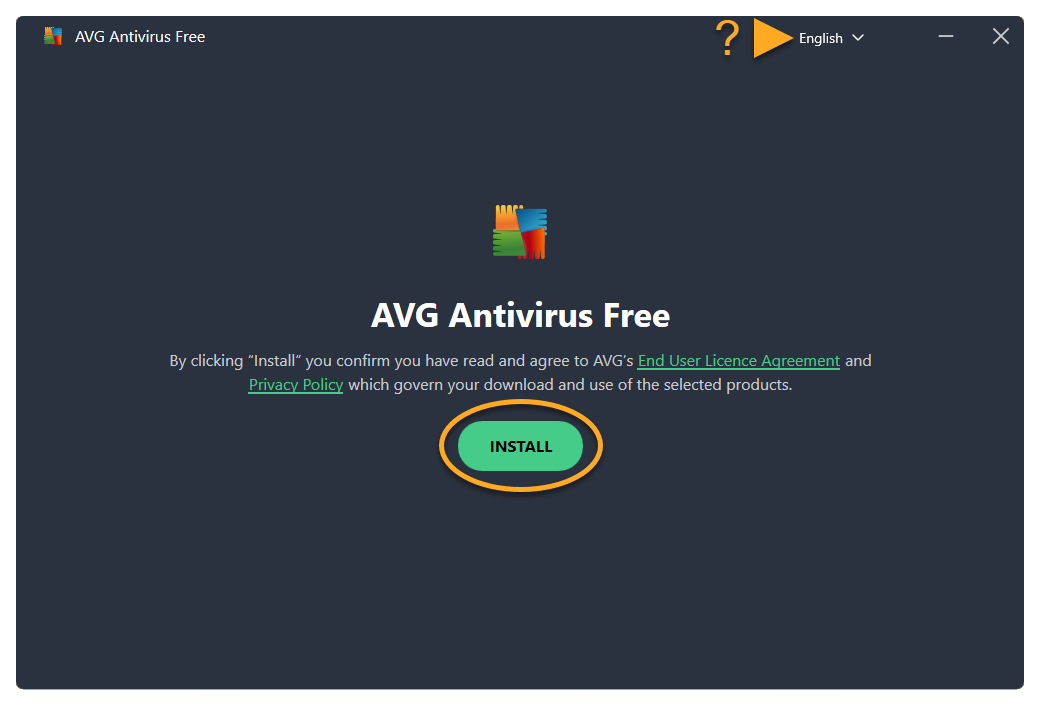
Let setup finish, then restart if AVG or Windows requests it. A restart is part of completing drivers and security-provider registration, not an inconvenience to postpone for weeks. If setup opens a purchase page, return to the app and confirm whether the Free product is already active before entering payment details.
Install AVG on Mac and approve only the permissions it explains
Download the current Mac package from AVG, open it, then follow the signed installer. macOS can require an administrator password, system-extension approval, full-disk access or network filtering permission depending on the product and OS version. These are powerful permissions, so match each prompt to the step shown in AVG’s current instructions.
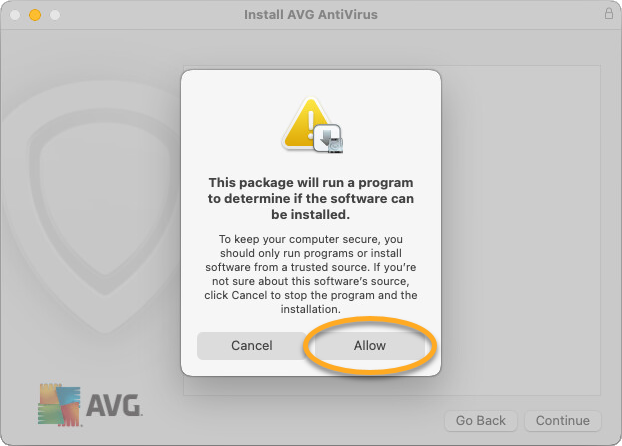
A Mac antivirus doesn't work like its Windows sibling. System extensions, privacy permissions and Apple’s security architecture determine what it can inspect. Don't copy Windows-only steps such as Windows Security provider checks onto macOS. After installation, use AVG’s status screen and macOS Privacy & Security settings to confirm that required permissions are granted.
If macOS blocks the installer, don't disable Gatekeeper globally. Confirm the package source and signature, open Privacy & Security, and use the narrowly presented approval for that signed app. An unsupported macOS release may require an OS update rather than a command-line bypass.
AVG Free and Internet Security use different activation paths
AVG AntiVirus Free activates automatically. AVG says the Free edition may ask for activation again after 12 months; the official reactivation steps open My Subscription and choose “Continue with free” or “Select” in the free column. Don't interpret that housekeeping prompt as an expiration of all protection.
Internet Security can be activated through an activation code or the AVG Account tied to the order. AVG’s current activation guide also documents a sign-in key when the browser-to-app handoff fails. Use the email address from the purchase, not whichever account is easiest to create.
After activation, open My Subscription and verify the product name, expiration, device allowance and associated account. If several AVG products are selected during code activation, make sure you intended to install every one. A code that unlocks multiple apps can create clutter even when it doesn't create a second charge.
Activation doesn't prove that renewal is off or on. Check the merchant account separately. The pricing and renewal guide explains the next-payment date and the difference between entitlement, activation and billing.
Update first, then run Smart Scan and verify the security provider
Open Menu, Settings and Update. Check virus definitions and the application separately. AVG’s current update guide says both update automatically by default, but a fresh install is the right moment to verify. Restart if requested before judging an error or performance issue.
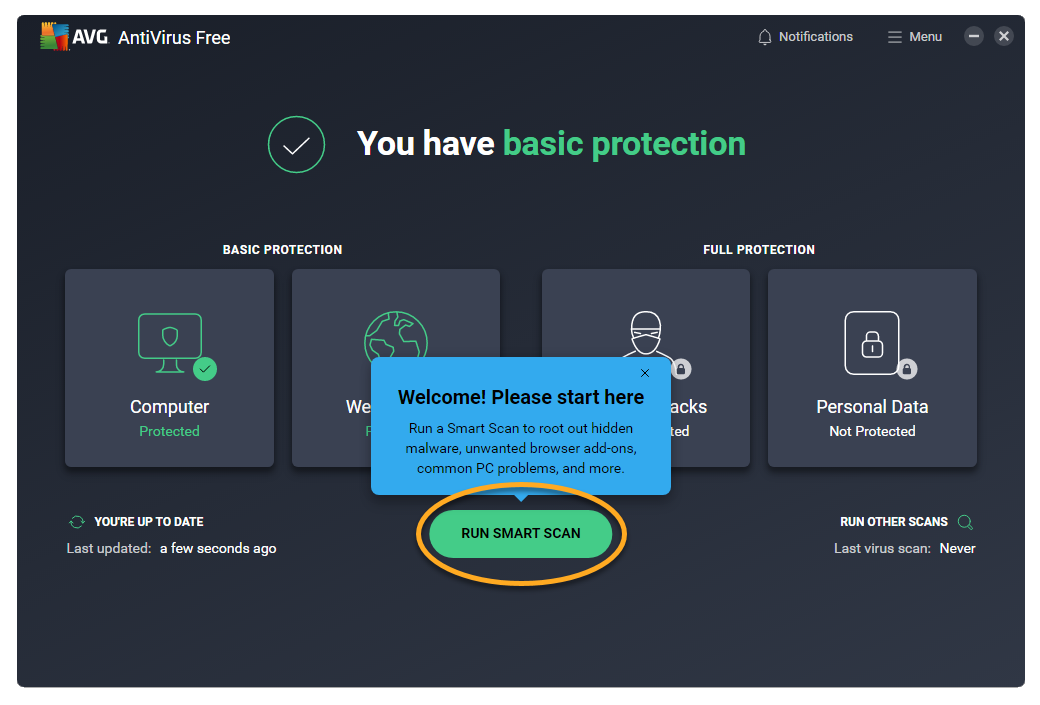
Run Smart Scan once. Malware, network and vulnerable-software findings deserve evidence-based action. Performance, privacy and driver categories can lead to separate paid products. Expand the result and identify the file, URL, program or setting before clicking Resolve. Quarantine an uncertain file rather than deleting it irreversibly, then submit a suspected false positive to AVG when appropriate.
On Windows, open Windows Security, Virus & threat protection and Manage providers. Confirm that AVG is registered as the active antivirus and that Windows Firewall or the intended firewall is active. Don't force Microsoft Defender real-time scanning back on merely to make two green checkmarks appear.
Review these settings before declaring setup complete
Keep automatic definition and application updates enabled. Check Core Shields and verify that File, Behavior and Web protection are on. If desktop email software is used, confirm the supported Email Shield behavior. Don't add exclusions before a real compatibility problem exists.
Open General and Notifications. Choose the alert treatment you can realistically understand, and review offer settings separately from security alerts. Silent mode can suppress important warnings as well as sales messages, while Do Not Disturb Mode is intended for selected full-screen apps. The forthcoming notification and privacy guide gives a safer configuration.
Review the scheduled scan and removable-drive behavior. A recurring scan should run when the computer is normally on and not during latency-sensitive work. Enable password protection for AVG settings on a shared family PC only if the password will be stored safely; otherwise a forgotten control can complicate troubleshooting.
Test a normal browser session, video call, printer, VPN and any business-critical application. A clean setup is one that protects without breaking the machine’s real work. If a website is blocked, don't immediately disable Web Shield; use the AVG Web Shield troubleshooting guide to distinguish a detection from a connection problem.
Fix AVG installation failures in a controlled order
Restart Windows first. Pending installer and update operations often clear only after a reboot. Confirm the system requirements, free space, date and time, internet connection and administrator account. Download a fresh installer from AVG and try again.
If another antivirus is still registered, remove it with that vendor’s documented method and restart. If an older AVG installation is damaged, try normal uninstall or repair before using cleanup. AVG’s official Uninstall Tool is the fallback for a failed removal or “setup is already running” state; it can reboot Windows into Safe Mode.
Capture the exact error message and time. Check whether the failure happens before download, at UAC, during extraction, at security-provider registration or at activation. Those are different faults. The AVG troubleshooting guide maps repair, update and service symptoms without recommending random registry deletion.
Avoid the shortcuts that create harder problems
Don't disable Windows security features globally, install a cracked licence, use a third-party driver updater to “prepare” the machine, or delete AVG folders by hand. Don't add the entire system drive, downloads folder or browser profile as an exclusion. Each shortcut removes evidence or protection while leaving the underlying fault unresolved.
Don't accept every dashboard recommendation as a requirement. AVG Free can be a finished installation. TuneUp, Driver Updater, Secure VPN and Secure Browser are separate decisions with their own privacy, value and renewal questions. Their presence in an installer or dashboard is an invitation, not proof that the antivirus needs them.
Finally, don't judge success by one green screen. Verify updates, shields, provider registration and normal application behavior. Save the installer source, subscription email and activation details somewhere secure. That small record makes a future reinstall or cancellation far easier.
Recheck the same controls after the first restart, because an incomplete driver load or pending update can change the reported status.
AVG installation and setup FAQ
Where should I download AVG Antivirus?
Use avg.com or the official AVG Support installation page. For Windows Free, the expected current installer is avg_antivirus_free_setup.exe. Avoid activation-key sites, download mirrors and phone numbers placed in search snippets.
Is AVG Free really free after installation?
Yes. AVG AntiVirus Free activates automatically. AVG says it can request free reactivation after 12 months; choose Continue with free or Select in the Free column. A dashboard offer doesn't mean payment is required.
Can I install AVG alongside Microsoft Defender?
Windows normally places Microsoft Defender Antivirus into passive or disabled real-time state when a compatible third-party antivirus registers as the primary provider. Don't manually force two resident engines to scan every file. Verify the active provider in Windows Security after installation.
Can I install AVG alongside another antivirus?
Remove the other resident antivirus first unless both vendors explicitly document a supported coexistence mode. Overlapping file, web and network filters can cause failed installation, slowdowns, duplicate alerts and unreliable detections.
Does AVG support Windows on ARM?
AVG's current Free installation page says ARM-based Windows devices aren't supported. It lists Windows 7 SP1 through Windows 11 on compatible x86/x64 hardware with SSE3, at least 1 GB RAM and 2 GB free disk space.
Why will AVG not install?
Common causes include an unsupported device, pending Windows restart, damaged installer, another antivirus, remnants of an older AVG installation, missing administrator permission or network filtering. Restart, obtain a fresh official installer and use AVG's official cleanup path only if normal removal failed.
How do I activate AVG Internet Security?
Open AVG, choose Menu and Enter activation code, or sign in with the AVG Account linked to the purchase. AVG also documents a browser sign-in key when the account handoff fails. Confirm the exact product and device count after activation.
What should I do immediately after AVG installs?
Update virus definitions and the application, restart if requested, run Smart Scan, verify Web Shield and real-time shields, inspect Windows Security's provider status, then test normal websites and applications before changing exclusions.