
AVG Not Working, Scan Stuck or High CPU: Diagnose It Before Reinstalling
The same Task Manager graph can mean an active scan, a definition update, a damaged component or another program feeding AVG thousands of changed files. Match the symptom to the event before stopping services or adding exclusions.
Quick answer: Restart once, update AVG’s virus definitions and application, and record whether the symptom appears during a scan, update, startup or normal idle. For AVG not opening, a stuck scan or failed update, AVG’s official next step is Repair through Windows Installed apps and AVG Setup. For high CPU or disk use, let an expected scan/update finish, test a narrower scan and inspect the files being churned; don't kill AVG services or exclude a whole drive. Reinstall with AVG’s cleanup tool only after repair fails.
Need a different AVG task? The complete AVG guide hub routes review, plans, setup, troubleshooting, Web Shield, privacy, browser, VPN, Android, utilities, billing and removal without mixing their steps.
Capture the event, not just the feeling that AVG is slow
Open Task Manager and identify the exact process, resource and duration. Note CPU percentage, memory, disk throughput and whether the system drive is already saturated. Record what AVG is doing: Smart Scan, Deep Scan, update, startup, idle or an alert. A screenshot and timestamp are more useful than “AVG is using everything.”
Also record recent changes: Windows or driver update, new backup software, a large code build, game installation, browser download, archive extraction, VPN change or another security product. Antivirus work follows file and network activity. AVG can be the visible consumer while another application creates the workload.
Don't end AVG services, delete program folders or disable every shield. Those actions change the evidence and can leave the computer unprotected. Stop a scan through its own control if necessary and use a time-limited, one-variable test. If the real complaint is commercial noise rather than resource load, use the AVG pop-up and privacy guide instead of weakening protection.
Fresh community threads mention high CPU, pop-ups and slow older PCs. They show the language people use, not how common a fault is. Current AV-Comparatives testing and the AVG review show low average task impact; one machine can still have a real local conflict.
Match the symptom to the safest first action
| Symptom | Likely context to check | First safe action | Avoid |
|---|---|---|---|
| High CPU during scan | Archive depth, first full scan, other file-heavy job | Let it finish or stop normally; test a narrower scan | Killing the service |
| High disk at startup | AVG update plus Windows Update, sync or backup | Restart once and observe after tasks settle | Excluding the system drive |
| AVG won't open | Missing/outdated files or service conflict | Restart, then Repair | Downloading a “fix” executable |
| Smart Scan stops | Damaged component, difficult archive or disk issue | Record position, restart, Repair | Repeated forced shutdown |
| Definitions won't update | Connectivity, date/time, DNS, pending restart | Check both update channels and network | Turning updates manual permanently |
| One website fails | Detection versus browser/network error | Use the dedicated Web Shield decision tree | Disabling all antivirus |
If the symptom belongs to Web Shield, use the AVG website-blocking guide. It separates a named malicious-URL detection from a browser error with no AVG alert. That distinction prevents a harmless connection problem from becoming a broad security exception.
Restart once, then update definitions and the application separately
A pending restart can leave services, drivers or an application update in an intermediate state. Save work and restart Windows normally. After login, wait for startup activity to settle before reopening Task Manager and comparing the same condition.
Open AVG, Menu, Settings and Update. AVG’s current update guide separates virus definitions from the application. Check each one. Definitions supply detection data; application updates include engine and program fixes. Restart again if AVG requests it.
Check Windows date, time and time zone. Certificate and update connections can fail when the clock is wrong. Test the internet without a custom VPN, proxy or DNS filter only when evidence points there, and restore the control after the test. “Sorry, something went wrong” can be a DNS communication problem according to AVG’s common-issues guide.
Repair is AVG’s documented fix for stuck scans and broken components
AVG’s repair instructions specifically list three use cases: features not working, a scan stuck in progress and an application update failure. Repair rebuilds installed components without making the user start with a new account or product purchase.
Close other applications. On Windows 11 open Installed apps; on Windows 10 open Apps & features. Choose AVG AntiVirus Free or Internet Security and Uninstall twice to launch AVG Setup, then choose Repair rather than Uninstall. Approve UAC, wait and restart if requested.
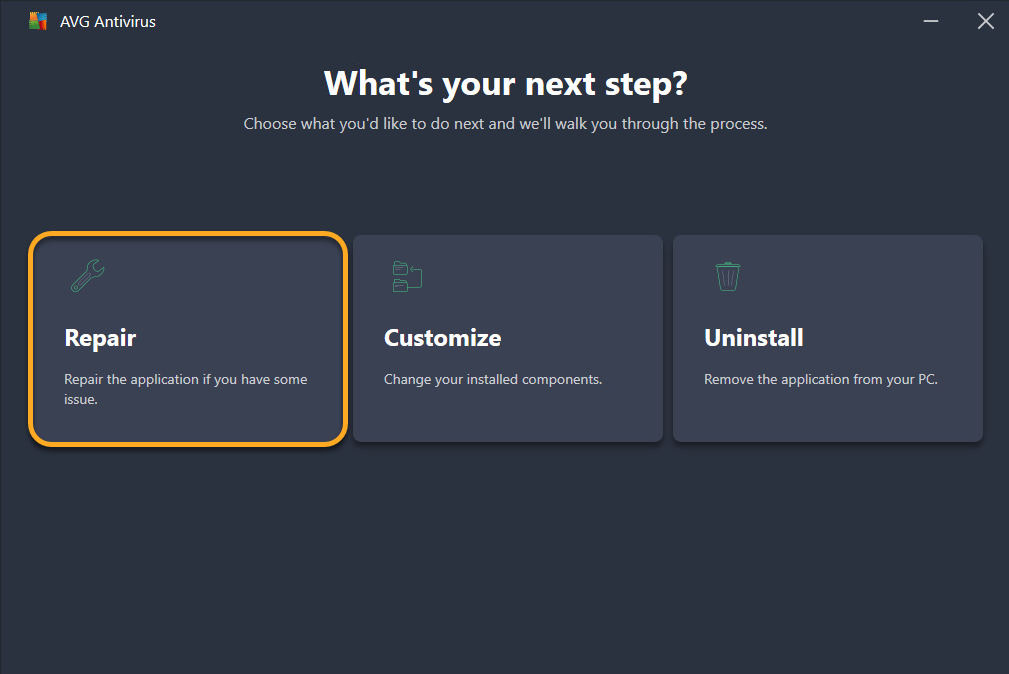
After repair, check updates, Core Shields, exclusions, notifications and scheduled scans. AVG warns that customized settings can return to defaults. Reproduce the original symptom once under the same conditions; a green home screen alone doesn't prove the high-load or stuck-scan problem is gone.
High CPU, memory or disk usage needs a workload comparison
Compare three states: five quiet minutes after startup, the affected scan or application, and five quiet minutes after it finishes. A temporary CPU spike during malware analysis or archive unpacking isn't the same as sustained idle use. Memory held for caches can also remain allocated without causing pressure; check whether Windows is paging or applications are actually starved.
Disk activity often follows the producer. Cloud sync, backup, game launchers, source-code builds, package managers and large archive extraction create or touch thousands of files that real-time protection inspects. Pause one producer through its own control and repeat the observation. If AVG load falls with it, investigate a supported narrow integration or schedule rather than blaming idle antivirus.
AV-Comparatives’ April 2026 performance test is useful population-level evidence, but it can't reproduce every machine. A low lab impact score doesn't invalidate a captured local fault, and one old PC doesn't invalidate the lab. Use both at the correct scale.
If high idle use persists after update, restart and repair, capture the process and performance trace before reinstalling. The cause can be a damaged loop, but it can also be disk errors or another security filter. Run Windows’ built-in storage and reliability checks rather than installing a generic “PC optimizer.”
A scan can be slow without being stuck
Record the scan type, elapsed time, percentage, file count and last path if AVG exposes it. A first full scan, slow hard drive, large virtual-machine image or deeply nested archive can spend a long time at one visible percentage. Disk activity and a changing file count indicate progress even when the bar barely moves.
Stop the scan normally if the computer must be used. Restart, update and run a targeted file or folder scan. AVG’s scan-settings guide shows that scanning all archives and all files is slower than narrower choices. Don't weaken the default permanently before confirming which category causes the delay.
Smart Scan also reports browser, outdated-software, driver and performance items. “Resolve all” can cross from malware response into paid maintenance. Expand the result. Use the existing AVG Driver Updater review and TuneUp review before accepting a utility subscription as a scan fix.
If Smart Scan consistently stops before finishing, AVG’s common-issues guide directs users to Repair, then uninstall/reinstall if repair fails. Preserve the path or phase at which it stops for support.
If AVG won't open, verify protection outside the interface
Restart first. If the interface still fails, open Windows Security and Manage providers. A broken dashboard and an inactive provider are different severities. If Windows reports no active antivirus, disconnect from unnecessary networks and restore protection before normal browsing.
AVG says outdated, corrupted or missing application files commonly cause the app not to open. Repair is the first documented step, followed by uninstall and reinstall. Don't download DLL files or service “fixers” from a search result.
If AVG opens only from one Windows account, check account permissions and profile-specific startup behavior. If every account fails after repair, collect the exact error—“Well, this is embarrassing,” “Sorry, something went wrong,” blank window or no process—because each points to a different support branch.
Stopped shields require status, update and component checks
AVG’s status guide explains its red actions: Turn on for disabled components, Update now for stale definitions or application, and Restart now for a pending component update. Use the named action and recheck.
If one shield can't be enabled, repair the installation. A customized component may also have been removed through Add/Modify Components. Reinstall the missing component only when it belongs to the intended configuration; don't add every optional feature to chase a green screen.
For a Web Shield or firewall symptom tied to one site or application, isolate that component briefly and restore it after the test. AVG’s own temporary-disable guide warns that turning off protection leaves the device vulnerable. A controlled test isn't a permanent fix.
Look for another security filter or high-churn application
Check Installed apps for another antivirus, endpoint agent, legacy web filter or VPN security module. Two resident antivirus suites can compete for the same file and network events. Remove the one you don't intend to use with its vendor’s documented cleanup path, then restart.
Developer tools, virtual machines, databases and backup jobs can legitimately create unusual file churn. A narrow exclusion may be documented by that application vendor, but it should name a trusted generated directory and preserve source, downloads and executables where possible. Test the exact benefit and document the risk.
Don't use an exclusion to hide a detection. Suspected false positives should be quarantined or submitted to AVG for review. The Web Shield guide applies the same rule to URLs: report first, narrow exception only when the site is independently trusted and the operational need is real.
Reinstall only after restart, update and repair fail
Use normal uninstall first, restart and obtain a fresh official installer. If normal uninstall fails, use AVG’s official Uninstall Tool in the complete removal guide. That tool can operate in Safe Mode and offers Remove & Reinstall or Remove only. The clean AVG installation guide covers the activation and provider checks after removal.
After reinstalling, activate with the existing AVG Account or code, update both channels, run one scan and verify Windows Security provider status. Recreate custom exclusions and scan schedules one at a time rather than importing every old setting into a clean test.
If the problem returns before custom settings, the interaction likely lies outside those settings. Capture the fresh version, Windows build and event. If it returns only after one change, that change is evidence. This controlled reconstruction is slower than clicking a random “optimizer,” but it produces a fix that can be explained and reversed.
Send AVG Support a reproducible case, not a vague complaint
Include the product and application version, virus-definition version, Windows version, affected process, resource and duration, scan type, exact error text, last visible file or percentage, and the time zone of the event. Add screenshots that don't expose account or payment data.
State what changed and which steps were tried: restart, definitions update, application update, repair, narrower scan, conflict removal and clean reinstall. For a website issue, include the URL, browser/version, whether AVG displayed a detection and whether a brief Web Shield test changed the result.
Use official AVG Support. Avoid phone numbers posted by anonymous “support” profiles. A real troubleshooting case may require logs, but it shouldn't require gift cards, cryptocurrency or remote access from an unverified caller. If the verified conflict makes AVG a poor fit, compare the replacements in the AVG alternatives guide rather than installing two resident products.
AVG troubleshooting and high CPU FAQ
Why is AVG using high CPU?
High CPU can be expected while AVG scans files, unpacks archives, updates or examines heavy file churn. Sustained idle load after the task ends can indicate a stuck scan, damaged component, repeated interaction with another program or an overly broad scan. Record timing and process before changing settings.
Why is AVG using so much disk?
A full or boot-time scan, definition update, archive scanning, software build, backup or sync job can create heavy disk activity. Pause the other high-churn task, let the expected scan finish, and compare idle behavior after restart. Don't exclude the whole working folder without understanding the risk.
How do I fix AVG not opening?
Restart Windows, update if the interface opens, then repair AVG through Installed apps and the AVG Setup Repair option. AVG's common-issues guide recommends uninstalling and reinstalling only if repair doesn't restore the app.
How do I fix an AVG scan stuck before finishing?
Record the percentage, elapsed time and last file if visible. Allow large archives or slow drives time, then stop the scan normally, restart and run a narrower scan. AVG specifically recommends Repair for a Smart Scan that stops before finishing.
Will repairing AVG delete my subscription?
No. Repair rebuilds application components; it isn't a cancellation. Some customized settings can return to defaults, so review shields, exclusions, notifications and scan schedules afterward.
Can I end AVG processes in Task Manager?
Don't use process termination as the normal fix. Antivirus services protect files and network traffic and can restart automatically or leave the provider in an uncertain state. Stop a scan through AVG, restart Windows or use the documented repair path.
Should I add an exclusion to make AVG faster?
Only for a narrowly identified, trusted compatibility case after checking the file or workflow. A whole drive, downloads folder, browser profile, development tree or backup target can contain executable content and shouldn't be broadly exempted merely to lower a graph.
When should I reinstall AVG?
Reinstall after restart, update and repair fail, or when AVG's own status guide says components remain missing. Use normal uninstall first and the official AVG Uninstall Tool for a damaged removal, then verify Microsoft Defender or the new AVG installation is active.