
AVG Web Shield Blocking a Website? Diagnose the Block Before Bypassing It
An AVG detection, a certificate problem and a browser connection error can look like the same broken page. They aren't the same risk, and they shouldn't end with the same exception.

Quick answer: If AVG displays Threat secured, Infected website or Malicious URL blocked, don't bypass it merely because the page looks familiar. Verify the exact URL and submit a suspected false positive to AVG; its current guidance prefers review and an automatic definition fix before an exception. If the browser fails with no AVG alert, update AVG and the browser, then briefly disable only Web Shield and restart the browser to test causality. If AVG is involved, test HTTPS scanning or hardware network acceleration as documented, restore protection, repair AVG, and add only a trusted narrow exception when operationally necessary.
Need a different AVG task? The complete AVG guide hub routes review, plans, setup, troubleshooting, Web Shield, privacy, browser, VPN, Android, utilities, billing and removal without mixing their steps.
Classify the symptom before changing Web Shield
Capture the exact URL and full message. AVG’s current website-access guide separates three scenarios: AVG explicitly blocks the site as malicious; the browser shows a connection error but AVG shows no detection; or the page loads unusually slowly without an error or alert.
| What you see | Working assumption | First action | Don't |
|---|---|---|---|
| Threat secured, Infected website or Malicious URL blocked | Security detection until reviewed | Preserve URL and alert; report suspected false positive | Click through or add a broad exception |
| Browser error, no AVG alert | Connection problem; AVG involvement unproven | Update, then test Web Shield briefly | Call it malware or disable all protection |
| Page is slow, no alert | Inspection, browser, VPN, DNS or site performance | Compare browsers and a timed Web Shield test | Assume high CPU is the cause |
Check the address character by character. A familiar brand name can appear inside a deceptive subdomain or redirect. If the page is a login, payment or software download, don't enter credentials or run files while the alert is unresolved.
This page owns Web Shield and URL exceptions. For AVG not opening, stopped components, scan failures or high resource use, use the general AVG troubleshooting guide. The current AVG review explains the broader protection evidence, while Free versus Internet Security maps which surrounding controls require payment.
If AVG names a malicious URL, treat the block as real until reviewed
A site you used yesterday can be compromised today. A clean home page can load an unsafe advertising resource, redirect or download. A detection can also be wrong. The safe response to both possibilities is the same at first: don't bypass, preserve the evidence and request review.
Record the detection name, exact URL, date and time, browser and the action AVG took. Update virus definitions and retry only after the update, without entering sensitive data. Compare the link with a trusted bookmark or the organization’s independently verified domain.
Don't rely on one multi-engine score as proof that the page is safe. URL scanners can fetch a different route, lack your session or miss newly compromised content. They're supporting evidence. The antivirus vendor that issued the block should receive the false-positive report.
Report a suspected false positive before making an exception
AVG’s guidance says to submit the website through its false-positive review form. Provide the exact affected URL rather than only the domain, explain why it's believed legitimate and include the detection wording. Don't upload confidential files or credentials.
AVG says confirmed false positives are typically corrected through automatic definition updates within a few hours. That's the best outcome because it restores normal protection for every user and doesn't leave a permanent local bypass. Update definitions before retesting.
Site owners should also inspect their server, redirects, third-party scripts and downloads. An antivirus alert can be the first sign of a real compromise. A reputation complaint isn't evidence that the site is clean; logs and content review are.
If the browser fails with no AVG alert, prove whether Web Shield is involved
Update AVG and the browser first. Close every browser window. Open AVG, Web & Email and switch Web Shield off for a short test duration, then restart the browser and try the same URL. Restore Web Shield immediately after the comparison.
If the error remains, AVG is unlikely to be the cause. Try a private window, another updated browser and another network when appropriate. Check a VPN, proxy, DNS filter, browser extension and the site’s status. Preserve any certificate or DNS error instead of summarizing it as “blocked.”
If the page works only while Web Shield is off, continue with the documented settings tests below. Don't leave the shield disabled. AVG’s temporary-disable guide warns that disabled components reduce protection; the test exists to isolate the layer, not to become the fix. If repair later requires a clean copy, follow the verified AVG installation guide.
A slow page needs a timed comparison, not a permanent bypass
Measure the same page from a cold browser start with Web Shield on, then one brief off test. Repeat once. A single load can be distorted by DNS cache, ad rotation, CDN location or browser cache. Note whether only one browser, one network or one site is affected.
If every site is slow, check the overall connection, VPN, proxy and DNS before editing one URL. If one site is slow, inspect its own status and third-party resources. If only downloads are slow, compare the download source and file size rather than the landing page.
AVG’s guide directs a Web Shield-involved slow-loading case to the hardware network acceleration test, then Repair if the symptom persists. The expected performance difference from leaving acceleration off is described as minimal, but preserve the setting change so it can be revisited after future updates.
Test HTTPS scanning and hardware network acceleration one at a time
For a no-alert browser error that disappears when Web Shield is disabled, open Menu, Settings, Basic protection and Web Shield. Untick Enable HTTPS scanning, restart the browser and test the same page. If that resolves the fault, AVG’s guidance says to repair AVG and restart. Re-enable HTTPS scanning after the repair and retest.
If HTTPS scanning isn't the cause, restore it before changing anything else. Then test Enable hardware network acceleration. If disabling acceleration fixes the page or slow loading, AVG says it can remain off with minimal performance impact. Record the app version and revisit after a later update.
If neither setting changes the result, restore the original configuration and use AVG’s documented Repair action. The repair walkthrough shows the current AVG Setup screen. Random certificate deletion and global TLS changes aren't appropriate consumer fixes.
Add an exception only for a trusted, required destination
An exception tells AVG not to inspect the specified item in the normal way. AVG’s exception guide says exclusions can reduce protection and should be used only when the item is known to be safe. Report first and wait when operationally possible.
Open Menu, Settings, General and Exceptions, choose Add exception and select the website option. Enter the narrowest exact URL or required domain. Don't exempt the entire browser, downloads folder, all HTTPS traffic or a wildcard covering unrelated subdomains.
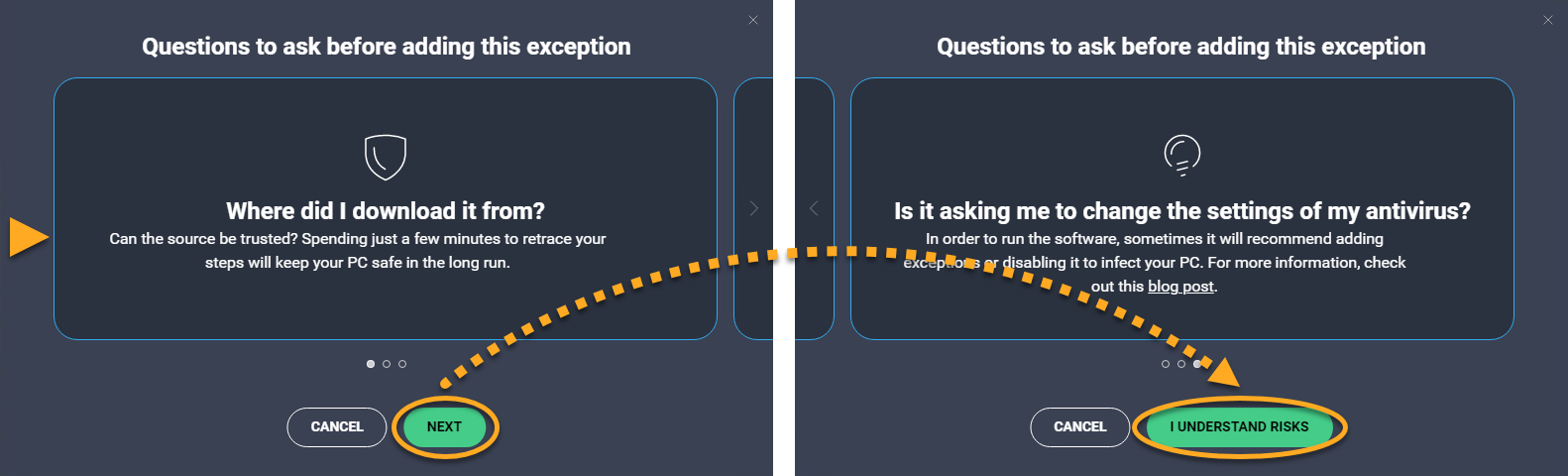
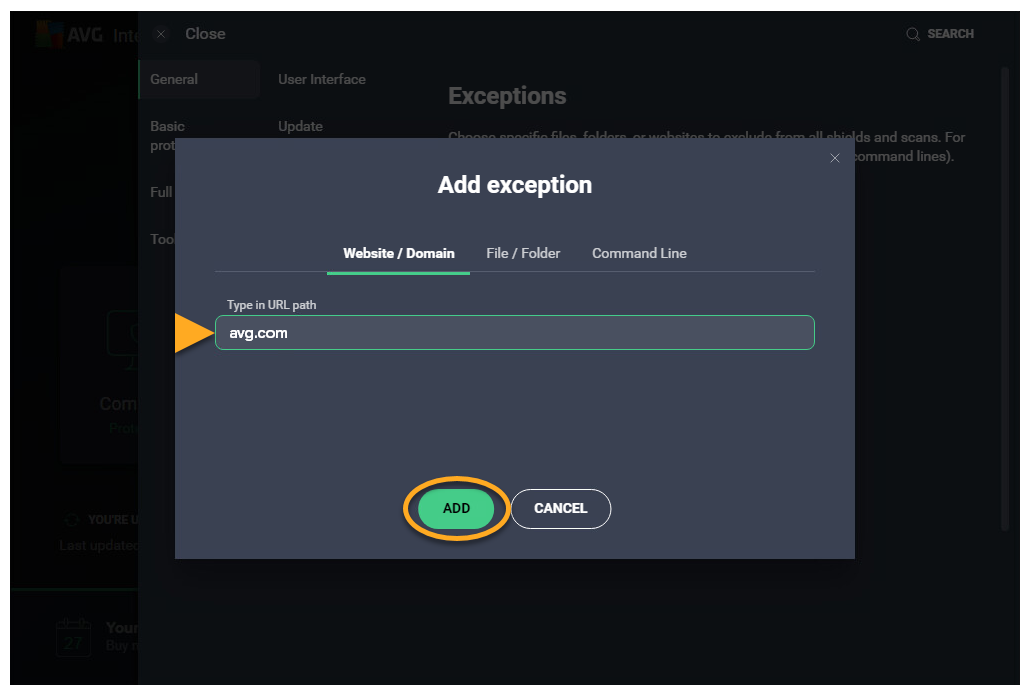
Document the business reason, owner and review date. An exception added during an incident shouldn't become permanent by neglect. If credentials or downloads are involved, use a second independent verification and monitor the site owner’s remediation.
Review and remove old website exceptions
Return to General and Exceptions periodically. Remove entries for projects, vendors, test systems and temporary compatibility cases that no longer exist. Recheck the URL through normal Web Shield inspection after updating AVG.
A changed domain owner, expired staging site or compromised vendor makes an old exception more dangerous over time. Treat the exception list like firewall rules: each entry needs a purpose, scope and owner.
If the site works after the false positive is corrected, remove the exception. Keeping it “just in case” discards the benefit of the vendor’s future detections for that destination.
Browser, DNS, VPN and certificate failures can impersonate an AVG block
A browser extension can rewrite pages or block scripts. A VPN can route DNS and traffic through another region. Parental controls, enterprise proxies, router filters and ISP DNS can block a destination without AVG producing an alert. A site’s certificate can expire or fail for one intermediate chain.
Use the exact browser error. DNS_PROBE_FINISHED_NXDOMAIN, certificate date errors, connection reset and an AVG malicious-URL detection are different evidence. Check the system clock, a private window, another browser and another network where policy allows.
Don't install AVG Secure Browser as a diagnostic shortcut. It's a separate browser with its own settings and profile. The planned AVG Secure Browser review evaluates it independently. First isolate the current browser and network path.
Escalate with enough evidence to reproduce the problem
AVG asks for the affected URL, browser name and version, AVG version, whether Web Shield changes the result and a screenshot of the error. Add the definition version, time, operating system, HTTPS-scanning result, acceleration result and whether Repair changed it.
Use official AVG Support. Don't post a private intranet URL, authentication token or customer data in a public forum. A safe reproduction can use a redacted screenshot and a support case.
If the issue is persistent enough to justify switching products, compare protection, false alarms and usability in the AVG alternatives guide. Don't install a second resident antivirus on top of AVG merely to test one URL. If notifications rather than blocked traffic are the real problem, use the AVG pop-up and privacy settings guide.
AVG Web Shield and website-blocking FAQ
Why is AVG blocking a website?
AVG can display a named malicious-URL detection because the exact page, redirect, download or embedded resource is unsafe. A site can also fail with no AVG alert because of HTTPS inspection, hardware network acceleration, browser extensions, DNS, VPN or the site itself. Record the exact symptom first.
How do I know whether an AVG website warning is a false positive?
You can't prove it from familiarity or one scan. Verify the exact URL, ownership and recent changes; check whether the alert names a detection; avoid entering credentials; and submit the URL to AVG's false-positive review. Wait for corrected definitions when possible.
Should I add the site to AVG exceptions?
Only after independently trusting the exact destination and deciding the access need outweighs the reduced inspection. AVG's current best practice is to report a suspected false positive and wait for an automatic fix before adding an exception.
How do I test whether Web Shield causes a browser error?
Update AVG and the browser, then briefly disable only Web Shield, restart the browser and retry the same URL. Restore Web Shield immediately. If the error remains, AVG is probably not the cause; test a private window, another browser, DNS, VPN and the site.
What does disabling HTTPS scanning test?
It tests whether AVG's inspection of encrypted web traffic is involved in a no-alert connection failure. It isn't a preferred permanent fix. If the test resolves the issue, AVG's guide says to repair AVG and restart.
Can I disable AVG Web Shield permanently?
You can, but it removes inspection of web traffic and isn't a safe general fix. Use a time-limited test, repair the product, report false positives and scope exceptions narrowly instead of leaving the shield off.
Why is a website slow only when AVG is active?
AVG says hardware network acceleration can be tested for a slow page with no alert. Browser extensions, VPNs, DNS filters and site-side problems can produce the same symptom. Change one control at a time and compare the exact page.
What information should I send AVG Support?
Include the exact URL, browser and version, AVG application and definition versions, the full alert or browser error, whether a brief Web Shield test changed the result, and whether HTTPS scanning, hardware network acceleration or repair changed it.