
How to Uninstall AVG Antivirus Completely and Keep the Device Protected
A complete removal isn't a folder-deletion contest. Cancel billing separately, use the normal uninstaller first, reserve AVG’s Safe Mode cleanup tool for failure, then prove another protection provider is active.

Quick answer: On Windows, open Installed apps, choose AVG AntiVirus Free or AVG Internet Security, select Uninstall, choose Uninstall again in AVG Setup, finish and restart. If normal removal fails or says setup is already running, use AVG’s official Uninstall Tool, which can reboot into Safe Mode. On Mac, use AVG AntiVirus → Uninstall AVG AntiVirus or the bundled uninstaller. Uninstalling doesn't cancel a paid subscription; verify Microsoft Defender or the replacement after removal.
Need a different AVG task? The complete AVG guide hub routes review, plans, setup, troubleshooting, Web Shield, privacy, browser, VPN, Android, utilities, billing and removal without mixing their steps.
Before removing AVG, separate billing from software
Uninstalling AVG doesn't cancel Internet Security, Secure VPN, TuneUp, Driver Updater, AntiTrack or another subscription. Decide whether you want to stop renewal, request a refund, remove one device or do all three. The AVG cancellation and refund guide maps the merchant-specific commercial steps.
Save the account email, order ID and activation code if a reinstall is possible. Note the current product—Free, Internet Security or a business-managed agent—because the removal route can differ. This guide covers the consumer products documented in AVG’s current Antivirus and Internet Security FAQ. A managed business endpoint may reinstall from its console and should be handled by its administrator.
Choose the protection that will follow AVG. Windows normally restores Microsoft Defender when the third-party provider is gone, but verify that after restart. If another antivirus will replace AVG, download its installer from the vendor before removing AVG, but don't run two full resident installations together. The current AVG review provides the evidence to make that keep-or-leave decision before the device changes.
Close browsers, email clients, VPNs and other open apps. Finish pending Windows updates and restart if the machine has been waiting for one. A clean starting state prevents a pending installer from being mistaken for AVG refusing to leave.
Repair AVG when the goal is to fix it, not leave it
AVG’s official uninstall guide recommends update or repair before removal when a feature is broken, a scan is stuck or an application update failed. Repair preserves the product while rebuilding components and can reset some custom settings.
If the decision is based on one blocked website, one slow scan or a shield that won't start, use the AVG troubleshooting guide first. If the decision is commercial, trust-based, migration-related or repair already failed, uninstalling is reasonable.
Don't repeatedly toggle every shield while deciding. Disabling protection can make a compatibility symptom disappear without proving what caused it. Capture the exact failure and keep protection active until the replacement or removal workflow is ready.
Repair is also the better first move when Windows offers only a generic “app cannot open” error after an update. It rebuilds missing program files without asking the user to reconstruct every licence and preference. Uninstall is the better move when the security provider remains broken after repair and restart, the product conflicts with required software, the device is being transferred, or the owner has chosen a different primary antivirus. That distinction saves time and prevents an avoidable protection gap.
Use normal uninstall first on Windows 11 or 10
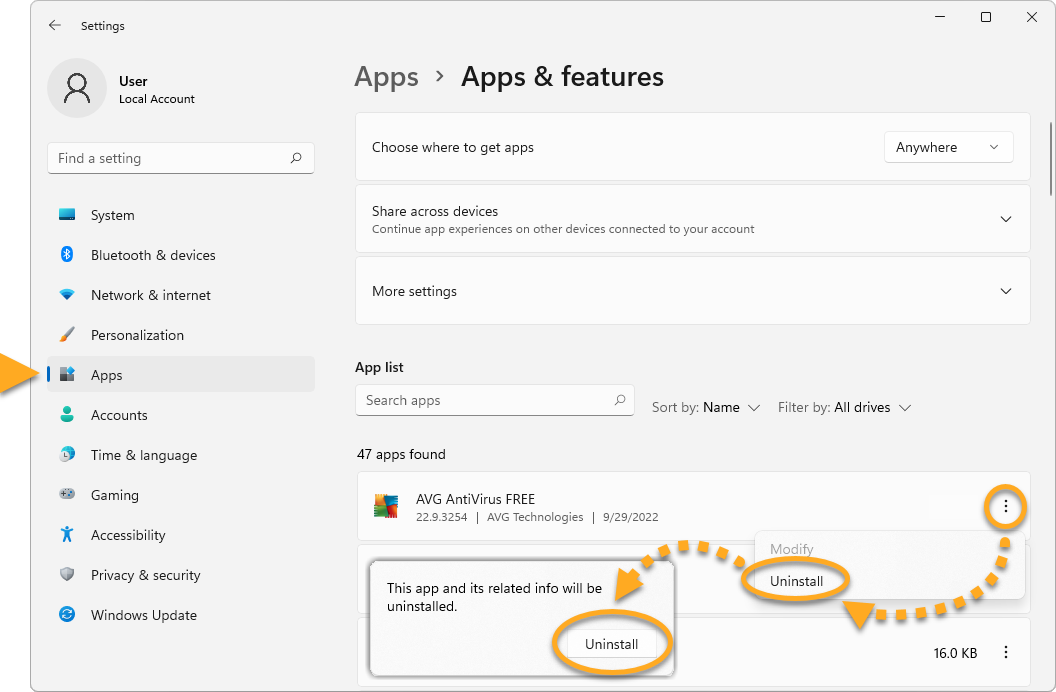
On Windows 11, right-click Start and open Installed apps. On Windows 10, open Apps & features. Find AVG AntiVirus Free or AVG Internet Security, open the three-dot or product menu and choose Uninstall twice. Approve the expected User Account Control prompt.
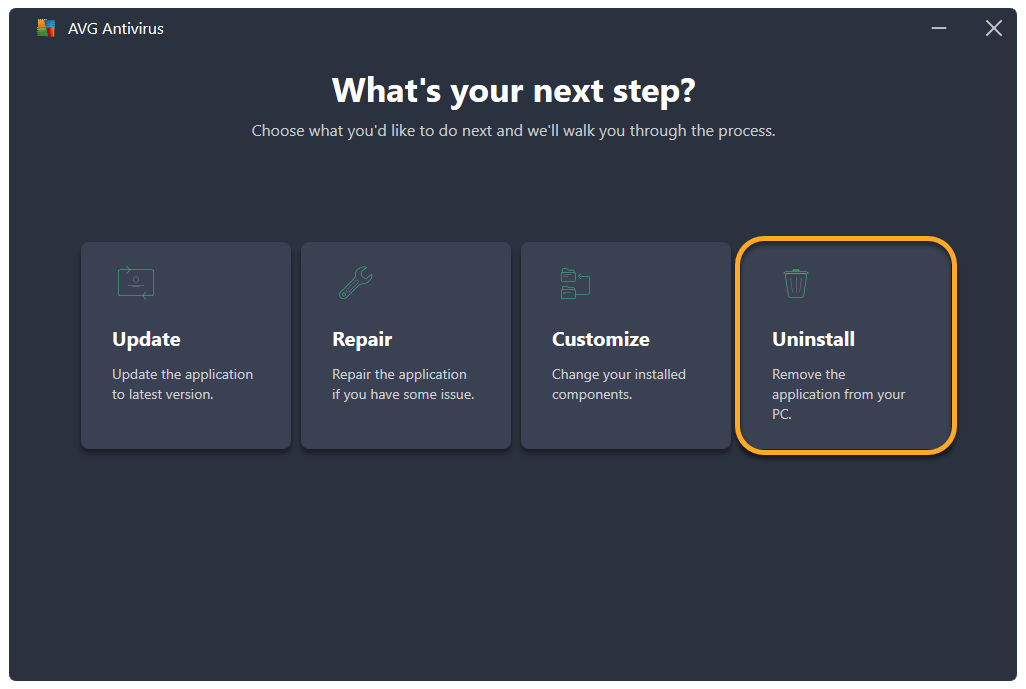
The AVG Setup window appears next. Choose Uninstall, not Repair, when the decision is final. The survey is optional. Confirm removal, wait for completion and choose Restart now. Don't power off the machine while the uninstaller is removing services and drivers.
Older supported Windows versions use Programs and Features, but the AVG Setup stage is the same idea. Restart even if the desktop looks normal. The security-provider handoff and filter-driver cleanup aren't fully tested until Windows has started again.
Use AVG Uninstall Tool only when normal removal fails
AVG recommends its official Uninstall Tool when the normal route fails or reports that setup is already running. Download it from AVG; the current consumer antivirus filename is avg_av_clear.exe. Don't obtain a similarly named executable from a download mirror.
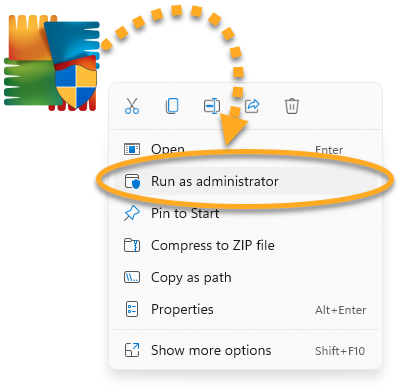
Right-click the downloaded tool and choose Run as administrator. AVG’s current flow offers a Safe Mode reboot. Save work before selecting it. In Safe Mode choose either Remove & Reinstall or Remove only, confirm the product and let the tool finish, then restart Windows normally.
The tool is more forceful because it operates while fewer AVG components are active. That makes it appropriate for a broken installation, not a daily preference. Record whether you selected reinstall or remove-only; otherwise a user can think AVG “came back” when the chosen workflow intentionally reinstalled it.
AVG Secure Browser has a different removal executable and can remain after antivirus removal because it's a separate product. The planned AVG Secure Browser review and removal guide covers its profile-data choice and fallback tool.
Use AVG’s Mac uninstaller, not just the Trash
Open AVG AntiVirus and choose AVG AntiVirus in the Apple menu bar, then Uninstall AVG AntiVirus. If the app won't open, go to Applications and launch AVG AntiVirus Uninstaller. Choose Continue, enter the Mac login password when the signed helper requests it, wait for removal and select Finish.
Dragging the visible app to Trash can leave system extensions, network filters or support components. The vendor uninstaller knows which privileged parts belong to the product and can remove them through macOS’s permission model.
After removal, restart the Mac and check System Settings, Privacy & Security and network filters for an unresolved approval or disabled connection. macOS retains its own built-in protections; a third-party Mac antivirus is an additional layer, not the owner of Gatekeeper or XProtect.
If the purpose is a reinstall, download a fresh signed package through the AVG installation guide and reapprove only the permissions the current version explains.
Remove AVG Antivirus from Android after checking device-admin status
Open Android Settings, Apps, AVG AntiVirus and choose Uninstall, then confirm. The Google Play route can also remove the app, but AVG notes that Play removal is unavailable while AVG’s Device administrator permission is active. Turn that permission off through the device’s security settings before retrying.
Android labels vary by phone maker and OS version. Don't install a third-party “AVG remover” APK. The operating system and Play Store own app removal; a separate cleanup utility isn't needed for the consumer mobile app.
Removing the Android app doesn't cancel a Google Play subscription. Open Play Store, Payments & subscriptions and Subscriptions separately. The planned AVG Antivirus for Android review explains what security value is lost and what Android/Play Protect still provide.
Verify that the removal and protection handoff both succeeded
On Windows, open Settings and Installed apps to confirm the antivirus product is gone. AVG Secure Browser, TuneUp, Secure VPN and Driver Updater are separate entries and should remain only when wanted. Test normal internet access and restart once more if a network filter still appears to be settling.
Open Windows Security, Virus & threat protection and Manage providers. Confirm Microsoft Defender Antivirus or the intended replacement is active. Update it and run a quick scan. Also confirm a firewall is on. A missing AVG icon isn't enough evidence that the computer is protected.
If Windows Security still lists AVG after restart, don't delete registry keys from a forum post. Run the official AVG Uninstall Tool, restart and check again. If no provider becomes active, use Microsoft’s official Windows Security guidance or the replacement vendor’s support.
Test the browser, VPN, local network, printer and any remote-work application. Antivirus network filters can affect more than malware scanning, so normal connectivity is part of removal QA. On a shared machine, sign into each Windows account long enough to confirm there's no orphaned startup prompt. Keep the AVG cleanup log until the computer has completed at least one normal restart and the replacement has updated successfully.
Not every AVG-named file is an active antivirus leftover
A browser bookmark, downloaded installer, log, empty folder or account email doesn't mean a protection driver is still running. Conversely, an invisible security provider or network filter matters more than a desktop shortcut. Judge leftovers by function and ownership.
Use Installed apps, Task Manager, Windows Security and network behavior as evidence. Don't run a generic registry cleaner. Removing shared Gen Digital components or browser data without understanding ownership can break another installed product or erase information you intended to keep.
If an old AVG folder remains after a successful official cleanup and restart, preserve the log and contact AVG before deleting it. The advanced component-removal article contains manual steps, but those steps are for a narrowly diagnosed failure and can involve drivers and permissions. They aren't a sensible default for home users.
A clean reinstall is a troubleshooting step, not a subscription reset
If repair failed but you want to keep AVG, choose Remove & Reinstall in the official tool or complete remove-only, restart and use a fresh installer from AVG’s current installation page. Sign in with the account tied to the existing entitlement or enter the valid activation code. A reinstall doesn't create a new refund window or cancel an old renewal.
After reinstalling, update the application and definitions, run Smart Scan and verify Web Shield, real-time protection and Windows Security registration. Recreate exclusions one at a time only when the original compatibility need still exists. Blindly restoring an old broad exception can reintroduce the fault or a security gap.
If the problem returns immediately, capture the exact time, process, AVG version and error before another removal cycle. Use the official repair documentation and support channel. Repeated uninstalls without evidence can erase useful diagnostics while leaving the real conflict untouched.
AVG uninstall FAQ
How do I completely remove AVG from Windows 11?
Open Settings, Apps and Installed apps, find AVG AntiVirus Free or Internet Security, choose the three-dot menu and Uninstall twice. In AVG Setup choose Uninstall, finish the flow and restart. Use the official AVG Uninstall Tool only if normal removal fails.
What is the official AVG removal tool?
AVG calls it the AVG Uninstall Tool. The current executable is avg_av_clear.exe. AVG recommends it when normal uninstall fails or the device reports that setup is already running; the tool removes AVG files while Windows runs in Safe Mode.
Does uninstalling AVG cancel my subscription?
No. Uninstalling changes one device, not the commercial agreement. Cancel renewal through AVG, Google, Apple or the reseller that billed you, and request any eligible refund separately.
Will Microsoft Defender turn on after AVG is removed?
Windows normally restores Microsoft Defender Antivirus when no compatible third-party provider remains. Verify this in Windows Security after restart, update Defender and run a quick scan. Don't assume the handoff succeeded merely because AVG disappeared.
Why will AVG not uninstall?
A pending restart, damaged installation, running setup process, missing administrator rights or residual driver can interrupt normal removal. Restart, try the built-in uninstaller again, then use AVG's official Uninstall Tool rather than deleting program folders or registry keys manually.
Can I delete the AVG folders manually?
Not as the first removal method. Antivirus components include services, drivers and security-provider registration outside one folder. Manual deletion can leave broken filters or an unprotected provider state. Use the official uninstaller and cleanup tool.
How do I uninstall AVG on a Mac?
Open AVG AntiVirus, choose AVG AntiVirus in the Apple menu bar and select Uninstall AVG AntiVirus, or open the bundled AVG AntiVirus Uninstaller from Applications. Approve the helper, wait for completion and choose Finish.
Can I reinstall AVG after using the Uninstall Tool?
Yes. AVG's tool offers Remove and Reinstall or Remove only. Restart first, then obtain a fresh installer from AVG, activate with the correct account or code, update definitions and verify protection.