
Scanguard Real-Time Protection Not Working? Fix the State, Not Just the Toggle
A red switch can be an account problem, a Windows provider-registration conflict or two missing Mac permissions. This workflow keeps one antivirus active, corrects risky vendor shortcuts and proves the repair after restart.

Quick answer: Confirm that Scanguard is signed into the paid account, fully installed and updated, then try the current Real-Time Protection toggle once. On Windows, open Windows Security → Settings → Manage providers and keep one intended real-time antivirus registered; do not permanently disable Defender or the Security Center service. On Mac, verify Full Disk Access and the Scanguard Endpoint Security Extension separately. Restart and check again. If the state still fails, preserve logs and use the supported Scanguard uninstall/reinstall path—do not delete a storage driver, Defender registry keys or a shared TotalAV folder from a generic checklist.
A red Scanguard toggle is a symptom, not the diagnosis
Scanguard describes Real-Time Protection as background inspection of files that are downloaded, used or opened. That is different from a Quick or System Scan started on demand. A scheduled scan can complete while the real-time component is unavailable, and a green application tile can be stale while Windows or macOS has not accepted the provider or extension. The product state and the operating-system state have to agree.
The current Scanguard enable page says Real-Time Protection is a premium feature. A free, expired or wrong account can therefore look like a broken protection engine. Installation may also still be completing or updating. Check those simple gates before removing software, changing permissions or treating every red switch as malware interference.
Separate three questions that dashboards often compress into one badge. Is the account entitled to use the component? Did the operating system load and register the security component? Does the state remain after restart? The answer can be yes, no, yes in that order. That pattern is more diagnostic than “red” and avoids reinstalling an engine when the real problem is an account or permission that the new installation will inherit.
Do not prove protection by downloading live malware. A safe verification uses the current signed app, successful updates, Windows provider or Mac permission state, persistence after restart and ordinary benign file activity. Our Scanguard scans and quarantine guide owns on-demand testing and detection decisions; this page stays with the real-time state.
Match the visible failure before changing anything
Record the exact message, color, toggle behavior, timestamp, Scanguard version, operating-system build and what changed recently. “Protection is red” is more useful when it becomes “Windows v5 toggle falls back ten seconds after sign-in and Windows Security shows another provider.” The second description points to provider registration. A Mac prompt that repeatedly requests Full Disk Access points to a different branch.
| Visible state | First evidence | First safe move | Avoid |
|---|---|---|---|
| Toggle stays red | Account, version, update, exact message | Finish update; try current enable path once | Repeated clicking and service killing |
| Another antivirus provider | Windows Security → Manage providers | Identify the intended provider | Deleting provider registry keys |
| No active provider | Windows Security status after restart | Repair Scanguard or let Defender return | Risky downloads while unprotected |
| Mac permission loop | Full Disk Access plus extension state | Approve exact verified components | Disabling SIP |
| Helper error | Error, version, logs, signed component | Supported uninstall/reinstall | Blind shared-folder deletion |
| State fails after restart | Background/provider/extension state | Preserve logs and isolate the missing gate | Changing several controls together |
If the app freezes, consumes persistent CPU, crashes or cannot update, use the separate Scanguard not-working and high-CPU workflow. It covers processes, clean boot, crash evidence and log generation in more depth. A real-time toggle that remains red without those wider failures should stay on this narrower route.

Confirm the paid account, current build and completed update
Open Scanguard from the signed installed application, not a browser advertisement or an old desktop shortcut. Confirm the account email, subscription state, device entry and product version. The vendor's own page limits Real-Time Protection to premium users, so a duplicate free account or expired entitlement should be fixed through account support instead of treated as a damaged driver.
Let installation and product updates finish. Scanguard says the protection state may take a few seconds to activate after full installation. Record the version and update result, close the app normally, reopen it and try the current enable control once. A toggle that briefly changes then returns red is evidence; keep the timing and message for the provider or permission branch.
If the app is unsigned, came from a mirror or names an unrelated publisher, stop. Reinstall only from the verified portal or official route described in our Scanguard installation guide. Do not approve administrator, Full Disk Access or extension prompts for a similarly named download merely because the dashboard is red.
Use the current Scanguard Windows v6 or v5 path
The checked Windows v6 tab uses Settings → Advanced → Security → Enable Real-Time Protection. The Windows v5 tab uses the Scanguard icon on the left, Real-Time Protection and a switch that should read Protection Enabled. Scanguard explicitly says to use its troubleshooting page when the v5 toggle stays red. Match the installed version instead of translating a screenshot from another build.
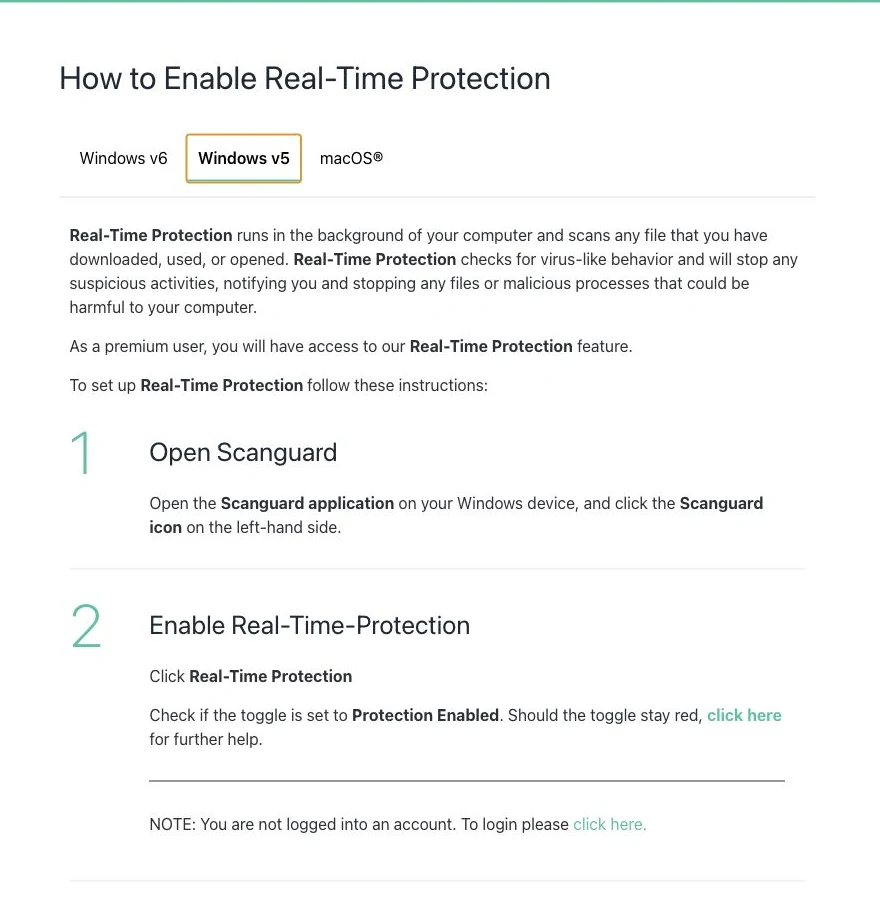
After one enable attempt, move to Windows Security. Do not toggle Scanguard off and on ten times, end its protected process or disable every Defender control. The application switch tells you what Scanguard requested; Windows provider status tells you which antivirus the operating system recognizes.
Verify the active antivirus under Windows Security
Microsoft's current Windows Security settings guide uses Settings → Manage providers. Expand Antivirus and record the application shown. Windows Security is the reporting surface for Microsoft and non-Microsoft protection; a Scanguard window or tray icon by itself does not prove successful registration.
| Manage providers result | Meaning | Next action |
|---|---|---|
| Scanguard active/current | Scanguard is the registered provider | Compare the app toggle; update and restart if they disagree |
| Another intended product active | That product owns real-time protection | Choose which product to keep before removing either |
| Old/unwanted product active | Possible remnant or genuine competing suite | Use that vendor's official uninstaller, then restart |
| Microsoft Defender active | Defender is currently protecting Windows | Keep it active while Scanguard registration is repaired |
| No active antivirus | Real protection gap | Avoid risky activity; repair Scanguard or restore Defender |
| Managed by organization | Policy may select or lock the provider | Use the administrator/MDM route |
A status card can lag briefly during installation or removal, which is why one normal restart belongs in the workflow. It should not be forced with service restarts or registry edits. Note whether the provider card opens Scanguard, reports that action is needed, or names a different product. Those details help distinguish a stale interface from an unregistered protection service.
Capture a screenshot when Windows says Scanguard is active but Scanguard says protection is off. That mismatch is more useful to support than a registry-cleaner log. Restart once after a completed update and check both screens again. If the states still disagree, preserve logs before reinstalling.
Keep one intended real-time antivirus active
Microsoft's consumer antivirus guidance warns that two antimalware products running together can cause problems. That does not mean every browser extension, VPN, password manager or on-demand scanner must be removed. Use Manage providers, installed-app publisher information and the device owner's intent to identify a genuine competing real-time antivirus.
Save its license and settings, then remove only the product you do not intend to keep through its supported uninstaller or vendor removal tool. Restart and check Manage providers again. Do not delete its program folder while services and drivers are loaded. On a work or school computer, the endpoint product may be mandatory; stop and involve the administrator rather than defeating policy.
If removal temporarily leaves Defender active, that is safer than forcing both providers off. Complete Scanguard's current official install, allow updates and wait for registration. The target is continuous protection by one provider, not a moment when every switch is dark so an installer can proceed.
Do not turn off Defender or Security Center as a blind fix
Scanguard's troubleshooting page says Defender will conflict and tells readers to toggle off Periodic Scanning. That wording collapses three different things: the primary antivirus provider, optional periodic scanning and the Windows Security reporting service. Microsoft's current virus and threat protection documentation says a compatible third-party antivirus normally causes Defender Antivirus to turn itself off automatically.
Microsoft also says Periodic Scanning can coexist as an optional second-opinion function in some configurations. Turning it off does not prove Scanguard's real-time component is installed or registered. Likewise, Tamper Protection protects Defender settings but Microsoft's Security Center documentation explains that it does not control how a third-party antivirus registers.
Never stop or disable the Windows Security Center service to make a warning disappear. Microsoft warns that doing so can create stale or inaccurate status and can prevent Defender from returning after an old third-party product is removed. Do not delete Defender policy or provider registry values copied from Reddit. Verify the provider, make one supported change and keep a rollback path.
Scanguard's Intel Rapid Storage advice is not a universal fix
The current Scanguard issues page contains a numbered instruction to uninstall Intel Rapid Storage, then uninstall and reinstall Scanguard. It does not first establish the device's RAID, Optane, storage-driver or boot configuration. That makes the instruction unsuitable as a generic consumer repair. Timing alone—“the toggle failed on a PC that has Intel software”—does not prove the storage component caused it.
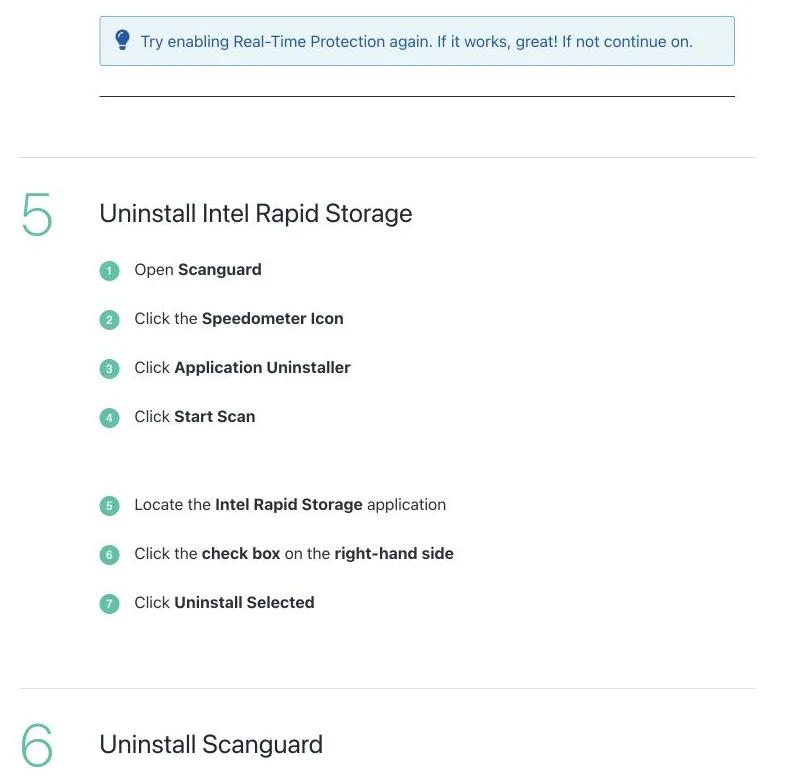
Removing a storage component can affect disk access, boot behavior, RAID/Optane management or performance. If a crash dump, device event or manufacturer bulletin connects an exact driver version to the failure, use the computer maker, Intel, Microsoft or a qualified technician with a known-good backup and rollback procedure. Otherwise leave the storage stack alone and continue with provider registration, current updates, logs and a supported Scanguard reinstall.
On Mac, Full Disk Access is one required gate
Scanguard's current download and install page instructs Mac users to grant Full Disk Access during Real-Time Protection setup. Apple's Privacy & Security guide explains that this permission can expose data from other apps, browser and mail data, backups and administrative settings. Grant it only to the verified Scanguard app and exact real-time component created by the official installer.
On current macOS, open System Settings → Privacy & Security → Full Disk Access. Match the actual signed component requested by Scanguard, approve the change with the Mac's authentication and relaunch when prompted. An older vendor screenshot may say System Preferences or show a lock icon. Follow the labels on the installed macOS version instead of searching for a control that Apple moved.
Permission lists can preserve disabled entries from an older installation. Do not assume the longest or most technical name is the current one. Compare the entry with the component named by the signed installer, the application version and the time it appeared. If the relationship is unclear, leave the unknown entry disabled, capture the list and ask verified support before granting broad disk access.
| Mac gate | Where to check | What it proves | What it does not prove |
|---|---|---|---|
| Paid account | Scanguard account/device | Feature entitlement | Permission or extension health |
| Full Disk Access | Privacy & Security | Verified component can inspect restricted files | Endpoint extension is enabled |
| Endpoint Security Extension | Login Items & Extensions or Privacy & Security | Security event-monitoring component is approved | Account and update are current |
| Background activity | General → Login Items & Extensions | Component may run when UI is closed | Every protection layer is healthy |
| Green state after restart | Scanguard plus System Settings | Configuration persisted | No historical compromise occurred |
Full Disk Access and the endpoint extension are separate
Apple's current Login Items & Extensions documentation lists Endpoint Security Extensions as components that monitor system events for security functionality. Scanguard's current install guide separately asks users to enable its endpoint real-time extension and to grant Full Disk Access. One checkbox does not replace the other.
Apple says system-extension approval may appear under Login Items & Extensions on macOS Sequoia 15 or later, or Privacy & Security on earlier versions. Verify the Scanguard component produced by the signed official package. If two old and new entries appear, do not enable both at random; record their names and version, relaunch the current app and use the supported uninstaller or support path to remove stale components.
Do not disable System Integrity Protection or reduce the Mac's security policy as a routine attempt. Those changes weaken the platform beyond Scanguard and are not required by the current normal endpoint-security-extension flow. On a managed Mac, MDM may approve or block the extension; the administrator owns that decision.
Treat the Mac helper-error deletion path as support-only
Scanguard's current helper-error page tells readers to delete ~/Library/Application Support/net.protected.macos.TotalAV/Libs, optionally empty Trash and reinstall from a “Total Security Dashboard.” The same page also contains a sentence about “TotalAV's Real-Time Protection.” That may reflect a shared vendor platform, but it is not enough proof that the exact folder on every Scanguard installation is safe to delete.
Record the helper error, product and macOS versions, exact component names, entitlement and permissions. Generate current diagnostics through Scanguard's official log-file instructions before uninstalling. Then use the normal Scanguard uninstall procedure, restart and install the latest signed build from the verified dashboard. Do not empty Trash or erase the shared folder just to make a warning disappear.
If current authenticated support directs exact helper cleanup, confirm the path belongs to the installed signed build, make the action recoverable and preserve logs until protection passes after restart. Never delete broad Application Support folders, disable SIP or paste a recursive Terminal command from a forum.
Reinstall only after the state and logs are preserved
Reinstall is appropriate after account and update checks, one provider review on Windows or both permission gates on Mac, and one restart. Before removal, capture the red state, exact error, Manage providers or System Settings result and Scanguard version. Generate the current diagnostic archive where possible. That evidence may disappear with the old installation.
Use the supported Scanguard uninstaller, restart, and obtain the current signed installer through the official dashboard or help route. Let it install and update fully. On Windows, check Manage providers after the next restart. On Mac, approve only the exact Full Disk Access and endpoint extension requested by the new package, then relaunch and check that both entries remain.
Keep the account identity constant through the reinstall. Creating a second paid account or accepting a new purchase prompt can hide the original entitlement problem behind another subscription. If the portal does not show the expected device or paid feature, stop at account recovery instead of repeatedly adding installations that cannot activate the same component.
Do not combine reinstall with storage-driver removal, registry cleanup, Security Center changes and shared-folder deletion. If protection returns, you will not know which change mattered or which one weakened the device. One reversible change at a time is how the failure becomes diagnosable.
Managed devices and malware-disabled security need a different owner
If Windows says settings are managed by an organization, or macOS shows an MDM-controlled extension, stop using a consumer repair list. An employer or school may require a different endpoint product and block Scanguard intentionally. Removing the managed agent or profile can break compliance, network access and incident response. Give the administrator the screenshots and exact state.
If protection turned off immediately after an unknown executable ran, treat malware interference as possible. Disconnect from risky activity, avoid sensitive logins, preserve the alert and use another clean device to protect important accounts after containment. A second supported scanner or offline recovery path may be warranted, but do not download random “Defender repair” scripts or disable Tamper Protection permanently.
When no active provider can be restored, keep the device away from untrusted downloads and email attachments. Repair Scanguard or allow supported Defender to return before normal use. A clean on-demand scan does not make an unprotected real-time state acceptable.
Verify protection after restart, not only in the same session
Restart the computer, sign in and wait for Scanguard and the operating system to settle. Confirm the correct paid account, current product version, successful update and green Real-Time Protection state. On Windows, check Manage providers and verify exactly one intended antivirus owns the category. On Mac, recheck Full Disk Access, Endpoint Security Extension and background activity where the current version exposes them.
Open and save ordinary known-safe files, then check that the protection state remains enabled. Do not use live malware. If an organization uses a documented harmless test procedure, follow that controlled method; otherwise state persistence and provider/permission evidence are enough for a consumer repair. Run the next routine Quick Scan separately rather than pretending an on-demand result proves the real-time component.
Repeat the check after the next normal shutdown or sleep cycle if that event previously triggered the failure. A repair that lasts only until the interface closes is not complete.
The repair passes when the state survives restart, updates complete, the operating system recognizes the intended provider or extension, no second real-time suite competes and no temporary diagnostic weakening remains. If the switch falls back again, preserve the new timestamp and logs instead of repeating the same toggle.
Build a support packet that can reproduce the failure
Useful support evidence is compact and specific. Include the operating-system version/build, device model and architecture, Scanguard version, account entitlement state, exact message and timestamp, active Windows provider or Mac permission/extension state, other installed security products and the most recent system or product change. Redact personal paths and account details that do not matter.
| Evidence | Example | Why it matters |
|---|---|---|
| Product state | Version, paid account, update, red toggle | Separates entitlement from engine failure |
| Windows state | Manage providers result | Shows registration and competing provider |
| Mac state | Full Disk Access and endpoint extension | Shows which permission gate failed |
| Timeline | Install/update/restart and failure time | Links logs to the event |
| Recent change | OS, app, driver or old antivirus removal | Narrows the conflict window |
| Diagnostics | Current Scanguard log archive | Preserves internal events before reinstall |
| Actions tried | One supported change and result | Avoids repeating destructive steps |
Send logs only through the authenticated Scanguard account or verified help domain. They can contain usernames, local paths and device details. Do not post them publicly or send them to a phone number copied from a search-result document. If support recommends the Intel or shared-folder path, ask for the exact device/build rationale and rollback instruction before acting.
Scanguard Real-Time Protection FAQ
Why is Scanguard Real-Time Protection red?
A red toggle can mean the paid feature is unavailable to the signed-in account, installation or updating is incomplete, Windows has another antivirus provider registered, or macOS has not approved the required disk access or endpoint extension. Record the exact state and verify the operating system before reinstalling or disabling another security control.
How do I enable Scanguard Real-Time Protection on Windows?
Scanguard's current Windows v6 path is Settings, Advanced, Security, then Enable Real-Time Protection. Its Windows v5 path uses the Scanguard icon, Real-Time Protection and a Protection Enabled toggle. After enabling it, use Windows Security Settings and Manage providers to confirm which antivirus is actually registered.
Should I disable Microsoft Defender for Scanguard?
Do not permanently or manually disable Defender as a generic fix. Microsoft says a compatible current third-party antivirus normally registers with Windows Security and Defender Antivirus turns itself off automatically. Confirm the active provider first; keep one intended real-time antivirus active throughout troubleshooting.
Can Microsoft Defender and Scanguard run together?
Windows can show Microsoft features while a third-party product is the primary antivirus, and optional periodic scanning is not the same as two primary real-time providers. The safe target is one registered real-time antivirus. Use Windows Security, Settings and Manage providers instead of judging by two desktop icons.
Should I uninstall Intel Rapid Storage to fix Scanguard?
Not from a generic checklist. Intel Rapid Storage can be part of a device's RAID, Optane, storage-driver or boot configuration. Remove or roll back a storage component only when crash or driver evidence connects it to the failure and the device maker or qualified support provides an exact recovery plan.
Why does Scanguard need Full Disk Access on Mac?
Real-time file inspection needs access to locations macOS restricts. Grant Full Disk Access only to the verified Scanguard application and exact real-time component installed from the official source. Full Disk Access does not replace endpoint-security-extension approval; current macOS can expose those controls separately.
Where is the Scanguard extension on current macOS?
Apple says endpoint and system-extension controls can appear under System Settings, General, Login Items & Extensions on newer macOS versions, or under Privacy & Security on earlier versions. Follow the signed installer's current prompt and confirm both the verified extension and background permission rather than relying on an old lock-icon screenshot.
Should I delete the net.protected.macos.TotalAV folder?
Not as a first-line Scanguard fix. Scanguard's own helper-error page names a shared TotalAV folder, which may reflect its vendor platform but is too ambiguous for blind deletion. Preserve logs and use the supported Scanguard uninstall and reinstall path; perform exact recoverable cleanup only under current verified support direction.
How do I know Scanguard protection is working?
Confirm the paid account and current version, successful updates, a green protection state, one intended Windows antivirus provider or the required macOS permissions and extension, and persistence after restart. A green toggle alone is not enough, and you should never test the state by downloading live malware.
When should I reinstall Scanguard?
Reinstall after recording the state, checking entitlement and updates, verifying the Windows provider or macOS permissions, restarting once and preserving logs. Use Scanguard's supported uninstaller and official current installer, then verify registration or permissions again after another restart.
Bottom line: one provider, two Mac gates, proof after restart
Start with the paid account, current build and one in-app enable attempt. Windows needs one intended antivirus visible under Manage providers; Defender normally yields automatically to a compatible active third-party provider. Mac needs both Full Disk Access and the verified endpoint-security extension, with labels that vary by macOS version.
Do not turn a red toggle into a larger outage by disabling Security Center, deleting registry values, removing Intel Rapid Storage or erasing a shared TotalAV folder without exact evidence. Preserve the state, make one supported change, restart and verify. Reinstall is complete only when Scanguard and the operating system agree that protection is active and it stays that way. The full Scanguard review keeps this repair in the wider context of features, lab evidence, price and product limitations.