
Avira System Speedup Review 2026: Useful Cleanup, Risky Shortcuts
Avira can recover disk space and expose a crowded startup list. That doesn't make every registry fix, realtime boost or automatic cleanup wise. The right verdict depends on what you can measure—and whether the installed Avira client has the 2026 security fixes.

Quick answer: Avira System Speedup is useful when it solves a named Windows problem: reclaiming storage, finding a heavy startup app or scheduling a cleanup you have reviewed. Free covers the basic jobs; Pro adds deeper cleaning, automation, battery, registry, recovery and backup tools. We would leave registry cleaning off, compare Startup Optimizer with Windows Task Manager, and avoid any cleanup until the Avira client is updated to at least build 1.1.114.3113, which fixed two 2026 privilege-escalation flaws in System Speedup and the adjacent Optimizer.
Avira System Speedup verdict at a glance
Avira System Speedup has three defensible jobs: show where storage went, surface programs that start with Windows and automate a cleanup routine the owner has already reviewed. Those jobs produce evidence. A drive has a measurable amount of free space; Task Manager records startup impact; a stopwatch can show whether login becomes usable sooner. The free edition covers enough of this ground for a careful first pass.
The weak side is the promise that one health scan fixes a generally “slow PC.” A computer can feel slow because its system drive is full, a browser profile is damaged, an app launches at sign-in, Windows is updating, memory is exhausted, storage is failing, a thermal limit is reached or malware is active. Deleting cached files and registry entries doesn't diagnose those causes. Avira’s score can organize maintenance; it can't replace a problem statement and a baseline.
We wouldn't use the registry cleaner by default. Microsoft’s support policy says it doesn't support registry-cleaning utilities and warns that some products can cause serious instability that may require reinstalling Windows. Avira does provide restoration and registry-backup tools in Pro, but a rollback feature doesn't turn an unnecessary edit into a useful one. Repair a known fault with the application vendor’s instructions instead of chasing a higher cleanup score.
There's also a hard 2026 patch gate. CVE-2026-27749 affected the System Speedup RealTimeOptimizer, while CVE-2026-27750 affected the adjacent Optimizer cleanup component. Both could let a local low-privilege attacker reach SYSTEM-level impact. The published records mark builds through 1.1.109.1990 as affected and 1.1.114.3113 as fixed or unaffected. Update, reboot and verify the exact Avira client build before using either component.
Our final verdict is conditional. Try Windows’ own Storage Sense and Startup Apps first. Use Avira Free when one dashboard makes storage or startup maintenance easier. Pay for Pro only when its reviewed automation, recovery or specialist utilities replace a real workflow. The broader Avira antivirus review evaluates malware protection, lab results and the security suite; this page deliberately judges the optimizer as a separate product.
Avira System Speedup Free vs Pro: the current boundary
| Capability | Free | Pro | Editorial reading |
|---|---|---|---|
| Startup | Accelerated system starts | Advanced startup optimization and Hyper Boost | Useful only when a removable startup delay exists |
| Cleaning | Essential PC cleaning | Advanced and automatic cleaning | Review categories before deletion |
| Speed tools | Essential optimization | Advanced and realtime tools | Measure a task, not a dashboard score |
| Battery modes | Basic Windows controls remain available | Advanced battery optimizer and power modes | Convenient presets, not extra battery capacity |
| Registry | No advanced cleaner | Advanced registry cleaner and backup | Leave off unless fixing a known problem |
| Recovery | Limited | Maintenance, restoration and backup toolkit | Valuable only if configured before a change |
| Automation | Manual/basic | Scheduled and threshold-based cleanup | Automation magnifies both good and bad rules |
| Support | Knowledge base and community | Premium support | Potential value during a failed cleanup or renewal dispute |
Avira’s current Free-versus-Pro support table is broader than a normal trial comparison. Free includes accelerated starts, essential cleaning and essential speed optimization. Pro adds advanced cleaning, advanced speed tools, battery modes, registry cleaning, maintenance and backup tools, automation and premium support. The public Pro product page expands that list to more than 40 tools.
That inventory needs restraint. “Included” doesn't mean “recommended for every machine.” Process, service, driver and network managers expose powerful Windows controls that already exist elsewhere. Disk wiping, shredding and file encryption solve security jobs rather than speed jobs. Game Booster and power modes change priorities and resource availability; they can't make a CPU, GPU or SSD exceed its physical capability.
System Speedup is primarily a Windows product even though Avira uses related Optimizer naming on other platforms. The current store sells System Speedup Pro for Windows and allows different device counts and terms. A Mac, Android or iOS cleanup feature shouldn't be assumed to contain the same tools, interface or entitlement merely because it appears under the same Avira account. Our plan and renewal page separates those platform differences in the Avira pricing guide.
What “faster” can honestly mean on a Windows PC
A performance claim needs a unit and a task. Boot to the sign-in screen can be timed. Sign-in to a responsive desktop can be timed separately. A browser cold launch, a project build, a video export, a game’s one-percent-low frame rate and a file copy are different workloads. If the only before-and-after number is Avira’s own health score, the test has measured Avira’s classification system rather than the computer.
System Speedup can produce a real improvement when it removes a bottleneck. A nearly full system drive can leave Windows, browsers and applications with too little working space. A cloud client, chat application or game launcher can delay login. A background process can compete for CPU time during an interactive task. In each case, the improvement comes from changing the bottleneck—not from “cleaning” as a general property.
Temporary files are often harmless. Browser caches deliberately trade storage for fewer downloads; shader caches reduce future compilation; update caches can support repair or rollback; application caches can make the next launch faster. Deleting them may reclaim space while making the next run slower. A good cleaner names the category, size, source application and consequence before deletion. A red badge and a large item count aren't enough.
Hardware trouble sits outside this product’s reach. An SSD reporting errors, a laptop throttling at its thermal limit, insufficient memory, a damaged fan, a failing battery or an unsupported Windows installation needs diagnosis and repair. Malware symptoms require a security scan and sometimes an offline recovery workflow, not a registry pass. The Avira Rescue System guide covers the separate case where Windows can't be trusted to scan itself.
Junk cleanup is the clearest benefit—when every category is reviewed
Avira scans system cache, temporary files, browser data and other user or application debris, then reports reclaimable space. Its official Optimizer instructions include the most important step: open Review results, inspect categories and select or deselect individual items before clicking Optimize. That review screen is the difference between a storage tool and blind deletion.
The benefit is easy to verify. Record free space, run the scan, select only categories whose consequences are understood, clean and record free space again. Then open the applications involved. A browser may need to redownload images; an installer may lose a cached package; a thumbnail folder may rebuild. If those costs are acceptable and the machine needed the space, the cleanup succeeded even if no application becomes faster.
COMPUTER BILD’s direct 2024 test found a large amount of removable data on its particular test system and praised Avira’s cleaning depth. That's evidence that the scanner can find material, not a promise that another PC contains the same amount or that every detected item should be removed. Its separate 2026 registry-cleaner comparison placed Avira System Speedup tenth in that narrower category, another reason not to convert one old cleanup result into a universal performance verdict.
Start with large, intelligible categories: Recycle Bin, an old Downloads folder you have reviewed, obsolete installers, previous Windows installation files after the rollback window, application logs and clearly identified temporary exports. Treat saved browser sessions, authentication cookies, email caches, development caches, game assets, backup catalogs and unknown application data as opt-in deletions. If the drive fills again within days, find the growing source instead of scheduling a larger weekly purge.
Startup Optimizer and Hyper Boost can help, but Windows already shows impact
Avira’s Startup Optimizer analyzes applications and services launched during boot. It can leave an item during boot, delay it until after boot, disable it or—in some versions—remove an entry. Hyper Boost adds a more aggressive boot-optimization workflow. The useful decision isn't whether an item looks unfamiliar; it's whether the item is nonessential, contributes measurable delay and can be restored if a dependency appears.
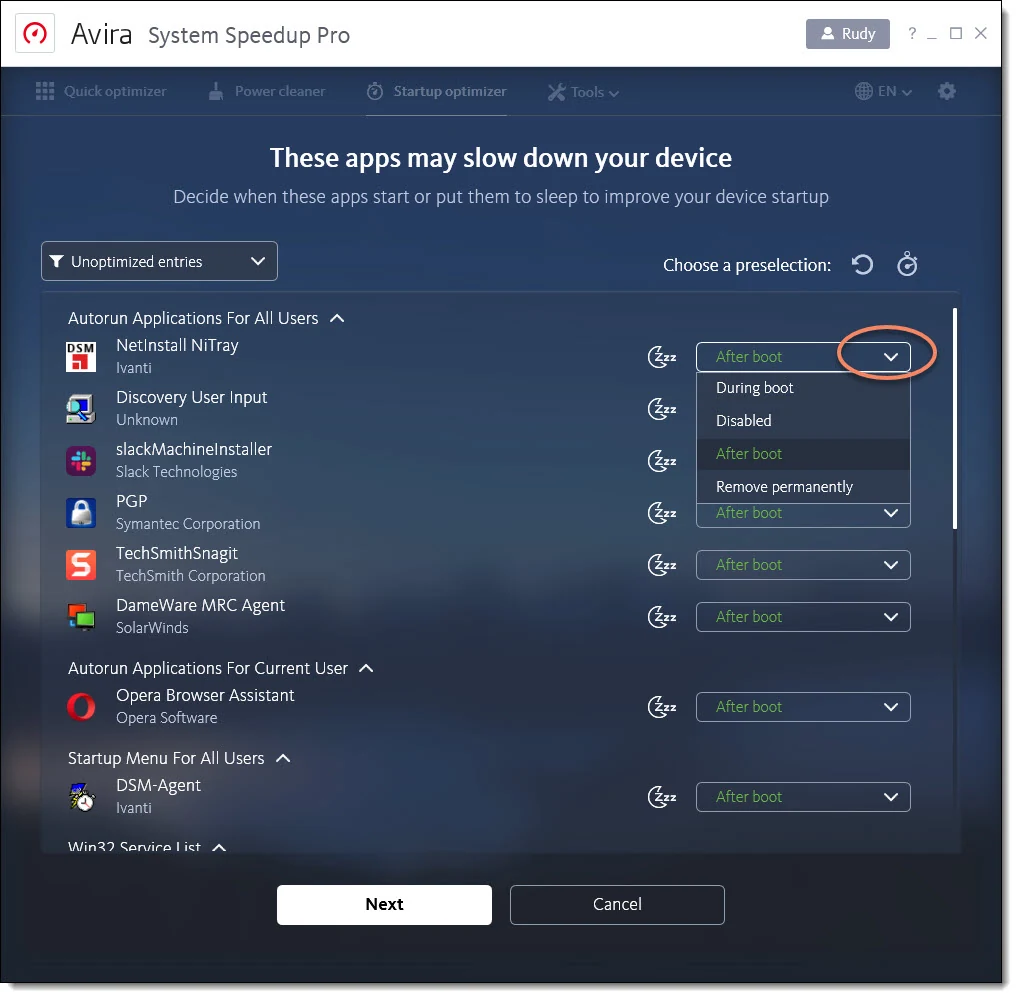
Delay is often safer than delete. A chat client, launcher or updater can start after the desktop becomes responsive without losing its function. A security service, touchpad utility, audio component, accessibility tool, backup agent, encryption service or enterprise management client may be essential even when its name is obscure. Search the signed publisher and file location before changing an unknown entry.
Avira itself says to create a restore point first in its boot-time optimization guide. The guide then recommends analyzing the list, reviewing highlighted recommendations, choosing an optimization level and applying changes. That's more responsible than a one-click promise, although the screenshots still show a legacy System Speedup Pro interface.
Windows 11 exposes startup applications in Settings and Task Manager. Task Manager also reports startup impact, making it a strong first tool. Disable one nonessential high-impact item, restart three times and measure sign-in-to-usable-desktop time. If the median doesn't improve, restore the item. A five-second visual animation difference is less useful than a repeatable improvement in the moment the machine accepts real work.
Registry cleaning should be off by default
Avira markets deep registry analysis as a way to remove invalid entries and reduce crashes or freezes. The Windows Registry does accumulate references left by uninstalled applications. The missing step in many optimizer pitches is causation: the presence of unused entries doesn't show that Windows reads them on a critical path or that their deletion will improve a task.
A current Microsoft Q&A answer from an Independent Advisor says Microsoft doesn't make or recommend a registry cleaner and advises creating a registry backup or restore point before any third-party cleaning. That's community guidance hosted by Microsoft, not a product-team specification. Microsoft’s own current registry backup and restore guide documents exporting an exact key before a deliberate edit. Both are more useful than a cleaner’s unexplained count of “errors.”
A broken application registration sometimes does need a registry change. Use the application vendor’s repair tool, official uninstall procedure or a documented exact key. Export that key, create a restore point and change only the known value. Don't run a broad clean because one application has a specific fault. Deleting hundreds of harmless orphan references expands the change surface while making the actual repair harder to isolate.
Avira Pro includes registry backup and restore, which is better than deleting without rollback. Windows System Restore is also valuable. Neither is a perfect backup of personal files or every system state, and both need to work before the incident. Our recommendation remains simple: skip the advanced registry cleaner on a healthy PC. It offers the least measurable benefit and one of the widest avoidable failure surfaces in the suite.
Realtime Optimizer, battery modes and Game Booster redistribute resources
Realtime Optimizer, also described as Performance Booster, watches processes and can prioritize the foreground work. This may improve responsiveness when a background job competes with an interactive application. It can't create CPU cores, memory bandwidth or storage throughput. Windows already schedules processes dynamically, so the improvement should be demonstrated on the actual workload rather than assumed from an enabled switch.
The same caution applies to memory “optimization.” Empty RAM isn't the goal; Windows uses available memory for cache because cached data is faster than reading it again. Forcing cached pages out can make a dashboard show more free memory while slowing the next application launch. If an application is genuinely leaking memory, update or restart that application and capture its growth in Task Manager instead of repeatedly flushing the symptom.
Avira’s power modes wrap choices between battery life and performance. A lower-power mode can extend runtime by reducing background activity, display power and peak performance. A boost mode can make performance more consistent while consuming the battery faster and producing more heat. Test a fixed workload at the same brightness and battery level; don't compare an idle estimate before the change with active use afterward.
Game Booster Pro can suspend background work and create a RAM-based gaming area for some files. That's a specialist feature, not a universal frame-rate upgrade. Modern games are often limited by GPU performance, shader compilation, network latency or storage streaming. Record average and one-percent-low frame rate in the same repeatable scene. If the difference is inside normal run-to-run variance, keep the simpler Windows configuration.
Windows 11 already covers the safest first-line maintenance jobs
| Job | Windows built-in route | When Avira adds value | Default choice |
|---|---|---|---|
| Temporary files | Storage Sense and Cleanup recommendations | More application categories in one review | Windows first |
| Startup apps | Settings or Task Manager | Delay choices and guided list | Task Manager first |
| Drive optimization | Optimize Drives; scheduled automatically | One dashboard and additional analysis | Windows automatic schedule |
| Process inspection | Task Manager and Resource Monitor | Convenience and presets | Windows first |
| Power mode | Settings power mode and battery controls | Additional named profiles | Windows first |
| Registry cleanup | No broad cleaner recommended | Backup and automated scanning | Don't clean by default |
Storage Sense can remove temporary files and aged Recycle Bin content automatically. Downloads and cloud content are touched only under configured rules, so the settings still deserve review. Cleanup recommendations provide another inventory before deletion. These tools solve routine low-space maintenance without installing a privileged third-party optimizer.
Microsoft’s Startup Apps guide covers both Settings and Task Manager. Task Manager’s startup-impact labels give evidence that a third-party list may not improve. For drive maintenance, Optimize Drives automatically defragments hard disks and retrims solid-state drives on a schedule.
Avira’s value is consolidation and additional scope. One screen can find application caches, duplicate files, browser traces, startup services and specialist tools. That convenience is real for someone responsible for several cluttered family PCs. It isn't automatically safer than narrower Windows controls, especially when the same click mixes storage recovery, privacy deletion, registry edits and performance changes.
Begin with the operating system because it understands its own servicing and drive-maintenance rules. Add Avira only when the Windows route leaves a named gap. This sequence also gives the paid tool a fairer value test: if Storage Sense and Task Manager solve the problem, System Speedup Pro is a duplicate rather than a missing layer.
Two 2026 flaws make the exact Avira client build non-negotiable
Security researchers at Quarkslab disclosed three Avira Internet Security vulnerabilities in March 2026. They affected separate privileged suite modules, so the names matter. CVE-2026-27748 was in Software Updater. CVE-2026-27749 was in System Speedup’s RealTimeOptimizer. CVE-2026-27750 was in the adjacent Optimizer cleanup component. Calling all three “System Speedup vulnerabilities” would be inaccurate.
The CVE-2026-27749 record describes a SYSTEM-privileged process deserializing a writable file from C:\ProgramData\Avira\SystemSpeedup\ with .NET BinaryFormatter and no adequate validation. A local low-privilege user could supply a crafted payload and execute code as SYSTEM. The record scores it 7.8 High and requires no user interaction after the local preconditions are met.
CVE-2026-27750 was a time-of-check/time-of-use deletion flaw. Optimizer scanned a directory as junk and deleted it later as SYSTEM without revalidating the path. A local attacker could replace the directory with a junction or reparse point and redirect deletion to a protected location, potentially causing privilege escalation, denial of service or integrity damage.
Quarkslab’s detailed technical write-up and the vendor-backed CVE records agree on the version boundary: builds through 1.1.109.1990 were affected; 1.1.114.3113 is fixed or unaffected. Exploitation is local, so this isn't a claim that merely visiting a web page compromised every Avira user. It's still serious because optimization components run with broad privileges.
Avira’s public current-versions page lists “System Speedup for Windows 7.3.” That's a product version family, not the four-part Avira client build used in the CVE records. Don't compare 7.3 with 1.1.114.3113 numerically. Open Avira, use the question-mark icon and About as described in Avira’s version lookup guide, update the suite, restart Windows and verify the full client build. If it remains below the fixed build, stop using the privileged optimizer features and contact Avira.
A safe System Speedup test changes one thing at a time
- Name the problem. “The desktop takes too long to become responsive,” “the system drive has 6 GB free” and “a background updater interrupts calls” are testable. “The PC is unhealthy” isn't.
- Patch before testing. Update Windows, Avira and the affected applications. Confirm the Avira client is at least 1.1.114.3113, then restart.
- Create recovery. Back up important files, enable System Protection and create a restore point. A restore point isn't a substitute for a file backup.
- Capture a baseline. Record free space, three cold boots, sign-in-to-usable time and one real workload. Use the median, not the best run.
- Scan without deleting. Open every category. Exclude unknown application data, recent working files, sessions and anything required for rollback.
- Make one class of change. Clean reviewed temporary data or disable one startup app. Don't mix storage, registry, services and process-priority changes in the same run.
- Restart and repeat. Run the same measurements under the same power mode, network condition and workload. Check application logins, updates, backups and peripherals.
- Keep only evidence-backed changes. Restore anything that caused a regression or produced no useful result. Record the final setting before enabling automation.
This method is slower than “Fix all,” which is precisely why it works. A mixed optimization can produce a slightly faster login while breaking a scheduled backup, signing a browser out and deleting a useful installer cache. When one variable changes, the benefit and side effect can be attributed. When 500 items change, the dashboard owns the story.
Don't use an optimizer to investigate active malware, disk errors or random crashes without first collecting evidence. Windows Reliability Monitor, Event Viewer, Task Manager, Resource Monitor, drive health tools and a supported antivirus scan answer different questions. The troubleshooting page at Avira not working or using high CPU handles cases where Avira itself is the process consuming resources.
Exclusions and rollback matter more than the size of the scan
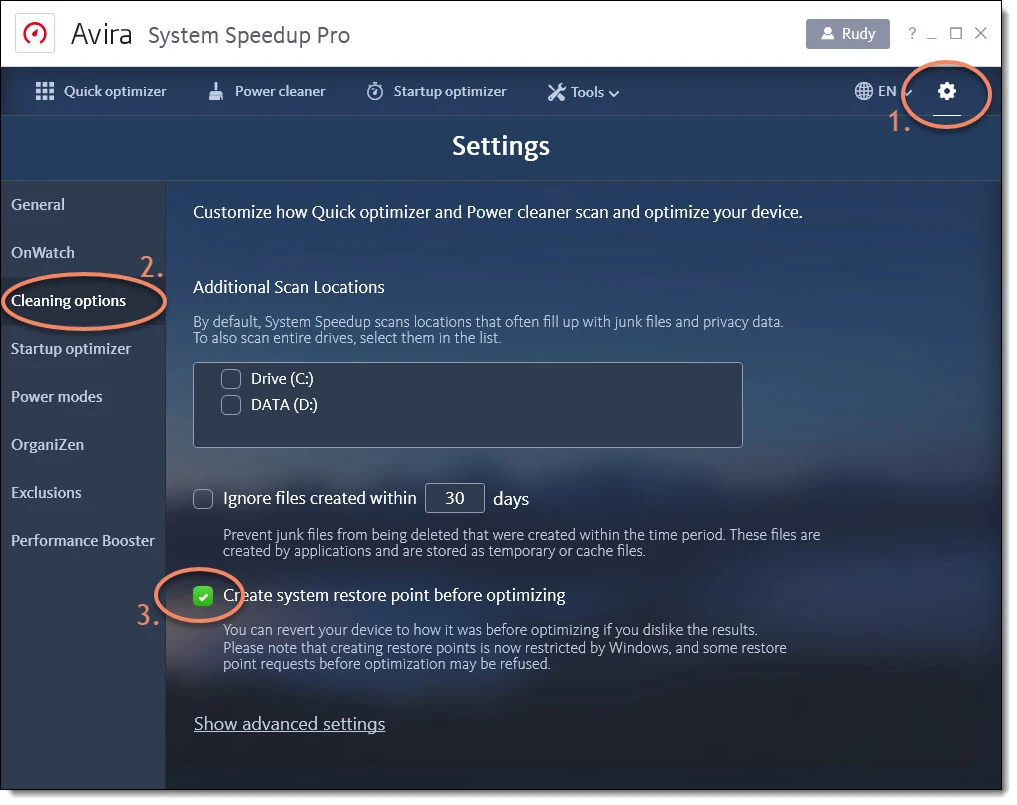
Avira supports exclusion lists for files, registry keys, cookies and startup entries. Its current cleanup-exclusion instructions place them under Performance, Advanced tools, Settings and Exclusions. Add a rule before the next scan; don't rely on remembering to deselect the same item every week.
Exclude active project directories, virtual machines, email stores, accounting databases, backup catalogs, game mod folders, development build caches that are costly to recreate and browser data whose deletion would disrupt authentication. A cache isn't automatically valuable; the point is to know the rebuild cost and the consequence before removing it.
System Restore can reverse many system settings, drivers and registry changes. It doesn't guarantee recovery of personal files and can be disabled, space-limited or unavailable after a severe failure. Verify that System Protection is on and the restore point appears before optimization. Pro’s Restore Changes and registry-backup tools add options, but the external file backup remains the last independent copy.
Automation comes last. Run the exact rules manually at least twice, check the recovered space and observe the next application launches. Set a conservative threshold or schedule only after the categories stay predictable. An automatic cleaner should remove known waste quietly; if it regularly discovers surprising gigabytes, investigate the application generating them.
Shredding, encryption and rescue tools aren't speed features
System Speedup Pro’s toolbox includes a file shredder, disk wiper, file encryption, file rescue, backup tools, drive analysis and low-level managers. Some can be useful, but grouping them under “performance” creates the wrong buying logic. Secure deletion protects discarded data. Encryption protects retained data. Recovery restores deleted data. None should be credited with making normal applications faster.
Modern SSDs complicate secure deletion because wear leveling and remapped blocks can leave copies outside a file shredder’s reach. For a device being sold, use the storage vendor’s secure-erase process or Windows’ supported reset flow with drive cleaning, and verify the machine’s encryption state. Repeatedly overwriting one file isn't a universal guarantee on flash storage.
File encryption is only as useful as its recovery model. Before encrypting the only copy of a document, verify the format, password requirements, export path and behavior when System Speedup is removed. Keep a second encrypted backup made with a maintained tool. A cleanup-suite subscription shouldn't become the sole key to long-term records.
Process, service, driver and network managers are advanced administrative surfaces. Stopping an unknown service can break updates, backup, audio, input devices or security controls. Windows Task Manager, Services, Device Manager and Resource Monitor have wider documentation and clearer troubleshooting paths. Use Avira’s consolidated view when it saves time, not because every listed item needs intervention.
System Speedup Pro is hard to justify as a standalone subscription
Avira’s store renders System Speedup pricing dynamically by country, term, device count, tax and promotion. The current product page offers monthly, one-, two- and three-year terms and says subscriptions renew automatically unless cancelled. It also says the renewal price can be higher than the introductory price and annual charges may be taken up to 35 days before renewal. A frozen dollar or euro amount would be less useful than the actual checkout and renewal notice for the reader’s account.
Record four numbers before buying: amount due today, covered Windows devices, term length and next renewal. Compare the same device count and billing cycle with Prime. System Speedup can be sold alone, but Prime already includes the Pro optimization toolkit on Windows alongside antivirus, Phantom VPN and Password Manager Pro. Paying twice for an overlapping entitlement is an account-management error, not extra protection.
The standalone value case is narrow. A household maintainer may appreciate automatic cleanup, startup delay controls, restore tools and one supported interface across several Windows PCs. A single maintained Windows 11 laptop already has safe storage, startup, power and drive tools. It rarely needs a recurring subscription for registry cleaning, a second process manager or a health score.
Prime can change the arithmetic only when the other services are wanted. Read the Avira Free versus Prime guide, the Phantom VPN review and the Password Manager review as separate decisions. If the VPN, password checks and multi-device security are duplicates, System Speedup doesn't rescue the bundle’s value.
Community complaints cluster around unwanted presence and incomplete removal
Community reports don't reveal failure rates, but they expose the language people use when documentation fails. Older r/antivirus and r/techsupport threads repeatedly describe System Speedup as an unexpected companion, blame it for background load or struggle to remove shared Avira components. Those reports span several old installer generations and shouldn't be presented as proof that the current installer behaves identically.
A more current June 2026 r/antivirus post describes a System Speedup file that remained locked after most Avira software had been removed. One unresolved post can't establish prevalence. It does justify a clear removal sequence and the warning that deleting files while a service is running isn't a clean uninstall.
Use Windows Installed apps or Programs and Features first. Remove the specific Speedup component before the shared Avira platform when both are listed, restart, and check whether its processes and services are gone. If normal removal fails, follow Avira’s official cleanup or reinstall procedure. Randomly deleting C:\ProgramData\Avira or registry entries can break the uninstaller and erase logs support needs.
The dedicated complete Avira uninstall guide handles service order, restart, leftovers and security handoff. If the component is present but not wanted, disable its automation while preparing removal rather than running a final broad cleanup. Windows Security should be confirmed active after the antivirus layer—not merely System Speedup—is removed.
Who should choose Avira System Speedup?
Choose Free when a Windows user wants one guided view of storage waste and startup items, will review every category and doesn't need automatic cleaning or the advanced toolbox. It's a reasonable convenience layer after Storage Sense and Task Manager have been tried.
Choose Pro when several Windows PCs need a repeatable, supported maintenance routine and the buyer will use startup delay controls, conservative automation, exclusions and rollback. Pro can also make sense when it's already included in a Prime plan purchased for other independently valuable services.
Skip both when Windows 11’s built-in tools solve the problem, the PC is healthy and storage isn't constrained. Also skip broad optimization during active disk errors, unexplained crashes, malware response or a business-managed configuration. Those cases need diagnosis, backups and an administrator’s change control.
Leave registry cleaning off unless a documented exact repair requires it. Don't pay for a tool because it reports hundreds of entries on a fresh or healthy installation. The number is a classification result, not a performance benchmark.
Avira built a broad toolbox, and some parts are more thoughtful than the “one click” category suggests: exclusions, restore points, delayed startup and review screens are useful controls. The product loses our unconditional recommendation because Windows duplicates the safest jobs, the riskiest features are difficult to justify, and the 2026 CVEs make version verification essential. Our verdict is useful selectively, poor as a cure-all.
Avira System Speedup FAQ
Is Avira System Speedup safe to use?
The basic storage and startup tools can be used safely when the results are reviewed, important files are excluded and a restore point or backup exists. Registry cleaning and automatic deletion carry more risk. Update the Avira client to at least build 1.1.114.3113 before using System Speedup or Optimizer because earlier builds were affected by two high-severity 2026 local privilege-escalation vulnerabilities.
Does Avira System Speedup really make a PC faster?
It can shorten startup or login when it disables or delays a genuinely heavy nonessential startup item, and freeing a nearly full system drive can improve normal Windows operation. Deleting registry entries or temporary files on a healthy PC doesn't guarantee faster apps, games or browsing. Measure boot, login and a real task before and after one change.
What is the difference between Avira System Speedup Free and Pro?
Free includes accelerated starts, essential cleaning and essential speed optimization. Pro adds advanced cleaning and speed tools, battery modes, the advanced registry cleaner, automatic maintenance, restoration and backup utilities, and premium support. The safest useful jobs aren't necessarily the ones behind Pro.
Should I use Avira’s registry cleaner?
Our default answer is no. Microsoft doesn't support registry-cleaning utilities and warns that incorrect changes can cause serious problems. A smaller registry isn't a meaningful performance goal by itself. Use a vendor repair or uninstall process for a known bad entry, and create a restore point and registry backup before any deliberate edit.
Can Windows 11 replace Avira System Speedup?
For many people, yes. Storage Sense and Cleanup recommendations handle routine storage, Task Manager and Settings manage startup apps, and Optimize Drives automatically defragments hard disks or retrims SSDs. Avira adds one dashboard, deeper cleanup categories, automation and specialist utilities, but those extras aren't required for a maintained Windows 11 PC.
Which Avira version fixes the 2026 System Speedup vulnerabilities?
CVE records list Avira client versions through 1.1.109.1990 as affected and 1.1.114.3113 as fixed or unaffected. That client build isn't the same numbering system as the public System Speedup 7.3 product label. Open Avira, select the question-mark icon and About, update, reboot and verify the exact build before running cleanup.
Is Avira System Speedup included with Avira Prime?
Yes, Prime unlocks the Pro optimization tools on supported Windows installations. That doesn't make the component free: its cost is embedded in the bundle. Judge Prime by the antivirus, VPN, password, device and support services you'll actually use, then treat System Speedup as a convenience rather than a reason to buy the whole plan.
How do I remove Avira System Speedup?
Start in Windows Installed apps or Programs and Features and remove System Speedup before removing the shared Avira platform. Restart and confirm its services and processes are gone. If normal removal fails, use Avira’s documented cleanup or reinstall procedure rather than deleting random registry keys. The dedicated Avira uninstall guide covers the full sequence.