
How to Uninstall Avira Completely and Stay Protected
A clean uninstall isn't measured by an empty folder. Remove the right components in the right order, restart, then verify that Microsoft Defender or your chosen replacement is actually protecting the device.

Quick answer: On Windows 11, cancel billing separately if needed, close Avira, open Settings, Apps, Installed apps, find Avira Security and choose Uninstall. Remove other Avira products first and the main Avira or launcher entry last, follow the wizard, then restart. Open Windows Security and confirm Virus & threat protection names Microsoft Defender Antivirus or your intended replacement with no action needed. Remove Avira browser extensions separately. If the uninstaller fails, don't delete folders or registry keys first: restart, repair or reinstall Avira from its official installer, retry removal, then use Microsoft's official troubleshooting path before Avira's narrowly scoped Safe Mode cleanup.
A complete Avira uninstall ends with a healthy protection handoff
Removing Avira is complete when the application and intended companion components are gone, the device has restarted, browser extensions have been reviewed, and the operating system reports a healthy active antivirus provider. An empty Program Files folder isn't the test. A leftover log or an account entry may be harmless, while a registered provider or loaded service isn't.
This guide therefore avoids the most common bad shortcut: deleting every file or registry key containing “Avira.” Antivirus software installs services and protection components that Windows expects its uninstaller to unregister in sequence. Destroying the uninstaller first can turn a routine removal into a repair job, a failure pattern visible in a current April 2026 r/antivirus thread.
The main path below follows Avira's current Windows uninstall instructions and Microsoft's current Windows 11 controls. Avira's page still contains historical Windows 7 and 8 sections, but this article doesn't present unsupported operating systems as a current target. Upgrade or isolate an unsupported PC rather than treating antivirus replacement as an operating-system security fix.
If the application is malfunctioning rather than unwanted, start with the Avira not working and high CPU guide once it's published. This page is for a deliberate removal, a clean reinstall, or recovery from an uninstall that has already failed.
Before uninstalling, preserve the things removal can't recover
First separate billing from software. Uninstalling Avira doesn't cancel a direct subscription, an app-store purchase or a retailer agreement. If you're leaving the product, use the Avira cancellation and refund guide to identify the merchant, stop renewal and save confirmation before account access becomes less convenient.
Export anything stored only inside an Avira feature. Password Manager users should verify the vault opens, export through the official application flow and confirm the resulting file is readable before removing the extension. Our Avira Password Manager review covers the product's recovery and migration limits; never leave an unencrypted export in Downloads after the replacement vault is working.
Open quarantine and decide whether any file must be restored, submitted for a false-positive review or deliberately left contained. Don't restore a suspicious executable merely because Avira is being removed. If the machine may be infected or Avira can't start, use the Avira Rescue System guide or another trusted offline scanner before assuming an uninstall is safe incident response.
Create a current backup and, on Windows, a restore point when you're already dealing with a damaged installation. Note which Avira products are listed in Installed apps, take a screenshot of the current Windows Security provider, and close open Avira windows. Download a replacement installer from its official vendor if you plan to switch, but wait to enable a second permanent real-time suite until Avira has handed off cleanly.
| Check | Why it matters | Done when |
|---|---|---|
| Billing | Removing an app doesn't change the merchant agreement | Renewal state and receipt are saved |
| Password vault | A browser extension may be the only convenient access path | Export is verified and secured |
| Quarantine | Uninstall can remove the product's recovery interface | Each important item has a deliberate decision |
| Backup | A damaged security install can require repair | Current backup or restore point exists |
| Replacement | The PC shouldn't remain without known protection | Official installer or Defender plan is ready |
Uninstall Avira normally on Windows 11
Open Start → Settings → Apps → Installed apps. Find Avira Security, open the three-dot menu and choose Uninstall. Windows may show a User Account Control prompt; approve only when it names the expected Avira installer, then follow the Avira Uninstall Wizard rather than closing its window when the app disappears from the taskbar.
Avira also documents a Start-menu route: Start, All apps, right-click Avira and choose Uninstall, which redirects to the application list. Microsoft's Windows uninstall guide confirms Settings as the current route and Control Panel as an alternative for programs that still expose a classic installer.
If several Avira entries are installed, remove the standalone or companion products first and the main Avira platform entry last. The names can include Avira Security, Phantom VPN, System Speedup, Secure Browser or older product-specific entries. Avira explicitly says older multi-component installations should be removed one by one with the main Avira entry last, because that platform can manage the other uninstallers.
Don't assume every companion feature must be deleted. A user may want to remove real-time antivirus while retaining Phantom VPN or Password Manager. Decide product by product, using the Phantom VPN review, System Speedup review and Secure Browser and Browser Safety review to identify what each entry actually does.
Allow the wizard to finish even when progress pauses. Security services may need time to stop and unregister. If the wizard requests a restart, accept after saving open work; if it does not, restart manually anyway before judging whether removal succeeded.
Restart, then verify Microsoft Defender or your replacement
A restart is part of the uninstall, not optional housekeeping. It lets Windows unload Avira components and refresh antivirus-provider registration. After signing back in, open Windows Security → Virus & threat protection and inspect the named provider and current status.
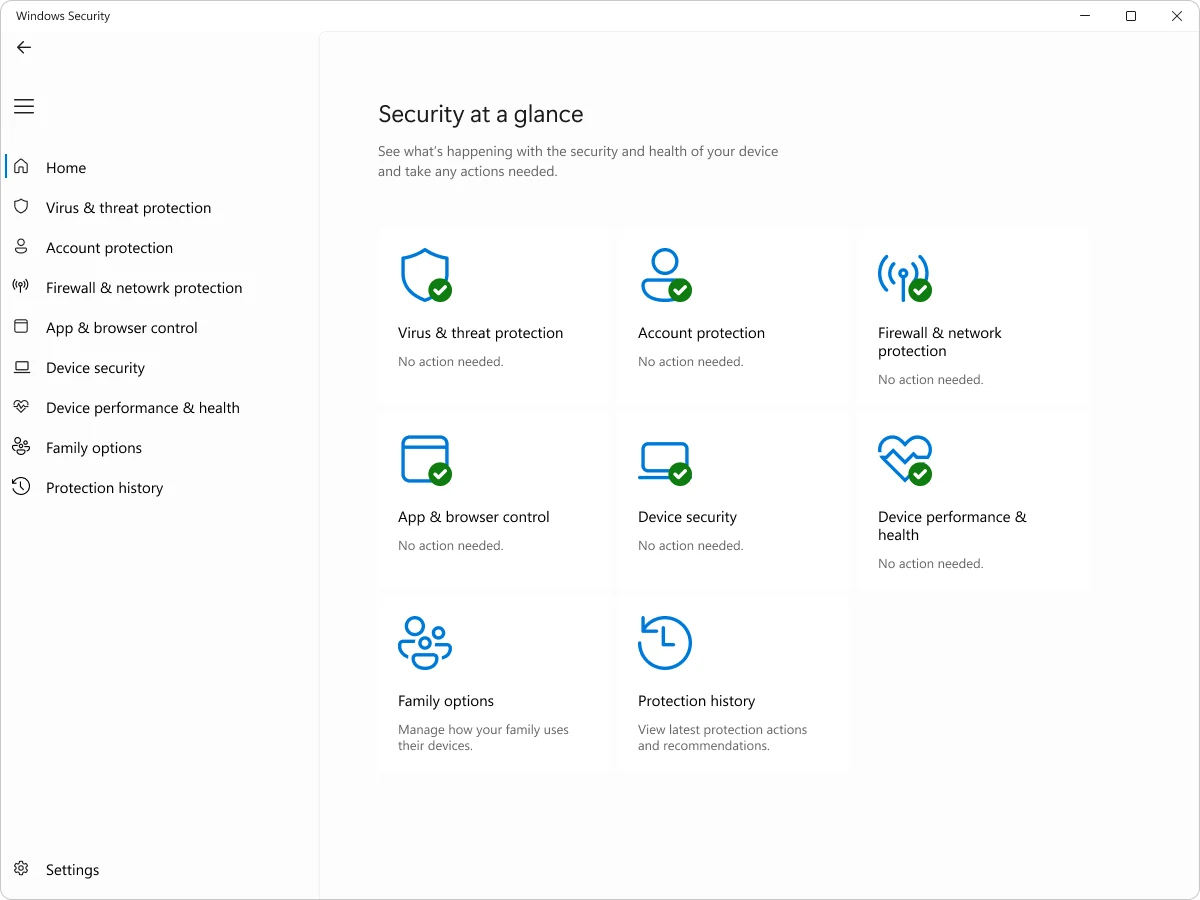
Verify the provider after the restart
Microsoft's Windows Security overview explains that Microsoft Defender Antivirus turns off when a compatible third-party antivirus is installed and turns back on automatically when that product is removed. That behavior is the expected handoff, not proof by itself. Confirm Virus & threat protection says Microsoft Defender Antivirus is active with no action needed, or names the replacement you intentionally installed.
Run protection updates and a quick scan once the provider is healthy. If Windows Security is blank, still names Avira, says no provider is active or asks for action, stop before installing another permanent suite. Use the provider-repair section below so two security products don't compete for the same system hooks.
Check Windows Firewall separately. Avira's Windows product relies on the operating system firewall rather than supplying a wholly separate firewall engine, but a damaged security change can still leave warning tiles. Resolve every red or yellow Windows Security action that concerns the active protection plan instead of considering the job complete because Avira vanished from Installed apps.
Remove Avira browser extensions and companion apps separately
Desktop removal doesn't guarantee an extension disappears from every Chrome, Edge, Firefox or other browser profile. Open each browser's extension manager and review Avira Browser Safety and Avira Password Manager. Remove the ones you no longer need, then close and reopen the browser to confirm the toolbar icon and extension permissions are gone.
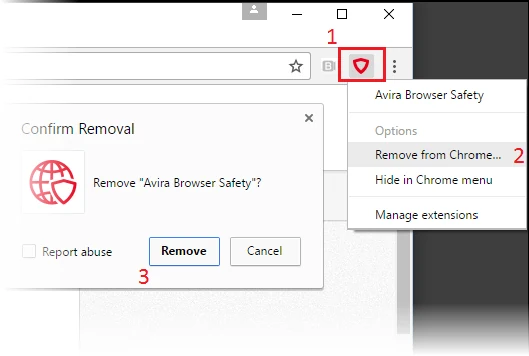
Avira's extension removal article gives browser-specific routes, but some screenshots and menu wording are old. In current Chromium browsers, open the extensions page, find the Avira extension, choose Remove and confirm. In Firefox, open Add-ons and themes, Extensions, then the extension's three-dot menu and Remove.
Check every browser profile, including work and secondary personal profiles. Extensions synchronize through browser accounts, so a removed extension can reappear if synchronization restores it from another device or an organization policy installs it. A policy-managed extension needs the account administrator, not registry deletion copied from a forum.
Secure Browser is a standalone browser, not merely an extension. If removing it, export bookmarks and saved passwords first, choose whether browsing data should be removed, and verify the default browser is the one you intend. Don't erase a whole browser profile solely to remove Browser Safety.
When Avira won't uninstall, use a conservative escalation ladder
Start with one normal restart and try Installed apps again. A pending Windows or Avira update, an open settings window or a stuck installer can clear after reboot. Note the exact error and whether the entry offers Uninstall, Modify, Repair or nothing; those states call for different recovery steps.
If Avira files were manually deleted or the wizard is missing, repair or reinstall the same current Avira product from the official Avira downloads page. The goal isn't to keep Avira. Reinstalling restores the installer records and files that its own uninstaller needs, after which you can restart and run the normal removal again.
Avira's current manual reinstallation article also routes failed removal through Windows Programs and Features and Microsoft's own troubleshooting. Microsoft's install and uninstall repair guidance should come before a third-party forced uninstaller because it targets damaged uninstall records without bundling an unrelated cleanup product.
Only after restart, repair or reinstall, another normal uninstall and Microsoft troubleshooting have failed should you use Avira's Safe Mode fallback. Create a backup or restore point, boot into Safe Mode, and limit attention to the exact vendor-named locations: C:\Program Files\Avira, C:\ProgramData\Avira, and the legacy C:\Documents and Settings\All Users\Application Data\Avira path when it genuinely exists. Don't broaden that into deleting every result for “Avira,” and don't edit the registry by search-and-destroy.
If a named folder can't be removed, Avira advises renaming it, restarting into Safe Mode and trying again. Treat this as a supported cleanup for a failed installation, not a faster first method. Afterward, reboot normally and repeat the Windows Security verification; a clean-looking disk with a broken provider state is still not a successful outcome.
A locked Avira or System Speedup folder usually means a process is still using it
A June 2026 r/antivirus removal thread describes a System Speedup folder that appeared open in Explorer and couldn't be deleted. That's a useful failure example, not evidence that every Avira uninstall leaves locked files. The safe response is to close Explorer windows and Avira apps, restart, and run the product's own uninstaller rather than terminating unknown processes at random.
If System Speedup has a separate entry in Installed apps, remove it before the main Avira platform entry. If the entry is broken, reinstall or repair the matching component and retry. Use Task Manager only to identify whether an ordinary user-facing Avira window is open; don't kill protection services or drivers as an improvised uninstaller.
Safe Mode reduces the number of loaded third-party processes and is the appropriate final place for Avira's narrowly scoped folder cleanup. Preserve logs and the exact error first if support may need them. A small leftover folder containing logs or an empty directory is lower priority than an active service, a driver, a startup task or stale antivirus-provider registration.
If Windows Security still shows Avira, repair the provider handoff
A current July 2026 community report describes Avira remaining named in Windows Security after an attempted uninstall. One report doesn't establish frequency, but it captures the right diagnostic question: is the app merely leaving files, or does Windows still consider it the antivirus provider?
Restart once, then inspect Installed apps for Avira Security and the main Avira platform entry. Open Windows Security and record the exact provider message. If Avira is still registered, reinstall the official current Avira package over the damaged installation, restart and uninstall normally again; this is safer than deleting the service or provider keys manually.
Apply Windows updates and use Microsoft's first-party repair guidance if Settings or uninstall registration is broken. If the Avira entry remains after the supported ladder, contact official Avira Support with the error, Windows version, listed products and provider screenshot. Avoid “Avira support” phone numbers from ads, spam PDFs or unsolicited pop-ups.
Don't install Bitdefender, Norton, Avast or another permanent third-party suite merely to force Windows to replace the registration. Resolve Avira's state first, verify Defender becomes active, then switch if desired. Our Avira alternatives guide keeps replacement selection separate from this removal repair.
Not every Avira remnant is an active antivirus component
| Finding after uninstall | Priority | What to do |
|---|---|---|
| Windows Security still names Avira | High | Repair the provider handoff before adding another suite |
| Avira service, driver or startup component remains active | High | Repair/reinstall and use the supported uninstall ladder or vendor support |
| Browser extension remains enabled | Medium | Remove it from each browser profile or policy source |
| Empty folder or old log remains | Low | Confirm no active provider or service before scoped cleanup |
| My Avira device or licence remains visible | Commercial/account | Review account data separately; it doesn't prove local protection is active |
Registry cleaners and “deep uninstall” utilities often turn a low-priority remnant into a high-risk action. They can remove shared installer data, restore points or unrelated entries based on a name match. This guide doesn't recommend one as the default, and it doesn't reproduce unverified community commands that stop services or delete drivers.
If the reason for removal is privacy rather than a broken provider, document what remains before deleting it. Account devices, invoices, support tickets and cloud entitlement aren't local program files. Use Avira's privacy/account process only after billing evidence and password data are safe.
Remove Avira Security from a Mac with Avira's own uninstaller
Open Finder, choose Go → Applications, and move Avira Security to the Bin. Avira's uninstaller should start; follow it through Finish, then empty the Bin after confirming the application is gone. This follows Avira's current normal Mac uninstall instructions and Apple's advice to use an app's included uninstaller when one exists.
If the conventional process no longer starts after a macOS update, open Terminal from Applications, Utilities and run Avira's bundled uninstaller at /Applications/Utilities/Avira-Uninstall.app/Contents/MacOS/Avira-Uninstall. That exact path comes from Avira's official Terminal removal article. Don't add sudo or substitute a script from a forum unless current official support tells you to.
If the uninstaller itself was already moved to the Bin and leftover components remain, download the archive linked by Avira's official leftover-removal article. Unpack it, right-click Avira.Uninstall.command, choose Open and authenticate when macOS requests it. Verify the download host is Avira Support before running a command with elevated access.
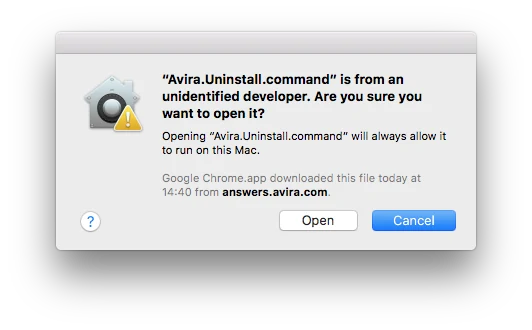
Restart the Mac, then check Login Items and Extensions in System Settings for an active Avira component. A preference file or log isn't equivalent to a running system extension. If the official uninstaller reports failure, preserve its message and contact Avira rather than deleting broad matches from /Library or ~/Library.
Remove Avira Security from Android without confusing delete and archive
Open Google Play Store, tap the profile icon, choose Manage apps & device → Manage, select Avira Security and tap Uninstall. Google's current Android app-removal guide notes that menu details can vary and that archiving is different: archive removes app software while retaining its icon and personal data for easier restoration.
You can also use Settings, Apps, Avira Security, Uninstall on most phones. If Uninstall is disabled, check whether the phone is managed by an employer, school or family administrator before changing security controls. Don't broadly revoke device administration or accessibility permissions without identifying which policy owns them; a managed app may require the administrator.
After removal, check the VPN status and Android's Accessibility, Device admin apps and VPN settings for an Avira permission or profile that you intentionally no longer need. Menu names differ by manufacturer. The Avira Android review explains which Android protections and permissions existed before you decide whether an entry is a remnant or a separate feature.
Deleting the Android app doesn't cancel Google Play billing. Use the purchasing Google Account's Subscriptions screen and keep confirmation, as Avira's in-app purchase guidance explicitly requires.
Delete Avira from iPhone or iPad and check the VPN profile
Touch and hold the Avira app, choose Remove App → Delete App, then confirm. Apple's current iPhone and iPad deletion instructions distinguish deleting the app from merely removing it from the Home Screen. If Delete App is unavailable, check Screen Time restrictions rather than assuming Avira blocks removal.
If Phantom VPN was configured, open Settings and inspect VPN controls for an Avira configuration that's no longer wanted. Remove only the clearly identified Avira profile or configuration; organization-managed profiles belong to their administrator. Restart if a VPN status icon or connection remains after deletion.
Apple also states that deleting an app doesn't automatically cancel its in-app subscription. Cancel the Avira subscription under the Apple Account that owns the receipt, not under whichever Apple Account happens to be signed into another device. Preserve the paid-through date before removing account access.
Use a five-minute final check instead of hunting every filename
On Windows, reopen Installed apps and confirm the Avira products you meant to remove are absent. Then inspect the system tray, Startup apps and Windows Security, update the active antivirus and run a quick scan. Open each normal browser profile and verify the unwanted Avira extensions are gone; a clean result in one Chrome profile says nothing about Edge, Firefox or a second synchronized profile.
Use Task Manager for observation, not improvised surgery. An ordinary Avira process that returns after reboot, an Avira service shown as running, or Windows Security naming Avira is evidence that the supported removal didn't finish. A folder containing only an old log or a zero-byte directory isn't equivalent evidence, so record its path and modification date before deciding that further deletion is worth the risk.
On a Mac, restart and inspect Login Items & Extensions in System Settings, then confirm no Avira VPN connection is active. On Android or iOS, check VPN configuration and the relevant app-store subscription separately. Across every platform, look for function rather than branding: active provider, background component, browser permission, VPN profile, stored vault and recurring payment are distinct surfaces.
If the device behaves worse after removal—Windows Security won't open, networking fails, or repeated installer errors appear—stop adding cleanup tools. Restore the point created before manual cleanup or use the operating system's repair options, then give Avira Support the exact sequence already attempted. Repeating several forced uninstallers makes the original fault harder to identify and can remove the logs that explain it.
Uninstall, cancel, delete the account and erase data are four jobs
A local uninstall stops the software on one device. Subscription cancellation changes future billing with Avira, Apple, Google, Microsoft or a retailer. Account deletion changes access and retained account data, while a password-vault export or privacy request addresses data that may live outside the antivirus application.
Complete these in a recoverable order: save receipts and licences, stop renewal, resolve any refund, export the password vault, uninstall the software, verify protection, then decide whether the Avira account should be deleted. The Avira plans and renewal guide explains how bundle entitlements can cover several devices, so removing one device shouldn't be mistaken for ending the whole plan.
Don't delete the account while a billing case is unresolved. It can remove the easiest route to order history without cancelling an external store agreement. Likewise, don't retain an unencrypted password export as a permanent “backup”; import it into the replacement, verify sample records and securely remove the export.
Reinstall Avira cleanly or switch after the provider state is healthy
For a clean reinstall, confirm Windows Security has completed the handoff, restart, then download Avira only from its official site and follow the Avira installation and setup guide. Sign into the account that owns the licence and add optional components deliberately rather than accepting every companion product by default.
If moving away, compare the reason you left with the replacement's trade-offs. High CPU calls for measured performance, billing frustration calls for transparent renewal terms, and missing parental controls call for a genuinely stronger family product. The Avira alternatives page, best free antivirus guide and Windows 11 comparison are better places for that decision than an uninstall screen.
The full Avira review covers protection, performance and bundle value; the Avira hub keeps setup, pricing, Rescue System, feature reviews, troubleshooting and removal as separate user journeys. On this page, success is intentionally narrower: Avira is removed from the intended device, unnecessary extensions are gone, billing has a known separate status, and the active antivirus provider is healthy.
Avira removal FAQ
How do I completely uninstall Avira on Windows 11?
Open Settings, Apps, Installed apps, find Avira Security, choose the three-dot menu and Uninstall, then follow the Avira wizard and restart. If several Avira products are listed, remove the companion products first and the main Avira entry last. After reboot, verify the active antivirus provider in Windows Security and remove browser extensions separately.
Why is Avira still showing in Windows Security after uninstalling it?
The provider registration may not have completed, an Avira component may still be installed, or the uninstall may have failed. Restart once, inspect Installed apps and Windows Security, and don't install a second permanent suite until the provider state is clear. Repair or reinstall Avira and run its uninstaller again before using Microsoft's troubleshooting route.
Can I delete the Avira folder to remove the antivirus?
Not as the first method. Deleting program files can leave services, drivers and uninstall records without the files needed to remove them cleanly. Use the normal uninstaller, restart, repair or reinstall if it's damaged, and follow the official Microsoft and Avira recovery sequence before deleting only the exact folders Avira names.
Does uninstalling Avira cancel my subscription?
No. Software removal and recurring billing are separate. Direct Avira orders are managed in My Avira, while Apple, Google Play, Microsoft Store and retailers control their own purchases. Cancel with the merchant, save confirmation and request any eligible refund before deleting the app or account.
Will Microsoft Defender turn back on after I remove Avira?
Windows normally allows Microsoft Defender Antivirus to become active when a registered third-party antivirus is removed. Don't treat that as an assumption: restart, open Windows Security, select Virus & threat protection and confirm the named provider is active with no action needed. Resolve any remaining Avira registration before considering the handoff complete.
How do I uninstall Avira from a Mac?
In Finder, open Applications and move Avira Security to the Bin; Avira's uninstaller should start. Finish it and empty the Bin. If the conventional route fails, use Avira's bundled Terminal uninstaller or the official leftover-removal script downloaded directly from Avira Support, not a copied command or third-party mirror.
Why are Avira browser extensions still installed?
Desktop removal doesn't reliably remove extensions from every browser profile. Open each browser's extension manager and remove Avira Browser Safety or Avira Password Manager individually. Export a password vault and confirm another password manager works before removing the Password Manager extension.
Do I need a third-party Avira removal tool?
Usually no. Begin with Avira's own uninstaller, then repair or reinstall Avira if that uninstaller is damaged, and use Microsoft's official troubleshooting route. A forced uninstaller or registry cleaner adds risk and can erase evidence needed for repair. Use Avira's official support path when the supported ladder doesn't restore a healthy provider state.