
Scanguard Clean & Speed Up Review: Useful Tools, Real Trade-Offs
Scanguard puts system cleanup and browser optimization under one label, but they are not one product. We separate the tools, inspect the current extension packages and decide which jobs are worth the extra software.

Quick verdict: Scanguard's desktop cleanup tools are a convenient front end for reclaiming storage, reviewing startup entries and removing unwanted applications. They are not a magic performance engine, and the duplicate finder deserves manual review before any deletion. The separate Clean & Speed Up browser extension genuinely combines tab sleeping, browsing-data cleanup, site exceptions, notification controls and page-loading tweaks, but Chrome, Edge and Firefox already provide much of that. Its broad all-site, history and cookie access makes it sensible only when this combined interface solves a problem you have measured. For most careful users, Windows Storage plus native browser controls is the lower-maintenance first choice.
Scanguard Clean & Speed Up verdict at a glance
“Cleanup” can mean freeing 300 MB, shortening startup by ten seconds, reducing the memory held by twenty background tabs or erasing a login cookie. Those outcomes have different evidence and different risks. Scanguard's interface makes them look like one health score; our verdict keeps them separate.
| Your problem | Scanguard tool | Built-in first choice | Main caution | Our verdict |
|---|---|---|---|---|
| Drive nearly full | Junk Cleaner | Windows Storage | Inspect categories | Convenient, not unique |
| Slow sign-in | Startup Manager | Task Manager / Settings | Disable, then measure | Useful visibility |
| Possible duplicate files | Duplicate Finder | Manual/hash-aware review | False matches can destroy data | Never auto-approve |
| Too many open tabs | Site Sleeper | Chrome Memory Saver / Firefox unload | Keep work tabs awake | Helpful, largely duplicated |
| Old cookies and history | Clean | Browser privacy controls | Logouts, sync and 2FA | Use narrow scope |
| Website notifications | Popup Blocker | Browser site settings | Not a universal ad blocker | Convenience feature |

The desktop utilities earn credit for putting common maintenance jobs in one place. The extension also has real functions rather than an empty “booster” button. Value falls when the same control is already built into Windows or the browser, and risk rises when a one-click action can remove data or a persistent extension can read and change every site.
Clean & Speed Up is two products under one label
The desktop Scanguard application contains a system optimizer or tune-up area. Independent reviews and Scanguard's current marketing identify a junk cleaner, duplicate-file finder, application uninstaller, startup manager and browser cleanup. Those tools operate on the computer and its installed software; they are part of the broader desktop suite reviewed in our full Scanguard antivirus review.
The browser product is a separately installed extension named Scanguard - Clean & Speed Up. Its current help page lists Site Sleeper, Lightning Loader, Clean, Speedy Sites, Popup Blocker, Turbo Browsing and Boost Score. The extension acts inside Chrome, Edge or Firefox and receives browser permissions that the desktop junk cleaner does not need.
Scanguard's naming makes the boundary harder to see. Its current uninstall article repeatedly says “Browser Boost,” while the article title and store listings say Clean & Speed Up. Edge and Firefox store URLs also retain `browser-boost`. This is documentation and branding drift, not proof that the store package is fake; verify the store link and extension ID rather than relying on the old label.
Storage, startup, applications and local browser data.
Tabs, site data, notifications and page-loading behavior.
Malware detection and real-time protection are separate.
A setup indicator, not an independent benchmark.
What the Scanguard desktop tune-up tools actually do
Scanguard's desktop package covers the familiar optimizer categories. Junk cleanup looks for temporary or disposable files. Duplicate Finder groups files it believes repeat content. Startup Manager exposes programs that launch around sign-in. Application Uninstaller provides another route to remove software, while browser cleanup targets history, cookies, cache and related data.
That inventory is useful, but it does not justify one combined speed claim. Removing junk primarily restores storage. Disabling a genuinely unnecessary startup app can reduce the work performed after sign-in. Closing or unloading tabs may reduce browser memory. Deleting cookies does not upgrade the processor, and clearing cache can slow the next visit while the browser downloads those files again.
TechRadar's April 2025 Scanguard test reported a sub-minute junk scan that removed about 300 MB, while WizCase reported a roughly ten-second startup reduction from a forty-second baseline after disabling unnecessary items. SafetyDetectives reported about 470 MB of junk in one run. These are useful examples of possible outcomes, not a promise for another machine; cache size and startup load vary wildly.
The desktop optimizer also does not improve malware detection or rescue a disabled real-time engine. If scans fail or the app consumes unusual resources, use our Scanguard not-working and high-CPU diagnostics instead of repeatedly cleaning files.
What the Clean & Speed Up browser extension does
Scanguard's current feature guide describes seven modules. Site Sleeper unloads inactive tabs. Lightning Loader defers images outside the visible part of a page. Clean removes selected browsing data. Speedy Sites protects chosen sites from that cleanup. Popup Blocker manages website notifications. Turbo Browsing preloads hovered links, and Boost Score encourages enabling or using the modules.
| Feature | What it changes | Possible value | Failure or trade-off to watch |
|---|---|---|---|
| Site Sleeper | Unloads inactive tabs | Lower memory/CPU pressure | Reloaded forms, calls or dashboards |
| Lightning Loader | Defers off-screen images | Less initial transfer/rendering | Broken galleries or late content |
| Clean | Clears history, cookies and cache | Privacy and stale-data reset | Logouts and lost site state |
| Speedy Sites | Excludes chosen sites from Clean | Preserves important sessions | Incomplete list leaves gaps |
| Popup Blocker | Controls site notifications | Fewer notification prompts | Not every popup or ad |
| Turbo Browsing | Prefetches hovered links | Potentially faster next navigation | Unneeded traffic and cookies |
| Boost Score | Summarizes feature adoption | Simple setup checklist | No independent speed meaning |
The extension therefore has functional substance, but almost every module changes browser state. “Works in the background” means it must keep observing tabs, URLs or page activity to act at the right moment. That is why the permission decision matters more than the bright speed score.
Current Chrome, Edge and Firefox packages are real—but not fresh
We followed Scanguard's official installation routes and independently downloaded the store-delivered packages on August 5, 2026. We parsed their manifests in memory without installing or executing the extensions. That verifies current identity, version and declared scope; it is not a live functional or malware-analysis test.
| Browser | Store identity | Version | Manifest | Last store update | August 5 store signal |
|---|---|---|---|---|---|
| Chrome | aicjpengcdgnlhgdhmemfgoddmmhaddm | 1.10.0 | V3 | Jan 26, 2024 | 5,000 users; 4.5/5, 40 ratings |
| Edge | ooopociophhfgdjmefgnhkijbbflaokh | 1.10.1 | V3 | Package currently delivered | Browser Boost URL, current title |
| Firefox | scanguard-browser-boost | 1.10.1 | V2 | Apr 12, 2024 | 211 users; 4.0/5, 12 reviews |
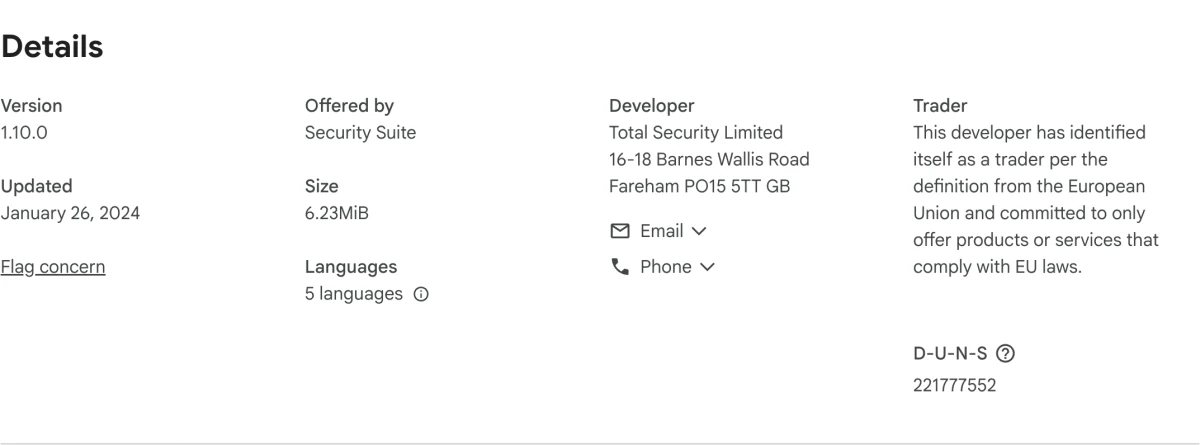
The Chrome and Edge builds are Manifest V3. Firefox's separate build is Manifest V2, which must be judged against Firefox's own extension policy rather than Chrome's deadlines. All three remained available from official stores during our check. The missing signal is recent maintenance: the visible Chrome and Firefox listings were last updated in 2024, so we would not install the extension merely to reproduce a function already present in the browser.
Store ratings are also thin evidence. Forty Chrome ratings and twelve Firefox reviews can describe individual experiences, but neither count supports an AggregateRating on our page or a confident reliability claim. Counts can change daily; the dated snapshot above is intentionally not a permanent score.
The extension permissions are explainable and still broad
The Chrome and Edge manifests declare tabs, history, cookies, browsing data, downloads, notifications, storage, scripting, content settings and access to all websites. Their content scripts match HTTP and HTTPS pages. The Firefox package exposes a comparable ability to read site data, clear browsing information and manage tabs/settings.
Those permissions map to advertised functions. Tab sleeping needs tab and restore state. Clean needs browsing-data, cookie and history access. Lightning Loader and Turbo Browsing need to act on pages and links. Popup Blocker needs notification or content-setting control. A functional explanation does not make the scope small: an extension able to act across every site sits close to work documents, webmail, banking and account sessions.
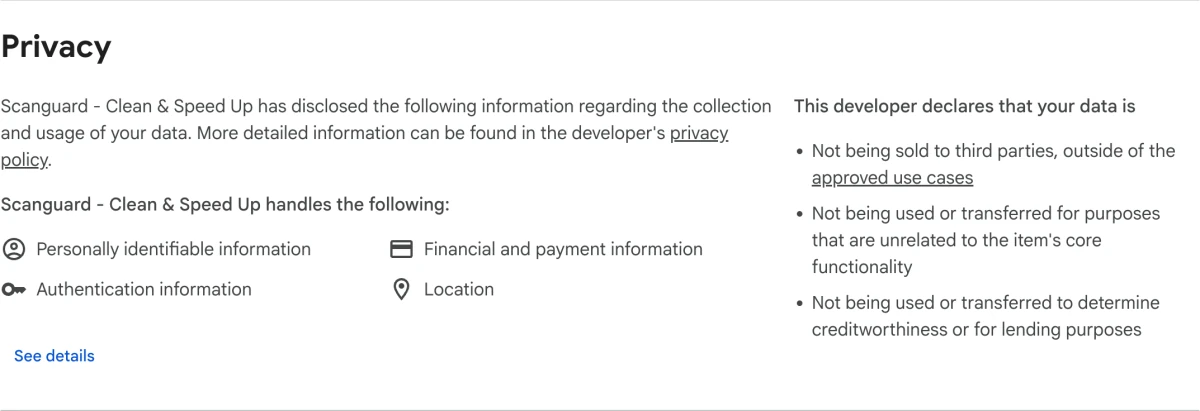
The store panel says the developer handles personally identifiable, financial/payment, authentication and location information. It also carries declarations that data is not sold outside approved use cases, transferred for unrelated purposes or used for lending decisions. Read those as disclosures by the developer through Google's form, alongside Scanguard's current privacy policy; do not translate them into “no data ever leaves the browser” or proof of wrongdoing.
Our least-privilege rule is simple: if native Memory Saver solves the tab problem, or Windows Storage solves the disk problem, do not grant another persistent component all-site access. If the combined workflow is genuinely useful, install only the official ID, enable the minimum features and revisit the extension after browser updates.
Junk Cleaner recovers space; speed gains depend on the bottleneck
A nearly full drive can make updates, paging and application work harder, so reclaiming space is useful maintenance. Scanguard's junk cleaner may surface temporary files and caches in one scan. The defensible output is “X GB recovered,” not “the PC is now X% faster.”
Start with category review. Downloads, Recycle Bin, browser profiles, installers and application caches can hold wanted files even when a tool labels them disposable. Scanguard's one-run figures from independent reviewers ranged from hundreds of megabytes, which is plausible but too system-specific to predict.
Microsoft's Windows Storage settings and Cleanup recommendations already expose temporary files, installed apps, Storage Sense and Recycle Bin categories. Use that native route first when the goal is simply free space. Scanguard earns convenience points if its report is clearer, not an automatic right to delete everything it selects.
Expect caches to rebuild. The first browser or application launch after a deep clean can be slower and use more network data, which is normal. A useful cleanup leaves more storage without breaking sessions or workflows; a larger deletion count is not inherently better.
Duplicate Finder is the highest-risk tool in the group
A duplicate result is not a deletion instruction. TechRadar reported that Scanguard flagged two videos that differed in name, length, size and content. One example cannot establish an error rate, but it proves why bulk approval is the wrong default for photos, videos, client work, code projects, cloud-sync folders and application data.
Review candidates using more than the filename. Compare file size and, where practical, a cryptographic hash; preview the content; inspect full paths; identify which copy is referenced by a project or library; and check whether OneDrive or another sync service treats one path specially. Similar exports and transcoded media can look alike without being interchangeable.
Keep a backup, move the first batch to Recycle Bin or Trash, open the affected projects and wait through at least one normal sync cycle before permanent deletion. Never erase both members of a pair, and never accept a list whose matching method is not clear.
The safest value of Duplicate Finder is discovery. It can tell you where to inspect large repeated candidates, but the human remains the final classifier. If the tool does not expose enough path, size or comparison detail to make that decision, skip the deletion.
Startup Manager can help when you disable, time and restore
Startup entries are a better speed target than random cache deletion because they perform work at a repeatable moment. Scanguard can make the list easier to browse, but Windows already exposes startup apps and estimated impact through Settings and Task Manager.
Disable one entry or a small logical group, restart, and time from power-on to the same ready state. Confirm the application still updates, syncs or launches when needed. Restore the entry if the benefit is negligible or a workflow breaks. WizCase's roughly ten-second improvement on one forty-second system is an example of a good result, not an expected Scanguard average.
Do not disable Windows Security, backup, disk encryption, accessibility, device-control, password-manager or employer-management components whose purpose is unclear. “High impact” means the entry contributes noticeable startup work, not that it is unwanted. Scanguard's manager does not replace understanding the publisher and job.
Use the normal uninstaller, and treat browser cleanup as data deletion
Scanguard's Application Uninstaller may consolidate installed programs, but Windows has a supported removal route through Start, Settings and Control Panel. Microsoft's app-removal guidance should be the baseline, especially when a vendor supplies its own uninstaller or cleanup tool. We do not recommend registry cleaning as a performance shortcut.
Browser cleanup deserves equal caution because history, cookies, cache and download history are different objects. Deleting download history does not erase downloaded files. Deleting cookies can sign you out, remove preferences or disrupt identity-provider state. Clearing synchronized data can affect more than the current computer, depending on the browser and account settings.
If you intend to remove the entire antivirus rather than an optional tool, follow our complete Scanguard uninstall guide. Do not uninstall real-time protection merely because an optimizer result is disappointing.
Site Sleeper is useful, but browsers now cover the same job
Site Sleeper unloads tabs that have not been used for a chosen period and reloads them when selected. Scanguard documents an Awake List plus options for timing, audio and pinned tabs. On a memory-constrained machine with dozens of passive tabs, the concept can reduce background resource pressure.
The edge cases are live dashboards, web calls, uploads, unsaved forms, music, remote sessions and sites that lose state on reload. Add those to the Awake List before turning on aggressive sleeping, then confirm that notifications and background work still arrive. A lower memory number is not worth a lost submission.
Chrome already provides Memory Saver with an always-active list. Current Firefox supports manual tab unloading and automatic inactive-tab unloading under pressure. Try those first. Site Sleeper's advantage is its Scanguard interface and combined controls, not exclusive technology.
Lightning Loader and Turbo Browsing trade traffic timing for speed
Lightning Loader defers images outside the visible viewport until the reader scrolls. Modern sites often implement similar lazy loading themselves. Applying another layer can help poorly optimized pages, but it can also delay galleries, product images, infinite-scroll content or scripts that assume an image has loaded.
Test it on the sites that matter rather than browsing one vendor demo. Turn the feature off if images flash in late, print views omit content, accessibility tools lose context or a web application misbehaves. A page that looks fast because useful content was withheld is not a win.
Turbo Browsing preloads a link while the pointer hovers over it. That can make the next click feel quicker, but it may fetch pages you never open, consume metered data or create cookies/server activity before intentional navigation. Chrome has its own page preloading control, so run one system rather than stacking speculative loaders and then guessing which produced the result.
Clean is safe only when Speedy Sites and recovery access are ready
The extension's Clean module lets the user choose browsing data and a time range. Scanguard says Speedy Sites can exclude selected websites' cookies, cache and history. That pairing is the right design idea: routine cleanup should not casually erase the state of work portals, banking, shopping, email or identity providers.
Build the exclusion list before the first broad clean, not after discovering that a session is gone. Confirm the password manager is current, 2FA is accessible and recovery codes exist. Use the narrowest time range and data categories that match the problem; a single broken site's cookies rarely justify erasing every login.
Chrome's browsing-data documentation explains the consequences and offers native controls. Site-specific browser settings can often solve a stale-cookie problem without another extension. Clean is most valuable for users who understand those consequences but prefer one recurring Scanguard workflow.
Popup Blocker controls site notifications, not every popup or ad
Scanguard's help article describes Popup Blocker as stopping website notifications and maintaining an allow list. That means the permission prompts and notifications websites send through the browser. It does not support a claim that the extension blocks every advertisement, cookie dialog, overlay, new window or malicious redirect.
Chrome already has site notification controls and quieter messaging, including automated blocking for some misleading notification behavior. Use the built-in settings when only one or two sites are noisy. The Scanguard control adds value when its consolidated allow list is easier for the user to maintain.
Do not confuse notification control with Scanguard WebShield. A blocked website, phishing warning or false positive belongs to the separate protection layer covered in our Scanguard WebShield review and fix guide.
A 100% Boost Score is not a speed benchmark
Scanguard says Boost Score shows how much the browsing experience can be improved and calls 100% “peak performance.” The documentation also says the score rises as the extension's tools are used. That makes it a product-engagement or setup metric unless Scanguard publishes a reproducible formula tied to independent timings.
A perfect score cannot prove lower memory, faster page rendering or safer browsing. It may simply mean more switches are enabled, including switches that do not suit a user's workload. Treat 100% as “the extension considers its checklist complete,” then compare real outcomes.
This boundary also prevents cleanup marketing from borrowing antivirus credibility. Boost Score does not change Scanguard's malware detection, real-time protection or laboratory results. If the protection engine is off, repair it through our real-time protection guide; do not chase optimizer points.
Built-in alternatives cover most common jobs
The question is not whether Scanguard can perform a function. It is whether the combined interface saves enough effort to justify another paid feature or privileged extension. Native tools receive operating-system/browser updates and avoid one additional vendor dependency.
| Job | Scanguard route | Built-in route | When Scanguard adds value |
|---|---|---|---|
| Free disk space | Junk Cleaner | Windows Storage / Cleanup recommendations | Clearer consolidated report |
| Reduce startup work | Startup Manager | Task Manager / Settings | Simpler presentation |
| Remove applications | Application Uninstaller | Windows Settings / vendor uninstaller | Inventory convenience |
| Sleep tabs | Site Sleeper | Chrome Memory Saver / Firefox unload | One control panel with exceptions |
| Clear site data | Clean + Speedy Sites | Browser privacy/site controls | Repeatable multi-feature routine |
| Stop site notifications | Popup Blocker | Browser notification settings | Central allow list |
| Preload pages | Turbo Browsing | Chrome page preloading | Cross-feature visibility |
Start native, then add Scanguard only where the native interface is genuinely confusing or the combined workflow saves repeat effort. This order gives the optimizer a fair test while preserving least privilege.
Measure the bottleneck instead of chasing a bigger score
Record a small baseline before changing anything. For storage, write down free GB and the categories selected. For startup, time three cold boots to the same usable desktop state. For tabs, open the same set and record browser memory after the same idle period. For page speed, choose a few repeatable pages and separate first-load from cached-load behavior.
Change one class of feature at a time. If junk cleanup, startup changes, tab sleeping and preloading all turn on together, the result cannot be attributed and a regression is hard to reverse. Keep a note of every disabled startup item, protected site and removed extension.
A useful result is specific: “recovered 1.8 GB without deleting wanted files,” “median cold boot fell from 54 to 46 seconds,” or “twenty idle tabs used less memory without breaking the call dashboard.” A useless result is “Boost Score reached 100%” with no measured user benefit.
Recheck after a week. Caches grow, startup lists change and browsers update their own memory management. Remove or disable the Scanguard feature when the benefit disappears; maintenance software should not become permanent by inertia.
Who should use Clean & Speed Up—and who should skip it
Use the desktop tools if you prefer one simple maintenance dashboard, can review categories and want visibility into storage or startup items. The strongest case is an older or storage-constrained Windows computer whose owner finds native settings fragmented. Keep deletion reversible.
Consider the extension if you routinely keep many tabs, want a single exclusion list for cleanup and can explain why native controls are not enough. Review its current store update, permissions and privacy disclosure first. Run only the modules that produce measurable value.
Skip the extension if Chrome Memory Saver or Firefox unloading already solves the problem, if you handle sensitive browser workflows and do not need its page-level functions, or if broad all-site access is disproportionate to a minor convenience. Skip Duplicate Finder automation if the files are valuable or the match explanation is weak.
Do not buy it for antivirus performance. Cleanup does not increase detection. Before paying for an add-on, verify the exact service, introductory term and renewal in our Scanguard pricing and renewal guide; one account can show multiple separately managed services.
Install from the official store and remove the extension separately
Use the links from Scanguard's official install article, then verify the identity shown in our package table. Do not sideload a CRX/XPI from a download mirror or accept an extension pushed by a browser alert. The current official guide lists Chrome, Edge and Firefox; it does not list Safari for this component.
Removal is independent of the desktop antivirus. Scanguard's current uninstall guide points Chrome users to chrome://extensions/, Edge users to edge://extensions/ and Firefox users to about:addons. The guide's Browser Boost wording is the naming drift already documented, not a reason to use a third-party remover.
When troubleshooting, disable the extension before removing it. If the site or browser returns to normal, enable modules one at a time or leave the extension removed. Preserve the extension ID and browser version in any support report; do not send browsing history, raw cookies or authentication tokens.
There is no strong current Scanguard-specific community consensus
Our current searches did not find a credible, substantial Reddit thread focused on this exact Scanguard optimizer or extension. General optimizer discussions favor native Windows tools and warn against automatic duplicate deletion, while browser-extension discussions emphasize permissions and maintenance. Those themes help frame risk, but they do not prove a Scanguard defect rate.
We therefore rely on current official documentation, live stores, independently parsed manifests and the named reviewer observations above. We do not invent a user quote or turn generic skepticism into a product allegation. If more recent, reproducible community evidence appears, it should be evaluated against the exact desktop/extension version rather than added as anonymous sentiment.
Scanguard Clean & Speed Up FAQ
What is Scanguard Clean & Speed Up?
The name currently covers two related but distinct surfaces. The desktop Scanguard app includes system tune-up tools such as junk cleanup, duplicate finding, startup management and application removal. Scanguard also publishes a Clean & Speed Up browser extension with tab sleeping, browsing-data cleaning, notification controls, lazy loading and link preloading.
Does Scanguard Clean & Speed Up really make a PC faster?
It can recover storage and may shorten startup when an unnecessary high-impact app is disabled, but there is no credible universal speed percentage. Cache deletion can make the next launch slower while data rebuilds. Measure free space, cold-boot time and browser memory before and after instead of relying on the product's Boost Score.
Is the Scanguard duplicate file finder safe?
Treat its results as candidates, not proof. An independent TechRadar test reported two different videos being flagged as duplicates. Compare content, size or hash, location and ownership, preserve a backup, and make the first deletion recoverable through Recycle Bin or Trash.
Is Scanguard Clean & Speed Up a browser extension?
Yes, there is a separate extension for Chrome, Edge and Firefox. The official help center sometimes calls it Browser Boost, and the Edge/Firefox store URLs still use that older name. The current official install guide does not list Safari for this component.
What permissions does the Scanguard extension require?
The current Chrome and Edge packages declare access to tabs, history, cookies, browsing data, downloads, notifications, storage, scripting and all websites; the Firefox package exposes a comparable scope. Those permissions relate to its cleaning, tab-sleeping and page-loading features, but they are broad enough to justify installing it only when you need those features.
Does Scanguard Clean & Speed Up sell browsing data?
The current Chrome Web Store panel carries the developer's declaration that data is not sold outside approved use cases or transferred for unrelated purposes. It also discloses handling of personal, payment, authentication and location data. Those are developer/store disclosures, not an independent privacy audit, so read the current policy before installing.
Will Scanguard Clean sign me out of websites?
It can if cookies or other site data are selected. Use the narrowest data types and time range, and add essential work, banking, shopping and identity-provider sites to Speedy Sites or use native site-specific browser controls. Confirm that recovery codes and 2FA access are available before clearing active sessions.
What is Scanguard Site Sleeper?
Site Sleeper unloads inactive tabs and reloads them when you return. It includes an Awake List and timing/options for tabs that should remain active. Chrome Memory Saver and current Firefox tab unloading cover much of the same need without another extension.
Is Scanguard Popup Blocker an ad blocker?
The current Scanguard documentation describes it as a website-notification blocker with an allow list. Do not assume it blocks every visual popup, ad, consent dialog or malicious redirect. Scanguard WebShield and the antivirus engine are separate security layers.
What does a 100% Scanguard Boost Score mean?
It means the extension believes its available optimization features are enabled or used. Scanguard does not publish an independently validated formula that turns 100% into a repeatable speed result. Use it as an internal setup checklist, not as a browser benchmark or security score.
Can I remove Clean & Speed Up without uninstalling Scanguard antivirus?
Yes. The browser extension is managed separately through chrome://extensions, edge://extensions or about:addons. Removing it does not require deleting the desktop antivirus. If the problem is a desktop optimizer tool, change that setting or use the normal Scanguard uninstall workflow only when you want to remove the full app.
Do I need Scanguard Clean & Speed Up if Windows and my browser already have cleanup tools?
Often no. Windows Storage, Cleanup recommendations, Task Manager, normal app removal, Chrome Memory Saver and Firefox tab unloading cover most basic jobs. Scanguard's value is a consolidated interface and automation; the trade-off is another paid feature or broad-permission extension to maintain.
Bottom line: useful consolidation, not a reason to automate every fix
Scanguard's desktop tune-up tools can help a non-technical user find storage, startup and application-maintenance jobs in one place. Their value is convenience and visibility. Junk removal should be category-aware, Startup Manager should be measured and reversible, and Duplicate Finder should never receive automatic trust.
The separate browser extension has real modules and current official packages for Chrome, Edge and Firefox. It also asks for broad access appropriate to those modules, while its visible Chrome and Firefox store updates date to 2024. Native tab sleeping, browsing-data controls, notification settings and page preloading cover much of the same ground with less extension overhead.
Our choice for most users is Windows Storage plus the browser's own controls first. Install Clean & Speed Up only when its combined workflow solves a measured problem that native tools do not solve comfortably. Keep important sites awake, protect login/2FA state, delete files recoverably and judge the result by GB, seconds and stable workflows—not a 100% Boost Score.