
Scanguard Login and Activation: Recover Your Plan Without Paying Twice
A working login is only the first checkpoint. We separate the account, the individual subscription and the device license so you can restore paid features without guessing which email owns the purchase.

Quick answer: Scanguard's current desktop activation is account-based. If you can access the purchase mailbox, reset the password; if that mailbox is lost, use Account Recovery; if you do not know which email owns the purchase, use Transaction Search. Next, confirm the exact service in My Subscriptions and sign the app into that same account. For a replacement computer, uninstall from the old device when possible, reinstall on the new one and stay within the device allowance shown in your entitlement. Do not buy again, download an “activator” or give anyone your full card number while the original subscription is still being traced.
Choose the recovery route from the problem you can prove
Do not start by reinstalling the antivirus. Installation cannot repair a missing mailbox, identify an unknown purchase email or move a subscription from one account to another. Start with the one fact you can prove: whether the registered mailbox works, whether a Scanguard charge exists, or whether the portal already shows a paid service.
| What you can prove | Correct first route | What it solves | Wrong shortcut |
|---|---|---|---|
| Purchase email is accessible | Password reset | Forgotten password | Create another account |
| Registered email is lost | Account Recovery | Move access to a usable mailbox | Repeat reset requests |
| Charge exists, email unknown | Transaction Search | Locate the billing record | Guess email addresses |
| Portal opens, plan missing | Verify My Subscriptions | Account/service mismatch | Buy the plan again |
| Plan is active, app looks free | Sign app into the same account | Paid-feature recognition | Install an activation key |
| New device exceeds allowance | Transfer or entitlement reconciliation | Free a licensed installation | Share the password |

That ordering protects both money and evidence. A second purchase can create another subscription under another email, making the original problem harder to see. A rushed uninstall can also erase the only screen showing which account the app was using, so capture that state before changing it.
Use the genuine Scanguard login, not a search-result phone number
Open Scanguard's official site and follow its account link, or type login.scanguard.com directly. The authenticated portal can continue on `dashboard.scanguard.com`; both addresses end in the real `scanguard.com` domain. Read the hostname from right to left before entering a password, especially after arriving from a search result or email.
A page can use “Scanguard support” in its title and still be unrelated. Do not trust a toll-free number embedded in a PDF, an ad promising live activation, or a browser warning that offers a download. The verified Scanguard workflow we checked does not require a key generator, remote-control session or third-party repair utility.
If a password manager saved multiple Scanguard entries, inspect the username and domain instead of trying each password blindly. One may belong to a prior free account while another owns the paid subscription. Record the email shown in the portal and the email shown inside the app; that comparison often explains the entire failure.
Account, subscription and device license are three different states
The account answers “who is signed in?” The subscription answers “which paid service is active, and until when?” The device license answers “how many installations may use that service now?” A green answer to one does not make the other two green.
The credential set used by the portal and app.
The named subscription, status, term and renewal record.
The installations and users permitted by that entitlement.
The account and features the installed build currently recognizes.
This distinction is essential when Scanguard shows several services under one login. It is also why a Customer ID is not an activation code: it helps identify an account record, but it does not grant a device more rights than the purchased entitlement. Keep these identifiers separate when you describe the issue to support.
Reset the password when you still control the registered email
Scanguard's current Forgotten Password guide sends a reset link to the email associated with the account. Enter that address, choose Request Link, open the message and set a new password. That is the shortest route only when the mailbox itself remains accessible.
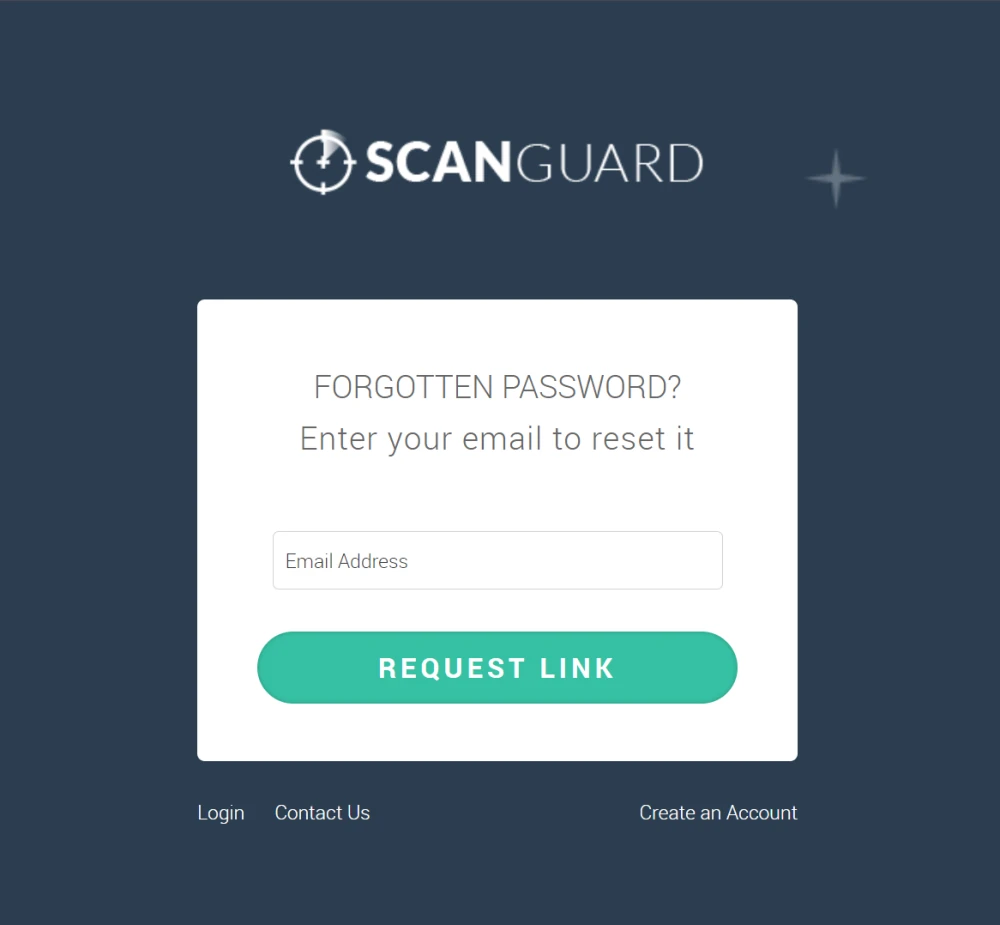
If the message does not appear, check spam, promotions, quarantine and mailbox rules before requesting it again. Search the inbox for the original order confirmation, renewal notice and “Scanguard” rather than relying on memory. A typo, old university address or different checkout email is more plausible than a password problem when the reset never reaches any accessible mailbox.
Open only the most recent link and verify its domain before setting the password. Do not forward the reset message to a helper and do not send anyone the one-time link. After the reset, sign in through the official portal first; that confirms the credential before you change the installed app.
Use Account Recovery when the mailbox itself is gone
A normal reset is a dead end after losing the registered mailbox. Scanguard's current Account Recovery page offers Recover My Account, which opens a short form for agent review. Scanguard says an agent then emails a verification code to the new address supplied through that process.
If you already received that code, use I Have an Access Code on the same official recovery page. Do not buy or request a code from anyone else. The public page does not promise approval, an instant response or a fixed service-level time, so preserve the submitted details and wait for a message from the verified domain.
Recovery is not the same as changing an email while signed in. When the account still opens, Scanguard's email-change instructions use Account Settings, the new address twice and the current Scanguard password. Use recovery only when that authenticated change is no longer possible.
Prepare purchase evidence before starting: Customer ID, order date, service name, last known account email and a masked payment descriptor. Do not attach a full card image, mailbox password or government ID to an ordinary email just because someone asks; use the fields and secure channels on the official route.
Use Transaction Search when you do not know which email owns the purchase
If a bank or PayPal record proves a Scanguard purchase but no remembered email shows the plan, stop guessing. Scanguard's technical-support routing explicitly separates login, password reset, account recovery and Transaction Search. This route is designed to locate the billing record before an account-access problem can be solved.
The current lookup asks for the amount, approximate date and payment method. For a card transaction, Scanguard says it may use the first six digits, last four digits and expiry date. It also says it will not ask for the full card number, CVV or PIN; treat any request for those secrets as outside the verified workflow.
Transaction Search is also safer than creating accounts for every possible email. It ties the investigation to a real payment rather than an empty login. If the lookup cannot find the charge, preserve the exact statement descriptor and use the support continuation offered by the tool instead of posting payment details in a public forum.
Unrecognized-charge investigation has its own deeper workflow in our Scanguard charge and overbilling guide. This page uses the transaction only to recover the right account, not to decide whether the charge should be disputed or refunded.
Customer ID is a locator—not a password or activation key
Scanguard's current Customer ID article also calls the value a Customer Number. It appears in the original purchase confirmation and in the top-right menu of the Online Portal. Support can use it to find the account faster, especially when you contact them from a different email address.
| Identifier | Purpose | Where it belongs | Never treat it as |
|---|---|---|---|
| Account email | Username and purchase owner | Portal/app login | Proof that every service is active |
| Password | Authenticates the account | Official login form only | Support ticket content |
| Customer ID / Number | Helps locate the record | Confirmation/portal/support | Activation key |
| Invoice or order number | Identifies a purchase | Billing evidence | Device entitlement by itself |
| Device name | Distinguishes installations | License reconciliation | Account credential |
The verified current Windows and macOS instructions contain no product-key step. Paid desktop access is restored by signing the application into the account that owns the subscription. A reseller could theoretically supply its own redemption route, so verify any such instruction with Scanguard; never turn a support locator into a guessed serial number.
Verify the exact service in My Subscriptions
Opening the dashboard proves only that an account exists. Scanguard's current subscription guide sends users to My Subscriptions, where the product or service name, renewal date and status are shown. Match those fields to the order confirmation instead of looking for a generic “premium” badge.
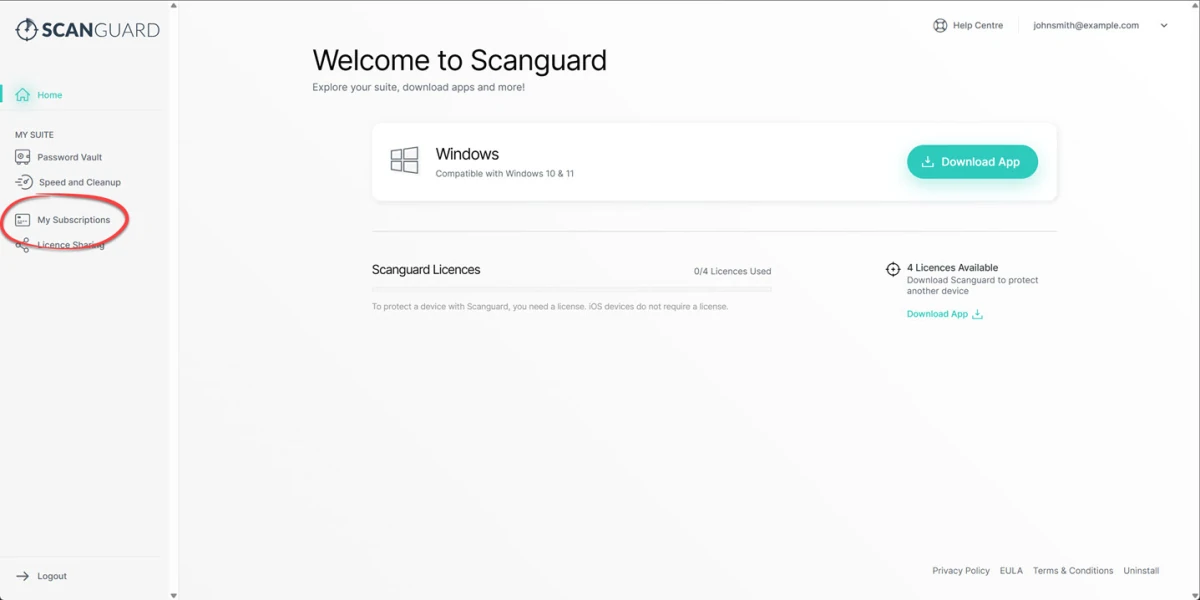
Capture the service name, status and renewal date before logging out. Hide the personal email in any screenshot you share outside the authenticated support channel. If the expected plan is absent, compare account email, Customer ID and invoice first; reinstalling the app cannot move a subscription into the wrong portal account.
The illustration also shows Licence Sharing and a device counter, but Scanguard's public manage-devices help article currently renders no procedural content. We therefore do not prescribe an unverified 2026 “revoke” button. Use the live controls visible in your own portal, and preserve the before/after state if a license does not return.
Why a paid Scanguard install can still look free
Scanguard's Where Are My Paid Features? article says the free build may have been downloaded by mistake and that signing in unlocks premium features for a paid subscriber. That explanation is useful but incomplete: the app must be signed into the exact account whose individual service is active.
Before changing anything, record the app email, portal email, service status and the exact locked feature. A VPN or Unlimited Devices add-on may be separately listed even when core antivirus is active. Likewise, a locked real-time protection control can be a permissions or provider problem, not proof that the account failed.
If account and service match, log out of the app, close it normally, reopen it and sign in again. Do not clear system certificates, disable Microsoft Defender, run a registry cleaner or reinstall repeatedly just to refresh an entitlement. If the premium badge returns but protection remains red, move to our Scanguard real-time protection repair because activation is no longer the owner.
If the app crashes, cannot update or never reaches the login screen, use the general Scanguard failure guide. This separation keeps a valid account from being blamed for a local service or operating-system fault.
Restore the paid account in Scanguard for Windows
The current Windows instructions use a Login control in the top-right of the app and the normal Scanguard credentials. First confirm that the paid service appears in the portal. Then open the installed app directly from Windows, record any email or free/premium label, choose Login and use the proven purchase account.
After login, allow the app time to refresh its status over a stable connection and reopen the feature that was locked. Compare the portal service name with the app's local account, not just the display name on Windows. If the account is correct but the device allowance is exhausted, more password resets will not help; move to license transfer.
Do not download a different installer from a mirror because it promises a pre-activated build. If the official app is missing or damaged, follow our current Scanguard installation and setup guide and use the installer reached from the verified dashboard. Installation and entitlement verification should remain two separate checks.
On macOS, check the browser session that automatic login reused
Scanguard's current Mac install guide says the app attempts automatic login using the current browser session and offers manual login if that fails. This creates a plausible wrong-account trap: the browser may already be authenticated to a free or older Scanguard email while the paid purchase belongs to another. That is an inference from the documented handoff, not a confirmed defect.
Open the Scanguard portal in the browser involved and inspect the email and My Subscriptions state. If it is the wrong account, sign out of Scanguard on that browser—do not erase all browsing data or saved passwords—then use the paid account. In the Mac app, the current paid-feature guide places Logout under Settings and General before a fresh login.
A successful account login does not grant macOS security permissions. Full Disk Access, the system extension and real-time protection remain separate setup states. If paid features appear but protection will not enable, use the dedicated real-time guide rather than cycling the account again.
A unified login can contain several separately managed services
Scanguard's current homepage and Billing Help Center say multiple services bought with the same email may appear under one unified login. They also state that Safe Browsing, Unlimited Devices and other add-ons are tied to the main account but managed and renewed separately. One active card in the portal does not prove that every neighboring card is active.
Read each row as its own agreement: service name, status, renewal date and price. A core antivirus plan can be active while an add-on is expired, or an add-on can continue after another service has been canceled. If the problem is a charge or renewal rather than access, use the billing guide; if the goal is to stop a service, use our Scanguard cancellation and refund guide.
Do not ask support to “activate everything” without naming the exact purchase. That wording invites confusion when the account contains several services. Quote the invoice/service name and describe the local feature that remains locked.
Your device allowance comes from the entitlement, not a review table
Scanguard's current Terms of Service define License Entitlement as the number and type of devices and users specified at purchase and in the account profile. If no count is specified, the terms default to one device and one user. The actual account therefore outranks an old review, a promotional screenshot or another customer's plan.
The official dashboard illustration on this page shows four licenses and says iOS does not require one. Treat that as a dated example, not a universal promise. Plans, add-ons and store routes can differ, so use the count attached to your service before installing on another computer or sharing access.
Each installation should also map to a real device you recognize. Rename devices descriptively if the live portal permits it, but do not expose serial numbers or personal names in screenshots. An unknown device is an account-security question before it is a license-capacity question.
Transfer Scanguard to a replacement computer without duplicating the plan
The current terms permit a license transfer by uninstalling the software from the original device and reinstalling it on the new one, provided active installations remain within the entitlement. They say no approval or notification is required for that normal transfer. This is the strongest current rule because the public device-management article itself is empty.
When the old computer still works, capture its device name and app account, then uninstall Scanguard through the supported operating-system route. Restart if the uninstaller requires it, install the current build on the replacement and sign in with the same paid account. Our complete Scanguard uninstall guide covers residue and protection handoff without confusing software removal with subscription cancellation.
Do not assume uninstalling ends billing—it does not. Do not share the account password as a way to “move” the license. After the new device appears, confirm the old installation no longer counts and that the new app recognizes the correct service.
Scanguard does not publish a reliable public synchronization time for the counter. If the portal still shows the old device or blocks the new activation, stop reinstalling and escalate with the before/after evidence. Repeated installs can create more ambiguous device records.
If the old computer is dead, stolen or already wiped
You cannot perform the documented uninstall when the old device is unavailable. Do not remotely sign into an unknown recovered device and do not give a stranger credentials to remove Scanguard for you. Secure the associated email account first if theft may have exposed browser sessions or saved passwords.
Collect the Customer ID, subscription name, old device name, approximate last-use date, new device name and a screenshot of the current license state. Then use Scanguard's official authenticated support route and ask for entitlement reconciliation. Describe the old device as unavailable rather than claiming a successful uninstall that did not occur.
If the portal offers a clearly labeled revoke or remove control, capture its state and use the narrowest device-specific action. Because the current public help page no longer documents those buttons or timing, we will not invent a menu path. If the action does not free capacity, preserve the result for the agent instead of deleting unrelated devices.
“Unlimited Devices” still has a personal-use boundary
Scanguard's current terms describe Unlimited Devices as a plan for one individual or immediate family, for personal and non-commercial use. The company reserves the right to monitor for usage inconsistent with a typical individual or family and to restrict further activations or remove devices. “Unlimited” therefore does not mean public sharing, a workplace fleet or resale.
Keep device names intelligible and remove machines you no longer control. Do not post the password in a family chat or reuse it across households; use any official sharing mechanism offered by the live account. If the plan refuses an ordinary family device, document the household use and current portal state rather than trying to evade the limit.
Unlimited Devices can also be a separately billed add-on. Confirm its own status and renewal line in My Subscriptions. A core antivirus plan may remain active after that add-on expires, leaving existing protection visible while new activations fail.
Apple and Google purchases have a second account boundary
Scanguard's current billing help says Apple App Store and Google Play subscriptions are managed through the corresponding store account. That means a store purchase has at least two identities to verify: the Apple or Google account that owns the transaction and the Scanguard account shown inside the installed app. A direct website invoice and a store receipt are not interchangeable proof.
The public sources we reviewed do not document one universal “Restore Purchases” or cross-platform linking sequence for every Scanguard build. We will not invent a button. Confirm the store subscription is active, record the signed-in Scanguard email inside the app and use official support if the entitlement does not attach.
Do not cancel or repurchase merely to test account linking; those actions change billing state. If you need to manage a store renewal or refund, follow the store-specific branch in our cancellation guide. Keep this page focused on recognition and device access.
Build one compact evidence packet before contacting support
A useful ticket lets an agent distinguish wrong email, missing service and exhausted entitlement without asking for unsafe secrets. Capture the facts before logging out or reinstalling. Send them only through the authenticated dashboard or the current Scanguard contact route.
| Evidence | Include | Redact or omit |
|---|---|---|
| Account identity | Partially masked registered/suspected email | Mailbox and Scanguard passwords |
| Purchase | Customer ID, service, order date, invoice number | Full card number, CVV, PIN |
| Portal state | Service name, status, renewal date | Other personal services and payment data |
| App state | Platform, OS, version, signed-in email, exact lock | Raw logs containing tokens |
| Device transfer | Old/new device names and uninstall date | Serial numbers unless securely requested |
| Error | Exact wording, timestamp and time zone | Guesses presented as facts |
Name the result you want: recover the account to a new email, locate the transaction, attach the existing subscription to the correct login, or reconcile one device license. Do not collapse those into “Scanguard does not work.” A precise request is easier to verify and less likely to trigger destructive generic troubleshooting.
Keep the ticket reference and every reply. If an agent asks you to repurchase, request a written explanation of what happened to the existing entitlement first. If the issue is a promised refund, cancellation or charge, move to the dedicated billing workflow because account restoration alone will not resolve it.
Avoid fake activation keys, support numbers and credential requests
Searches for antivirus activation attract SEO spam, fake phone numbers, uploaded PDFs and “cracked” installers. None of those are part of the account-based Scanguard flow verified here. A file that promises to bypass licensing can steal the very email, payment and browser sessions needed to recover the legitimate subscription.
Use only routes reached from `scanguard.com`, `help.scanguard.com`, `login.scanguard.com` and `dashboard.scanguard.com`. Check the rightmost domain before signing in. An address such as `scanguard.support-example.com` belongs to `support-example.com`, not Scanguard.
No legitimate recovery helper needs your mailbox password, Scanguard password, full card number, CVV or PIN. Do not install remote-control software from an unsolicited call, and never read a one-time recovery code aloud to someone who contacted you first. If an alert, email or call appears suspicious, preserve it; the upcoming scam spoke will own the detailed impersonation workflow.
After a suspected account compromise, secure the email account first, change the Scanguard password through the official site, review subscriptions and recognizable devices, and contact support with the evidence. Do not disable antivirus protection simply because the account is under review.
Scanguard login, activation and device FAQ
What is the official Scanguard login page?
Start from Scanguard.com or use login.scanguard.com. Check that the address ends in scanguard.com before entering credentials. The dashboard may then use dashboard.scanguard.com. Do not sign in through a phone-number page, key generator, browser alert or third-party download site.
Does Scanguard use an activation code or product key?
The current official Windows and macOS instructions activate paid desktop features by signing the app into the account that owns the subscription. The Customer ID helps support locate an account; it is not a password or product key. If a reseller gave you a separate redemption instruction, verify it with Scanguard before using it.
Why does Scanguard show the free version after I paid?
The app is usually not signed into the same account that owns the paid service, or the expected service is inactive or separately listed in My Subscriptions. Verify the purchase email and service status first, then log out of the app and sign back in with that exact account. Do not buy another plan until the original purchase is located.
What if my Scanguard password-reset email never arrives?
Confirm that you entered the email attached to the purchase, then check spam, promotions and mail rules. Search the inbox for the original Scanguard confirmation and Customer ID. If the mailbox is inaccessible, use Account Recovery; if the purchase email is unknown, use Transaction Search instead of repeating resets across random addresses.
How do I recover Scanguard after losing the registered email?
Use Scanguard's official Account Recovery page and choose Recover My Account. The current process uses a short form for agent review, after which an access code is sent to the new email address. Use I Have an Access Code only after Scanguard has supplied that code; recovery approval and timing are not guaranteed.
Where is my Scanguard Customer ID?
Scanguard says the Customer ID or Customer Number is in the original purchase confirmation and in the top-right menu of the Online Portal. It helps an agent find the subscription, especially if you contact support from another email address. Keep it private enough to avoid casual disclosure, but do not confuse it with a login secret.
How do I find a Scanguard subscription if I forgot which email I used?
Use Scanguard's official Transaction Search. The current lookup can use the amount, approximate date and payment method; for a card, Scanguard requests the first six and last four digits plus expiry. It says it will not ask for the full card number, CVV or PIN.
How do I transfer Scanguard to a new computer?
Check the device allowance shown in your account, uninstall Scanguard from the old computer when possible, install the current app on the replacement and sign in with the same subscription account. Scanguard's current terms permit that transfer as long as active installations stay within your entitlement.
What if the old Scanguard computer is dead or stolen?
Do not attempt a remote login to an untrusted machine and do not buy again immediately. Gather the Customer ID, old and new device names, purchase evidence and the portal's current license state, then ask official Scanguard support to reconcile the entitlement. The public help center does not publish a guaranteed counter-refresh time.
Why does My Subscriptions show several Scanguard services?
Scanguard says services purchased with the same email may appear under a unified login, but each subscription remains individually managed. Core antivirus, Safe Browsing, Unlimited Devices and other add-ons can therefore have separate statuses, renewal dates and charges. Match the exact service name rather than treating the whole account as one plan.
Does an iPhone use one of my Scanguard device licenses?
A current Scanguard portal illustration says iOS devices do not require a license, but the same image is an example account rather than a universal contract. Your actual entitlement is the device and user count shown at purchase and in the account profile. Confirm the current plan before relying on the illustration.
Can I share Scanguard Unlimited Devices with anyone?
No. Scanguard's current terms describe Unlimited Devices as personal, non-commercial use for one individual or immediate family, subject to fair-use monitoring. The company may restrict activations or remove devices when usage looks inconsistent with ordinary individual or family use.
Bottom line: restore identity first, entitlement second, devices third
Most Scanguard “activation” failures are not solved by an activation code. They are an identity chain: the purchase belongs to one email, the paid service is one card inside that account, and the installed app must use the same credentials. Follow the branch you can prove—password reset, Account Recovery or Transaction Search—then verify My Subscriptions before touching the app.
Once the paid account is established, sign in again and separate local protection faults from entitlement faults. Transfer a normal license by uninstalling the old device and installing on the replacement within the purchased allowance. When the old device is unavailable or the counter does not reconcile, preserve the state and ask official support to correct the entitlement rather than buying again.
The safe workflow is deliberately boring: verified domains, masked evidence, no remote stranger, no key generator and no second purchase while the first one is unresolved. It gives Scanguard support enough information to act without giving anyone the secrets needed to take over the account.