
How to Uninstall Malwarebytes Completely on Windows and Mac
Most people need the normal uninstaller. A failed or damaged install may need the official clean tool. A managed business endpoint belongs to the administrator—not a consumer cleanup utility.

Quick answer: Cancel billing separately, review Malwarebytes quarantine, save open work and try the normal operating-system uninstall first. On Windows, use Settings, Start or Control Panel and finish Malwarebytes' confirmation screens. If that fails or you need a clean reset, download the official Malwarebytes Support Tool, choose Advanced → Clean and restart; decline the reinstall prompt if you're leaving. On Mac, use Malwarebytes → Help → Uninstall Malwarebytes, and reserve the official Mac uninstall tool for remnants or reinstall trouble. Don't use the consumer Support Tool on a ThreatDown/Nebula business endpoint.
Choose the correct removal route before deleting anything
Use the normal uninstaller for an ordinary working consumer installation. Windows users start in Settings, Start or Control Panel; Mac users can choose Malwarebytes → Help → Uninstall Malwarebytes. Those are the current vendor-supported routes and should solve the common case without a cleanup utility or manual file hunt.
Use the official Windows Support Tool Advanced Clean option when the normal uninstaller fails, a damaged installation won't update, or you deliberately need a clean reset. Advanced Clean removes app files and configurations and requires a restart. It's more destructive than the normal flow, so review quarantine and save anything you need first.
Use the separate official Mac uninstall tool when remnants block reinstallation or the normal Mac removal didn't finish cleanly. It isn't the first step merely because a guide promises “zero leftovers.” macOS system extensions and permissions should be removed by the product-aware tool rather than a bulk filename search.
Stop if the device belongs to a company or shows an organization, Nebula, OneView, Endpoint Agent or tamper-protection message. Malwarebytes' current Support Tool FAQ says the consumer tool must not be used on business endpoints. That removal belongs to the ThreatDown administrator and its console.
| Your situation | Correct first route | Don't assume |
|---|---|---|
| Working consumer app on Windows | Settings, Start or Control Panel | That uninstall cancels billing |
| Failed uninstall or clean consumer reset on Windows | Official Support Tool → Advanced → Clean | That quarantine and settings remain available |
| Working consumer app on Mac | Malwarebytes → Help → Uninstall | That deleting one icon removes every component |
| Mac remnants block reinstall | Official Mac uninstall tool | That random Library deletion is safer |
| Nebula, OneView or company-managed endpoint | Administrator console and business support route | That the consumer tool or a guessed password will work |
Uninstall, deactivate, cancel and delete account are four actions
Uninstall removes software from one device. Deactivation releases that device's license seat or signs it out of a subscription. Cancellation disables a future recurring payment. Account deletion starts a profile and data workflow. None should be used as shorthand for the others.
Malwarebytes' June 2026 device deactivation article makes two boundaries explicit: deactivating doesn't uninstall the app, and it doesn't cancel the subscription. Deactivate before selling or transferring a device when you need the seat, but still remove the software locally.
Uninstalling also doesn't stop renewal. Use our Malwarebytes cancellation and refund guide to identify the billing owner, turn off auto-renewal and preserve confirmation. Do that before deleting the account that holds the purchase history.
| Action | Changes | Doesn't change |
|---|---|---|
| Uninstall | Software on one device | Billing and other activated devices |
| Deactivate | Seat assignment | Installed files and renewal |
| Cancel auto-renewal | Future recurring charge | Installed app and usually the current paid term |
| Delete account | Profile/data workflow | Existing subscriptions unless renewal was disabled first |
A clean departure therefore has an account side and a device side. Complete each deliberately, then verify both instead of treating a missing desktop icon as the end of the process.
Before uninstalling: review quarantine, billing, seats and replacement protection
Open Detection History and review quarantined items before a clean removal. Malwarebytes' current quarantine guide says a trusted false positive can be restored, while deleting a quarantined item removes it from the device and makes it unavailable for restore. Restore only a file you can independently identify as safe; never restore an unknown detection merely to preserve it.
Save the subscription owner, license status, cancellation proof and any support case you still need. If you're moving the license, deactivate the old device. If you're leaving permanently, disable renewal through the billing seller. Neither action requires exposing a full license key in a public screenshot.
Close browsers, documents and installers and save work. The Windows clean route restarts the computer, and the business removal tool can require more than one reboot. A restart is part of unloading drivers and services, not a decorative final step.
Choose the next protection state before removing the current one. On Windows, Microsoft Defender may reactivate when no other registered antivirus remains, but verify it later in Windows Security. If you're installing another suite, download its official installer first without running two full real-time products longer than necessary.
Uninstall Malwarebytes normally on Windows 11 or Windows 10
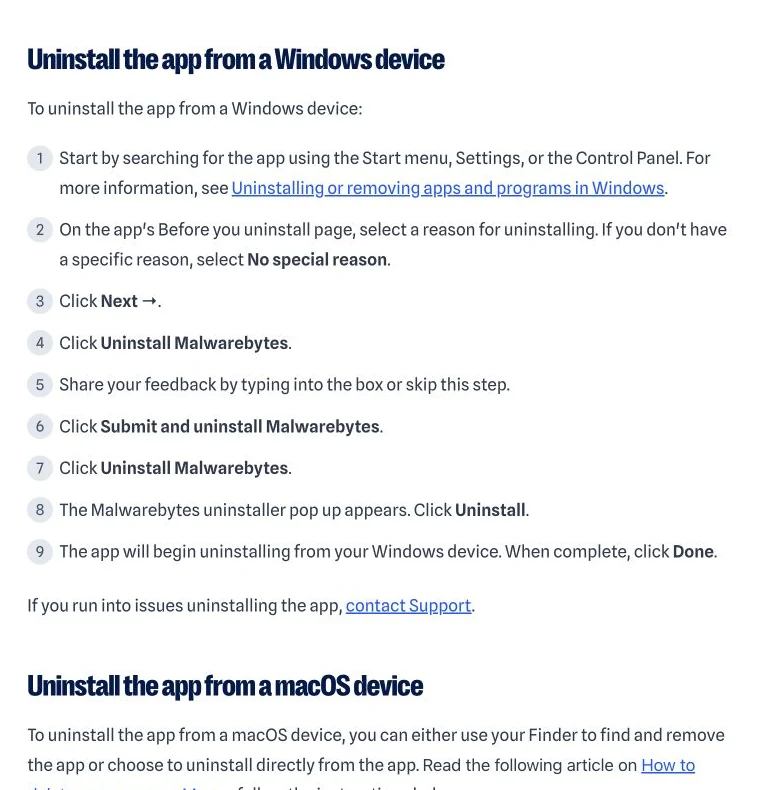
Malwarebytes' current desktop uninstall article starts from Windows search, Settings or Control Panel. Microsoft's own app removal documentation supports those same operating-system entry points.
- Open Windows Settings → Apps → Installed apps, search for Malwarebytes, open the menu beside it and choose Uninstall. Start search or Control Panel → Programs and Features is also valid.
- On Malwarebytes' Before you uninstall page, choose a reason. “No special reason” is acceptable.
- Choose Next and then Uninstall Malwarebytes.
- Enter feedback or skip it, then choose Submit and uninstall Malwarebytes.
- Confirm Uninstall Malwarebytes again, and confirm Uninstall in the final uninstaller window.
- Wait for completion and choose Done. Restart if Windows or the uninstaller requests it.
The repeated labels aren't a sign that you selected the wrong program. They're the current flow. Continue until Windows closes the uninstaller and the Installed apps record changes, not merely until a feedback form appears.
Why the Windows flow asks for a reason, feedback and confirmation
The Windows uninstaller currently includes several retention and feedback screens. Selecting a reason or skipping free-text feedback doesn't remove the program. The process is complete only after the final uninstaller runs and reports Done.
A common failure is closing the window after “Uninstall Malwarebytes” appears once, then finding the service still active. Treat each page as part of one sequence. If a button is below the fold, resize or scroll the uninstaller rather than terminating it in Task Manager.
Don't disable services first to make the process faster. The product-aware uninstaller expects to coordinate services, drivers and configuration. Force-stopping it can turn a straightforward removal into a damaged installation that needs Advanced Clean.
If the feedback screen freezes for several minutes, check for a hidden User Account Control prompt, another installer, a pending Windows restart or endpoint-management policy. Preserve the exact error and time before escalating.
Verify the normal Windows uninstall before reaching for a clean tool
Restart Windows if prompted, then reopen Settings → Apps → Installed apps. Search for Malwarebytes. The consumer desktop entry should be gone. Don't confuse a separate Support Tool, Browser Guard extension or AdwCleaner download with the main app.
Open Task Manager and look for an active Malwarebytes consumer process only after the restart. A stale Start-menu shortcut or cached search result can remain briefly even when the service is gone; try launching it before deciding that removal failed. Windows may remove the stale shortcut after indexing updates.
Open Windows Security → Virus & threat protection and identify the active provider. Microsoft's current Windows Security overview explains the built-in protection surface. Don't assume Defender is active solely because Malwarebytes disappeared.
If the installed-app entry, service and protection provider are correct, stop. “Complete” doesn't require deleting every log, receipt, harmless empty folder or browser history reference. Run Advanced Clean only when a concrete remnant affects security, reinstall or operation.
Use the Windows Support Tool only when normal removal fails or a clean reset is needed
The current Support Tool clean article describes Advanced Clean as a way to delete app files and configurations before an optional reinstall. It's appropriate for a damaged consumer installation, an uninstall that repeatedly fails or a clean reinstall requested by official support.
It isn't a faster first choice for a healthy app. Normal uninstall is easier to reverse and less likely to discard useful settings or diagnostic context. If support is investigating a crash, collect the requested logs before cleaning because the evidence can disappear with configuration data.
Download the tool only from Malwarebytes' official link. Search results and software-download sites may host old copies or unrelated “cleaners.” The current download redirects to the vendor's latest mb-support executable rather than an old standalone MB-Clean package.
The Support Tool FAQ says the current utility already combines MB-Clean with diagnostic components, so an additional cleanup utility is unnecessary. More tools don't make removal more complete; they increase the chance of conflicting changes.
Run Malwarebytes Support Tool Advanced Clean on Windows
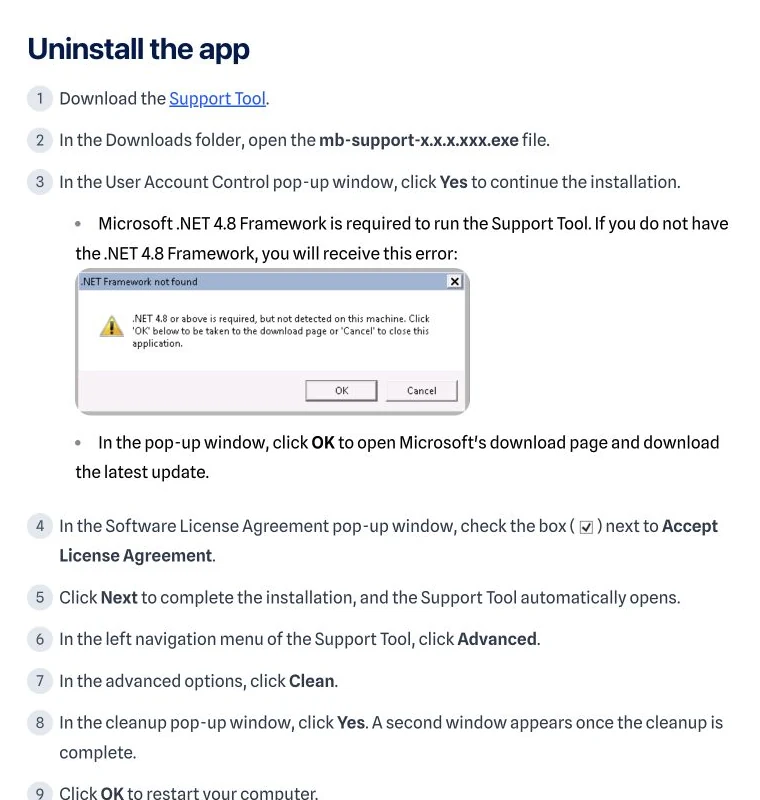
- Download the current Support Tool from the official Malwarebytes Help Center.
- Open the mb-support executable from Downloads and approve the Windows User Account Control prompt.
- Read and accept the Malwarebytes Support Tool license agreement, then choose Next.
- When the tool opens, select Advanced in the left navigation.
- Select Clean, confirm Yes and wait for cleanup to finish.
- Choose OK when the tool asks to restart the computer.
- After restart, allow post-reboot cleanup to finish. Choose No when offered a reinstall if your goal is to leave Malwarebytes.
Don't interrupt cleanup because the app icon disappears. The restart and post-reboot phase are part of the documented operation. Keep the laptop connected to power and save open work before starting.
Advanced Clean is a product-aware operation, not permission to delete similarly named folders afterward. Verify the result first. If the tool itself fails, keep its error and diagnostic archive for official Support rather than repeating clean cycles indefinitely.
.NET 4.8, administrator approval and restart are real prerequisites
The current Support Tool documentation requires Microsoft .NET Framework 4.8. If it's missing, the tool can offer to open Microsoft's download page. Use that official Microsoft route, install the required update and restart if Windows requests it before retrying.
User Account Control approval is also expected because security software installs services and drivers. Run from an administrator account you control. A work computer that blocks elevation is another sign that the removal belongs to IT.
After cleanup, the Support Tool reopens and performs post-reboot work. Wait for that phase. Starting a different antivirus installer before cleanup finishes can create a registration or network-filter conflict that's harder to diagnose than the original uninstall problem.
If Windows can't restart normally, don't keep forcing cleanup. Record the last visible step and use Windows recovery or official support appropriate to the boot issue. The clean tool isn't a general operating-system repair utility.
Decline reinstall if you're leaving; accept it only for a clean reset
The Support Tool is designed around uninstall and reinstall, so it offers the app again after reboot. Choose No if the objective is permanent removal or a move to another antivirus. Choosing Yes doesn't mean cleanup failed; it begins a new installation.
If you're repairing Malwarebytes, choose Yes, select Personal Computer or Work Computer as appropriate and complete installation. Our Malwarebytes installation guide covers account activation, device handoff and protection verification after a clean reinstall.
Don't choose Work Computer as a way around a managed ThreatDown problem. The prompt describes the consumer install context; it doesn't convert a Nebula endpoint into a removable personal app or supply a tamper-protection password.
After either choice, remove the Support Tool itself from Installed apps if you no longer need it, and keep only diagnostic archives attached to an active support case. The tool is separate from the protected product.
Uninstall Malwarebytes normally from the Mac app
Open Malwarebytes from the menu-bar icon, then use the macOS menu bar at the top of the screen: Help → Uninstall Malwarebytes. Confirm with “I'll risk it,” enter the Mac administrator password and allow the app to remove itself. Those labels come from the current official article.
The password prompt authorizes removal of system-level components. Enter it only in the local macOS authentication dialog, not a webpage or support chat. If the Mac is managed, the required approval or profile can belong to the administrator.
Restart when the app or macOS asks, then check Applications, Login Items and the menu bar. The Malwarebytes consumer app and its menu icon should be gone. A Browser Guard extension or separate mobile subscription isn't part of this desktop check.
If the app opens normally and the built-in uninstaller succeeds, don't run the separate Mac tool merely to chase harmless logs. Use the tool when a remnant causes a real reinstall or removal problem.
The Finder route is valid for a normal Mac app removal
Malwarebytes also points to Apple's official Mac app deletion guidance. Open Applications in Finder, select Malwarebytes and move it to the Trash, then authenticate if macOS requests it. The built-in Malwarebytes Help menu remains the clearer product-aware route when the app can open.
Dragging only a Dock icon doesn't uninstall anything; it removes an alias. Verify the actual application in Applications. Likewise, hiding the menu icon or disabling a login item isn't removal.
Empty the Trash only after confirming that you selected the application, not a report or installer you still need. Restart and verify that no Malwarebytes prompt returns. If macOS reports that the app is in use, close it normally before forcing a process.
Don't manually search every Library folder and delete matches from a generic web list. Product filenames and Apple security architecture change. A current official uninstall tool is safer when the normal route leaves a functional remnant.
Use the official Mac uninstall tool when remnants block reinstallation
Malwarebytes' June 2026 Mac reinstall troubleshooting article says remnants from a previous install can prevent a new installation. Its resolution is a separate MB-Mac-Uninstall tool that removes Malwarebytes software before a restart.
Download the tool from that official article, open it from Downloads, approve macOS Gatekeeper, confirm removal and enter the local Mac password. Delete the uninstall tool after it finishes, restart and then either verify departure or reinstall from the official package.
The documented minimum for the tool is macOS Yosemite 10.10, but that doesn't mean current Malwarebytes protection supports every old Mac. It only describes the cleanup tool's minimum. Product support and operating-system security are separate questions.
Because the tool removes Malwarebytes software broadly, check whether Privacy VPN or another Malwarebytes desktop component is in use. Make a deliberate network and replacement plan before cleaning everything.
Remove Malwarebytes Browser Guard from every browser profile separately
Browser Guard is a standalone extension. Removing the Windows or Mac app doesn't prove the extension disappeared from Chrome, Edge, Firefox or Safari, and browser sync can place it in more than one profile. Review each browser profile you actually use.
In Chrome, open Extensions → Manage extensions and remove Malwarebytes Browser Guard. Google's official extension management guide also covers disabling versus removing. In Edge, use Microsoft's remove extensions instructions.
Firefox users can follow Mozilla's Disable or remove Add-ons guide. Safari users should review Apple's Safari extensions documentation, where extensions can be disabled or uninstalled from settings.
Restart the browser and confirm the icon and extension listing are gone. The Browser Guard review explains feature and permission boundaries; this section owns only removal.
Check Privacy VPN, mobile apps and operating-system VPN settings
A Malwarebytes plan can cover more than the desktop antivirus. Review installed apps for Malwarebytes Privacy VPN or the combined mobile security app, and decide whether each should remain. Removing one desktop product shouldn't be assumed to clean another device.
On Android, uninstall the Malwarebytes app through system settings or Google Play. If Always-on VPN or Block connections without VPN was enabled, review Android's VPN settings so a stale requirement doesn't interrupt connectivity. Malwarebytes' current Android VPN settings guide shows where those controls live.
On iPhone or iPad, delete the app through Apple's current app deletion route, then review Settings → VPN & Device Management for a profile or VPN configuration you intentionally no longer use. Don't remove an employer's profile.
Store subscription cancellation is separate from deleting either mobile app. Return to the billing guide if Apple or Google still shows a renewal. Our Privacy VPN review covers service behavior and account consequences.
AdwCleaner is portable and has its own Remove control
Malwarebytes AdwCleaner isn't the main installed desktop suite. It can exist as a downloaded executable with its own quarantine, logs and settings. The consumer Support Tool's clean operation shouldn't be presented as its universal removal method.
The current AdwCleaner application settings article documents a Remove button that deletes AdwCleaner program files and its quarantine. Review quarantine before using it because that removal affects recoverability.
Delete a leftover installer only after using the product's Remove control when you want its stored data gone. Our AdwCleaner review and guide explains its separate cleanup role and what it is designed to detect.
Don't infer that an AdwCleaner icon proves the full Malwarebytes antivirus is still installed. Verify each component by its own product name and state.
A ThreatDown business endpoint isn't a consumer Malwarebytes install
ThreatDown's July 2026 Nebula endpoint removal article says deleting the endpoint from the console is the preferred route. The console frees the seat, creates a hidden uninstall task and executes it when an online endpoint checks in.
An offline endpoint behaves differently. If it checks in within 90 days, the queued task can run. After 90 days the task expires, the software can remain and the endpoint can register again, requiring the administrator to initiate deletion again. A missing console row isn't proof that an offline laptop is clean.
OneView and managed-service environments have similar administrator ownership. Don't use the consumer Support Tool, don't guess command-line switches and don't remove an agent from a work device without authorization. The ThreatDown review explains the console and service boundary.
If the company relationship ended but an agent remains, contact the former or current administrator and official ThreatDown Support with device evidence. Removal can affect monitoring, incident evidence and contractual controls.
Tamper or uninstall protection requires the administrator's password
A consumer Malwarebytes for Windows installation can have uninstall restrictions, and ThreatDown policies can require an uninstall password. A prompt saying the device is managed or asking for a password isn't a challenge to bypass; it identifies the owner of the removal decision.
ThreatDown's current business documentation says manual removal may require the tamper-protection password attached to the endpoint's policy. The separate business Support Tool article says console deletion comes first, official Support should be consulted, and the tool can require two reboots.
Don't publish, share or guess the password. Don't follow copied registry edits that claim to disable policy. Those steps can violate organizational controls and leave a partially installed endpoint.
On a personal device that unexpectedly reports management, preserve the product name, account, exact message and installer source. A damaged consumer installation may look different from a genuine company agent, and official support can classify it safely.
If Malwarebytes won't uninstall, escalate in a safe order
First restart the computer. A pending update, scan, other installer or earlier uninstall can hold files and services. After restart, use the normal operating-system route once more from an administrator account and note the exact error rather than repeatedly clicking.
Second, confirm the product context. Consumer Malwarebytes belongs to the normal uninstaller or consumer Support Tool. ThreatDown Endpoint Agent belongs to Nebula, OneView and the business tool. Browser Guard belongs to the browser. An “incompatible” clean-tool message often means the wrong product path.
Third, for a damaged consumer Windows install, run the official Support Tool Advanced Clean. If the tool can't start, satisfy its current .NET 4.8 requirement. A reinstall of the current official consumer package over a damaged copy can sometimes restore the uninstaller, but use that only when the vendor route or support recommends it.
Fourth, collect the tool's diagnostic archive and contact official Support. Current community reports show corrupt installs and managed agents as recurring failure modes, but they don't establish a universal registry command or third-party removal utility.
If a Malwarebytes service or process still runs after removal
Restart first. Security drivers and services can remain loaded until reboot even after their files are scheduled for removal. Verify the process after Windows or macOS has completed a fresh startup, not while the uninstaller is still finishing.
Check whether the running name belongs to the consumer app, Support Tool, Browser Guard native integration, AdwCleaner or a business Endpoint Agent. Similar branding doesn't make them one install. The file location, installed-app entry and account context help classify it.
For a consumer Windows remnant that persists after restart and blocks operation, use Advanced Clean once. For a Mac remnant that blocks reinstall, use the official Mac uninstall tool. For a business service, return to the console and business support route.
Don't delete the service entry manually before support can identify it. A service definition without its product files can make later repair and removal harder.
If Malwarebytes remains in Installed apps after it's gone
Try opening the entry. Windows can retain a stale installer registration or search result after files are removed. If Windows offers to remove the broken listing, follow that operating-system prompt and restart Settings before escalating.
If the entry launches the real Malwarebytes uninstaller, complete it. If it reports a missing installer or error, use the official Support Tool rather than a generic “force uninstall” product. The vendor tool is designed to understand its own package state.
Confirm that you aren't looking at Malwarebytes Support Tool, a separate VPN product or another device entry in the online account. Installed apps, account devices and browser extensions are three different inventories.
A harmless stale label is less urgent than an active driver, service or broken protection provider. Prioritize functional verification instead of deleting registry display names for cosmetic perfection.
If the internet or Windows Security breaks after removal
Restart before changing network settings. A web or VPN filter can finish detaching during reboot. Then verify that no other VPN, proxy, browser extension or “block connections without VPN” mobile control explains the problem.
On Windows, open Windows Security and identify the antivirus provider. Run Windows Update and allow the built-in security components to refresh. Don't install two replacements simultaneously in an attempt to force registration.
If the network problem began during an interrupted uninstall, run the official Support Tool clean completion or contact Malwarebytes Support with the error. Resetting the entire network stack is a broader action that can erase Wi-Fi, VPN and enterprise settings, so it should follow diagnosis rather than guesswork.
On a business device, stop and contact IT. Network filtering, DNS policy and endpoint controls can be organization-managed, and removal without the console can leave a deliberate policy half-applied.
Avoid registry cleaners, bulk file searches and third-party uninstallers
Search results often equate “complete” with deleting every folder and registry key containing a brand name. That approach ignores versions, shared components, quarantine, diagnostics and product-aware restart work. It can also destroy evidence needed to repair a broken security provider.
The current official routes already cover normal removal, Advanced Clean, a Mac remnant tool and a separate business tool. Use the route that matches the product. A third-party uninstaller adds another privileged program without stronger knowledge of Malwarebytes' current drivers and policies.
Manual commands can be appropriate when ThreatDown Support provides them for a named endpoint and policy, but that's an administrator procedure—not a consumer copy-and-paste section. This guide intentionally doesn't reproduce destructive business commands or example passwords.
After a clean tool reports success, verify behavior. Don't keep deleting until a search returns zero strings; receipts, browser history, support logs and harmless cached text can legitimately retain the name.
Post-removal verification checklist
| Area | Expected result | If it fails |
|---|---|---|
| Windows Installed apps or Mac Applications | Main consumer app absent | Complete normal uninstaller or correct official clean route |
| Process/service after restart | No consumer protection process | Classify consumer, support, browser or business component |
| Browser profiles | Browser Guard absent if intentionally removed | Remove it in each browser's extension manager |
| Account devices | Seat deactivated if transferring | Deactivate in Malwarebytes Account; this is separate from uninstall |
| Billing | No future charge if canceled | Use the merchant-specific cancellation guide |
| Windows Security or replacement app | One current active protection provider | Update, restart and resolve provider registration before browsing freely |
| Network/VPN | Normal connectivity under intended VPN state | Review remaining VPN, filter and business policy |
Take screenshots only where they help prove account or support state, and redact keys and payment data. A personal device is finished when the intended components are gone and another protection state is confirmed. A managed device is finished when the administrator's console and endpoint agree.
Keep the official tool download or support case only as long as needed. Delete temporary uninstall utilities after a successful result, but retain cancellation and refund records according to your normal financial-document practice.
If an expected result is unclear, stop at that row. One targeted support case is safer than several unrelated cleaners that erase the failure state.
Hand protection to another product without a gap
Download the replacement from its official site before removing Malwarebytes, but don't enable two full real-time suites indefinitely. Finish Malwarebytes removal, restart, then install and update the replacement. Run its first scan after registration is stable.
Windows users who intend to rely on Microsoft Defender should open Windows Security and verify real-time protection, security intelligence updates and the active provider. The Microsoft Defender review explains where the built-in option is enough and where a paid suite adds value.
For alternatives, use the antivirus by use case directory, or compare Bitdefender vs Malwarebytes, Malwarebytes vs Norton and Malwarebytes vs Avast. Product selection is separate from the removal procedure.
Record the new account owner, covered devices, renewal date and cancellation route. The cleanest protection handoff includes a clean subscription inventory so the same billing problem doesn't return next year.
Reinstall Malwarebytes safely if removal was a mistake
If the normal uninstall was accidental, download the current installer from Malwarebytes, install it and reactivate with the account that owns the subscription. The license seat may still be available; if you deactivated it, assign the device again deliberately.
After Advanced Clean, use the post-reboot reinstall offer or the official installer. Choose the correct device type, update protection databases and confirm every protection module. Don't assume old settings, exclusions or schedules survived a clean removal.
On Mac, restart after the uninstall tool before reinstalling. Approve the current system extension, web filter and Full Disk Access prompts that the new version actually requests. Old screenshots may not match the current macOS permission layout.
If the original problem returns immediately, collect current logs and open one official support case. Repeating uninstall and reinstall without evidence can hide the trigger. The Malwarebytes review owns the product decision; current official support should diagnose a failing installation you intend to keep.
Malwarebytes uninstall FAQ
How do I uninstall Malwarebytes completely from Windows?
Try the normal Windows uninstall first through Settings, Start or Control Panel and finish every Malwarebytes confirmation screen. If it fails or you need a clean reset, download the official Malwarebytes Support Tool, open Advanced, choose Clean, confirm the restart and complete post-reboot cleanup. Decline reinstall if you're leaving.
Does uninstalling Malwarebytes cancel my subscription?
No. Uninstalling removes software from a device. Auto-renewal remains with Malwarebytes, Apple, Google or another billing seller until canceled separately. Save the billing confirmation before deleting an account.
What is the official Malwarebytes removal tool?
For a consumer Windows installation, the current official route is the Malwarebytes Support Tool and its Advanced → Clean option. Malwarebytes says the tool includes MB-Clean, so a separate old Cleanup Utility isn't needed. Mac has a separate official uninstall tool for remnants and reinstall problems.
Why will Malwarebytes not uninstall?
Common causes include a damaged installation, a pending restart, another installer running, missing administrator approval or uninstall protection. A company-managed ThreatDown endpoint may require the administrator's tamper-protection password and console removal. Don't delete registry keys or services at random.
Does Malwarebytes Support Tool remove all settings?
The current clean-removal article says Advanced Clean deletes app files and configurations. Treat quarantine, local settings and diagnostic data as potentially unavailable afterward. Review trusted quarantined items and save evidence you need before running it.
How do I uninstall Malwarebytes from a Mac?
Open Malwarebytes, choose Help in the macOS menu bar, select Uninstall Malwarebytes, confirm and enter the Mac administrator password. Finder can also remove the app. If remnants block reinstallation, use the current official Mac uninstall tool and restart.
Will Malwarebytes Browser Guard be removed with the desktop app?
Not necessarily. Browser Guard is a separate browser extension. Check every Chrome, Edge, Firefox and Safari profile and remove the extension through that browser's official extension manager if you no longer want it.
Can I use the consumer Support Tool on Malwarebytes Endpoint Agent?
No. Malwarebytes explicitly says not to use the consumer Support Tool on business endpoints. Delete the endpoint through Nebula or OneView first, then follow ThreatDown business support instructions if the agent remains. Tamper protection may require an administrator-controlled password.
Should I delete Malwarebytes registry entries manually?
Not as a normal removal method. The official uninstaller and official Support Tool understand product services, drivers, configurations and restart work. Random registry or folder deletion can leave a broken security stack and destroy troubleshooting evidence.
What antivirus runs after Malwarebytes is removed?
Windows Security may reactivate Microsoft Defender when no other registered antivirus remains, but verify this in Windows Security rather than assuming it. On any platform, install and update the chosen replacement before the paid Malwarebytes protection ends.