
Scanguard for Mac Review: Safe Setup, Apple Silicon and Test Limits
Scanguard currently supports Intel and Apple-silicon Macs, but installation is only the first gate. We verify the current macOS range, explain Rosetta and Full Disk Access, separate Windows lab evidence from the Mac build and show how to confirm protection without weakening Startup Security.

Quick verdict: Scanguard is a viable Mac option for an existing cross-platform subscriber who wants visible scans, quarantine and one household dashboard. The current requirements cover macOS Tahoe 26 through Catalina 10.15 and Apple silicon M1 or higher, although some installs may need Rosetta 2. Its setup correctly uses Full Disk Access and an Endpoint Security system extension, both of which deserve an explicit trust decision. The weakness is evidence: Scanguard's fresh SE Labs AAA result belongs to its Windows home product, while the major current Mac lab tables we checked did not include Scanguard. Mac users who prioritize platform-specific independent testing have stronger-supported alternatives.
Scanguard for Mac at a glance
Scanguard's Mac story is stronger on compatibility and guided setup than on independent platform evidence. The vendor maintains a current installer flow, names recent macOS releases and documents the permissions its real-time component needs. The interface also exposes the familiar antivirus jobs: quick and full scans, scheduling, quarantine and web/account features according to plan.
The buying problem is proof. A security product can use a sensible architecture and still need platform-specific detection, false-positive and performance testing. Scanguard's current SE Labs result is valuable, but the report tested Windows builds. We found no Scanguard entry in the major current Mac tables checked, so our verdict cannot borrow that Windows percentage.
| Area | Current evidence | What it means | Verdict |
|---|---|---|---|
| Compatibility | Tahoe 26 through Catalina 10.15; Intel 64-bit or Apple silicon M1+ | Wide current vendor support list | Good, verify after major upgrades |
| Apple silicon | M1 or higher; Rosetta may be needed | Supported platform, not proof every component is native | Acceptable with architecture check |
| Permissions | Main-app and extension Full Disk Access; system extension | Functionally relevant and powerful | Approve only verified components |
| Features | Real-time protection, Quick/System/Scheduled scans, quarantine | Useful visible control beyond quiet built-ins | Solid basics |
| Mac labs | Absent from current AV-TEST and AV-Comparatives Mac sets checked | No direct current major-lab percentage for this build | Main weakness |
Pricing and billing can change by region and term, so this page does not repeat a promotional cart. Use our Scanguard pricing and renewal guide to compare the whole account, including separately managed services, before treating Mac support as a reason to buy.
Current Scanguard Mac requirements cover Tahoe through Catalina
Scanguard's current system-requirements help lists macOS Tahoe 26, Sequoia 15, Sonoma 14, Ventura 13, Monterey 12, Big Sur 11 and Catalina 10.15. Hardware requirements are an Intel Core 2 Duo 64-bit or newer, or Apple silicon M1 or higher. The page also calls for at least 2 GB RAM, 1.5 GB free storage, Safari 13.1.2 or newer, administrator rights and internet access.
| Requirement | Current vendor statement | Practical check |
|---|---|---|
| macOS | Tahoe 26, Sequoia 15, Sonoma 14, Ventura 13, Monterey 12, Big Sur 11, Catalina 10.15 | Apple menu → About This Mac |
| Processor | 64-bit Intel Core 2 Duo+ or Apple silicon M1+ | Chip/processor in About This Mac |
| Memory | 2 GB or more | Minimum, not a comfort recommendation |
| Storage | 1.5 GB free minimum plus temporary/quarantine space | Keep headroom for scans and macOS updates |
| Browser | Safari 13.1.2+ | Required support baseline, not exclusive browser use |
| Account/system | Administrator rights and internet | Needed for package, extension, login and updates |
A published compatibility list is a dated support statement, not a guarantee that every future point release behaves perfectly. Check the current Scanguard requirements again before a major macOS upgrade. Keep the old installer only as evidence, not as a rollback plan; definitions and system components must remain current.
The 2 GB RAM line is especially easy to misread. It means the vendor permits installation, not that a modern Tahoe Mac with browsers, video calls and creative apps will feel comfortable at that limit. Performance should be measured on the actual machine rather than inferred from a low minimum.
Apple silicon is supported, but Rosetta 2 may still be required
Scanguard says Apple silicon M1 or higher is supported and separately warns that some Macs may need Rosetta 2. Those statements are compatible. Rosetta is Apple's translation layer for Intel-targeted applications on arm64 Macs, so a supported product can still contain an Intel component or installer that macOS translates.
Do not turn that warning into “Scanguard is fully native” or “Scanguard is Intel-only.” We did not retrieve the authenticated current Mac package from a customer's portal, so we cannot publish its binary architectures as a fact. On an installed Mac, Activity Monitor's Kind column or the app's information can distinguish Apple, Intel and Universal processes where macOS exposes it.
If macOS offers Rosetta during the verified install, use the operating-system prompt or Apple's official Rosetta guidance. Never download a “Rosetta installer” from a mirror. Rosetta does not grant Full Disk Access, approve the endpoint extension or prove real-time protection is running; those remain separate gates.
The Mac app covers the antivirus basics, not every Windows feature
Current Scanguard Mac help exposes real-time protection plus Quick Scan, System Scan, scheduled scans, exclusions and the Quarantine Virus Vault. That is a coherent core: monitor new/used/opened files, run an on-demand check, set a recurring job and isolate detections for review. WebShield, VPN, breach alerts and cleanup availability can depend on the plan, current app and platform.
Do not assume feature parity because a marketing page uses one cross-platform grid. A Windows startup manager, registry-oriented cleanup task or browser component may have no identical Mac implementation. Verify each paid feature in the installed Mac app and My Services before buying another plan. Our Scanguard add-ons review maps included-versus-separate services.
The most important Mac-specific features are not flashy extras. They are successful system-extension loading, updated definitions, predictable scan scope, clear quarantine decisions and an uninstaller that removes privileged components. A long menu cannot compensate for a red real-time status.
Download Scanguard from the verified portal, not a mirror
Scanguard's current download and install guide sends customers to the Online Portal and provides an official direct route. The Mac flow opens scanguard.dmg from Downloads, launches the package, requests administrator authorization and then signs the app into the account. A familiar filename is not identity proof.
Check the browser domain, TLS connection and account before opening the package. If Gatekeeper names an unidentified developer, a damaged package or an unexpected publisher, stop. Do not control-click past the warning or use a Terminal command copied from a forum until Scanguard's current support confirms the exact package and signing identity.
One account can contain several devices and services. If login succeeds but paid features remain missing, compare the portal email and device row through our Scanguard account, activation and devices guide. Buying again is not a setup fix.
Safe Mac setup has five gates, not one Install button
Scanguard's current instructions separate the application, its real-time extension and their storage permissions. Follow that separation. A green installer result proves only that files were placed on disk; it does not prove the protection agent can see protected data or receive file events.

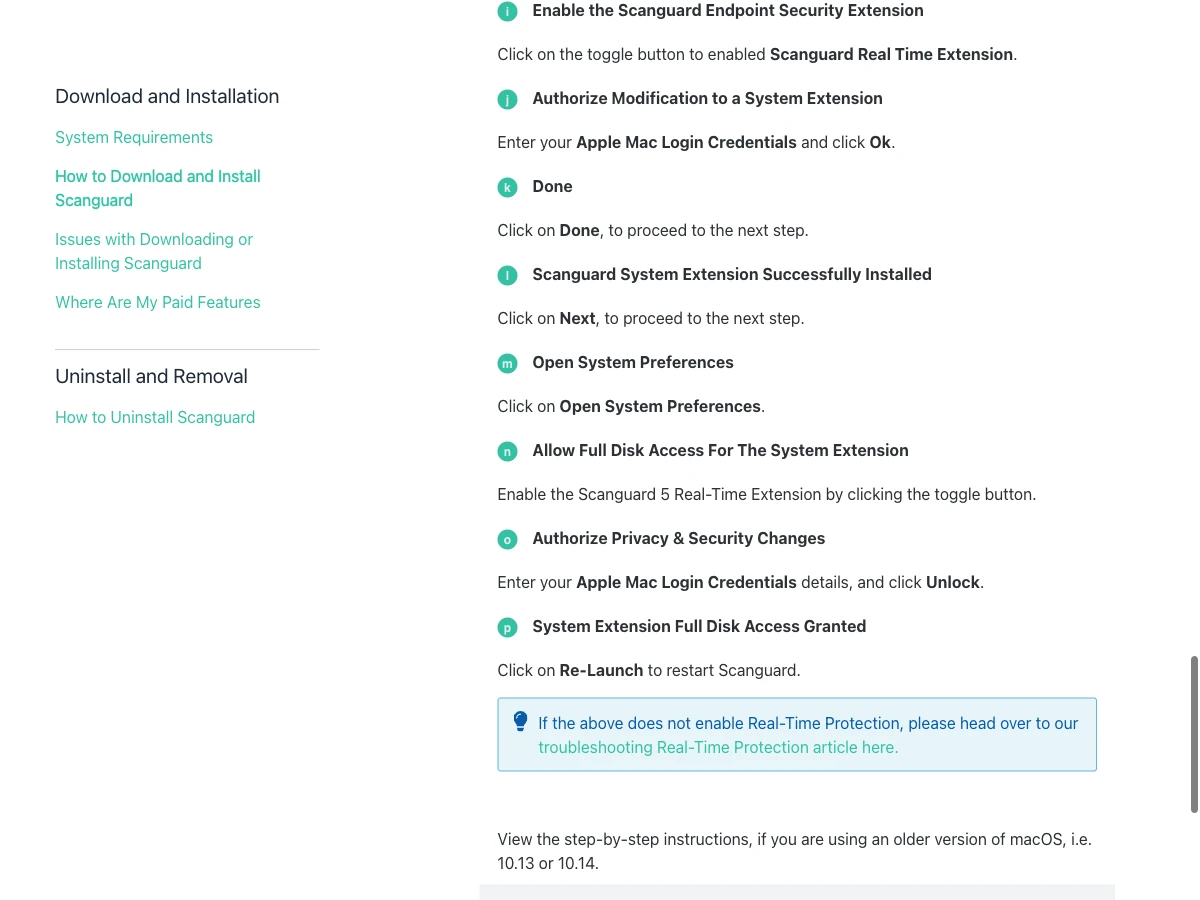
First verify the installer. Second, grant Full Disk Access to the main Scanguard application when its identity matches the current guide. Third, install and approve the Scanguard Endpoint Security or Real-Time system extension. Fourth, grant Full Disk Access to the documented Scanguard 5 Real-Time Extension. Fifth, relaunch Scanguard and confirm the final protection state.
Permission is not protection until the agent reports healthy. Conversely, a red status does not justify granting every Scanguard-looking entry broad access. Match the component names, current vendor page and System Settings state, then use the dedicated real-time protection diagnostics if the app remains off.
Full Disk Access is functionally relevant and still a serious trust decision
Apple's macOS file-access security documentation explains that full internal storage access requires the user to edit system privacy settings. Protected areas include Documents, Downloads, Desktop, iCloud Drive, network volumes and removable volumes. macOS intentionally prevents a normal app prompt from silently granting itself that reach.
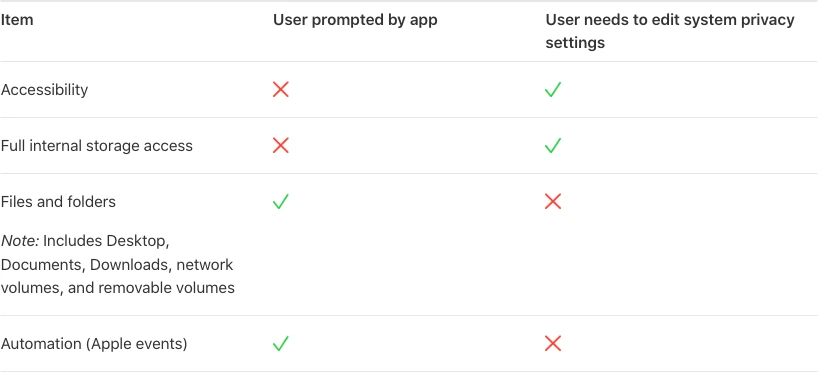
An antivirus needs broad file visibility to inspect protected locations and monitor files created, opened or modified across accounts. That explains why Scanguard asks. It does not prove the product is malicious, harmless or effective. Full Disk Access raises the cost of trusting the wrong publisher, so install source, signing identity, current maintenance and independent evidence matter.
Grant access only to the expected main app and real-time extension. Remove an unexplained duplicate or old component only through Scanguard's supported uninstaller, not by editing the TCC database. If the user no longer runs Scanguard, revoke stale access after removal and restart before concluding that the privileged agent is gone.
The documented Endpoint Security extension should not require Reduced Security
Apple distinguishes modern system extensions, which run in user space with purpose-specific frameworks, from legacy kernel extensions. EndpointSecurity and NetworkExtension let security products observe relevant events without placing a traditional kext inside the kernel. Apple's secure extension architecture says legacy kexts are no longer recommended because they increase stability and integrity risk.
Scanguard's current flow names an Endpoint Security Extension or Scanguard Real Time Extension and sends the user to System Settings. It does not instruct the user to boot into recovery or change Startup Security to Reduced Security. That is the safety boundary for this guide.
If macOS explicitly identifies a legacy extension, says it will be incompatible or demands Reduced Security, stop. Apple's system-extension alert guidance recommends checking for an updated vendor version. Do not weaken boot policy using a generic antivirus tutorial; verify the current Scanguard package and support response first.
Verify real-time protection after relaunch
After the two access grants and extension approval, relaunch Scanguard. The dashboard should report Real-Time Protection enabled rather than merely showing the setup wizard as complete. Open System Settings and confirm the expected Scanguard entries remain enabled; a permission change can require another relaunch before the app recognizes it. Scanguard's current real-time setup page owns the version-specific status flow.
Do not use live malware to test the agent. Confirm definition/update status, run a normal Quick Scan and inspect the Scanguard log/status for a successful start. Where appropriate, a vendor-supported harmless test file can verify handling, but it belongs in a controlled testing procedure and never justifies downloading unknown samples.
If the toggle remains red, identify which layer failed: account entitlement, main-app Full Disk Access, endpoint-extension approval, extension Full Disk Access, helper install or another resident antivirus. The dedicated troubleshooting page owns repair. Avoid repeatedly reinstalling before preserving version, macOS build, prompt text and support logs.
Quick, System and scheduled scans are available on Mac
Scanguard's current scan guide includes a macOS tab for Quick Scan, System Scan and scheduling. It exposes scan type, frequency, start/end time, file types and exclusions. Detections are moved to the Quarantine Virus Vault according to the help copy.
The vendor says Quick Scan may take five to ten minutes. Treat that as an estimate for its chosen scope, not a performance promise. File count, APFS snapshots, external drives, cloud placeholders, storage speed, updates and foreground activity change the result. System Scan can take much longer.
Confirm that a scheduled scan survives sleep, restart and user logout at the chosen time. Review whether Time Machine volumes, external disks and cloud folders are in scope rather than assuming “system” means every attached byte. Our Scanguard scans, quarantine and exclusions guide owns restore/delete safety and why an exclusion should never be a casual speed fix.
Scanguard has fresh independent evidence—but it is a Windows result
SE Labs' current Scanguard archive links the January–March 2026 Home Anti-Malware report. The factsheet records 95% Protection Accuracy, 100% Legitimate Accuracy and 98% Total Accuracy, earning AAA. That is useful evidence that the tested Scanguard home product handled its realistic Windows threat set with no legitimate false positives in that evaluation.
The full SE Labs report matters because it identifies Scanguard v5.24.38 at the start and v6.6.51 at the end, discusses attacks against Windows PCs and links the macOS Home series as a separate report category. The result therefore belongs to the tested Windows builds. It cannot be restated as “Scanguard for Mac scored 98%” or “the Mac app earned AAA.”
| Evidence | Platform | Scanguard result | Allowed use on this page |
|---|---|---|---|
| SE Labs Jan–Mar 2026 Home Anti-Malware | Windows home builds | 95% protection, 100% legitimate, 98% total; AAA | Vendor/product-family context only |
| AV-TEST March 2026 home macOS | macOS Tahoe | Scanguard not in ten-product table | Document current participation gap |
| AV-Comparatives 2025 Mac Security | macOS Sequoia | Scanguard not in tested set checked | Document current participation gap |
Our main Scanguard review uses the Windows result in the whole-product verdict with its exact scope. This Mac page applies a platform evidence firewall: a vendor-level signal may raise confidence in the organization and engine family, but only a Mac test proves how the current Mac agent integrates, detects, avoids false alarms and affects performance on macOS.
Current major Mac lab tables do not include Scanguard
AV-TEST's March 2026 macOS Tahoe consumer test evaluated ten home products. Scanguard was not in the table. The named participants included Avast, AVG, Avira, Bitdefender, ESET, F-Secure, Intego, Kaspersky, Norton and Trend Micro.
AV-Comparatives' 2025 Mac Security Test used 899 Mac-malware samples, 750 Mac potentially unwanted applications and 500 Windows samples on updated macOS Sequoia. Scanguard was not among the products surfaced in that current certification set either. Absence is not a failed score, but it leaves the buyer without those direct platform measurements.
We therefore do not publish a detection percentage, performance score or false-positive count for Scanguard Mac. Nor do we say Scanguard has never been tested anywhere. The precise finding is that the major current Mac tables checked for this review do not provide Scanguard-specific evidence.
macOS already includes several security layers
Apple's app-security overview documents Gatekeeper, code signing/notarization, XProtect signatures, malware removal, sandboxing and protected-data controls. System Integrity Protection restricts critical system changes, while FileVault protects the volume at rest. A Mac without third-party antivirus is not an unprotected blank slate.
Those built-ins also do not make every user immune. Social engineering can persuade an administrator to approve a malicious package, infostealers target browser and credential data, and risky scripts or unsigned tools can bypass a user's caution. Apple's controls are deliberately quiet and may not provide the same visible on-demand scan, quarantine and household reporting that some users want.
Scanguard adds value when its visible controls, cross-platform account and additional detection layer solve a real need. It does not “replace” Gatekeeper, XProtect, SIP or FileVault. Compare the combined system, not a marketing claim that one product is the Mac's only defense.
Measure Scanguard Mac performance instead of inventing a benchmark
We did not find a current independent Scanguard Mac benchmark that supports a universal CPU, RAM, battery or scan-time claim. A one-off whole-product review or Windows test cannot fill that gap. Measure the installed version on the actual Mac.
Record Mac model/chip, macOS build, Scanguard version, free storage and power mode. Restart, wait five idle minutes and note Scanguard component CPU, memory and energy in Activity Monitor. Run the same ordinary workload at idle, during Quick Scan and during System Scan. Record wall-clock duration, fan/noise/temperature symptoms, battery or power state and impact on the foreground app.
Initial definitions, Rosetta setup, Spotlight indexing and the first full scan can create temporary load. Recheck after the machine settles and after a macOS point update. Persistent high CPU belongs in our Scanguard not-working and high-CPU guide, where process identity and scan state are diagnosed before reinstalling.
Common Scanguard Mac setup problems have different owners
| Symptom | Likely layer | Safe next action | Do not do |
|---|---|---|---|
| Installer will not open | Source, signing, compatibility, storage | Verify domain, requirements and exact Gatekeeper message | Bypass Gatekeeper with an unknown command |
| Rosetta prompt on Apple silicon | Intel-targeted component | Use Apple's official prompt/mechanism | Download a third-party Rosetta package |
| Protection stays red | Entitlement, app access, extension, helper | Check each documented gate and relaunch | Grant every similarly named item access |
| Legacy-extension or Reduced Security prompt | Old/incompatible component or wrong guide | Stop and verify current Scanguard support | Weaken Startup Security immediately |
| Paid features missing | Wrong account/service/device row | Match portal email and receipt | Buy the same service again |
| High CPU after install | Initial update/scan, conflict or fault | Measure process and wait for initial job to finish | Delete support folders blindly |
Scanguard's real-time troubleshooting material contains some older System Preferences wording and a sibling-brand internal path in a helper repair. That may reflect shared product infrastructure, but it is not a reason to publish destructive folder deletion as a generic fix. Preserve the exact app version and support case, then follow current vendor-specific guidance.
Current installer problems can also be ordinary account failures. Browser-session login, two-factor delivery, device count and separately purchased entitlements each have a different owner. Route the problem before changing permissions.
Avoid two resident real-time antivirus agents during the handoff
Two products that both intercept file events can duplicate scanning, lock files, increase CPU and produce confusing quarantine decisions. Some combinations coexist, but compatibility must be documented by both vendors. “It installed” is not proof that two real-time agents are a supported stack.
Choose the intended primary product, update it and preserve the old subscription/account evidence. Remove the old agent with its vendor's supported uninstaller, restart and confirm its system extension or Full Disk Access entries no longer remain active. Then complete Scanguard's permission gates and verify protection.
Do not leave the Mac without an intended active layer while testing risky downloads. Apple's built-ins continue operating, but the handoff should still be deliberate. If this is an employer-managed Mac, stop and use IT's MDM policy; Scanguard's consumer entitlement and manual extension approval are not a substitute for managed endpoint protection.
Use Scanguard's in-app uninstaller and verify the extension is gone
Scanguard's current uninstall page tells Mac users to open the app, choose Scanguard → Uninstall Scanguard from the menu bar, confirm and enter administrator credentials when macOS asks to modify the system extension and app. That supported route knows which privileged components belong to the current installation.
Dragging only the icon to Trash can leave helpers, login items or an extension. After the uninstaller completes, restart if requested and inspect Applications, Login Items & Extensions and Privacy & Security. Expected Scanguard processes should be gone, and its Full Disk Access entries should be absent or inactive.
Do not edit TCC databases, remove system folders broadly or paste an unverified systemextensionsctl command. Our complete Scanguard uninstall guide owns deeper verification. Uninstalling is also separate from billing: use the Scanguard cancellation and refund guide for the exact merchant and service.
Mac users can choose alternatives with current platform-specific lab evidence
The March 2026 AV-TEST Mac table gives buyers several directly tested options. Bitdefender, ESET, F-Secure, Intego, Kaspersky and Norton received 6/6 across protection, performance and usability in that cycle, while Avast and AVG also scored 18/18. A single cycle is not the whole product decision, but it is stronger Mac-specific evidence than a transferred Windows result.
Intego is Mac-focused and may appeal to users who prefer a product designed around the platform. Bitdefender and Norton offer broad cross-platform suites. ESET and F-Secure provide other combinations of control and bundle scope. Compare current price, renewal, device count, VPN/password-manager extras, extension model, false positives and support—not only a perfect lab row.
Scanguard can still win for an existing subscriber who values one portal and a familiar interface. It loses for a new Mac-only buyer whose first criterion is fresh direct lab participation. Our best antivirus for Mac guide owns the ranked market comparison and current platform evidence.
Who should use Scanguard for Mac—and who should skip it
Use it if the exact subscription already covers the Mac, you want visible Quick/System/Scheduled scans and quarantine, and you are comfortable verifying Full Disk Access and system-extension state. A mixed Windows/Mac household can reasonably value one account and interface.
Test it cautiously if the Apple-silicon install requests Rosetta, the Mac is battery- or performance-sensitive, or a major macOS upgrade has just landed. Record architecture, idle load and scan behavior during the refund window. Keep the installer and receipts as evidence, not credentials.
Skip it if current Mac-specific lab evidence is mandatory, if the Mac is employer-managed, if you cannot grant the documented permissions or if the product asks to weaken Startup Security without a current verified explanation. Also skip a duplicate purchase when the problem is simply the wrong account or stale device row.
There is no strong current Scanguard-for-Mac community consensus
Our current search did not find a substantial, recent Reddit test of this exact Scanguard Mac build, its current extension and its current contract. Old one-off “what is Scanguard?” threads and general Mac-antivirus debates cannot establish a present defect rate. We do not invent a named user or turn generic distrust of Full Disk Access into a product allegation.
Current Mac community discussions do provide useful principles: grant Full Disk Access only when the job explains it, distinguish modern system extensions from legacy kexts, avoid reducing Startup Security for an unexplained component and audit unused privileged apps. Those principles align with Apple's own permission model. The independent TechRadar Scanguard review adds whole-product usability context, but it is not a current Mac lab test.
For the product verdict, direct vendor requirements, Apple Platform Security and named independent lab tables carry more weight. Community evidence should add failure modes and usability context, not replace platform-specific testing that does not exist.
Scanguard for Mac FAQ
Does Scanguard work on Mac?
Yes. Scanguard's current requirements list macOS Tahoe 26, Sequoia 15, Sonoma 14, Ventura 13, Monterey 12, Big Sur 11 and Catalina 10.15. Support still depends on the exact current build, administrator rights, internet access and completing the macOS permission setup.
Does Scanguard support M1, M2, M3 and newer Apple-silicon Macs?
The current vendor requirement is Apple silicon M1 or higher, which covers later Apple-silicon generations as a product-family statement. Scanguard does not publish a separate certification for every chip. Some installations may still require Apple's Rosetta 2 for Intel-targeted components.
Why does Scanguard ask for Rosetta 2?
Rosetta 2 is Apple's translation layer for Intel software on Apple silicon. Scanguard says some Macs may need it, so platform support does not prove that every current component is native arm64. Install Rosetta only through macOS or Apple's official mechanism, never from a download mirror.
Why does Scanguard need Full Disk Access on Mac?
An antivirus needs visibility into protected files to scan them and monitor file activity. That explains the request, but Full Disk Access is still powerful. Grant it only to the verified Scanguard app and documented real-time extension, then confirm the protection status after relaunch.
Does Scanguard require Reduced Security on an Apple-silicon Mac?
Scanguard's current documented flow uses an Endpoint Security system extension and does not instruct users to change Startup Security. If macOS identifies a legacy kernel extension or asks for Reduced Security, stop and verify the exact current Scanguard build and vendor instructions before proceeding.
Has Scanguard for Mac been independently tested in 2026?
We found a current Scanguard SE Labs result for the Windows home product, not the Mac build. Scanguard was absent from the major AV-TEST March 2026 macOS Tahoe table and the AV-Comparatives 2025 Mac test checked for this guide. Do not transfer the Windows score to Mac.
Can Scanguard run a full scan on Mac?
Yes. Current Scanguard help provides Quick Scan, System Scan and scheduled-scan controls on macOS. The vendor's five-to-ten-minute Quick Scan estimate is not a promise for every Mac. Scan time depends on files, storage, exclusions, updates and other activity.
How do I know Scanguard real-time protection is enabled on Mac?
Complete both Full Disk Access grants, approve the documented system extension, relaunch Scanguard and verify the app reports protection enabled. Also confirm the expected Scanguard entries remain enabled in System Settings. A permission toggle alone is not proof that the agent loaded correctly.
Can I use Scanguard together with another Mac antivirus?
Avoid two resident real-time agents competing for the same file events unless both vendors explicitly support that configuration. Keep one active layer during the handoff, remove the old product with its supported uninstaller, restart and verify the replacement before risky downloads.
Is Scanguard better than Apple's XProtect and Gatekeeper?
The evidence does not support a universal claim. macOS already includes Gatekeeper, notarization, XProtect, malware removal, System Integrity Protection and consent controls. Scanguard adds visible scans, quarantine, scheduling and a cross-platform account, but its current Mac-specific lab evidence is weaker than several alternatives.
How do I uninstall Scanguard from a Mac?
Open Scanguard, choose Scanguard → Uninstall Scanguard from the menu bar and authorize removal of its app and system extension. Restart, then verify the app, extension and Full Disk Access entries are gone or inactive. Dragging only the app to Trash can leave components behind.
Does uninstalling Scanguard cancel the subscription?
No. Uninstalling removes software from the Mac; it does not terminate a direct, App Store or reseller billing agreement. Cancel the exact service with the original merchant and save confirmation. Check sibling add-ons separately because one login can contain several renewals.
Bottom line: supported and workable, but the Mac evidence is incomplete
Scanguard currently documents credible Mac support: Tahoe through Catalina, Intel or Apple silicon M1+, a verified package flow, Full Disk Access and a modern Endpoint Security extension. The app provides real-time protection plus visible quick, system and scheduled scans. Existing subscribers can make a rational cross-platform choice.
The permission model requires care but is not itself a red flag. Verify the installer, approve only the documented app and extension, do not reduce Startup Security for an unexplained legacy prompt, relaunch and confirm that protection is actually enabled. Measure load on the real Mac rather than accepting an invented benchmark.
The limiting fact is independent platform evidence. Scanguard's fresh SE Labs AAA result is a Windows result, and the major current Mac tables checked did not include Scanguard. For a Mac-only buyer, a directly tested alternative is the stronger default. For an existing Scanguard household, use the refund window to verify compatibility, permissions and performance—then keep it only if the Mac build proves its value.